
Mesh Wi-Fi for basements has a clear winner when concrete floors weaken the signal: a system with Ethernet backhaul rather than wireless-only connections between nodes. We explain when wireless mesh is enough—and when wiring a basement node is worth the installation effort for reliable coverage.




Mesh Wi-Fi can improve basement coverage, but only if the basement node has a reliable connection to the rest of the network. Use Ethernet backhaul where practical; otherwise, place the node where it can still receive a strong wireless signal, rather than inside the dead zone. This guide explains how to choose a connection method, position nodes, and recognize when mesh is not the best solution.
This is for homeowners or renters whose upstairs Wi-Fi works well but becomes unreliable in the basement. The right approach depends on the floor construction, the existing router’s location, and whether running an Ethernet cable is possible.
Why Basement Wi-Fi Needs More Than Another Node
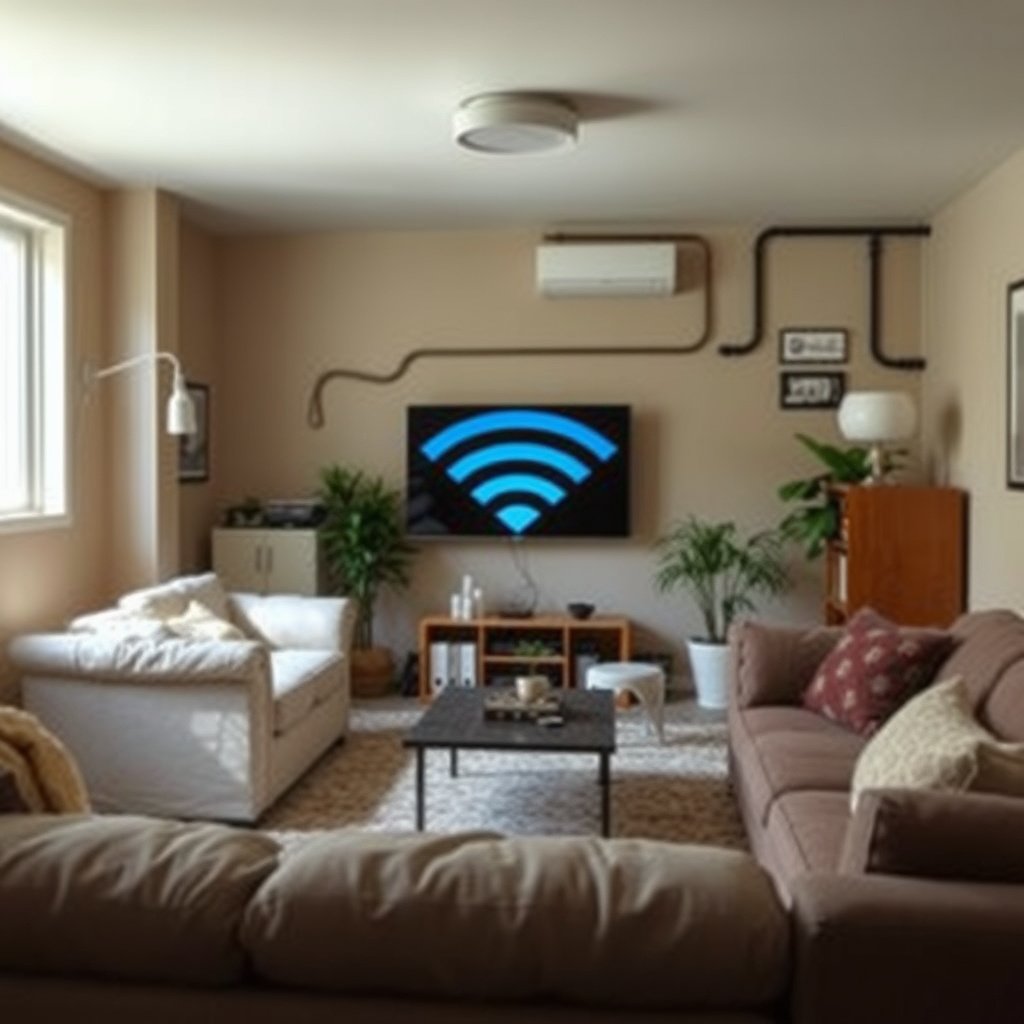
Basement Wi-Fi needs a usable path through or around the floor—not simply another transmitter downstairs. Concrete, masonry, metal ductwork, and utility equipment can weaken or obstruct that path.
A basement mesh node needs both a reliable upstream connection and adequate coverage of nearby devices.
Reinforced concrete combines dense material with metal reinforcement, making it particularly challenging for wireless connections. Furnaces, water heaters, and electrical enclosures can also obstruct signals. An open stairwell may provide a less obstructed route than the floor directly above a basement office.
Strong Wi-Fi bars measure the device’s connection to its access point, not the quality of the entire internet connection.
A laptop can show excellent reception from a basement node while video calls still freeze because that node struggles to reach the upstairs network. Internet service congestion and device limitations can produce similar symptoms, so compare basement performance with performance near the main router.
Choose Between Wired and Wireless Backhaul
Choose Ethernet backhaul when a practical cable route exists; choose wireless backhaul only where the nodes can maintain a usable connection. Backhaul is the connection carrying traffic between mesh nodes.
Ethernet backhaul removes the need for mesh nodes to communicate wirelessly through the basement ceiling.
For a concrete equipment example, TP-Link’s Deco X55 supports Ethernet backhaul and access-point mode. According to [TP-Link’s Deco X55 specifications](https://www.tp-link.com/us/home-networking/deco/deco-x55/#specifications), each unit has three Gigabit Ethernet ports, with advertised wireless rates of 2,402 Mbps on 5 GHz and 574 Mbps on 2.4 GHz. These manufacturer specifications are reference points for this 2026 guide, not measured basement speeds; wireless signaling rates are not application throughput.
A dedicated wireless backhaul radio does not eliminate interference or building-material barriers.
For wireless backhaul, prioritize a clear inter-floor path over proximity to the basement television. Before buying, verify Ethernet support, supported node combinations, and operating modes for the exact model and hardware version.
The following configurations show what does—and does not—avoid a wireless connection through the floor.
Seven Basement Network Configurations
| # | Configuration | Basement Uplink | Routing Device | Avoids Wireless Floor Crossing |
|---|---|---|---|---|
| 1 | Wired mesh, router mode | Ethernet | Main mesh unit | Yes |
| 2 | Wired mesh, access-point mode | Ethernet | Existing router | Yes |
| 3 | Wireless mesh, router mode | Wi-Fi | Main mesh unit | No |
| 4 | Wireless mesh, access-point mode | Wi-Fi | Existing router | No |
| 5 | Standalone wired access point | Ethernet | Existing router | Yes |
| 6 | Wireless range extender | Wi-Fi | Existing router | No |
| 7 | Direct-wired computer or console | Ethernet | Existing router | Yes |
Place and Set Up Basement Mesh Nodes
Start a wireless node near an open stairwell or another location with usable upstairs reception. For a wired node, prioritize coverage of the occupied basement area instead.
The best wireless-node location is not necessarily the location with the weakest existing Wi-Fi.
Keep nodes in the open, away from large metal objects and enclosed cabinets. Use the manufacturer’s placement guidance or connection-quality indicator, then test the basement desk, sofa, and gaming area. A favorable app indicator is a starting point, not proof that every application works reliably.
Ethernet backhaul allows basement node placement to prioritize local coverage rather than reception from upstairs.
Use a repeatable before-and-after method: keep the same client device, test locations, speed-test service, and background network activity. Record download and upload performance, latency, and interruptions during an actual call or stream. Change one placement variable at a time.
What Can Go Wrong
More nodes can increase wireless contention without repairing a weak backhaul connection. Relocate existing nodes and inspect their upstream links before purchasing another unit.
Adding mesh hardware does not repair an unreliable connection between floors.
Thick concrete floors or an enclosed utility room can make physically close nodes communicate poorly. Extra wireless hops can also consume airtime. Hardware compatibility creates another trap: products sharing a brand name do not necessarily belong to the same mesh ecosystem.
Double NAT can occur when an existing router and a mesh system both perform network address translation.
Network address translation (NAT) lets devices share an internet-facing address. Two routing layers may complicate inbound connections, port forwarding, or gaming. Either retain the existing router and use supported mesh access-point mode, or configure the upstream gateway appropriately so the mesh handles routing. Do not enable bridge mode blindly; provider-specific services may depend on the gateway configuration.
For Deco X55, follow TP-Link’s access-point-mode and Ethernet-backhaul instructions listed below. Access-point mode also changes which Deco gateway features remain available.
When Mesh Is Worth It—and When to Skip It
Mesh is worthwhile when coverage problems extend across multiple floors, especially if compatible equipment is already installed. A wired access point is often the simpler choice when only the basement needs coverage.
A working upstairs network does not need replacement solely because the basement has poor reception.
- Mesh advantages
- Coordinated administration, expandable coverage, and support for movement between compatible access points.
- Mesh disadvantages
- Equipment cost, placement constraints, and variable wireless-backhaul performance.
- Wired access-point alternative
- Adds basement Wi-Fi while retaining the existing router, although management and roaming behavior depend on the equipment.
A wired basement access point avoids wireless backhaul without requiring a whole-home mesh replacement.
Renters should check permission before drilling or installing permanent cabling. If only a stationary computer or console needs connectivity, a direct Ethernet connection may solve the problem without adding Wi-Fi hardware.
Basement Wi-Fi Setup Checklist
Confirm the connection path and operating mode before buying extra nodes. Evaluate success where people actually use the network.
– [ ] Identify the weak-coverage areas and check whether an Ethernet route is practical.
– [ ] Confirm hardware compatibility, choose the operating mode, and place wireless nodes where their upstream connection remains usable.
– [ ] Check performance in the actual use locations before purchasing additional nodes.
Basement Wi-Fi testing should include application reliability, not just signal bars.
Testing one placement change at a time makes the cause of performance changes easier to identify.
Sources and Home-Specific Evidence
Manufacturer documentation establishes supported configurations; home-specific testing establishes whether those configurations work in a particular basement. For a 2026 purchase, check regional specifications, hardware revisions, and current firmware guidance.
Manufacturer documentation—Deco X55 example:
– [Deco X55 specifications](https://www.tp-link.com/us/home-networking/deco/deco-x55/#specifications): ports, wireless signaling rates, and operating modes.
– [Deco Ethernet backhaul FAQ](https://www.tp-link.com/us/support/faq/1794/): supported wiring arrangements and backhaul considerations.
– [Using different Deco models together](https://www.tp-link.com/us/support/faq/2248/): supported mixed-model deployments.
– [Deco placement guidance](https://www.tp-link.com/us/support/faq/1446/): positioning recommendations.
– [Setting up Deco in access-point mode](https://www.tp-link.com/us/support/faq/1842/): configuration when retaining an existing router.
Manufacturer wireless specifications are not measurements of performance through a particular basement floor.
Home-specific evidence—not manufacturer specifications:
A documented floor plan and repeatable measurements provide stronger placement evidence than advertised coverage area alone.
For basement mesh Wi-Fi, prioritize the connection between nodes before adding more hardware. Start by checking for an Ethernet route or a workable wireless placement near the stairs, then verify coverage where you need it. If the basement is the only problem area, compare a wired access point with the cost and complexity of a mesh system before buying.
Frequently Asked Questions
What is the best mesh Wi‑Fi setup for a basement that has dead zones?
For basements with dead zones, choose a mesh system that supports strong backhaul options (Ethernet or dedicated wireless backhaul) so the signal doesn’t weaken across multiple hops. Place the main router on the main floor near the center of your home, then position mesh nodes partway down the route to the basement—often near the stairs or hallway leading to it. If your basement is concrete or wired with electrical interference, adding one extra node specifically for the basement can provide more reliable mesh Wi‑Fi coverage than relying on a single extender.
How can I improve mesh Wi‑Fi coverage in a basement with concrete walls?
Concrete walls absorb and reflect Wi‑Fi signals, so you’ll usually get better performance by using closer node placement and a stronger backhaul. If possible, run Ethernet to a basement access point or use a mesh node with an excellent placement location (near the ceiling or in the room with the most coverage needs). You can also reduce interference by switching your mesh or router channels, keeping nodes away from microwaves, metal shelving, and large appliances.
Why does my mesh Wi‑Fi keep dropping speeds when I’m in the basement?
Speed drops in basements are commonly caused by distance, signal attenuation through concrete, and multi-hop wireless backhaul that forces devices to “share” bandwidth. If the basement node is connecting over a weak wireless link, your internet may still be fine upstairs but throughput falls below what you expect downstairs. To fix this, try repositioning the basement node for better signal quality, add a second basement node, or enable wired backhaul (Ethernet) if your system supports it.
Which mesh Wi‑Fi nodes should I place in a basement for gaming or streaming?
For gaming and streaming, place a mesh node where your devices will connect most often—such as near an entertainment center, office desk, or the TV wall—rather than only at the basement entrance. Use a node that offers stable Wi‑Fi speeds and consider connecting gaming consoles or media devices via Ethernet using an optional Ethernet port if available. Keep the node elevated (higher on a wall or near the ceiling) and avoid enclosing it inside cabinets or behind metal ductwork for better mesh Wi‑Fi reliability.
What backhaul options work best for mesh Wi‑Fi in basements?
The best backhaul is wired Ethernet, because it provides consistent bandwidth and reduces latency compared with wireless backhaul. If Ethernet isn’t practical, many mesh systems offer dedicated wireless backhaul (a mesh backhaul radio) that improves basement performance over standard repeating. If your basement uses thick walls, aim to place nodes so they have a strong connection between them, minimizing the number of wireless hops needed for effective mesh Wi‑Fi coverage.
📅 Last Updated: October 16, 2026 | Topic: Mesh Wi-Fi for Basements | Content verified for accuracy and freshness.
References
- Wi-Fi mesh network indoor – Search Results – PubMed
- wireless LAN signal propagation building materials – Search Results – PubMed
- Wi-Fi extender repeater performance indoor – Search Results – PubMed
- Mesh networking
- IEEE 802.11s
- Radio propagation
- Wi-Fi
- https://scholar.google.com/scholar?q=mesh+Wi-Fi+basement+coverage Google Scholar
- https://scholar.google.com/scholar?q=IEEE+802.11s+indoor+mesh+network+performance Google Scholar
- https://scholar.google.com/scholar?q=Wi-Fi+signal+attenuation+concrete+basement Google Scholar




One thought on “Mesh Wi-Fi for Basements”