Mesh Wi-Fi can fix garage dead zones without new cabling, but only if the garage node has a strong connection to the rest of the network. For a detached garage beyond reliable wireless reach, a wired access point is the better choice. This guide answers whether mesh Wi-Fi will work in your garage—and when distance, walls, and signal loss make it the wrong investment.




Mesh Wi-Fi can extend coverage into a garage, but a wireless mesh node needs a reliable connection to the rest of the network—not just a power outlet inside the garage. For a detached garage or a signal blocked by thick walls, wired backhaul or a dedicated outdoor wireless bridge may be a better option. This guide explains how to choose an approach, position equipment, and check whether the connection meets your needs.
This is for homeowners who want reliable garage connectivity for cameras, garage-door controllers, workbench devices, or streaming, whether the garage is attached or detached.
Start With Your Garage’s Layout and Connection Needs
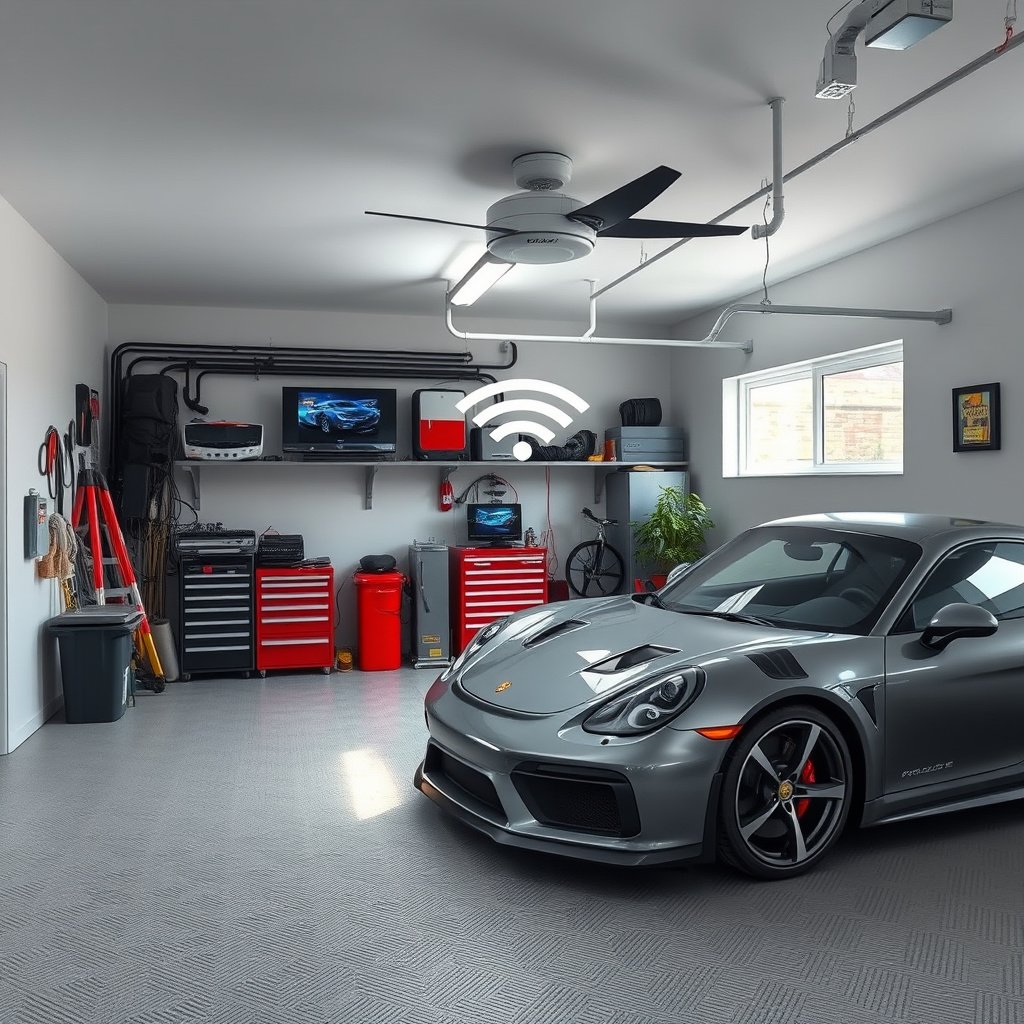
The right garage Wi-Fi setup depends on the signal path and the devices using it. An attached garage behind drywall presents a different challenge from a detached building with masonry walls and metal siding.
Map the route from the existing router to the garage. Note brick, concrete, foil-backed insulation, metal doors, and parked vehicles. Check where Wi-Fi becomes unreliable: inside the house, at the garage entrance, or only near the workbench.
Garage Wi-Fi planning should account for building materials and obstructions, not distance alone.
List each device and its requirements. Occasional browsing can tolerate interruptions that would undermine a security camera’s uploads. Streaming needs sustained download capacity; cloud cameras also depend on the home internet connection’s upload capacity.
A strong garage Wi-Fi signal does not guarantee sufficient internet upload capacity for security cameras.
Choose Between Wireless Mesh and a Wired Connection
Choose wireless mesh when a compatible node can maintain a dependable upstream connection. Choose Ethernet backhaul when a suitable cable route can bypass the obstructed wireless path.
Backhaul is the connection carrying traffic between a mesh node and the main network. Wireless backhaul uses radio; Ethernet backhaul uses cable. Connecting a camera to a wireless node’s Ethernet port does not make the node’s upstream connection wired.
Ethernet backhaul removes the wireless connection between mesh nodes as a potential garage-network bottleneck.
Check the exact model’s compatibility, Ethernet-backhaul support, available ports, and required topology. Wi-Fi certification alone does not make products from different mesh families interoperable. TP-Link’s [Ethernet-backhaul documentation](https://www.tp-link.com/us/support/faq/1794/) explains supported Deco arrangements and switching considerations.
- Wireless mesh
- Convenient without new cable, but dependent on placement and radio conditions.
- Ethernet or fiber connection
- Avoids wireless backhaul instability, but adds installation work and potentially trenching costs.
- Outdoor wireless bridge
- Connects buildings without trenching, but needs suitable mounting, alignment, clearance, and power.
An outdoor wireless bridge connects network locations; a separate garage access point may still be needed for local Wi-Fi.
For detached garages, obtain professional advice about cable routing, electrical separation, grounding, and local requirements. Fiber avoids a conductive data connection between buildings, although the garage still needs powered networking equipment. Mesh alone cannot reliably overcome every building separation.
Place the Garage Node Where It Can Still Connect
Start near the garage’s house-facing side or an intermediate location with usable upstream Wi-Fi. Do not begin in the deepest dead zone.
Use the mesh app’s connection assessment, then test actual devices. Move the node away from metal cabinets, electrical enclosures, and large appliances where practical. Compare performance with the garage door open and closed.
A wireless garage mesh node must receive a usable upstream signal before it can provide dependable local coverage.
Check environmental specifications before installation. An indoor unit can remain dry yet still exceed its temperature limits in an unconditioned garage.
According to TP-Link’s Deco X50 specifications, its operating range is 0–40°C (2026 planning reference). According to TP-Link’s Deco X50-Outdoor specifications, that model supports −30–60°C operation and IP65 protection (2026 planning reference). According to TP-Link’s EAP225-Outdoor specifications, that access point supports −30–70°C operation (2026 planning reference). These are manufacturer specifications, not garage test results.
Outdoor protection and operating-temperature limits are separate specifications; garage equipment must satisfy both.
The following examples illustrate those differences, not a universal buying recommendation. Confirm the regional product page and hardware revision before purchase.
Garage-Relevant TP-Link Equipment Specifications
| # | Equipment | Operating Temperature | Gigabit Ethernet Ports | Outdoor Protection |
|---|---|---|---|---|
| 1 | Deco X20 | 0–40°C | 2 | Indoor only |
| 2 | Deco X50 | 0–40°C | 3 | Indoor only |
| 3 | Deco X55 | 0–40°C | 3 | Indoor only |
| 4 | Deco X60 | 0–40°C | 2 | Indoor only |
| 5 | Deco XE75 | 0–40°C | 3 | Indoor only |
| 6 | Deco X50-Outdoor | −30–60°C | 2 | IP65 |
| 7 | EAP225-Outdoor | −30–70°C | 1 | IP65 |
EAP225-Outdoor belongs to TP-Link’s Omada range, not Deco; it is not a substitute Deco mesh node. IP65 protection also depends on following the installation instructions, including cable-entry sealing.
What Can Go Wrong With Garage Mesh Wi-Fi
The most common failure is placing a node where its upstream connection is already inadequate. Additional wireless hops can consume airtime and reduce available throughput, especially when receiving and retransmitting traffic on shared channels.
Adding wireless nodes cannot compensate for an unreliable connection between the garage and the home network.
A placement that works in an empty garage may fail when a vehicle is parked or a metal door closes. Test under normal conditions and at different times rather than accepting one successful speed test.
Separate coverage faults from onboarding problems. Some smart devices require 2.4 GHz Wi-Fi, particular security settings, or local communication with the setup phone. Guest-network isolation can prevent discovery even when internet access works.
A smart device’s setup failure can result from network settings rather than weak Wi-Fi coverage.
Consult the exact camera or controller manual before changing security settings. Avoid disabling network protections broadly.
When Mesh Is Worth Trying—and When to Skip It
Wireless mesh is worth trying when a compatible node maintains a stable connection near the garage and supports the actual workload. Its appeal is straightforward installation without a new cable route.
The best garage Wi-Fi arrangement is the simplest one that reliably supports the installed devices under normal conditions.
Another node adds cost, needs suitable placement, and cannot guarantee a stable link through masonry or metal. Faster advertised Wi-Fi does not eliminate those limitations.
Skip an indoor wireless-only extension when temperatures exceed its specifications or the house-to-garage link remains unstable. Consider appropriately rated equipment with wired backhaul or an outdoor bridge instead.
Outdoor-rated hardware addresses environmental exposure, but it does not automatically solve an obstructed wireless backhaul path.
Save This Garage Wi-Fi Checklist
Validate the installation with the devices you intend to use, not just the signal indicator on a phone.
– Before choosing equipment: Confirm mesh compatibility, garage conditions, device requirements, and available cable routes.
– Before settling on placement: Check the upstream connection, close the garage door, park vehicles normally, and test at the devices’ actual locations.
– Before calling it finished: Confirm cameras upload, controllers respond, and everyday tasks work consistently. Check simultaneous use and recovery after a routine restart.
Garage Wi-Fi testing should reproduce normal door positions, vehicle placement, and device activity.
Record node location, connection type, failures, and observed performance so alternative placements can be compared consistently.
Successful camera uploads and dependable controller responses are more useful acceptance criteria than signal bars alone.
Sources to Support the Final Setup
Use manufacturer documentation for compatibility, environmental limits, and installation requirements. For a 2026 purchase, match documentation to the exact regional model and hardware version.
Hardware revision and regional model differences can affect the specifications relevant to a garage installation.
– Mesh compatibility, placement, and backhaul: TP-Link’s [Deco X50 product documentation](https://www.tp-link.com/us/deco-mesh-wifi/product-family/deco-x50/) and [Ethernet-backhaul guidance](https://www.tp-link.com/us/support/faq/1794/).
– Table specifications: Official pages for [Deco X20](https://www.tp-link.com/us/deco-mesh-wifi/product-family/deco-x20/), [X55](https://www.tp-link.com/us/deco-mesh-wifi/product-family/deco-x55/), [X60](https://www.tp-link.com/us/deco-mesh-wifi/product-family/deco-x60/), [XE75](https://www.tp-link.com/us/deco-mesh-wifi/product-family/deco-xe75/), [X50-Outdoor](https://www.tp-link.com/us/deco-mesh-wifi/product-family/deco-x50-outdoor/), and [EAP225-Outdoor](https://www.tp-link.com/us/business-networking/omada-sdn-access-point/eap225-outdoor/).
– Outdoor bridge installation: TP-Link’s [CPE510 download center](https://www.tp-link.com/us/support/download/cpe510/) provides model-specific installation guides.
– Final device and cable documentation:
The final installation should follow the selected equipment’s instructions rather than generic outdoor-networking advice.
Mesh Wi-Fi is a practical garage option when the node has a dependable link back to the home network, but it is not a cure for every coverage gap. Start by checking the signal path and garage conditions, then test placement under normal use. If that link remains unreliable, choose a suitable wired or outdoor wireless connection rather than adding more nodes blindly.
Frequently Asked Questions
What’s the best mesh Wi-Fi setup for a garage from my house?
The best mesh Wi-Fi setup typically uses one node placed near the garage boundary (like at the back door or in a hallway closest to the garage) so the signal doesn’t have to punch through thick walls. If your garage is separate or has concrete/metal siding, add a dedicated mesh node inside the garage for more reliable coverage. Look for systems with strong radios, tri-band options, and an easy way to enable “backhaul” or wired Ethernet backhaul if possible.
How do I extend mesh Wi-Fi into a detached garage without losing speed?
For detached garages, the most reliable method is to run an Ethernet cable to a mesh node in the garage and use it as a wired backhaul connection, which usually preserves speeds much better than wireless repeating. If wiring isn’t feasible, place the node so it can maintain a strong link—often by locating it closer to the strongest signal path between the house and garage. Avoid placing the garage node behind several walls or metal surfaces, since those can severely weaken the wireless backhaul.
Why does my mesh Wi-Fi work in the driveway but fail inside the garage?
Garages often have RF-blocking materials like concrete, insulation with foil backing, and metal doors that attenuate Wi-Fi signals. Even if your mesh network looks strong outside, the garage interior can be too far from the nearest node or blocked by barriers, causing poor throughput and unstable connections. Adding a mesh Wi-Fi node inside the garage or optimizing node placement can resolve coverage drop-offs.
Which mesh Wi-Fi features matter most for garage coverage?
Prioritize mesh Wi-Fi systems with strong coverage performance, high-quality antennas, and the ability to support faster backhaul (tri-band models or wireless backhaul that prioritizes node-to-node traffic). Features like band steering, robust beamforming, and Wi-Fi 6/6E support can improve device reliability for smart garage door openers, cameras, and mobile phones. If you have multiple devices, also consider systems with good concurrent device capacity and simple app-based network management.
How can I improve garage Wi-Fi speeds for smart garage devices and security cameras?
Start by placing the garage mesh node centrally for the best coverage to where devices connect—especially near the garage door opener area and camera mounting points. If you’re using security cameras, aim for wired Ethernet to the camera when possible, or reserve enough bandwidth by reducing heavy uploads/downloads during peak times. You can also test speeds in the garage with your phone near the camera location and adjust node placement until the signal quality (RSSI/strength) is consistently strong.
📅 Last Updated: October 16, 2026 | Topic: Mesh Wi-Fi for Garages | Content verified for accuracy and freshness.
References
- Mesh networking
- Wi-Fi
- Wireless repeater
- IEEE 802.11
- mesh network wireless LAN indoor – Search Results – PubMed
- Wi-Fi propagation through walls indoor – Search Results – PubMed
- https://scholar.google.com/scholar?q=mesh+Wi-Fi+coverage+indoor+propagation Google Scholar
- https://scholar.google.com/scholar?q=EasyMesh+performance+study Google Scholar
- https://scholar.google.com/scholar?q=Wi-Fi+signal+penetration+metal+garage+door Google Scholar