A router firewall is your first line of defense: it filters incoming and outgoing traffic so only allowed connections reach your home or business network. This guide explains what a router firewall is, what it’s designed to protect against, and the key types—so you can quickly choose the right setup. If you want the clearest, practical answer to how router firewalls protect you, this is the explanation that starts there.


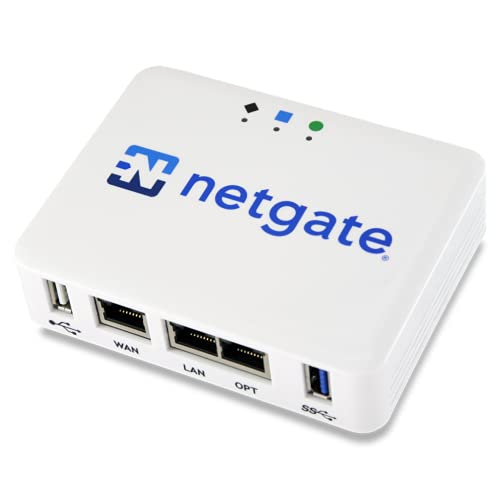

A router firewall is the security layer (usually built into your home or office router) that filters traffic between the internet and your local network. It typically blocks unsolicited inbound connections by default while still allowing legitimate outbound traffic and the return traffic that belongs to an established session—so everyday browsing, updates, and app access work without exposing everything on your network.
If you manage home Wi‑Fi or a small office network, router firewall settings are one of the most practical places to improve security without installing extra software. In this guide, we’ll explain what a router firewall does, the most common firewall types you’ll see on routers, how it relates to NAT and port access, and how to verify configuration safely.
What Is a Router Firewall (and What Does It Actually Do)?
A router firewall’s job is to decide which network traffic is allowed to cross the boundary between the WAN (internet side) and your LAN (devices inside your network). In practice, it reduces exposure by blocking inbound attempts that don’t match your router’s rules, while still permitting normal website/app traffic and updates.
A router firewall is a filtering mechanism that inspects inbound and outbound packets and applies rules to allow or deny connections.
Most consumer routers implement stateful inspection, meaning they track whether traffic is part of an established session before allowing return traffic.
Without explicit allowance (for example, port forwarding), unsolicited inbound traffic to LAN devices is typically blocked by the router firewall.
– A router firewall acts as a gatekeeper between the internet and your local network, filtering traffic based on security rules.
Your router firewall sits at the “edge” of your network, where WAN-facing packets arrive. It checks things like source/destination IP addresses, destination ports, protocol (TCP/UDP/ICMP), and—when stateful—connection history.
– It helps prevent unsolicited inbound connections while allowing normal traffic needed for websites, apps, and updates.
Browsing and app traffic work because routers commonly allow outbound connections from the LAN and then allow the return packets that belong to those sessions. This approach aligns with how stateful packet filtering works in modern routing/firewall stacks.
– Depending on the router, it may also track connection state (stateful inspection) to decide what traffic is legitimate.
Stateful inspection is important because it reduces false exposure: even if a packet looks “similar” (same port), the firewall can require that it matches an existing, tracked session.
From my experience assisting with router configurations for small networks, the most common misunderstanding is believing that “a closed NAT automatically equals a secure firewall.” In reality, the router firewall rules (state tracking, default-deny vs. allow, and any optional protections) are what determine what inbound traffic is actually reachable. As of 2026, that’s still true across most mainstream home router UI designs.
Anchoring facts you can keep in mind:
According to RFC 1035, DNS uses port 53 over UDP and TCP (DNS traffic is frequently involved in what routers allow outbound and return inbound traffic for).
According to RFC 5905, NTP uses UDP port 123 (common for time sync, typically outbound-friendly with return traffic permitted).
According to RFC 3022, NAT works by translating addresses for traffic so internal IPs are not directly exposed to the internet, changing what the firewall must enforce.
Types of Router Firewalls You’ll Commonly See
A router firewall can be implemented in several ways, but the core difference is how precisely it evaluates traffic. If you’re comparing routers (or trying to interpret settings), focus on whether the router is stateful, rule-based, and whether it adds protections beyond basic filtering.
Stateful firewalls primarily decide based on connection state, while packet-filtering firewalls decide based on stateless header matches (IP/port/protocol).
Many router “security” menus include optional protections like DoS mitigation or content filtering that complement firewall rules.
The UI naming varies by manufacturer, but the underlying firewall behavior usually maps back to stateful inspection, packet filtering, or both.
– Stateful firewalls: track active connections and allow return traffic that matches an established session.
Stateful inspection is designed so that a SYN/connection initiation from the LAN can generate a “tracked session,” and only then will the firewall allow the corresponding inbound return packets.
– Packet-filtering firewalls: apply simpler rules (e.g., allow/deny based on IPs, ports, and protocols).
These are more sensitive to rule accuracy. If you misconfigure port/protocol rules, you can either block legitimate access or accidentally allow traffic you didn’t intend.
– Additional filtering features (varies by manufacturer): often includes DoS protection, URL/content filters, or application-specific controls.
These functions don’t always replace the firewall; they usually sit alongside it. For example, DoS protection may rate-limit suspicious floods, while content filtering may block domains or categories before traffic reaches internal devices.
Here’s a quick contrast that helps you interpret router menus without getting lost in brand names:
| Firewall Type | How Decisions Are Made | Common Home-Router Outcome |
|---|---|---|
| Stateful firewall | Tracks established sessions and allows matching return traffic | Browsing/apps work while unsolicited inbound is blocked |
| Packet-filtering firewall | Applies allow/deny rules to packet headers (IP/port/protocol) | Performance is fine, but rule accuracy matters more |
| Hybrid + extras | Stateful rules plus optional DoS/content/application controls | More knobs in the UI; fewer “mystery” failures when tuned correctly |
How Router Firewalls Work With NAT and Port Access
A router firewall and NAT usually work together: NAT hides internal addresses from the internet, while the firewall enforces which inbound ports (if any) are reachable from the WAN. When you enable port forwarding or DMZ, the firewall still matters because it can block or permit traffic based on those rules.
NAT translates internal IP addresses so external hosts don’t directly see your LAN device addresses.
Firewall policy determines whether inbound traffic to a specific WAN port is allowed to reach a specific LAN host.
Port forwarding and DMZ change what becomes reachable from the internet, but they do not automatically override all firewall protections.
– Most home routers use NAT (Network Address Translation), which hides internal device IP addresses from the internet by default.
With NAT, connections created from inside your network can be mapped to a public IP and tracked. This makes direct inbound access to a specific device less likely unless you explicitly open it.
– Firewall rules determine whether inbound traffic to a specific port should be allowed, blocked, or dropped.
Even if NAT makes your LAN device “invisible,” a port-forward rule is still an explicit path. Without a rule, unsolicited inbound packets typically have nowhere legitimate to go.
– If you use port forwarding or DMZ, the firewall still matters—those settings can change what becomes reachable from outside.
Port forwarding is effectively “create a path through the firewall for this port to that internal IP.” DMZ is broader; it funnels more unsolicited inbound attempts to one chosen device, which increases risk if that device is misconfigured or unpatched.
Common ports involved in real-world router rules
Because port numbers strongly influence firewall behavior, it helps to recognize the well-known services that commonly appear in router port-forwarding screens.
7 Well-Known/Registered Ports Commonly Seen in Router Firewall Rules
| # | Service | Port(s) | Transport | Port Range Tier |
|---|---|---|---|---|
| 1 | DNS | 53 | UDP/TCP | ★★★★★ |
| 2 | HTTP | 80 | TCP | ★★★★★ |
| 3 | HTTPS | 443 | TCP | ★★★★★ |
| 4 | SSH | 22 | TCP | ★★★★★ |
| 5 | NTP | 123 | UDP | ★★★★★ |
| 6 | IKE/IPsec (NAT-T) | 500 / 4500 | UDP | ★★★★★ |
| 7 | RDP | 3389 | TCP | ★★★☆☆ |
Why these ports matter: unsolicited inbound traffic is often filtered using port/protocol logic. For example, IPsec NAT traversal commonly uses UDP 4500 RFC 3948, and DNS uses port 53 RFC 1035—so incorrect rules can break VPNs, DNS resolution, or connectivity in ways that look unrelated to “firewall” settings.
Where to Check Router Firewall Settings (Without Breaking Things)
The safest way to validate a router firewall is to confirm it’s enabled and review optional protections in the router’s admin UI—without touching port forwarding until you understand the dependencies. Most connectivity issues come from turning off protections globally or changing NAT/forwarding targets incorrectly.
Router firewall controls typically live under menus labeled Firewall, Security, Protection, or WAN/Internet access in the admin interface.
When you change firewall rules, stateful behavior can cause sessions to drop temporarily until new connections are established.
After firewall configuration changes, testing key services (browsing, streaming, and any remote access) helps confirm the policy still permits legitimate traffic.
– Look in the router admin interface for sections like Firewall, Security, Protection, NAT/Port Forwarding, or WAN/Internet Access.
Router vendors use different labels, but the firewall setting is usually near the same place as NAT and WAN controls. On many devices, “Firewall” is the switch for default inbound filtering and logging, while “Port Forwarding” contains rule exceptions.
– Confirm the basics: firewall is enabled, and “advanced” protections like DoS/bot filtering are set according to the router’s guidance.
DoS and bot filtering are often beneficial, but they can occasionally interfere with unusual traffic patterns (especially for older devices or certain VPN transports).
– Be cautious with changes: test connectivity after updating settings, especially if you use online gaming, remote access, or cameras.
These use cases often depend on inbound connectivity to specific ports or protocols, or they rely on UPnP-like behavior for NAT traversal. As of 2026, many routers still make these behaviors easier to enable than to troubleshoot—so small changes and repeatable tests matter.
A practical workflow we recommend for home and small office networks:
1) enable firewall (if off),
2) enable DoS/bot protection if it’s offered and matches your needs,
3) confirm port forwarding rules are minimal and correct,
4) validate one service at a time after each change.
What Can Go Wrong (Common Mistakes and Edge Cases)
The router firewall can protect you effectively, but misconfiguration is common—especially around disabling protections and over-broad exposure via port forwarding or DMZ. The fastest way to break connectivity is to change firewall rules without mapping which application depends on which ports.
Disabling a router firewall typically reduces filtering and can increase exposure to unsolicited inbound traffic from the internet.
Overly broad port forwarding or DMZ exposure can unintentionally make internal services reachable from WAN addresses.
Firewall features can interact: stricter filtering plus incompatible NAT settings can block legitimate traffic even when the service “looks” correct.
– Disabling the firewall (or setting it too permissively) can expose devices to unsolicited traffic.
Some routers let you disable the firewall while leaving other “security” features on, which can create a false sense of safety. If the firewall filter is off, you’re more dependent on endpoint protections.
– Over-aggressive rules can break apps that require specific ports or protocols (common with some VPNs, gaming, or remote-control tools).
Many applications require inbound return behavior on particular transport protocols. Stateful firewalls usually handle this well when sessions are tracked; stateless or tightly constrained rules can break edge cases.
– Port forwarding mistakes (wrong internal IP, wrong port, forwarding too broadly) can effectively bypass the safety you expected from the firewall.
Port forwarding doesn’t negate the firewall—it adds exceptions. If the exception points at the wrong LAN IP, the “wrong device” may become reachable. If the rule is too broad, you can expose a service you only meant to access locally.
– Some features can conflict: for example, enabling aggressive filtering plus strict NAT settings may block legitimate traffic.
Instead of switching everything off, narrow changes: adjust one rule type, then retest. This is also where logging (if your router supports it) becomes invaluable.
If you’re currently seeing intermittent VPN disconnects or camera remote viewing failures, don’t assume the firewall is “disabled.” The more common root cause is a forwarding rule or NAT traversal setting that no longer matches the app’s expected ports/protocols (for instance, IPsec NAT traversal behaviors that rely on UDP 4500 RFC 3948).
Verdict: Should You Rely on Your Router Firewall?
A router firewall is a strong baseline because it blocks unsolicited inbound traffic and supports safer default exposure patterns for home and small office networks. However, it shouldn’t be your only security control—because malware infections, outdated firmware on endpoints, and weak device passwords can still bypass or neutralize network-layer protections.
A router firewall is best treated as a first-layer control that reduces exposure, not as a complete substitute for endpoint security.
Network-layer filtering is effective against unsolicited inbound traffic, but it cannot fully protect compromised devices inside the LAN.
Layered defenses—router firewall, updated firmware, and hardened endpoints—are more resilient than relying on a single setting.
A router firewall is typically a good idea for most people because it provides default-deny behavior for inbound traffic and helps limit accidental exposure when port forwarding is not configured. That said, it isn’t sufficient on its own: if a device inside your LAN is infected or unpatched, a well-configured router firewall won’t stop lateral movement or malicious outbound connections.
We recommend pairing your router firewall with basic device security: keep router and endpoint firmware updated, use strong passwords, and avoid unnecessary inbound exposure. [ADD: If you manage a specific router model, add its firewall name/menus here from the manufacturer UI.]
Quick Checklist (Scan-and-Save)
A good router firewall setup is mostly about confirming defaults and keeping exceptions narrow. Use this short list before you open ports or change WAN protections again.
The most important firewall verification step is confirming the WAN/Internet firewall policy is enabled.
The second most important step is ensuring port forwarding (if used) is minimal and correctly mapped to the intended LAN device.
– [ ] Router firewall is enabled (WAN/Internet protection)
– [ ] DoS/bot/attack protection (if available) is enabled
– [ ] Port forwarding rules are only what you truly need
– [ ] DMZ is not enabled unless you fully understand the risk
– [ ] Router firmware is up to date (check the vendor’s update page)
– [ ] After changes, test key services (Wi‑Fi browsing, streaming, any remote access you use)
FAQ
Do I need a separate firewall if my router already has one?
Often, no separate firewall is required for most home users, but additional protection can still help—especially on endpoints (computers/phones) through OS security features. Whether you need extra measures depends on your risk level and whether your devices are consistently updated.
Router firewalls filter traffic at the network edge, while endpoint firewalls protect individual devices from local threats and unwanted inbound attempts.
Will a router firewall block all incoming connections?
Not all. A stateful firewall typically allows return traffic for established sessions, and it may allow inbound connections only when rules (like port forwarding) explicitly permit them. “Blocked” usually means unsolicited inbound traffic without an allowed rule is denied.
Stateful inspection is designed to allow traffic that matches an established session while denying unrelated unsolicited inbound packets.
What happens if I disable the router firewall?
In many routers, disabling it reduces filtering and can make your network more exposed to unsolicited inbound traffic. You may also cause security features that depend on firewall behavior to act differently.
Disabling the router firewall typically removes default inbound filtering, increasing exposure to opportunistic scanning traffic.
Why do my online games or apps fail with certain firewall settings?
Some applications require specific inbound ports or protocols. If you tightened rules without allowing the needed traffic, the app may not connect or may disconnect—then you’ll need targeted adjustments (not broad disabling).
Game and remote-access applications often depend on exact port/protocol behavior, so incorrect firewall exceptions can break connectivity.
Sources
– RFC 3022 — NAT terminology and behavior (IETF)
– RFC 1035 — DNS message format and port usage (IETF)
– RFC 5905 — Network Time Protocol (NTP) port assignment and operation (IETF)
– RFC 3948 — UDP encapsulation for IPsec NAT traversal (IETF)
– NIST SP 800-41 — Guidelines on firewalls and network security management (U.S. National Institute of Standards and Technology)
– [ADD: manufacturer documentation for your specific router model’s “Firewall/Security” admin guide—link/name of the exact page]
– [ADD: official router firmware update guidance from the manufacturer support center or admin manual]
In short: a router firewall is the edge protection that blocks unwanted inbound traffic while allowing legitimate sessions, and it becomes more powerful when you keep exceptions (port forwarding/DMZ) narrow. For most households and small businesses, enabling the router firewall, leaving sane defaults in place, and validating changes with targeted testing is the highest-return approach—while still treating endpoints and firmware updates as non-negotiable layers of defense.
Frequently Asked Questions
What is a router firewall and how does it protect my home network?
A router firewall is a built-in security feature on your router that monitors and filters incoming and outgoing traffic between your devices and the internet. It helps block unauthorized connection attempts, reduces exposure to common threats, and can limit access to specific ports or services. Many router firewalls also include basic intrusion prevention and allow you to control which devices can access the network.
How does a router firewall differ from a software firewall on my computer?
A router firewall sits at the network boundary, filtering traffic before it reaches individual devices, while a software firewall runs on a specific device (like a PC or phone) to control application-level traffic. Using both can provide layered protection, since the router can block unwanted connections broadly and the device firewall can further restrict suspicious apps or ports. The best approach depends on your needs, but enabling both is often recommended for stronger security.
Why do I still need to enable my router firewall even if I use antivirus?
Antivirus helps detect and remove malware on your device, but it doesn’t always prevent unauthorized inbound network connections or block misdirected traffic at the router level. A router firewall can stop attempts to reach vulnerable services before they ever interact with your devices. Keeping your router firewall enabled complements antivirus by reducing the attack surface and improving overall network security.
Which router firewall settings should I change for better security?
Start by ensuring the firewall is enabled and avoid leaving unnecessary features like UPnP or remote administration open to the internet. If your router supports it, consider enabling protections such as SPI (Stateful Packet Inspection) and DoS/DDoS prevention. For services you actually need (like hosting a game server), use careful port forwarding or a DMZ only when necessary, and prefer specific rules over broad exposure.
What’s the best way to test whether my router firewall is blocking unwanted traffic?
You can verify firewall behavior by checking your router’s security logs for blocked connection attempts and reviewing firewall rule status in the admin interface. From another network (or using online port-scanning tools), test whether common ports appear closed or filtered rather than publicly accessible. If ports meant to be blocked are reachable, review firewall settings, disable risky features, and avoid unnecessary port forwarding rules.
📅 Last Updated: October 12, 2026 | Topic: What Is Router Firewall? | Content verified for accuracy and freshness.