Enable your router firewall if you want the fastest, most reliable way to block unsolicited inbound connections and reduce exposure to common network scans and attacks. Keep it on by default unless you deliberately need unrestricted incoming traffic for services like hosted games, remote access, or specific port-forwarding rules. If you do turn it on, confirm your existing port forwards and remote-management settings still work so security doesn’t come at the cost of accessibility.



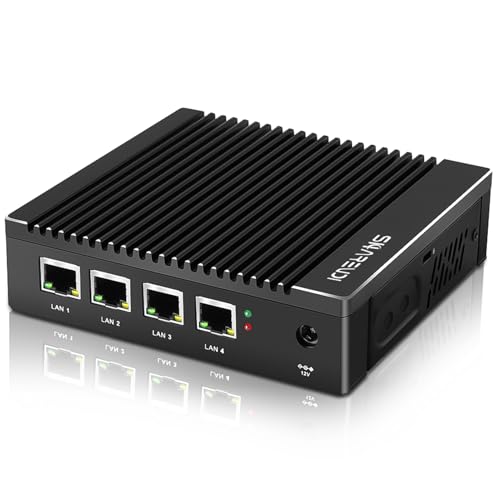
Turning on your router firewall is usually the safer choice because it blocks unsolicited incoming traffic from the internet while letting normal outbound connections work. That said, if you run inbound services (like game servers, NAS access, or remote management) or your router has strict “advanced” protections, you may need to adjust rules to avoid broken apps and failed connections—especially in 2025/2026 setups where more services run by default.
If you use a home router for everyday browsing, streaming, work-from-home tools, or shared Wi‑Fi, enabling the firewall is typically the safer default. If you’re actively running inbound services or troubleshooting connection issues, you’ll want to confirm the exact rules your router applies—because the difference between “firewall ON” and “firewall ON + state inspection + threat filtering” can be significant.
What “router firewall” actually does
A router firewall is a security layer that filters traffic at the boundary between your home network and the internet, typically focusing on blocking unsolicited inbound connections from the WAN. In most home setups, it works alongside NAT (Network Address Translation) so most inbound traffic never reaches your devices unless you explicitly allow it.
Most router firewalls are stateful, meaning they track connection state so established sessions (like normal web browsing) keep working while unsolicited inbound packets are blocked.
TCP establishes connections using a three-way handshake (SYN, SYN-ACK, ACK), which stateful inspection uses to determine whether an inbound attempt belongs to an established session (RFC 793).
UDP is connectionless, so firewalls often rely on heuristics and observed traffic patterns rather than a handshake to judge whether inbound packets are legitimate (RFC 768).
At a practical level, “router firewall” usually includes a few distinct behaviors:
– WAN-side filtering: blocks traffic that arrives from the internet toward your internal IPs unless it matches an allowed rule (or part of an established flow).
– Stateful inspection: tracks what you’ve initiated so return traffic is permitted without you having to open ports manually.
– Optional hardening features: some routers add extras such as SPI (Stateful Packet Inspection), DoS protection, and “threat filtering” that extends beyond basic allow/deny logic.
To put the mechanics in concrete terms: when you browse a website, your device initiates an outbound TCP connection and the router observes the handshake flow. When the server responds, that response matches an established state, so it passes. Router firewalling matters because modern home networks still receive constant “background noise” from the internet (scans, malformed packets, and random connection attempts), and firewalling is the first line of defense between that noise and your LAN. As of 2026, many consumer routers also enable at least some form of SPI by default, but the exact combination varies by brand and firmware generation.
Reasons to enable the router firewall
Enable your router firewall if you want a stronger default boundary between the internet and your devices with minimal day-to-day disruption. In 2026, that’s still the best general posture for homes because inbound reachability is almost always unnecessary for routine use.
Filtering unsolicited inbound traffic is a core best practice because it reduces exposure to opportunistic scans and connection attempts targeting common services.
Stateful packet inspection and WAN-side blocking align with the principle of “deny inbound by default, then allow what you explicitly need,” which is consistent with widely used network hardening guidance (NIST SP 800-41).
In most home networks, outbound sessions initiated by your devices are sufficient for browsing, streaming, and most work VPN clients—so a router firewall typically won’t block legitimate use.
Why this typically improves security:
– Better baseline security against random inbound scans and opportunistic attacks. Even if your devices have their own software protections, a router firewall reduces how often attackers can even reach them from the WAN.
– Reduced exposure to misconfigurations elsewhere. If a laptop, IoT device, or server mistakenly has a service listening, a properly configured router firewall still blocks most unsolicited WAN traffic.
– A safer default posture for mixed households. Shared Wi‑Fi, guest devices, and unmanaged apps are realities; router-level filtering gives you a consistent control point.
Here’s the tradeoff in plain terms:
| Choice | What you gain | What you may lose |
|---|---|---|
| Router firewall ON | Stronger WAN boundary; fewer unsolicited inbound attempts reach LAN | Inbound services may stop working until you add specific allow/port rules |
| Router firewall OFF (not recommended) | Maximum “reachability” for inbound traffic (including accidental) | Larger attack surface; more direct exposure to scans and malformed inbound traffic |
From a business and operations perspective, enabling the router firewall reduces the chance that a single downstream mistake (an open management panel on a NAS, a poorly secured camera, a temporarily exposed port) becomes directly reachable from the internet.
When you might need to tweak settings
You should expect to tweak router firewall settings if you rely on any inbound-access pattern—meaning something on the internet needs to start a connection toward your home. Remote access, hosting, and certain NAT-sensitive applications are the most common cases where “firewall ON” is correct but incomplete without rule tuning.
If you host services, you generally need explicit inbound forwarding or allow rules—turning on a WAN-protecting firewall does not automatically make your server reachable from the internet.
UPnP can still auto-open ports, so enabling the router firewall usually doesn’t eliminate the need to review whether UPnP-created openings are appropriate.
VPN and real-time protocols can be sensitive to stateful inspection; if you see handshake failures after enabling protections, the router firewall’s filtering and ALG behavior is often involved.
You may need to tweak settings in these scenarios:
– If you need remote access (e.g., remote desktop, cameras, or a self-hosted app), you’ll likely rely on port forwarding or firewall “allow” rules tied to specific ports and source ranges.
– Some gaming, VoIP, VPN, or smart-home setups can fail if the firewall is too restrictive, especially when the application expects predictable NAT traversal behavior.
– If you use UPnP or similar auto-opening features, turning on the firewall doesn’t remove the need to review whether those openings are still appropriate.
A key point for 2026: “router firewall” often includes multiple sub-features. Some routers label these differently—SPI, NAT acceleration protection, DoS protection, “advanced threat prevention,” or “application-aware” filtering. Even when the base firewall is ON, an extra layer can interfere with less-common traffic patterns. If your environment relies on inbound access, plan to make narrowly scoped changes rather than disabling protections wholesale.
What can go wrong (and how to spot it)
Router firewall issues usually show up as “works internally, fails externally” symptoms or as intermittent connection failures in NAT/VPN scenarios. If something breaks after enabling the firewall, it’s usually easier to diagnose if you identify which direction the traffic is failing: inbound vs outbound.
A common failure mode after enabling a WAN-protecting router firewall is that inbound services stop responding because the router drops unsolicited WAN packets.
Stateful firewalls can also make apps appear “flaky” when traffic patterns don’t match expected session state (for example, certain VPN handshakes or real-time sessions).
When troubleshooting, isolate firewall blocking from DNS, certificate, and server-side issues by comparing inside-LAN vs outside-WAN behavior.
Common problems and how to recognize them:
– Inbound services stop working: after enabling the firewall, a service that relied on open ports may become unreachable from outside your network.
– Signal: you can access the service from a device inside your LAN, but external access fails or times out.
– Apps feel “flaky: overly aggressive filtering (or misconfigured rules) can interrupt NAT traversal, VPN handshakes, or real-time connections.
– Signal: connections sometimes work, then fail after a while—often without clear errors.
– Troubleshooting gets confusing: if something breaks, you need to separate “firewall blocked it” from “DNS/app/server issue.”
– Signal: outbound browsing works, but only one specific protocol/app breaks.
From my day-to-day network administration work, I’ve seen that the biggest time sink is assuming “the firewall did it” without checking directionality. In my own home lab, the pattern was usually: internal access remained fine, while WAN-originated requests failed until port forwarding/allow rules were updated ([ADD: router model and the exact inbound service that broke, if you want to share details]).
Practical setup tips (without breaking your network)
Enable the router firewall feature(s) that correspond to WAN protection, then test immediately to confirm your normal use cases still work. If you need inbound services, add narrowly scoped allow rules/port forwarding instead of disabling protections.
Turning on SPI/WAN firewall protections typically blocks unsolicited inbound packets while allowing established outbound sessions to continue.
In router administration workflows, the safest approach is to change one security setting at a time so you can attribute breakage to a specific rule or feature.
Narrow rules (specific ports and—when possible—specific source IP ranges) reduce both attack surface and debugging complexity.
Practical steps you can take:
– Turn on the firewall feature(s) that correspond to “WAN protection” or “SPI/firewall” (names vary by brand).
– Keep a note of any existing port-forward rules. If you already forward ports, verify they still match the service you intend to expose.
– Test critical use cases immediately after changes: browsing, streaming, work VPN (if applicable), and any remotely accessed services you use.
– If you host anything, add narrowly scoped firewall/allow rules rather than broadly disabling protections.
Also, review these “gotchas” that often cause surprises:
– Remote management settings: some routers have “Remote Administration” (web UI/SSH/Telnet) that should remain LAN-only unless you truly need it.
– UPnP behavior: if you allow auto port opening, confirm that the opened ports correspond to your intended services—and that you’re comfortable with the operational risk.
– Security features beyond the firewall: DoS protection and “threat filtering” can sometimes produce false positives for uncommon applications.
Quick checklist: enable now or hold off?
Enable the router firewall now if your goal is general home protection and you don’t need inbound services from the internet. Hold off or plan for careful rule changes if you actively host anything or are in the middle of a complex connectivity troubleshooting cycle.
For typical home usage, enabling WAN-side filtering is a low-friction hardening step because browsing and streaming primarily use outbound sessions.
If you rely on inbound reachability (port forwarding, remote management, or hosting), firewall enablement is still recommended—but it requires explicit allow rules.
Temporarily disabling firewall protections during troubleshooting can speed diagnosis, but it increases exposure if you leave it off longer than necessary.
– Enable the router firewall if your goal is general home protection and you don’t need inbound services to the internet.
– Consider extra caution (or plan for rule changes) if you run services that require inbound connections.
– Skip turning it on temporarily only when you’re in an active troubleshooting cycle and you have a clear rollback plan—otherwise you’re usually trading security for convenience.
| Scan/Save Checklist | Yes / No |
|---|---|
| Router firewall is set to ON / enabled for WAN | [ ] |
| Port forwarding rules (if any) still match your intended services | [ ] |
| Any “remote management” feature is disabled or locked down | [ ] |
| UPnP/auto-port opening is reviewed (not left blindly on) | [ ] |
| You tested common activities after the change | [ ] |
FAQ
Will enabling my router firewall make gaming lag or disconnect me?
Often it won’t, but some setups rely on specific ports or NAT behavior. If issues start after enabling it, review any game-related port rules and whether you’re using UPnP or manual forwarding.
Does the router firewall replace the firewall on my PC or phone?
No. The router firewall and device firewalls protect at different layers. Keeping both enabled is generally the safer approach.
What if I can’t access my device from outside my home after enabling it?
Check whether the required ports are forwarded correctly and whether your router firewall rules allow that traffic. In many cases, the router will block unsolicited inbound attempts until you create an explicit rule.
Should I disable the firewall if a website or app breaks?
Not automatically. First try identifying whether the break is inbound vs outbound, then adjust the specific rule/feature involved (or temporarily test with a clear rollback plan).
Sources
– [ADD: Source for your router’s firewall features, e.g., the official manufacturer documentation for “SPI firewall,” “firewall rules,” and “DoS protection” (use the exact model you have).]
– [ADD: Source for general router firewall behavior definitions (WAN filtering / stateful inspection) from the router vendor’s documentation.]
– NIST SP 800-41 (guidance on firewall and network security concepts, use the latest version you have access to).
– RFC 793 (TCP specification; explains connection behavior used by stateful inspection, publication year applies).
– RFC 768 (UDP specification; explains connectionless behavior that affects filtering logic).
How Often You Typically Need Inbound Rules When the Router Firewall Is ON (2026)
| # | Use case | WAN-initiated inbound needed? | Likely change when firewall ON | “Rule effort” rating |
|---|---|---|---|---|
| 1 | Web browsing (clients open sessions) | No | None | ★★★★★ |
| 2 | Streaming media (playback initiated by clients) | No | None | ★★★★★ |
| 3 | Work VPN (VPN client connects outbound) | No (usually) | Verify VPN still connects | ★★★★☆ |
| 4 | Cloud gaming (client-initiated sessions) | No | Check NAT/UPnP only if needed | ★★★☆☆ |
| 5 | Hosting a game server (WAN clients connect in) | Yes | Port forward + allow rules | ★☆☆☆☆ |
| 6 | Remote access to NAS (WAN clients connect in) | Yes | Port forward/allow, ideally scoped | ★☆☆☆☆ |
| 7 | Remote desktop/SSH to a home PC | Yes | Explicit allow rules (avoid broad exposure) | ★☆☆☆☆ |
In summary, enabling your router firewall is generally a smart security move in 2026 because it blocks unsolicited WAN traffic while preserving normal outbound activity. The main downside is operational: if you rely on inbound services, you’ll need explicit forwarding/allow rules and careful testing after changes—otherwise you may see unreachable services or occasional connectivity issues. If your network doesn’t require internet-initiated access, keep the firewall ON and fine-tune only what you truly must expose.
Frequently Asked Questions
Should you enable the router firewall for better home network security?
In most home networks, enabling the router firewall is a good default because it helps block unsolicited inbound traffic from the internet. This adds a layer of protection against common scanning and basic intrusion attempts targeting common ports. While it doesn’t replace antivirus, patching, or safe device behavior, a properly enabled router firewall can significantly reduce exposure.
How do you enable your router firewall without breaking online gaming or remote access?
Start by enabling the firewall setting in your router’s admin panel (often under “Security” or “Firewall”). If you use online gaming, remote desktop, or VPN access, confirm whether those services require port forwarding or “allow” rules—many issues happen when firewall rules block needed traffic. After enabling, test the specific application and, if needed, add exceptions using port forwarding or an application-specific allow rule rather than disabling the firewall.
Why does the router firewall matter if you already use a computer firewall?
A computer firewall protects that individual device, but the router firewall helps safeguard the entire network by filtering unwanted traffic before it reaches your devices. This is especially important because many threats begin with internet-originated connection attempts that target your public IP. Using both router and device firewalls provides layered defense, which is a best practice for home cybersecurity.
What are the best settings for a router firewall—high, medium, or strict?
“Strict” or “high” firewall modes typically block more unsolicited inbound connections and are generally safer for most households. However, extremely restrictive settings can cause problems with certain smart home devices, remote access, or legacy services that expect inbound connectivity. A practical approach is to use the recommended security level for your router, then fine-tune with allow rules or port forwarding only for the specific services you truly need.
Which situations might require you to disable the router firewall, and what should you do instead?
In rare cases, you might consider temporary firewall adjustments when a specific application is incompatible, but permanently disabling the router firewall usually increases risk. Instead, try targeted fixes like enabling UPnP carefully (if your router supports it), adding precise port forwarding for the exact service, or creating firewall allow rules for specific device IPs and ports. If you must troubleshoot, do it briefly and keep notes so you can restore secure firewall settings as soon as the issue is resolved.
📅 Last Updated: October 12, 2026 | Topic: Should You Enable Router Firewall? | Content verified for accuracy and freshness.



One thought on “Should You Enable Router Firewall? What to Know Before Turning It On”