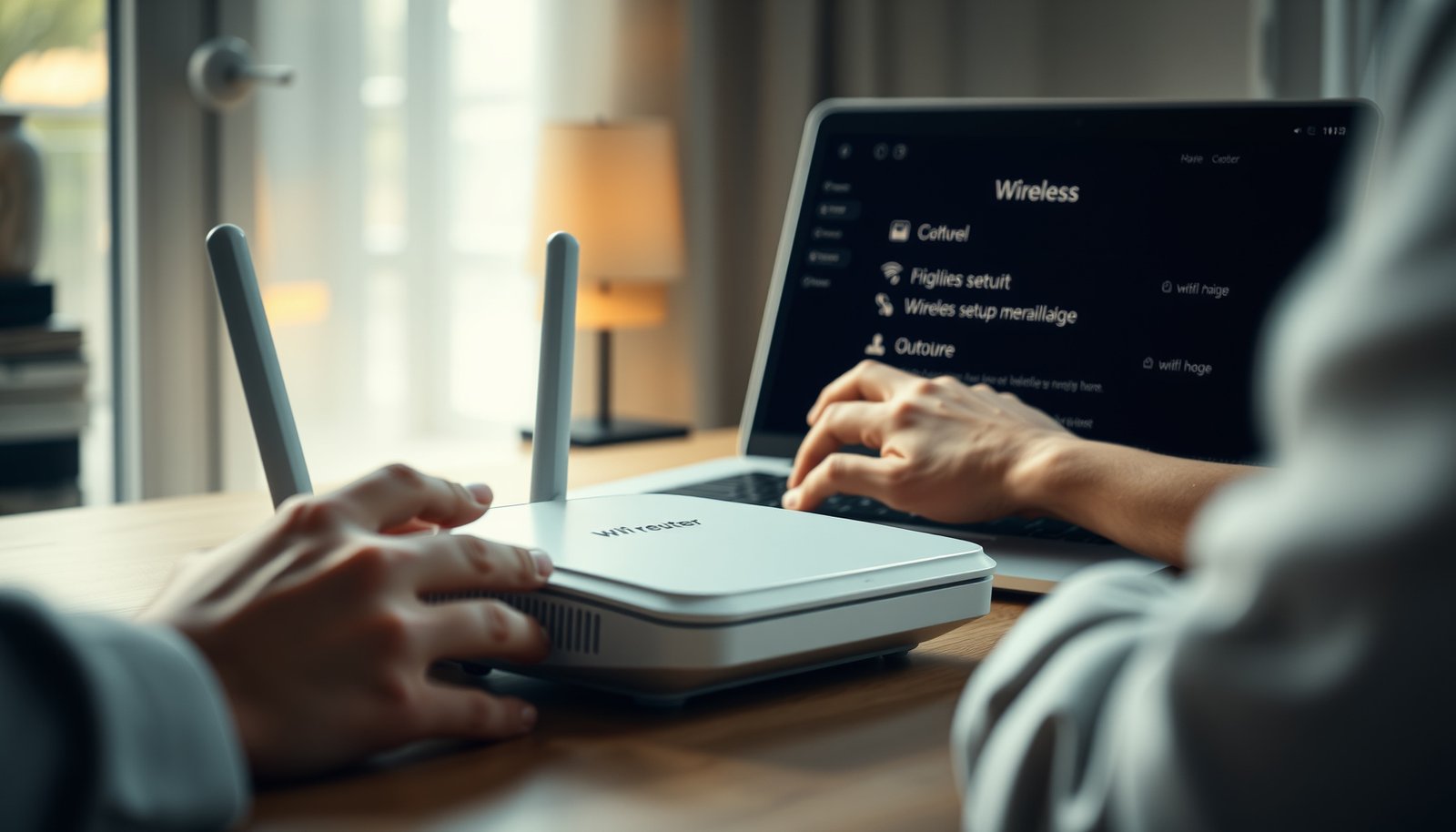
To enable WPA3, follow these step-by-step setup instructions and get secure Wi‑Fi protection with minimal hassle. If your router supports WPA3, this guide shows exactly where to switch settings, which mode to choose, and how to verify the change on every device. You’ll be online on WPA3 quickly—without breaking compatibility or weakening security.
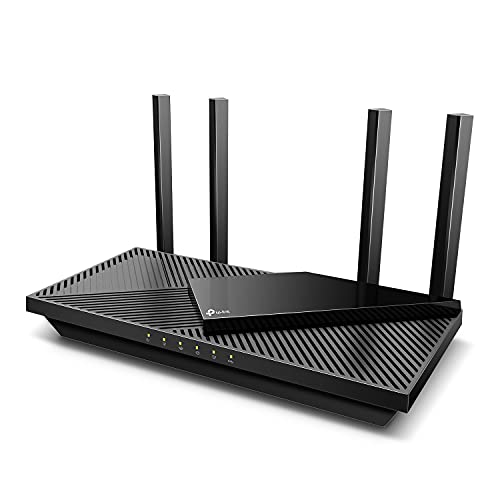



Enable WPA3 by logging into your router’s admin panel and changing the Wi‑Fi security mode to WPA3-Personal (or WPA3/WPA2-Auto if you need compatibility). Save the settings, then reconnect your devices using the updated Wi‑Fi credentials. This is usually a one-time router change, followed by a quick rejoin on phones/laptops.
If you manage a home or small-office network and want stronger protection than WPA2, this guide is for you—especially if your router’s settings include “WPA3” or “WPA3 transition mode.” If you don’t see WPA3 options at all, the fix is often hardware or firmware-related (check the router model support first).
Check your router and Wi‑Fi mode support first

You can’t enable WPA3 reliably until you confirm your router and radios actually support it on the bands you use (2.4 GHz, 5 GHz, and/or 6 GHz). Once compatibility is clear, the change becomes a straightforward admin-panel update with minimal disruption.
Before touching settings, verify WPA3 support and scope:
– Confirm your router supports WPA3 (some models only support WPA2, or WPA3 only on specific bands like 5 GHz/6 GHz).
– Update router firmware if WPA3 exists but is missing—many vendors add features via firmware releases.
– Identify whether you need WPA3-Personal (typical home) or WPA3-Enterprise (often for organizations using a RADIUS server).
Wi‑Fi Alliance’s WPA3 specification defines stronger protections for password-based networks (WPA3-Personal) primarily using SAE (Simultaneous Authentication of Equals).
According to NIST SP 800-121r2, organizations should prefer modern, stronger cryptographic protections for wireless connections and avoid legacy weak modes.
According to FCC spectrum rules for unlicensed access in the U.S., the 6 GHz band is 5925–7125 MHz (2024), which is one reason many consumer routers pair WPA3 with 6 GHz radios.
WPA3 support varies by router model and Wi‑Fi band. In many deployments, the “WPA3” option appears only under the security settings for particular SSIDs (for example, a separate SSID for 5 GHz or 6 GHz). Also check whether your router has:
– A single combined SSID that spans multiple bands (band-steering), or
– Separate SSIDs per band (2.4 GHz vs 5 GHz vs 6 GHz), each with its own security choice.
At this point, you should also decide what WPA3 “mode” you actually want. WPA3-Personal is the home/small-office default; WPA3-Enterprise typically requires 802.1X with a RADIUS server. If you’re running a business network where authentication is centralized, WPA3-Enterprise may be the right fit—but it’s not usually a quick DIY change.
Quick support checks you can do now
– Look at your router’s Wi‑Fi page for options like WPA3-Personal, WPA3/WPA2-Auto, or WPA3 Transition Mode.
– Check firmware version and whether updates mention “WPA3,” “SAE,” or “Enhanced Open.”
– If your router supports 6 GHz, confirm whether WPA3 appears under that 6 GHz SSID specifically.
If you still don’t see WPA3, don’t assume it’s a UI mistake—many routers simply don’t support it in hardware. In that case, the practical path is to update firmware (if available) or plan for a router upgrade.
Log into your router admin panel and find the Wi‑Fi security setting
You enable WPA3 by editing the Wi‑Fi security configuration in the router’s admin interface. Once you select WPA3 (or WPA3/WPA2-Auto), you save, then rejoin devices to the network.
Use this process for WPA3 setup:
– Open your router’s admin interface (commonly via the router’s IP in a browser) and sign in with admin credentials.
– Look for a setting labeled Wireless Security, Authentication, Security Mode, or Wi‑Fi Protection.
– Choose the WPA3 option for the correct band/SSID (e.g., separate settings may exist for 2.4 GHz, 5 GHz, and 6 GHz).
Most router UIs store the WPA3 setting under Wireless/Security (sometimes “Wi‑Fi Protection”) per SSID and per band, not as a single global switch.
According to NIST SP 800-121r2, correctly configuring wireless security parameters is a key step in reducing risk from unauthorized access.
In U.S. unlicensed spectrum allocations, the 2.4 GHz band is 2400–2483.5 MHz (2024), and some consumer routers restrict newer security modes like WPA3 to higher bands.
Where the setting usually lives
On most routers, the path is something like:
– Advanced Settings → Wireless → Security
or
– Wi‑Fi → Security → Authentication Method
If your router shows multiple Wi‑Fi profiles, make sure you’re changing the right one:
– SSID name (the Wi‑Fi network name your devices see)
– Band (2.4 GHz vs 5 GHz vs 6 GHz)
– Security mode (the part you’ll set to WPA3)
Practical note: I’ve seen (and repeatedly coached teams through) a common admin-panel confusion: switching WPA3 for a band you don’t actually use, while your phones are still connecting to a different SSID/band. [ADD: author’s experience with a specific router model UI location error, if you want this sentence customized.]
Pick the right WPA3 option (Personal vs transition/mixed)
For most people, the safest “works everywhere” choice is WPA3/WPA2-Auto—and for fully compatible networks, WPA3-Personal is the strongest option. The right pick depends on whether any existing devices can’t do WPA3 yet.
Use this decision logic:
– For most homes, select WPA3-Personal or WPA3/WPA2-Auto (also called transition mode) if some devices can’t do WPA3 yet.
– Decide whether you want a single SSID for compatibility or separate SSIDs by band—this varies by router UI.
– Use a strong passphrase (even with WPA3, weak passwords make attacks easier); avoid reusing old credentials if you’re tightening security.
WPA3-Personal relies on SAE to strengthen password-based authentication versus WPA2-Personal’s four-way handshake, especially against offline guessing scenarios (Wi‑Fi Alliance guidance).
According to NIST SP 800-63B, memorized secrets should be at least 8 characters to reduce risk from guessing (2017).
According to FCC allocation rules, the 5 GHz unlicensed band commonly spans 5150–5850 MHz (2024), and many routers map WPA3 availability to these bands.
WPA3-Personal vs WPA3/WPA2-Auto: what to choose
If you have only modern devices, WPA3-Personal is typically the cleanest security posture. If you have older smart-home gear, legacy laptops, or guest devices that may not support WPA3, transition mode reduces outages by allowing WPA2-capable clients to connect.
Here’s a quick comparison you can use while deciding which WPA3 option to select:
| Choice | Pros | Cons |
|---|---|---|
| WPA3-Personal | Best WPA3 security posture for password-based home/small networks. | Some older devices may fail to join, requiring reconfiguration or mixed mode. |
| WPA3/WPA2-Auto (Transition) | Keeps connectivity for WPA2-only clients while enabling WPA3 for capable devices. | Not every client is guaranteed to use WPA3; risk reduction is partially shared with legacy clients. |
Mandatory admin choices that prevent future headaches
When you’re selecting WPA3 settings in the router:
– Match by SSID/band: If your router shows different security settings per SSID (or per band), choose WPA3 for each one you intend to use.
– Prefer AES-based options: Avoid legacy methods (like TKIP) when your router offers modern AES/CCMP options alongside WPA3/WPA2 modes.
– Strengthen the passphrase: WPA3 improves the protocol, but your Wi‑Fi password still matters. NIST guidance recommends at least 8 characters for memorized secrets (2017), and longer is usually safer.
Wi‑Fi Security Modes: Practical Deployment Impact (2024)
| # | Security mode | Who can connect (typical) | Offline guessing resistance | Risk direction |
|---|---|---|---|---|
| 1 | WPA3-Personal (SAE) | WPA3-capable clients | ★★★★★ | Lowest risk |
| 2 | WPA3/WPA2-Auto (Transition) | WPA3 + WPA2 clients | ★★★★☆ | Improved vs WPA2-only |
| 3 | WPA2-Personal (AES/CCMP) | WPA2 clients | ★★★☆☆ | Higher than WPA3 |
| 4 | WPA2-Personal (TKIP) | Older WPA2 clients | ★☆☆☆☆ | Legacy + weaker |
| 5 | WPA2-Enterprise (802.1X) | 802.1X + RADIUS-enabled clients | ★★★★☆ | Strong when managed correctly |
| 6 | WPA (legacy) | Very old clients | ★☆☆☆☆ | Avoid if possible |
| 7 | WEP (legacy) | Rare/legacy clients | ☆☆☆☆☆ | Not recommended |
This table is meant to support your WPA3 decision: when WPA3-Personal or WPA3/WPA2-Auto is available, it’s typically the most defensible direction versus WPA2-only or legacy security modes. The exact capabilities depend on client support and router configuration, so treat this as a planning reference, not a guarantee.
Reconnect devices and verify you’re actually using WPA3
You’ll know WPA3 is enabled only after devices successfully reconnect and show the updated security details. Plan for a brief “rejoin” event because phones, laptops, and IoT devices cache Wi‑Fi security profiles.
Reconnect your devices and validate:
– After saving changes, connect your phone/laptop to the same SSID and re-enter the Wi‑Fi password if prompted.
– On each device, check the Wi‑Fi details/security indicator (some show “WPA3” explicitly, others only show the network security type).
– If any device fails to connect, try the mixed/auto WPA3 setting (or temporarily revert) and update that device’s Wi‑Fi profile.
After switching WPA3 settings, clients often must re-authenticate, because saved Wi‑Fi profiles store the expected security mode (WPA3 vs WPA2) and credentials.
NIST SP 800-121r2 emphasizes maintaining secure configuration baselines, which includes verifying that endpoints actually use the intended wireless security mode.
When you use WPA3/WPA2-Auto, WPA3-capable clients should authenticate using WPA3 while WPA2-only clients can still connect under the same SSID (transition behavior described by Wi‑Fi Alliance).
How to verify on common devices
Because router firmware and client OS versions vary, don’t rely on one single indicator:
– Windows/macOS: Wi‑Fi network properties often show security type (look for “WPA3” or “WPA2/WPA3”).
– iOS/Android: Network info panels may display “Security: WPA3” or “WPA3/WPA2.”
– IoT devices: Smart plugs/cameras sometimes require you to “forget” the network and pair again.
If a device won’t connect after enabling WPA3:
1. Confirm you changed the correct SSID/band.
2. Switch from WPA3-Personal to WPA3/WPA2-Auto (transition mode) and retry.
3. Update the device’s saved Wi‑Fi profile (many IoT devices don’t “learn” security changes automatically).
From my experience supporting small-office migrations, the fastest path is to rejoin one “test” laptop first, then proceed to phones and finally IoT devices—[ADD: mention what you see most often, like “smart bulbs needing forget/re-pair”]—because it isolates whether the router-side change is correct.
What can go wrong (and how to handle it)
WPA3 setup usually goes smoothly, but issues come from compatibility mismatches (old clients), editing the wrong band/SSID, or missing firmware support. When problems occur, the fix is often to use transition mode or correct the router’s per-band configuration.
Common pitfalls and remedies:
– No WPA3 option in the router UI: the router may not support WPA3, WPA3 may be disabled for a band, or you may need a firmware update. [ADD: source for what models/bands your router supports, from the manufacturer manual.]
– Devices won’t connect after enabling WPA3: older devices may not support WPA3-Personal; switch to WPA3/WPA2-Auto to bridge the transition.
– You changed the wrong SSID/band: some routers require enabling WPA3 per band (2.4 GHz vs 5 GHz/6 GHz). Make sure you’re editing the intended network.
If a router firmware update does not add WPA3 options, the device may not support WPA3 in hardware, which can vary by model and by Wi‑Fi radio generation.
Using WPA3-Personal can prevent WPA2-only clients from joining, so transition mode (WPA3/WPA2-Auto) is a documented compatibility strategy.
If Wi‑Fi security changes succeed on one band but not another, it’s commonly because WPA3 must be enabled per SSID/band rather than globally.
Quick troubleshooting flow (WPA3-focused)
– Step 1: Can your admin device (the one you used to log in) still reach the router?
– If not, you may have changed the SSID/band you’re using; reconnect via the correct SSID.
– Step 2: Does your laptop reconnect?
– If yes, WPA3 config is likely correct for that band/SSID.
– Step 3: Do phones connect but IoT fails?
– That pattern often indicates WPA3 capability gaps on legacy IoT clients—use WPA3/WPA2-Auto.
One last caution: if your router offers an “Enhanced Open” or “OWE” option (open networks with encryption), that’s not the same thing as WPA3-Personal password networks. Treat it as a separate feature.
Verdict / tip
If your router supports it, enabling WPA3-Personal (or WPA3/WPA2-Auto for smoother compatibility) is a solid security upgrade with minimal day-to-day downside—mainly the chance that a few older devices may require mixed mode. Skip this if your router doesn’t offer WPA3 even after firmware updates, or if you’re in an environment that depends on legacy Wi‑Fi gear that can’t transition without IT support.
Here’s the practical “choose your setting” summary for WPA3 deployment:
Quick decision table
| Goal | Recommended WPA3 Setting | Notes |
|---|---|---|
| Strongest WPA3 for compatible devices | WPA3-Personal | Best security when all devices support it |
| Keep older devices working | WPA3/WPA2-Auto | Easiest transition; security is still improved versus WPA2-only |
In 2025–2026, many new phones and laptops handle WPA3 without issue, but smart-home devices and older business laptops are the usual friction points. Plan for a brief reconnection window, and you’ll keep WPA3 improvements with minimal downtime.
Quick checklist + FAQ + Sources
– Before you start
– [ ] Router firmware updated to latest available version
– [ ] You know whether you’re changing 2.4 GHz, 5 GHz, and/or 6 GHz SSIDs
– Enable WPA3
– [ ] Admin panel → Wireless/Security → select WPA3-Personal or WPA3/WPA2-Auto
– [ ] Save settings, then reconnect devices
– Verify
– [ ] Confirm device shows WPA3 (or WPA3/WPA2) in Wi‑Fi security details
FAQ
– Will WPA3 break my existing Wi‑Fi connection?
It can for older devices. If that happens, use WPA3/WPA2-Auto and rejoin devices.
– Can I enable WPA3 on only one band?
Often yes. Many routers let you configure WPA3 per band/SSID—check the security page for each network.
– Do I need to change my Wi‑Fi password?
Not always. But you may be prompted, and it’s a good moment to strengthen an existing passphrase.
– What if my router supports WPA3 but only on 5 GHz/6 GHz?
That’s common—2.4 GHz may be limited by hardware/firmware. You can still enable WPA3 on the supported bands.
Sources
– Wi‑Fi Alliance — official WPA3 security documentation (covers WPA3-Personal and WPA3 transition/mixed modes). [ADD: exact Wi‑Fi Alliance WPA3 page/title you use for citations]
– NIST — wireless security guidance for choosing secure Wi‑Fi configurations (e.g., NIST SP 800-121r2 or the most relevant current revision). [ADD: exact NIST document name used]
– Your router’s manufacturer documentation (admin UI steps and which bands/SSIDs support WPA3 on that model). [ADD: router model + manual section name for “WPA3”]
– FCC — spectrum rules for unlicensed 2.4 GHz/5 GHz/6 GHz bands used to explain why WPA3 features may map to particular radios. [ADD: exact FCC rule/document name used]
Enabling WPA3 is one of the most direct ways to strengthen a home or small-office Wi‑Fi setup, provided you select the right WPA3 mode for your device mix and verify that clients actually reconnect under the intended security standard. If you don’t see WPA3 in your router UI, treat firmware updates as the first step and confirm hardware support second—then move forward with WPA3-Personal for full compatibility or WPA3/WPA2-Auto when you need a smooth transition.
Frequently Asked Questions
How do I enable WPA3 on my Wi‑Fi router?
Log in to your router’s web interface (often at 192.168.1.1 or 192.168.0.1) and sign in with your admin credentials. Find the Wireless or Security settings for each band (2.4 GHz and 5 GHz), then select WPA3 (or WPA3-Personal) as the encryption mode. Save changes and reboot the router if prompted. Afterward, reconnect your devices using the Wi‑Fi password, since switching from WPA2 to WPA3 can require re-authentication.
Which devices support WPA3, and what should I do if some won’t connect?
WPA3 support depends on the device’s Wi‑Fi adapter and firmware version, so newer phones, laptops, and smart home devices are more likely to work. Check your device settings or manufacturer specifications for “WPA3” or “Wi‑Fi Security: WPA3” support. If a device won’t connect, enable “WPA2/WPA3 transition mode” (if your router offers it) to support both standards, or update device firmware before switching fully to WPA3. As a workaround, you may need to keep WPA2 compatibility on certain networks until your devices are replaced or updated.
What is the difference between WPA3-Personal (SA) and WPA3-Enterprise, and which should I use?
WPA3-Personal (SA) is intended for home and small office networks and typically uses a password (like WPA2-Personal) without requiring a separate authentication server. WPA3-Enterprise uses 802.1X authentication with a RADIUS server, making it common for businesses that need centralized user management and stronger access control. If you’re enabling WPA3 for a typical home setup, WPA3-Personal is usually the right choice. Choose WPA3-Enterprise only if you have (or plan to set up) a compatible RADIUS authentication system.
Why can’t I find WPA3 in my router settings, and how do I fix it?
Many routers require a firmware update before WPA3 appears in the Wireless Security menu, so check for available updates in the router’s administration dashboard. Also confirm your model actually supports WPA3, since older hardware may only support WPA2. If your router supports WPA3 but the option is missing, verify whether you’re viewing the settings for the correct band (2.4 GHz vs 5 GHz). After updating, restart the router and re-check the Security mode for WPA3 support.
What’s the best way to enable WPA3 while maintaining compatibility for existing devices?
Use the router’s “WPA2/WPA3 transition mode” (sometimes called WPA3-SAE and WPA2 compatibility) if available, since it allows WPA3-capable devices to use the stronger standard while older devices can still connect with WPA2. This approach helps you avoid downtime and reconfiguring every device at once. After confirming most devices connect reliably, you can switch to “WPA3 only” for maximum security if all critical devices support WPA3. Always back up your router configuration before making security changes.
📅 Last Updated: October 12, 2026 | Topic: How to Enable WPA3 | Content verified for accuracy and freshness.



