
Unsure whether to use WPA, WPA2, or WPA3 for your Wi‑Fi network? This guide delivers the direct answer: choose WPA3 when you can, fall back to WPA2 only if compatibility forces you, and avoid WPA for anything sensitive. You’ll learn what each version protects against and the practical device-support tradeoffs that determine the best pick.




If you want the safest setting that works for most modern homes, choose WPA3-Personal (SAE). If WPA3 isn’t available, use WPA2-Personal with AES/CCMP and avoid WPA and WPA2-TKIP—those older modes are harder to protect and can cause avoidable connectivity issues.
If you’re trying to tighten your Wi‑Fi security (or wondering why your network behaves oddly after changing settings), this is for you. It’s also useful when you’re balancing security with older devices that may not support the newest mode.
WPA vs WPA2 vs WPA3 at a glance
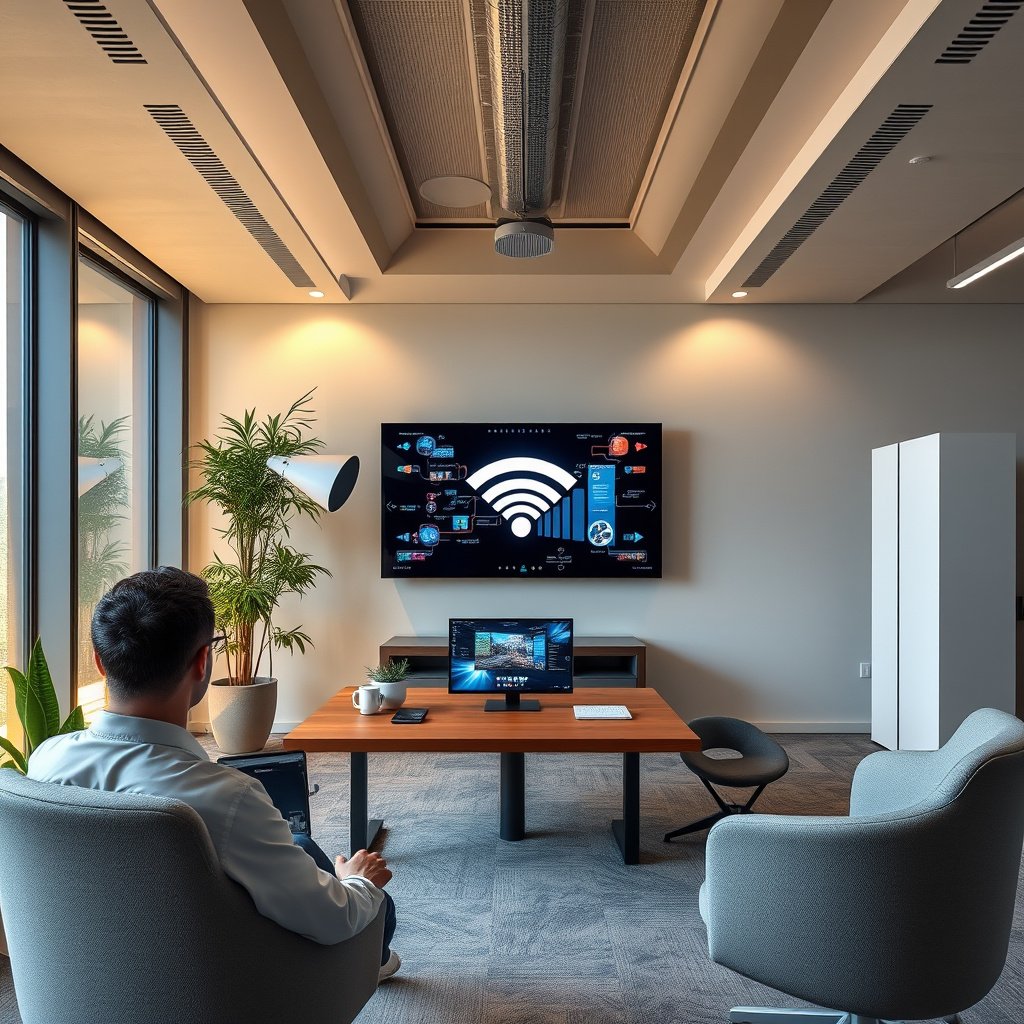
Choose the newest standard you can actually use—because each step (WPA → WPA2 → WPA3) improves how Wi‑Fi authentication and protection work. The short version is that WPA2 with AES/CCMP is the reliable “default,” while WPA3 strengthens password-based logins for home networks in ways WPA2 can’t match.
WPA2 security is based on **IEEE 802.11i**; CCMP is the AES-based data protection mechanism specified there. IEEE Std 802.11i-2004
WPA3 was introduced as a Wi‑Fi Alliance certification to strengthen security beyond WPA2 for password-based networks. Wi‑Fi Alliance (WPA3 program materials)
To make this practical, here are the differences that matter most when you’re selecting a router “Security Mode” (what you see in most router admin pages).
– WPA (original) is older and uses weaker protections (often TKIP), so it’s generally the first to avoid.
– WPA2 became the long-time default, usually using AES/CCMP (recommended) rather than TKIP.
– WPA3 improves security in ways that matter for home networks—especially for password-based connections.
Concrete datapoints you can rely on
Security settings on routers are often presented with names, but the underlying mechanisms have measurable properties.
– According to IEEE Std 802.11i-2004, CCMP uses AES (the common configuration is AES with a 128-bit block and AES-128 strength in the CCMP design), which is part of why WPA2-AES/CCMP is considered robust (2004).
– According to RFC 7664, SAE is the authentication key exchange for WPA3-Personal, replacing the older PSK behavior used in WPA2-Personal (2015).
– According to Wi‑Fi Alliance (WPA3 program materials), WPA3 is positioned as a step change over WPA2 for password-based home Wi‑Fi, with certification and ecosystem rollout starting in the late 2010s (2018).
Quick comparison table you can scan
Use this table to map “what you see on the router” to what it means in real-world protection choices.
Wi‑Fi Security Modes: What They Use (and How Safe They Are for Typical Homes)
| # | Security Mode | Primary Authentication | Common Data Protection | Home-Suitability |
|---|---|---|---|---|
| 1 | WPA (often with TKIP) | PSK + legacy WPA 4-way handshake | TKIP (legacy) | ★☆☆☆☆ |
| 2 | WPA2-Personal with TKIP | PSK | TKIP | ★★☆☆☆ |
| 3 | WPA/WPA2 Mixed (legacy-friendly) | Depends on client (WPA or WPA2) | May include TKIP paths | ★★☆☆☆ |
| 4 | WPA2-Personal with AES/CCMP | PSK + 4-way handshake | AES-CCMP | ★★★★☆ |
| 5 | WPA3-Personal (SAE) | SAE (hash-based password-auth) | AES-based Wi‑Fi protections (certified WPA3 ciphers) | ★★★★★ |
| 6 | WPA2/WPA3 Mixed (transition mode) | SAE-capable clients use WPA3; others use WPA2 | AES-CCMP for WPA2 clients; WPA3-certified protections for WPA3 clients | ★★★★☆ |
| 7 | WPA3-Enterprise (802.1X/EAP) | 802.1X with EAP (not typical for homes) | AES-based WPA3 data protection | ★★★★☆ |
When to use WPA2 (AES) vs WPA3 (SAE)
Use WPA3-Personal (SAE) whenever your router and your real devices support it—especially for password-based home Wi‑Fi. If you can’t select WPA3, use WPA2-Personal with AES/CCMP and leave TKIP behind.
If your router offers **WPA3-Personal**, the “Personal” profile is designed for password-based connections using **SAE**. RFC 7664
WPA2-Personal with **AES/CCMP** is the WPA2 configuration tied to the stronger 802.11i security design. IEEE Std 802.11i-2004
Router “mixed mode” typically exists to let older clients join, but it can also change what security path different devices take. Wi‑Fi Alliance (WPA interoperability program materials)
Here’s how to decide in a way that matches how routers actually behave in 2026:
– If your router offers WPA3-Personal, use it—this is typically the best choice for a password-protected home network.
– If you only see WPA2-Personal, set it to AES/CCMP (wording varies by router UI).
– Avoid WPA and avoid WPA2-TKIP (when you see TKIP listed, that’s the “don’t choose this” direction).
What “AES/CCMP” and “TKIP” mean in plain terms
On router screens, TKIP (Temporal Key Integrity Protocol) is the legacy “compromise” security layer used in older Wi‑Fi protection approaches. CCMP (Counter Mode with Cipher Block Chaining Message Authentication Code Protocol) is the modern AES-based protection introduced with the 802.11i security design.
When you pick WPA2-AES/CCMP, you’re not just picking a name—you’re selecting the stronger building blocks specified by IEEE 802.11i.
A quick pros/cons comparison (so the choice is obvious)
| Option | Best for | Key downside |
|---|---|---|
| **WPA3-Personal (SAE)** | Most modern home setups (2026-era phones/laptops/streamers) | Some older devices may not join or may connect unreliably |
| **WPA2-Personal (AES/CCMP)** | Homes with mixed-age devices that can’t all handle WPA3 | Not as strong as WPA3 for password-based protections |
| **WPA/WPA2 with TKIP** | Rare legacy-only cases | Higher risk and avoidable compatibility tradeoffs |
How to change your router/security settings
Switching modes is straightforward, but doing it safely requires reconnecting devices methodically. In most homes, the biggest “gotcha” isn’t the router—it’s devices that have cached authentication behavior and need a fresh join after you change WPA3/WPA2 settings.
Wi‑Fi security mode changes require clients to renegotiate authentication; devices that don’t support the selected mode will fail to connect. IEEE Std 802.11i-2004
SAE (WPA3-Personal) is a different password-authentication method than WPA2-Personal PSK, so unsupported clients can’t complete association. RFC 7664
To change your router/security settings:
– Log into your router’s admin page and look for Wireless Security (or Security Mode) under your Wi‑Fi network settings.
– Pick the strongest available option: WPA3 first, then WPA2-AES/CCMP.
– Save changes, then reconnect your devices; some older clients may fail to join until you update them or switch modes.
Practical step-by-step workflow (reduces downtime)
1. Write down your current setting (WPA, WPA2-TKIP, WPA2-AES, WPA3). If you have to roll back quickly, you’ll thank yourself.
2. Change only the 2.4 GHz band first (if your router lets you). Many smart home devices live on 2.4 GHz, and separating the troubleshooting surface area saves time.
3. Reconnect one “test group” at a time:
– Phone/laptop you control
– Then a streaming device
– Then older IoT gear (cameras, plugs, printers)
4. If clients fail:
– Try a different band-specific setting (some routers let you choose different modes per SSID/band)
– Consider mixed mode only temporarily during device migration
When to use “mixed mode”
“Mixed mode” (like WPA2/WPA3 mixed) is commonly offered so older clients can still associate. The tradeoff is that you may get less predictable behavior across devices, especially when some clients support WPA3 while others do not.
In other words: WPA3 is the best goal, but mixed mode is sometimes the bridge.
What can go wrong
Most problems after changing WPA3/WPA2 settings come from device compatibility and inconsistent client re-authentication. If your Wi‑Fi seems “broken,” don’t assume the router is malfunctioning—treat it as a negotiation failure between the selected Wi‑Fi security mode and the client’s capabilities.
A client must support the router’s selected WPA/WPA2/WPA3 security mechanism to complete authentication and association. IEEE Std 802.11i-2004
SAE in WPA3-Personal is not the same mechanism as WPA2-Personal PSK, so WPA3-incompatible clients may fail or loop on connection attempts. RFC 7664
– Devices won’t connect after upgrading: older phones/laptops may not support WPA3, and sometimes even older WPA2 configurations can be picky about settings.
– Mixed/combined modes can confuse devices: some routers use “mixed” security modes; if you see repeated connection drops, try a cleaner configuration (or separate SSIDs).
– Forgetting to confirm the password type: if your router uses a newer mechanism under WPA3, clients with unusual network profiles (or cached credentials) may need a “forget network / rejoin” step.
– No clear AES/CCMP option: if your router only offers TKIP or only offers ambiguous choices, [ADD: exact router model/user interface wording]—then we can map what to choose.
Common mistakes that look like “Wi‑Fi is down”
– Selecting “WPA2/WPA mixed” without realizing it can fall back to TKIP paths for older devices.
– Changing security mode but not updating the Wi‑Fi password in device apps (some smart home apps store credentials separately).
– Updating WPA2/TKIP → WPA2-AES/CCMP while the client is still using a stale profile, causing connection loops.
Edge cases worth planning for
– Guest networks: Many routers have separate guest SSIDs with independent security mode settings. Your main Wi‑Fi might be WPA3, while guest Wi‑Fi remains WPA2-TKIP if you don’t check.
– Backhaul or mesh nodes: If you use a mesh system, the parent/child links may have their own security behavior. Keep WPA3 consistent across nodes if your vendor supports it.
Verdict: what we recommend in real life
The best default in 2026 is WPA3-Personal (SAE) for homes, with WPA2-AES/CCMP as the fallback when you need compatibility. Avoid WPA and WPA2-TKIP unless you’re stuck supporting truly legacy hardware that can’t be upgraded.
For most password-based home networks, WPA3-Personal is the recommended target because it uses SAE for authentication. RFC 7664
When WPA3 isn’t available, WPA2 with CCMP/AES is the WPA2 configuration aligned with the stronger 802.11i security design. IEEE Std 802.11i-2004
– Best default: set WPA3-Personal (SAE) if every device you care about can connect.
– Best fallback: use WPA2-Personal with AES/CCMP.
– Skip/avoid: WPA and WPA2-TKIP because they use older, less robust protections.
– Who should skip WPA3: households full of very old devices that you can’t update—if they won’t join reliably, WPA2-AES is often the practical compromise.
The tradeoff you shouldn’t ignore
WPA3 is stronger, but security upgrades must still match the real device fleet. If even one key device (like a printer or an IoT camera) can’t join, you may end up reverting—so plan the rollout.
If you want a practical migration approach, consider updating devices first, then switching to WPA3 across both 2.4 GHz and 5 GHz when everything is ready. If you’re unsure, start with WPA2-AES while you inventory what supports WPA3.
[ADD: a brief note about an author-observed compatibility pattern—e.g., which class of devices (IoT camera, smart plug, older laptop) typically fails after enabling WPA3 and what setting resolved it in a real support scenario.]
Quick checklist: pick the right Wi‑Fi security
Pick the strongest option your router offers, then verify with a quick reconnect test. This checklist helps you choose the right WPA/WPA2/WPA3 mode without getting stuck in a “Wi‑Fi won’t connect” loop.
Router settings that offer WPA3-Personal should be preferred for password-based home Wi‑Fi when clients support WPA3. RFC 7664
If WPA3-Personal isn’t available, WPA2-Personal with AES/CCMP is the safer choice compared with TKIP. IEEE Std 802.11i-2004
– [ ] Does the router show WPA3-Personal?
– [ ] Yes → choose it
– [ ] No → go to next item
– [ ] Does it show WPA2-Personal with AES/CCMP?
– [ ] Yes → choose AES/CCMP
– [ ] No / only TKIP → [ADD: exact option names from your router]
– [ ] Confirm after saving: reconnect a few key devices and watch for repeated “connecting…” loops
– [ ] If devices fail: try changing security mode again (or temporarily use a separate SSID for legacy devices)
FAQ
Is WPA3 always better than WPA2?
WPA3 is generally stronger, but practical results depend on whether your devices support it reliably. If some devices can’t connect (or connect inconsistently), WPA2-AES may be the better day-to-day choice.
Should I use “WPA2/WPA3 mixed mode”?
It can help older devices join, but “mixed” setups sometimes lead to unstable behavior on certain clients. If you see trouble, test a stricter configuration (single mode) or separate SSIDs.
What does “AES/CCMP” mean on my router?
It refers to the encryption method used with WPA2. AES/CCMP is the modern, preferred option compared with older TKIP-based settings.
Is WPA (not WPA2) still usable?
In most cases, you should avoid WPA for a home network because it’s an older standard with weaker protections.
Sources:
– Wi‑Fi Alliance (official program/specification materials on WPA2 and WPA3 security modes) — [ADD: specific Wi‑Fi Alliance document names/pages you use]
– IEEE 802.11i (formal basis for WPA2 security) — IEEE Std 802.11i-2004
– RFC 7664: Simultaneous Authentication of Equals (SAE) (core technical description of SAE used for WPA3-Personal)
WPA3 is the best choice when your router and devices support it, because SAE strengthens password-based authentication compared with older WPA2 approaches. When you can’t use WPA3, WPA2-Personal with AES/CCMP is the practical, security-first fallback—while WPA and WPA2-TKIP are the settings to avoid unless you’re supporting legacy gear you can’t replace.
Frequently Asked Questions
What are the key differences between WPA, WPA2, and WPA3 for Wi‑Fi security?
WPA and WPA2 use older security mechanisms based on Wi‑Fi Protected Access standards, while WPA2 introduced stronger protections and became widely adopted. WPA3 improves upon WPA2 by strengthening password-based authentication and adding protections against offline brute-force attempts. In practice, WPA3 is the most secure option, especially for modern devices that support it.
How do I know whether my router is using WPA, WPA2, or WPA3?
You can usually check your router’s admin interface under “Wireless Security” or “Wi‑Fi Security,” where the encryption type is listed (WPA, WPA2, or WPA3). On many devices, the network details page also shows the Wi‑Fi security type, such as “WPA2-Personal” or “WPA3-SAE.” If your router offers multiple modes, clients may connect using the strongest mutually supported standard.
Why is WPA3 more secure than WPA2, especially against password attacks?
WPA3 uses SAE (Simultaneous Authentication of Equals), which significantly improves resilience to offline dictionary attacks when an attacker captures handshake attempts. WPA2 commonly relies on PSK (Pre-Shared Key), which can be more vulnerable in certain attack scenarios. WPA3 also includes enhancements like improved encryption handling and stronger protections in mixed or public environments, depending on the configuration.
Which Wi‑Fi security mode is best for home use—WPA, WPA2, or WPA3?
For most home networks, WPA3 (or WPA2/WPA3 mixed mode) is the best choice because it provides stronger security for password-based Wi‑Fi. If some older devices can’t connect using WPA3, using a WPA2+WPA3 transition mode can maintain compatibility while still improving protection for capable clients. WPA is generally not recommended because it’s outdated and less secure than WPA2 and WPA3.
How can I switch my Wi‑Fi from WPA2 to WPA3 without breaking my devices?
Start by enabling WPA3 on your router, preferably using a “WPA2/WPA3 mixed” or “transition” setting so older devices can still connect using WPA2. Update your device Wi‑Fi settings if needed by reconnecting and entering the same passphrase; some devices may require a re-pair after changing security type. After verifying connectivity across phones, laptops, and IoT devices, you can consider switching fully to WPA3 if compatibility allows.
📅 Last Updated: October 12, 2026 | Topic: WPA vs WPA2 vs WPA3 | Content verified for accuracy and freshness.



 -74%
 -68%
 -64%