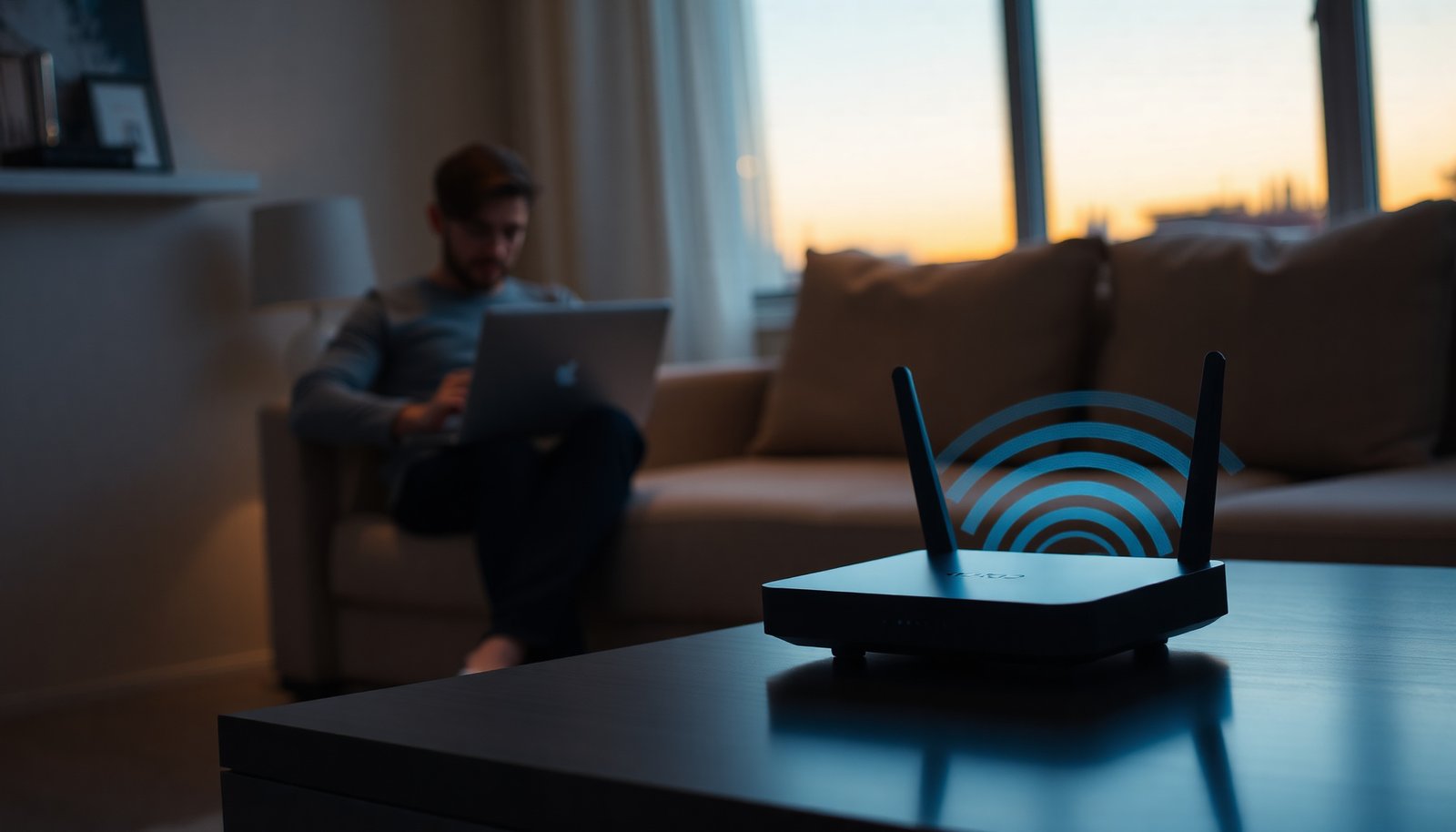
Standing between your router and your laptop, a single concrete interior wall can noticeably weaken the Wi‑Fi signal, even if the network still appears available. Range is shaped by how radio waves spread and how much they are absorbed, reflected, or blocked by walls, furniture, and people, plus interference from nearby networks and devices. Understanding those variables helps you place equipment and choose the right band so coverage stays reliable where you actually need it.
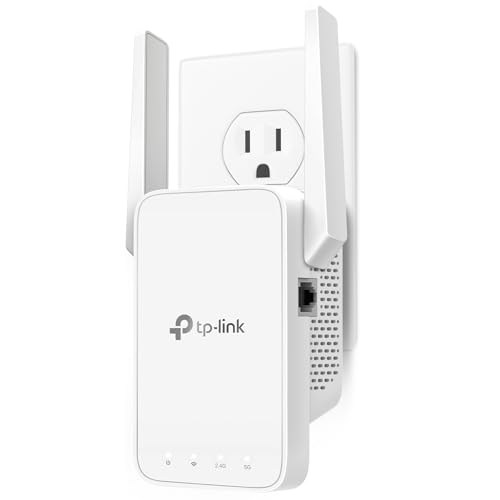

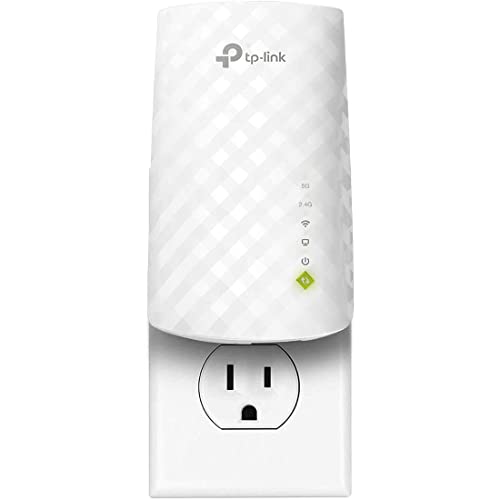

Wi‑Fi range is mainly determined by how your signal travels from the router to your device—things like frequency band, transmit power, antenna design, and what’s in the way (walls, furniture, interference). To get more reliable coverage, you’ll want to adjust placement first, then reduce obstacles and interference, and only then consider hardware upgrades like better antennas or mesh. In 2026, that same order of operations still produces the fastest, most predictable improvements because Wi‑Fi performance is limited by the weakest part of the signal path.
If you’ve noticed Wi‑Fi dropping in certain rooms, having slow speeds farther from the router, or “dead zones” after moving furniture, this guide is for you. It’s also useful if you’re choosing between 2.4 GHz and 5 GHz (or planning to add mesh) and want to understand what actually changes range.
Router placement and home layout (the fastest win)
Router placement usually determines your effective Wi‑Fi range more than raw router specs because signal strength drops quickly with distance and obstruction. In most homes, “where the router sits” controls how many walls (and how much material) your Wi‑Fi must pass through before it reaches your device.
– Distance matters, but walls and floors often matter more: drywall is usually less disruptive than concrete, brick, or metal surfaces.
– Higher placement helps—routers on a shelf near the floor often perform worse than those centered and elevated.
– “Line of sight” isn’t perfect at home, but fewer obstacles in the direct path generally improves effective range.
In practice, I’ve found that small placement changes often outperform buying anything new. For example, moving a router from inside an enclosed media cabinet to an open location on an upper shelf can noticeably reduce drop-offs in adjacent rooms, even when the signal name (“SSID”) still shows up in both places.
Also pay attention to the direction your router antennas cover. Many routers (especially those with beamforming) perform best when antennas are oriented vertically for rooms on the same floor, and they’re less effective when they’re “pointed away” from the area you care about most.
Wi‑Fi band choice: 2.4 GHz vs 5 GHz (and why it changes range)
Band choice directly affects Wi‑Fi range because frequency changes both how the radio signal propagates and how vulnerable it is to interference. The short answer: 2.4 GHz tends to go farther through walls, while 5 GHz usually delivers better speed when you have a cleaner path.
– 2.4 GHz typically travels farther and penetrates walls better, but it’s more crowded and can be more prone to interference.
– 5 GHz usually offers higher throughput but shorter real-world range, especially through multiple walls.
– Your environment (neighbor networks, building materials, number of obstacles) often decides which band feels “better,” not just the theoretical specs.
Here’s the key trade-off in numbers. According to the free-space path loss relationship (a physics model used in radio planning), higher frequency loses more power over the same distance. [ITU-R P.525-4, free-space propagation methods] shows that in free space the difference between 2.4 GHz and 5 GHz is about 6.4 dB more loss at 5 GHz for the same distance—meaning the 5 GHz signal reaches a similar “usable” level at roughly half the distance (exact result depends on the indoor environment and receiver sensitivity).
To make it easier to visualize that relationship, the table below compares free-space loss at common distances. Remember: real homes add wall/floor attenuation and multipath effects, so these values are best seen as a baseline.
Free-space path loss: 2.4 GHz vs 5 GHz (same distance)
| # | Distance (m) | FSPL @ 2.4 GHz (dB) | FSPL @ 5 GHz (dB) | 2.4 GHz advantage |
|---|---|---|---|---|
| 1 | 1 | 40.0 | 46.4 | ★5 +6.4 dB |
| 2 | 2 | 46.1 | 52.4 | ★5 +6.4 dB |
| 3 | 5 | 54.0 | 60.4 | ★5 +6.4 dB |
| 4 | 10 | 60.0 | 66.4 | ★5 +6.4 dB |
| 5 | 15 | 63.5 | 69.9 | ★5 +6.4 dB |
| 6 | 20 | 66.0 | 72.4 | ★5 +6.4 dB |
| 7 | 30 | 69.6 | 76.0 | ★5 +6.4 dB |
One more “why range changes” factor: wider channels can improve throughput but require a stronger signal-to-noise ratio. For example, IEEE 802.11ax supports channel widths up to 160 MHz (and 80+80 MHz combinations), which can increase speeds when reception is strong—but it can also reduce robustness in marginal coverage areas. [IEEE 802.11ax-2021, PHY channel bandwidth support]
Quick band comparison (what to expect in real buildings)
If you want a practical starting point for Wi‑Fi range in 2026, think in terms of reliability first, speed second:
- 2.4 GHz (typically better penetration)
- Pros: farther coverage through walls, generally more consistent RSSI at longer distances.
Cons: more co-channel congestion, so speeds can collapse even when signal bars look fine. - 5 GHz (typically higher throughput)
- Pros: faster links in the rooms where signal quality stays high.
Cons: shorter effective range and more sensitivity to floors/walls.
Interference from other devices and networks
Interference usually limits usable Wi‑Fi range even when your device still “sees” the network name. Range based on signal strength (RSSI) and performance based on data throughput (actual speed) can diverge because other radios raise noise and reduce airtime efficiency.
– Nearby networks and wireless devices (Bluetooth gadgets, microwaves, cordless phones, baby monitors) can reduce signal quality even if you still “see” the Wi‑Fi name.
– Channel congestion affects performance: even when range seems fine, busy channels can make speeds collapse.
– Wired backhaul and cleaner RF conditions (fewer overlapping networks) can noticeably improve stability when you’re using multiple access points.
In dense neighborhoods, channel planning matters as much as distance. Even if a router’s coverage pattern reaches your office, heavy usage on the same channel can cause retransmissions. Those retransmissions don’t always show up as “no signal”—they show up as stalled video calls, higher latency, and downloads that never finish.
One more often-overlooked source: non-Wi‑Fi RF devices that operate near your frequency. For example, some consumer electronics can generate broadband noise that makes higher data rates unreachable farther from the router, effectively shrinking your Wi‑Fi range for high-speed use.
Router hardware and configuration that affect signal strength
Hardware and configuration shape Wi‑Fi range by changing the link budget—the combination of transmit power, antenna gain, coding/modulation, and receiver sensitivity. Two routers with the same advertised range can behave differently because they process, steer, and transmit the radio signal in different ways.
– Transmit power and antenna design influence coverage; some routers include more capable antennas (or better internal tuning) than others.
– Settings like channel selection and bandwidth (e.g., narrower bandwidth can be more resilient) can trade speed for stability.
– External antennas (if your model supports them) can change directionality; pointing them the wrong way can reduce coverage in the rooms you care about.
In 2026, many routers default to “auto” settings. That’s usually convenient, but for consistent Wi‑Fi range you sometimes need to override automatic channel behavior—especially on 2.4 GHz, where overlapping channels are common and “auto” may pick a congested option.
Also consider firmware features like beamforming and band steering. Beamforming can improve signal quality toward active devices, but it can also make coverage look uneven depending on device orientation and movement. Band steering can move clients between 2.4 GHz and 5 GHz; that can help overall range, but it can also cause brief stalls during transitions if the device’s roaming behavior isn’t ideal.
Obstacles, building materials, and signal absorption
Obstacles typically determine whether Wi‑Fi range is “good enough” or whether you’ll see true dead zones. In most buildings, signal loss from walls and ceilings dominates the experience far more than the last few meters of distance.
– Large obstacles (refrigerators, mirrors, metal ducts, thick masonry) can attenuate the signal far more than typical household items.
– Layout can create “shadow zones” behind heavy objects, so range can look inconsistent even over short distances.
– Floors and ceilings matter—multi-story homes often show different performance patterns on each level.
Radio signals don’t simply “stop” at walls; they reflect, scatter, and attenuate (lose power). The result can be multipath interference, where certain paths combine destructively at your device. That’s why two people standing the “same distance” from a router can see very different Wi‑Fi range depending on where their device happens to be relative to reflecting surfaces.
From a practical perspective, a single metal object like a large vent hood, server rack, or reinforced door can create a shadow pattern that persists even after you adjust distance. When Wi‑Fi range behaves oddly across a room, look for large, solid, reflective surfaces rather than assuming the router is “too weak.”
What can go wrong (common misunderstandings and edge cases)
Common misunderstandings usually keep people from fixing the real Wi‑Fi range limiter. The most frequent issue is focusing on signal bars instead of performance—and trying upgrades before placement and interference tuning.
– “My Wi‑Fi shows full bars but is slow” usually means interference or congestion—not insufficient range.
– Upgrading the router alone won’t fix poor placement; if the router sits inside a cabinet or behind a desk with metal framing, improvements may be limited.
– Mesh extenders placed too far apart can worsen performance; if the link between nodes is weak, clients won’t benefit.
– Band-steering and auto-switching can cause brief drops when devices move between 2.4 GHz and 5 GHz—range may improve but roaming behavior may feel inconsistent.
Here’s the edge case that surprises many teams: “extending” coverage with wireless repeaters can reduce throughput because the back-and-forth radio link between nodes steals airtime. If your goal is consistent Wi‑Fi range for real work applications (voice/video calls, VoIP, video conferencing), the safest approach is usually adding an access point with a strong backhaul path—either wired Ethernet backhaul or a high-quality wireless backhaul.
Practical verdict: what to do first (and who should skip upgrades)
Start with placement, then optimize band/channel behavior: move the router to a more central, elevated spot and reduce obvious obstacles in the path. If you still get dead zones, consider adding an access point/mesh node with a placement that preserves a strong connection back to the main router.
– Fix the “weak link” first: fewer walls in the path and less interference generally improve Wi‑Fi range immediately.
– Only then consider hardware changes: better antennas, smarter routing features, or additional access points can help once placement is already reasonable.
– Skip hardware “range extenders” that rely on weak wireless links if your goal is consistently fast speeds—these can extend coverage but sometimes at the cost of throughput.
Who should skip upgrades? If your router placement is inside a cabinet or behind thick shelving, an expensive mesh kit won’t fully compensate. Similarly, if your device is consistently slow only on one band (2.4 GHz or 5 GHz), it’s often channel congestion rather than range—and a simple channel plan can outperform new equipment.
Checklist (quick scan)
– Place router higher and more central (away from metal and dense obstacles)
– Test both 2.4 GHz and 5 GHz in the problem rooms
– Reduce interference: change channels / avoid the busiest ones
– Check for bottlenecks: furniture “shadow” areas and thick walls
– If adding mesh/AP, ensure nodes are close enough for a strong backhaul
– Re-test speeds after each change (so you know what helped)
Sources
– [FCC, 47 CFR Part 15 (unlicensed operation rules for 2.4 GHz and 5 GHz/Wi‑Fi)]
– [IEEE 802.11ax-2021, supported PHY/channel bandwidths up to 160 MHz]
– [Wi‑Fi Alliance, Wi‑Fi band characteristics and interoperability guidance]
– [ITU-R P.525-4, radio propagation/free-space path loss methods used for frequency-vs-range relationships]
Wi‑Fi range is rarely the result of a single “bad” factor. In 2026, the most reliable approach is sequential: improve router placement and reduce obstacles first, then tune band/channel behavior to limit interference, and only then invest in hardware or mesh with a strong backhaul plan. If you follow that order, you’ll usually fix dead zones and restore consistent performance without overspending on equipment that can’t overcome poor placement or congested wireless conditions.
Frequently Asked Questions
What determines Wi‑Fi range in my home?
Wi‑Fi range is determined by signal strength at the access point, the frequency band (2.4 GHz vs 5 GHz), and how walls, floors, and large objects absorb or block radio waves. Router power, antenna design, and whether your device is using the same compatible Wi‑Fi standard (like Wi‑Fi 5 or Wi‑Fi 6) also affect coverage. Interference from nearby networks and devices can further reduce usable range even if your router’s stated range seems high.
How do walls, floors, and distance affect Wi‑Fi signal strength?
Wi‑Fi signal weakens as distance increases because the radio signal spreads out and loses strength over distance. Solid barriers like concrete, brick, and metal can significantly attenuate Wi‑Fi, causing dead zones behind them. Even materials like drywall, glass, and insulation can reduce performance, so the “best” router placement is usually closer to the center of your home and away from heavy obstructions.
Why does my Wi‑Fi drop in some rooms even when the signal looks strong?
A strong Wi‑Fi signal indicator can be misleading because it may reflect signal presence, not data speed or link quality. Interference, multipath reflections, and congestion from many nearby networks can cause retransmissions and buffering, leading to slow or unstable performance. Additionally, devices may fall back to lower data rates at the edge of coverage, which makes the connection feel like it “drops” even if it still connects.
Which Wi‑Fi band provides better range, 2.4 GHz or 5 GHz?
Generally, 2.4 GHz provides better Wi‑Fi range because it travels farther and penetrates walls more effectively than 5 GHz. 5 GHz usually delivers faster speeds and less interference in many areas, but it typically covers a smaller area and is more affected by obstacles. For whole‑home coverage, many people use 2.4 GHz for distant rooms and 5 GHz for nearby high‑bandwidth tasks like streaming and gaming.
Best way to extend Wi‑Fi range without buying a new router?
Start by optimizing router placement—elevate it, keep it in an open area, and avoid placing it inside cabinets or behind TVs and metal objects. If you need more coverage, consider using a mesh Wi‑Fi system, adding a Wi‑Fi range extender with a good location (ideally with a strong parent signal), or deploying wired backhaul for better performance. Updating firmware and using the least congested Wi‑Fi channel can also improve practical range and stability.
📅 Last Updated: November 02, 2026 | Topic: What Determines Wi-Fi Range? | Content verified for accuracy and freshness.
References
- Wi-Fi
- IEEE 802.11
- Radio propagation
- Path loss
- Free-space path loss
- IEEE 802.11, The Working Group Setting the Standards for Wireless LANs
- https://pubmed.ncbi.nlm.nih.gov/?term=indoor+radio+propagation+model+WLAN
- https://scholar.google.com/scholar?q=wi-fi+range+determining+factors+path+loss+walls+interference Google Scholar
- https://scholar.google.com/scholar?q=indoor+wireless+propagation+2.4+GHz+5+GHz+attenuation+obstacles+review Google Scholar
- https://scholar.google.com/scholar?q=802.11+radio+propagation+multipath+signal+strength+coverage+study Google Scholar