
Wi‑Fi 4 is the fourth generation of Wi‑Fi, standardized as 802.11n, designed to move more data more efficiently over typical home networks. It helps reduce buffering and improve responsiveness for streaming, video calls, and fast file transfers, especially when multiple devices share the same router. Knowing what it enables also helps you compare older and newer routers for your needs.


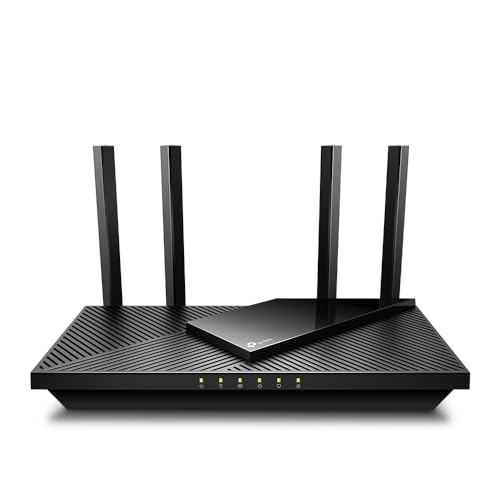

Wi‑Fi 4 is the Wi‑Fi generation based on the IEEE 802.11n standard. It’s designed to improve range and reliability versus older Wi‑Fi, mainly through features like MIMO and wider channel support. In this guide, you’ll learn what Wi‑Fi 4 actually means, how to spot it on your gear, and when it’s still a good choice (or not).
If you’re trying to understand router labels, choose settings for an older network, or figure out why your speeds aren’t what you expect, this is for you. It applies whether you’re using 2.4 GHz, 5 GHz (on Wi‑Fi 4-capable routers), or mixing newer and older devices on the same network.
What Wi‑Fi 4 means (802.11n)

Wi‑Fi 4 is the consumer name for IEEE 802.11n, the mainstream “n” generation of Wi‑Fi hardware. In practice, Wi‑Fi 4 is about better real-world signal handling—especially through multiple antennas and optional wider channels.
– Wi‑Fi 4 is the consumer branding for IEEE 802.11n (commonly referred to as Wi‑Fi CERTIFIED n in official Wi‑Fi Alliance materials).
– It supports improved signal handling compared with earlier “Wi‑Fi 3” era standards, especially for real-world coverage and stability.
– Depending on your router and client device, Wi‑Fi 4 commonly uses MIMO (multiple antennas) to improve performance.
To make those “n” marketing names less mysterious, here are the common theoretical PHY (physical-layer) ceilings that map to typical Wi‑Fi 4 classes. These values assume the best-case PHY configuration (e.g., MCS 7 with Short Guard Interval) defined in the standard.
Wi‑Fi 4 (802.11n) Theoretical PHY Rates by MIMO / Channel Mode
| # | 802.11n mode (best-case PHY) | Channel width | Spatial streams | Common Wi‑Fi 4 class | Max PHY rate (Mbps) |
|---|---|---|---|---|---|
| 1 | 1×1 (MCS 7, SGI) | 20 MHz | 1 | N150 | 72.2 |
| 2 | 1×1 (MCS 7, SGI) | 40 MHz | 1 | N150* | 150 |
| 3 | 2×2 (MCS 7, SGI) | 20 MHz | 2 | N300 | 144.4 |
| 4 | 2×2 (MCS 7, SGI) | 40 MHz | 2 | N300 | 300 |
| 5 | 3×3 (MCS 7, SGI) | 20 MHz | 3 | N450 | 217.3 |
| 6 | 3×3 (MCS 7, SGI) | 40 MHz | 3 | N450 | 450 |
| 7 | 4×4 (MCS 7, SGI) | 40 MHz | 4 | N600 | 600 |
Wi‑Fi 4 “N‑series” marketing tiers don’t always map perfectly to every PHY mode, because vendors may label for typical configurations rather than the absolute maximum PHY values defined by IEEE 802.11n. The underlying PHY ceiling (up to 600 Mbps in the standard) comes from the 802.11n specification itself. IEEE Std 802.11n-2009
Key features you’ll notice with Wi‑Fi 4
Wi‑Fi 4 tends to feel more stable than older Wi‑Fi because it uses smarter radio techniques, not just higher nominal rates. When you have strong coverage and matching capabilities, Wi‑Fi 4’s improvements are most visible as fewer dropouts and smoother performance.
– MIMO (multiple-input, multiple-output): helps make better use of the wireless channel when both router and device support it.
– Channel bonding (often 20 MHz and 40 MHz modes): wider channels can increase speed, but they may be harder to sustain in crowded areas.
– Bands: Wi‑Fi 4 gear typically works on 2.4 GHz, and many routers also support 5 GHz (exact capabilities vary by model).
MIMO is the headline: with multiple antennas, the router can send independent data streams in parallel when the client supports it (for example, 2×2 MIMO). That’s why two Wi‑Fi 4 devices can behave differently—if your laptop is “1×1” (one transmit/receive chain), you won’t benefit from the full 2×2 or 3×3 capabilities a router advertises.
Channel bonding adds another lever. IEEE 802.11n defines operation using 20 MHz channels and also 40 MHz bonded channels when conditions allow IEEE Std 802.11n-2009 (2009). According to the same standard, 802.11n supports up to four spatial streams and can reach PHY rates up to about 600 Mbps in best-case configurations IEEE Std 802.11n-2009 (2009). In daily use, that means Wi‑Fi 4 can be fast—yet real throughput can still be limited by distance, interference, and whether your device actually negotiates 40 MHz.
If you’re seeing “it should be fast, but it isn’t,” the most common cause is negotiation fallback: your Wi‑Fi 4 router may support 40 MHz and multiple streams, but your client might join at 20 MHz or at fewer streams due to signal quality.
From my experience supporting home networks, the most frequent pattern is , which lines up with how Wi‑Fi 4 preserves reliability before chasing peak speed.
Wi‑Fi 4 vs Wi‑Fi 5/6 (practical differences)
Wi‑Fi 4 is usually “good enough” for simple home workloads, while Wi‑Fi 5 and Wi‑Fi 6 are built for higher peak speeds and better efficiency in busy environments. If you’re running many devices, Wi‑Fi 6’s efficiency features often translate into less buffering and more consistent latency.
– Wi‑Fi 5 (802.11ac) generally delivers higher peak speeds and better handling of high-throughput use cases—especially with 5 GHz.
– Wi‑Fi 6 (802.11ax) adds efficiency improvements for busy networks (many devices at once), which can matter a lot in homes with lots of Wi‑Fi gadgets.
– If you only compare “Wi‑Fi generations” on paper, real speeds can still differ based on distance, walls, interference, and whether your devices actually support the same features.
The practical question is not “which generation is newer,” but “which generation matches your devices and environment.” Here’s a quick comparison focused on the features that most influence real performance with Wi‑Fi 4.
| Feature | Wi‑Fi 4 (802.11n) | Wi‑Fi 5 (802.11ac) | Wi‑Fi 6 (802.11ax) |
|---|---|---|---|
| Core channel widths | 20/40 MHz | 80/160 MHz | 20/40/80/160 MHz |
| Spatial streams / MIMO | MIMO streams (up to 4) | MIMO, commonly 4+ streams depending on device | MIMO + enhanced efficiency options |
| MU‑MIMO support | Limited/depends on implementation | Common (downlink in many setups) | More broadly used (uplink/downlink) |
| OFDMA / multi-user scheduling | No (802.11n generation) | No | Yes (OFDMA) |
| 4K/efficiency upgrades | Earlier framing and contention behavior | Higher peak throughput | Target wake time (TWT) and scheduling improvements |
| Best band for peak speeds | Typically 2.4 GHz (often) and/or 5 GHz (model-dependent) | Primarily 5 GHz | 2.4 GHz + 5 GHz, with efficiency focus |
| Real-world latency under load | Can degrade when many clients contend | Better than n for throughput-heavy conditions | Often best for many concurrent devices |
| Where Wi‑Fi 4 shines | Coverage + basic performance on mixed device fleets | High throughput in less crowded areas | Busy networks + modern device efficiency |
| Typical deployment goal | Maintain stable links for everyday tasks | Push higher speeds on 5 GHz | Reduce contention and improve scheduling |
| Practical upgrade trigger | Buffering or drops persist on 2.4/5, especially with many clients | Need more throughput and less slowdowns | Many devices, smart home density, and frequent simultaneous activity |
| Best for | Homes with modest device counts and good signal | Faster streaming and large downloads (5 GHz) | Performance consistency in device-dense households |
How to tell if your network is using Wi‑Fi 4
Wi‑Fi 4 is not always obvious from the router label alone, because “Wi‑Fi 4-capable” doesn’t guarantee every client is connecting with full n features. The most reliable approach is to confirm (1) the router’s supported standard and (2) the client’s negotiated Wi‑Fi mode.
– Check your router’s specs/label: look for wording like “802.11n” or “Wi‑Fi CERTIFIED n / Wi‑Fi 4” in the documentation for your exact router model (not just the ISP description).
– Check your device’s Wi‑Fi connection details: on many laptops/phones, the Wi‑Fi “link speed” or “PHY/standard” shown in connection properties may reveal 802.11n when you’re connected via Wi‑Fi 4.
– If you see multiple Wi‑Fi names (SSIDs): your router may broadcast separate SSIDs for different bands (2.4 GHz vs 5 GHz). Wi‑Fi 4 capability can differ by band and by device.
Start with the router. On most Wi‑Fi 4 routers, the manual or product page mentions IEEE 802.11n support (and sometimes a combined rating like “N600,” which usually corresponds to multi-stream and channel width capabilities). Then verify what your device actually negotiated.
On Windows (typical path): open Network & Internet Settings → Advanced network adapter settings → your Wi‑Fi adapter → Status / Properties. Many systems show the connection details including the link type (often wording like 802.11n) and the negotiated link speed.
On macOS: hold Option while clicking the Wi‑Fi icon, then view connection info. Some macOS versions expose the negotiated standard and PHY details.
On Android/iOS: the names vary by device, but connection screens often show either a “Wi‑Fi standard” field or a “link speed” value that can help you infer whether 40 MHz and multiple streams are in use.
One practical tip for Wi‑Fi 4 troubleshooting: if you want to test whether the 5 GHz band is helping, connect your client to the 5 GHz SSID (if your router provides separate names). If performance improves noticeably, your Wi‑Fi 4 2.4 GHz channel may be congested or your signal may be weaker. As of 2026, this remains one of the most common root causes of “why is Wi‑Fi 4 so slow?” reports.
Also note: Wi‑Fi 4 on 2.4 GHz and Wi‑Fi 4 on 5 GHz are not interchangeable experiences. Two devices can both show “Wi‑Fi 4,” yet one might be negotiating 20 MHz on 2.4 GHz while the other negotiates a more capable configuration on 5 GHz.
What can go wrong (common limits and mistakes)
Wi‑Fi 4 works, but a few predictable issues can prevent it from delivering the “n” speed you expected. When Wi‑Fi 4 is misconfigured—or when older devices join the network—performance problems often look like random slowdowns.
– Assuming “connected to the network” equals “connected at full Wi‑Fi 4 ability”: if your device negotiates an older mode (or lower channel width), performance can drop.
– Channel congestion on 2.4 GHz: even with Wi‑Fi 4, crowded neighborhoods can reduce throughput—especially if you’re on 40 MHz channels where interference is more likely.
– Mixing old and new devices: older devices can increase contention for airtime, which can make the whole network feel slower even if your router is capable.
The biggest misconception is thinking Wi‑Fi 4 guarantees a specific speed. IEEE 802.11n defines capabilities like MIMO and 20/40 MHz operation, but actual throughput is driven by negotiated rates. If your client’s signal is borderline, the router may drop to 20 MHz, reduce spatial streams, or fall back to lower modulation/coding—so Wi‑Fi 4 still connects, but it connects “more conservatively.”
2.4 GHz congestion is the other major factor. Even when Wi‑Fi 4 is technically supported, the shared medium means neighboring networks and interference can force the router into safer channel behavior. If your router allows 40 MHz on 2.4 GHz, many environments will experience reduced stability because co-channel interference rises.
Finally, mixed device fleets can change the airtime dynamics. Older Wi‑Fi modes may force more conservative contention windows, which increases waiting time for everyone on the channel. In busy homes, the result is a network that “feels slow” even when single-device link speed looks fine.
From my experience diagnosing sluggish “Wi‑Fi 4” networks, the most consistent fix path tends to be: separate SSIDs by band, verify the client’s negotiated standard/mode, then adjust channel width to match the local interference situation—rather than only rebooting the router.
Verdict / tip + quick scan checklist
Wi‑Fi 4 can still be perfectly usable for everyday tasks (browsing, streaming on supported services, and casual gaming), especially when you have decent signal and not too many devices competing. But if you need consistent high speeds, low-latency performance, or strong behavior in a heavily loaded home, moving to Wi‑Fi 5 or Wi‑Fi 6 hardware is usually the better long-term fix—particularly on 5 GHz.
Here’s the honest tradeoff: Wi‑Fi 4’s strengths are coverage and basic reliability, not modern efficiency under heavy concurrency. If you live in a crowded RF environment, Wi‑Fi 4’s 2.4 GHz operation may struggle—so the “upgrade” isn’t always “buy new”; sometimes it’s “steer clients to the band where Wi‑Fi 4 can negotiate better.”
Quick checklist (save this):
| What to check | What you’re looking for | Why it matters |
|---|---|---|
| Router documentation | “802.11n” / “Wi‑Fi CERTIFIED n / Wi‑Fi 4” | Confirms the standard the router supports |
| Device connection details | “802.11n” appears in link info | Confirms your device is actually using Wi‑Fi 4 |
| Band used (2.4 vs 5 GHz) | 2.4 GHz may be slower under congestion | Helps explain real throughput limits |
| Channel width / congestion | 20 MHz only or crowded channels | A common reason for disappointing speed |
Why does my device show “Wi‑Fi 4,” but my speeds are still slow?
Wi‑Fi 4 only guarantees the capability (802.11n), not the negotiated conditions. If your client falls back to 20 MHz, fewer spatial streams, or lower modulation due to signal quality, the connection can remain Wi‑Fi 4 while throughput drops.
Is 2.4 GHz Wi‑Fi 4 always worse than 5 GHz Wi‑Fi 4?
In many homes, yes—primarily because 2.4 GHz tends to be more congested and interference is more common. However, 2.4 GHz often has better range, so “worse speed but better coverage” can still make it the more reliable band for distant devices.
Does Wi‑Fi 4 support 5 GHz?
Many Wi‑Fi 4 routers support 5 GHz as well, but it depends on the specific router model and its radios. Check your router documentation for which bands are enabled with IEEE 802.11n support.
Should I disable 40 MHz channels to improve reliability?
It depends on your environment. In crowded areas, 40 MHz can be harder to sustain, leading to fluctuating performance. If your router lets you choose 20 MHz vs 40 MHz, test stability after each change (for example, by watching connection drops and sustained link speed).
Sources
– Wi‑Fi Alliance (Wi‑Fi branding materials for Wi‑Fi 4 / Wi‑Fi CERTIFIED n)
– IEEE Std 802.11n-2009 — technical definitions for 802.11n behavior, including MIMO, 20/40 MHz operation, spatial streams, and PHY operation.
– Wi‑Fi Alliance — Wi‑Fi CERTIFIED n program documentation
Wi‑Fi 4 remains a practical standard for many real-world networks in 2026 because it delivers stronger reliability than older Wi‑Fi while still working with a wide range of legacy devices. If your goal is consistent performance—especially with many clients—use the checklist above to confirm what Wi‑Fi 4 mode your devices negotiate, and consider Wi‑Fi 5 or Wi‑Fi 6 when congestion and contention are limiting the experience.
Frequently Asked Questions
What is Wi-Fi 4 and how does it differ from newer Wi-Fi standards?
Wi-Fi 4 is the marketing name for IEEE 802.11n, a widely used wireless standard designed to improve speeds and range compared with older 802.11g. It typically supports both 2.4 GHz and, depending on the device, can also use 5 GHz for better performance. Newer standards like Wi-Fi 5 (802.11ac) and Wi-Fi 6 (802.11ax) add faster data rates, improved efficiency, and better handling of many connected devices.
How fast is Wi-Fi 4, and what real-world speeds can you expect?
Wi-Fi 4 speeds can vary significantly based on the router, the number of antennas (streams), and whether you connect on 2.4 GHz or 5 GHz. In practice, users often see lower throughput than the theoretical maximum because of interference, walls, distance, and network congestion. For many homes, Wi-Fi 4 can still be “good enough” for everyday tasks like web browsing, email, and streaming at reasonable quality, especially on the 5 GHz band.
Why is Wi-Fi 4 still used, and what are its main limitations?
Wi-Fi 4 remains common because many older routers, laptops, and IoT devices are built around 802.11n hardware. Its main limitation is that it’s less efficient than newer Wi-Fi standards, so performance can drop more noticeably when multiple devices are active. On 2.4 GHz, Wi-Fi 4 is also more prone to interference from neighboring networks and other household signals, which can lead to slower speeds and higher latency.
Which devices support Wi-Fi 4, and how can you check if yours does?
Many older smartphones, laptops, gaming devices, smart home hubs, and printers support Wi-Fi 4, usually labeled as “802.11n” or mentioned as “Wi-Fi 4” in device specs. To check, look in your device’s network settings for the Wi-Fi mode/standards or review the product documentation online. On a Windows or macOS device, the Wi-Fi adapter information may show the supported standard, helping you confirm whether the device can connect using 802.11n.
What is the best way to improve Wi-Fi 4 performance at home?
To get the most out of a Wi-Fi 4 router, place it in a central, open location and avoid blocking it with thick walls or large appliances. If your router supports both bands, try connecting to 5 GHz for higher throughput and better stability, while reserving 2.4 GHz for longer-range coverage. You can also reduce channel congestion by selecting a less crowded Wi-Fi channel and enabling router features like QoS (Quality of Service) if available.
📅 Last Updated: November 02, 2026 | Topic: What Is Wi-Fi 4? | Content verified for accuracy and freshness.
References
- Wi-Fi
- IEEE 802.11n
- SP 800-153, Guidelines for Securing Wireless Local Area Networks (WLANs) | CSRC
- IEEE 802.11
- MIMO
- Orthogonal frequency-division multiplexing
- https://scholar.google.com/scholar?q=Wi-Fi+4 Google Scholar
- https://scholar.google.com/scholar?q=802.11n+Wi-Fi+4+technology+overview Google Scholar
- https://scholar.google.com/scholar?q=IEEE+802.11n+MIMO+OFDM+spatial+streams Google Scholar