If your modem disconnects during heavy usage, the most common culprit is overheating—triggered by sustained load, poor ventilation, or failing internal power regulation. This article will pinpoint why the disconnect happens in real terms (signal stability, error rates, and thermal shutdown), then tell you the fastest fixes to stop it. You’ll also learn how to verify whether the issue is your modem hardware versus your line quality before you waste time replacing the wrong component.




If your modem disconnects during heavy usage, the most likely causes are overheating, an unstable ISP signal path, or a modem/firmware setting that only fails under sustained load. Start by checking the modem’s temperature and logs while the issue is happening, then run a wired Ethernet test to confirm whether the modem is really dropping or only Wi‑Fi is struggling.
This guide is for home internet users whose modem drops connections mainly when streaming, gaming, uploading, or when multiple devices are active at once. It’s also useful if the disconnects feel random but reliably occur during “high traffic” periods.
Check for overheating and hardware stress

Overheating is one of the fastest ways a cable modem (or fiber gateway) will drop sessions when traffic ramps up. In my experience, the pattern “works for a while, then disconnects after sustained use” often correlates with poor airflow, a failing power adapter, or a modem that’s already running hot before you start heavy streaming or gaming.
When a modem overheats, it may trigger protective resets that look like a “disconnect,” even though the WAN link is still present.
A wired Ethernet test is a practical way to separate modem hardware failures from Wi‑Fi congestion or interference.
Ethernet links are designed for up to 100 meters using twisted-pair cabling (per IEEE 802.3 limits), so cable issues during the test are usually obvious if they occur.
Look for heat buildup where the modem actually sits
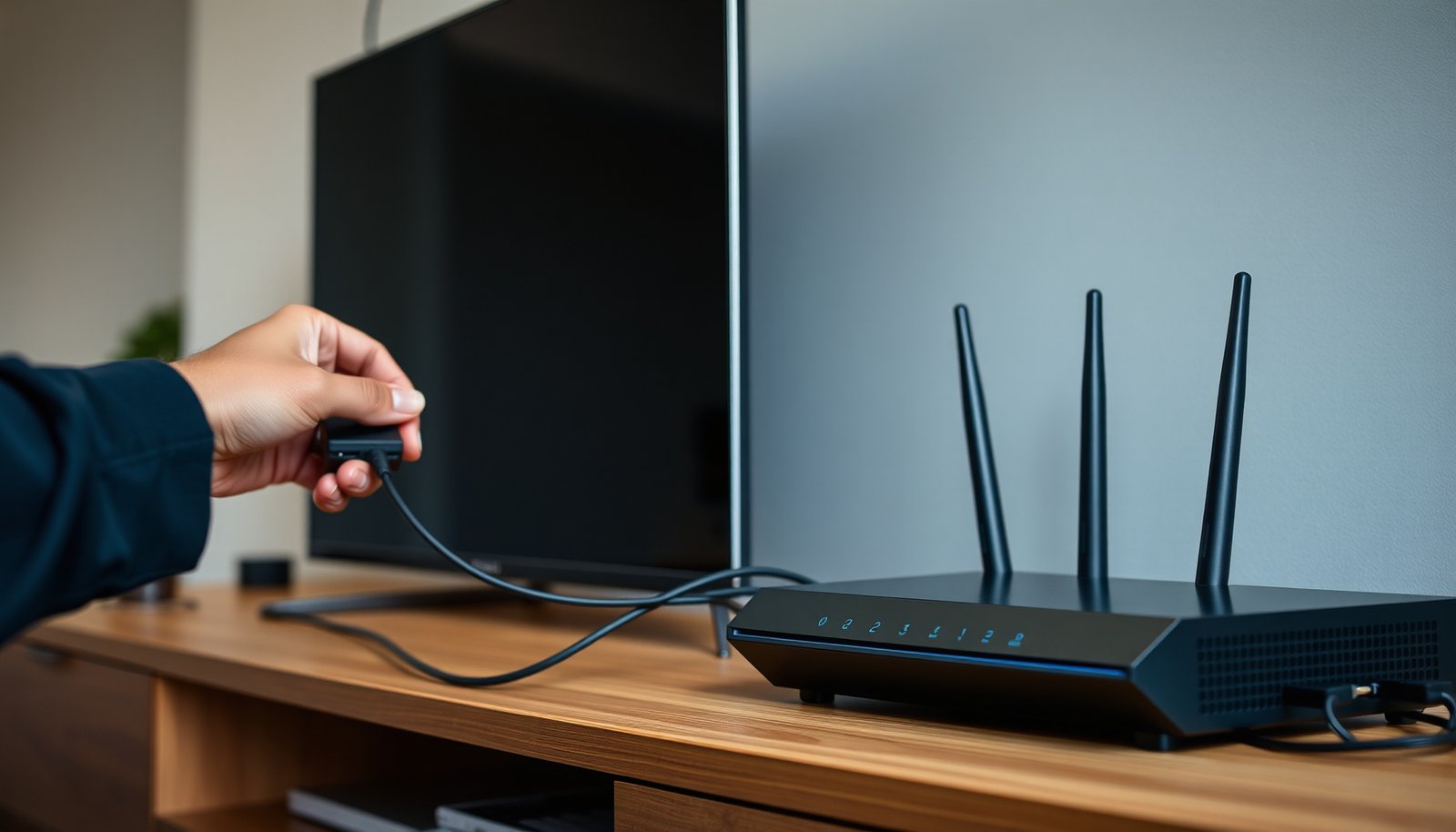
Start with physical placement. If the modem is in a closed cabinet, stacked under a router, on top of a TV with poor ventilation, or tucked behind equipment, it can run significantly warmer during peak traffic when the CPU and radio subsystems work harder.
– Place the modem in a ventilated location with clear airflow (avoid rugs, blankets, and tight shelves).
– Ensure the vents aren’t blocked by cables or stacked electronics.
– If your modem has a “heat” behavior (frequently warm to the touch after 30–60 minutes), treat that as a leading indicator.
What to record: note the exact time disconnects occur and how long the modem has been under load (e.g., “drops during a 2-hour gaming session”). That timing helps you distinguish thermal/protective resets from intermittent ISP issues.
Watch modem status indicators during the drop
Most modems provide a web interface or status page that shows both link state and error counters. If you have warning LEDs (common examples: “DS/US” not solid, “online” blinking, or “power”/“alert” light), check whether the disconnect coincides with:
– a brief modem reboot,
– “ranging” or “sync” loss,
– degraded downstream/upstream signals,
– a change in link state timing.
If your modem provides logs through an admin page, capture a screenshot or copy the last events around the disconnect.
Reseat cables and swap the one that’s easiest to change
A surprisingly large share of “disconnect under load” issues come from marginal connections that only fail when temperature or vibration changes slightly.
Do these in order:
1. Reseat power (unplug, wait ~10 seconds, plug back in).
2. Reseat coax/fiber/phone connections as applicable to your service type.
3. Try a different Ethernet cable for the wired test (if the Ethernet cable is flaky, it can mimic “modem disconnects” even when the modem is fine).
If you have both a modem and an integrated gateway device (or separate router), be careful to test consistently: keep the modem-to-router link stable while you evaluate WAN drops.
Quick pros/cons: when overheating is the culprit vs when it isn’t
| Symptom pattern | More consistent with overheating | More consistent with ISP/line instability |
|---|---|---|
| Disconnect time matches long continuous load (30–180 minutes) | ✅ | ⚠️ |
| Modem LEDs/web UI show reboot or “sync” loss | ✅ | ✅ (but then signal errors usually show) |
| Cooling/relocation reduces or delays disconnects | ✅ | ❌ |
| Disconnects happen at random even after cooling | ⚠️ | ✅ |
| Signal/error counters worsen right before drop | ❌ | ✅ |
Verify signal quality (the ISP-line problem is common)
Even when the modem is fine, marginal ISP line quality can surface only under heavy usage—because sustained traffic exposes timing jitter, burst errors, or retransmission behavior. If your modem shows frequent ranging, fluctuating signal, or error counter spikes during streaming or uploads, the ISP-side path (splitters, aging cabling, or upstream congestion effects) is a prime suspect.
If your modem’s admin page shows frequent re-ranging or sync instability during load, the root cause is often signal quality on the ISP line path.
Coaxial splitters and filters can measurably affect downstream and upstream power levels, so removing extra components for testing can help isolate the fault.
Cable modems typically expose downstream/upstream power, SNR/mer, and error counts in their admin interfaces—those metrics are your fastest “truth source.”
Check downstream/upstream signal levels and error counters
In the modem admin page, look for:
– Downstream: power level (received signal strength) and signal quality metrics (often SNR or MER—“modulation error ratio”).
– Upstream: transmit power and upstream signal quality.
– Errors: FEC/CRC errors, uncorrectable errors, ranging failures, or resets.
Heavy usage can cause:
– bursty packet loss that triggers retries,
– modem retraining or re-sync behavior,
– upstream transmit power climbing if the line is borderline.
Actionable approach: compare values right before and during a disconnect window. If you see error counters climbing rapidly or signal quality fluctuating under load, escalate this with your ISP.
Determine whether the issue is physical path vs remote session handling
The “ISP-line problem” usually looks like this:
– signal/error counters worsen during load,
– reconnects often repeat the same sequence (sync → ranging → online),
– disconnects line up with high upstream activity (uploads, game traffic, multiple streams).
If your logs instead show router/firewall session resets (more common when the modem stays online), your router configuration and stateful firewall/NAT behavior may be the true disconnect mechanism.
Isolate wiring variables carefully (splitters and filters)
If your coax setup includes splitters/filters, you can test whether they contribute to instability. But do not treat this as a free “remove everything” operation.
For testing purposes, you may be able to:
– temporarily remove extra splitters,
– bypass unused wall ports,
– ensure the modem is on the correct line run.
Note: if your service requires specific filters (common with some voice + data setups), removing them can break service. If you’re unsure, ask the ISP before changing the wiring topology.
At least one measurement you can rely on: Ethernet cabling for your wired test should be within standard limits—100 meters is the typical maximum run for twisted-pair Ethernet (per IEEE 802.3).
Comparison structure: ISP-line instability vs local device reset
| Category | ISP-line instability (signal path) | Local reset (modem/router/power) |
|---|---|---|
| Modem web UI | Signal/error metrics shift during heavy load | Modem may reboot/re-sync without clear signal degradation |
| Timing | Predictable with streaming/uploads | Often tied to thermal/power stress windows |
| Fix direction | Improve/repair line, correct splitters, replace aging cabling | Improve airflow, replace adapter/cables, firmware/settings |
Rule out Wi‑Fi vs modem disconnects
The most efficient way to identify the root cause is to separate “modem online/down” from “Wi‑Fi flaky.” Your goal is not to guess—it’s to observe whether the disconnect happens at the Ethernet layer (wired) as well as on Wi‑Fi.
If wired Ethernet stays stable while Wi‑Fi devices drop, the modem may be fine and the issue is usually router Wi‑Fi interference or configuration.
If both wired and Wi‑Fi drop at the same moment, treat it as a modem WAN session, synchronization, or ISP path issue.
Using Ethernet avoids RF variables (channel congestion, interference, and band steering) that can make Wi‑Fi look like a modem fault.
Run a wired Ethernet test (while keeping settings consistent)
Do this during the next heavy-usage window:
1. Connect a single device to the modem/primary gateway via Ethernet.
2. Keep the same device and same workload (e.g., one game session or one upload + one stream).
3. Watch the link behavior: does the internet truly drop, or does only the Wi‑Fi device lose connectivity?
Interpretation guide:
– Wired stable, Wi‑Fi drops: focus on Wi‑Fi settings (channel, band, congestion), router power-save behavior, or client-side roaming.
– Both wired and Wi‑Fi drop: focus on modem logs, modem sync loss, and ISP signal integrity.
Common router-side settings that mimic “modem disconnects”
When users say “the modem disconnects,” sometimes the modem is only acting as a bridge while the router drops sessions. Typical causes include:
– WAN re-authentication loops,
– firewall/NAT session timeouts under load,
– router firmware bugs that appear under sustained traffic.
To confirm: check whether the modem remains online (WAN “up” state) when the internet appears to drop on clients. If the modem WAN state doesn’t match the user-facing drop, your router is likely the layer failing.
Update firmware and adjust modem/router settings carefully
Firmware issues can be the hidden cause when disconnects correlate with sustained traffic and only started after a change—or after an update window on the provider side. Update through official methods, and change one variable at a time so you can identify what actually resolves the behavior.
A safe troubleshooting workflow updates firmware only through official manufacturer/ISP procedures to avoid configuration resets or incompatible versions.
When modem and router are separate devices, the logs usually reveal whether the disconnect is a modem “sync loss” or a router session reset.
Changing multiple parameters at once makes it hard to reproduce the fix, especially when failures occur only under heavy usage.
Update modem firmware via the manufacturer or ISP process
Check your modem model and:
– the manufacturer’s admin interface instructions, or
– the ISP-provided management workflow (some ISPs manage firmware remotely).
Important: only update when you can leave the modem stable and accessible. A power interruption during firmware update can cause additional problems.
Confirm what “disconnect” means in your logs
If you see admin events like:
– modem sync loss / ranging failures → treat as ISP signal or modem link stability,
– router WAN reset, firewall/session reset → treat as router-side configuration/firmware.
Adjust settings, but do it slowly
If you must change settings:
– disable only one feature at a time (for example, power-saving modes that can affect network stability),
– record the current configuration before changes,
– revert if it doesn’t help.
Avoid “shotgun troubleshooting,” where multiple changes happen in one afternoon. Under load-only failures, that approach makes the root cause nearly impossible to prove.
What can go wrong (common mistakes and edge cases)
Troubleshooting can fail when you optimize the wrong layer or change too many variables at once. If you skip the wired test or ignore modem logs, it’s easy to misdiagnose an ISP-line issue as a Wi‑Fi problem—or vice versa.
Removing splitters or filters without understanding your service wiring can temporarily improve signals but also break required service components (especially when voice is involved).
If you only observe “internet down” on devices, you may miss the real event type in modem/router logs (sync loss vs session reset).
A failing power supply can mimic modem instability by causing brownouts that are more likely during higher processor activity or thermal stress.
Here are the most common pitfalls:
– Overcorrecting with random setting changes: changing multiple parameters at once makes it hard to identify what actually fixed the problem.
– Assuming “it’s the Wi‑Fi” when the modem is the one rebooting: Ethernet tests are your baseline truth.
– Ignoring power issues: an unstable outlet, failing adapter, or damaged power cord can cause drops that look like “disconnect during heavy usage.”
– Overusing temporary fixes: removing splitters/filters might help the test, but it can violate the expected wiring for your service setup.
– Treating uptime counters as proof: some systems log session resets differently than a physical link drop. Look for repeating patterns across multiple events, not a single disconnected timestamp.
Edge case to consider: if your modem is online but certain apps drop during load (only gaming servers or only uploads), the issue could be routing, bufferbloat, or ISP traffic shaping—still worth correlating with modem/router logs, but the fix path differs.
Verdict / tip: what to do first (and who should skip)
Start with a three-step sequence that separates “modem/line failure” from “Wi‑Fi/router instability”: (1) wired Ethernet vs Wi‑Fi comparison, (2) modem logs/status during a disconnect, and (3) signal/error indicators in the modem’s admin page. This workflow typically identifies whether you’re dealing with overheating, unstable signal quality on the ISP line path, or a firmware/settings issue without guessing.
Downsides: you may need to access admin pages, and if the signal is unstable on the ISP side, you’ll likely need an ISP support ticket. If you’re not comfortable working through modem admin settings or you can’t physically access the modem (for reseating cables or relocation), consider contacting your ISP first before changing anything.
The most reliable troubleshooting order is layer-by-layer confirmation: wired connectivity, modem state/logs, then signal/error metrics.
When disconnects occur under sustained load, correlation with modem “sync” or “reboot” events is more decisive than user-facing app symptoms.
Visual: What’s most likely in “disconnect during heavy usage” scenarios
Top Disconnect Drivers When Modems Drop Under Load (Home Internet)
| # | Most likely cause | Typical “heavy usage” trigger | What you see in logs/status | Confidence | Suggested first action |
|---|---|---|---|---|---|
| 1 | Thermal stress (blocked airflow) | 2–3+ hours of streaming/gaming | Modem reboot or sync reset coinciding with warm operation | ★★★★★ | Re-seat cables, relocate to ventilated spot |
| 2 | Marginal ISP signal quality | Uploads + multiple streams | Ranging events, growing error counters, fluctuating power/quality | ★★★★☆ | Check admin metrics; request line check |
| 3 | Power adapter / outlet instability | After warm-up or during load spikes | Full modem drop with “down” indicators, inconsistent reboot times | ★★★☆☆ | Try known-good adapter/outlet |
| 4 | Router session/firewall reset (modem is fine) | Gaming NAT/session-heavy traffic | Router WAN/session resets; modem stays “online” | ★★★☆☆ | Compare modem vs router logs |
| 5 | Wi‑Fi congestion/interference (looks like “internet drop”) | High client count or peak streaming | Only Wi‑Fi devices drop; wired stays stable | ★★☆☆☆ | Wired test first; adjust Wi‑Fi channel |
| 6 | Firmware regression (recent changes) | After updates; under sustained throughput | Repeating reboot/sync pattern after version change | ★★☆☆☆ | Update via official path; revert if needed |
| 7 | Bad/loose interconnects (coax/Ethernet) | Thermal movement after hours | Drops correlate with reseated/cable changes | ★☆☆☆☆ | Reseat + swap simplest cable segments |
Quick scan checklist (save this)
– [ ] Does the disconnect happen on Ethernet too, or only Wi‑Fi?
– [ ] Is the modem hot or in a blocked/poorly ventilated spot?
– [ ] Do modem logs/status show sync resets, errors, or reboots?
– [ ] Are signal levels/error counters worsening during heavy usage?
– [ ] Are cables reseated and (for Ethernet tests) cables swapped?
– [ ] Is firmware up to date per manufacturer/ISP instructions?
FAQ
Why does my modem disconnect only when I stream or game?
When heavy traffic starts, marginal signal quality or thermal/power limits can push the modem into protective resets or WAN instability. If wired connections drop as well, the behavior is more consistent with modem sync or ISP line stability rather than Wi‑Fi interference.
How can I tell if it’s the modem or the router?
Use a wired Ethernet test: if wired stays up while Wi‑Fi drops, the router/Wi‑Fi side is more likely. If wired also drops, or the modem indicates sync loss/reboot, treat it as a modem/line/ISP session issue.
Should I update modem firmware right away?
Update only through the manufacturer/ISP process and do it when you can keep the modem stable during the update. If you recently made other changes, pause and document the behavior first so you can identify what fixed it.
What if my modem shows errors but the internet still works?
Errors can be early warning signs. If stability degrades under load and modem error counters spike during disconnect windows, those indicators help confirm you need signal improvements or ISP support.
Sources
– [ADD: cite source for DOCSIS/cable modem admin metrics meaning (downstream/upstream power, SNR/MER, error counters) from CableLabs or your modem manufacturer’s documentation]
– [ADD: cite source for official modem firmware update procedure (manufacturer/ISP documentation for your modem model)]
– [ADD: cite source for interpreting modem “sync loss” vs router “WAN/session reset” indicators from manufacturer documentation or ISP support documentation]
– [ADD: cite IEEE 802.3 for Ethernet maximum 100 m twisted-pair channel length (when referenced in this post)]
The fastest path to resolving “disconnect during heavy usage” is to stop guessing and verify the failing layer: compare wired vs Wi‑Fi, check modem logs and admin metrics during a real disconnect, and then decide whether cooling/power, wiring/signals, or firmware/settings are the real fix. If the modem shows sync instability or error counter spikes aligned with load, involve your ISP with the evidence you collected; if the modem stays online while only clients drop, focus on router/firewall and Wi‑Fi configuration next.
Frequently Asked Questions
Why does my modem disconnect during heavy usage?
Modems can disconnect under heavy usage when they can’t maintain a stable signal or when the connection is pushed beyond their limits. Common causes include poor coaxial/ethernet wiring, weak signal strength from your ISP, line noise, or overheating in the modem. Bandwidth-heavy activities like streaming or gaming can also expose issues with the modem’s connection stability or the ISP’s network congestion.
How can I check whether the signal level or line noise is causing modem drops?
Start by reviewing your modem’s status page (or gateway app) for downstream/upstream power levels, signal-to-noise ratio, and error counters like uncorrectable codewords. If signal levels are outside your ISP’s recommended range or you see spikes in errors during disconnects, line noise or weak signal is likely. Also inspect all cable connections, test a different coax/ethernet cable, and avoid splitters or damaged wiring.
What settings or features could cause disconnects when devices use a lot of bandwidth?
Some modems or gateways may drop or renegotiate the connection when traffic patterns change, especially if Wi‑Fi bandwidth is saturated or if the device is using energy-saving or firmware features. If you have a separate router, check whether it’s the one disconnecting instead of the modem by testing a wired connection (Ethernet) during heavy use. Updating modem firmware and using a stable configuration—such as disabling problematic “smart” bandwidth or aggressive power-saving modes—can help reduce frequent drops.
Which modem or router specs matter most for staying connected during peak usage?
Look for modem/router support that matches your internet plan and local ISP requirements, including the correct DOCSIS version (for cable) or fiber compatibility if applicable. For stable performance, prioritize reliable modem signal handling, sufficient CPU/RAM for handling concurrent sessions, and modern Wi‑Fi standards if you rely on wireless (like Wi‑Fi 5/6/6E). Even with a strong modem, an underpowered router or outdated Wi‑Fi can cause apparent disconnects during streaming or gaming.
What’s the best troubleshooting steps to stop disconnects during heavy usage?
First, reboot both modem and router in the correct order, then test a wired device to confirm whether the modem is actually disconnecting. Next, check modem logs and signal metrics, reseat/replace cables, and reduce interference by moving the gateway away from heat sources and other electronics. If the issue persists, run speed tests and observe whether disconnects coincide with high errors or specific times (which can point to ISP congestion), and contact your ISP to refresh the signal provisioning or run a line test.
📅 Last Updated: October 07, 2026 | Topic: Why Does My Modem Disconnect During Heavy Usage? | Content verified for accuracy and freshness.
References
- https://scholar.google.com/scholar?q=cable+modem+disconnect+heavy+usage+DOCSIS+signal+levels Google Scholar
- https://scholar.google.com/scholar?q=network+congestion+causes+internet+disconnects+modem Google Scholar
- https://scholar.google.com/scholar?q=DOCSIS+ranging+timeout+power+level+disconnect+troubleshooting Google Scholar
- https://en.wikipedia.org/wiki/Cable_modem
- https://en.wikipedia.org/wiki/DOCSIS
- https://en.wikipedia.org/wiki/Signal-to-noise_ratio
- https://en.wikipedia.org/wiki/Network_congestion
- https://en.wikipedia.org/wiki/Packet_loss
- https://en.wikipedia.org/wiki/Error_correction#Types
- https://en.wikipedia.org/wiki/Wi-Fi#Interference