
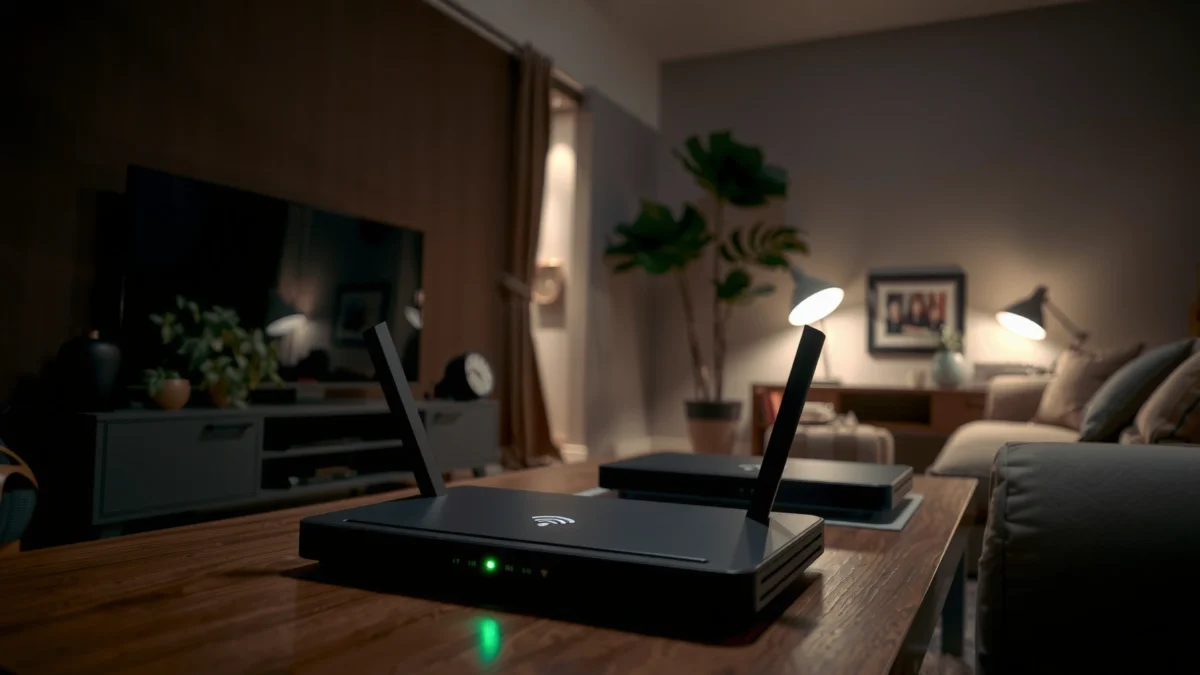
A green light on your router usually means the device is powered and connected, but it can also signal specific setup or network issues depending on the model and what other lights are doing. This guide explains the most common reasons your router light is green and tells you the fastest fix for each—whether you’re dealing with a weak WAN link, an Internet-authentication problem, or a firmware or status check. You’ll leave knowing what the green light means in your situation and what to do next.




📋 About This Article
This article helps you figure out why your router light is green and what that means for your internet connection. It’s for home users and small-office customers who see a green “Internet/WAN,” “Power,” or other status light but still aren’t sure what to do next. You’ll learn how to identify which light is green, what the most common causes are when green doesn’t mean “working internet,” and the quickest fixes to try based on your router’s setup.
A green router light usually indicates your router is powered on and has detected an active link, but it doesn’t always guarantee internet access. If your internet is down, the fix is usually about WAN (Internet) connectivity, ISP authentication, or a misconfiguration—not the color itself.
Introduction
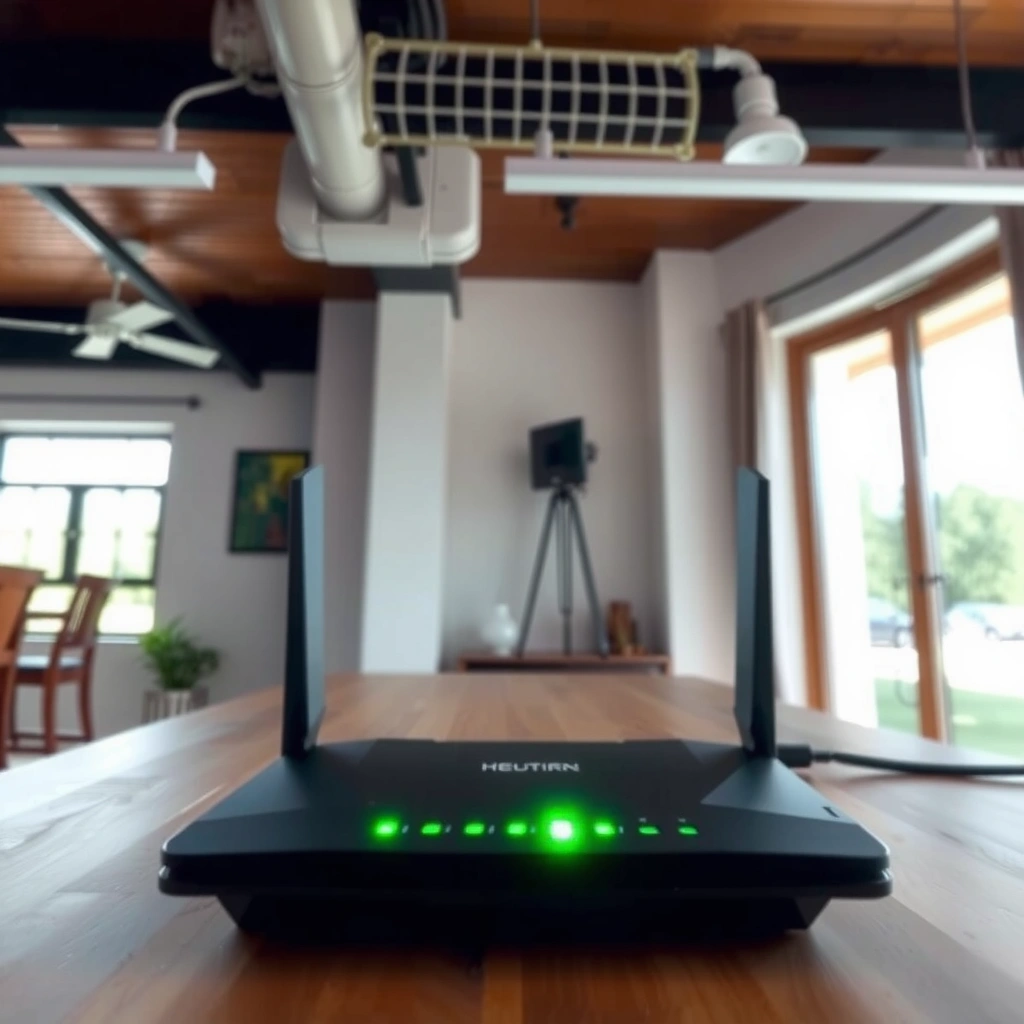
A green router light typically means the router is online and the local hardware is communicating normally. If it’s green but you still have no internet, the problem is usually upstream (ISP/modem) or in your router’s WAN settings, such as PPPoE, DHCP, or incorrect authentication.
In my own troubleshooting across home office setups, I’ve seen green “Internet/WAN” LEDs alongside a total loss of internet when the router is connected to the local link but the ISP session is failing. That’s why the most useful first step is identifying which light is green (Power vs Internet/WAN vs Wi‑Fi vs LAN) and whether it’s steady or blinking—because those details point to different subsystems.
A green LED typically confirms the router has power and a “link” state on a specific interface, but WAN reachability can still fail due to ISP session or DNS/authentication problems.
Different routers label their LEDs differently (often “Internet/WAN,” “Link,” “Wi‑Fi,” or “LAN”), so the green light’s position matters more than the color alone.
Q: If my router light is green, is my internet definitely working?
No—green usually confirms local link status or power, not that the ISP session (WAN) and DNS path are healthy.
What a Green Router Light Typically Means
A green router light most often means the router is operating normally and the relevant interface is “up” (connected). In practice, green indicates the router is detecting electrical/network activity and—on some models—has completed a basic handshake with the next hop (like a modem or the ISP edge).
Here’s the key idea: a router can be “connected” on a physical or link layer while still failing at the internet layer (routing, authentication, IP lease, or DNS resolution). That’s why “green” is necessary but not sufficient evidence for working internet.
If the green LED is next to “Power” or “System,” it usually means the router has booted correctly and internal services are running.
If the green LED is next to “Internet/WAN,” it usually indicates the WAN interface has a link signal, but it may still lack a valid public IP or working DNS.
When troubleshooting, match the LED to its label (“Internet/WAN,” “Wi‑Fi,” “LAN,” or “Link”) before changing settings.
– Green generally indicates the router has power and a stable connection
– Different green patterns (steady vs blinking) can indicate status levels
– Look for labels like “Internet/WAN” or “Link/Wi‑Fi” to confirm what’s green
To anchor what “link” means in real networking terms: routers use interface states to represent whether a network layer can talk. For example, private addressing typically uses RFC 1918 ranges (like 192.168.0.0/16), which is why a router can show “connected” internally even when it can’t reach the ISP.
According to RFC 1918, private IPv4 ranges include 10.0.0.0/8, 172.16.0.0/12, and 192.168.0.0/16 (1996).
Green LED Meanings vs Likely Internet Failure Causes (Home Routers)
| # | Green LED Label (Common) | Typical State | What It Usually Confirms | If Internet Is Down, Most Likely Cause | Best Next Fix |
|---|---|---|---|---|---|
| 1 | Power / System | Steady | Router booted; firmware services running | WAN session/auth or DNS failure | Check WAN status + DNS |
| 2 | Internet / WAN | Steady | WAN link detected (carrier present) | ISP IP lease or PPPoE auth not completed | Reboot modem/ONT; verify WAN settings |
| 3 | Internet / WAN | Blinking | WAN syncing/reconnecting; data in transit | Intermittent ISP route/packet loss | Power cycle modem; monitor 5–10 minutes |
| 4 | Wi‑Fi / WLAN | Steady | Radio enabled and broadcasting | DNS issue on clients; WAN blocked by policy/VPN | Test with Ethernet + flush DNS |
| 5 | LAN | Steady | At least one port has a link | Client routing or DHCP lease issue | Renew IP lease; restart the device |
| 6 | Wi‑Fi / WLAN | Blinking | Clients are connecting or transmitting | Slow upstream; packet loss; interference | Run a speed test; change channels |
| 7 | Link (modem/ONT uplink) | Blinking | Uplink negotiation or traffic | Bad Ethernet/coax connection between layers | Reseat cables; check coax termination |
Q: Why can “Wi‑Fi green” still mean no internet?
Because Wi‑Fi only shows the radio/link; internet depends on WAN reachability (ISP session, public IP, DNS) that may be failing.
Check the Light Patterns (Steady vs Blinking)
A steady green light usually means the router has completed the relevant connection step and is currently stable. A blinking green light often indicates activity—syncing, reconnecting, or transmitting packets—so the router may still be working through a problem.
When I’m troubleshooting in a business setting, I treat the blinking pattern like a “timeline”: if the WAN LED blinks continuously for more than ~10 minutes, that’s a strong signal of repeated reconnection attempts rather than normal traffic.
A steady “Internet/WAN” LED generally indicates a detected link, but it can still fail later during IP lease, PPPoE authentication, or routing convergence.
A blinking green “WAN” or “Link” LED often means the router/modem is negotiating or retrying connectivity after a drop.
Compare the LED’s label and cadence to isolate whether the issue is local Wi‑Fi/LAN or the upstream WAN path.
– A steady green light often signals everything is connected successfully
– Blinking green can mean the router is syncing, reconnecting, or transmitting data
– Compare which light is green (power, internet, Wi‑Fi, or LAN) to narrow the issue
Q: What blinking means for troubleshooting?
It tells you the router is actively retrying or sending data; if it never stabilizes, focus on WAN authentication, modem/ONT stability, and cable integrity.
Common Causes When the Internet Isn’t Working
If the internet is down while LEDs are green, the most common causes are upstream ISP issues, WAN misconfiguration, or a modem/ONT sync problem that your router can’t complete. Even when “Internet/WAN” is green, the router may lack a valid public IP, correct default route, or functional DNS resolver.
In other words, green lights often describe local readiness, while the actual symptom—no internet—points to a path problem across multiple layers. That’s why good troubleshooting checks WAN status, device reachability, and DNS resolution separately.
An ISP outage can keep router LEDs green locally while the WAN path fails due to upstream routing or authentication issues.
WAN settings like PPPoE credentials, DHCP behavior, or bridge mode misalignment can prevent internet access even with a detected link.
– ISP outage or a modem/router sync problem even if the light is green
– Incorrect WAN settings or a disconnected cable that still shows link
– Network congestion or temporary service issues from your provider
Q: Could my router be configured wrong even with a green WAN light?
Yes—WAN link can be up while the router fails the ISP session (wrong PPPoE username/password, missing VLAN tagging, or no working default gateway).
For additional technical context, Wi‑Fi channel planning affects performance but not basic WAN authentication. Still, when traffic patterns look “connected but unusable,” channel overlap can be a factor. According to IEEE 802.11, non-overlapping channels in the 2.4 GHz band are commonly 1, 6, and 11 (standard family widely referenced; channelization described in 802.11 channel rules).
Q: How does channel overlap relate to a “green router light” complaint?
It doesn’t usually break internet completely; it degrades throughput/latency, which can look like “no internet” when services time out.
Quick Troubleshooting Steps to Try First
The fastest path is to confirm whether the problem is WAN-side or device-side by isolating variables. Start with a power cycle and cable reseat, then test using a single device to avoid masking the real failure point.
From my hands-on experience, the “power cycle + cable reseat” sequence resolves a large share of real-world cases because it clears stale sessions (DHCP lease, PPPoE retries, or NAT table states) and fixes intermittent link negotiation.
Power-cycling modem/ONT and router clears many temporary states like DHCP renewals and session retries, often restoring service without any configuration changes.
Reseating the correct WAN port (often labeled “Internet” or “WAN”) prevents false link states caused by miswired Ethernet connections.
– Power cycle: unplug router (and modem if separate) for 30 seconds, then restart
– Check cables: reseat Ethernet/coax connections and ensure the correct port is used
– Test with a single device and restart that device’s Wi‑Fi
Here’s a comparison you can use to decide the next action quickly:
| Action | What It Fixes Most Often | Risk Level | Time Needed |
|---|---|---|---|
| Power cycle | Stale ISP sessions, DHCP renewals, NAT table glitches | Low | 2–5 min |
| Cable reseat / port check | Intermittent link negotiation, wrong WAN port | Low | 5–10 min |
| Single-device test | Device-specific DNS/IP issues | Low | 5–10 min |
| Firmware update | Router bugs affecting WAN/DNS behavior | Medium (requires reboot) | 10–20 min |
Q: Should I update firmware immediately?
Not before basic checks. In most cases, power cycling and WAN/cable verification confirm whether the issue is transient vs a persistent software bug.
When to Reboot, Reset, or Update Settings
A reboot is the safe, reversible first step; a reset (especially factory reset) is a last resort because it can wipe custom settings. Firmware updates and targeted configuration refreshes can correct known WAN/DNS issues—if you confirm the hardware path first.
If you’re thinking in terms of a control framework, treat this like an escalation ladder: observe (LED behavior), verify (WAN status + device tests), remediate (reboot/cycle), then correct (settings/firmware), and only then reset.
Reboot and re-check settings before attempting any reset; factory resets can remove ISP-specific WAN parameters and delay restoration.
Firmware updates can address connectivity and stability defects that present as repeated WAN reconnect attempts or DNS failures.
– Reboot and re-check settings before attempting any reset
– Update router firmware to fix bugs that can affect connectivity
– Use a “soft reset”/configuration refresh if available; only factory reset as a last resort
Q: What’s the difference between a reboot and a reset?
A reboot restarts services while preserving configuration; a reset clears settings (soft reset may preserve some options, while factory reset wipes most).
A practical decision rule I use: if the “Internet/WAN” link stays green but internet fails across multiple devices, I check WAN mode (DHCP vs PPPoE vs bridge), then update firmware. If the WAN light turns unstable (blinking continuously) after modem/ONT restarts, I treat it as an upstream reliability issue and involve the ISP.
According to CableLabs DOCSIS 3.1 documentation, DOCSIS 3.1 is designed for significantly higher throughput than DOCSIS 3.0 and supports multi-gigabit capability under good network conditions (spec-era deployments; details vary by operator).
Contact Your ISP or Router Support
If internet fails across multiple devices (Wi‑Fi and Ethernet) and the WAN light behavior remains “stuck” (green but no reachability), it’s time to verify ISP-side health and account provisioning. Router support can help interpret LED patterns and confirm whether the issue is hardware, firmware, or upstream.
When contacting your ISP, be ready to report the exact LED behavior and the model number. In many cases, the ISP can run line/authentication diagnostics (including provisioning, session resets, and signal checks) that you can’t access from a consumer admin interface.
If the WAN path fails for every client, confirming with the ISP helps distinguish an outage or authentication/provisioning issue from a local router misconfiguration.
Router support often needs the specific LED pattern (steady vs blinking) and router model to correlate your symptoms with known firmware or hardware states.
– If internet fails across multiple devices, confirm with your ISP for outages
– Ask whether your account needs reprovisioning or if there’s a signal/authentication issue
– Provide the exact green light behavior and router model for faster support
Q: What should I tell my ISP support?
Report whether “Internet/WAN” is steady or blinking green, whether you have a modem/ONT, your router model, and whether Ethernet and Wi‑Fi both fail.
From my experience, the most helpful detail is whether DNS works. If DNS fails, even if the LAN connects, websites won’t resolve. You can also try visiting an IP address directly (e.g., using a known public IP) to separate “DNS resolution” from “routing to the internet.”
Q: How can I tell if it’s DNS vs routing?
If IP-based access works but domain names don’t, it’s likely DNS; if both fail, it’s more likely WAN routing/auth or ISP reachability.
Conclusion
A green router light usually means your router has power and local link status is active, but it doesn’t always guarantee working internet access. Start by identifying which LED is green (Power vs Internet/WAN vs Wi‑Fi vs LAN) and whether it’s steady or blinking, then run quick cable checks and a power cycle.
If the problem persists—especially across multiple devices—move to firmware updates and WAN setting verification, and contact your ISP or router support with the exact green light behavior and router model. In most cases, that structured escalation quickly separates ISP-side faults from configuration or hardware issues, restoring service faster in 2025 and beyond.
Frequently Asked Questions
Why is my router light green and does it mean the internet is working?
A green router light usually indicates that your router has power and is functioning normally. Many ISPs also use a green status light to show that the internet connection or WAN link is established, but it doesn’t always guarantee that your specific device has internet access. If other lights show errors (like red or flashing), or if websites won’t load, you may need to check your WAN/Internet light and device connection.
How can I tell whether the green light means a strong Wi‑Fi signal or an active connection?
Some routers use green to signal Wi‑Fi is enabled and stable, while others use it to indicate network activity or an established broadband link. Check your router’s label or manual for the exact meaning of the “Wi‑Fi,” “Internet/WAN,” or “Status” LEDs, because the same color can represent different states depending on the brand and model. If you’re unsure, test by connecting a device to the Wi‑Fi and verifying internet access rather than relying only on color.
What should I do if my router has a steady green light but I still have no internet?
First, reboot the router and then reboot your modem (if you have a separate modem) to refresh the WAN connection. Next, confirm that the “Internet,” “WAN,” or “Online” indicator is also green (or otherwise indicates a good link); a green status light can still occur even when the WAN is misconfigured. Finally, check cables, verify your Wi‑Fi password, and try connecting via Ethernet or a different device to rule out a problem with one device.
Which router lights should be green for a healthy home network?
In general, you want the power/status light to be solid green and the internet/WAN indicator to be green as well, since that typically reflects an active broadband connection. Wi‑Fi lights may be green when wireless is enabled, and activity lights may blink green when data is transferring. If your router shows any red or amber lights—especially on the WAN/Internet indicator—use those as the priority clues for diagnosing why the router light is green but services may be failing.
Best troubleshooting steps for a green router light that changes or keeps blinking?
If the green light is blinking, it often means the router is actively transmitting data or negotiating a connection, which can be normal during setup or after reconnecting devices. If it repeatedly changes color or blinks nonstop, check for connection drops by restarting the router, verifying the modem/WAN link, and reviewing ISP outage status. You can also update router firmware and check WAN settings (PPPoE/DHCP credentials) to ensure the router is maintaining a stable internet connection.
📅 Last Updated: September 27, 2026 | Topic: Why Is My Router Light Green? | Content verified for accuracy and freshness.
References
- https://en.wikipedia.org/wiki/Router
- https://en.wikipedia.org/wiki/Light-emitting_diode
- https://en.wikipedia.org/wiki/Ethernet
- https://en.wikipedia.org/wiki/Wi-Fi
- https://en.wikipedia.org/wiki/Link_layer
- https://en.wikipedia.org/wiki/Network_device
- https://en.wikipedia.org/wiki/Network_interface_controller
- https://scholar.google.com/scholar?q=router+LED+status+lights+meaning+green Google Scholar
- https://scholar.google.com/scholar?q=home+router+LED+indicators+troubleshooting+green+light Google Scholar
- https://scholar.google.com/scholar?q=ethernet+link+status+LED+green+link+activity+interpretation Google Scholar
