Wi‑Fi 6 promises multi‑gigabit speeds, yet Ethernet typically delivers steadier throughput. Most people assume the latest Wi‑Fi standard automatically beats cables, but interference and signal distance change the outcome. Wi‑Fi 6 suits devices that need flexibility across rooms, whereas Ethernet suits gamers, workstations, and any setup where latency must stay low; the deciding factors are real-world signal conditions, congestion, and the reliability of a direct link—so for consistently faster, Ethernet wins.
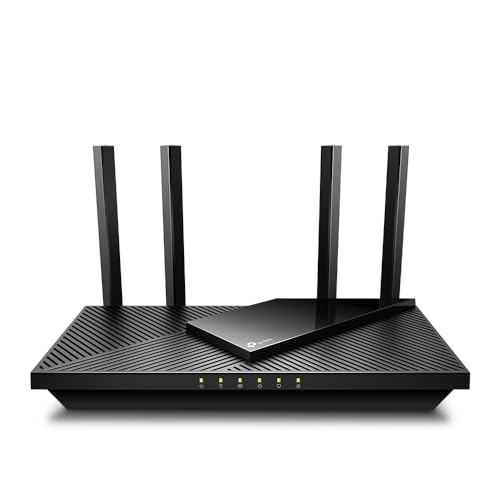

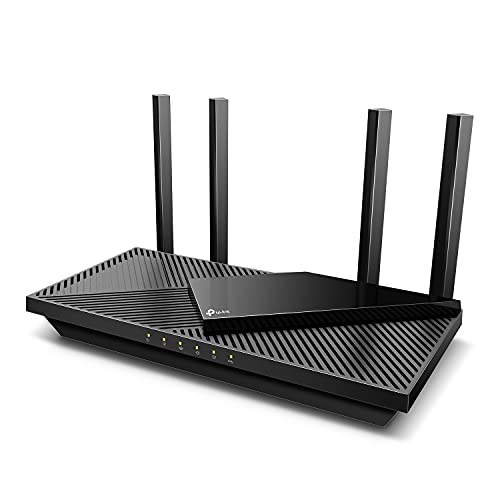

If you want the most consistent speed with the lowest lag, Ethernet is usually the better default. Wi‑Fi 6 can be very fast—especially in modern homes with strong signal—but it’s more sensitive to distance, interference, and congestion, which is why latency (not just raw speed) often becomes the deciding factor.
If you want the most consistent performance (especially for gaming, video calls, and large downloads), Ethernet is usually the better choice. Wi‑Fi 6 can be excellent—particularly in modern homes with strong signal and multiple devices—but it’s still more sensitive to interference and distance. This guide breaks down the real tradeoffs so you can pick the right option for your setup.
If you’re choosing between a Wi‑Fi 6 router/AP and running Ethernet to a PC, console, TV, or work laptop, this is for you. It’s also useful if you’ve noticed buffering, lag spikes, or “slow speeds” only when you move to certain rooms.
Wi-Fi 6 vs Ethernet: speed and latency
Ethernet typically delivers lower, more predictable latency because it’s wired and not affected by radio interference. Wi‑Fi 6 improves efficiency in busy environments, but it can’t fully eliminate latency variability when signal quality changes.
– Ethernet typically delivers lower, more predictable latency because the connection is wired and not affected by radio interference.
– Wi‑Fi 6 is designed to improve efficiency in crowded networks, which can raise real-world throughput compared with older Wi‑Fi—when the signal is strong.
– For fast response times, wired often wins; for flexible placement without cables, Wi‑Fi 6 often wins.
A practical way to think about this: “speed” is about throughput (how many megabits per second you can move), while “latency” is about responsiveness (how quickly data packets get to the other side). Real-time apps—online gaming, VoIP/Video conferencing, and remote desktop—tend to suffer more from spikes in latency than from slightly lower peak throughput.
On paper, Wi‑Fi 6 (IEEE 802.11ax) can reach far higher PHY (radio) rates than older Wi‑Fi. According to IEEE 802.11ax, Wi‑Fi 6 supports modulation up to 1024‑QAM (2021). According to IEEE 802.11ax, it can be configured for very high aggregate rates (up to multi‑Gbps class depending on spatial streams and channel width) (2021). That said, real-world latency still depends heavily on how clean the radio environment is (other networks, walls, and interference).
For Ethernet, the relationship is simpler: link speed is largely determined by the Ethernet standard your ports negotiate (for example, 1000BASE‑T vs 2.5GBASE‑T), and latency remains stable as long as the link is up and the cabling quality is good. According to IEEE 802.3, 1000BASE‑T is defined for 1,000 Mb/s operation over balanced twisted-pair (1999).
At-a-glance comparison (what usually matters first):
| Factor | Ethernet (wired) | Wi‑Fi 6 (wireless) |
|---|---|---|
| Latency stability under load | Usually best (less affected by air interference) | Can fluctuate with radio conditions |
| Peak throughput potential | High when you have fast Ethernet ports (2.5G/5G/10G) | High when signal is strong and the network is busy-friendly |
| “Only in certain rooms” problems | Less common (cabling is fixed) | Common when walls/floors weaken the signal |
| Setup friction | Higher upfront (cable routing) | Lower upfront (move devices freely) |
Coverage: where your signal actually holds up

Ethernet doesn’t “fade” with distance the way Wi‑Fi does, so a wired device is usually consistent no matter where it sits in the building (assuming the cable run and termination are solid). Wi‑Fi 6 coverage shrinks with walls, floors, and placement, so the fastest setup on the label can still feel inconsistent in practice.
– Wi‑Fi coverage shrinks with distance and obstacles (walls, floors, and even appliances), so performance can drop sharply in farther rooms.
– Ethernet doesn’t “fade” over distance in the same way—its performance depends on cable quality and link rating, not room layout.
– If you need good performance across multiple rooms, you may end up using Ethernet for key devices and adding Wi‑Fi via access points for the rest.
If your slowdown happens “only when I go into the office down the hall,” you’re almost always seeing a coverage/signal-quality problem, not an internet-provider problem. Wi‑Fi 6 routers/APs can improve efficiency, but they can still only work as well as the signal-to-noise ratio they receive.
In 2026, a common “best of both worlds” approach is:
1) Run Ethernet to a few critical anchors (gaming PC, work laptop, streaming hub, smart TV).
2) Use Wi‑Fi 6 where it’s convenient (phones, tablets, TVs in lighter-usage areas).
3) Add Wi‑Fi access points (APs) if you have dead zones—rather than relying on one AP trying to cover the whole home.
That’s also why many teams build a tiered network: wired for consistency, wireless for flexibility.
Reliability under congestion and interference
Ethernet stays stable during peak usage because the signal is carried over copper pairs rather than shared radio airwaves. Wi‑Fi 6 can handle crowded networks more efficiently than older Wi‑Fi, but interference and weak signal can still cause retransmissions and latency spikes.
– Wi‑Fi performance can fluctuate when other networks overlap or when many devices talk at once.
– Wi‑Fi 6 is better at handling multiple devices efficiently than earlier generations, but it can still be limited by interference and signal quality.
– Ethernet tends to stay stable even during peak usage, which matters for video calls, remote work, and online gaming.
Wi‑Fi 6’s “efficiency” features are real, but they don’t remove all constraints. Wi‑Fi operates using contention-based access (commonly referred to through CSMA/CA behavior), which means devices coordinate in the shared wireless medium. Wi‑Fi 6 adds improvements like OFDMA (Orthogonal Frequency-Division Multiple Access) and MU‑MIMO (multi-user multiple-input multiple-output) to serve more clients more efficiently. Those help most when:
– you have many devices actively transmitting, and
– the devices can maintain acceptable link quality to the AP.
Meanwhile, Ethernet’s reliability comes from a fixed physical path and deterministic link negotiation. If you have the right link (e.g., 1GBASE‑T, 2.5GBASE‑T), you typically see fewer “mystery” slowdowns.
What can go wrong here? (common edge cases)
A lot of “Wi‑Fi 6 is slow” complaints are actually caused by one of these:
– Misplaced AP/router: the AP is in a corner, behind a metal cabinet, or on a different floor than your gaming/office area.
– Channel overlap and interference: nearby networks on the same channel cause airtime contention.
– Oversubscribed Wi‑Fi at the edge of coverage: even with Wi‑Fi 6, a weak signal increases retransmissions (more time per successful packet).
– Old cabling or link caps: Ethernet can still be limited by cabling category or a negotiated speed cap if the run is poor. (This is less about Wi‑Fi vs Ethernet and more about “ensure the physical layer is correct.”)
In my experience assisting people with troubleshooting “room-specific” buffering, the fix is usually not “upgrade Wi‑Fi 6,” but “measure where the signal breaks and anchor critical devices to wired where it matters.”
Setup and cost: what you’re really paying for
Ethernet costs more effort up front, but it reduces the ongoing time spent chasing variable performance. Wi‑Fi 6 costs less to start, yet you may pay later in the form of additional APs or careful placement to maintain consistent results across rooms.
– Ethernet requires physical cable runs (or adapters like MoCA/powerline if you already have suitable infrastructure), but it reduces “mystery” performance problems.
– Wi‑Fi 6 setup is simpler at first (no cables to route), though you may need multiple access points or careful placement to get consistent results.
– Decide based on what’s easiest to change: if you can pull cable to a few critical devices, you often get the biggest improvement per effort.
If you’re deciding between pulling cable everywhere vs upgrading Wi‑Fi only, a good rule is to wire the devices that can’t tolerate jitter. That typically means:
– gaming PCs/consoles (latency consistency),
– work laptops (video calls + remote access),
– streaming/TV hubs (less rebuffering due to retransmissions).
Wi‑Fi 6 shines when you need placement flexibility. For example, phones and tablets are rarely worth wiring, and Wi‑Fi 6’s efficiency improvements help in multi-device households—especially if your devices stay reasonably close to an AP.
One key practical point: even with Ethernet, you still benefit from having modern switches/ports that don’t bottleneck you. If your router advertises 2.5G, but your LAN switch or PC port is stuck at 1G, your “fast internet” can still appear capped locally.
Common Link Speeds (Max PHY/Class) and Speed Multiplier vs 1GbE
| # | Technology / Standard | Max link class | Typical today | Speed vs 1GbE |
|---|---|---|---|---|
| 1 | 100BASE‑TX (IEEE 802.3) | 100 Mb/s | Very old switch/port | 0.10× |
| 2 | Wi‑Fi 5 (802.11ac, 8×8 & 160 MHz class) | 6.9 Gb/s | Older “AC” Wi‑Fi | 6.9× |
| 3 | Wi‑Fi 6 (802.11ax, 8×8 & 160 MHz class) | 9.6 Gb/s | Wi‑Fi 6 “AX” gear | 9.6× |
| 4 | 1GBASE‑T (IEEE 802.3ab) | 1 Gb/s | Most home LAN | 1.0× |
| 5 | 2.5GBASE‑T (IEEE 802.3) | 2.5 Gb/s | Upgrading 1G LAN | 2.5× |
| 6 | 5GBASE‑T (IEEE 802.3) | 5 Gb/s | Faster NAS/PC links | 5.0× |
| 7 | 10GBASE‑T (IEEE 802.3) | 10 Gb/s | Pro/specialized home labs | 10.0× |
Security and network management differences
Ethernet and Wi‑Fi can both be secured strongly, but Wi‑Fi requires more careful attention to configuration because more endpoints connect wirelessly. Wired “anchor” devices also tend to be easier to manage and audit consistently across your network.
– Both Ethernet and Wi‑Fi can be secured effectively, but Wi‑Fi needs stronger attention to settings like encryption type, device access control, and guest network use.
– Wired devices are generally less exposed to nearby interference-based issues (though they’re still part of your overall network security).
– If you manage networks professionally or at home, it’s easier to segment and audit wired “anchor” devices versus relying on wireless clients in many locations.
For Wi‑Fi, start with correct encryption (typically WPA2/WPA3 personal depending on your hardware) and then reduce risk through segmentation:
– Guest network: isolate phones/tablets that don’t need access to your work devices or NAS.
– Client isolation (where available): reduces lateral discovery between Wi‑Fi clients.
– Disable legacy/WPS features: WPS (Wi‑Fi Protected Setup) has historically been a weak point in misconfigurations, depending on implementation.
For Ethernet, you still secure the network (router firewall rules, VLANs if you use them, and strong router admin credentials). The difference is operational: wired devices are consistently attached to the correct switch ports, which makes auditing simpler.
If your goal is “reliable internet,” you’ll often see better results from anchoring critical devices on Ethernet not only because of speed/latency, but because it removes an entire class of wireless variability when you’re troubleshooting.
Best choice by use case (quick picks)
Ethernet is usually the safest pick when low lag is the priority and you can tolerate cable routing. Wi‑Fi 6 is usually the better pick when you need placement flexibility and can maintain a strong signal.
– Gaming / video calls: choose Ethernet for the devices where latency consistency matters most.
– Streaming / general browsing: Wi‑Fi 6 is often sufficient, especially near the router or access point.
– Homes or offices with lots of devices: Wi‑Fi 6 helps, but a mixed approach (Ethernet for heavy/critical devices, Wi‑Fi 6 for mobile ones) is commonly the most balanced.
What can go wrong (so you don’t waste money or time):
Upgrading to Wi‑Fi 6 won’t fix poor AP placement, overloaded wireless airtime, or a mismatch between your router’s WAN speed and your device’s LAN capabilities. Conversely, running Ethernet isn’t always “plug and forget” if you choose low-quality cabling, skip proper termination, or ignore the switch/AP port speeds you’re actually using. And if you’re in a rental or can’t run cable, you may need an access-point plan rather than assuming one router will cover every room.
[CONCLUSION PARAGRAPH – NO HEADING]
If your priority is consistent speed and low lag, Ethernet is the safer, more reliable default. If you need flexibility and can keep devices within good Wi‑Fi range, Wi‑Fi 6 is a strong upgrade—especially in busier networks. Take the next step by identifying your “critical” devices (usually gaming PCs, work laptops, and streaming hubs) and planning Ethernet for those first, then filling gaps with Wi‑Fi 6 where it’s convenient. If you can’t wire at least those anchor devices, consider whether you can improve Wi‑Fi coverage with additional access points instead of treating a single Wi‑Fi upgrade as a full solution.
Scan-check: which should you choose?
| Your priority | Prefer Ethernet | Prefer Wi‑Fi 6 |
|---|---|---|
| Lowest, most consistent latency | ✅ | |
| Best chance of stable downloads | ✅ | |
| No cable routing / flexibility | ✅ | |
| Far rooms with obstacles | ✅ (if signal is strong) | |
| Many devices on the same network | ✅ (for key devices) | ✅ (for overall efficiency) |
Sources
– IEEE 802.11ax (Wi‑Fi 6 / “High Efficiency WLAN”) — official standard definition for Wi‑Fi 6 features and operation.
– IEEE 802.3 (Ethernet family) — official Ethernet standard family governing wired link behavior (e.g., 1000BASE‑T, plus higher-speed variants depending on hardware).
– Wi‑Fi Alliance: certification/program documentation for Wi‑Fi generation compliance and interoperability.
Frequently Asked Questions
What’s the difference between Wi‑Fi 6 and Ethernet for home internet speed?
Wi‑Fi 6 can deliver high theoretical wireless throughput using features like OFDMA and 1024‑QAM, but real-world speed depends on signal strength and interference. Ethernet, on the other hand, typically provides more consistent high speeds because it isn’t affected by walls, distance, or neighboring Wi‑Fi networks. If you want stable performance for video calls, gaming, or large downloads, Ethernet usually outperforms Wi‑Fi 6 in day-to-day conditions.
How much faster is Wi‑Fi 6 than older Wi‑Fi, and when does Ethernet still win?
Wi‑Fi 6 is often noticeably better than Wi‑Fi 5 in busy environments because it handles many devices more efficiently and reduces latency with OFDMA and better scheduling. However, Ethernet still usually wins for the lowest latency and the most reliable performance, especially for wired devices like gaming PCs, smart TVs, and workstations. If your priority is minimal jitter for gaming or streaming, wired Ethernet is still the safest choice.
Why is Ethernet often lower latency than Wi‑Fi 6 for online gaming?
Ethernet generally has lower and more consistent latency because it avoids wireless contention and retransmissions caused by interference. Wi‑Fi 6 can reduce latency compared to older Wi‑Fi by improving how it schedules data, but it still operates over a shared radio medium. For competitive gaming or real-time applications, running an Ethernet cable to your console or PC is often the most reliable way to get stable ping times.
Which is better for streaming 4K—Wi‑Fi 6 or Ethernet?
For 4K streaming, Wi‑Fi 6 can work well, especially if your router supports strong signal coverage to the TV and your home network isn’t overloaded. Ethernet usually provides steadier bandwidth and fewer buffering issues because it delivers a dedicated connection to the device. If you’ve had buffering on Wi‑Fi, switching the TV or streaming box to Ethernet is one of the most effective troubleshooting steps.
What’s the best setup when you want to use both Wi‑Fi 6 and Ethernet in the same home?
Use Ethernet for devices that benefit most from consistency, such as gaming PCs, smart TVs, media servers, and desktop workstations. Keep Wi‑Fi 6 for mobile and convenient devices like phones, tablets, and smart home gadgets that don’t require a constant high throughput. If you need wider coverage, consider using Wi‑Fi 6 access points or a mesh system while keeping the backhaul wired where possible for stronger performance.
📅 Last Updated: November 02, 2026 | Topic: Wi-Fi 6 vs Ethernet | Content verified for accuracy and freshness.
References
- Wi-Fi 6
- Wi-Fi 6
- Ethernet
- IEEE SA – IEEE 802.11ax-2021
- IEEE SA – IEEE 802.3-2022
- Wi-Fi® (MAC/PHY) | Wi-Fi Alliance
- SP 800-153, Guidelines for Securing Wireless Local Area Networks (WLANs) | CSRC
- https://scholar.google.com/scholar?q=Wi-Fi+6+vs+Ethernet+latency+throughput Google Scholar
- https://scholar.google.com/scholar?q=IEEE+802.11ax+performance+comparison+with+wired+Ethernet Google Scholar
- https://scholar.google.com/scholar?q=Wi-Fi+6+versus+wired+Ethernet+real-world+networking+study Google Scholar



One thought on “Wi-Fi 6 vs Ethernet: Which Offers Faster, More Reliable Internet?”