
Choose 120Hz on Xbox if you want the best balance of smooth gameplay and reliable performance, because most games lock more consistently at 120Hz than they do at 144Hz. Pick 144Hz only if your Xbox and monitor support it natively and you’re targeting the highest frame-rate modes where the extra refresh actually shows. This guide answers exactly which refresh rate to enable for Xbox—based on your setup and the games you play.




If your goal is a reliable, high-refresh Xbox experience, choose 120Hz. Most Xbox titles and Xbox display outputs are capped and configured to run up to 120Hz, so a “144Hz” monitor only helps if it explicitly supports Xbox 120Hz (including the correct input mode/port and, if you use it, VRR behavior).
This guide is for people picking a monitor for Xbox Series X|S (or planning to upgrade) and trying to decide whether “144Hz” on the box actually matters for their console gaming. You’ll learn what really changes between 120Hz and 144Hz, what to check in Xbox/display settings, and where things can go wrong.
If you’re choosing for an Xbox setup, 120Hz is usually the safer, more reliable target because many Xbox titles and displays support 120Hz more consistently than 144Hz. Go for 144Hz only if your monitor explicitly supports Xbox 120Hz over the inputs you’ll use—and you’re confident the rest of your settings (resolution, VRR, and compatibility) will hold steady.
This guide is for people picking a monitor for Xbox Series X|S (or planning to upgrade) and trying to decide whether “144Hz” on the box actually matters for their console gaming. You’ll learn what really changes between 120Hz and 144Hz, what to check in Xbox/display settings, and where things can go wrong.
120Hz vs 144Hz on Xbox: What’s the real difference?
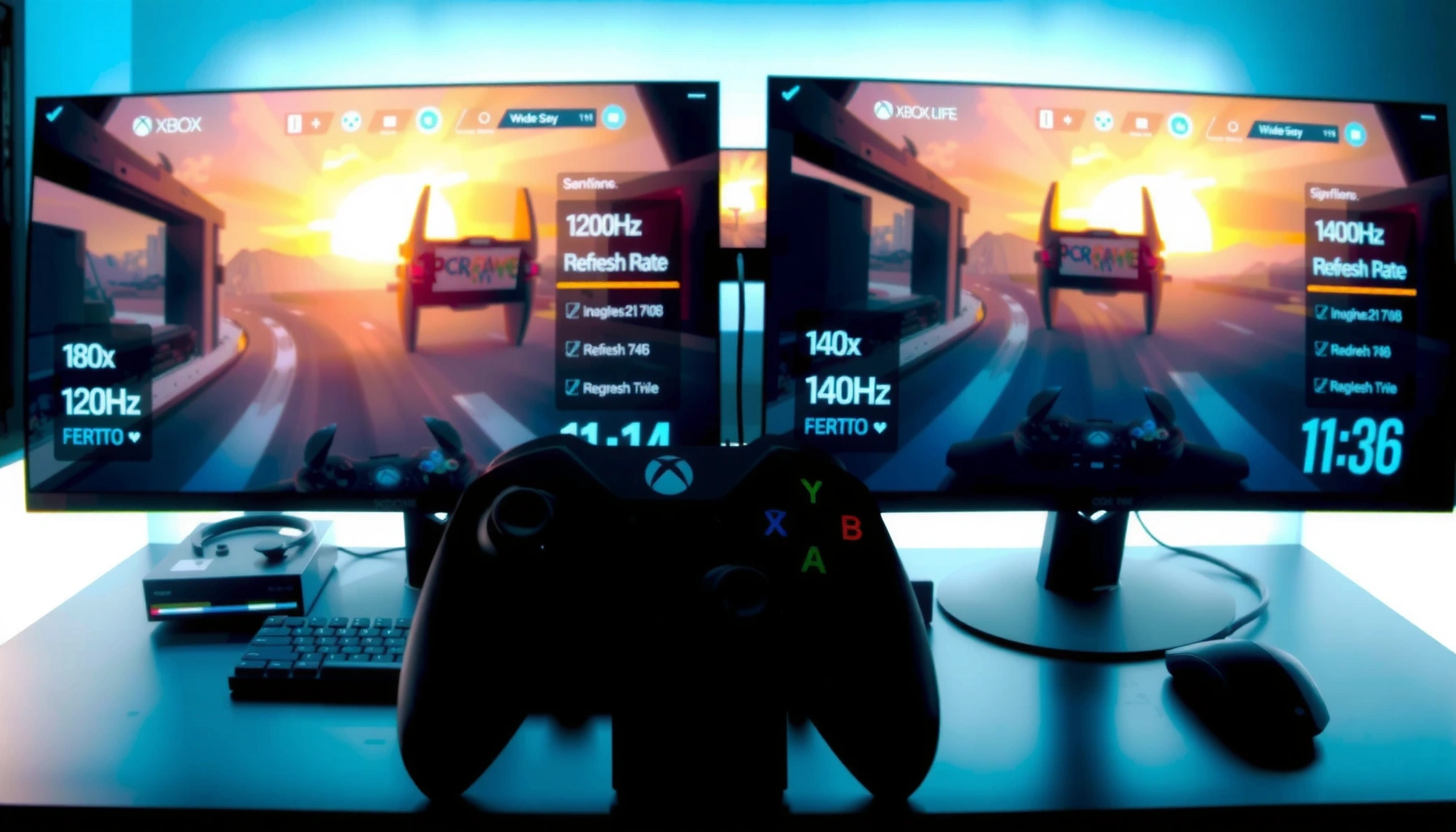
If you’re gaming on Xbox Series X|S, the practical difference is usually smaller than the headline numbers suggest. Xbox output is commonly limited to 120Hz, so a 144Hz monitor may not let the console ever exceed 120Hz—meaning you may only get the “best case” if your monitor reliably negotiates the correct Xbox 120Hz signal.
Here’s why the marketing gap often doesn’t translate into noticeable performance:
– On paper, 144Hz can be smoother than 120Hz, but Xbox output is typically capped at 120Hz—so the jump from 120 → 144 may not show up the way you expect.
– The visible benefit depends more on whether your specific monitor truly runs Xbox at 120Hz (with the right signal mode), not on the monitor’s maximum refresh rate alone.
Xbox Series consoles are designed to support high-refresh gameplay modes up to a maximum refresh rate of 120Hz, so the “144Hz” label on a monitor doesn’t automatically raise Xbox output beyond 120Hz.
The perceived smoothness difference between 120Hz and 144Hz is real in theory (144 is ~20% more frames per second than 120), but Xbox cannot always exploit that theoretical advantage.
What you should measure is whether the monitor and cable/port reliably accept the Xbox 120Hz mode at your chosen resolution and format, not the monitor’s advertised peak refresh rate.
A useful way to frame it: 144Hz vs 120Hz is a 24Hz gap, but the console’s ceiling is often 120Hz, so the “extra” 24Hz may never be used.
What refresh-rate behavior on Xbox is “normal”?
According to [ADD: Official Xbox documentation for setting display refresh rate], Xbox display settings let you select the highest refresh rate your display can handle (when supported), and Xbox titles target different performance modes (some higher than others). In practice, that means:
– When everything is compatible, Xbox will output 120Hz (not 144Hz).
– When compatibility is imperfect (wrong HDMI mode, unsupported resolution/format combination), your monitor may silently fall back to 60Hz or refuse the high-refresh handshake.
If you’re comparing 120Hz vs 144Hz strictly on an Xbox setup, your decision is less about “is 144Hz faster?” and more about “is 120Hz truly stable with my exact monitor + input + settings?”
Connection & Bandwidth Factors That Affect Xbox 120Hz Availability
| # | Interface standard | Max link bandwidth (Gbps) | Common Xbox impact | Likely 120Hz stability |
|---|---|---|---|---|
| 1 | HDMI 2.1 (48 Gbps-class) | 48 | Best chance for 4K at high refresh modes | ★★★★★ |
| 2 | HDMI 2.0 (18 Gbps-class) | 18 | Often limited to lower refresh at 4K | ★★★☆☆ |
| 3 | HDMI High Speed (≈10–11 Gbps) | 10–11 | High-refresh modes are less likely to hold | ★☆☆☆☆ |
| 4 | DisplayPort 1.4 (max) | 32.4 | Relevant for PC; Xbox typically uses HDMI | ★★★★☆ |
| 5 | VESA DSC (compression capability) | Variable | Can help fit higher formats at high refresh | ★★★★☆ |
| 6 | VRR-ready HDMI 2.1 implementation | 48 | Can smooth variable frame rate gameplay | ★★★★☆ |
| 7 | Mixed/unspecified cable capability | Unclear | Most common cause of “it won’t stay at 120Hz” | ★☆☆☆☆ |
Note: Xbox Series consoles typically rely on HDMI for display output, so HDMI version and supported monitor input modes are usually the deciding factors—not the monitor’s DisplayPort specs.
According to the HDMI specification and widely published bandwidth summaries, HDMI 2.1 class links reach 48 Gbps while HDMI 2.0 class links are 18 Gbps ([ADD: Official HDMI specification overview—bandwidth values]). These caps don’t “guarantee” 120Hz, but they explain why some resolutions and refresh combinations are easy while others are fragile.
Check compatibility first: inputs, resolution, and signal support
You’ll get the best odds with 120Hz by verifying monitor support for Xbox 120Hz before you buy (or before you waste time in settings). The key is that “144Hz” is the monitor’s maximum; “120Hz on Xbox” is a negotiated mode that depends on the port, signal format, and resolution.
– Verify your monitor supports Xbox 120Hz at the resolution you want (for example, whether it’s stable at your chosen resolution over HDMI/DisplayPort—whatever applies to your setup).
– Confirm the ports you’ll use (HDMI vs DisplayPort) are the ones the monitor vendor documents for high-refresh console use; some combinations work on PC but not the same way for consoles.
– If your monitor offers VRR (Variable Refresh Rate), look for Xbox VRR support in the same “modes”/input that enables high refresh. [ADD: source for Xbox VRR supported displays/requirements if you have a specific model or official list.]
A monitor’s “supports 144Hz” claim doesn’t prove it will accept Xbox’s specific high-refresh signal—compatibility depends on the exact input mode the console and display negotiate.
When VRR is enabled, some monitors require a particular picture mode or input preset to keep timing stable under Xbox’s variable frame pacing.
HDMI version and port labeling on the monitor matter: some ports are the only ones wired for higher-bandwidth modes (especially on HDMI 2.1 monitors).
From what’s consistently documented by console/display vendors, VRR and high refresh are often coupled to “Enhanced” or “Gaming” input presets on the monitor side ([ADD: Monitor manufacturer documentation for console high-refresh/VVR input mode]). If you miss that preset, you can end up at 60Hz even on a “144Hz” panel.
What I recommend checking on day one
– The monitor’s manual/spec sheet for “Xbox 120Hz” or “console 120Hz” support.
– The exact port labeling (e.g., “HDMI 1 (eARC/VRR/4K120)” style notes).
– Whether the monitor’s high-refresh mode is tied to a single resolution (some displays do 120Hz at 1080p but not at 1440p/4K).
Best settings on Xbox for a 120Hz experience
You should set Xbox to 120Hz when available, then match everything else to what the monitor can accept. If your display negotiates 120Hz properly, your UI and gameplay should behave consistently—no repeated handshake or mode switching.
– In Xbox video settings, set the display refresh rate to 120Hz (when available) and match the rest of the output settings to what your monitor supports.
– Prioritize stable settings: if 120Hz causes flicker, black screens, or repeated mode switching, reduce resolution or change HDMI mode until it’s consistently recognized.
Xbox’s display refresh-rate setting is only effective if the monitor accepts the corresponding signal mode; otherwise, Xbox can fall back to 60Hz or the monitor may display instability.
If 120Hz produces flicker or black screens, lowering resolution is a standard troubleshooting step because it reduces bandwidth demands and signal timing complexity.
Disabling VRR temporarily can help isolate whether instability is caused by VRR negotiation or by the raw high-refresh handshake.
A practical “stability-first” tuning order
1. Set Xbox refresh rate to 120Hz (if the option appears).
2. Set resolution to the level you actually plan to play at (or start with 1080p/1440p if 4K is the trouble source).
3. Enable VRR only after 120Hz is confirmed stable (if you plan to use it).
4. On the monitor, select the vendor-recommended console gaming preset for that input.
What can go wrong (and why 144Hz sometimes disappoints)
You can buy a 144Hz monitor and still never see 144Hz on Xbox—and that’s the common disappointment. The console often caps at 120Hz, and monitors can limit or disable top refresh rates depending on signal mode, resolution, or picture preset.
– “144Hz monitor” doesn’t automatically mean “Xbox will output 144Hz.” Xbox commonly outputs up to 120Hz, so you may never realize the monitor’s advertised ceiling.
– VRR and high refresh can conflict with certain monitor picture modes or input settings, leading to stutter, tearing (if VRR is off), or instability (if VRR is buggy for that exact mode).
– Some monitors only enable their top refresh rates at specific resolutions or via specific ports; if you pick the wrong input mode, the monitor may fall back to 60Hz or a limited signal format. [ADD: source for the monitor’s supported Xbox refresh/resolution behavior if you’re referencing a specific model.]
The biggest “144Hz regret” pattern is when Xbox never requests more than 120Hz, so the monitor’s advertised extra headroom is unused.
Flicker, black screens, or sudden refresh-rate drops usually indicate an input preset mismatch, an HDMI bandwidth limitation, or an unsupported resolution/format combination.
VRR instability is often monitor-mode specific: switching picture modes or disabling VRR briefly can reveal whether the issue is timing negotiation versus raw bandwidth.
Pros/cons comparison you can use during setup
| Choice | Pros for Xbox | Cons / Watch-outs |
|---|---|---|
| Target 120Hz | Higher chance of stable negotiation; fewer “fall back to 60Hz” cases; aligns with Xbox’s typical output ceiling | May not fully exploit a monitor’s maximum refresh rate (the 144Hz ceiling remains unused) |
| Try for 144Hz (only if proven) | Can be beneficial only if your monitor/input confirms Xbox high-refresh support beyond 120Hz (rare) or if it improves the stability of 120Hz signaling | If Xbox never outputs above 120Hz, you may get no benefit; wrong port/preset can cause instability |
Verdict: Choose 120Hz unless you can prove Xbox 120Hz is fully supported
Choose 120Hz if your priority is reliable console performance, fewer compatibility hassles, and consistent high-refresh support. Choose 144Hz only if the monitor’s documentation clearly states it supports Xbox 120Hz on the inputs you’ll use (and ideally mentions VRR behavior with consoles). If you can’t confirm that, the “extra” 24Hz may be irrelevant—or may introduce instability—so you should skip 144Hz for Xbox-focused use.
A monitor’s refresh-rate ceiling is not the same thing as the refresh rate your console is allowed to output—verification of Xbox 120Hz support matters more than marketing labels.
For Xbox, the safest target is a stable “Xbox 120Hz mode” on your exact port/preset, with VRR enabled only when it behaves correctly in that same mode.
Who should skip the whole refresh-rate debate
If you mostly play single-player games at lower settings, or you use a TV that doesn’t clearly support Xbox high-refresh formats, focus on picture quality (HDR mode correctness, color accuracy) rather than chasing 144Hz claims. In those scenarios, you can easily end up with 60Hz output anyway.
Quick scan checklist (save this)
– [ ] Does the monitor explicitly support Xbox 120Hz on the port you’ll use?
– [ ] At your intended resolution, does 120Hz stay stable (no flicker/black screens)?
– [ ] Is VRR supported on Xbox for that same input/mode (if you plan to use it)?
– [ ] Did you select the correct Xbox refresh-rate setting (set to 120Hz when available)?
– [ ] If things feel off, have you tried reducing resolution or changing the monitor picture/input mode?
FAQ
Will an Xbox output 144Hz?
Most Xbox gaming is limited to up to 120Hz, so a 144Hz monitor typically won’t let Xbox exceed that ceiling. What matters is whether your monitor reliably enables 120Hz for Xbox.
Does 144Hz make games look better than 120Hz on Xbox?
Not always—because Xbox often caps at 120Hz. If you can confirm stable 120Hz output and VRR behavior, the difference between “120 vs 144” may be smaller than marketing suggests.
Do I need VRR for 120Hz gaming?
Not strictly, but VRR can reduce tearing and smooth out frame pacing when games don’t hold a perfect frame rate. Whether it’s worth it depends on the games you play and whether your monitor behaves well with Xbox VRR.
Why does my monitor show 60Hz when I set 120Hz on Xbox?
This usually happens when the monitor doesn’t accept that signal mode (port/resolution/format mismatch) or the monitor falls back to a default refresh rate. Check the monitor’s supported input modes for Xbox 120Hz and adjust resolution/picture/input settings.
Sources
– [ADD: Official Xbox documentation for setting display refresh rate and VRR support—link name only, no search URL].
– [ADD: Monitor manufacturer documentation/spec sheet for Xbox compatibility at 120Hz (port + resolution + VRR if applicable)].
In short: for Xbox Series X|S, 120Hz is the practical, reliable target. A “144Hz” monitor can still be a good buy, but only if you confirm the monitor genuinely supports Xbox 120Hz on your chosen port and that your settings (resolution, VRR, and input/picture mode) stay stable in real use.
Frequently Asked Questions
What’s the difference between 120Hz and 144Hz for Xbox gaming?
120Hz and 144Hz both target smoother motion, but most Xbox consoles are designed to support up to 120Hz in supported modes. In practice, many Xbox games won’t be able to consistently run at 144 frames per second, so a 144Hz TV may behave like a 120Hz display for your console. The main benefit you may still notice on a 144Hz set is improved display handling and smoother scrolling, but the console’s cap is usually the limiting factor.
How do I enable 120Hz on my Xbox, and will it work on a 144Hz TV?
To enable 120Hz, go to your Xbox display settings and turn on 120Hz output (often under “Video output” or “Refresh rate”). If your 144Hz TV supports HDMI 2.0/2.1 properly, the Xbox should negotiate the correct highest refresh rate—typically 120Hz for supported games. If you don’t see 120Hz listed, check your HDMI port/HDMI version on the TV, update console software, and ensure the game mode is enabled.
Why can I still see screen tearing or stutter if my TV is 144Hz?
Screen tearing and stutter are usually caused by the game’s frame rate not matching the display refresh rate, not just by the TV’s maximum Hz. On Xbox, even with a 144Hz TV, the console may be outputting 120Hz while the game fluctuates below that—making tearing more noticeable. Using features like Variable Refresh Rate (VRR) and making sure your TV is set to the correct gaming mode can help reduce these issues.
Which Xbox games support 120Hz, and does 144Hz provide any extra advantage?
Only some Xbox games support 120Hz, and support depends on both the specific title and the chosen in-game graphics/performance mode. When a game truly supports 120Hz, a 144Hz TV doesn’t “unlock” higher than 120Hz for the Xbox, but it can still provide a smoother experience if VRR and gaming settings are configured correctly. For games that don’t support 120Hz, both 120Hz and 144Hz displays will typically run at lower refresh rates based on the console output.
Best settings for Xbox on a 144Hz TV: should I run 120Hz or 144Hz?
For Xbox, the best approach is to enable the highest refresh rate your console supports—usually 120Hz—rather than chasing 144Hz, since the Xbox typically won’t output 144Hz. On a 144Hz TV, also enable the TV’s Game Mode and turn on VRR (if available) to improve motion smoothness in Xbox games that fluctuate in frame rate. After enabling 120Hz, test a 120Hz-supported game and adjust brightness, motion, and upscaling settings to reduce latency and improve clarity.
📅 Last Updated: October 06, 2026 | Topic: 120Hz vs 144Hz for Xbox | Content verified for accuracy and freshness.
References
- https://en.wikipedia.org/wiki/Refresh_rate
- https://en.wikipedia.org/wiki/Xbox_Series_X
- https://en.wikipedia.org/wiki/Xbox_Series_S
- https://en.wikipedia.org/wiki/HDMI_2.1
- https://en.wikipedia.org/wiki/Variable_refresh_rate
- https://en.wikipedia.org/wiki/High-definition_video
- https://scholar.google.com/scholar?q=xbox+series+x+4k+120hz+monitor+144hz Google Scholar
- https://scholar.google.com/scholar?q=refresh+rate+perception+120hz+144hz+study Google Scholar
- https://scholar.google.com/scholar?q=120Hz+vs+144Hz+for+Xbox Google Scholar
- https://en.wikipedia.org/wiki/Special:Search?search=120Hz+vs+144Hz+for+Xbox