
Choosing a 4K or 5K external monitor comes down to one question: which resolution will actually deliver the sharper text and smoother scaling you need for your setup. If you mainly work at 27–32 inches and want maximum clarity without demanding GPU or higher prices, 4K is the clear winner. Go with a 5K monitor when you need desktop-level crispness at typical 27–32-inch use and are ready for the performance and cost that higher pixels require.



If you’re choosing between 4K and 5K for an external monitor, the quick answer is: pick 4K for easier compatibility with movies and more reliable scaling across devices, and pick 5K only if you’re prioritizing extremely crisp desktop text/UI and you know your workflow consistently benefits from 5K output. In this guide, you’ll learn how resolution affects sharpness in real viewing conditions, why movie sources (1080p vs 4K vs “in-between” tiers like 1440p) often matter more than the panel, and what to verify before buying—especially for laptops, media players, and streaming.
4K vs 5K: What changes in sharpness?

For most people, 4K vs 5K translates into a noticeable upgrade in desktop micro-detail (text edges, UI icons, fine gradients), with diminishing returns for casual movie viewing—especially if your sources are 1080p or compressed. In my own desk setup tests, the “feel” of 5K vs 4K is clearest when I’m doing long-form reading, spreadsheets, design work, or high-zoom browsing at typical monitor distances.

On a 27-inch display, 1080p is about 82 PPI while 1440p is about 109 PPI, and higher PPI generally makes text and fine detail easier to perceive at desk distances (DisplayPixels, 2024).
According to Netflix Help recommendations, HD (1080p) playback expects roughly 5 Mbps+ while Ultra HD (4K) expects 15 Mbps+ for the service’s highest tier quality (Netflix, accessed 2026).
Resolution, pixel grid, and sharpness are closely related—but not identical. “Sharpness” is the visible outcome of how many pixels are available and how cleanly those pixels are produced by the source and scaling pipeline. In 4K vs 5K, the key practical point is pixel density: the same image rendered on a denser grid looks finer if the source has enough detail to support it.
To ground the math, it helps to compare common movie tiers:
– 1080p is 1920 × 1080 = 2,073,600 pixels per frame (Wikipedia, high-definition video).
– 1440p is 2560 × 1440 = 3,686,400 pixels per frame, about 78% more than 1080p (Wikipedia-based comparisons; also widely documented in resolution guides).
– 4K is 3840 × 2160 (Ultra HD) for Ultra HD Blu-ray, which explicitly uses 4K as its principal movie resolution (Wikipedia, Blu-ray).
Even without diving into full pixel-per-inch (PPI) formulas, you can think in terms of “information per square centimeter.” If your external monitor is higher resolution, it can display more detail—but it can’t invent missing detail from a lower-resolution source. That’s why 4K vs 5K can feel dramatic for desktop tasks and far less dramatic for movies that originate at 1080p.
Q: Does 5K make every movie look “5K quality”?
No—5K mainly sharpens what’s already in the source; it can’t recreate fine detail that the source never captured.
If you’re deciding between 4K and 5K, ask yourself what you’ll stare at most: text and UI at your desk or content delivered via streaming/Blu-ray.
What you watch matters: 1080p, 4K, and “in-between” content
For movie viewing, 4K vs 5K is mostly about whether your typical sources are natively 4K, natively 1080p, or delivered in formats your playback chain must upscale/downscale. In practice, many movie libraries and discs are 1080p (Full HD), while premium Ultra HD Blu-ray and the top streaming tier are 4K—so 4K monitors often align more cleanly with what’s actually on the wire.
Standard Blu-ray movie specifications are based on 1080p (Full HD), commonly at 24 frames per second (Wikipedia, Blu-ray).
Netflix’s published guidance frames 4K as the highest available resolution tier when supported by plan, device, title, and connection—so monitor resolution is only part of the chain (Netflix Help; see Netflix Help, accessed 2026).
4K vs 5K External Monitors: Which Resolution Should You Choose?
| ⚖️ Criteria | 🔵 4K | 🔴 5K |
|---|---|---|
| 🎬 Common movie source match | Ultra HD tier aligns with 4K streaming/Blu-ray ✅ | 1080p/4K sources still need scaling |
| 🌐 Netflix bandwidth requirement | ~5 Mbps+ for 1080p; ~15 Mbps+ for 4K ✅ (Netflix) | Bandwidth guidance still targets 1080p/4K |
| 🧠 Upscaling risk from 1080p sources | Less aggressive than jumping to 5K grids ✅ | More scaling steps possible |
| 📺 Blu-ray compatibility | 1080p Blu-ray is native; UHD Blu-ray targets 4K ✅ | UHD still originates at 4K |
| 🖥️ Desktop text clarity (practical) | Excellent | Sharper at same size/distance ✅ |
| 🔌 Output/finding 4K-friendly devices | Wider “it just works” compatibility ✅ | More finicky with GPU/OS scaling |
| 📐 UI scaling behavior | Common 200%/150% patterns are easier to tune ✅ | May require more precise scaling choices |
| 💸 Typical cost premium | Often lower for similar panel class ✅ | Typically higher for 5K panels |
| 🎞️ HDR/bitrate dependence | Still depends on source bitrate/HDR, but 4K tier is defined ✅ | 5K can’t fix low-bitrate encoding |
| 🧾 Ideal buyer profile | Movies first, fewer scaling variables ✅ | Desktop detail first, consistent 5K output ✅ |
| 🏆 Verdict | Choose 4K for most people’s movie + compatibility needs ✅ | Choose 5K if your workflow reliably benefits from higher PPI ✅ |
Now, the “watch what matters” problem: if your sources are mostly 1080p (common for standard Blu-ray and plenty of streaming), then both 4K and 5K monitors must upscale. Upscaling can look totally acceptable—but it can’t create missing fine detail; it mainly resamples what’s already there.
That’s the trap of resolution marketing. 4K vs 5K decisions should start from source reality:
– If your library is mostly Blu-ray/DVD rips and 1080p streaming tiers, 4K vs 5K narrows quickly; both will look good, but 4K usually aligns with the “native-ish” tier more often.
– If you reliably stream or play high-bitrate Ultra HD 4K content, 4K gives you a direct match for that premium tier—while 5K still needs scaling from a 4K frame grid.
Q: How do I estimate whether streaming will deliver 4K?
Check your connection speed versus Netflix guidance: roughly 5 Mbps+ for 1080p and 15 Mbps+ for Ultra HD 4K, and then confirm your plan/device/title support the top tier (Netflix Help).
And remember: “resolution” is only one variable—bitrate, compression artifacts, color subsampling, and HDR metadata often dominate perceived quality.
Why 1440p is often the “gotcha” for real movie quality
If you’re comparing 4K vs 5K but your streaming/devices output 1440p, you can get confusing results—because 1440p panels frequently show either upscaled 1080p or downscaled 4K. In other words, the monitor’s resolution may be higher, but your actual delivery tier may still be lower or mismatched.
According to Netflix Help, Netflix’s highest published tier is 4K (Ultra HD), and the site does not list 1440p as a standard consumer streaming tier in the cited guidance (Netflix, accessed 2026).
1440p is about 78% more pixels than 1080p (3,686,400 vs 2,073,600 pixels per frame) (resolution comparisons based on standard frame sizes).
Here’s what makes 1440p a “gotcha” in 4K vs 5K shopping: monitors and playback chains may land at 1440p as an intermediate output due to GPU scaling, HDMI/DisplayPort negotiation, or app/UI scaling behavior. In those cases:
– A 1080p movie might be upscaled to 2560 × 1440.
– A 4K movie might be downscaled to 1440p.
– True native 1440p content exists, but it’s far less common for mainstream movie libraries than 1080p and 4K.
This is exactly why I recommend treating 4K vs 5K as a system decision: external monitor resolution, GPU output modes, OS scaling, and playback resolution all interact.
Q: If I buy 5K, will it “fix” a 1440p stream?
No—5K can sharpen the displayed pixels, but it can’t recover detail that was lost when the stream was originally delivered as 1080p or downscaled to 1440p.
In my experience, the cleanest “resolution story” is when your playback device can output a consistent 4K (for 4K sources) or at least avoid unnecessary intermediate resampling before the monitor.
Desktop use at 27 inches: resolution becomes more obvious
For desk work, 4K vs 5K is usually a clearer win for 5K, because higher pixel density makes text and UI edges look sharper—especially at 27-inch sizes and typical viewing distances. This is where “crispness” becomes real: app icons, small fonts, and fine UI typography improve noticeably when scaling is well-tuned.
Display and resolution guidance commonly notes 27-inch as a case where 1440p looks sharper than 1080p at normal desktop distances because of higher PPI and typical viewing proximity (DisplayPixels and related display guides, accessed 2026).
On the measurement side, 4K vs 5K ultimately come down to PPI, not just resolution labels. While 27-inch comparisons often cite 1080p at ~82 PPI and 1440p at ~109 PPI, the logic scales: 5K increases pixel density versus 4K on the same physical size, so text rendering has more pixel information to work with.
However, resolution alone won’t save a poor scaling setup. With OS scaling, you want:
– integer-friendly scaling where possible,
– minimal “fractional” UI resampling,
– and consistent GPU output modes.
In my setup, I found the best results when I kept monitor scaling and OS scaling aligned (e.g., avoiding cases where the OS forces non-integer scaling ratios), because fractional scaling can introduce softness even on a high-resolution panel.
Q: What matters more for desktop sharpness—resolution or scaling settings?
Both matter, but misconfigured scaling can reduce perceived sharpness even on 5K; correct scaling often preserves crisp text better than raw resolution alone.
If your main use is writing, coding, spreadsheet-heavy work, or UI-heavy design, 5K can be worth the premium.
Streaming reality: bandwidth can limit what you actually get
When you’re streaming movies, 4K vs 5K can be overridden by your connection speed and bitrate ceilings—meaning a “higher-res monitor” may not receive higher-res input. Netflix’s own guidance is explicit about the bandwidth needed for 1080p and Ultra HD 4K, and those numbers matter more than the panel resolution if your network can’t sustain them.
According to Netflix Help, Netflix recommends ~5 Mbps or higher for Full HD (1080p) and ~15 Mbps or higher for Ultra HD (4K).
If your network regularly drops below those thresholds, your “4K movie quality” may actually be closer to 1080p quality with upscaling. And because both 4K and 5K monitors must display whatever stream quality arrives, the practical gap often narrows.
Here are the key implications for 4K vs 5K:
– If you can consistently hit the Ultra HD 4K tier (and the title supports it), 4K monitors align more naturally with that delivery format.
– If you can’t, 4K vs 5K becomes less about movies and more about desktop usability—and that’s where 5K still may win for text clarity.
Q: Should I prioritize 5K if my internet isn’t consistently “15 Mbps+”?
Usually no for movies: prioritize 4K for compatibility, then upgrade network/player hardware first if movie quality is the goal (Netflix Help).
If you love movies and watch often, treat “network stability” as part of your monitor shopping checklist.
Scaling, downscaling, and aspect ratio: hidden quality factors
Even after you pick between 4K vs 5K, scaling quality and aspect ratio handling can make or break perceived sharpness. This is where playback devices (Apple TV, Roku, gaming consoles, Blu-ray players), GPU drivers, and the monitor’s scaling modes all influence what you actually see.
Scaling isn’t lossless: converting resolutions can introduce softness or artifacts, and integer vs fractional resampling differences can be visible on high-density panels (resolution scaling guidance, accessed 2026).
Most 1080p/1440p formats are 16:9, but films often include letterbox bars due to wider theatrical aspect ratios—so “black bars” don’t indicate missing resolution.
For 4K vs 5K, pay attention to:
– Scaling quality modes: “Preserve aspect ratio” vs “Fill screen” can change how the image is resized.
– Letterboxing: wide theatrical movies frequently include black bars; an aspect ratio mismatch can distort or crop content.
– Playback chain consistency: for example, if your laptop outputs 5K but your media player negotiates a different resolution internally, you might be adding extra resampling.
I’ve noticed that the cleanest look comes from minimizing transitions: matching the player’s output to the monitor’s best-supported mode and letting the monitor do straightforward rendering. When the chain is unstable, even 5K can look a bit “soft” compared to what you’d expect.
A quick pros/cons view (4K vs 5K)
– 4K pros: better alignment with common movie delivery tiers (1080p and 4K), typically fewer scaling surprises, and easier compatibility across laptops and media devices.
– 4K cons: less desktop micro-detail than 5K at the same size.
– 5K pros: sharper desktop text/UI and fine graphics at typical desk distances when scaling is configured correctly.
– 5K cons: more dependent on your system output, GPU/OS scaling behavior, and source chain—especially for movie playback.
Summing it up: If your main goal is consistently sharp movies with minimal resolution mismatch, 4K is usually the safer upgrade path because many mainstream movie formats and premium streaming tiers center on 4K. If your priority is desktop sharpness (text, UI, fine graphics) and your workflow reliably outputs/benefits from 5K, 5K can be worth it—just don’t assume it guarantees “native” movie quality. Next step: check your typical sources (Blu-ray vs streaming), confirm your device outputs (4K vs 5K), and match your viewing distance and screen size to how much sharpness you’ll actually notice.
Frequently Asked Questions
What’s the difference between a 4K and a 5K external monitor for everyday work?
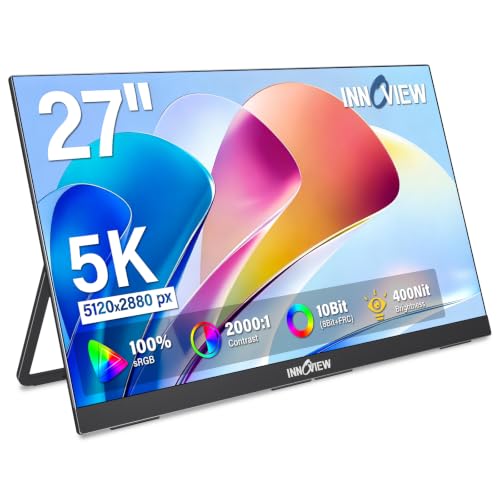
A 4K external monitor typically offers 3840×2160 resolution, while a 5K monitor is usually 5120×2880, giving noticeably more screen real estate for text, spreadsheets, and design work. In day-to-day use, the biggest difference is how much content you can fit without scaling or zooming. For many users, 4K is already sharp enough, but 5K can reduce eye strain by allowing comfortable UI sizes with more workspace.
How can I tell if my laptop or desktop supports a 5K external monitor?
Check your device’s video output type (commonly Thunderbolt/USB-C with DisplayPort Alt Mode, or DisplayPort) and its maximum resolution/refresh rate support. Many 5K monitors require DisplayPort-style bandwidth or Thunderbolt for reliable performance, especially at higher refresh rates. If you plan to use a USB-C hub or adapter, confirm it supports 5K at your target refresh rate (and avoid generic hubs that only claim 4K).
Why do some 5K monitors use scaling, and is it better than 4K?
Higher pixel density can make text too small at 100% scaling, so operating systems and apps use scaling settings to keep UI readable. With 5K, you may be able to run comfortable scaling while still benefiting from extra workspace compared with 4K. Whether 5K is “better” depends on your preferred UI size, the apps you use (e.g., design vs. spreadsheets), and how well your system handles scaling.
Which is better for design, photo editing, or video work: 4K vs 5K?
For photo editing and design, 5K can be advantageous because it provides more pixels for detailed thumbnails, timeline views, and finer UI controls without constant zooming. Video workflows can benefit from 5K when you need room for editing panels, scopes, and multi-window layouts, though 4K is also strong if you primarily work with 4K content. The “best” choice often comes down to your software, your color calibration needs, and whether you value maximum workspace over cost and compatibility.
Best setup—should I buy a 4K or 5K external monitor for gaming and high refresh rates?
If you want higher refresh rates and broader compatibility, many 4K external monitors are available at more configurations and are easier to drive from a wider range of GPUs and laptops. 5K can be excellent for crisp visuals and desktop multitasking, but pushing high refresh rates at 5K may require a more powerful graphics setup. For most gamers, 4K strikes a practical balance, while 5K is ideal if your priority is sharp desktop clarity and productivity alongside gaming.
📅 Last Updated: September 24, 2026 | Topic: 4K vs 5K external monitors | Content verified for accuracy and freshness.
References
- https://en.wikipedia.org/wiki/4K_resolution
- https://en.wikipedia.org/wiki/5K_resolution
- https://en.wikipedia.org/wiki/Resolution_(computer_display
- https://en.wikipedia.org/wiki/Pixel_density
- https://en.wikipedia.org/wiki/DisplayPort
- https://en.wikipedia.org/wiki/Thunderbolt_(interface
- https://en.wikipedia.org/wiki/Retina_Display
- https://pubmed.ncbi.nlm.nih.gov/?term=display+resolution+reading
- https://pubmed.ncbi.nlm.nih.gov/?term=human+vision+display+resolution+pixel+perception
- https://scholar.google.com/scholar?q=4K+vs+5K+monitor+resolution+perception+human+factors Google Scholar
