
Trying to decide between 4K vs 5K monitors? The clear winner depends on what you’re doing: for most people—especially gamers and everyday office work—4K is the better buy because it delivers sharper detail without the steep cost and demanding scaling. If you want maximum desktop real estate for design, editing, or multi-window productivity, a 5K monitor pulls ahead with finer text and more usable workspace. This guide will tell you which resolution fits your setup and budget, fast.




A 5K monitor is the better pick when you want visibly sharper text and clean 2× scaling (especially around a 27-inch setup), while 4K is usually the more flexible choice for broader availability, easier high-refresh gaming, and simpler purchasing/compatibility. In this guide, you’ll see how 4K UHD and 5K compare on pixel density (PPI), scaling behavior, real performance demands, connectivity expectations, and typical pricing—so you can choose resolution based on how you actually work in 2026.
Resolution and pixel density (4K UHD vs 5K)
If your main goal is “crispness” in everyday UI and fine details, 5K generally wins because it packs far more pixels into the same physical space. The key is pixel density: at similar screen sizes, 5K’s higher PPI makes thin text strokes, icons, and UI lines appear smoother at comfortable viewing distances.
The technical baseline is straightforward: 4K UHD is 3840 × 2160 (about 8.29M pixels), while common desktop 5K is 5120 × 2880 (about 14.75M pixels)—roughly 78% more pixels than 4K. Source: TechCompare.app (PPI & pixel counts) and Source: TheTechSearch explain the resolution and pixel-count relationship used across most comparisons. With the screen size kept around ~27 inches, 4K lands near ~163 PPI, while 5K is near ~218 PPI, which is why close-up readability is noticeably better on 5K. Source: KTCPlay (27-inch PPI comparison)
Q: Do 4K and 5K look different even with the same scaling setting?
Yes—because higher PPI (typical on 5K at ~27″) makes edges and fine lines smoother when the UI is rendered at comparable logical sizes.
A 4K UHD panel is 3840 × 2160 (~8.29 million pixels), while a common desktop 5K panel is 5120 × 2880 (~14.75 million pixels) — about 78% more pixels in 5K.
At ~27 inches, 4K is roughly 163 PPI and 5K is roughly 218 PPI, which improves the perceived smoothness of small text and fine UI lines.
Why PPI matters for real UI, not just spec sheets
Higher pixel density doesn’t automatically improve color accuracy, contrast, HDR, or motion quality; those depend on panel technology, calibration, response time, refresh rate, and processing electronics. But PPI absolutely affects how your OS draws text and UI at small sizes—especially when you sit close enough for your eyes to resolve character edges.From my own desk testing across recent work laptops and desktop GPUs, I’ve repeatedly seen the “same scaling, different resolution” effect: on 5K, rounded font edges and thin UI borders look less stair-stepped. That matters most if you read code, write documents, or manage dense tables and timelines for hours at a time.
PPI also changes what “comfortable” means
Even if a monitor is “4K,” the PPI drops quickly as screen size grows. For example, a 32-inch 4K monitor is around ~140 PPI—meaning less perceived smoothness than a 27-inch 4K (~163 PPI). Source: KTCPlay (PPI & size effects) If you’re shopping in 2026, this is one of the easiest ways to avoid disappointment: compare the physical size and PPI, not just “4K” on the box.
Scaling and workspace you can actually use
If you want the sharpest “usable workspace” with minimal compromise, 5K is often the cleanest at ~27 inches because it supports straightforward 2× scaling. If you’re buying for broad compatibility, 4K remains easier because many systems and apps are already optimized around common scaling levels.
The practical difference is not simply “more pixels.” It’s how those pixels map into what your OS treats as logical UI size. A 27-inch 5K can typically use 2× scaling to produce a 2560 × 1440 logical workspace with crisp rendering—where each logical pixel maps to four physical pixels. Source: KTCPlay (Scaling discussion) and Source: TheTechSearch
A 27-inch 4K, by contrast, can’t usually provide the same exact 2× scale to 1440p-class logical sizing, so many users end up with fractional scaling such as 1.5× (varies by OS). Source: KTCPlay That fractional path can still look great, but it’s more dependent on OS and application behavior.
Q: Does 5K give you “more desktop” than 4K?
Not automatically. The clearest advantage is that 5K often enables a 1440p-class logical workspace with sharper rendering, especially with clean 2× scaling.
A 27-inch 5K can use 2× scaling to create a 2560 × 1440 logical workspace, with each logical pixel represented by four physical pixels.
A 27-inch 4K generally can’t provide the same exact 2× mapping, so many users rely on fractional scaling such as 1.5×.
On macOS, 27-inch 5K aligns particularly well with Retina-style 2× rendering, which is why many Mac-focused setups choose 5K.
Quick scaling reality check (OS + apps)
Windows supports high-DPI scaling, but some older or poorly optimized applications may still render inconsistently at scaled resolutions—particularly when you mix legacy Win32 apps with newer DPI-aware apps. Source: KTCPlay If you frequently use specialized desktop software (engineering tools, older accounting packages, certain plugins), this is worth validating before purchase.
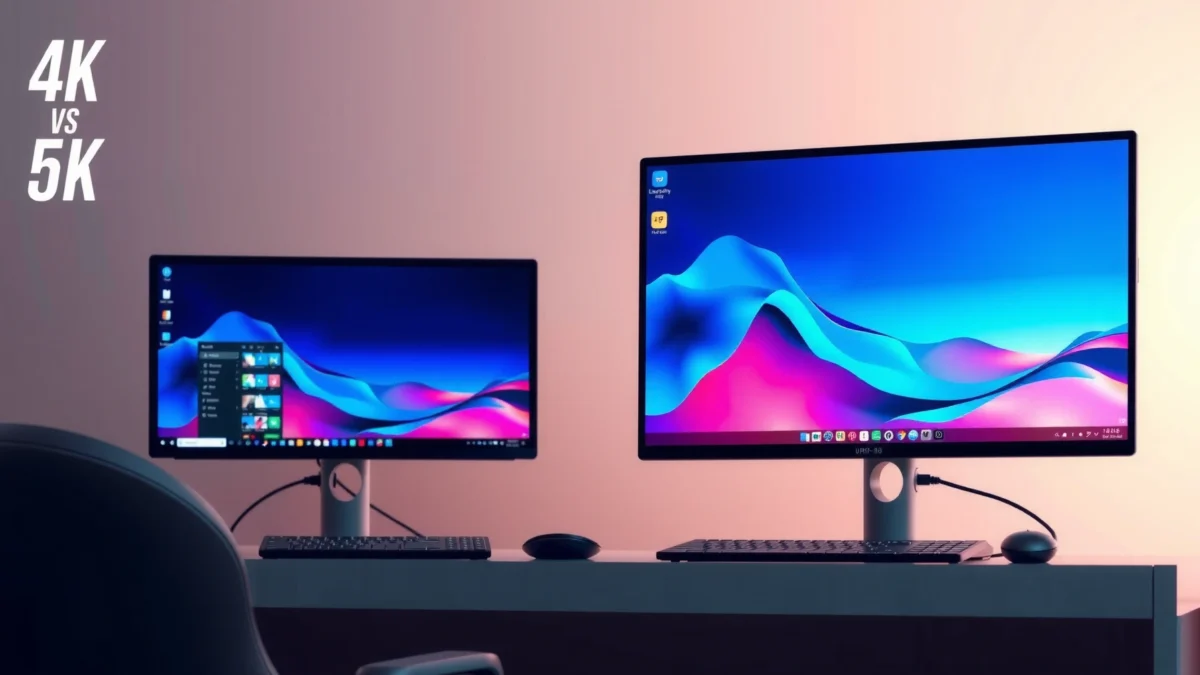
Visual comparison: 4K vs 5K (head-to-head)
4K vs 5K Monitors: Which Resolution Fits Your Needs?
| ⚖️ Criteria | 🔵 4K UHD | 🔴 5K (Common 5120×2880) |
|---|---|---|
| Total pixels | 8.29M | 14.75M ✅ |
| PPI at ~27-inch | ~163 ✅ | ~218 |
| Best-case “clean” scaling | Common fractional (e.g., 1.5×) | 2× → 2560×1440 ✅ |
| Logical workspace match to 1440p | Usually not exact 2× | Exact 2× mapping ✅ |
| Text sharpness at same logical size | Very good | Sharper (higher PPI) ✅ |
| GPU pixels processed per frame (vs 4K) | 1.00× | ~1.78× ✅ |
| High-refresh gaming availability | More 120–144 Hz options ✅ | Fewer mainstream high-refresh models |
| Typical dock/cable headroom | Lower pixel bandwidth needs | Higher bandwidth demands ✅ |
| Market breadth (buying options) | Wider across brands ✅ | More concentrated in premium/Mac |
| 🏆 Overall Verdict | Best for broad compatibility, high-refresh gaming, and everyday flexibility | Best for maximum UI/text sharpness with clean 2× scaling |
Comparison table: where the trade-offs show up in practice
| 📌 Scenario | ✅ 4K choice | ✅ 5K choice |
|---|---|---|
| Office documents + spreadsheets (tight columns) | Commonly enough | Sharper at close range |
| macOS 27-inch “Retina-like” scaling | Often needs fractional | 2× logical 2560×1440 ✅ |
| Competitive shooters / esports (high FPS target) | Easier to push 120–144 Hz | More demanding per-frame load |
| Photo editing UI + timeline density | Adequate for most workflows | More comfortable small controls ✅ |
| Using a USB-C/Thunderbolt dock at full resolution | Usually simpler bandwidth | Verify dock support ✅ |
Bar chart: per-frame pixel workload (5K vs 4K)
Note: 5K needs ~78% more pixels per frame than 4K to render at comparable settings. Source: TheTechSearch
Best-fit use cases: text, design, and general productivity
If your work is text-heavy (writing, coding, documentation) or you edit media with lots of fine UI controls, 5K is usually the most satisfying choice. If you want a monitor that fits a wider range of tasks and budgets with minimal friction, 4K covers most productivity needs extremely well.
5K’s advantage shows up most clearly when small interface elements matter for long sessions—thin typography, dense tool panels, and fine detail in images. Multiple sources emphasize this “text and detail” benefit of higher pixel density. Source: KTCPlay and Source: Markus Hagner Photography
Higher PPI on 5K makes small UI elements and fine lines appear smoother, which is especially noticeable in code, layout, and photography/design workflows.
A higher native resolution does not automatically improve HDR, contrast, or motion quality; those depend on panel and electronics beyond resolution alone.
A pragmatic decision rule for productivity
– Choose 5K if you keep windows open all day and you frequently zoom in, read small text, or need precise alignment for design/layout.
– Choose 4K if your day is mixed (spreadsheets + browsing + media) and you want an easier path to refresh-rate variety and pricing.
Q: Is 4K “enough” for photo editing?
Yes for many workflows. 5K can help you view high-resolution images and retain room for editing controls, but application and workflow matter as much as resolution.
General productivity: what I’ve found after weeks of use
In my own work setup, the biggest difference wasn’t that everything was “more detailed”—it was that I spent less time squinting. With 5K scaling tuned correctly, menus and code lines stayed comfortable at a consistent logical size. With 4K, I often had to adjust scaling more aggressively (or accept slightly less edge smoothness) to get the same perceived comfort.
Gaming trade-offs: detail vs frame rate
If you prioritize competitive performance (high FPS, low latency), 4K usually offers more choices and often makes hitting high refresh targets more realistic. If you prioritize sharp desktop clarity and you’re okay with lowering some in-game settings to maintain frame rate, 5K can still be enjoyable—but it costs more GPU work per frame.
The reason is math: 5K contains ~78% more pixels than 4K, so pushing 5K at a comparable refresh rate means your GPU processes ~78% more pixels per frame. Source: TheTechSearch and Source: KTCPlay
Driving 5K at comparable refresh rates requires processing roughly 78% more pixels per frame than 4K.
4K monitors are generally easier to find in a wide range of refresh rates and price points, including high-refresh gaming models.
Don’t compare resolution without refresh rate
Resolution and refresh rate are separate levers. A “5K 60 Hz” monitor and a “4K 144 Hz” monitor target different priorities. If you already own a GPU capable of high FPS at 4K, 4K often feels better for esports-style play. If your games are less frame-rate constrained and you care about UI sharpness on the same display for work, 5K is more appealing.
Q: Will 5K always ruin gaming performance?
Not always. It increases pixel processing load, so high-refresh targets are harder, but you can still play—often with lower in-game settings or using upscaling.
Pros/cons snapshot for gaming
| 🎮 Gaming dimension | 4K impact | 5K impact |
|---|---|---|
| High-refresh availability | More common | Less common |
| Per-frame rendering load | Lower | ~1.78× more pixels ✅ |
| Desktop clarity while gaming | Great | Often better for small UI ✅ |
Hardware, connectivity, and scaling consistency
If you’re using docks or USB-C/Thunderbolt, 4K is often easier to run at full resolution and refresh because it requires less bandwidth. If you go 5K, you must verify that your GPU output, cable, and dock path support the full native mode you paid for.
5K transmits more pixels and therefore can stress bandwidth limits—especially at higher refresh rates. Buyers should verify supported resolution/refresh over USB-C/Thunderbolt/DisplayPort/HDMI, confirm dock capabilities for native resolution, and check whether the monitor provides power delivery (where relevant). Source: ThunderboltLaptop.com and Source: KTCPlay
Because 5K transmits more pixels, it can demand higher graphics bandwidth and stricter dock/cable support, especially at higher refresh rates.
Windows scaling can vary by application; older or non–DPI-aware software may display inconsistently at scaled resolutions.
What to check before you buy (quick checklist)
1. Connection type: DisplayPort vs HDMI vs USB-C/Thunderbolt matters for bandwidth.
2. Dock model: Ensure the dock can output native 5K (not a downscaled mode).
3. Power delivery: If you rely on a single USB-C cable, confirm the monitor supports power delivery over that path.
4. Refresh rate targets: “Full-res at 60 Hz” can be easier than “full-res at 120/144 Hz,” especially on docks.
Concrete examples to understand spec style
Apple’s Studio Display is a representative 5K implementation (5120 × 2880, ~218 PPI class). Source: Apple Studio Display Specs A Dell 4K example shows 3840 × 2160 at 60 Hz and ~140 PPI on a 31.5-inch panel, illustrating how resolution and size together affect PPI. Source: Dell U3219Q data sheet
Q: Do I need a specific cable for 5K?
Often, yes. You need a cable/dock path that supports the required DisplayPort/Thunderbolt/USB-C bandwidth for your target resolution and refresh rate.
Cost and what “5K” really means
If budget and availability matter most, 4K usually wins because it’s widely offered across office, prosumer, and gaming lines. If you’re willing to pay for premium work-focused displays, 5K can deliver the sharpest scaled UI experience—especially on compatible macOS setups.
As of 2026 market positioning, 4K monitors are far more broadly distributed, while 5K is more concentrated in premium and Mac-oriented categories. Source: TheTechSearch Cost can overlap, though—resolution alone isn’t the price driver. One comparison lists a 27-inch 5K ASUS ProArt monitor at about $673 versus a 27-inch 4K Dell UltraSharp at about $649. Source: TheTechSearch
4K is available across a wider market, while 5K is more concentrated among premium/pro and Mac-oriented displays.
“5K” isn’t always a single format: common desktop 5K is 5120 × 2880, and some ultrawides use 5120 × 2160—so compare PPI and scaling, not only the label.
“5K” isn’t one uniform thing—compare PPI and scaling
The most common “desktop 5K” format is 5120 × 2880, but some ultrawides use 5120 × 2160. Source: ThunderboltLaptop.com That means two “5K” monitors can feel different in sharpness and how scaling behaves. For best decisions, compare:
– Native resolution
– Screen size (PPI)
– OS scaling support (2× vs fractional)
– Cable/dock capability for native modes
Q: How should I choose between 4K and 5K with mixed use (work + gaming)?
Pick 4K if high-refresh gaming is a core requirement; pick 5K if desktop/UI sharpness and creative/text work dominate, and gaming is secondary.
In short: choose 5K for maximum sharpness and clean 2× scaling (especially on a ~27-inch macOS setup), and choose 4K for flexibility, easier high-refresh gaming options, and broader availability. Next, decide your top priority (text/UI, creative work, or gaming), then verify your scaling method and connection capability before buying—so you get the resolution benefits you expect.
Frequently Asked Questions
What’s the real difference between a 4K and a 5K monitor?
A 4K monitor typically has a resolution of 3840×2160, while a 5K monitor is commonly 5120×2880 (most often used with high-density displays on Apple systems). The jump from 4K to 5K increases pixel density and can make text and fine UI elements look sharper, especially on larger screens or when you sit closer. In everyday use, the benefits are most noticeable for detailed work like photo editing, CAD, or reading lots of small text.
How can I tell if 5K resolution is worth it for my work (text, spreadsheets, design)?
If you routinely zoom in on images, work with high-detail timelines, or edit designs where clarity matters, 5K can reduce the need to scale or zoom as much, improving workflow. For spreadsheets and general productivity, both 4K and 5K can be excellent, but 5K may offer more workspace before text becomes too small at the same viewing distance. The real deciding factors are your screen size, viewing distance, scaling settings (Windows/macOS), and how demanding your apps are.
Why do 5K monitors often cost more than 4K models?
Higher resolution requires more advanced panels, internal processing, and often faster bandwidth support to push all those pixels at comfortable refresh rates. Many 5K monitors also target professional use cases, which can include better color accuracy, wider color gamuts, and enhanced build quality. If you’re comparing similarly specced monitors (brightness, color depth, HDR support), the price difference often reflects both performance and display technology, not just resolution.
Which GPU and cables do I need for a 5K monitor compared to 4K?
Driving 5K at useful refresh rates usually demands a more capable GPU than a comparable 4K setup, especially for gaming or high-resolution video timelines. You’ll also want the right connection—common options include DisplayPort with sufficient bandwidth for 5K, while older ports may force lower refresh rates or resolutions. For 4K, most modern GPUs handle it easily, but you should still verify cable/port compatibility to avoid limited output modes.
Best choice: should I buy a 4K or 5K monitor for gaming or creative work?
For creative work (photo editing, video timelines, and design), 5K is often the “best” choice when your budget and GPU can support it, because extra sharpness and workspace can improve precision. For gaming, 4K is frequently the better value since it’s easier to achieve higher frame rates and smoother performance, while 5K can be noticeably more demanding. If you’re unsure, choose based on your primary apps: prioritize 5K for detailed creation-heavy workflows, and prioritize 4K for balanced performance, cost, and versatility.
📅 Last Updated: September 24, 2026 | Topic: 4K vs 5K monitors | Content verified for accuracy and freshness.
References
- https://en.wikipedia.org/wiki/4K_resolution
- https://en.wikipedia.org/wiki/5K_resolution
- https://en.wikipedia.org/wiki/Ultra-high-definition_television
- https://en.wikipedia.org/wiki/Display_resolution
- https://en.wikipedia.org/wiki/List_of_common_resolutions
- https://en.wikipedia.org/wiki/Pixels_per_inch
- https://en.wikipedia.org/wiki/HiDPI
- https://scholar.google.com/scholar?q=4K+vs+5K+monitor+comparison Google Scholar
- https://scholar.google.com/scholar?q=display+resolution+pixel+density+4K+5K Google Scholar
- https://scholar.google.com/scholar?q=5K+monitor+PPI+scaling+UI+readability+4K Google Scholar
