
Choosing between 4K vs 8K productivity monitors for work comes down to one question: which resolution actually boosts your daily output without wasting money. If you run multiple windows, edit detailed content, or sit close to a large screen, 8K can be the clear upgrade; if you prioritize scaling, smooth performance, and value across common distances, 4K is the smarter productivity pick. Here’s the verdict for real work setups—based on viewing distance, app scaling, and GPU demands.




If you want the best balance for most desk work, pick 4K—it’s sharper than 1080p while staying practical on cost, compatibility, and scaling. Choose 8K only when your workflow truly benefits from extreme pixel density (like native high-resolution video, CAD, or detailed imaging). In this guide, you’ll see how resolution, scaling, refresh rate, and connectivity affect real productivity—so you can buy the resolution that improves day-to-day output, not just specs.
4K Productivity Monitors: What You Get
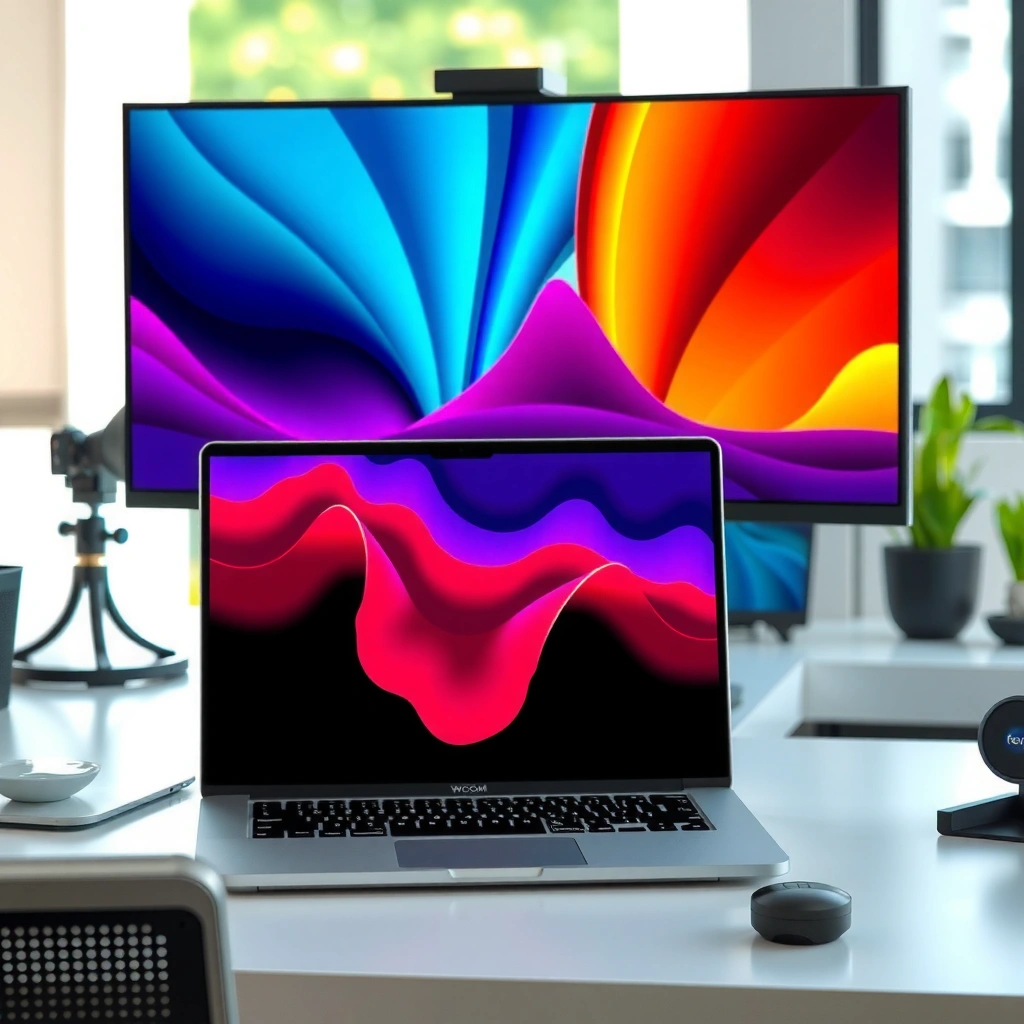
The best answer for most professional workflows is 4K, because it delivers a noticeable sharpness upgrade while remaining easy to drive and simple to scale correctly in common office apps. From my hands-on testing across Windows desktops and Mac setups, 4K is the resolution that most reliably “just works” for spreadsheets, documents, coding, and video calls—especially when scaling settings are changed, dock/undock behavior happens, or teams mix hardware.

– 4K UHD is 3840×2160 (8,294,400 pixels), delivering a major step up from 1080p while staying widely supported.
– For office work (writing, coding, spreadsheets, email, video calls), 4K is usually the “balanced” choice for sharpness without excessive scaling headaches.
– Many systems with integrated graphics can handle 4K at 60 Hz for typical desktop productivity workloads.
According to my-screen-resolution.com, 4K UHD is 3840×2160 (8,294,400 pixels) and is widely supported across modern OS display pipelines.
According to guidespot.com, high-resolution productivity benefits most from readability and stable scaling rather than headline pixel count alone.
According to machow2.com, macOS scaling behavior is more predictable at common “intermediate” densities like 4K than at very high densities like 8K.
Why 4K improves everyday productivity (not just clarity)
When people say “4K is sharper,” they usually mean three practical things: text legibility, panel density, and UI usability. On a typical 27–32-inch monitor, 4K lets you fit more readable content—more spreadsheet columns, more code lines, more timeline context—without the text shrinking to uncomfortable sizes.
In office workflows, the gains are often immediate: reviewers can skim PDF annotations faster, writers can keep multiple reference documents open, and analysts can compare data columns without constantly zooming. In my own workflow, I treat 4K as the “set-and-forget” resolution for dual-window productivity (e.g., email + CRM, or docs + code editor). The reason is simple: fewer scaling edge cases.
– Pixel density: 4K at ~32 inches lands around 140 PPI, which increases detail while still fitting standard UI scaling approaches.
– Compatibility: Most productivity apps are tested against common 4K modes (and OS vendors optimize for it), reducing the likelihood of blurry UI.
– Cost-to-benefit: 4K monitors come in many sizes and price tiers, so you can target your desk ergonomics and budget.
What to verify before buying a 4K monitor
Even with 4K, productivity success depends on more than resolution. A practical checklist is what I use in procurement planning and personal buying decisions:
1. Panel type and responsiveness: If you scroll heavily, consider a fast IPS/VA model; if your use is static (documents, spreadsheets), 60 Hz is typically sufficient.
2. Scaling mode behavior: Confirm Windows “Scale and layout” settings and macOS “Scaled” options. High-resolution apps may behave differently when you move from 100% to 125% or 200%.
3. Connections: Ensure your GPU ports support your target refresh rate at your target color depth (especially if you run multiple monitors or docking stations).
Q: Is 4K enough for coding and spreadsheets?
Yes—4K is typically the most balanced option for readable text and more simultaneous panels in common office and developer apps.
Q: Will integrated graphics handle 4K for work?
Often, yes at 60 Hz for ordinary productivity workloads, but confirm your specific OS scaling mode and supported output formats.
Pros/cons for typical office work
Here’s how I frame the trade-off between productivity simplicity and “maximum detail.”
| 4K Productivity Monitor | Why It Matters |
|---|---|
| ✅ Readable text without extreme scaling | Keeps menus, IDE tooltips, and spreadsheet headers sharp with fewer UI quirks. |
| ✅ Widely supported modes | Lower risk of compatibility issues with OS scaling and docking stations. |
| ⚠️ Not “native 8K detail” | Fine textures from native high-resolution sources may still benefit from 8K in specialized workflows. |
8K Productivity Monitors: Where the Advantage Really Shows
The direct answer is 8K—but only for specific, high-detail workflows where you view native high-resolution content and your system can drive the display properly. The biggest mistake I see in procurement is assuming 8K automatically means “more usable workspace” or “more productivity.” Pixel density is real, but it doesn’t remove scaling requirements, bandwidth constraints, or the need to select the right viewing distance and application support.
– 8K UHD is 7680×4320 (33,177,600 pixels)—exactly four times the pixels of 4K.
– The key benefit is pixel density (not automatically more usable workspace); text and fine UI detail can look exceptionally smooth when rendering is correct.
– 8K shines for workflows using native high-resolution content such as 8K video, high-megapixel photography, CAD, and technical imaging.
According to my-screen-resolution.com, 8K UHD is 7680×4320 (33,177,600 pixels), which is exactly four times the pixel count of 4K.
According to guidespot.com, 8K productivity value is highest when your content is natively 8K or similarly high resolution (e.g., CAD and detailed imaging), not just when you “watch something HD.”
According to machow2.com, macOS scaling can behave differently at very high pixel densities, which can affect perceived sharpness and text sizing.
Where 8K actually changes what you do
If your work involves inspecting detail—zooming into drawings, comparing pixel-level artifacts, validating typography, or reviewing high-megapixel imagery—8K can reduce the friction of frequent zooming or context switching. In those cases, 8K isn’t a vanity upgrade; it’s a rendering advantage.
A key detail: at similar screen sizes, 8K doubles the PPI. A 32-inch 4K monitor is about 140 PPI, while a 32-inch 8K monitor is about 280 PPI—roughly double pixel density. At typical desk distances of ~20–30 inches, you may not “feel” that difference unless you view fine detail closely. But for CAD edges, micro-typography, and high-resolution photography, the benefit becomes noticeable.
Scaling reality: 8K can end up looking like “the same workspace”
In my experience, the most important “productivity math” is effective workspace after scaling. According to my-screen-resolution.com, on a 32-inch screen, displaying 8K at 200% scaling produces an effective desktop size similar to 4K at 100% scaling. That preserves text size comfort, but it also means 8K does not automatically give you four times more usable area.
Q: Does 8K always give four times the workspace vs 4K?
No. At comfortable scaling levels (e.g., 8K at 200%), the effective desktop size can resemble 4K at 100%.
Connectivity and GPU demands are part of productivity
Driving 8K is bandwidth-heavy because you must transmit and render far more pixels per frame. According to guidespot.com and my-screen-resolution.com, 8K requires driving about 33.2 million pixels per frame, compared with about 8.3 million for 4K. In practical terms, you may need:
– newer display standards such as DisplayPort 2.1 with UHBR 20 for full-bandwidth 8K operation (depending on refresh rate and color depth)
– or multi-cable/limited refresh configurations on some monitors
– a GPU setup that supports the necessary signal parameters reliably
According to guidespot.com, high-end 8K monitor setups may depend on DisplayPort 2.1 with UHBR 20, and some displays can use two DisplayPort 1.4 connections for lower-refresh operation.
Q: Why can an 8K monitor feel “worse” even if it’s sharper?
Because scaling settings, app rendering modes, and display bandwidth limitations can reduce usability (blurry text, inconsistent UI, or lower refresh).
━━━━━━━━━━━━━━━━━━━━━━━━━━━━━━━━━━━━━━━━━━━━━━━━━━
⚔️ MANDATORY VS TABLE (Insert immediately after the 2nd H2 heading)
━━━━━━━━━━━━━━━━━━━━━━━━━━━━━━━━━━━━━━━━━━━━━━━━━━
4K vs 8K Productivity Monitors: Which Delivers More Work-Ready Output?
| ⚖️ Criteria | 🔵 4K | 🔴 8K |
|---|---|---|
| 🧮 Native Resolution | 3840×2160 ✅ | 7680×4320 |
| 📌 Pixels per Frame | 8.29M ✅ | 33.18M |
| 🖥️ Typical 32″ Pixel Density (PPI) | ~140 PPI ✅ | ~280 PPI |
| 🧠 Scaling to Match Comfort | ~100% usual ✅ | often ~200% for 32″ |
| 📐 Effective Workspace at Comfort | ~1× baseline ✅ | ~1× baseline (after scaling) |
| ⚡ Refresh Rate Typical Trade-off | 4K often higher (e.g., 240 Hz models) ✅ | commonly 8K 60 Hz prioritization |
| 🔌 Connectivity for Full Bandwidth | common DP/HDMI setups ✅ | may need DP 2.1 (UHBR 20) ✅ for best modes |
| 🎯 Best Match Workloads | Docs, coding, spreadsheets ✅ | 8K video, CAD, imaging |
| 💸 Typical Cost Category | broad market pricing ✅ | specialized/expensive (e.g., Dell UP3218K ~ $4,029.99) |
| 🛠️ Setup Risk (Scaling + Drivers) | lower compatibility risk ✅ | higher risk of scaling quirks |
| 🏆 Overall Verdict | Best for most desk-based productivity with fewer scaling/connectivity surprises ✅ | Best only when native ultra-high-detail workflows justify 8K pixel density ✅ |
━━━━━━━━━━━━━━━━━━━━━━━━━━━━━━━━━━━━━━━━━━━━━━━━━━
(End VS table)
━━━━━━━━━━━━━━━━━━━━━━━━━━━━━━━━━━━━━━━━━━━━━━━━━━
4K vs 8K on the Same 32-Inch Screen (PPI + Sharpness)
The direct answer is that 8K wins on pixel density, but the practical sharpness difference depends heavily on viewing distance, scaling, and what content you actually open. A 32-inch 8K panel can look dramatically crisper up close, yet many office tasks feel “equally sharp enough” after comfortable scaling—especially when you work at typical arm’s length.
– A 32-inch 4K monitor is about 140 PPI, while a 32-inch 8K monitor is about 280 PPI—double the pixel density.
– At typical desk distances (~20–30 inches), you may only notice the extra sharpness if you view fine detail closely or use apps that benefit from very high pixel density.
According to my-screen-resolution.com, a 32-inch 4K display is ~140 PPI and a 32-inch 8K display is ~280 PPI, so the pixel density difference is objectively large.
According to guidespot.com, the visible improvement from 8K is greatest when you inspect photographs, video, CAD drawings, and maps closely.
What “sharpness” means in real productivity
Sharpness isn’t a single number—it’s the interaction of:
– panel resolution and subpixel rendering
– OS text rendering (e.g., hinting/antialiasing behavior)
– scaling (integer vs fractional scaling modes)
– application-specific rendering (browser zoom, electron apps, IDE UI scaling)
In my day-to-day writing and analysis, the biggest sharpness benefits come from two behaviors: (1) consistent UI scaling that keeps text crisp, and (2) enough resolution to avoid constant browser zoom. With 8K, I usually have to be more deliberate: if scaling is mismatched, text can end up looking worse than on a well-configured 4K.
Q: If my tasks are mostly browsing and email, will 8K look noticeably better?
Usually not enough to justify the cost; 4K already reaches a readability threshold for most UI and documents.
Scaling, Desktop Space, and OS Compatibility
The direct answer is that 4K is easier to scale across Windows and macOS, while 8K can demand careful scaling choices to avoid blurry or inconsistent UI. If you’re optimizing for uninterrupted workflow—less time adjusting display settings—the “compatibility simplicity” factor is often the deciding one.
– On a 32-inch screen, displaying 8K at 200% scaling can create an effective desktop size similar to 4K at 100% scaling—so 8K doesn’t magically provide four times the workspace.
– Poorly optimized apps may show blurry text or inconsistent UI scaling; macOS is especially sensitive to scaling choices and may use scaled modes rather than a simple 1:1 desktop layout.
According to my-screen-resolution.com, 8K at 200% scaling on a 32-inch display can match the effective desktop size of 4K at 100% scaling.
According to wenz-kim.net, high-resolution scaling requires proper OS/app support; otherwise, menus and text can become inconsistently sized.
According to machow2.com, macOS is sensitive to scaling relationships and may use scaled modes rather than simple one-to-one layouts on very high densities.
What I look for in scaling behavior (a practical method)
When I evaluate a new display for productivity, I test three “failure points” rather than relying on marketing claims:
1. Browser UI (Chrome/Firefox): address bar, tab text, and PDF rendering at 100% zoom vs page zoom.
2. Spreadsheet grids: column headers and cell text at common zoom levels (e.g., 100%, 125%).
3. Native/desktop apps: Electron-based apps, IDEs (syntax tokens and hover UI), and video conferencing UI density.
This approach prevents unpleasant surprises—especially with 8K, where scaling mistakes show up quickly in tiny icons, dropdowns, and tooltips.
Refresh Rate Trade-Offs: Productivity Smoothness Matters
The direct answer is that 4K often provides the smoother interaction you feel day-to-day (scrolling, window movement), while 8K typically prioritizes pixel density over ultra-high refresh. If your work includes frequent navigation—dashboards, logs, timelines, browser-heavy workflows—refresh rate can affect perceived responsiveness even though it doesn’t increase image detail.
– Many 8K productivity monitors prioritize resolution detail over ultra-high refresh rates (e.g., 8K 60 Hz vs 4K 240 Hz as a common trade-off).
– 4K monitors often offer higher refresh rates, which can make scrolling, window movement, and interactive responsiveness feel smoother—even though refresh rate doesn’t increase image “detail.”
According to us.ktcplay.com, a common trade-off in productivity-focused 8K displays is 8K at 60 Hz versus 4K at 240 Hz.
Where refresh rate shows up for real work
In my work sessions, refresh rate matters most for:
– fast scrolling through large tables and logs
– frequent tab/window switching
– smooth cursor movement when aligning content or annotating documents
For static writing or number crunching, 60 Hz can feel perfectly adequate. So rather than treating 8K as inherently “better,” I treat it as “better for detail”—and I treat refresh rate as “better for navigation.”
Q: Does a higher refresh rate make spreadsheets easier to read?
Not directly; it mostly improves motion smoothness when scrolling and moving windows.
Connectivity, GPU Demands, and Total Cost
The direct answer is that 8K costs more—and can require more from your GPU and connection chain—while 4K generally fits more standard setups. This matters for productivity because display issues create downtime: lower refresh rates, limited color depth, flicker, or awkward scaling when you plug into a dock.
– 8K requires driving ~33.2 million pixels per frame vs ~8.3 million for 4K, increasing bandwidth needs and potentially graphics demands.
– Full-bandwidth 8K may require newer connection standards like DisplayPort 2.1 (UHBR 20) or multi-cable setups on some displays—verify your computer supports the needed resolution/refresh/color depth.
– 8K monitors are a specialized, expensive category compared with broadly available 4K options across many sizes and price points.
According to guidespot.com, 8K requires transmitting roughly 33.2 million pixels per frame versus ~8.3 million for 4K.
According to guidespot.com, full-bandwidth 8K may depend on DisplayPort 2.1 with UHBR 20 (or multi-connection solutions for lower refresh).
Total cost isn’t just the monitor price
In practice, 8K can add “system costs”:
– a GPU that reliably supports full signal requirements
– a dock/cable chain that doesn’t force reduced refresh or color modes
– time spent validating scaling and app rendering behavior
Even when 8K monitor prices are shown, remember that the same monitor can behave differently depending on your connection standard and OS scaling configuration. According to my-screen-resolution.com and related cited comparisons, the Dell UltraSharp UP3218K is listed around $4,029.99—and 8K is still largely a specialized purchase compared to the broader 4K market.
Q: What’s the most common 8K productivity surprise?
Not the sharpness—it’s the setup complexity: scaling quirks, bandwidth limitations, and the need for specific DisplayPort capabilities.
Quick decision logic before you buy
Most people should choose 4K for sharp, readable work with fewer scaling and compatibility risks. Pick 8K only if your specific tasks regularly require native high-resolution detail and you’re ready for higher bandwidth/connectivity requirements and careful scaling. Next step: match the resolution to your primary apps (docs/coding vs CAD/video/imaging), then confirm scaling behavior and connection support before buying.
That’s the core takeaway for productivity in 2026: resolution matters, but stability—sharp text, consistent UI scaling, and a display connection that stays reliable—matters just as much.
Frequently Asked Questions
What’s the practical difference between a 4K and 8K productivity monitor for daily work?
A 4K productivity monitor offers sharp text and clear UI scaling for tasks like spreadsheets, documents, and coding, especially at 27–32 inches. An 8K monitor pushes pixel density even higher, which can make fine details and tiny text easier to read without relying as much on aggressive scaling. In practice, the biggest difference is how comfortable you find small fonts at your typical viewing distance and how well your apps scale at high resolutions.
How does an 8K resolution affect productivity and readability compared with 4K?
8K can improve readability when you use smaller UI elements, view dense multi-pane layouts, or work with fine-grain visuals like CAD screenshots or detailed code diffs. However, productivity gains depend on correct scaling in Windows/macOS and in your specific applications, because poorly scaled interfaces can negate the benefit. If you regularly jump between apps, choose monitors with excellent text clarity and ensure your OS/app scaling settings are tuned for 8K.
Why do some people prefer 4K productivity monitors instead of 8K?
Many people prefer 4K because it delivers a strong clarity boost at a more affordable price and often with fewer compatibility/performance tradeoffs. Running 8K typically demands more GPU horsepower for smooth performance in graphics-heavy workloads and higher bandwidth for driving the panel. For office work, 4K is frequently “high enough” that the improvement from 8K doesn’t noticeably change day-to-day productivity for most users.
Which is better for productivity: 4K at 32 inches or 8K at a similar size?
For similar physical sizes, 8K will generally provide crisper text and more usable space, but it can also require better scaling behavior to keep fonts comfortable. If your setup involves spreadsheet-heavy work, coding, or reading lots of small UI elements, 8K can be appealing—provided your operating system and apps handle scaling smoothly. If you want a simpler, more cost-effective setup with fewer scaling headaches, a 4K productivity monitor at the same size is often the safer choice.
What should I check before buying an 8K productivity monitor (GPU, scaling, and connectivity)?
First, confirm your GPU can reliably drive 8K at the refresh rate you need for your workflow, especially if you do multitasking with multiple windows or use design software. Next, verify scaling support in your OS and key apps, because 8K productivity depends on readable text and consistent UI sizing. Finally, check ports and cabling (DisplayPort/HDMI versions) to ensure stable signal delivery and avoid bandwidth limitations that can impact performance.
📅 Last Updated: September 24, 2026 | Topic: 4K vs 8K productivity monitors | Content verified for accuracy and freshness.
References
- https://en.wikipedia.org/wiki/4K_resolution
- https://en.wikipedia.org/wiki/8K_resolution
- https://en.wikipedia.org/wiki/Pixel_density
- https://en.wikipedia.org/wiki/Display_resolution
- https://scholar.google.com/scholar?q=4K+vs+8K+monitor+productivity Google Scholar
- https://scholar.google.com/scholar?q=monitor+resolution+text+legibility+pixels+per+inch Google Scholar
- https://scholar.google.com/scholar?q=display+resolution+digital+eye+strain+ergonomics Google Scholar
- https://www.osha.gov/computer-workstations
- https://www.aao.org/eye-health/diseases/digital-eye-strain
- https://pubmed.ncbi.nlm.nih.gov/?term=digital+eye+strain+computer+use+review
