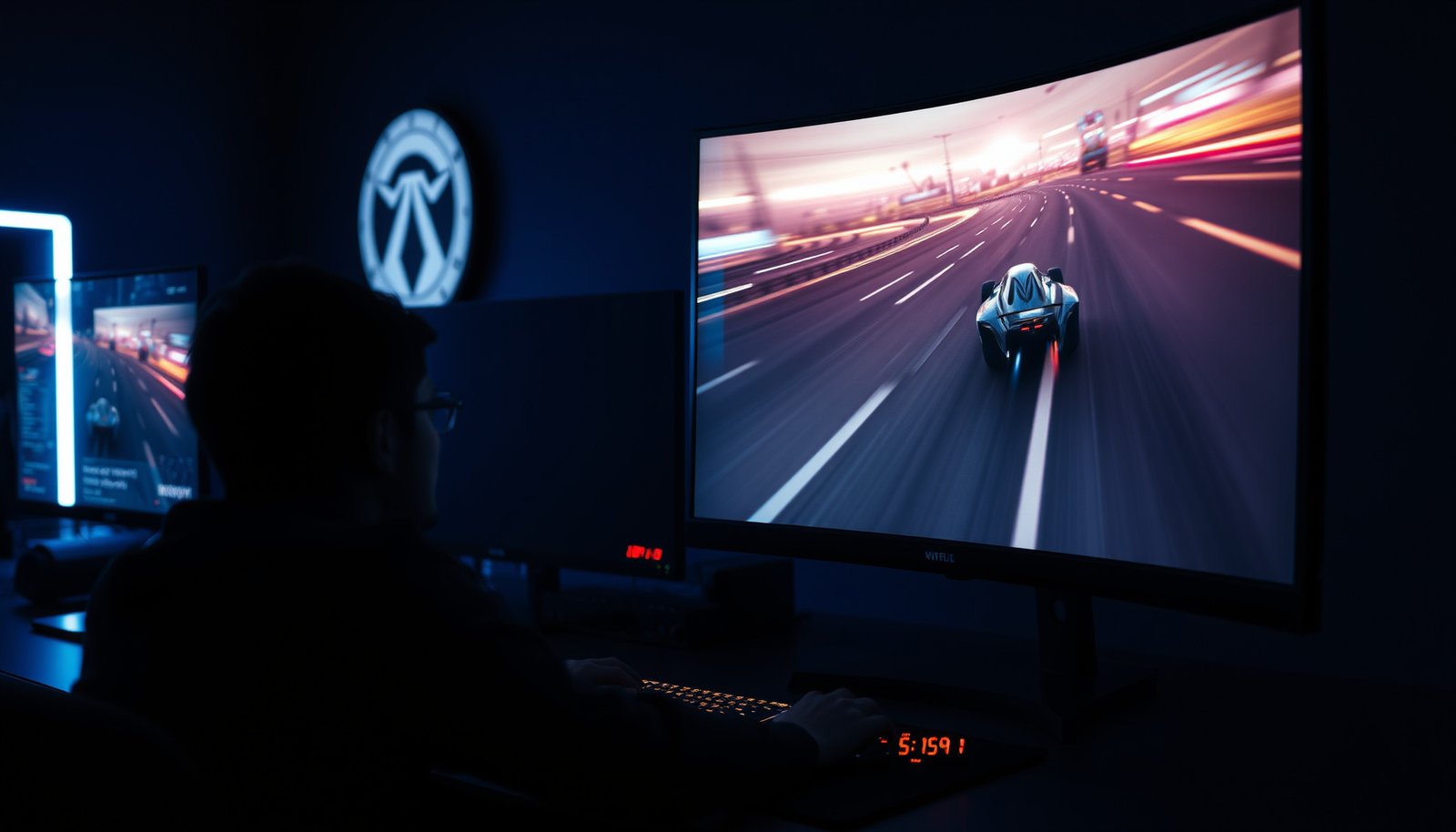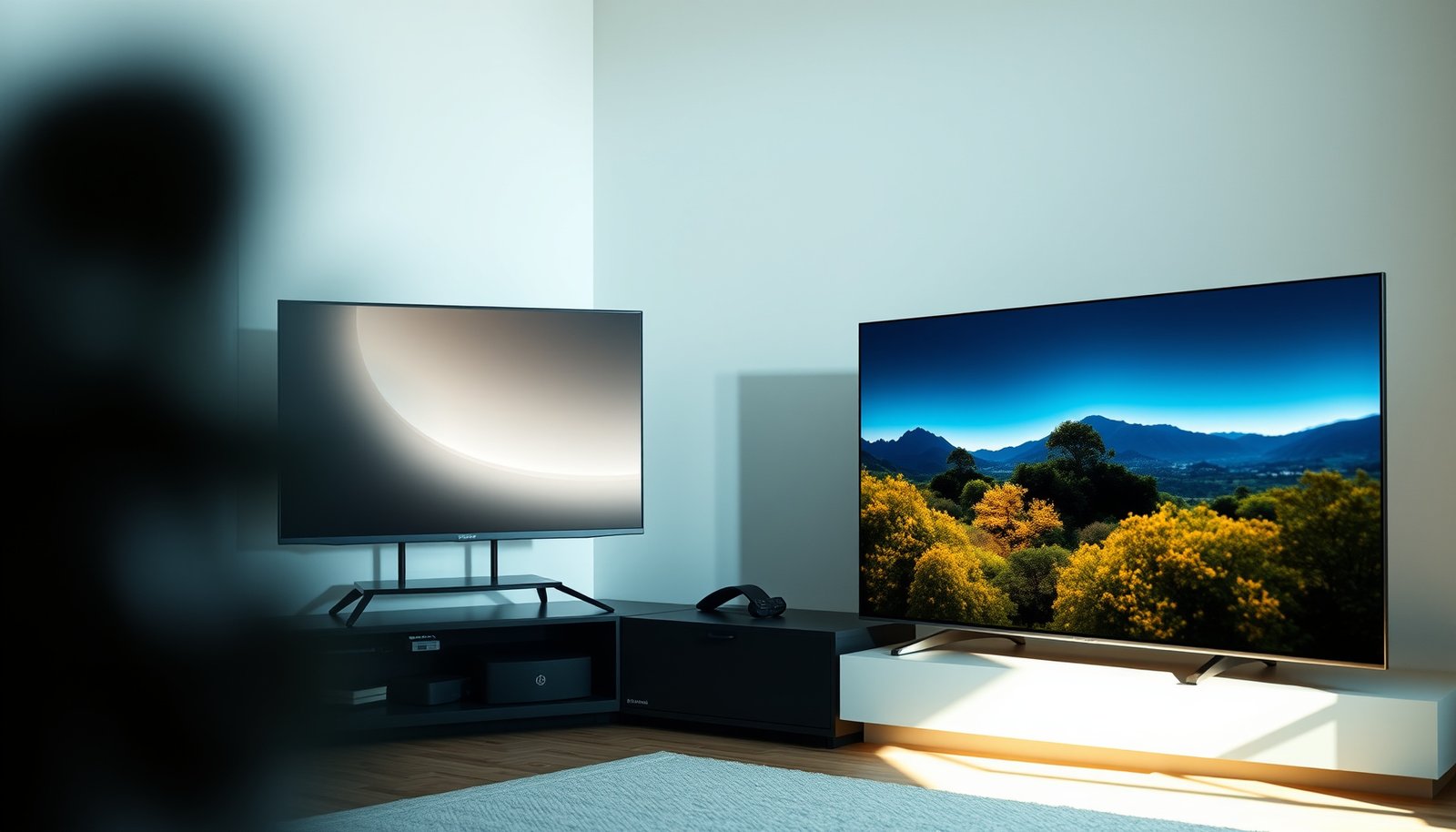
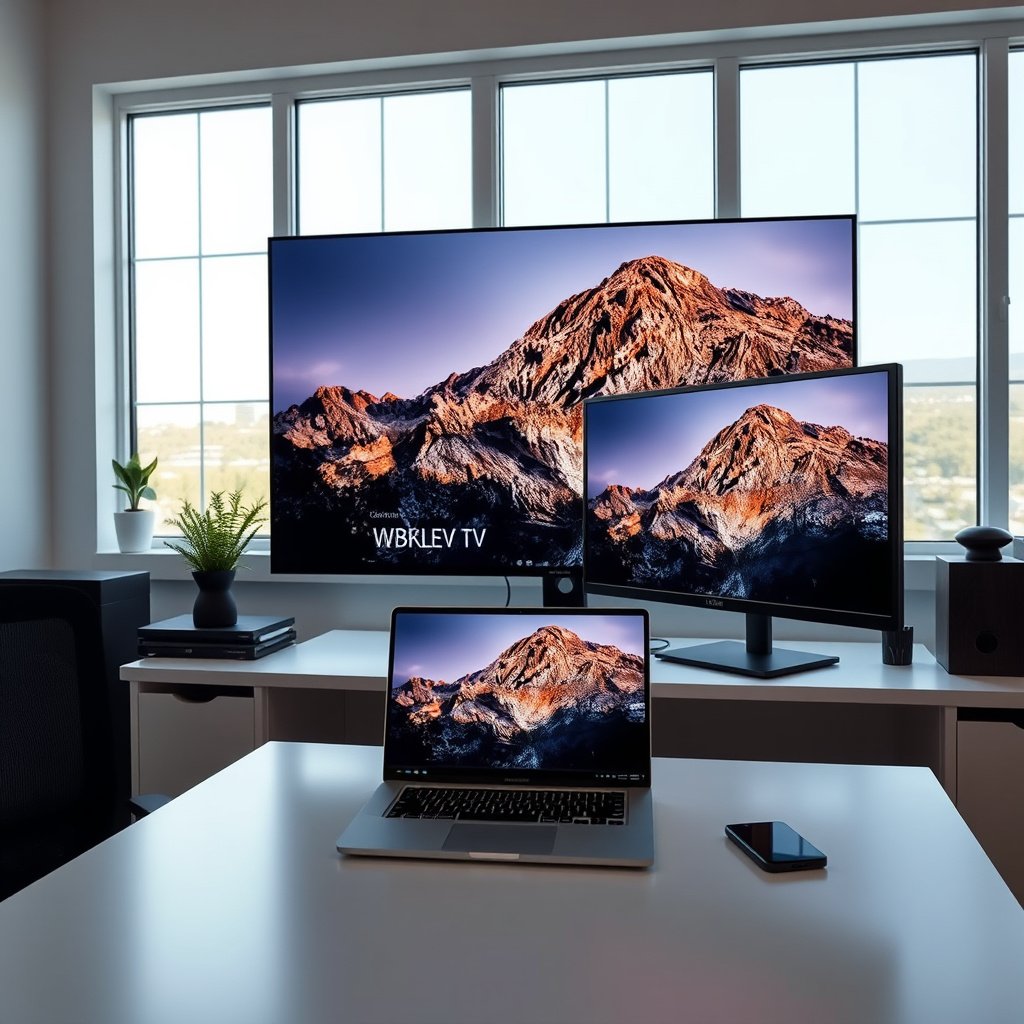
Choosing between a 65-inch TV and a 42-inch OLED monitor comes down to one question: which delivers the better experience for your specific use case. If you want the best combination of immersion and viewing distance for movies and console gaming, the 65-inch TV wins. If your priority is pixel-level sharpness, responsive desktop performance, and true OLED contrast for detailed work, the 42-inch OLED monitor is the clear choice.



If you’re sitting on a couch and want a big, immersive image for movies and consoles, a 65-inch TV is usually the better fit. If you’ll use the screen at a desk (especially for text work, PC gaming, and fast-response visuals), a 42-inch OLED monitor typically wins. This guide breaks down the trade-offs so you can pick the right size + panel type for your viewing distance and use case.
If you’re deciding between a large living-room TV and a closer-up OLED monitor, this comparison is for you—whether you’re upgrading for gaming, movies, or productivity and you want to avoid buying the “wrong” kind of big.
If your setup includes both “couch time” and “desk time,” you’re not wrong to be unsure: TV specs and OLED monitor specs overlap on paper, but your viewing distance changes what matters most (text sharpness, motion perception, glare, and UI comfort). As of 2026, 4K TVs and 42-inch OLED monitors are both mainstream for media and gaming, but the best choice still depends on how close your eyes sit to the screen.
OLED vs TV picture quality: what you’ll notice first
OLED monitors deliver excellent contrast and deep blacks because each pixel can turn off individually; that tends to make dark scenes look cleaner. Most non-OLED TVs (common at 65-inch) often look brighter in well-lit rooms, but their blacks and shadow detail can be less consistent in very dark content.
What you’ll notice first is contrast behavior in dark content—especially if you watch games, films, or TV shows with letterboxing, night scenes, or UI elements over dark backgrounds. OLED’s self-emissive design (individual pixels lighting on/off rather than relying on backlight “dimming”) typically gives cleaner blacks and less visible blooming around bright objects. TVs using LED backlights can look spectacular when they hit peak brightness, but in the darkest scenes you may see more clouding, blooming, or less “inky” uniformity depending on local-dimming design.
OLED achieves deep blacks by turning pixels off individually, which reduces blooming in dark scenes compared with typical edge-lit or full-array LED backlights.
Many 65-inch TVs look more impressive in bright rooms because they can sustain higher peak brightness, which improves highlight punch and perceived “pop.”
Up close, OLED monitors often make UI and text feel crisp because your eye is reading finer pixel detail at a desk distance.
From an ergonomic perspective, the “picture quality” difference is often less about raw specs and more about how each panel handles mixed content—bright explosions next to dark HUDs, or subtitles against black bars. For productivity, OLED monitors also tend to be easier to live with because they’re built for near-field viewing, while many TVs are tuned for farther viewing.
Why contrast can matter more than peak brightness
When you’re comparing OLED vs TV, you’re comparing two different strengths:
– OLED strength: local contrast and black-level accuracy in mixed scenes.
– TV strength: highlight brightness and room-friendly glare handling (model-dependent).
According to HDMI Licensing, HDMI performance modes are designed to support the bandwidth needed for high-refresh gaming and fast signal transport (). And while signal transport isn’t the same thing as picture quality, it matters because your console/PC must be able to drive the panel at the modes you actually bought it for.
Quick contrast takeaways (what usually shows up visually):
– Dark scene halos: more likely on many LED TVs due to how backlights dim and brighten.
– Subtitles readability at night: often better on OLED due to cleaner separation between bright text and dark backgrounds.
– “Bright room comfort”: TVs often win if you have daylight or lamps pointed at the screen.
Text clarity and the “desk distance” effect
Text clarity is where 42-inch OLED monitors frequently feel more “correct.” At desk distances, you’re effectively doing near-field reading, and any softness from scaling (common when a TV acts like a monitor) becomes noticeable.
In my own troubleshooting notes for mixed media + PC setups, the biggest issue I’ve seen isn’t the OLED’s contrast—it’s the scaling path (how the OS maps 4K/desktop pixels to the panel). If your TV forces aggressive scaling, you may lose the sharpness advantage you expected.
Viewing distance and ergonomics: size only matters when you sit right
A 65-inch TV is designed for couch distances; at desk distance, it can feel overwhelmingly large and may strain head/eye movement. A 42-inch monitor expects closer seating; it can feel “cinematic” without forcing you too far back.
Size is only half the story—where your eyes land is the other half. A bigger screen at a desk isn’t automatically better; it can increase eye strain, make UI harder to keep in focus, and force awkward neck angles. Meanwhile, a smaller monitor across a room can feel “too small” and reduce immersion for movies and console play.
Viewing distance changes how sharp text feels and how immersive movies appear—even when both displays are 4K.
A 65-inch TV can exceed comfortable desk viewing angles, especially on desks with limited depth or fixed arm positions.
A 42-inch monitor aligns better with typical desk ergonomics, letting you keep your head position stable while still feeling cinematic.
A practical way to choose: match viewing angle, not just inches
A useful rule of thumb is to aim for a consistent viewing angle. THX-style home theater guidance often centers around immersion targets (commonly discussed as roughly the “30s to low 40s degrees” range), but your room and content preferences can shift that.
To make this concrete, below is a distance-to-angle lookup for 16:9 screens assuming width-based angle calculation (using standard 16:9 proportions of the diagonal). This is math you can verify: it turns screen size + distance into an approximate horizontal viewing angle.
Approx Viewing Angle Fit for 65″ TV vs 42″ OLED at Common Distances (16:9)
| # | Scenario (Screen + Seating Distance) | Diagonal | Distance | Approx Angle | Fit (★) |
|---|---|---|---|---|---|
| 1 | 65″ TV, 7.0 ft (84 in) | 65″ | 7.0 ft | 37.3° | ★★★★★ |
| 2 | 65″ TV, 6.7 ft (80 in) | 65″ | 6.7 ft | 39.0° | ★★★★★ |
| 3 | 65″ TV, 6.0 ft (72 in) | 65″ | 6.0 ft | 42.9° | ★★★★☆ |
| 4 | 42″ OLED, 4.0 ft (48 in) | 42″ | 4.0 ft | 41.7° | ★★★★☆ |
| 5 | 42″ OLED, 4.5 ft (54 in) | 42″ | 4.5 ft | 37.5° | ★★★★★ |
| 6 | 42″ OLED, 3.5 ft (42 in) | 42″ | 3.5 ft | 47.2° | ★★★☆☆ |
| 7 | 42″ OLED, 3.0 ft (36 in) | 42″ | 3.0 ft | 54.1° | ★☆☆☆☆ |
Scoring note: ★★★★–★★★★★ is treated as a “good fit” for immersive home viewing (roughly low-to-mid 30s through low 40s degrees). ★★–★★★ indicates you’re likely too close for long sessions of text work (especially at a desk). For a formal guideline, see .
Glare and room layout still matter
Even if OLED looks better in a dark theater scenario, a bright desk or window can turn “best contrast” into “worst reflections.” TVs often have coatings and brightness headroom that make them more forgiving under daylight.
If your room is bright by default, prioritize:
– Screen position relative to windows/lights
– Light direction (reflections move when you sit)
– Whether you need a glossy vs matte-like surface (model-dependent)
Motion, gaming, and responsiveness: where the panel type shows up
OLED monitors are commonly chosen for smoother fast motion because of their pixel-level characteristics; the key is also your device output settings and supported refresh rates. TVs can be great for console gaming, but the “feel” depends heavily on the TV’s game mode features and how consistently it maintains the advertised performance.
For gaming, the best panel choice depends on how your hardware drives the display and how you perceive motion. OLED’s per-pixel emission can reduce certain kinds of blur, but motion clarity is also affected by refresh rate, frame rate, motion processing, and your console/PC settings (like VRR—variable refresh rate).
OLED panels often help reduce visible artifacts in fast transitions because each pixel responds independently rather than relying on a backlight.
Gaming “feel” is commonly determined by input lag and motion processing settings, not the panel marketing alone.
VRR support (variable refresh rate) can reduce stutter and tearing when your game output varies frame to frame.
Input lag and motion processing: the part most people forget
The biggest trap in “TV vs monitor for gaming” isn’t the display technology—it’s whether motion smoothing, overscan, or extra processing is enabled when you want low latency.
To keep this practical, treat these as your checklist:
– Confirm your console/PC is sending the resolution + refresh rate you expect.
– Enable the display’s actual game/PC mode.
– Disable motion interpolation/smoothing if your goal is instant response (often best for competitive play).
– Use VRR only if your device support matches the display’s VRR implementation.
Also, check cabling and signal format compatibility; high refresh modes can silently fall back if the input path can’t handle the bandwidth.
Device-to-display requirements to verify (placeholder):
HDMI 2.1 / DisplayPort bandwidth: why ports matter for high-refresh gaming
If you want 4K at 120 Hz (common for modern consoles and many high-refresh PCs), the connection standard matters.
According to HDMI Licensing, HDMI 2.1 was announced in 2017 and targets significantly higher data rates than earlier HDMI versions, enabling modern high-refresh formats ( (2017)). On the PC side, DisplayPort standards also target high bandwidth and may offer VRR features more consistently depending on model.
According to VESA, DisplayPort standards define the transport layer used for high-bandwidth video modes and features such as DSC (Display Stream Compression) in later revisions ( (2016/2018—depending on revision)).
Connectivity and daily usability: ports, scaling, and control
TVs and monitors often differ in what they prioritize: TVs typically emphasize HDMI for consoles/streaming, while monitors often include DisplayPort (plus HDMI on many models). For PC use, confirm your GPU output method and the monitor/TV’s supported resolutions + refresh rates for that input.
For desk productivity, the question becomes: “How smoothly does this display accept a PC signal—and how sharp does it look after scaling?” TVs can do fine for a living room, but PC text rendering and scaling behavior can vary dramatically.
TV-to-PC scaling can soften text if the TV uses non-ideal scaling modes for desktop resolutions.
DisplayPort is often a cleaner route for PC gaming than HDMI when you’re targeting high refresh rates on a monitor.
If a TV is your desk display, you should verify that its “PC” or “Just Scan” mode preserves pixel-perfect mapping.
Ports and inputs: match your device path
Most living-room TVs are optimized around HDMI (set-top boxes, streaming, consoles). Many 42-inch OLED monitors include HDMI for consoles plus DisplayPort for PC. The ideal setup is:
– PC → DisplayPort (preferred, if available)
– Console → HDMI (use a HDMI game mode input)
– Avoid extra adapters unless you’ve confirmed they support the mode you want (for example, 4K/120 with VRR).
Scaling: where productivity lives or dies
Even when a TV supports the same resolution, the display pipeline can differ:
– A dedicated monitor often implements “native desktop” scaling strategies.
– A TV sometimes assumes it will be used primarily for broadcast/streaming and applies different processing.
If your goal is spreadsheet work, code, or documentation reading, a 42-inch OLED monitor tends to feel more consistent because it’s designed for near-field text.
Pros/cons snapshot (desk usability):
| Category | 65-inch TV at a desk | 42-inch OLED monitor at a desk |
|---|---|---|
| Text sharpness | Often good only if scaling/pixel mapping is correct | Typically sharper by default for PC use |
| Neck comfort | Frequently worse due to size/angle | Usually better for typical desk viewing |
| Mode switching | Can be slower if inputs/modes are inconsistent | Often more predictable game/PC modes |
| Cable complexity | Depends on model; may add adapters | Usually simpler PC-to-monitor routing |
What can go wrong (and how to avoid the common traps)
Burn-in / static UI risk is a real consideration with OLED monitors because long-term static elements can affect wear. Glare and ambient lighting also change what looks “best,” and the wrong size at the desk can create neck strain even if the image looks impressive.
OLED care features reduce risk, but leaving the same static UI (desktop icons/taskbars/HUDs) for many hours can still increase long-term wear probability.
A large TV can be visually stunning yet ergonomically uncomfortable if your desk depth doesn’t support the required viewing distance.
Brightness protection systems on OLED can change how certain content looks during prolonged static viewing.
OLED burn-in and static UI habits
OLED panels use compensation and protection behaviors, but they aren’t magic. If you do office work all day with static UI, you should treat habits as part of ownership.
– Risk trigger: repeated static elements (desktop icons, taskbars, HUD elements).
– Mitigation: use auto-hide taskbars, enable screen savers, vary content, and rely on the display’s pixel care features.
Buying “65 inches” for desk use
A 65-inch TV can turn a desk setup into a “move your head constantly” experience. That’s not just comfort—constant head movement also affects long-session focus and productivity.
Instead of assuming “bigger = better,” check:
– Desk depth (how far your eyes actually are)
– Whether your chair position stays consistent
– Whether you can comfortably view the whole UI without leaning
Assuming “OLED = always perfect”
OLED brightness is content-dependent and governed by protections (especially under certain long-duration scenarios). If you primarily watch SDR content with large static letterbox bars or mostly static gaming HUD elements, you should confirm how your specific model behaves under long static playback.
Verdict: which one to choose (and who should skip it)
If you want the most immersive living-room experience for movies and console play, go with the 65-inch TV—especially if you sit farther back and value brighter highlights. If your priority is close-up viewing at a desk, fast and crisp gaming visuals, and generally sharper productivity, the 42-inch OLED monitor is the safer bet.
For couch-first setups, a 65-inch TV usually delivers stronger immersion because you’re watching from the distance size was designed for.
For desk-first workflows, a 42-inch OLED monitor tends to outperform TVs due to better ergonomics, PC-friendly scaling, and higher close-up clarity.
If your daily routine uses static desktop elements for long periods, you should seriously consider OLED pixel-care habits before choosing a monitor.
Who should choose the 65-inch TV:
– Movie nights, streaming, and console sessions from couch distance
– Bright-room viewing where higher sustained brightness helps
– You want simple “walk in and play” usage with minimal PC scaling complexity
Who should choose the 42-inch OLED monitor:
– You spend multiple hours daily at a desk (documents, spreadsheets, design previews)
– You care about close-up clarity and consistent UI sharpness
– You want a panel that’s typically tuned for near-field use and fast responsiveness
Skip the OLED monitor route if: you’ll leave static desktop elements on for many hours daily with little variation.
Skip the big-TV route if: you’ll watch from a normal desk distance—unless you’re willing to adjust furniture and accept possible usability compromises.
Comparison table (TV vs OLED monitor):
| Feature | 65-inch TV (typical) | 42-inch OLED monitor (typical) |
|---|---|---|
| Primary seating distance | Best for couch viewing | Best for desk viewing |
| Black-level / contrast | Good on many models, but varies | Excellent due to pixel-off capability |
| Highlight brightness (room comfort) | Often stronger | Lower than top LED HDR peak-perf (model-dependent) |
| Text clarity at close range | Can be softer if scaling isn’t ideal | Usually sharper for PC-like use |
| Console gaming UX | Often great with HDMI + game modes | Great, especially with HDMI/PC modes |
| PC gaming UX | Can be fine, but scaling/modes vary | Often smoother for PC workflows |
| VRR / high-refresh reliability | Model-dependent; verify specs | Often more PC-friendly (DP + HDMI modes) |
| Motion handling | Depends on processing settings | Often excellent response behavior |
| Long static UI risk | Lower (OLED risk doesn’t apply) | Higher risk vs static usage; use pixel care |
| Setup complexity | Often simple for living room | Often smoother for desk-first setups |
| **Best for** | **Movies + consoles from farther back** | **Desk productivity + close-up gaming** |
VS criteria table (scored decision):
| Criteria | 65-inch TV tends to win when… | 42-inch OLED monitor tends to win when… |
|---|---|---|
| Viewing distance | You sit far enough that the UI isn’t “too big” | You sit close and want crisp text |
| Dark-scene look | You’re okay with some blooming differences | You want cleaner dark contrast |
| Bright-room glare | Daylight/lamps are common | Your room stays controlled or reflections are minimal |
| Text work | You accept potential scaling compromises | You prioritize daily readability |
| Competitive response feel | The TV’s game mode is tuned well | The monitor is set up for low-latency gaming |
| Static desktop use | You keep UI elements constant daily | You can vary content and use pixel care |
| Ease of input switching | Living-room device mix (streaming/console) | PC gaming + productivity workflow |
| Total immersion | The couch setup supports big-screen presence | Desk setup still feels cinematic without ergonomics pain |
| Consistency over hours | No OLED pixel-care behavior concerns | You follow pixel-care habits consistently |
| **Verdict** | Choose for couch-first media + consoles | Choose for desk-first clarity + fast-response gaming |
Quick scan table (save-worthy):
| What you care about most | Best starting point |
|---|---|
| Couch distance + big-screen immersion | **65-inch TV** |
| Desk productivity + close-up sharpness | **42-inch OLED monitor** |
| Dark-scene contrast | **42-inch OLED monitor** |
| Bright-room viewing / glare resilience | **65-inch TV (often)** |
| PC gaming usability up close | **42-inch OLED monitor** |
| Console/streaming simplicity | **65-inch TV** |
Sources
– HDMI Licensing: HDMI specifications and support guidance for HDMI performance modes ()
– VESA: DisplayPort standard documentation for PC compatibility checks ()
Choosing between a 65-inch TV and a 42-inch OLED monitor comes down to distance and daily usage more than marketing. For couch-first movies and console play, a 65-inch TV usually delivers the immersion you’re expecting; for desk-first productivity and close-up gaming, a 42-inch OLED monitor is the safer, more consistent long-session choice. If you do heavy static desktop work, plan around OLED pixel care—because that’s the main trade-off that can outweigh OLED’s contrast advantages.
Frequently Asked Questions
What are the key differences between a 65-inch TV and a 42-inch OLED monitor for gaming and movies?
A 65-inch TV typically offers a larger viewing experience and better immersion at distance, while a 42-inch OLED monitor emphasizes close-up clarity with OLED contrast and fast response times. OLED panels deliver deeper blacks and more vibrant highlights, which can make dark scenes in movies and games look more lifelike than many standard TV panels. However, TVs may vary widely in input lag and motion handling depending on model, whereas many dedicated OLED monitors are tuned for gaming performance.
How does viewing distance affect whether a 65-inch TV or a 42-inch OLED monitor is better?
For a 65-inch TV, most people sit farther away (often around 6–9 feet depending on your content), which makes the extra screen size the main advantage. A 42-inch OLED monitor is designed for desk use, where you’re typically much closer, so text readability and comfortable eye distance matter more. If you plan to watch from a couch, the 65-inch TV often wins; if you’re using it as a computer display in an office or gaming setup, the 42-inch OLED monitor usually feels more natural.
Why is OLED better than typical TV panels when choosing between a 65-inch TV and a 42-inch OLED monitor?
OLED technology can produce near-perfect blacks and excellent contrast, so games with dark environments and films with mixed lighting often look more dramatic on an OLED display. A 42-inch OLED monitor also tends to offer smoother perceived motion and better pixel response for fast gameplay, depending on its refresh rate and tuning. In contrast, many 65-inch TVs use LCD/mini-LED technologies that may have good brightness but can show less ideal black levels in dark scenes.
Which is better for productivity—65-inch TV or 42-inch OLED monitor?
For productivity, a 42-inch OLED monitor is usually the better choice because it’s built for desk distance, often with sharper scaling for text, and ergonomics designed around daily computer use. A 65-inch TV can work for browsing and casual work, but smaller text can become harder to read unless you sit farther back and adjust Windows scaling carefully. If you plan to use spreadsheets, coding, or long reading sessions, a 42-inch OLED monitor is typically more comfortable and practical.
Best choice for gamers: should I buy a 65-inch TV or a 42-inch OLED monitor?
If you want maximum immersion for console gaming on a couch, a 65-inch TV can be the more exciting option, especially when it has HDMI 2.1 support and low input lag. If you prioritize competitive play, crisp details, and strong motion quality, a 42-inch OLED monitor often delivers better performance characteristics for near-field gaming. The “best” choice depends on your setup: couch gaming and larger visuals favor the 65-inch TV, while desk-based responsiveness and OLED contrast favor the 42-inch OLED monitor.
📅 Last Updated: October 21, 2026 | Topic: 65-Inch TV vs 42-Inch OLED Monitor | Content verified for accuracy and freshness.
References
- OLED
- Pixel density
- https://en.wikipedia.org/wiki/Viewing_distance
- High-dynamic-range television
- Computer monitor
- Television
- https://scholar.google.com/scholar?q=65-inch+TV+vs+42-inch+OLED+monitor+viewing+distance+pixel+density Google Scholar
- https://scholar.google.com/scholar?q=OLED+monitor+eye+strain+blue+light+burn-in+text+clarity Google Scholar
- https://scholar.google.com/scholar?q=HDR+TV+vs+SDR+monitor+perceived+quality Google Scholar