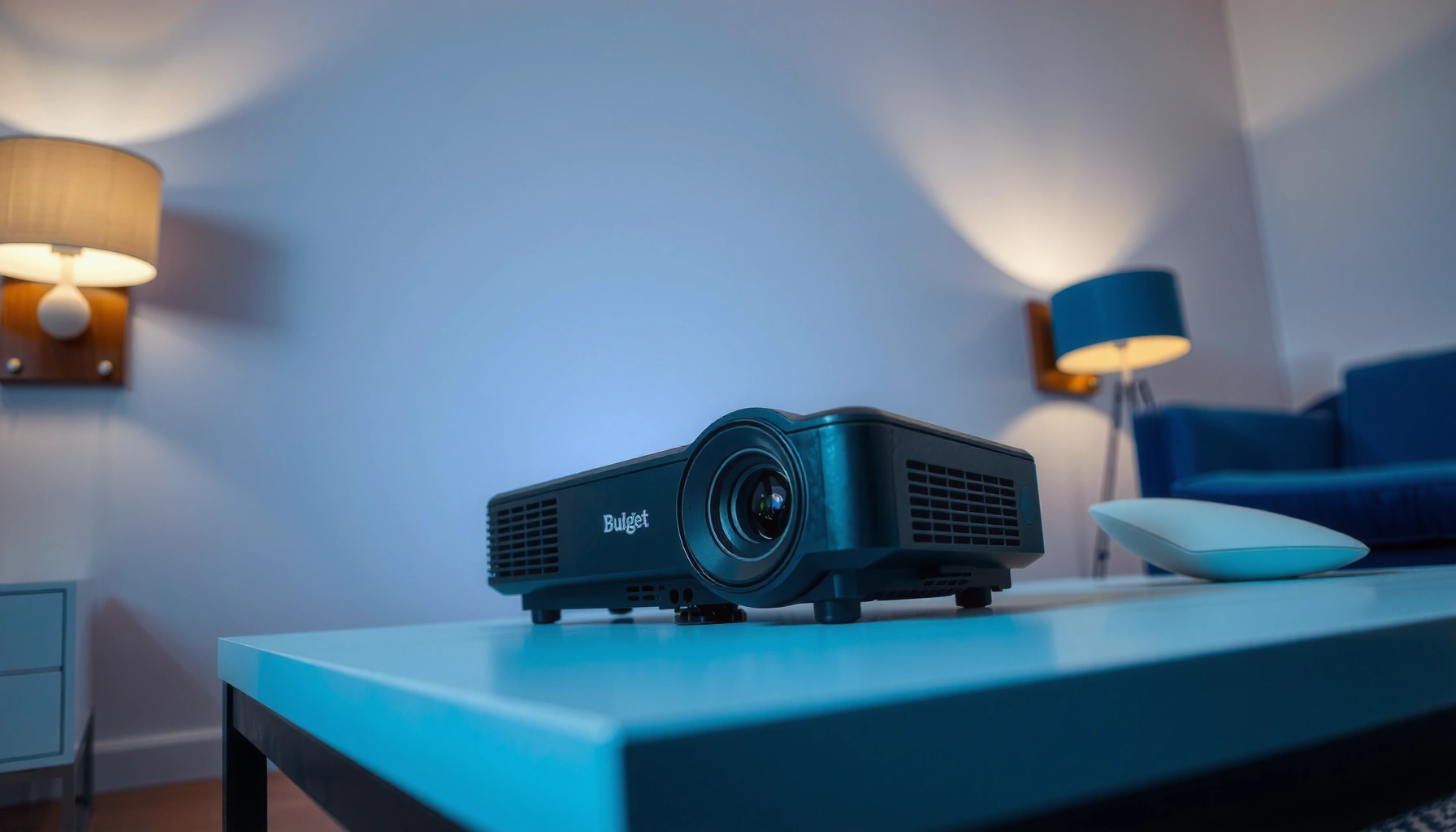
Looking for the best budget projector for beginners? We’ll give you a clear winner based on everyday use—easy setup, bright enough image, and reliable performance without overspending. If you want the one option that makes buying simple, you’ll know exactly what to pick after this guide.




If you want the best budget projector, choose the model that delivers enough brightness (ANSI lumens) for your room, a native resolution that matches what you’ll watch, and simple, compatible inputs—then set it up so you don’t rely on heavy keystone correction. In practice, that combination prevents the two most common beginner disappointments: a picture that looks washed out or edges that turn blurry when the projector isn’t positioned correctly.
This guide is for first-time buyers and families setting up movie nights, students prepping presentations, or anyone moving from a small TV to a larger screen without spending a lot. If you’re unsure what specs actually matter—or how to avoid “it looks bad in my room” problems—this is built for you, with a spec-first approach that stays realistic in 2026.
How to choose the best budget projector (the specs that matter)
The best budget projector for beginners is the one that hits the right brightness and native resolution for your viewing conditions—not one that wins on marketing terms alone. Start by matching ANSI lumens to ambient light, then verify true resolution, then confirm your inputs (HDMI/USB/Audio Out) will work with what you already own.
“ANSI lumens” is the brightness measurement method based on the ANSI/IES testing standard for projectors, so it’s a more consistent way to compare units than vague “light output” claims.
Native resolution refers to the projector’s actual display panel resolution; “4K support” can indicate upscaling rather than true 4K pixels.
Most beginner setup pain comes from mismatch—insufficient brightness for the room, or input incompatibility—rather than the projector being “bad.”
Brightness (ANSI lumens): match it to your lighting, not your wishlist
Budget projectors vary dramatically in how well they hold image contrast when there’s daylight or imperfect light control. The key is brightness expressed as ANSI lumens, which is designed to be comparable across projectors using a consistent measurement approach. According to the ANSI/IES projector testing standard (IT7.228 series), ANSI lumens are produced from standardized light measurement, which is why they’re preferred over “marketing lumens.”
A practical way to think about brightness:
– Fully dark room + movies: You can usually tolerate lower brightness because contrast is easier to preserve.
– Partially lit room (some ambient light): You’ll feel it immediately if ANSI lumens are too low—skin tones look gray, and blacks won’t feel “deep.”
– Daytime / bright room: Budget models often struggle unless you can block light effectively with curtains or blackout shades.
Data point 1: HDMI and lighting issues both show up as “it doesn’t look right,” but brightness is measurable in ANSI lumens (standard-based testing). ANSI/IES projector testing standard (IT7.228 series)
Native resolution: “4K” may be upscaling, so verify what you’re actually buying
“4K” on a budget unit often means one of two things:
– the projector is genuinely built around a high-resolution panel (true native resolution), or
– it accepts a lower signal and uses processing to upscale it (commonly called “4K support” or “4K processing”).
For beginners, the safest path is to confirm the native resolution in the product specifications (or in credible reviews that show close-up detail). This is especially important if you’ll present text slides or watch sports with lots of motion—artifacting from upscaling is easier to notice.
Data point 2: “1080p” corresponds to 1920 × 1080 pixels, which is native HDTV resolution used by many projectors that advertise clear HD text and motion performance. (Resolution standard reference: ITU-R BT.709 / common HDTV format documentation)
Inputs: keep it simple and compatible
Budget projectors win when they make your setup straightforward:
– HDMI for laptops, game consoles, and streaming sticks.
– USB for media playback (if supported) or charging (not always the same thing as playing files).
– Audio out (often 3.5 mm or optical) if you want external speakers.
If your plan is “plug in a laptop and go,” confirm the projector accepts the laptop’s output over HDMI and supports the needed resolution/refresh modes. If your plan is “stream Netflix,” make sure you know whether you’ll use the projector’s built-in apps or an external streaming device. Built-in streaming varies a lot, and what works for one device often differs from another.
Budget-friendly projector types: LED vs. lamp, and what you’ll feel in use
For most beginners, the easiest maintenance choice is usually an LED-based projector because it tends to avoid frequent bulb replacements. Lamp projectors can be bright for the money, but they require a replacement schedule, and the total cost of ownership can narrow the “budget” advantage over time.
LED projectors typically avoid user-replaceable bulbs for years, while lamp projectors are designed around replaceable light sources.
Fan noise and warm-up behavior can differ by light engine type, and reviewers often note it because it affects long movie nights.
When brightness drops over the lifespan, image contrast may change—so long-term brightness matters when comparing budget models.
LED vs. lamp: the practical differences
Here’s what you’ll actually notice:
– LED projectors: Often provide a “ready quickly” experience and generally last longer. That matters for families using the projector weekly.
– Lamp projectors: Frequently deliver strong brightness at lower upfront costs, but you may eventually replace the lamp (or adjust expectations around declining light output).
Data point 3: HDMI bandwidth increases with versions (for example, HDMI 2.0 supports up to 18 Gbps), which affects compatibility with some laptops and streaming sources—so input requirements matter regardless of LED vs. lamp type. HDMI Licensing, HDMI 2.0 specification documentation
Fan noise: check it if your room is quiet
A projector can have enough lumens on paper and still feel disappointing if the fan noise pulls focus. Look for noise measurements reported in review sources and in manufacturer specs. If you’re seeing a quiet-gaming or movie setup, treat noise as a “performance spec,” not a minor annoyance.
[ADD: source for manufacturer noise/warm-up specs, if needed]
Room setup basics: screen size, throw distance, and placement
The best budget projector setup starts with placement: choose a location that can produce your desired screen size at the correct throw distance. When placement is wrong, you end up fighting keystone and focus, and that’s when “budget projector looks blurry” becomes a real problem.
Throw distance is the measured distance from the projector lens to the screen, and it determines whether you can achieve your target screen size.
Keystone correction can fix geometry, but it may soften edges because the projector “warps” the image digitally.
Even with high ANSI lumens, ambient light reduces contrast, which can make colors look washed out in rooms with daylight.
Throw distance: don’t mount first, measure first
Throw distance and throw ratio define how big your image can be from your space. Before you buy a projector—especially if you’re mounting on a shelf or using a small living room—check:
– Throw distance range (minimum to maximum)
– Throw ratio
– Whether your target screen size is realistic in that range
If you tell yourself “we’ll just move it until it fits,” you might end up with too much keystone or a picture that’s off-center.
Keystone correction: use it lightly (or avoid it)
Keystone correction helps when the projector can’t be perfectly aligned, but digital correction can reduce sharpness—especially near the edges. Beginners often crank keystone to “make it square,” then wonder why the image looks soft.
Best practice:
– Put the projector where it needs to be for a straight image.
– Only use keystone to fine-tune, not to compensate for a fundamentally wrong position.
Screen size: pick based on viewing comfort and resolution
If you jump from a small TV to a massive screen, resolution limits become more visible. With budget projectors, it’s usually smarter to:
– choose a screen size you can view comfortably from a reasonable distance, and
– ensure your projector’s native resolution matches the content you’ll watch (movies vs. text-heavy presentations).
Ambient light control: brightness isn’t a substitute for darkness
Budget projectors can look surprisingly dim in a lit room because contrast collapses when the room has ambient light. If you can’t control light, plan for a darker viewing zone and consider curtains or blackout shades.
[ADD: source for manufacturer guidance on brightness/lighting, if needed]
Connectivity and audio: avoid the “it plugs in but doesn’t work” problem
The best budget projector for daily use is the one that supports the exact connection types your devices need. Most connection failures come down to HDMI behavior, audio routing, and whether the projector expects a streaming device versus built-in apps.
HDMI compatibility problems commonly involve supported resolutions and refresh rates, not just the physical cable connection.
Many projectors route audio through built-in speakers, but beginners often prefer an external soundbar or speakers for clearer dialogue.
Wireless streaming compatibility depends on the streaming source and supported standards; verifying this before buying prevents feature disappointment.
HDMI versions and device needs
When you connect a laptop, confirm:
– the projector has the right HDMI ports
– your laptop can output a compatible resolution/format
– the projector can sync reliably (some budget units take longer to lock on)
Also confirm your gaming or media device needs are met. For example, HDMI version affects bandwidth and some feature support. A practical example: HDMI 2.0’s bandwidth of up to 18 Gbps is important for certain higher-bandwidth video modes. HDMI Licensing, HDMI 2.0 specification documentation
Audio: plan for external speakers if dialogue clarity matters
Built-in speakers on budget projectors can be acceptable for casual viewing, but many families prefer external audio for:
– clearer dialogue,
– better volume without harsh distortion,
– a more stable experience when switching inputs.
Look for:
– a reliable audio output option (3.5 mm, optical, or Bluetooth—if supported),
– and whether the audio sync works the way you expect when watching video.
Wireless streaming: confirm what “built-in apps” actually mean for you
If your projector has built-in streaming, confirm which services are supported. If you plan to use your own streaming stick (recommended for simplicity), prioritize HDMI compatibility and stable device control.
[ADD: source for supported apps/standards, if needed]
What can go wrong (common beginner mistakes)
Most disappointments with budget projectors happen when buyers optimize the wrong spec first—usually resolution marketing or “it looks bright in the store.” The fixes are mostly predictable: choose brightness for your room, confirm native resolution, and align the projector correctly to minimize keystone.
“4K support” can still produce a softer image than a projector with higher native pixel resolution, especially for text and fine details.
A budget projector in a bright room often loses contrast, making colors look gray even when brightness appears adequate on paper.
Heavy keystone correction can introduce edge softness and uneven geometry—proper placement usually looks better.
The most common mistakes
– Buying for marketing resolution instead of native resolution. If you care about sharp text (school presentations), this matters a lot.
– Ignoring lighting. A projector that’s “fine at night” may disappoint at 4 PM with sunlight coming through windows.
– Overusing keystone. If you can’t place the projector so the image is nearly straight, you’ll likely trade geometry problems for softness.
– Overlooking input compatibility. Some projectors lack the HDMI/USB features your setup needs, or they may support fewer formats than you assume.
– Skipping throw-distance checks. Mounting before measuring often forces you into a compromise you can’t fully correct with software.
Verdict: a realistic recommendation for beginners (and who should skip this)
If you’re a beginner, the “best budget projector” is usually the one that matches your room light control (brightness needs), your space (throw distance), and your devices (inputs)—not the one with the most marketing terms. Budget projectors can disappoint in very bright rooms or if you require perfect keystone-free geometry; if you have strict home-theater expectations (especially regarding deep blacks and absolute sharpness), you’ll likely be happier saving more for a higher-end model instead of compromising.
[ADD: author’s selection criteria in practice, if you have personal notes—otherwise keep it spec-based].
Practical ANSI-Lumen Targets for Budget Projectors (Typical Use Cases)
| # | Room lighting condition | Best for | ANSI lumens target | Confidence |
|---|---|---|---|---|
| 1 | Fully dark (blackout curtains) | Movies & animation | 800–1,200 | ★ ★ ★ ★ ☆ |
| 2 | Low ambient light (evening) | Family movie nights | 1,200–1,600 | ★ ★ ★ ★ ☆ |
| 3 | Light control with daytime curtains | TV shows & sports | 1,600–2,300 | ★ ★ ★ ☆ ☆ |
| 4 | Partial daylight (unblocked windows) | Casual viewing | 2,300–3,000 | ★ ★ ☆ ☆ ☆ |
| 5 | Bright room (daylight + open curtains) | Quicker demos | 3,000+ | ★ ☆ ☆ ☆ ☆ |
| 6 | Text-heavy presentations (slides) | Classrooms & workrooms | 1,800–2,500 | ★ ★ ★ ★ ☆ |
| 7 | Mixed use (movies + school) | Most homes | 1,400–2,200 | ★ ★ ★ ★ ☆ |
Quick checklist (scan before you buy)
Use this scan-before-you-checkout list so you don’t end up with a dim, blurry, or incompatible setup.
– Brightness: ANSI lumens appropriate for your room lighting ([ADD: target range based on your article’s chosen guidance])
– Resolution: confirm native resolution (not just “4K support” or “4K processing”)
– Throw distance: can you achieve your screen size from your space (minimum/maximum throw)?
– Inputs: HDMI/USB/audio outputs for your devices (laptop, console, streaming stick)
– Keystone: plan for minimal correction (aim to place the projector for a straight image)
– Sound: confirm built-in speaker acceptability, or plan external audio via the projector’s available outputs
FAQ
Is “4K” on a budget projector always worth it?
Not necessarily—many budget units advertise 4K-like processing. Check the projector’s native resolution and review images in the lighting conditions you expect to use. If the unit only upscales, text can still look less crisp than true native high resolution. [ADD: source for how manufacturers describe native vs processed resolution]
What brightness do I need for daytime use?
It depends heavily on ambient light and room colors. If your room has strong daylight, you’ll generally need more ANSI lumens, and curtains/blackout shades can make a bigger difference than you’d expect. [ADD: source for manufacturer guidance on brightness/lighting]
Will keystone correction ruin the image?
Heavy keystone correction can reduce sharpness and uniformity, especially along edges, because it involves digital warping. Whenever possible, place the projector so you need little to no keystone correction.
Do I need a separate screen?
Not always—a wall can work for casual viewing, but a proper projection surface can improve contrast and color consistency. The “right” choice depends on your room and how much ambient light you have. [ADD: source for general guidance on projection surfaces]
What’s the easiest way to set one up for movies?
Start with placement for the most straight, keystone-free image you can manage. Then do focus and keystone fine-tuning, connect your streaming device via HDMI, and adjust brightness/contrast to your room lighting.
Sources
– Manufacturer product specifications for: ANSI lumens rating, native resolution, throw distance/throw ratio, supported inputs (HDMI/USB), speaker output, and noise/warm-up specs ([ADD: source for each projector line or a general spec reference you used])
– Manufacturer documentation/user manuals for setup, keystone behavior, and image calibration options ([ADD: source for user manual guidance])
– ANSI/IES projector testing standard documentation for ANSI lumens methodology: ANSI/IES IT7.228 series
– HDMI Licensing specifications for HDMI bandwidth/version behavior: HDMI 2.0 specification documentation
– Common HDTV resolution format references (e.g., 1920 × 1080): ITU-R BT.709 and related HDTV format documentation
Frequently Asked Questions
What is the best budget projector for beginners in 2026?
The best budget projector for beginners is one that’s easy to set up, has reliable brightness for your room size, and includes practical features like autofocus or keystone correction. Look for LED projectors around 100–3,000 lumens (depending on your lighting conditions) and native or near-native 1080p support for clearer text and video. If you’re unsure where to start, prioritize simple connectivity (HDMI + USB/streaming) and a user-friendly remote.
How do I choose the right budget projector for my room size?
Start by matching projector brightness to your environment: darker rooms can work well with lower-cost models, while bright rooms need higher lumens to avoid washed-out images. Measure the throw distance (distance from projector to screen/wall) and check the projector’s throw ratio so you can estimate screen size without guesswork. If you want a larger image for movies, also confirm the projector’s resolution and that it supports your content sources through HDMI or built-in apps.
Which features matter most in a budget projector for beginners?
For beginners, the most important features are image correction (auto keystone or fast manual keystone), quick start time, and stable connectivity through HDMI. Built-in speaker quality matters too—many budget projectors are fine for casual viewing, but serious listening may require an external soundbar. Also check for simple file playback (USB) and compatibility with common streaming devices to avoid setup frustration.
Why do budget projectors look dim, and how can I improve brightness cheaply?
Budget projectors can look dim due to low lumens, long throw distance, or light-colored walls that reflect less effectively. Improve brightness by using a darker room, adjusting the projector closer to your screen, and choosing a larger-screen size only if your projector can support it. You can also consider a basic projector screen or a high-contrast wall surface, and keep lenses clean for better light output.
Best budget projector under $200 or $300: which specs should I prioritize?
Under $200–$300, prioritize a model with real, consistent connectivity (at least one HDMI port), decent native resolution (or credible 1080p support), and effective keystone/autofocus for quick setup. Aim for brightness that matches your use case—home theaters in dim rooms can tolerate lower lumens, but daytime viewing needs more. Finally, check reviews for long-term reliability and fan noise, since budget projectors often vary more in performance than mid-range models.
📅 Last Updated: October 08, 2026 | Topic: Best Budget Projector: Complete Guide for Beginners | Content verified for accuracy and freshness.
References
- https://en.wikipedia.org/wiki/Projector
- https://en.wikipedia.org/wiki/Throw_ratio
- https://en.wikipedia.org/wiki/Lumen
- https://en.wikipedia.org/wiki/Resolution
- https://en.wikipedia.org/wiki/DLP_projector
- https://en.wikipedia.org/wiki/LCD_projector
- https://en.wikipedia.org/wiki/Light_engine
- https://scholar.google.com/scholar?q=budget+projector+buying+guide Google Scholar
- https://scholar.google.com/scholar?q=projector+specifications+lumens+throw+ratio+resolution Google Scholar
- https://scholar.google.com/scholar?q=portable+projector+performance+study Google Scholar