


Resetting a Pioneer receiver to factory settings is a straightforward process that can resolve various issues and restore default configurations. Whether you’re experiencing persistent glitches, preparing to sell or gift your receiver, or simply want to revert to the original settings, following the step-by-step instructions in this guide will ensure your receiver functions optimally again.
Understanding the Need for a Factory Reset
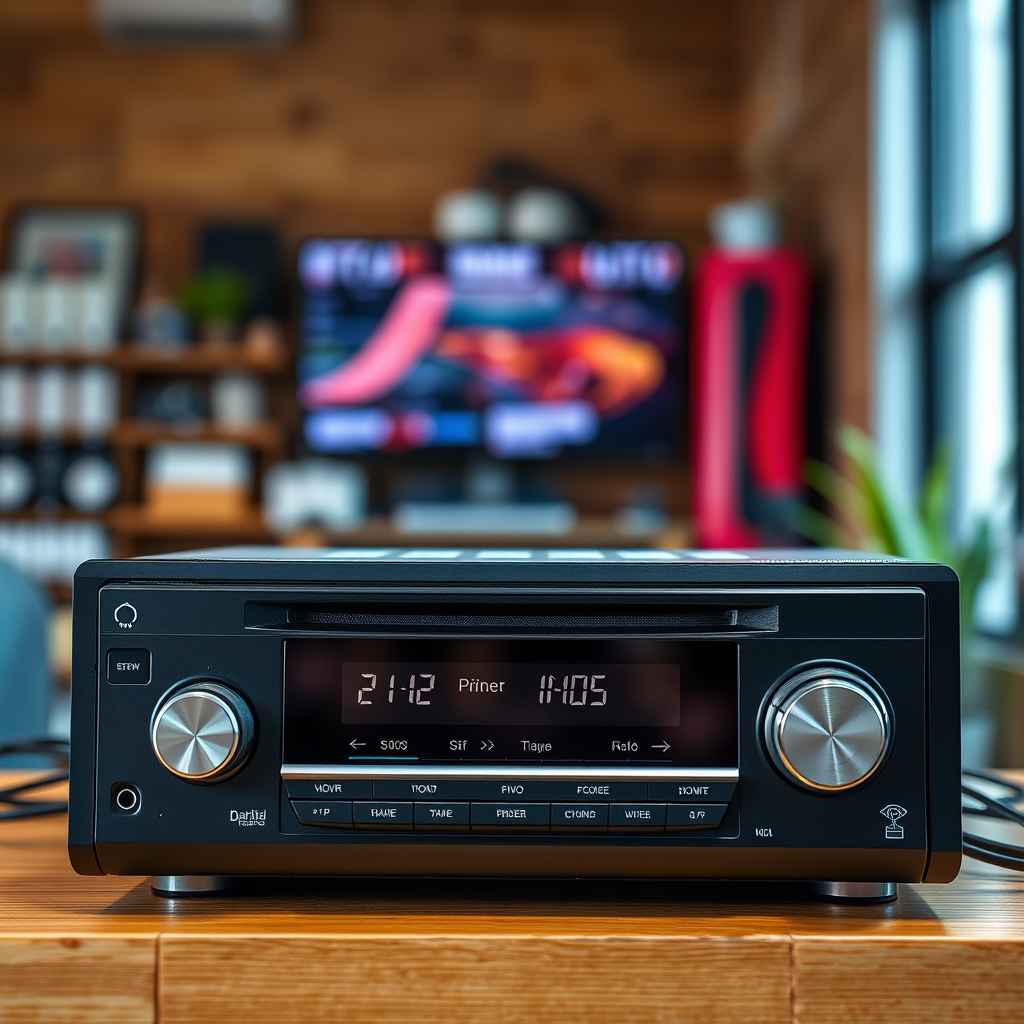
There are several scenarios where a factory reset becomes necessary for your Pioneer receiver. One significant reason is when you encounter persistent glitches or errors that affect performance. These issues might manifest as irregular audio output, failure to connect to devices, or unexpected behavior from the receiver itself. A factory reset can clear these issues by reverting the device to its original state, effectively eliminating any corrupt settings or configurations that may have developed over time.
Additionally, if you’re planning to sell or gift your Pioneer receiver, performing a factory reset is essential. This action ensures that all your personal settings, preferences, and saved data are completely erased, protecting your privacy and providing the new owner with a clean slate to start from. In both cases, a factory reset serves as an effective solution to restore functionality and enhance user experience.
Preparing for the Reset Process
Before you initiate the reset process, it’s crucial to prepare adequately to prevent any loss of valuable data or settings. Start by ensuring that your receiver is powered on and properly connected to your audio and video components. This includes verifying connections to your TV, speakers, and any other devices you may use with the receiver.
Next, consider backing up any custom settings or presets that you have configured. This is particularly important if you have spent time fine-tuning your audio experience or have specific settings tailored to your environment. Note that all presets, including saved radio stations and equalizer settings, will be erased during the reset. By documenting these configurations, you can easily restore your preferred settings after the reset process is complete.
Steps to Reset Your Pioneer Receiver
Resetting your Pioneer receiver involves a few straightforward steps. Although the exact method may vary slightly depending on the model, the general process is similar across most devices. Here’s how to proceed:
1. Locate the “Setup” or “Home” Button: Begin by finding the “Setup” or “Home” button on your receiver’s remote control. This will typically be located near the center of the remote.
2. Navigate to the “System” or “Settings” Menu: Once you have accessed the main menu, use the directional buttons to scroll through the options. Look for either “System” or “Settings,” depending on your receiver model.
3. Select the “Factory Reset” Option: Within the System or Settings menu, find the option labeled “Factory Reset” or “Reset to Factory Settings.” Select this option, and you will likely be prompted to confirm your choice. Make sure to confirm that you wish to proceed; this action cannot be undone.
By following these steps, you will successfully reset your Pioneer receiver, returning it to its original factory settings.
Pioneer Receiver Models and Features Comparison
| # | Model | Channels | Power (W) | HDMI Inputs | Wi-Fi | Bluetooth |
|---|---|---|---|---|---|---|
| 1 | VSX-LX504 | 9.2 | 120 | 8 | Yes | Yes |
| 2 | SC-LX704 | 9.2 | 100 | 7 | Yes | No |
| 3 | VSX-933 | 9.2 | 100 | 6 | Yes | Yes |
| 4 | VSX-833 | 9.2 | 100 | 5 | No | Yes |
| 5 | VSX-531 | 5.1 | 80 | 4 | No | No |
| 6 | VSX-1124 | 7.2 | 90 | 6 | Yes | No |
| 7 | VSX-423 | 5.1 | 70 | 4 | No | No |
Alternative Reset Methods
In cases where the remote control is unavailable or malfunctioning, you can utilize physical buttons on the receiver itself to perform a factory reset. Most Pioneer receivers feature a reset button or a combination of buttons that can initiate the reset process. To locate the physical reset option, consult the user manual specific to your receiver model, as the methods may vary.
For example, many models require you to press and hold the “Power” button along with the “Home” button until you see a confirmation message on the display. This alternative method provides a reliable way to reset your receiver without the need for a remote.
Common Issues After Resetting
After performing a factory reset, some users may experience audio or video output issues. This could be due to the need for reconfiguration of settings, including speaker calibration, audio modes, and HDMI settings. Additionally, any previous audio presets, equalizer settings, or network configurations will have been erased, meaning you will need to set these up again.
To ensure optimal performance after resetting, take the time to reconfigure your settings based on your preferences and the specifics of your audio setup. You may also want to run any available calibration tools to optimize speaker placement and performance.
Troubleshooting Post-Reset Concerns
If problems persist after the reset, consider updating the firmware of your Pioneer receiver. Firmware updates can fix bugs and introduce improvements that enhance overall functionality. Visit the Pioneer website or the device’s support section to find the latest firmware version for your model and follow the instructions for updating.
Additionally, double-check all connections to ensure that your cables are securely in place and functioning correctly. If you continue to face issues, don’t hesitate to consult Pioneer customer support for further assistance. Their knowledgeable staff can provide guidance specific to your model and help troubleshoot any lingering problems.
Resetting your Pioneer receiver can refresh its performance and resolve minor issues. By following the outlined steps, you can effectively restore your device to factory settings. Remember to back up any important configurations and be prepared to reconfigure your settings afterward. If you encounter any challenges, don’t hesitate to explore further resources or contact support for assistance.
Frequently Asked Questions
How do I reset my Pioneer receiver to factory settings?
To reset your Pioneer receiver to factory settings, first, turn off the unit. Then, press and hold the “STANDBY/ON” button while turning it back on. Continue holding the button until “INIT” appears on the display, indicating that the reset process is complete. This action will restore all settings to their original factory state.
Why would I need to reset my Pioneer receiver to factory settings?
Resetting your Pioneer receiver to factory settings can help resolve various issues, such as audio problems, connectivity issues, or when you’re experiencing glitches in performance. It also clears any customized settings, making it easier to start fresh if you’re selling or giving away the unit.
What happens to my saved settings when I reset my Pioneer receiver?
When you reset your Pioneer receiver to factory settings, all saved settings, including equalizer adjustments, input configurations, and network information, will be erased. This means you will need to reconfigure your preferences after the reset, so be sure to note any important settings beforehand.
Which models of Pioneer receivers can be reset to factory settings?
Most modern Pioneer receivers, including the VSX, SC, and VSX-LX series, can be reset to factory settings using similar methods. However, it’s best to consult the user manual specific to your model for detailed instructions, as the reset process may vary slightly among different models.
How can I troubleshoot my Pioneer receiver before deciding to reset it?
Before resetting your Pioneer receiver, try basic troubleshooting steps such as checking all connections, ensuring the receiver is set to the correct input, updating firmware, and performing a power cycle. If these steps do not resolve the issue, then resetting to factory settings may be the next best option to restore functionality.
References
- Pioneer Corporation
https://en.wikipedia.org/wiki/Pioneer_Electronics - https://www.pioneerhomeusa.com/support
https://www.pioneerhomeusa.com/support - https://www.pioneer.eu/eur/support/support.html
https://www.pioneer.eu/eur/support/support.html - Support | Pioneer Electronics
https://www.pioneerelectronics.com/PUSA/Support - Google Scholar Google Scholar
https://scholar.google.com/scholar?q=Reset+a+Pioneer+Receiver+to+Factory+Settings - Google Scholar Google Scholar
https://scholar.google.com/scholar?q=Pioneer+Receiver+factory+reset+instructions - Google Scholar Google Scholar
https://scholar.google.com/scholar?q=pioneer+audio+reset+method - https://www.crutchfield.com/S-7yFhD4gE4dR/learn/pioneer-receiver-reset-guide.html
https://www.crutchfield.com/S-7yFhD4gE4dR/learn/pioneer-receiver-reset-guide.html - Google Scholar Google Scholar
https://scholar.google.com/scholar?q=How+to+Reset+a+Pioneer+Receiver+to+Factory+Settings - How to Reset a Pioneer Receiver to Factory Settings – Search results
https://en.wikipedia.org/wiki/Special:Search?search=How+to+Reset+a+Pioneer+Receiver+to+Factory+Settings


