If your Pioneer home audio remote isn’t responding, the first step is to check the batteries and ensure they are properly installed. If that doesn’t solve the issue, you may need to troubleshoot further by checking for obstructions, ensuring the remote is paired correctly, or resetting your audio system. This guide will walk you through various troubleshooting steps to get your remote working again.



A non-responsive remote can be frustrating, especially when you’re ready to unwind with your favorite music or movie. Fortunately, many problems can be resolved with a few simple troubleshooting steps. By systematically checking the batteries, remote pairing, and possible obstructions, you can often restore functionality without needing professional assistance.
Check the Batteries
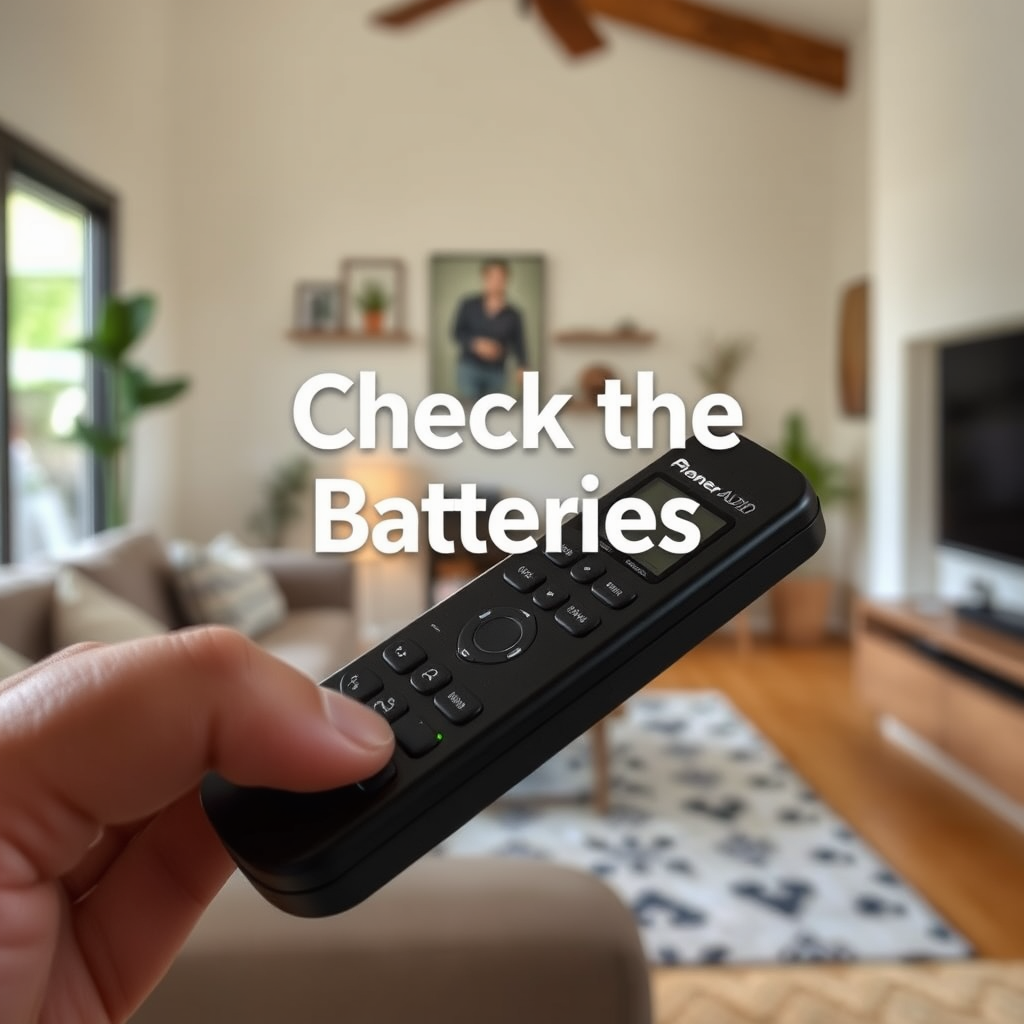
The first and most straightforward step in troubleshooting a non-responsive remote is to inspect the batteries. Ensure that they are fresh and correctly installed. Sometimes, batteries can be inserted incorrectly, leading to poor contact.
– Replace the Batteries: If your remote still doesn’t work after checking the installation, try replacing the batteries with new ones. Even if the batteries seem fine, they may not have enough charge left to power the remote effectively. Use high-quality alkaline batteries for optimal performance.
– Battery Type: Be aware of the type of batteries your remote requires, as some models may use specific sizes like AA, AAA, or even button cell batteries. Always refer to your user manual for detailed specifications.
Clear Line of Sight
Another common issue that can prevent a remote control from working is obstructions between the remote and the audio system.
– Remove Physical Barriers: Ensure there are no objects blocking the infrared (IR) signal. Common obstructions include furniture, decorations, or even dust buildup on the sensors.
– Distance Matters: Make sure you are within the recommended range for your remote. Some remotes may require you to be within a certain distance from the audio system for the signal to register effectively.
Verify Remote Pairing
If your remote is Bluetooth-enabled, it’s essential to confirm that it is paired correctly with your audio system.
– Check Pairing Status: Go into the settings of your audio system to see if the remote is listed as a paired device. If it’s not, follow the pairing instructions found in your user manual.
– Re-establish Connection: Often, removing the remote from the list of paired devices and then pairing it again can resolve any connectivity issues.
Reset the Remote and Audio System
Sometimes, a reset is necessary to restore functionality to your remote.
– Remote Reset: Check your remote’s user manual for a reset button or procedure. This might involve holding down specific buttons for a few seconds.
– Power Cycle the Audio System: Unplug your audio system from the power source for a few minutes. This action can help refresh the system and establish a new connection with the remote.
Common Issues with Pioneer Home Audio Remotes
| # | Issue | Possible Cause | Recommended Solution |
|---|---|---|---|
| 1 | Unresponsive Buttons | Dirty or Stuck Buttons | Clean or Repair Remote |
| 2 | Remote Does Not Power On | Dead Batteries | Replace Batteries |
| 3 | Intermittent Functionality | Weak Infrared Signal | Clear Line of Sight |
| 4 | Remote Cannot Connect | Bluetooth Pairing Issues | Re-pair Remote |
| 5 | Audio System Not Responding | System Needs Reset | Unplug and Replug |
| 6 | Remote Works Intermittently | Signal Interference | Reduce Interference |
| 7 | Remote Functions Erratically | Software Glitch | Update Firmware |
Inspect for Damage
Physical damage can severely impact the functionality of your remote.
– Look for Cracks or Wear: Examine the remote for any visible signs of damage. Cracked casings or broken buttons can hinder performance.
– Sticky Residue: Check for sticky residue that may affect button functionality. Cleaning the remote with a soft cloth and a mild cleaning solution can help restore its effectiveness.
Update Firmware
Keeping your audio system’s firmware updated is crucial for optimal performance and compatibility with remote controls.
– Check for Updates: Regularly visit the Pioneer website to see if there are any firmware updates available for your specific model.
– Installation Process: Follow the instructions provided on the website to install the latest firmware. An updated system can resolve many issues related to remote control functionality.
Contact Customer Support
If you’ve exhausted all troubleshooting steps and the remote still does not respond, it may be time to seek professional help.
– Pioneer Customer Support: Reach out to Pioneer customer support for assistance. They can provide you with specific troubleshooting tips for your model or guide you through the process of obtaining a replacement if necessary.
– Document Your Steps: When you contact support, provide them with detailed information about your issue and any troubleshooting steps you’ve already taken. This information can help them diagnose the problem more efficiently.
Getting your Pioneer home audio remote to respond again may require a few simple troubleshooting steps. By checking batteries, ensuring clear signal paths, and possibly resetting devices, you can resolve most issues. If the remote still doesn’t work after these steps, don’t hesitate to seek professional help or support from the manufacturer.
In summary, the key to troubleshooting a non-responsive Pioneer home audio remote lies in a systematic approach. Start with the basics, such as checking the batteries and ensuring there are no obstructions, then proceed to verify pairing and consider a reset. Regular maintenance, like keeping your firmware updated and inspecting for damage, will also enhance your remote’s longevity and performance. By following these steps, you can typically restore functionality and enjoy seamless control over your audio experience.
Frequently Asked Questions
What should I do if my Pioneer home audio remote is not responding?
If your Pioneer home audio remote is not responding, first check the batteries. Replace them with new ones to ensure they are not dead. Next, make sure there are no obstructions between the remote and the audio system. If it still doesn’t work, try resetting the remote by removing the batteries and pressing any button for 10 seconds before reinserting them.
How can I troubleshoot my Pioneer audio system if the remote control is malfunctioning?
To troubleshoot your Pioneer audio system remote, begin by checking if the remote is paired correctly with the system. Ensure that the infrared sensor on both the remote and the audio unit is clean and unobstructed. You can also try using the audio system’s manual controls to confirm that the issue lies with the remote and not the audio unit itself.
Why is my Pioneer home audio remote suddenly unresponsive after a power outage?
A power outage may cause your Pioneer home audio remote to become unresponsive due to a reset in the settings of your audio system. Try unplugging the audio system for a minute before plugging it back in, as this can help restore functionality. Also, check the remote batteries, as they may have drained during the outage.
What is the best way to fix a Pioneer home audio remote that won’t turn on?
The best way to fix a Pioneer home audio remote that won’t turn on is to first replace the batteries with brand new ones, ensuring they are installed correctly. If the remote still doesn’t respond, clean the battery contacts and try resetting the remote by removing the batteries for a few minutes. If problems persist, consider checking for any firmware updates for your audio system or contacting customer support.
Which common issues could cause my Pioneer audio remote to stop functioning?
Common issues that could cause your Pioneer audio remote to stop functioning include dead batteries, blocked infrared sensors, or interference from other electronic devices. Additionally, if the remote has suffered physical damage or if the audio system has not been set up correctly, these factors can also lead to a lack of response. Regularly inspecting and maintaining both the remote and audio unit can help prevent these issues.
References
- https://support.pioneer.eu/hc/en-gb/articles/360001453517-Remote-Control-Troubleshooting
https://support.pioneer.eu/hc/en-gb/articles/360001453517-Remote-Control-Troubleshooting - https://www.lifewire.com/how-to-fix-a-remote-control-1847011
https://www.lifewire.com/how-to-fix-a-remote-control-1847011 - Google Scholar Google Scholar
https://scholar.google.com/scholar?q=Pioneer+Home+Audio+Remote+Troubleshooting - Google Scholar Google Scholar
https://scholar.google.com/scholar?q=Home+Audio+Remote+Control+Not+Responding - https://www.hindawi.com/journals/mpe/2020/8857934/
https://www.hindawi.com/journals/mpe/2020/8857934/ - https://www.ncbi.nlm.nih.gov/pmc/articles/PMC7218823/
https://www.ncbi.nlm.nih.gov/pmc/articles/PMC7218823/ - https://www.sciencedirect.com/topics/engineering/remote-control
https://www.sciencedirect.com/topics/engineering/remote-control - https://www.researchgate.net/publication/327914382_Troubleshooting_Infrared_Remote_Controls
https://www.researchgate.net/publication/327914382_Troubleshooting_Infrared_Remote_Controls - Google Scholar Google Scholar
https://scholar.google.com/scholar?q=Pioneer+Home+Audio+Remote+Not+Responding?+Troubleshooting+Steps - Pioneer Home Audio Remote Not Responding? Troubleshooting Steps – Search results
https://en.wikipedia.org/wiki/Special:Search?search=Pioneer+Home+Audio+Remote+Not+Responding?+Troubleshooting+Steps



