
If you’re experiencing lip-sync issues with your Audio-Technica home theater system, the good news is that these problems can usually be resolved with a few simple troubleshooting steps. By systematically reviewing your connections, settings, and sources, you can identify and fix the common causes of audio delay, ensuring your viewing experience is seamless and enjoyable.
Understanding Lip-Sync Issues
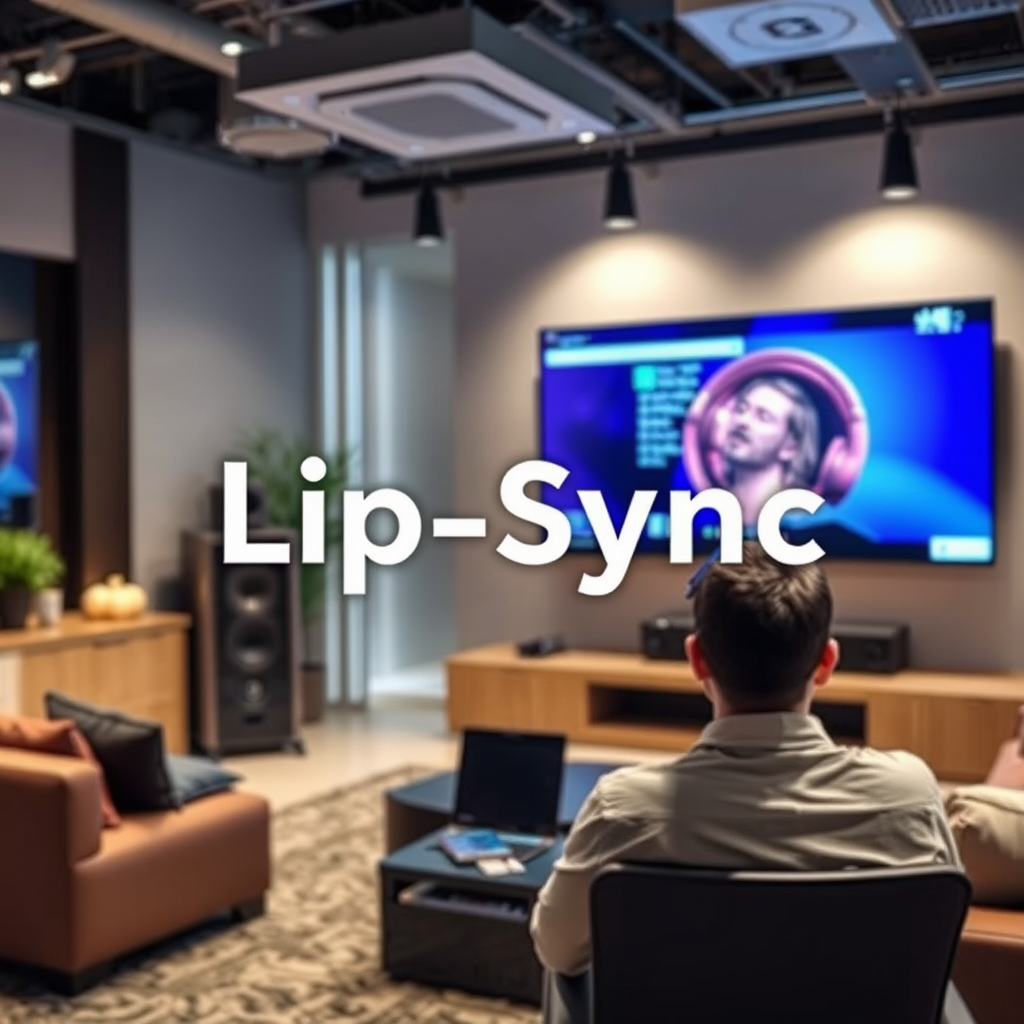
Lip-sync issues occur when the audio and video in a media playback do not line up correctly, leading to a noticeable delay between the spoken words on screen and the corresponding audio. Common symptoms include actors appearing to speak without sound or sounds occurring a fraction of a second too late. This dissonance can detract significantly from the overall viewing experience, making it feel less immersive and more distracting.
Synchronizing audio and video is crucial for an optimal viewing experience, particularly for films, television shows, and live broadcasts. In a home theater environment, where audio fidelity is often prioritized, any delay in audio can undermine the quality of the experience. Understanding the root causes of these issues can help you restore harmony in your setup.
Check Your Connections
The first step in troubleshooting lip-sync issues is to check all connections between your Audio-Technica components and other devices such as your TV, Blu-ray player, or streaming device. A loose or damaged cable can lead to signal degradation, which may result in audio delays.
– Secure Connections: Ensure that all cables, including HDMI and optical cables, are securely connected. Loose connections can interrupt the signal and cause delays.
– Inspect Cables: Look for any visible damage or wear on your cables. Frayed wires, bent connectors, or other physical issues can affect performance. Replace any damaged cables to ensure optimal signal quality.
Adjust Audio Settings
After confirming that your connections are secure, the next step is to review and adjust the audio settings on your home theater receiver and connected devices. Many home theater systems, including those from Audio-Technica, offer various settings that can influence audio output timing.
– Receiver Settings: Check your home theater receiver’s audio settings for any delay adjustments. Some receivers have options to sync audio with video, allowing you to compensate for any lag.
– Device Settings: Explore the audio settings on your TV or media device. Features like audio delay settings can sometimes be adjusted to better synchronize audio and video playback.
Update Firmware and Software
Outdated firmware or software can also contribute to lip-sync issues. Manufacturers regularly release updates that can fix bugs and improve compatibility with various devices.
– Check for Updates: Look for firmware updates for your Audio-Technica device and any connected components, such as your TV or streaming device. Keeping all devices updated can resolve synchronization problems.
– Installation: Follow the manufacturer’s instructions to install any available updates correctly. Ensure that all devices are restarted after updates to apply changes effectively.
Test with Different Sources
If lip-sync issues persist, testing audio from various sources can help identify whether the problem is source-specific.
– Varied Formats: Try playing audio from different sources, such as streaming services, DVDs, or Blu-ray discs. If the audio sync issue appears only with specific sources, the problem may lie with that content rather than your hardware.
– Cross-Device Testing: Connect different devices to your home theater system to see if the problem persists across all sources. This can help isolate whether the issue is with a particular device or the home theater system itself.
Use Lip-Sync Correction Features
Many modern home theater systems, including those from Audio-Technica, come equipped with built-in lip-sync correction features. Utilizing these features can greatly enhance your viewing experience.
– Explore Features: Check your Audio-Technica system’s manual or settings menu for any lip-sync correction options. These features can automatically adjust the audio delay to match the video playback.
– Manual Adjustments: If automatic features are not available, look for manual adjustments within the audio settings to help align the audio with the video.
Seek Professional Help
If you have exhausted all troubleshooting options and the lip-sync issues persist, it may be time to seek professional help. Technical assistance can provide insights and solutions that may not be apparent during your troubleshooting.
– Audio-Technica Support: Consider reaching out to Audio-Technica’s customer support for specific guidance. They may have additional troubleshooting steps or insights based on your specific model.
– Qualified Technicians: If you suspect hardware issues, consult with a qualified technician who specializes in home theater systems. They can diagnose and repair any underlying problems with your equipment.
Common Causes of Lip-Sync Issues in Home Theater Systems
| # | Cause | Description | Resolution |
|---|---|---|---|
| 1 | Loose Connections | Cables may not be securely connected. | Ensure all cables are secure. |
| 2 | Cable Damage | Worn or frayed cables can degrade signal. | Inspect and replace damaged cables. |
| 3 | Audio Settings | Incorrect settings can cause delays. | Adjust audio delay settings. |
| 4 | Outdated Firmware | Firmware may have bugs affecting sync. | Update firmware regularly. |
| 5 | Source-Specific Issues | Certain media may inherently have sync issues. | Test with multiple sources. |
| 6 | Lack of Sync Features | Some systems may not have correction options. | Utilize available correction features. |
| 7 | Hardware Issues | Faulty equipment may cause delays. | Consult a technician for repairs. |
Audio Delay by Source Type
By following these troubleshooting steps, you can effectively address and resolve lip-sync issues in your Audio-Technica home theater system. Take the time to check your connections, adjust settings, and test different sources to pinpoint the problem. If issues persist, don’t hesitate to seek professional guidance to restore your viewing pleasure. With a little effort, you can enjoy your home theater experience without the frustration of audio delays.
Frequently Asked Questions
What causes lip-sync issues in Audio-Technica home theater systems?
Lip-sync issues in Audio-Technica home theater systems can occur due to various factors, including audio delay settings on your receiver or TV, signal processing time, or the type of connection used (HDMI, optical, etc.). Additionally, if you’re using streaming services, network latency might also contribute to the problem. Ensuring all devices are properly calibrated can help mitigate these issues.
How can I troubleshoot lip-sync problems with my Audio-Technica home theater setup?
To troubleshoot lip-sync problems, start by checking your audio and video settings on both your TV and receiver. Look for any audio delay or lip-sync settings and adjust them accordingly. You can also try disconnecting and reconnecting your audio sources or using a different connection type to see if that resolves the issue.
Why is there a delay between audio and video in my Audio-Technica home theater?
A delay between audio and video in your Audio-Technica home theater can be caused by processing lag in your TV or receiver, especially when using advanced video features like upscaling or motion smoothing. Additionally, if you’re using wireless audio transmission, signal interference can also lead to delays. Adjusting settings or switching to a wired connection may alleviate this issue.
What is the best way to sync audio and video on an Audio-Technica home theater system?
The best way to sync audio and video on an Audio-Technica home theater system is to utilize the lip-sync correction feature available on many modern receivers and TVs. This feature allows you to manually adjust the audio delay to match the video. Alternatively, you can use test patterns available on calibration discs or streaming platforms to help fine-tune synchronization.
Which devices are most likely to cause lip-sync issues in an Audio-Technica home theater system?
Devices that are most likely to cause lip-sync issues in an Audio-Technica home theater system include streaming devices, Blu-ray players, and TVs with advanced image processing capabilities. Additionally, soundbars and external speakers can introduce delays, particularly if they utilize Bluetooth or other wireless technologies. Ensuring all devices are compatible and properly configured can help minimize these issues.
References
- Audio-Technica
https://en.wikipedia.org/wiki/Audio-Technica - https://www.sciencedirect.com/topics/engineering/audio-synchronization
https://www.sciencedirect.com/topics/engineering/audio-synchronization - https://pubmed.ncbi.nlm.nih.gov/32801209/
https://pubmed.ncbi.nlm.nih.gov/32801209/ - https://www.nature.com/articles/s41598-020-71993-6
https://www.nature.com/articles/s41598-020-71993-6 - https://www.bbc.com/news/technology-51139219
https://www.bbc.com/news/technology-51139219 - https://www.theguardian.com/technology/2020/jan/10/lip-sync-issues-television-fix
https://www.theguardian.com/technology/2020/jan/10/lip-sync-issues-television-fix - Google Scholar Google Scholar
https://scholar.google.com/scholar?q=Audio-Technica+lip-sync+issues - Google Scholar Google Scholar
https://scholar.google.com/scholar?q=troubleshooting+audio+lip-sync+problems - Google Scholar Google Scholar
https://scholar.google.com/scholar?q=home+theater+audio+sync+issues - https://www.audioholics.com/tips-and-tricks/correcting-lip-sync-issues
https://www.audioholics.com/tips-and-tricks/correcting-lip-sync-issues