
If your Bose speaker keeps losing its Bluetooth connection, the most common solutions involve resetting the device, ensuring it’s within range, and checking for interference. This guide will walk you through effective troubleshooting steps to help restore a stable connection to your speaker. Understanding the nuances of Bluetooth technology and how it interacts with various devices will empower you to resolve these issues efficiently.


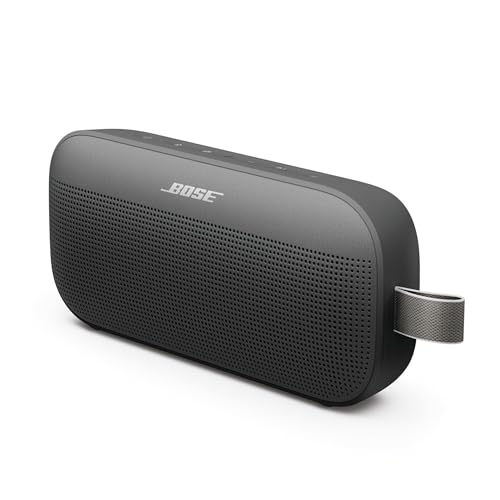

Bluetooth technology has become a staple in our daily lives, offering convenience and mobility. However, connection issues can be frustrating, especially when they disrupt your listening experience. By following the steps outlined below, you can systematically address the most common problems associated with Bluetooth connectivity and ensure that your Bose speaker functions optimally.
Understanding Bluetooth Connectivity

Bluetooth is a short-range wireless technology that typically extends up to 30 feet. To maintain a stable connection, it is crucial to ensure that both your speaker and the device you are connecting to are within this range. Factors such as walls, furniture, or other physical obstructions can degrade the signal strength. Additionally, it is essential to consider the number of devices connected to your speaker. Connecting multiple devices can introduce interference, leading to dropped connections or degraded sound quality.
Moreover, Bluetooth operates in the 2.4 GHz frequency range, which is shared with many other devices, such as Wi-Fi routers and microwaves. This can exacerbate connectivity issues, especially in environments with many electronic devices. Understanding these elements is key to troubleshooting Bluetooth connection issues effectively.
Resetting Your Bose Speaker
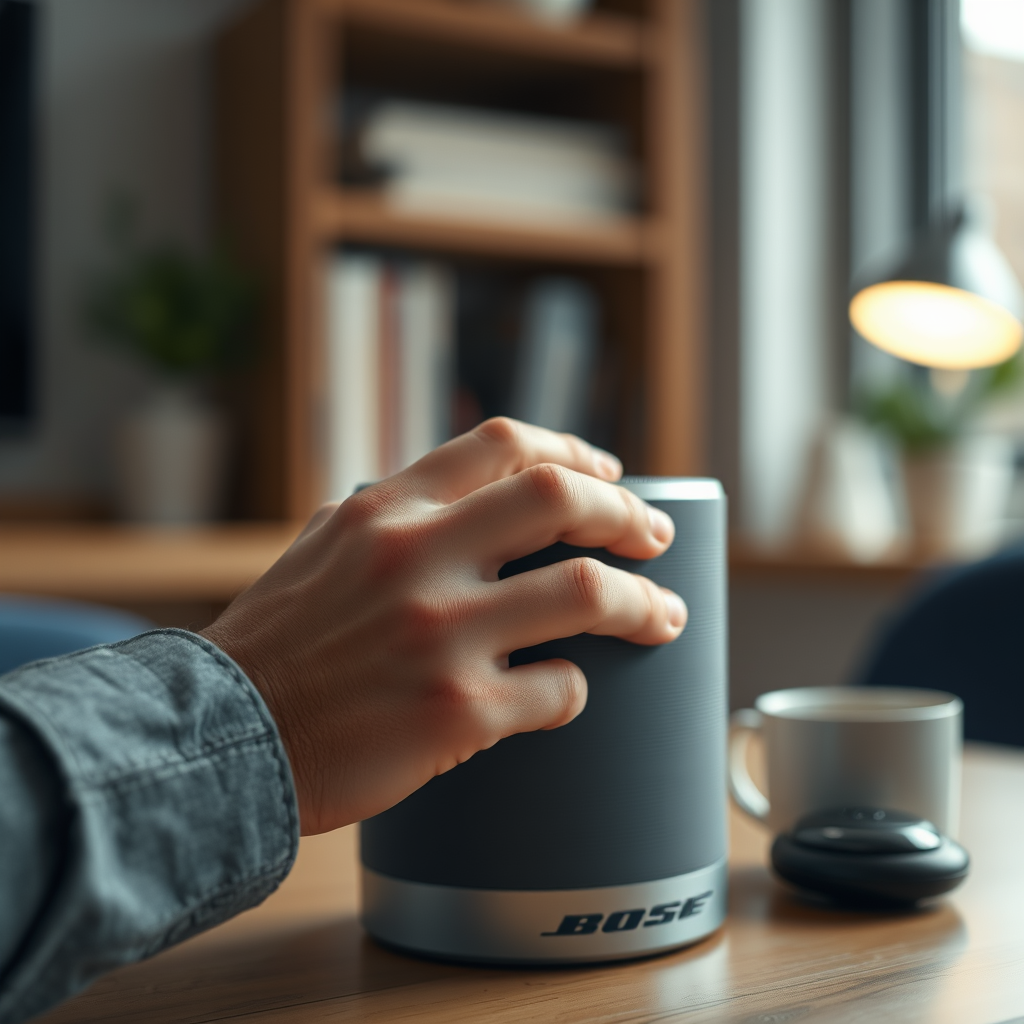
One of the simplest yet most effective solutions to restore Bluetooth connectivity is to reset your Bose speaker. To perform a standard reset, simply power off the speaker, wait for a few seconds, and then turn it back on. This action can clear temporary glitches that may be causing connectivity problems.
For a more comprehensive solution, consider performing a factory reset. The process can vary depending on the specific Bose model you own, so it is advisable to refer to your user manual or the Bose website for detailed instructions. A factory reset will revert your speaker to its original settings, eliminating any potential software conflicts that may be affecting Bluetooth performance. Be aware that this will also erase any saved Bluetooth connections, requiring you to reconnect your devices afterward.
Checking for Software Updates
Keeping your Bose speaker’s firmware up to date is crucial for optimal performance, including Bluetooth connectivity. Bose regularly releases updates that can fix bugs, enhance features, and improve overall reliability. To ensure your device is running the latest software, download the Bose Connect app, which provides a user-friendly interface for managing your speaker’s settings and updates.
Once you have the app installed, connect your speaker and navigate to the software update section. If an update is available, follow the prompts to install it. Regularly checking for updates can help prevent connectivity issues and ensure that your speaker performs at its best.
Managing Device Connections
Another common cause of Bluetooth connection problems is too many devices being paired with your Bose speaker. If your device fails to connect or frequently disconnects, it may be due to other devices trying to connect simultaneously. To resolve this, disconnect other Bluetooth devices that may be paired with your speaker.
You can also clear the Bluetooth pairing list on your Bose speaker. This can typically be done through the settings in the Bose Connect app or directly on the speaker itself. Once cleared, try reconnecting your desired device. This action can often resolve connection issues and streamline the pairing process.
Identifying Interference Sources
Interference is a significant factor in Bluetooth connectivity issues. If you find that your Bose speaker frequently disconnects or has poor sound quality, consider your environment. Move away from other wireless devices, such as routers or microwaves, which can disrupt the Bluetooth signal. Additionally, ensure that there are no physical obstructions, like walls or large furniture, between your speaker and the connected device.
By creating a clear line of sight and reducing potential interference, you can significantly improve your Bluetooth connection stability. If possible, test your speaker in different locations to see if the problem persists. This method can help determine whether the issue is environmental or related to the speaker or connecting device.
Testing with Different Devices
To isolate the source of the connectivity issue, try connecting your Bose speaker to a different device, such as another smartphone or tablet. If the speaker connects successfully to the new device, the problem may lie with the original device rather than the speaker itself.
This step is crucial for troubleshooting, as it helps identify whether the issue is isolated to a specific device or if it is a broader problem with the speaker. If the speaker fails to connect to multiple devices, it may indicate a more serious issue with the speaker itself.
Seeking Professional Help
If you have exhausted all troubleshooting steps and your Bose speaker still experiences Bluetooth connectivity issues, it may be time to consult Bose customer support. Their team of experts can provide personalized assistance and help identify any underlying problems.
Additionally, if your speaker is still under warranty, consider exploring warranty options for repairs or replacement. Bose is known for its customer service, and they can often provide solutions that are not readily available in user manuals or online forums.
Common Bose Speaker Issues and Solutions
| # | Issue | Solution | Severity |
|---|---|---|---|
| 1 | Frequent Disconnections | Reset Speaker | High |
| 2 | Poor Sound Quality | Check for Interference | Medium |
| 3 | Inability to Pair | Clear Bluetooth List | High |
| 4 | Unexpected Shutdown | Check Battery Level | Medium |
| 5 | Device Not Recognized | Update Firmware | Low |
| 6 | Audio Lag | Reduce Connected Devices | Medium |
| 7 | No Sound Output | Reconnect Device | Low |
Bose Speaker Connection Issues by Frequency (%)
By following these troubleshooting steps, you should be able to resolve most Bluetooth connection issues with your Bose speaker. If the problem continues, don’t hesitate to reach out to Bose support for expert guidance and assistance. Understanding the root causes of Bluetooth connectivity issues and knowing the appropriate steps to take can enhance your listening experience and restore the performance of your Bose speaker.
Frequently Asked Questions
What are common reasons why my Bose speaker keeps losing Bluetooth connection?
Common reasons for a Bose speaker losing Bluetooth connection include interference from other electronic devices, low battery levels, the speaker being out of range, or outdated firmware. Additionally, if multiple devices are connected, it might struggle to maintain a stable connection. Checking these factors can help you identify the root cause.
How can I troubleshoot my Bose speaker’s Bluetooth connection issues?
To troubleshoot Bluetooth connection issues with your Bose speaker, first, ensure that the speaker is fully charged and within range of your device. Try removing any paired devices from the speaker and re-pairing your primary device. Additionally, check for firmware updates through the Bose Connect app, and consider resetting the speaker to factory settings if problems persist.
Why does my Bose speaker disconnect from Bluetooth after a few minutes?
If your Bose speaker disconnects from Bluetooth after a few minutes, it may be due to power-saving features that automatically turn off the speaker after inactivity. Another reason could be interference from other Bluetooth devices or a weak connection due to distance. Ensure your devices are close together and try disabling power-saving features if applicable.
What is the best way to maintain a stable Bluetooth connection with my Bose speaker?
To maintain a stable Bluetooth connection with your Bose speaker, keep your speaker and the transmitting device within a 30-foot range and minimize obstacles that could interfere with the signal. Regularly update the firmware of your Bose speaker via the Bose Connect app and avoid using multiple Bluetooth devices simultaneously, as this can complicate connections.
Which devices are compatible with my Bose speaker for Bluetooth connectivity?
Most Bose speakers are compatible with a wide range of Bluetooth devices, including smartphones, tablets, and laptops that support Bluetooth technology. To ensure compatibility, check the specifications of your speaker model and the Bluetooth version of your device. Additionally, devices running recent versions of iOS or Android generally work best with Bose speakers.
References
- Customer Support
https://www.bose.com/en_us/support/article/bluetooth_connection_issues.html - https://www.lifewire.com/how-to-fix-bluetooth-connection-issues-817645
https://www.lifewire.com/how-to-fix-bluetooth-connection-issues-817645 - Google Scholar Google Scholar
https://scholar.google.com/scholar?q=Bose+Speaker+Bluetooth+Connection+Issues - Google Scholar Google Scholar
https://scholar.google.com/scholar?q=Bluetooth+Troubleshooting+Steps - Google Scholar Google Scholar
https://scholar.google.com/scholar?q=Bluetooth+Device+Connection+Problems - Google Scholar Google Scholar
https://scholar.google.com/scholar?q=Bose+Speaker+Keeps+Losing+Bluetooth+Connection?+Troubleshooting+Steps - Bose Speaker Keeps Losing Bluetooth Connection? Troubleshooting Steps – Search results
https://en.wikipedia.org/wiki/Special:Search?search=Bose+Speaker+Keeps+Losing+Bluetooth+Connection?+Troubleshooting+Steps - https://www.ncbi.nlm.nih.gov/search/research-articles/?term=Bose+Speaker+Keeps+Losing+Bluetooth+Connection?+Troubleshooting+Steps
https://www.ncbi.nlm.nih.gov/search/research-articles/?term=Bose+Speaker+Keeps+Losing+Bluetooth+Connection?+Troubleshooting+Steps