If your Bose speaker is emitting buzzing noises, it’s usually due to interference or connection issues. This guide will help you identify the source of the problem and provide practical solutions to get your speaker back to its optimal performance. Understanding the nature of the buzzing noise and systematically addressing potential causes is crucial for rectifying this common issue.
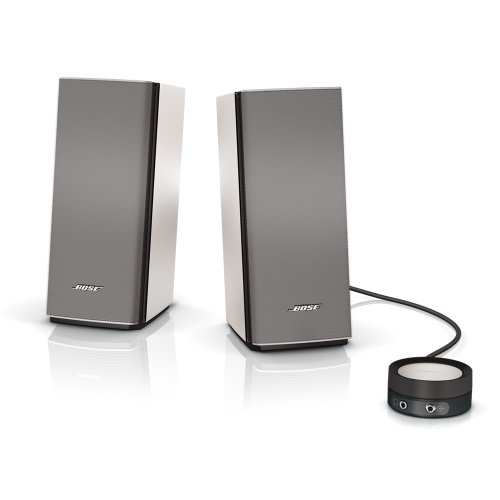
- Convenient control pod to adjust or mute volume, connect headphones and add another audio device
- Sleek, space-saving design complements your computer and eliminates need for dedicated bass module
- Enjoy full, natural sound at your computer - or across the room - from our best two-piece system

Understanding the Buzzing Noise
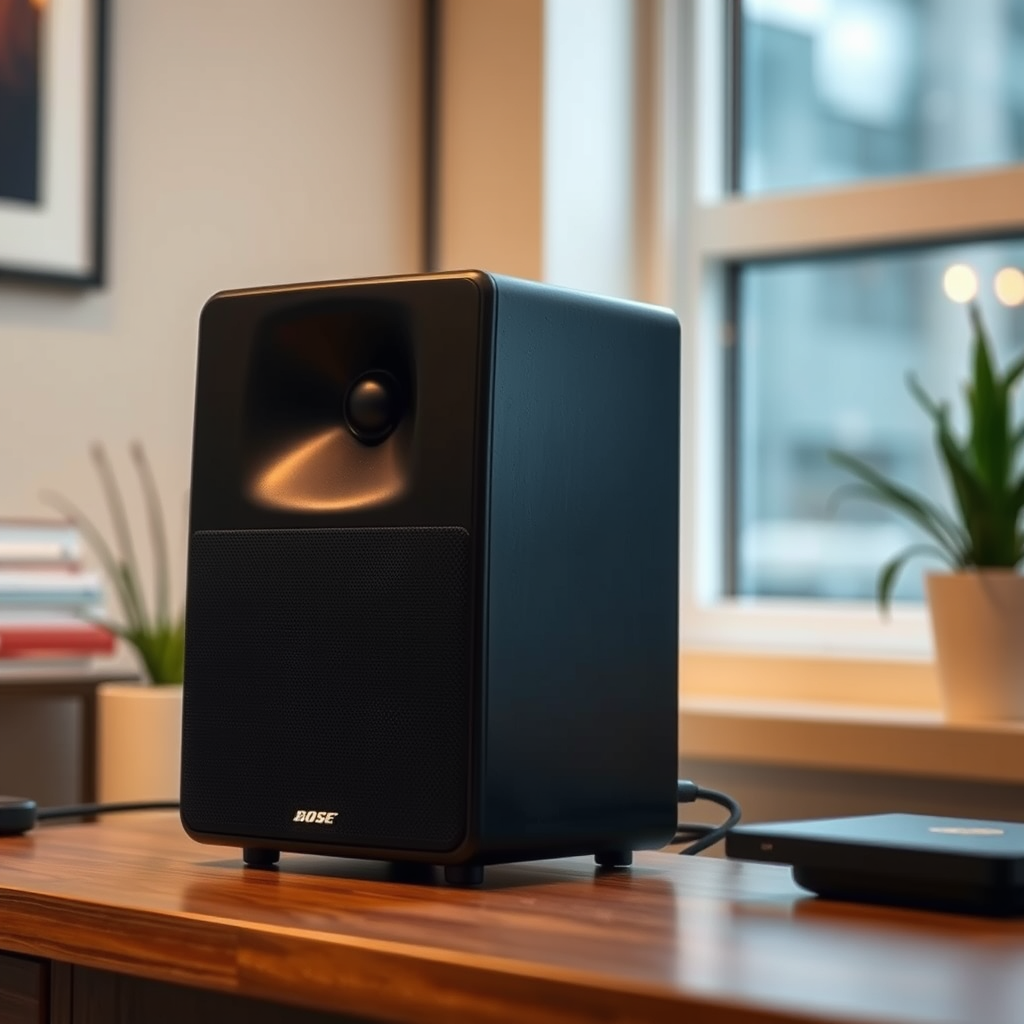
Buzzing noises in Bose speakers can stem from several factors, but primarily they are indicative of interference from other electronic devices or poor audio connections. Such interference often manifests when the speaker is placed near devices that emit electromagnetic interference (EMI), like Wi-Fi routers, microwaves, or other wireless devices. Additionally, buzzing can occur due to issues with audio cables or connections, particularly if they are loose or damaged. Recognizing these factors is the first step in troubleshooting the problem effectively.
Basic Troubleshooting Steps
To begin resolving buzzing noises, start with some fundamental troubleshooting steps:
1. Restart Devices: Restart both your Bose speaker and the connected audio device (like a smartphone or computer). This simple action can reset any temporary glitches that might be causing the buzzing.
2. Update Firmware: Ensure that your Bose speaker’s firmware is updated to the latest version. Manufacturers frequently release updates to improve performance and fix bugs. You can check for updates via the Bose Connect app or the Bose website.
3. Check Power Source: Sometimes, the power source itself can be the culprit. Ensure that the speaker is plugged into a stable power outlet and that the power adapter is functioning properly.
4. Volume Levels: Lower the volume on both the speaker and the connected device. High volume levels can sometimes amplify background noise, including buzzing.
Identifying Interference Sources
Identifying potential sources of interference in your environment is critical to resolving buzzing issues:
– Relocate Your Speaker: Move your Bose speaker away from Wi-Fi routers, microwaves, or other electronic devices. A distance of at least three feet is recommended to minimize electromagnetic interference.
– Test in Different Locations: If the buzzing persists, try setting up your speaker in a different room or area. This will help determine if specific environmental factors are contributing to the noise.
– Wireless Connections: If you are using Bluetooth, ensure that the connection is stable. Consider disconnecting and reconnecting the Bluetooth connection, as interference can also occur during wireless transmission.
Common Interference Sources for Bose Speakers
| # | Source | Type | Distance Recommended |
|---|---|---|---|
| 1 | Wi-Fi Router | Wireless | 3 feet |
| 2 | Microwave Oven | Kitchen Appliance | 5 feet |
| 3 | Cordless Phone | Wireless | 3 feet |
| 4 | Television | Electronics | 5 feet |
| 5 | Bluetooth Speakers | Wireless | 3 feet |
| 6 | Power Supply | Electrical | N/A |
| 7 | Dimmer Switches | Electrical | 5 feet |
Checking Connections
Evaluating the connections to your Bose speaker is crucial in eliminating potential buzzing issues:
– Inspect Audio Cables: Check all audio cables for damage or wear. Frayed wires or loose connectors can easily cause audio interference. If any cables appear damaged, they should be replaced promptly.
– Secure Connections: Make sure that all cables are securely and correctly connected. Loose connections can result in the speaker not receiving a clear audio signal, leading to buzzing sounds.
– Try Different Cables: If you suspect that a cable might be the problem, try using a different audio cable or connecting to a different port, if available. This can help determine whether the original cable or port was faulty.
Adjusting Settings
Sometimes, the buzzing noise can be exacerbated by specific settings on your audio device or speaker:
– Audio Settings: Access the audio settings on your connected device and adjust the equalizer settings. Certain frequencies can amplify background noise, causing buzzing. Lowering these frequencies can help mitigate the issue.
– Sound Modes: Most Bose speakers come with various sound modes. Experiment with these modes to find one that minimizes background noise. For example, a “Night” mode might reduce the overall dynamic range, which can help in eliminating buzzing.
– Reset Sound Settings: If adjusting settings does not work, consider resetting the sound settings on your device to factory defaults, which can sometimes resolve compatibility issues.
Volume Levels vs. Buzzing Noise (Decibels)
Seeking Professional Help
If you have followed all troubleshooting steps and the buzzing noise persists, it may be time to seek professional assistance:
– Bose Customer Support: Contact Bose customer support for guidance. Their representatives can provide you with troubleshooting steps tailored to your specific model and issue.
– Authorized Repair Centers: If your speaker is still under warranty or requires servicing, visiting an authorized Bose repair center may be your best option. They have the expertise and parts necessary to diagnose and fix the problem effectively.
– Warranty Considerations: Always check your warranty terms before seeking repairs. If your device is still covered, you may be entitled to free repairs or replacements.
In summary, addressing buzzing noises in your Bose speaker involves a systematic approach that includes troubleshooting connections, identifying sources of interference, and adjusting settings. If these solutions don’t resolve the issue, don’t hesitate to contact Bose support for expert help. Take action now to enhance your audio experience and enjoy the high-quality sound that Bose speakers are known for.
Frequently Asked Questions
Why is my Bose speaker making a buzzing noise?
A buzzing noise from your Bose speaker can often be attributed to interference from nearby electronic devices, loose connections, or a low battery. To diagnose the issue, check for any devices that might be causing interference, ensure all cables are securely connected, and confirm that the speaker’s battery is charged.
How can I fix the buzzing noise in my Bose speaker?
To fix the buzzing noise, start by resetting your Bose speaker to its factory settings, which can clear any software glitches. If the issue persists, try relocating the speaker away from other electronic devices and check all connections for damage or looseness. Additionally, updating the speaker’s firmware may resolve any performance-related issues.
What should I do if my Bose speaker buzzes only when connected to Bluetooth?
If your Bose speaker buzzes only during Bluetooth use, it may be due to signal interference from other Bluetooth devices or Wi-Fi networks. Try disconnecting all other Bluetooth devices, moving closer to the source device, or switching to a wired connection to see if the buzzing stops. Also, ensure that your Bluetooth drivers are updated on the connecting device.
Which troubleshooting steps should I take first for a buzzing Bose speaker?
Begin troubleshooting your buzzing Bose speaker by checking the power source and ensuring it’s properly connected. Next, inspect audio cables for damage and try a different audio source to rule out issues with the original device. If the buzzing continues, reset the speaker and update its firmware as the next steps.
Why does my Bose speaker buzz when I play certain types of audio?
Your Bose speaker may buzz when playing specific audio due to the quality of the audio file or the source device’s output settings. Low-quality audio files can introduce noise, while improper EQ settings or low output levels may also cause buzzing. Try using high-quality audio files and adjusting the EQ settings on your playback device to improve sound quality.
References
- Customer Support
https://www.bose.com/en_us/support/article/buzzing-noise-speaker.html - https://www.lifewire.com/troubleshoot-bose-speakers-3135090
https://www.lifewire.com/troubleshoot-bose-speakers-3135090 - https://www.bbc.com/news/technology-55708292
https://www.bbc.com/news/technology-55708292 - Google Scholar Google Scholar
https://scholar.google.com/scholar?q=Bose+Speaker+Buzzing+Noises+Troubleshooting - Google Scholar Google Scholar
https://scholar.google.com/scholar?q=audio+speaker+troubleshooting - Google Scholar Google Scholar
https://scholar.google.com/scholar?q=speaker+noise+issues+solutions - Google Scholar Google Scholar
https://scholar.google.com/scholar?q=Bose+Speaker+Making+Buzzing+Noises?+Troubleshooting+Guide - Bose Speaker Making Buzzing Noises? Troubleshooting Guide – Search results
https://en.wikipedia.org/wiki/Special:Search?search=Bose+Speaker+Making+Buzzing+Noises?+Troubleshooting+Guide - https://www.ncbi.nlm.nih.gov/search/research-articles/?term=Bose+Speaker+Making+Buzzing+Noises?+Troubleshooting+Guide
https://www.ncbi.nlm.nih.gov/search/research-articles/?term=Bose+Speaker+Making+Buzzing+Noises?+Troubleshooting+Guide