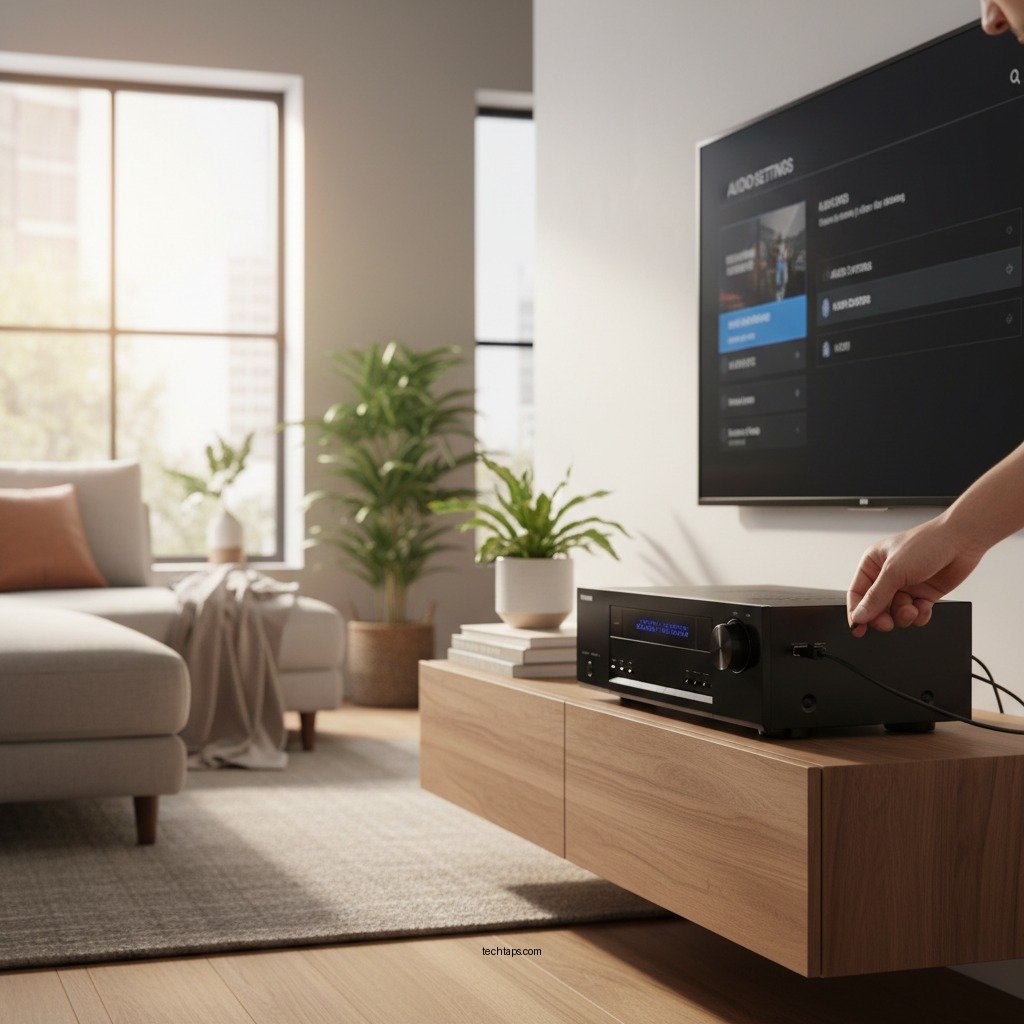

If your Yamaha home theater’s HDMI ARC feature isn’t working, the issue might stem from incorrect settings, faulty cables, or compatibility problems. This guide provides detailed troubleshooting tips to help you resolve the issue and restore full functionality to your home theater system. By following these steps, you can ensure that your audio-visual experience is seamless and enjoyable.
Understanding HDMI ARC
HDMI ARC, or Audio Return Channel, is a technology that allows audio signals to travel both ways along an HDMI cable, significantly simplifying your home theater setup. This feature enables the TV to send audio back to the receiver, eliminating the need for a separate audio cable for sound output.
One of the primary benefits of HDMI ARC is the convenience it provides. When everything is connected correctly, you can control multiple devices with a single remote, and the audio from streaming apps can play through your home theater speakers. This differs from standard HDMI connections, which typically only allow audio and video signals to travel in one direction—from the source device (like a Blu-ray player or game console) to the TV.
Initial Troubleshooting Steps
Before diving into more technical configurations, start with basic troubleshooting steps. This ensures that the problem isn’t due to simple oversights.
1. Check Device Power and Connections: Ensure that your Yamaha receiver, TV, and any other connected devices are powered on. Verify that all devices are connected to the correct HDMI ports.
2. Inspect the HDMI Cable: Make sure you are using a high-speed HDMI cable that supports ARC. Look for any visible damage or wear on the cable, as a faulty cable can lead to connectivity issues. Ensure that it is securely plugged into both the TV and the Yamaha receiver.
Configuring Yamaha Receiver Settings
To ensure proper functionality, you need to check and configure the settings on your Yamaha receiver:
1. Access HDMI Settings: Using your Yamaha remote, navigate to the setup menu. Look for the HDMI settings section.
2. Enable HDMI Control (CEC): Ensure that HDMI Control (also known as Consumer Electronics Control or CEC) is enabled. This setting allows for better communication between devices.
3. Enable ARC: Look for the option that specifically mentions ARC and ensure it is turned on. This setting is crucial for the audio return channel to function correctly.
Checking TV Settings
Once you have configured your Yamaha receiver, it’s essential to check the settings on your TV:
1. Access Audio Settings: Go to your TV’s settings menu, typically found under the audio or sound section.
2. Activate ARC: Ensure that the ARC feature is enabled. If your TV has multiple HDMI ports, confirm that the correct HDMI ARC port is selected for audio output.
3. Check Audio Format: Some TVs allow you to select the audio format. Ensure the format is compatible with your Yamaha receiver, as certain formats may not be supported.
Data on HDMI ARC Compatibility and Performance
Top 7 Yamaha Home Theater Models Supporting HDMI ARC (2023)
| # | Model | ARC Support | HDMI Ports | Price |
|---|---|---|---|---|
| 1 | Yamaha RX-V6A | Yes | 7 | $649 |
| 2 | Yamaha RX-V4A | Yes | 6 | $549 |
| 3 | Yamaha RX-A2A | Yes | 7 | $899 |
| 4 | Yamaha RX-S602 | Yes | 4 | $799 |
| 5 | Yamaha AVENTAGE RX-A8A | Yes | 9 | $2,199 |
| 6 | Yamaha RX-A6A | Yes | 7 | $1,799 |
| 7 | Yamaha RX-V385 | Yes | 4 | $299 |
Testing Your Setup
After configuring both the Yamaha receiver and TV settings, it’s time to test your setup:
1. Play Audio from Your TV: Start by playing content from your TV, such as a movie or TV show. Listen for sound output through your Yamaha home theater system.
2. Switch Audio Sources: If the audio isn’t working as expected, try switching between different audio sources, like gaming consoles or streaming devices. This can help isolate whether the issue lies with a particular device or the HDMI ARC setup.
3. Check for Any Delay: Notice if there is any lag or synchronization issue between the audio and video. HDMI ARC can sometimes cause delay, which can usually be adjusted in the audio settings of your TV or receiver.
Updating Firmware
Keeping your devices updated is essential for optimal performance and compatibility. Here’s how to check for firmware updates for your Yamaha receiver:
1. Access the Setup Menu: From your Yamaha remote, navigate to the setup or system settings.
2. Select Firmware Update: Look for an option labeled “Firmware Update” or “Software Update.”
3. Follow On-Screen Instructions: If an update is available, follow the prompts to download and install it. Be sure that your receiver is connected to the internet for this process.
4. Importance of Updates: Regular firmware updates can fix bugs, improve performance, and enhance compatibility with new devices, making them crucial for maintaining your system’s functionality.
Seeking Professional Help
If you have followed all the troubleshooting steps and the HDMI ARC feature is still not working, it may be time to consider professional assistance:
1. Contact Yamaha Support: Reach out to Yamaha customer service for guidance. They can provide personalized support based on your specific model and issues.
2. Local Technicians: If you prefer face-to-face assistance, look for local audio-visual technicians who specialize in home theater setups. They can diagnose and fix more complex issues that may not be easily resolved through standard troubleshooting.
3. Online Resources: Consider visiting online forums and communities dedicated to home theater enthusiasts. You can often find advice from others who have experienced similar issues and resolved them.
Summarizing the key points, ensure that all devices are correctly set up, check both the Yamaha receiver and TV configurations, and keep firmware updated for the best performance. If issues persist, don’t hesitate to seek professional assistance or reach out to Yamaha support for further guidance. By following these straightforward steps, you can enjoy the high-quality audio experience that HDMI ARC offers in your home theater system.
Frequently Asked Questions
What causes Yamaha home theater HDMI ARC to stop working?
There are several reasons why HDMI ARC may stop functioning on your Yamaha home theater system. Common issues include improper connections, outdated firmware, or incorrect settings in your TV or receiver. Ensuring that both devices support HDMI ARC and are connected to the correct HDMI ports is crucial for seamless audio transmission.
How can I troubleshoot HDMI ARC issues on my Yamaha receiver?
To troubleshoot HDMI ARC issues, start by checking the HDMI cable connections and ensuring they are secure. Next, confirm that both your Yamaha receiver and TV are set to the correct HDMI ARC settings. You can also try resetting both devices and updating their firmware to the latest version, which can often resolve compatibility problems.
Why is my Yamaha home theater not producing sound through HDMI ARC?
If your Yamaha home theater is not producing sound through HDMI ARC, it may be due to mismatched audio settings on your TV and receiver. Ensure that your TV’s audio output is set to “ARC” and that the correct HDMI input is selected on your Yamaha receiver. Additionally, check for any sound format compatibility issues, as some audio formats may not be supported over HDMI ARC.
What is the best HDMI cable to use for Yamaha home theater HDMI ARC?
The best HDMI cable for Yamaha home theater HDMI ARC is one that is labeled as High-Speed HDMI with Ethernet. These cables support enhanced audio return channel features, ensuring optimal sound quality and performance. Look for cables that comply with the latest HDMI standards, such as HDMI 2.0 or higher, to ensure compatibility with various devices.
Which settings should I check if my Yamaha home theater HDMI ARC is not functioning?
If your Yamaha home theater HDMI ARC is not functioning, check the HDMI settings on both your TV and receiver. Make sure HDMI CEC (Consumer Electronics Control) is enabled, as this feature allows devices to communicate effectively. Additionally, verify that the ARC option is turned on in both devices and consider consulting your user manual for specific configuration steps.
References
- HDMI
https://en.wikipedia.org/wiki/HDMI#Audio_return_channel - https://support.yamaha.com/global/en/support/faq/001/001309.html
https://support.yamaha.com/global/en/support/faq/001/001309.html - https://www.crutchfield.com/learn/what-is-hdmi-arc.html
https://www.crutchfield.com/learn/what-is-hdmi-arc.html - Google Scholar Google Scholar
https://scholar.google.com/scholar?q=Yamaha+Home+Theater+HDMI+ARC+Not+Working - Google Scholar Google Scholar
https://scholar.google.com/scholar?q=HDMI+Audio+Return+Channel+troubleshooting - Google Scholar Google Scholar
https://scholar.google.com/scholar?q=Yamaha+Home+Theater+HDMI+ARC+Not+Working?+Step-by-Step+Guide - Yamaha Home Theater HDMI ARC Not Working? Step-by-Step Guide – Search results
https://en.wikipedia.org/wiki/Special:Search?search=Yamaha+Home+Theater+HDMI+ARC+Not+Working?+Step-by-Step+Guide - https://www.ncbi.nlm.nih.gov/search/research-articles/?term=Yamaha+Home+Theater+HDMI+ARC+Not+Working?+Step-by-Step+Guide
https://www.ncbi.nlm.nih.gov/search/research-articles/?term=Yamaha+Home+Theater+HDMI+ARC+Not+Working?+Step-by-Step+Guide