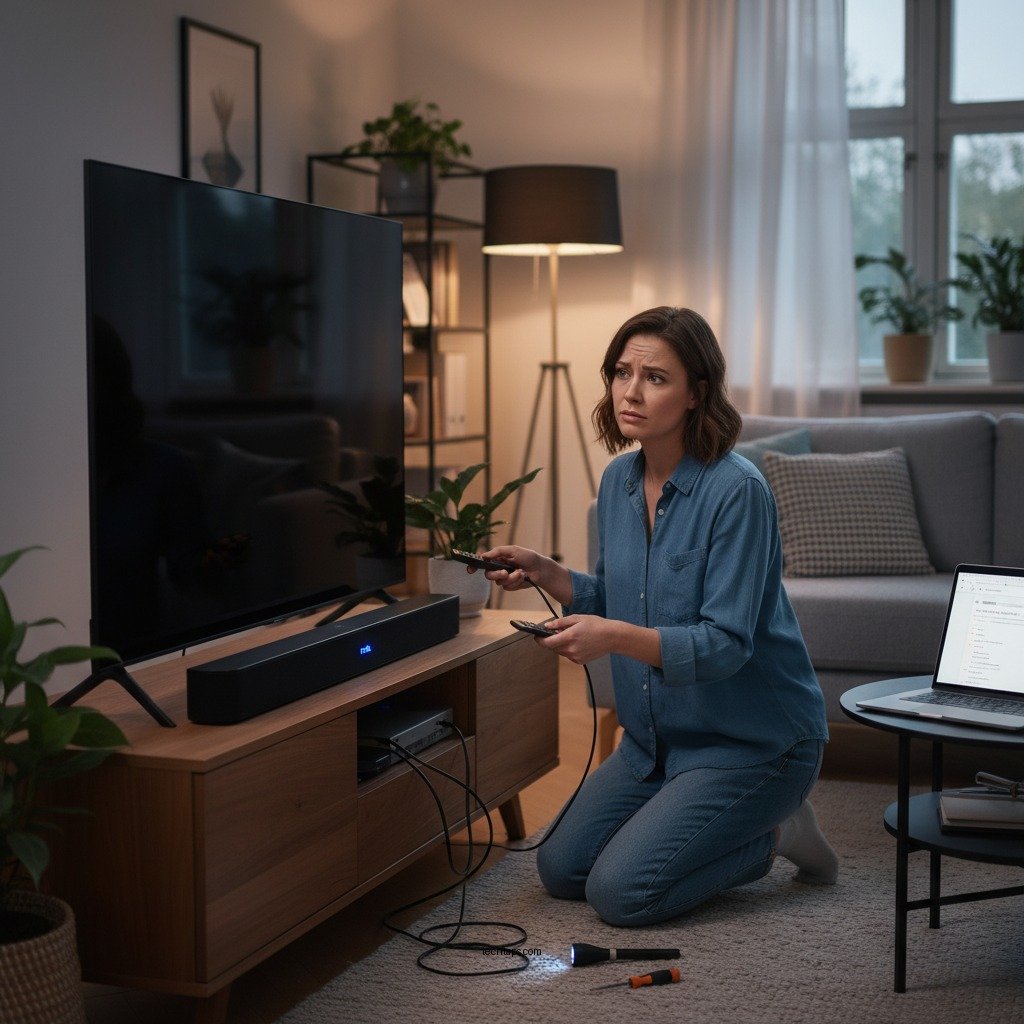

If your Polk Audio soundbar is not producing sound, the first step is to check your connections and settings. Ensure that all cables are securely plugged in and that the soundbar is set to the correct input source. In this article, we’ll explore common troubleshooting steps and solutions to help you get your soundbar back in action.
Check Your Connections

The first and most crucial step in resolving sound issues with your Polk Audio soundbar is to inspect your connections. Start by verifying that all cables are securely connected to both the soundbar and the television. Loose or disconnected cables can easily lead to a lack of sound. Depending on how you’ve set up your audio system, you may be using an HDMI, optical, or auxiliary cable.
It is essential to confirm that you are utilizing the correct HDMI port or optical cable designated for audio input. For instance, HDMI ARC (Audio Return Channel) ports on your TV should be used if you want to transmit audio back to the soundbar. Using the wrong port can result in no sound being produced. If possible, try swapping out the cable with a new one to rule out any cable-related issues.
Verify Soundbar Settings
Once you have checked your connections, the next step is to verify the settings on your soundbar. Make sure the soundbar is powered on and that it is not muted. It may seem trivial, but sometimes it’s easy to overlook the mute button, which can be a common cause of sound issues.
Additionally, check the input settings on the soundbar. Ensure that it matches the device you are using, whether it’s a TV, gaming console, or streaming device. Many soundbars, including those from Polk Audio, offer multiple input sources, and selecting the wrong one may result in silence.
Inspect Your TV Settings
Your TV’s audio settings can also play a significant role in the sound output. Look at the audio settings on your television to ensure they are configured to output sound through the soundbar. Often, TVs have settings that automatically switch audio output to built-in speakers or any connected Bluetooth devices, which can inadvertently silence your soundbar.
To rectify this, navigate to the audio settings menu and select options for external audio output. You might also want to disable any Bluetooth settings if they are currently active, as they can interfere with wired connections, leading to unexpected sound issues.
Update Firmware and Software
Keeping your devices updated is essential for optimal performance. Check for firmware updates for your Polk Audio soundbar and install them if they are available. Firmware updates can resolve bugs and improve functionality, which might be the reason your soundbar is not producing sound.
In addition to your soundbar, ensure that your TV or any connected device is also up to date with the latest software. Sometimes, compatibility issues between old software versions can lead to sound problems.
Test with Different Devices
If the soundbar is still not functioning, a good next step is to test it with different devices. Connect the soundbar to another device, such as a DVD player, gaming console, or smartphone, to see if the issue persists. This step helps you identify whether the problem lies with the soundbar itself or with the original device you were using.
Using various audio sources can reveal a lot about your soundbar’s functionality. If it works with one device but not another, the problem may be with the original device rather than the soundbar.
Reset Your Soundbar
If none of the previous steps have resolved the issue, performing a factory reset on your soundbar may be the solution. This step will revert the soundbar to its original settings and can often resolve persistent issues.
To reset your Polk Audio soundbar, follow the manufacturer’s instructions, which typically involve pressing a combination of buttons on the remote or the device itself. After resetting, you will need to reconfigure your soundbar settings, so make sure to have your preferences ready to go.
Seek Professional Help
If you’ve tried all troubleshooting steps without success, consider reaching out to Polk Audio customer support. Their specialists can provide further diagnostics and support tailored to your specific model. Additionally, explore warranty options or local repair services if needed. Sometimes, the issue may require professional intervention, especially if there’s a hardware malfunction.
Common Soundbar Issues and Solutions
| # | Issue | Solution | Severity |
|---|---|---|---|
| 1 | No Sound | Check connections and settings | Low |
| 2 | Sound Drops | Update firmware | Medium |
| 3 | Distorted Audio | Check audio settings | High |
| 4 | Remote Not Working | Replace batteries | Low |
| 5 | Audio Sync Issues | Adjust sync settings | Medium |
| 6 | Unresponsive Soundbar | Power cycle the device | High |
| 7 | Overheating | Ensure proper ventilation | High |
By following these steps, you should be able to identify and resolve the sound issues with your Polk Audio soundbar. If problems persist, don’t hesitate to seek professional assistance for further diagnostics. Keeping your sound system in good working order not only enhances your audio experience but can also prolong the lifespan of your devices.
Frequently Asked Questions
What are the common reasons why my Polk Audio soundbar has no sound?
There are several common reasons why your Polk Audio soundbar might not be producing sound. These include incorrect input selection, loose or damaged cables, or issues with the audio source itself. Additionally, ensure that the soundbar is powered on and that the volume level is appropriately set.
How can I troubleshoot my Polk Audio soundbar if it suddenly stops producing sound?
To troubleshoot your Polk Audio soundbar, start by checking all connections, ensuring cables are securely plugged in. Next, try switching the input source to see if the issue is with a specific device. If sound is still not present, perform a reset on the soundbar by unplugging it for 10 seconds and then plugging it back in.
Why is my Polk Audio soundbar not connecting to my TV audio?
If your Polk Audio soundbar is not connecting to your TV audio, it may be due to incompatible audio output settings on your TV. Ensure that the TV’s audio output is set to the correct option, such as HDMI ARC, optical, or Bluetooth, depending on your connection type. Checking the soundbar’s manual for specific setup instructions can also help resolve the issue.
What is the best way to connect my Polk Audio soundbar to my TV for optimal sound?
The best way to connect your Polk Audio soundbar to your TV for optimal sound is to use an HDMI ARC (Audio Return Channel) connection if available. This not only simplifies connectivity but also allows for high-quality audio transmission. If HDMI is not an option, using an optical cable is another excellent choice for clear sound.
Which settings should I check on my Polk Audio soundbar if the sound is distorted or unclear?
If the sound from your Polk Audio soundbar is distorted or unclear, check the audio settings on both the soundbar and the connected devices. Make sure that any sound enhancement features, like bass boost or surround sound, are configured correctly or turned off if they’re causing issues. Additionally, verify that the firmware of your soundbar is up to date, as updates can improve sound quality and performance.
References
- Google Scholar Google Scholar
https://scholar.google.com/scholar?q=Polk+Audio+Soundbar+No+Sound - https://www.wikiwand.com/en/Soundbar
https://www.wikiwand.com/en/Soundbar - Google Scholar Google Scholar
https://scholar.google.com/scholar?q=troubleshooting+soundbar+issues - https://www.researchgate.net/publication/311087456_Soundbars_and_Surround_Sound
https://www.researchgate.net/publication/311087456_Soundbars_and_Surround_Sound - https://pubmed.ncbi.nlm.nih.gov/24423234/
https://pubmed.ncbi.nlm.nih.gov/24423234/ - https://www.sciencedirect.com/topics/engineering/soundbar
https://www.sciencedirect.com/topics/engineering/soundbar - https://www.bbc.com/news/technology-66658393
https://www.bbc.com/news/technology-66658393 - https://www.hindawi.com/journals/jece/2021/6614378/
https://www.hindawi.com/journals/jece/2021/6614378/ - Google Scholar Google Scholar
https://scholar.google.com/scholar?q=Polk+Audio+Soundbar+No+Sound?+Here’s+What+to+Do - Polk Audio Soundbar No Sound? Here’s What to Do – Search results
https://en.wikipedia.org/wiki/Special:Search?search=Polk+Audio+Soundbar+No+Sound?+Here’s+What+to+Do