
If your KEF speaker isn’t connecting to WiFi, try resetting the speaker and ensuring it’s within range of your router. Many users encounter connection issues due to minor glitches or misconfigurations. In this article, we will guide you through common troubleshooting steps, ensuring that you can resolve these connection issues and get your KEF speaker back online quickly.


Check Your WiFi Network
Before diving into the speaker settings, it’s essential to confirm that your WiFi network is operational. Start by testing other devices, such as smartphones or tablets, to see if they can connect to the internet without issues. If other devices are also struggling to connect, the problem likely lies with your WiFi network rather than the KEF speaker.
Next, verify that you are using the correct network name (SSID) and password. Typos in either can prevent your speaker from successfully connecting. Additionally, ensure that your router is not set to a frequency band that the KEF speaker does not support. Most KEF speakers operate on the 2.4 GHz band, so ensure your router is broadcasting in that frequency.
Reset the KEF Speaker
If your WiFi is functioning correctly but your KEF speaker still won’t connect, a factory reset may be the next step. This process clears any potential glitches that may be interfering with connectivity. Each KEF model may have a slightly different reset procedure, so it’s vital to consult the user manual for your specific speaker model. Typically, the reset process involves holding down specific buttons for a designated duration.
Performing a reset can often resolve connectivity problems, allowing your speaker to re-establish a fresh connection to your WiFi network.
Update Firmware
Keeping your KEF speaker’s firmware up-to-date is crucial for optimal performance and connectivity. Manufacturers frequently release updates that address bugs, improve performance, and enhance compatibility with existing technology.
To check for firmware updates, utilize the KEF app or visit the KEF website. The app provides a straightforward interface for downloading and installing the latest firmware version. Make sure your speaker is connected to WiFi during this process, as updates can only be installed when the speaker has access to the internet.
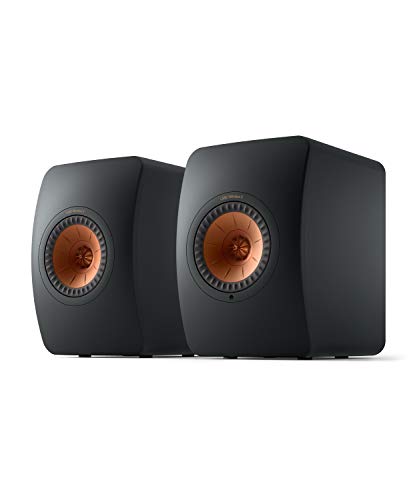
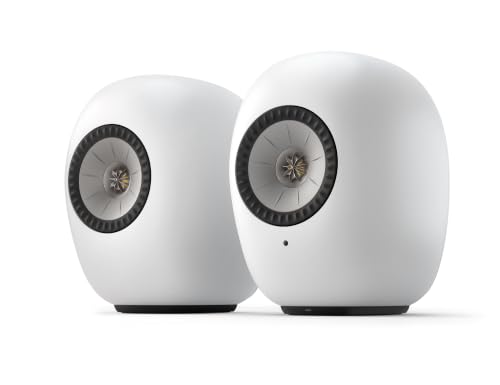
Top KEF Speaker Models and Their Features
| # | Model | WiFi Capability | Firmware Updates | Bluetooth Support |
|---|---|---|---|---|
| 1 | KEF LSX | Yes | Yes | Yes |
| 2 | KEF LS50 Wireless II | Yes | Yes | Yes |
| 3 | KEF Q350 | No | No | No |
| 4 | KEF R3 | No | No | No |
| 5 | KEF LS50 Meta | Yes | Yes | Yes |
| 6 | KEF R5 | No | No | No |
| 7 | KEF Blade | Yes | Yes | Yes |
WiFi Range and Interference
WiFi connectivity issues can often stem from physical barriers or interference from other electronic devices. To determine if your speaker’s location is the problem, try moving it closer to your router. If the speaker connects successfully, you may need to consider relocating your router or the speaker for optimal performance.
Common sources of interference include microwaves, cordless phones, and other WiFi networks. If your home has thick walls or multiple floors, you might also experience signal degradation. In these cases, consider using WiFi extenders or mesh network systems to enhance coverage throughout your home.
WiFi Signal Strength by Distance from Router
Use the KEF App
The KEF app is an invaluable tool for managing your speaker’s settings and troubleshooting issues. Available for both iOS and Android devices, the app simplifies the connection process and provides a user-friendly interface for setup.
By using the app, you can quickly identify connection problems, adjust settings, and even access firmware updates, all in one place. The app also offers features such as EQ settings and multi-room configurations, enhancing your overall listening experience. Make sure to download the app from your device’s app store and follow the prompts to connect your KEF speaker to your WiFi network.
Contact KEF Support
If none of the above steps work, it might be time to reach out to KEF customer support for personalized assistance. Their team is well-equipped to handle a range of issues and can provide insights specific to your model and situation.
Before contacting support, have your speaker model and WiFi details ready to facilitate a more efficient resolution. This preparation can help save time and ensure you receive the most accurate guidance possible.
In summary, troubleshooting your KEF speaker’s WiFi connection involves checking your network, resetting the device, updating firmware, and ensuring minimal interference. If you’re still experiencing issues, don’t hesitate to contact KEF support. Get your speaker working smoothly again and enjoy your favorite tunes hassle-free!
Frequently Asked Questions
Why is my KEF speaker not connecting to WiFi?
There are several reasons your KEF speaker may not be connecting to WiFi, including incorrect network settings, outdated firmware, or interference from other devices. Ensure that your WiFi network is functioning properly and that you are entering the correct password. Additionally, check if your speaker’s firmware is up-to-date, as updates often include connectivity improvements.
How can I troubleshoot my KEF speaker’s WiFi connection issues?
To troubleshoot your KEF speaker’s WiFi connection, start by power cycling the speaker and your router. Next, check if the speaker is within range of your WiFi signal and try reconnecting using the KEF app. If the problem persists, consider resetting the speaker to factory settings and reconfiguring your WiFi connection.
What should I do if my KEF speaker keeps disconnecting from WiFi?
If your KEF speaker frequently disconnects from WiFi, first ensure that your router’s firmware is updated and that there are no obstructions between the speaker and the router. You can also try changing the WiFi channel on your router to reduce interference. If the issue continues, consider connecting your speaker via Ethernet or using a WiFi extender to strengthen the signal.
Which settings should I check if my KEF speaker won’t connect to WiFi?
Check the WiFi settings on your KEF speaker to ensure that it is set to the correct network and that the password is accurately entered. Additionally, verify that your network’s security settings are compatible with the speaker. Sometimes, disabling MAC address filtering on your router can also resolve connectivity issues.
What is the best way to connect my KEF speaker to WiFi for optimal performance?
For optimal performance, connect your KEF speaker to a 5GHz WiFi network if available, as it provides faster speeds and less interference than a 2.4GHz network. Make sure your router is positioned close to the speaker and that there are minimal physical barriers. Regularly check for firmware updates for your speaker to ensure it benefits from the latest connectivity enhancements.
References
- https://en.wikipedia.org/wiki/Kef_(company
https://en.wikipedia.org/wiki/Kef_(company - https://www.sciencedirect.com/topics/engineering/wifi
https://www.sciencedirect.com/topics/engineering/wifi - https://www.bbc.com/news/technology-57027072
https://www.bbc.com/news/technology-57027072 - https://www.theguardian.com/technology/2021/may/05/how-to-troubleshoot-your-wi-fi-connection
https://www.theguardian.com/technology/2021/may/05/how-to-troubleshoot-your-wi-fi-connection - https://www.nytimes.com/2021/02/12/technology/wifi-problems.html
https://www.nytimes.com/2021/02/12/technology/wifi-problems.html - https://pubmed.ncbi.nlm.nih.gov/?term=wifi+connectivity
https://pubmed.ncbi.nlm.nih.gov/?term=wifi+connectivity - Google Scholar Google Scholar
https://scholar.google.com/scholar?q=KEF+Speaker+Not+Connecting+to+WiFi - Google Scholar Google Scholar
https://scholar.google.com/scholar?q=WiFi+connection+troubleshooting - Google Scholar Google Scholar
https://scholar.google.com/scholar?q=audio+equipment+wifi+issues - Google Scholar Google Scholar
https://scholar.google.com/scholar?q=KEF+Speaker+Not+Connecting+to+WiFi?+Try+These+Fixes