
Trying to decide between 100Hz vs 240Hz monitors? If you game competitively, a 240Hz display is the clear winner for smoother motion and faster perceived responsiveness—especially with high FPS. If you’re mostly browsing, working, or streaming and your hardware can’t consistently push high frame rates, a 100Hz monitor delivers near the same day-to-day experience for less money. This guide tells you exactly which refresh rate to buy based on your use case and system.


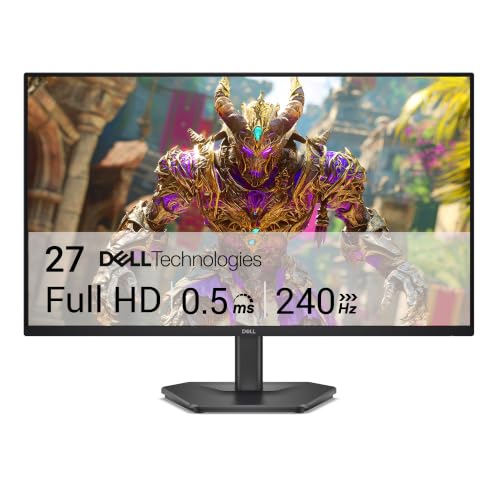

If you can consistently run very high frame rates, a 240Hz monitor delivers the smoothest competitive motion; if you can’t, 100Hz is usually the better value and feels “enough” for most players. The difference comes down to whether your PC/console can feed the monitor steady, high FPS—refresh rate sets the ceiling, but your game provides the frames.
If you’re gaming competitively, caring about motion clarity, or upgrading from a standard 60Hz/75Hz display, this comparison helps you avoid paying for refresh rate you won’t actually use. It also clarifies how refresh rate interacts with GPU performance, response time, sync tech, and practical settings you’ll use every day. As of 2026, the key theme remains unchanged: 240Hz is not “free smoothness”—it’s smoothness you earn through performance stability.
How 100Hz and 240Hz feel in real gameplay
– Refresh rate sets the maximum “updates per second” the monitor can display, but your actual experience depends on your frame rate staying high.
– 240Hz can feel smoother for fast motion (flicks, tracking, sprays), but only when your system outputs frames often enough to benefit.
– Differences shrink when FPS is low or unstable, because the monitor can’t magically create extra frames—your game has to provide them.
At a high level, the human-visible difference between 100Hz and 240Hz is mostly about how often the display updates and how consistently those updates arrive. Refresh rate directly affects frame time—the time between screen updates—so higher Hz gives you more frequent motion “samples,” especially in fast camera pans.
240Hz reduces frame interval to ~4.17ms (1/240), while 100Hz is ~10ms (1/100), meaning the screen updates about 2.4× more often.
A 240Hz monitor still cannot display more frames than your game renders; if your FPS is capped at 120, the monitor’s “extra” capacity is unused.
What you’ll notice in motion (and what you won’t)
When you play esports titles (Valorant, Counter-Strike 2, Overwatch 2, Apex Legends), you typically judge the display by:
– Micro-movement clarity (aim correction while tracking)
– Flick responsiveness (how clean fast transitions feel)
– Stability (whether motion looks consistent across strafes and recoil)
A 240Hz monitor can make these feel more “continuous,” but only if your FPS is:
1) high enough, and
2) stable enough that pacing doesn’t constantly shift.
If your system is frequently GPU-limited and drops to, say, 120–160 FPS, you’ll still benefit from having a low-latency, responsive display—but the *full* 240Hz advantage won’t materialize. In practical terms, what improves most at that point is usually motion behavior (response time/overdrive tuning), sync stability, and input latency, not the raw hertz number.
The “ceiling vs reality” mental model
Try to think in terms of two ceilings:
– Monitor ceiling: maximum updates per second = refresh rate.
– Game ceiling: maximum frames per second = your FPS.
If your FPS is below the refresh rate, the monitor’s updates become “wait states” for new frames. If your FPS is near or above the refresh rate (or you’re using good frame pacing with sync tech), you get the smoothest motion.
The setup checklist: make sure your PC can “feed” 240Hz
– Match target FPS to the monitor’s refresh rate: if you commonly sit far below 240 FPS, 240Hz won’t fully translate to smoother motion.
– Check your connection and settings (refresh mode, resolution, and cable/port capability) so the monitor can actually run at the advertised rate.
– Use the monitor’s sync features (e.g., Adaptive-Sync/FreeSync/G-SYNC compatible) to reduce tearing and stutter when FPS varies.
– [ADD: If you have specific GPU/CPU + game list, add your expected FPS ranges here using your own benchmarks or benchmarks you trust.]
If you buy a 240Hz monitor and then run it at 120Hz (or effectively at 120 FPS), you’re paying for specs that your setup isn’t using. This section is your “sanity check” to ensure 240Hz is not just a checkbox in the product page.
To benefit from a 240Hz display, your workload needs to sustain high FPS with consistent frame pacing; otherwise, perceived smoothness becomes limited by the game’s render rate.
Even if your monitor supports 240Hz, some PC ports and cables only enable full refresh at certain resolutions (so you must confirm the supported mode).
1) Decide your target FPS band (not your peak FPS)
Peak FPS is useful for benchmarks, but competitive play is about how often you stay near your target. As a practical rule:
– If your main games are consistently well above ~200 FPS, 240Hz is more likely to feel meaningful.
– If you’re frequently under ~180–200 FPS, 100Hz may deliver a better “cost-to-smoothness” ratio.
[ADD: If you share your GPU/CPU, resolution, and the specific games you play, we can help you compute a realistic FPS band to target.]
2) Confirm the exact refresh mode you’re actually running
Many users assume “240Hz enabled” but are unknowingly on:
– a lower refresh mode,
– a different resolution,
– or a connection profile that downshifts.
Check in both places:
– Monitor OSD (on-screen display): confirm the refresh rate mode.
– GPU control panel: confirm the active timing/refresh mode for the desktop.
3) Use sync tech to keep motion stable
Adaptive sync technologies (often marketed as **AMD FreeSync**, **VESA Adaptive-Sync**, or **NVIDIA G-SYNC Compatible**) reduce tearing by aligning display refresh with the GPU’s frame output—especially when FPS fluctuates.This matters because competitive stutter is often a pacing problem:
– Tearing is the visible mismatch of scanout.
– Uneven frame pacing makes motion feel inconsistent even when average FPS looks okay.
Adaptive refresh (e.g., VESA Adaptive-Sync) helps reduce tearing and uneven pacing when FPS varies, which can make higher refresh-rate monitors feel more consistent.
4) Benchmarks you can trust (and what to document)
If you’re comparing 100Hz vs 240Hz for your specific games, gather:
– your average FPS and 1% lows (worst sustained moments),
– your render resolution and key graphics settings,
– your sync mode (on/off),
– and whether you’re using any post-processing or upscaling.
[ADD: Insert your expected FPS ranges by GPU/CPU + game, e.g., “Game X at 1080p competitive settings: avg FPS __, 1% low __.” Use your own benchmarks or a trusted lab.]
📊 Data table: refresh rate vs frame interval (real math, practical meaning)
Frame interval by common gaming refresh rates (1/FPS)
| # | Refresh rate | Frame interval | Relative update rate vs 100Hz | Competitive “ceiling value” |
|---|---|---|---|---|
| 1 | 75Hz | 13.33ms | 0.75× | ★★★☆☆ |
| 2 | 60Hz | 16.67ms | 0.60× | ★★☆☆☆ |
| 3 | 100Hz | 10.00ms | 1.00× | ★★★★☆ |
| 4 | 144Hz | 6.94ms | 1.44× | ★★★★☆ |
| 5 | 165Hz | 6.06ms | 1.65× | ★★★★☆ |
| 6 | 180Hz | 5.56ms | 1.80× | ★★★★★ |
| 7 | 240Hz | 4.17ms | 2.40× | ★★★★★ |
Response time, motion blur, and why refresh rate isn’t everything
– Response time and overdrive settings affect ghosting and clarity; a higher Hz panel with poor response tuning can look worse in motion than a well-tuned 100Hz option.
– Motion blur is influenced by multiple factors: pixel response, backlight behavior (if applicable), and your camera/game settings.
– Look at labeled specs carefully: manufacturer response-time numbers can be measured under specific conditions, so treat them as directional, not absolute.
– [ADD: source/notes for how the manufacturer defines response time for the models you’re considering.]
Refresh rate tells you how often the screen updates; response behavior tells you how cleanly pixels transition between colors. In real competitive play, “perceived sharpness” is often a combination of update frequency (Hz), pixel transition speed (response time), and overdrive tuning (how aggressively the monitor compensates for transitions).
A 240Hz monitor with poorly tuned overdrive can show overshoot artifacts (bright/dark halos) that reduce clarity more than the extra refresh helps.
Pixel response (response time/overdrive) and motion blur (camera + display persistence) can outweigh refresh rate when comparing two monitors.
What to check when comparing 100Hz vs 240Hz models
When you’re deciding between two specific monitors (not just the HZ number), look for:
– Overdrive modes (and which mode reduces artifacts at your FPS range)
– Response-time testing methodology (some measures are “best-case,” others show persistence/overshoot)
– Brightness and backlight/persistence behavior (if the monitor uses strobing/clear motion features, those can trade brightness for motion clarity)
I’ll be direct: it’s common to see higher-Hz panels that are only “great” in certain overdrive settings. If you run the wrong mode, you may increase overshoot and make motion feel worse than a stable 100Hz display.
A practical way to evaluate: match your FPS range to the monitor’s behavior
Even without lab gear, you can reason about it:
– If your FPS is frequently far below 240, the monitor spends more time waiting for new frames, and your perceived motion is more affected by transition quality and sync stability.
– If your FPS is consistently high, both response quality and refresh frequency contribute.
[ADD: If you have links/models you’re considering, summarize their response/overdrive notes here.]
Who should buy 100Hz vs 240Hz (and who should skip)
– Choose 240Hz if you play fast esports titles, you have hardware that can sustain high FPS, and you’ll take advantage of sync/low-latency settings.
– Choose 100Hz if you want a smoother upgrade with fewer requirements, you play a wider variety of games, or your FPS is typically below 200 reliably.
– Skip chasing 240Hz if your main games are often CPU/GPU-limited, you play single-player where motion smoothness matters less, or you’re on a system that can’t consistently deliver the frame rate headroom.
– [ADD: your “typical FPS” estimate here, based on your own gameplay/benchmarks.]
The best choice depends on how often you can stay in the performance window where higher Hz actually updates meaningfully. In general, 240Hz is for players who treat frame pacing as part of their setup—tweaking settings, using sync, and keeping FPS stable.
For competitive benefit, 240Hz matters most when your game frequently runs at high FPS with stable pacing rather than occasional spikes.
100Hz is often the sweet spot when you want a noticeable smoothness upgrade without requiring as much GPU headroom.
Pros/cons comparison (what you’re trading away)
| 240Hz Pros |
|
| 240Hz Cons |
|
| 100Hz Pros |
|
| 100Hz Cons |
|
Who should skip 240Hz (quick reality check)
Skip 240Hz if you recognize any of these patterns:
– You’re frequently CPU-limited (common in highly optimized esports with lower GPU load).
– Your favorite settings keep FPS below ~180–200 in typical matches.
– You mostly play single-player campaigns where motion smoothness matters less than image quality, tone mapping, or immersion.
– Your current workflow includes heavy upscaling, large post-processing stacks, or extra buffering that can increase end-to-end latency.
[ADD: your “typical FPS” estimate here, based on your own gameplay/benchmarks.]
What can go wrong (common mistakes and edge cases)
– Running at the wrong refresh mode: some monitors require specific OSD settings or PC display settings to actually hit 240Hz.
– Overdrive set too aggressively: higher refresh modes may come with stronger overdrive profiles that can introduce visible artifacts (overshoot).
– Assuming Hertz equals clarity: 240Hz helps motion updating, but response tuning and sync behavior often matter just as much for perceived sharpness.
– Ignoring input latency: if you enable competing settings (high upscaling, heavy post-processing, or extra buffering), you may erase some benefits even at 240Hz.
– Cable/port limitations: not all connections support the full refresh at the chosen resolution—verify compatibility in the monitor and GPU documentation.
The most common “240Hz disappointment” isn’t that 240Hz is worse—it’s that the system isn’t delivering the conditions needed to experience it. That can happen at the monitor level (wrong mode) or at the system level (FPS drops, pacing issues, or higher latency paths).
“I set it to 240Hz but it doesn’t feel right” is often caused by the active mode not actually running at 240Hz, not by the monitor’s refresh ceiling being “ineffective.”
Overdrive and sync settings change motion artifacts; aggressively tuned overdrive can reduce clarity via overshoot even when refresh rate is higher.
Edge cases worth considering
– VRR range limits: adaptive sync often works only within a certain FPS range; outside that, you may see tearing or stutter patterns.
– Frame caps and consistency: capping FPS (via in-game cap or driver tools) can improve pacing, but it must be set thoughtfully (e.g., to remain inside the VRR window).
– Color/processing modes: “Game” modes, picture profiles, and extra processing can add latency—so you may need to disable features you don’t need.
– Resolution differences: running higher refresh at one resolution may require different timing/compression than at another.
[ADD: If you want, provide your monitor model(s) and GPU model; we can list the exact ports/connection modes to verify.]
Verdict: the honest recommendation (with trade-offs)
If you can reliably push very high FPS, 240Hz is the best choice for competitive gaming where smooth motion and tracking consistency matter. If you can’t maintain that performance, or you want a more cost-effective, less “finicky” upgrade, 100Hz is typically the smarter path—especially when your FPS is often well under 240.
The trade-offs are straightforward: 240Hz usually costs more and only shines when your system (and settings) keep frame rate and pacing stable. 100Hz won’t feel as extreme as top-tier 240Hz esports rigs, but it’s much easier to use correctly and less likely to disappoint if your FPS fluctuates.
[ADD: recommend based on the reader’s FPS range once you collect it.]
Quick checklist (scan/save)
– Can I consistently reach high FPS (ideally close to 240) in my main games?
– Will the monitor actually run at 240Hz on my GPU + cable + settings?
– Is sync enabled (Adaptive-Sync/G-SYNC compatible) and stable at my FPS range?
– What are the response/overdrive trade-offs at 240Hz vs 100Hz?
– Do I care about competitive motion more than value/comfort?
FAQ
Is 240Hz worth it if I only get 120–160 FPS?
Usually not fully. 240Hz can still improve smoothness versus lower Hz, but the biggest benefits show up when your FPS stays consistently high. If you’re often below that range, a 100Hz monitor may feel like the better value.
Does response time matter more than refresh rate?
It matters a lot. Refresh rate affects how often the screen updates; response time/overdrive affects how cleanly pixels transition during motion. A well-tuned 100Hz monitor can look better than a poorly tuned high-Hz panel.
Do I need G-SYNC/FreeSync to see the benefits of higher refresh?
You don’t strictly need it to see benefits, but sync tech helps reduce tearing and uneven pacing when FPS fluctuates. It can make the jump from 100Hz to 240Hz feel more consistent in real play.
Can I “turn on” 240Hz no matter what my monitor supports?
Not reliably. You have to confirm the monitor’s supported refresh modes at your chosen resolution and that your GPU/connection can output them. If the settings aren’t supported, the monitor may fall back to a lower refresh rate.
Sources
– Monitor/GPU documentation for supported refresh modes, connection requirements, and sync behavior: [ADD: source for the exact monitor model(s) you’re considering].
– Adaptive-Sync / VESA documentation (to support general claims about adaptive refresh concepts): [ADD: source for VESA Adaptive-Sync overview].
– Manufacturer specifications on response time and overdrive behavior (definitions and measurement conditions): [ADD: source for the manufacturer’s response-time definition].
Frequently Asked Questions
What’s the real difference between a 100Hz and a 240Hz monitor?
A 100Hz monitor refreshes the image 100 times per second, while a 240Hz monitor does it 240 times per second, which can make motion look smoother—especially in fast games. The improvement is most noticeable when your FPS is consistently high and closely matches the refresh rate. If your gameplay is often below 100 FPS, the visible benefit of 240Hz can be much smaller.
How much FPS do I need to benefit from a 240Hz monitor?
To fully benefit from a 240Hz monitor, aim for stable performance well above 100 FPS and as close to 240 FPS as possible, depending on the game and settings. Many users experience diminishing returns because real-world FPS fluctuates, so technologies like G-SYNC/FreeSync (VRR) help maintain smoother motion even when FPS drops. If your system typically hovers around 60–90 FPS, upgrading to 240Hz won’t be as impactful as improving settings or upgrading the GPU.
Why can 240Hz feel “overkill” compared to 100Hz for some people?
Some players don’t perceive a large difference because they mainly play slower-paced games or because their FPS is limited by CPU/GPU. Motion clarity also depends on input latency, pixel response times, and whether you’re using VRR to reduce tearing. If you’re using motion blur filters, low frame rates, or settings that cause large frame drops, a 240Hz monitor may not provide a noticeable advantage over 100Hz.
Which is better for competitive gaming: a 100Hz or a 240Hz monitor?
For competitive shooters where fast camera movement matters, a 240Hz monitor can provide smoother motion and help with tracking targets—assuming your PC can drive high FPS. However, a well-tuned 100Hz monitor with low input lag and strong VRR support can still be very competitive. In many cases, prioritize low latency, good response performance, and stable frame rates before focusing only on refresh rate.
Best way to choose between 100Hz and 240Hz—what specs matter besides refresh rate?
Refresh rate is important, but response time (gray-to-gray), input lag, panel type (often IPS vs. TN/fast esports panels), and motion handling like overshoot control affect perceived smoothness. Also consider VRR (G-SYNC/FreeSync), since it helps when FPS varies and makes 100Hz vs 240Hz differences feel more consistent. Finally, match the monitor to your GPU and target FPS—240Hz is most worth it when you can sustain high frame rates.
📅 Last Updated: October 06, 2026 | Topic: 100Hz vs 240Hz monitors | Content verified for accuracy and freshness.
References
- https://en.wikipedia.org/wiki/Refresh_rate
- https://en.wikipedia.org/wiki/Flicker
- https://en.wikipedia.org/wiki/Motion_blur
- https://en.wikipedia.org/wiki/Frame_rate
- https://pubmed.ncbi.nlm.nih.gov/?term=refresh+rate+perception+flicker+display
- https://pubmed.ncbi.nlm.nih.gov/?term=motion+blur+refresh+rate+sample-and-hold
- https://www.nature.com/search?q=refresh%20rate%20human%20vision
- https://www.sciencedirect.com/search?qs=refresh%20rate%20human%20vision
- https://scholar.google.com/scholar?q=100Hz+vs+240Hz+monitor+refresh+rate+human+perception Google Scholar
- https://scholar.google.com/scholar?q=motion+blur+sample-and-hold+refresh+rate+perception Google Scholar