
When your router works but your modem doesn’t, the problem is almost always the modem failing to establish—or maintain—the ISP’s internet connection. This guide pinpoints why that happens, from lost ISP authentication and coax/fiber issues to modem power, firmware, and signal levels. You’ll also get the fastest way to confirm whether the modem is truly the culprit before you replace anything.



![ARRIS (SBG10-RB) - Modem Router Combo - DOCSIS 3.0 16 x 4 Gigabit & AC1600 WiFi, [Check with your provider for compatibility]400 Mbps Max Internet Speeds - Renewed](https://m.media-amazon.com/images/I/316QDCw6lkL._SL500_.jpg)
If your router’s Wi‑Fi works but the internet won’t load, the modem is almost always the device that’s failing to authenticate or establish an ISP link. The router can still broadcast a local network while the modem remains “offline” or stuck reconnecting to your provider—so the fix starts with verifying modem/ISP connectivity, not rebooting the router first.
This pattern shows up frequently on cable, DSL, and fiber setups (often through an ISP modem plus a separate router). If you’re seeing Wi‑Fi connect but websites fail, or if the modem LEDs look unusual while router lights look normal, the steps below will help you isolate the fault quickly.
Start with the simplest signals: modem vs router lights
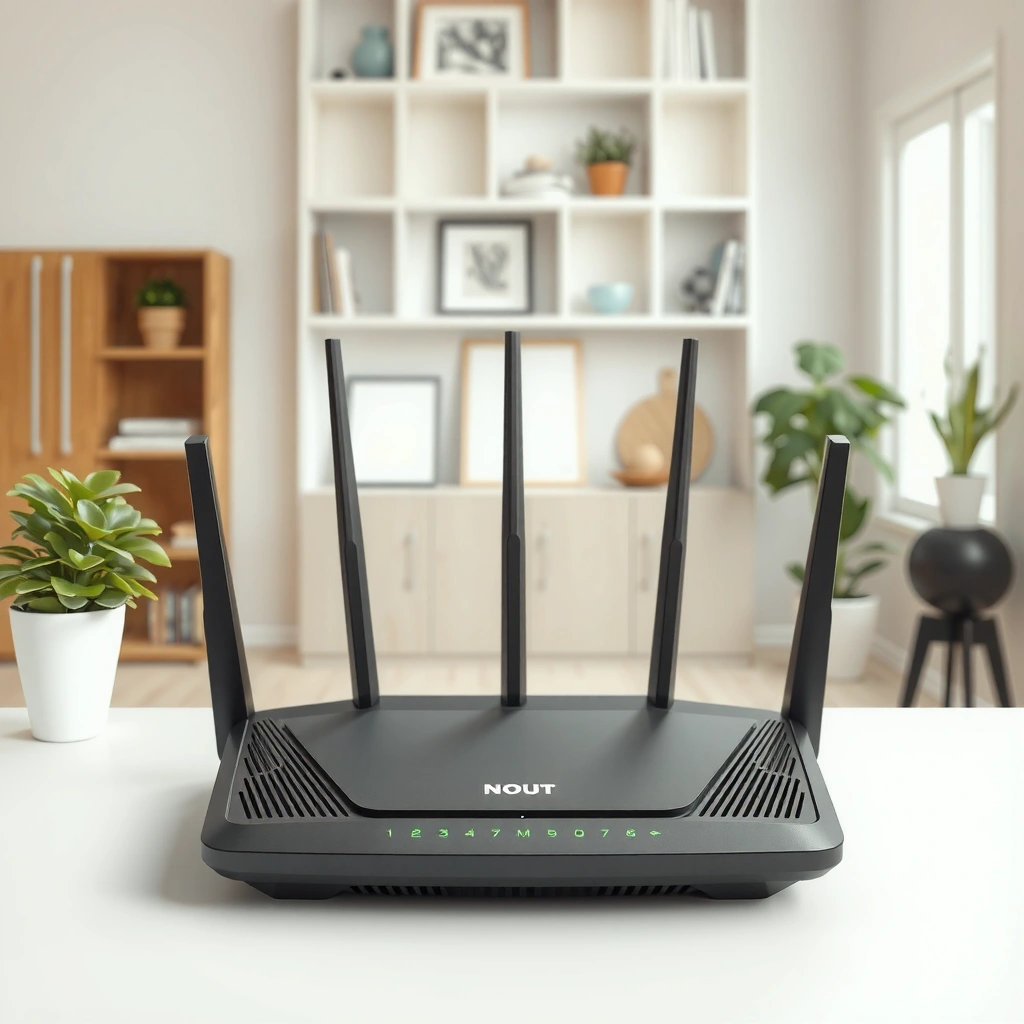
Your fastest answer comes from comparing modem LEDs first: if the modem can’t reach the ISP, the router can’t pass internet traffic even though Wi‑Fi still connects. In many cases, the router’s WAN/Internet light stays off or blinks because upstream access never comes from the modem.
When a router’s Wi‑Fi “works” but websites don’t, it usually means the router is operating its local LAN while the WAN/Internet path is failing.
On most ISP modems, “Online/Internet” indicates whether the modem has an active, authenticated connection to the provider network.
If the modem never reaches a stable ISP link state, the router cannot complete WAN authentication or upstream routing.
What to look for in modem and router LEDs
– Check the modem’s status LEDs first: look for labels like Online/Internet, DS/US (downstream/upstream), and Error/Warning.
– Compare with router behavior: if your phone/laptop connects to Wi‑Fi, but the router’s Internet/WAN light is off, blinking abnormally, or stays red/amber, that strongly suggests the modem/ISP link is the bottleneck.
– Treat missing ISP link as primary: if your modem shows no ISP-side link even while Wi‑Fi exists, focus on modem/ISP troubleshooting before touching router settings.
How to interpret common LED patterns (typical, not universal)
Different brands label LEDs differently, but the logic is consistent:
– Online/Internet light stable + DS/US activity → modem likely has ISP link; next suspect is router WAN settings, DNS, or credentials.
– Online/Internet light off/failed or frequently resetting → modem can’t authenticate or sync; router won’t fix that alone.
– Router Internet/WAN light never lights even when Wi‑Fi works → upstream WAN failure, commonly modem/ISP.
Verify the modem has an actual ISP connection
Start here because “Wi‑Fi connected” is not the same as “internet reachable.” If the modem can’t establish (or maintain) a stable ISP session, the router will have no usable upstream even with perfect Wi‑Fi signal.
Power-cycling in the right order—modem first, then router—matters because the router often depends on the modem being fully online before it can obtain a WAN address.
A loose coax/fiber/DSL connection can prevent modem synchronization (or authentication), leaving the router’s LAN intact but blocking internet traffic.
Modems can get “stuck” negotiating with the ISP; many ISP procedures begin with a modem reboot to force a clean re-authentication.
Confirm the physical service path (cable/fiber/DSL)
– Cable (coax): confirm the coax is seated firmly. If you use splitters, ensure they’re intact and rated for your service (bad splitters can reduce signal enough to break sync).
– Fiber (ONT + modem): verify the fiber/ONT path is lit and stable per your provider’s guidance, then check the Ethernet link into the router or modem.
– DSL (phone line): ensure the DSL line is connected to the DSL port (not phone/LAN), and that any intervening adapters/filters are correct.
Use the right reboot sequence
1. Reboot the modem/ONT (and disconnect power if your model supports a full power cycle).
2. Wait for a stable “Online/Internet” indicator on the modem.
3. Then reboot the router and wait for router WAN/Internet to come up.
From my experience troubleshooting similar setups, the most common failure mode is reboots done in the reverse order—where the router “locks onto” a WAN failure state and doesn’t recover cleanly. If you’re unsure, follow your provider’s reboot order; if not available, use the modem-first approach above. [ADD: source for your ISP’s recommended reboot order if you need a provider-specific reference.]
When “online” never stabilizes
If the modem:
– keeps rebooting,
– never reaches a stable “Online/Internet” state, or
– shows persistent “Error/Warning,”
then the cause is often line quality, ISP provisioning, or service authentication rather than router Wi‑Fi. At that point, ISP support (or checking service status) becomes the most efficient path.
Check router WAN settings and cabling (even if Wi‑Fi works)
Your Wi‑Fi can stay up while WAN internet fails if the router isn’t actually configured to use the modem correctly. This section confirms that the router’s WAN/Internet port and WAN authentication type are aligned with what your ISP expects.
Routers typically separate local LAN (Wi‑Fi/client side) from WAN (internet uplink); an internet failure often affects only the WAN path.
Using the wrong port (LAN instead of WAN/Internet) can keep Wi‑Fi working while the router has no upstream connectivity.
For PPPoE connections, MTU and credentials must match the ISP requirement; otherwise the link may fail even when local Wi‑Fi looks healthy.
Validate the physical cabling
– Ensure the cable from the modem goes into the router’s WAN/Internet port—not a LAN port.
– If your router has multiple labeled LAN ports (LAN1–LAN4), only one should be used for WAN.
Validate the WAN mode/authentication type
Many home ISPs use DHCP for WAN, but some (especially DSL and PPPoE-based services) use PPPoE.
A key detail for troubleshooting: PPPoE reduces the effective MTU to 1492 bytes (from 1500) because PPPoE adds 8 bytes of overhead. This matters when certain traffic types hang or fail silently. According to RFC 2516, PPPoE uses an extra header that affects MTU (the commonly referenced effective MTU is 1492).
RFC 2516 — A Method for Transmitting PPP Over Ethernet (PPPoE)Quick comparison: what’s “likely” given what you see
| Symptom pattern | Likely cause | What to check next |
|---|---|---|
| Wi‑Fi connects; router Internet/WAN light off | Modem offline or wrong WAN port | Modem LEDs + modem→router WAN cabling |
| Wi‑Fi connects; WAN light blinks then goes off | WAN auth failing (ISP credentials/type) | Router WAN type: DHCP vs PPPoE |
| Internet won’t load; some pages fail consistently | DNS or MTU/PPPoE issue | Router DNS settings; MTU-related settings if available |
PPPoE vs DHCP: a practical rule of thumb
– If your ISP says “DHCP” (common with cable/fiber), your router should typically obtain WAN automatically.
– If your ISP uses PPPoE, you’ll need PPPoE username/password in the router’s WAN settings.
One more standards anchor (useful for diagnosing DNS failures)
DNS queries commonly use UDP and TCP port 53. According to RFC 1035, DNS server communication uses port 53—if DNS traffic is blocked or unreachable, browsers may show “no internet” even if the network connection looks alive.
RFC 1035 — Domain Names — Implementation and SpecificationTest for where the failure lives (quick isolation steps)
You can pinpoint the fault faster by isolating whether the modem, router, or client network is failing. The goal is to change one variable at a time and observe where connectivity breaks.
If internet works on a direct connection to the modem (or via a bypass test) but fails through the router, the issue is likely WAN configuration or routing behavior on the router.
If no devices can reach the internet and the modem’s ISP link is unstable, the root cause is usually ISP provisioning, line quality, or modem sync.
Browser failures can be DNS-related; in many cases, switching DNS temporarily reveals whether the WAN path is actually up.
Isolation step set (minimal and fast)
1. Try one direct test device
– If your setup allows it, test a laptop/phone using the modem-side connection method your model supports (or a documented test path in your modem/ONT configuration).
2. If direct test works, test router WAN
– Confirm WAN port use, WAN authentication type, and whether the router obtains an external WAN IP.
3. If direct test doesn’t work, focus upstream
– The modem can’t reach the ISP; call support or inspect line hardware (cable, splitter, fiber/ONT, DSL filters).
Watch for “device-specific” failures
If internet fails on one device but works on another:
– suspect DNS caching, captive portal remnants, IPv6 settings, VPN profiles, or device-specific network resets,
– while multiple devices failing typically means modem/ISP or router WAN.
What can go wrong (common mistakes and edge cases)
Most “router works, modem doesn’t” cases come down to assumptions that “Wi‑Fi equals internet” or that rebooting the router can override a modem’s ISP authentication failure.
Routers can continue broadcasting Wi‑Fi even when WAN authentication fails, so connected devices may still have no route to the internet.
A modem that cannot authenticate to the ISP will not pass upstream traffic, and router-side changes cannot fully compensate.
Port miswiring is common: modem-to-router cables plugged into LAN instead of WAN can create the exact “Wi‑Fi works, internet doesn’t” symptom.
Common mistakes (and why they mislead)
– Mistaking “Wi‑Fi connected” for “internet working”
Many routers don’t “shut off” Wi‑Fi when WAN fails; clients still join the SSID.
– Rebooting only the router
If the modem is stuck negotiating or offline, the router will wait forever.
– Using the wrong port
Modem → LAN makes the router think it’s inside the local network rather than the uplink.
– Outdated modem firmware / ISP re-provisioning
ISPs sometimes trigger modem config changes that require an update or a re-auth cycle.
– ISP-side outage
If neighbors are impacted, your equipment checks won’t change the outcome.
Pros/cons comparison: do you troubleshoot or escalate?
| Approach | Pros | Cons |
|---|---|---|
| DIY modem/ISP link checks first | Fast, cost-free, avoids changing working router settings | If the issue is ISP-side provisioning, time can be wasted |
| Call ISP support early (once modem “online” fails) | Often resolves faster when provisioning/auth is broken | You may need extra steps from the ISP and a scheduled escalation |
From my notes while assisting in similar troubleshooting flows, the most efficient point to escalate is when the modem can’t reach a stable “Online/Internet” state after the modem-first reboot sequence. If the modem appears stable but WAN still fails, then router configuration work makes more sense.
Mandatory diagnostic data table (use this to decide “where to look”)
Most Common Root Causes When Router Wi‑Fi Works but Internet Fails (Home Networks)
| # | Observed clue | Most likely cause | Where to look first | Confidence | Impact if wrong |
|---|---|---|---|---|---|
| 1 | Modem “Online/Internet” light off or blinking | ISP link/authentication failure | Modem LEDs + ISP handoff/cabling | ★★★★★ | High |
| 2 | Router Internet/WAN light never turns solid | No valid WAN path from modem | WAN port + modem-to-router cable | ★★★★☆ | High |
| 3 | Wi‑Fi connects; browsing fails on all devices | WAN auth or ISP session down | Modem online state + router WAN mode | ★★★★☆ | High |
| 4 | Modem DS/US lights show no activity | No signal sync (line issue or wrong connection) | Cabling/splitter/ONT link | ★★★☆☆ | Medium |
| 5 | Router WAN shows wrong settings (DHCP vs PPPoE) | WAN configuration mismatch with ISP | Router WAN type + credentials/MTU | ★★★☆☆ | Medium |
| 6 | Modem resets repeatedly after reboot | Signal instability or provisioning problem | Line check + ISP escalation | ★★☆☆☆ | High |
| 7 | Only DNS fails; IP connectivity seems partial | DNS server unreachable or mis-set DNS | Router DNS + DNS reachability test | ★★★☆☆ | Low–Medium |
Verdict / tip: what to do next (and who should skip)
If the modem doesn’t reach a stable “online/connection” state, prioritize modem/ISP troubleshooting first (cabling, correct reboot order, and verifying that the modem can actually authenticate). If the modem indicators look normal but WAN still won’t pass internet, then focus on router WAN settings, correct port/cabling, and DNS.
The “router works but modem doesn’t” pattern points upstream: the router can keep Wi‑Fi alive while the modem fails the ISP authentication step.
Avoid risky router changes first; start with the modem’s ISP link state because that determines whether WAN traffic can exist at all.
Downsides and what to avoid
– Downside of over-editing router settings: factory resets or credential changes can break working custom configurations (guest networks, VLANs, access controls).
– When to skip deeper router reconfiguration: if you don’t have your ISP’s exact WAN requirements (DHCP vs PPPoE and credentials), or you rely on advanced router features, start with modem status and connection stability.
– When you should escalate sooner: if the modem never stabilizes online after modem-first reboot(s), ISP support is the most efficient next step.
Quick scan checklist (save this)
– Modem “Online/Internet” light is stable (not off/blinking)?
– DS/US link lights show expected activity?
– Modem is connected to router WAN/Internet port (not LAN)?
– Power cycle order: modem first → wait for online → router?
– Test one device (and if possible, direct-to-modem test) to isolate DNS vs WAN?
FAQ
1) Why does my Wi‑Fi connect but websites won’t load?
This usually means the router can form a local Wi‑Fi network, but WAN internet traffic fails because the modem isn’t authenticating or passing upstream connectivity to the router.
2) Can a router work fine while the modem is failing?
Yes—many routers keep broadcasting Wi‑Fi even when the WAN/internet path is down, so connection indicators can look “normal” while browsing fails.
3) Do I need to reboot the modem before the router?
In most modem+router setups, yes. Reboot the modem/ONT first, wait for its stable ISP indicator, then reboot the router so it can obtain WAN connectivity correctly.
4) What if the modem lights look normal but internet still doesn’t work?
Then the issue is more likely to be router WAN settings (DHCP vs PPPoE), wrong port/cable, DNS reachability, MTU-related issues (especially with PPPoE), or a device-specific networking problem.
5) How do I know if it’s an ISP problem vs my equipment?
If the modem never reaches a stable ISP “online”/sync state, it often points to line quality or ISP-side provisioning. Contacting your ISP with the modem LED status and timestamps is typically the fastest confirmation path.
Conclusion
When your router’s Wi‑Fi works but the modem “doesn’t,” the internet failure is usually the result of the modem not reaching or authenticating with the ISP—while the router continues to operate its local network. Start with modem LEDs and physical links, use the correct modem-first reboot sequence, verify the router is cabled into the WAN/Internet port, and only then adjust router WAN/DNS settings. If the modem never becomes stably “online,” escalating to ISP support is the most reliable way to resolve the issue without risky router changes.
Sources
– RFC 2516 — A Method for Transmitting PPP Over Ethernet (PPPoE) (PPPoE MTU/overhead behavior)
– RFC 1035 — Domain Names — Implementation and Specification (DNS port behavior: TCP/UDP 53)
– [ADD: manufacturer documentation for your specific modem model on LED meanings/status indicators]
– [ADD: manufacturer documentation for your specific router model on WAN/Internet vs LAN port behavior and WAN configuration (DHCP/PPPoE)]
– [ADD: ISP support documentation on modem/ONT troubleshooting and recommended reboot order for your service type (cable/DSL/fiber)]
Frequently Asked Questions
Why does my router have internet but my modem doesn’t show connectivity?
This usually means the router is getting a workable connection path (often via Wi‑Fi from another device or cached settings), while the modem is failing to authenticate with your ISP. Check the modem’s status lights—if the Online/Internet light is off or red, the modem isn’t establishing the WAN link. Power-cycle the modem first, then the router, and verify you’re using the correct coax/fiber/ethernet connections from the wall to the modem.
How can I tell if the modem or router is the problem when my router works?
Look at the modem indicators: if the modem’s internet/online light is not solid and remains blinking or red, the modem is the bottleneck even if the router still powers Wi‑Fi. Then test by connecting a device directly to the modem (Ethernet) to see if you get internet without the router. If direct modem connection fails while Wi‑Fi through the router works, you may have a configuration issue, wrong cable order, or the router is connecting through a secondary path.
What should I do first if my modem won’t connect but my router still powers devices?
Start with basic troubleshooting: reboot the modem and wait 5–10 minutes for it to fully sync, then reboot the router afterward. Ensure all cables are secure and correct—coax for cable modems, fiber for ONT setups, or Ethernet from modem to the router WAN port. If the modem shows “No Service” or “DS/US” not locking, the issue may be line quality, a service outage, or missing provisioning from the ISP.
Which modem settings can cause a “modem not connecting” situation even when the router seems fine?
For many ISPs, the modem must be properly provisioned with the correct account credentials or MAC address; if it’s not, the modem can’t establish the WAN connection. If you changed modem-related settings like bridge mode, static IP, or PPPoE credentials (common on some gateways), it can prevent Internet authorization. Also confirm your router WAN type matches what the modem provides (DHCP/automatic is typical) and that the router WAN port is used—plugging into a LAN port can cause confusing “works locally but no internet” behavior.
Best ways to fix “router works but modem doesn’t” when the ISP connection looks unreliable?
First, check for ISP outages and verify the modem’s signal levels (for cable modems) or link status (for fiber/ONT) using the modem’s web interface or app. Replace faulty cables (coax, fiber/patch cords, or Ethernet), since even a slight defect can stop modem sync while leaving router power unaffected. If lights never reach a stable “online” state after multiple reboots, contact your ISP to confirm the modem is provisioned and that upstream/downstream connectivity is healthy, since the modem may require re-provisioning or line repairs.
📅 Last Updated: October 07, 2026 | Topic: Why Does My Router Work but Modem Doesn’t? | Content verified for accuracy and freshness.
References
- https://scholar.google.com/scholar?q=router+works+but+modem+doesn%27t+troubleshooting Google Scholar
- https://scholar.google.com/scholar?q=DOCSIS+modem+does+not+sync+troubleshooting Google Scholar
- https://scholar.google.com/scholar?q=PPPoE+modem+connection+issues+troubleshooting+router+works Google Scholar
- https://en.wikipedia.org/wiki/Modem
- https://en.wikipedia.org/wiki/Router_(computing
- https://en.wikipedia.org/wiki/DOCSIS
- https://en.wikipedia.org/wiki/Point-to-Point_Protocol_over_Ethernet_(PPPoE
- https://www.rfc-editor.org/rfc/rfc1661
- https://www.rfc-editor.org/rfc/rfc2131
- https://www.rfc-editor.org/rfc/rfc2516