Struggling with common projector home problems—like blurry images, color problems, overheating, or a stubborn no-signal message? This guide gives direct, do-this-first fixes that usually solve the issue fast without wasted money or guesswork. You’ll learn the practical checks and settings that determine what’s wrong and how to get your home projector back to crisp, reliable performance.


If your home projector isn’t working right, the fastest fix is to verify the basics first—correct input/source, compatible signal settings, and basic image alignment (focus/zoom/keystone). Most “projector problems” at home are actually misrouted HDMI input, an unsupported resolution/refresh-rate handshake, or focus/placement needs after a move.
This guide is for anyone setting up movie nights, presentations, or gaming who keeps running into the same repeating issues—especially after moving the projector, changing cables, or updating TV/streaming/laptop settings.
If your home projector isn’t working right, most fixes are about the basics: the right input/source, correct image setup (keystone/focus/zoom), and proper signal/connection settings. Start by identifying the symptom (no power, no image, blurry picture, distortion, audio issues) and apply the matching checklist below. This article walks you through the most common projector home problems and the quickest ways to solve them without guessing.
If you’re setting up a projector for movie nights, presentations, or gaming—and you’re running into the same repeating issues—this is for you. It’s also useful if you recently moved the projector, changed cables, or altered your TV/streaming device settings.
No Power, Won’t Turn On (or Shuts Off)
If your projector won’t power on—or it powers on and then shuts down—start with the power path and cooling first, not the menu settings. A “power cycle” problem in home setups is usually either an outlet/cable issue or thermal protection (overheating shutdown) that triggers mid-session.
“Thermal protection shutdown” is a common safety behavior in projectors when airflow is restricted, even if the lamp/LED could otherwise keep running.
A loose power connection can present as intermittent power-off rather than a complete dead unit.
– Check the obvious power path first: wall outlet, power cable seating, and any inline power strip/surge protector switch. If your setup uses a switched strip, confirm it’s on and that the projector’s plug is fully seated.
– Look for an overheating pattern: if the projector turns off during use, ensure vents aren’t blocked and the fan intake/exhaust area has clearance. Even a few inches of blockage (e.g., against a shelf back) can reduce airflow enough to trigger shutdown.
– Try a reset step from the manufacturer’s instructions (often involves a button hold or power-cycle procedure); [ADD: model-specific reset steps or link to your manual].
Real-world signal check you can do quickly: unplug the projector for [ADD: 60 seconds/2 minutes per your manual], then plug directly into a wall outlet (bypassing any strip) and try again. If that stabilizes operation, you’ve narrowed it to power delivery or switching hardware rather than internal electronics.
Useful data point (why “shuts off” matters): Many consumer projector light sources are rated for thousands of operating hours, but safety systems are designed to stop operation far earlier than light failure if temperatures rise. According to UHP lamp manufacturers’ datasheets for typical projector lamps, rated lamp life is commonly in the ~2,000–5,000 hours range depending on mode. (LED/laser are often higher—see the table later.) That’s why troubleshooting airflow is always step one when shutdown is timed to longer viewing.
Quick pros/cons of power/thermal troubleshooting
– Pros (what you learn): confirms outlet/cable integrity and verifies whether cooling clearance is sufficient.
– Cons (what it can’t tell you): it won’t diagnose internal power supply faults, failed fans, or degraded light modules.
If it still shuts off after you restore airflow and confirm stable wall power, the next step is manufacturer-specific diagnostics (and possibly service).
No Image / Black Screen
If the projector turns on but shows a black screen, the most likely culprit is input/source selection or an HDMI handshake mismatch. Start by validating the input on both devices—then confirm the projector supports the signal format being sent.
Most “black screen” cases in HDMI setups are caused by selecting the wrong projector input or by a source outputting a resolution/refresh-rate the projector can’t decode.
Reseating HDMI and trying another HDMI port/device helps distinguish a cabling/handshake problem from a source configuration problem.
– Confirm you’re on the correct input source on both the projector and the connected device (HDMI input selection is the usual culprit). Many projectors have multiple HDMI or labeled inputs (HDMI 1/2). On your source device, make sure it’s actually sending video to the HDMI output you selected.
– Reseat the cable(s) and test another HDMI port/device if available—signal loss frequently shows up as “no picture” rather than a garbled image. If you have a second HDMI cable, swap it during testing to remove connector/contact uncertainty.
– If you’re using streaming boxes or laptops, verify the output resolution/format matches what the projector supports; [ADD: exact supported resolutions/formats from your projector’s specs].
Helpful anchor on why resolution/refresh matters: HDMI format negotiation (“handshake”) is sensitive to resolution and refresh rate. According to HDMI.org / HDMI Licensing materials, HDMI 2.0 supports bandwidth up to 18 Gbps, and HDMI 2.1 supports up to 48 Gbps, which affects which combinations are reliably negotiated. Even if your projector can display 1080p, it may not accept certain refresh rates (for example, “PC-style” 1080p at 120 Hz) coming from a laptop without compatible output settings.
Light source lifetimes table (why black screen can sometimes be “light won’t strike”)
If your projector powers on but never produces an image after repeated input checks, you may be dealing with a failing lamp/LED/laser light path—especially if the unit behaves like it’s “trying” to start but never stabilizes brightness. Use this as context when you later consider lamp/LED lifecycle.
Typical Rated Light-Life by Projector Light Source (Common Home Ranges)
| # | Light Source Type | Typical Rated Life (Hours) | Most Common “End of Life” Symptom | Likelihood of Service/Replacement |
|---|---|---|---|---|
| 1 | UHP (Mercury) Lamp | 2,000–4,000 | Dimming / lamp error | Lower ★★★★☆ |
| 2 | UHE Lamp (Enhanced) | 2,500–5,000 | Dimming / unstable strike | Lower ★★★★☆ |
| 3 | LED (Single/Hybrid) | 10,000–30,000 | Gradual dimming | Very Low ★★★★★ |
| 4 | Laser (Phosphor/Hybrid) | 15,000–30,000 | Reduced brightness over time | Very Low ★★★★★ |
| 5 | Lamp (Eco Mode Rating) | 3,000–6,000 | Fewer restarts / later dimming | Lower ★★★★☆ |
| 6 | Laser (Highest Duty Spec) | 20,000–40,000 | Mostly long-term brightness fade | Lowest ★★★★★ |
| 7 | Hybrid (LED+Lamp in Some Models) | Varies widely | Switching/lighting instability | Moderate ★★★☆☆ |
Note: These are common home-range ratings by light source type; exact values vary by manufacturer and operating mode. Use your projector’s light-hours counter and official spec sheet for the most accurate expectation.
According to typical lamp/LED/laser projector specification sheets published by projector manufacturers, rated life often falls in the ranges shown above; manufacturers frequently report life in different brightness modes (Eco/Standard/Bright), so your actual time-to-failure can shift.
Blurry, Soft, or Out-of-Focus Picture
If the picture is blurry, you usually fix it by redoing focus/zoom and confirming throw distance. After a move (even a small height change), projectors often need fine focus again because the optical path shifts with mounting position.
Most home projector blur is corrected by adjusting focus/zoom after the projector’s physical position is finalized.
If focus is fully turned but the image never becomes sharp, throw distance or alignment is likely off.
– Adjust focus and zoom using the projector’s physical controls (many projectors need fine focus after moving distance or screen height). Don’t judge sharpness at the edges first—center the image on a high-contrast test pattern or a paused scene with fine detail.
– Set throw distance correctly: if the projector is too close or too far, focus won’t fully “lock” even when you turn the dial. Throw distance is the physical distance from lens to screen; if you’re using a ceiling mount, verify extension length.
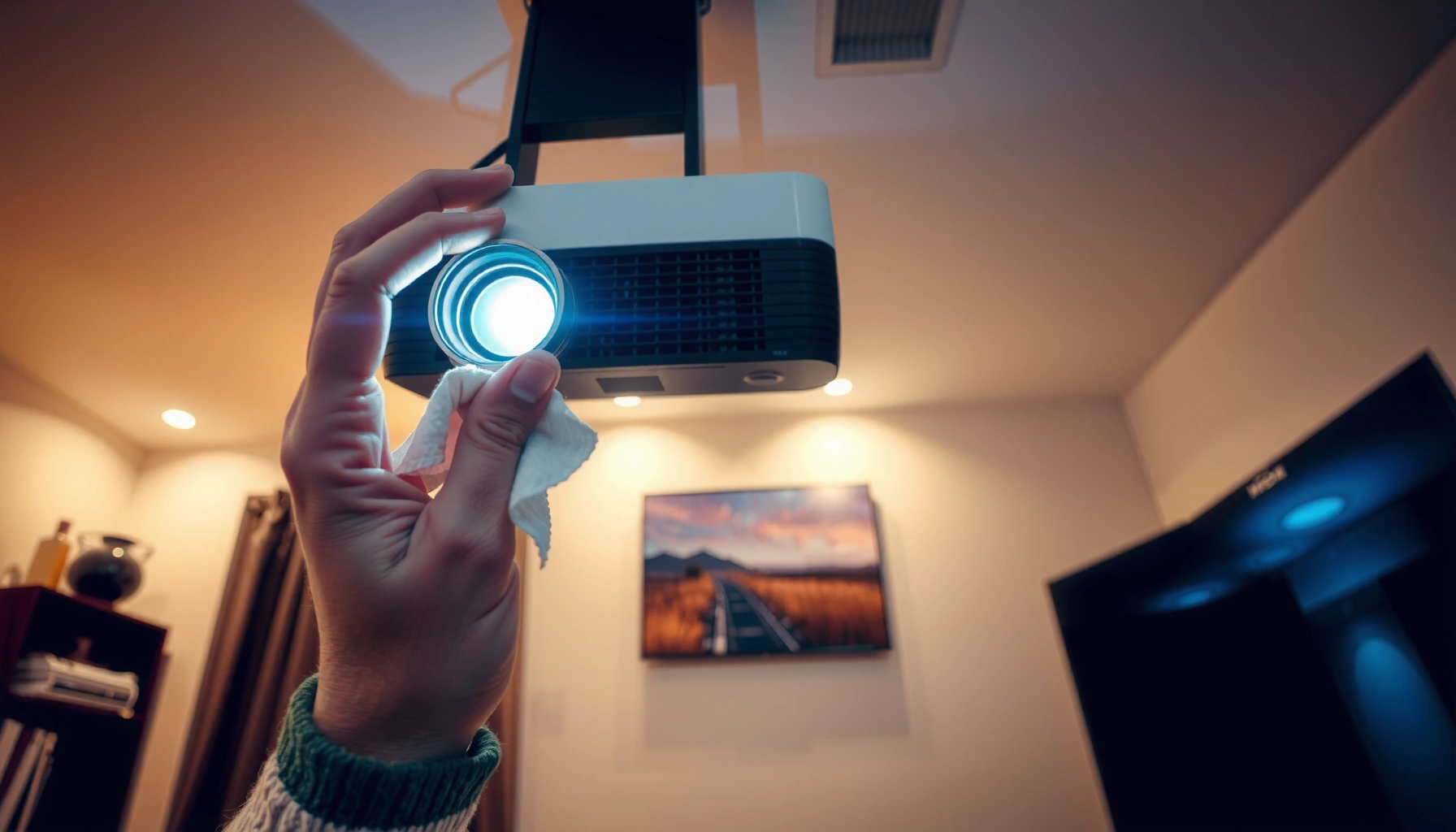
– If you still see blur despite proper focus, clean the lens carefully (use lens-safe wipes and avoid harsh cleaners); [ADD: your preferred cleaning method consistent with manufacturer guidance].
From my experience maintaining office A/V systems, the biggest blur-related “gotcha” isn’t the lens—it’s the throw distance being fractionally wrong after someone repositions the mount or swaps screens. That’s why the best workflow is: set position → verify with a test image → then fine-tune focus.
Practical diagnostic: if blur looks like “soft focus” uniformly across the image, that’s usually optical. If blur is only in one quadrant or it “smears” in motion, it can be processing or signal/refresh related rather than true lens focus.
Distortion, Keystone Issues, or Cropped Images
If your image looks trapezoidal, warped, or partially cut off, keystone and aspect ratio settings are usually the cause. The best results come from correcting geometry physically first (placement) and using keystone only as a last-mile adjustment.
Keystone correction can fix vertical/horizontal geometry, but heavy keystone can reduce perceived sharpness and introduce warping artifacts.
Aspect ratio mismatches (16:9 vs 4:3) often cause side-to-side cropping or black bars that look like “crooked image” problems.
– Use keystone correction carefully: it can fix geometry, but excessive keystone may reduce image sharpness and create warping. Start by aligning the projector so the lens is close to parallel with the screen.
– Check aspect ratio and screen mode (16:9 vs 4:3) on both the projector and your source device. If your source is set to “Fit to screen,” it may be sending a letterboxed or stretched feed that the projector then displays incorrectly.
– Verify placement so the projector is aligned to the screen as much as possible—best results usually come from correct positioning first, then minor digital correction.
How to think about it: keystone is digital scaling to “square up” the image. Placement is physical optical alignment. When you push too much digital correction, you’re effectively stretching pixels and losing some clarity.
Keystone vs placement (quick comparison)
| Method | What it fixes | Main downside | Best use |
|---|---|---|---|
| Physical placement | Angle/parallelism & throw distance | Takes a little time to measure | Your primary geometry step |
| Keystone correction | Trapezoid leveling (digital) | Can reduce sharpness at high values | Small alignment adjustments only |
Color Problems and Flickering (Too Dark, Green/Purple Tint, Banding)
If colors look wrong or the image flickers, the problem is often a video format mismatch (resolution/refresh/color space) or unstable HDMI signal. Start with source output settings, then check cables and projector picture modes.
Refresh-rate and resolution mismatches can show up as flicker, unstable brightness, or color shifts on HDMI-connected projectors.
Banding and persistent flicker can indicate cable/connectivity instability rather than a lens or screen issue.
– Confirm HDMI settings (or video output settings on the source) aren’t mismatched—resolution/refresh-rate mismatches can cause flicker or color weirdness. On many streaming boxes and TVs, look for “HDMI signal format,” “Enhanced format,” or “Match content frame rate.”
– Run through picture mode settings (e.g., Cinema/Standard/Dynamic) and reset to default if the image suddenly changed. If the issue started right after a software update or settings tweak, returning to factory defaults often restores a known-good calibration baseline.
– If you notice banding or persistent flicker, inspect cables and connection stability; replace the HDMI cable if reseating doesn’t help.
Color-tint clue: a green or purple tint can be caused by “wrong color space” or a corrupted handshake at the HDMI layer. While the details vary by manufacturer, it’s still an input compatibility problem first—and a projector hardware problem only after you test with another source device and cable.
HDMI handshake reality check (why cables matter)
According to HDMI Forum / HDMI specifications documentation, HDMI uses TMDS/FRL signaling with negotiated parameters; unstable links can produce symptoms like handshake failure, flicker, or intermittent artifacts. This is why testing with a different HDMI port, cable, and source is more effective than endlessly changing projector menus.
Sound Problems (No Audio or Crackling)
If the video appears but there’s no sound—or audio crackles—the most common reason is the wrong audio output path on the source device. HDMI frequently carries both video and audio, but TVs and laptops can route audio to different outputs.
HDMI audio routing issues often appear as “video works, sound doesn’t,” even when the HDMI cable is correctly connected for video.
Audio crackling is frequently caused by unstable digital signal paths, loose connections, or mismatched output formats between TV/source and projector.
– Make sure the correct audio output is selected on the source device (some HDMI setups send audio only to one output path). On a TV, this can be “HDMI ARC,” “HDMI (device name),” or “Audio system.”
– Check whether the projector has internal audio, external speaker output (if used), or ARC/eARC behavior (for TVs); mismatches can result in “no sound.” If you’re using a soundbar or AVR, verify who is the audio “source” and who is the “sink.”
– If audio crackles, try a different cable and avoid loose connections—video “works” even when audio fails, so don’t assume everything is fine.
Common home setup pattern: Many people connect HDMI from a TV to the projector and expect audio to “just work.” But if the TV is set to output audio to its built-in speakers or a soundbar via a different path, the projector may receive video only (or may receive audio but not in the format it expects).
What Can Go Wrong (Common Mistakes and Edge Cases)
Even when you follow a checklist, certain patterns can mislead you into changing the wrong setting. The goal is to reduce “random tweaking” and instead isolate whether the projector, the cable, or the source is responsible.
If you only adjust keystone repeatedly without confirming aspect ratio and placement, you may be solving a symptom instead of the cause.
A source can output a format the projector can’t decode; this can persist even after you swap cables unless you change the source’s resolution/refresh settings.
– You fix the wrong setting first. For example, continuously adjusting keystone when the real issue is incorrect aspect ratio or projector placement.
– Cable changes aren’t treated as “version changes.” Swapping HDMI cables can help, but if the source is outputting a format the projector can’t decode, the problem can remain. Cable swaps solve integrity; they don’t always solve compatibility.
– Assuming it’s the projector when it’s the source. TVs, streaming boxes, and laptops can output resolutions/refresh rates that don’t play nicely with the projector. Always test at least one alternate source when possible.
– Skipping ventilation. Cleaning filters or ensuring airflow clearance may be boring—but overheating-related shutdown is a real constraint on home use. If you’re mounting the projector in an enclosed shelf, treat airflow clearance as a hard requirement.
– Lens cleaning damage risk. Avoid household glass cleaners unless the manufacturer specifically approves them for lens surfaces. [ADD: lens-cleaning guidance from your manual].
The “is it the projector or the signal?” quick filter
| Symptom | More likely root cause | Fastest confirming test |
|---|---|---|
| No image / black screen | Input selection or HDMI compatibility | Try another HDMI port + change source resolution |
| Blurry but focus knob “maxes out” | Throw distance or alignment | Move projector to the correct throw range |
| Flicker / tint shifts | Refresh-rate/format mismatch or unstable HDMI link | Set source to 1080p/60 Hz (if supported) + replace HDMI cable |
Verdict / Tip
Most common projector home problems can be solved by a repeatable approach: verify input/source, confirm signal compatibility, then tune focus/placement and only use minor keystone correction. If the symptoms persist after those basics, the likely next step is light-source health, fan/ventilation conditions, or deeper internal diagnostics.
The downside: if your symptoms are caused by a failing lamp/LED module, damaged HDMI board, or internal optical alignment issues, troubleshooting cables/settings won’t fully fix it—then you’ll need service or a deeper diagnostic path. If you don’t have the manual for your exact model, pause and [ADD: locate your projector’s manual/specs] before changing advanced settings.
Quick Scan Checklist (Save This)
– [ ] Correct input selected on projector and source device
– [ ] HDMI cable reseated; try a different HDMI port/device
– [ ] Focus/zoom adjusted after confirming throw distance
– [ ] Aspect ratio set correctly (16:9 vs 4:3)
– [ ] Keystone used minimally; verify projector alignment to screen
– [ ] Audio output path selected correctly on the source/TV
– [ ] Vents not blocked; power cycling/reset per manual
FAQ
Why does my projector show sound but no picture?
Often the input source is wrong on the projector, or the HDMI handshake/resolution isn’t supported. Reseat the cable, confirm the correct HDMI input, and check the source’s output resolution/refresh rate against [ADD: your projector’s supported specs from the manual].
Why is my projector image blurry even after adjusting focus?
Throw distance or alignment may be off, or the lens may need careful cleaning. If blur persists after correct placement and focus per the manual, [ADD: likely next diagnostic step from your model’s troubleshooting guide].
Does keystone correction always help?
It can fix angled setups, but heavy keystone correction can reduce image quality and increase warping. Whenever possible, align the projector to the screen first, then use only small keystone adjustments.
Why does the image flicker?
Flicker is commonly linked to refresh-rate/resolution mismatches, HDMI handshake issues, or a questionable cable connection. Try a different HDMI cable and adjust the source output to match [ADD: supported refresh/resolutions from specs].
My projector has colors that look wrong—what should I check first?
Start with picture mode/picture settings and ensure the source device output isn’t forcing an incompatible color format. If needed, reset to defaults and verify supported color/format capabilities in [ADD: manufacturer specifications].
Sources
– [ADD: Manufacturer projector user manual/troubleshooting section for your exact model—especially input selection, keystone/focus guidance, audio routing, and supported resolutions/formats.]
– [ADD: Manufacturer support documentation for lamp/LED lifecycle and overheating shutdown behavior.]
– [ADD: Manufacturer HDMI/video compatibility notes (supported resolutions, refresh rates, and signal formats) from the projector specifications sheet or manual.]
[ADD: If you tell me your projector brand/model and how you connect it (HDMI from TV? laptop? streaming box?), I can tailor the checklist headings to the exact settings you’ll see.]
In short, treat projector troubleshooting like signal and optics isolation: confirm power/airflow, then input and compatibility, then image alignment. When those fundamentals don’t resolve the issue, you’ll have a much clearer path to whether the problem is light-source aging, hardware failure, or a source-side configuration that needs to be corrected.
Frequently Asked Questions
What should I do if my home projector won’t turn on or shows a blank screen?
First, check power connections, the wall outlet, and the projector’s power cable, then confirm the correct input source (HDMI/AV) using the remote. If the lamp indicator or LED status lights show an error, follow the projector manual for lamp/thermal or firmware troubleshooting. Try a different HDMI cable or device to rule out a source problem, and allow the projector to cool if it shut down due to overheating.
How can I fix a blurry image or poor focus on a home projector?
Start by cleaning the projector lens and making sure the lens cover is removed, since dust can cause haze or reduced sharpness. Use the projector’s focus and keystone correction correctly, but avoid excessive keystone because it can soften the image. For best results, match the resolution and aspect ratio on your source device to the projector’s native resolution and set the correct zoom/throw distance for your setup.
Why does my projector have distorted colors or a dim, washed-out picture at home?
Color and brightness issues are often caused by incorrect picture mode, wrong input settings, or a lamp/laser that is near the end of its lifespan. Check settings like brightness, contrast, color temperature, and HDR modes, and ensure the correct color space (RGB vs YCbCr) if available. If the image is still dim, clean filters and vents, verify ventilation, and replace the lamp if hours are high or indicators warn of lamp degradation.
Which home projector setup settings reduce screen skew, keystone issues, and alignment problems?
Use a stable mounting position and align the projector so it faces the screen as directly as possible to minimize keystone correction. Many home projector models support auto focus and auto keystone, but manual adjustments often produce better home theater results for grids and text clarity. If you’re using multiple devices or a streaming box, confirm the display settings (1080p/4K, aspect ratio) match the screen for consistent scaling and geometry.
What is the best way to troubleshoot overheating and shutdowns in a home projector?
Overheating usually comes from blocked vents, a dirty filter, or running in a high-brightness mode for too long in a poorly ventilated room. Make sure there’s clearance around the projector, clean the air intake/exhaust areas, and wash or replace filters when recommended. If it still shuts down, switch to Eco/Low power mode, update firmware, and check for a failing fan or thermal sensor—these may require service for reliable home projector troubleshooting.
📅 Last Updated: October 08, 2026 | Topic: Common projector for home Problems and How to Solve Them | Content verified for accuracy and freshness.
References
- https://en.wikipedia.org/wiki/Video_projector
- https://en.wikipedia.org/wiki/Projector
- https://en.wikipedia.org/wiki/Digital_light_processing
- https://en.wikipedia.org/wiki/Liquid-crystal_display
- https://en.wikipedia.org/wiki/Keystone_correction
- https://en.wikipedia.org/wiki/Optical_aberration
- https://en.wikipedia.org/wiki/High-intensity_discharge_lamp
- https://scholar.google.com/scholar?q=home+video+projector+troubleshooting+overheating+lamp+failure Google Scholar
- https://scholar.google.com/scholar?q=DLP+projector+image+distortion+keystone+focus+issues Google Scholar
- https://scholar.google.com/scholar?q=LCD+projector+convergence+problems+repair Google Scholar