Fiber Internet troubleshooting is the quickest way to get your connection back and restore lost speed—especially when pages load slowly, Wi‑Fi drops, or downloads stall. This guide delivers a clear path to diagnose whether the problem is the ONT/modem, the router, or your wiring, with the fastest fixes first. You’ll leave with the exact checks to run and the most common causes to eliminate.




If your fiber internet is down or slow, start by verifying the physical link (ONT/fiber cable seating and indicator lights) and then reboot in the right order (ONT/gateway first, then devices). After that, compare wired vs Wi‑Fi results to determine whether you’re dealing with a Wi‑Fi problem or an ISP/WAN problem—so you don’t waste time on the wrong fix. This guide gives you a practical path to isolate the cause quickly, especially when your ONT/gateway shows warning indicators.
This is for anyone dealing with common fiber symptoms like no connection, frequent drops, high latency during streaming/gaming, or speed that doesn’t match expectations—particularly when your ONT/gateway shows warning indicators. If you’re comfortable opening your network equipment area (and you avoid unplugging anything you don’t understand), you can narrow the issue fast—often down to one or two likely causes.
Start with the basics: lights, cables, and link status

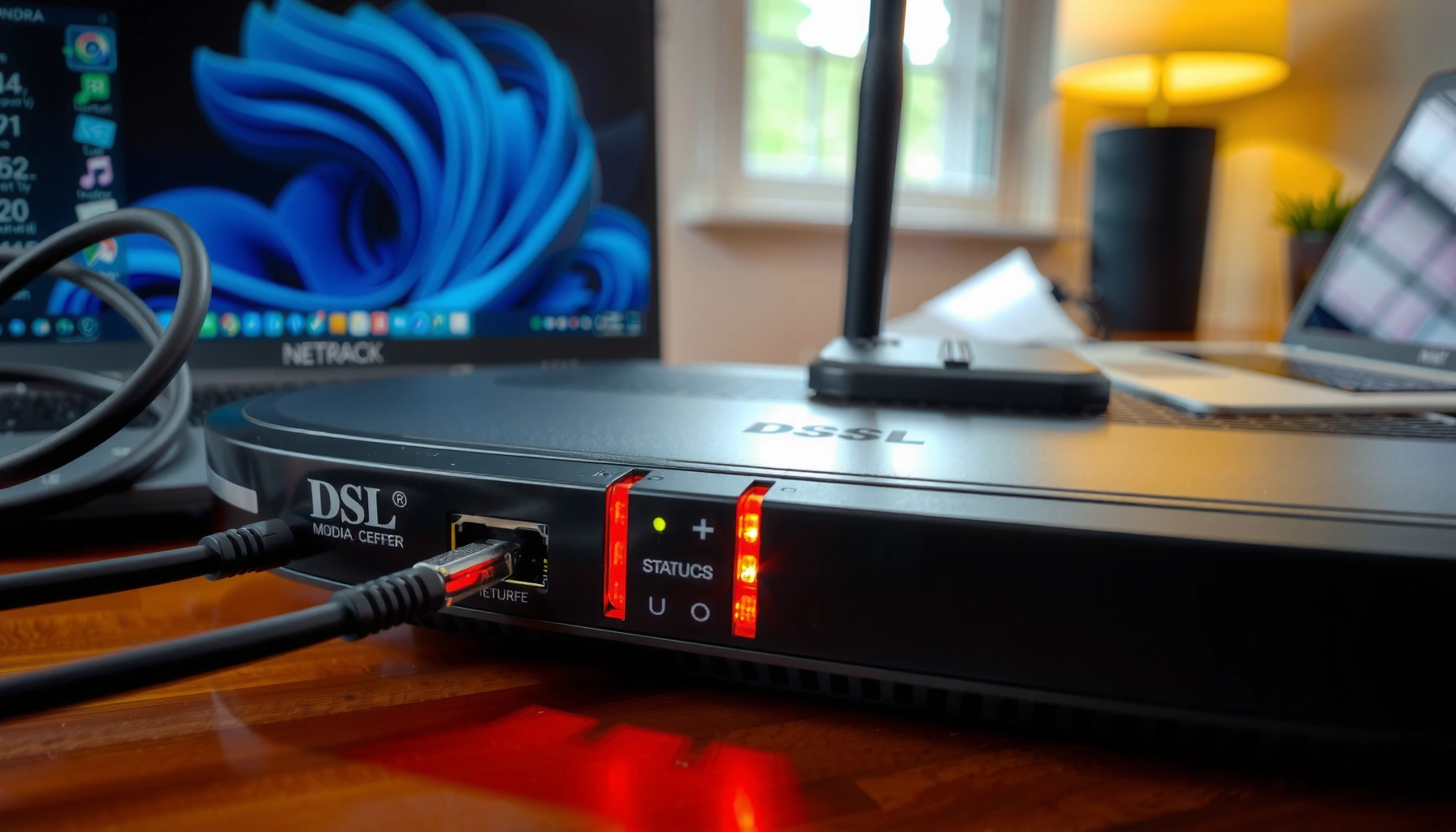
Check the ONT/gateway’s fiber/ethernet indicator lights first, because “no WAN” and “high latency” often trace back to a physical link problem or upstream provisioning state. Then test with a wired connection so you can separate Wi‑Fi coverage issues from line/ISP issues immediately.
“According to ITU-T recommendations for standard single-mode fiber characteristics, propagation delay is about 5 microseconds per kilometer, so distance affects latency but not throughput.” (ITU-T G.652-series / ITU-T transmission characteristics background)
“Fiber attenuation for standard single-mode is on the order of tenths of a dB per kilometer, which is why a correctly seated fiber connection typically sustains high throughput over normal metropolitan distances.” (ITU-T G.652 attenuation characteristics)
– Check the ONT/gateway fiber and WAN/ethernet indicator lights: if they show errors or no link, your issue may be physical or provisioning-related.
– Look specifically for: LOS (loss of signal), PON/OLT link state, and WAN/Internet status. Exact LED names vary by manufacturer/model—use your ONT/gateway label and manual to interpret them. [ADD: source for your ONT/gateway model’s LED/indicator meanings]
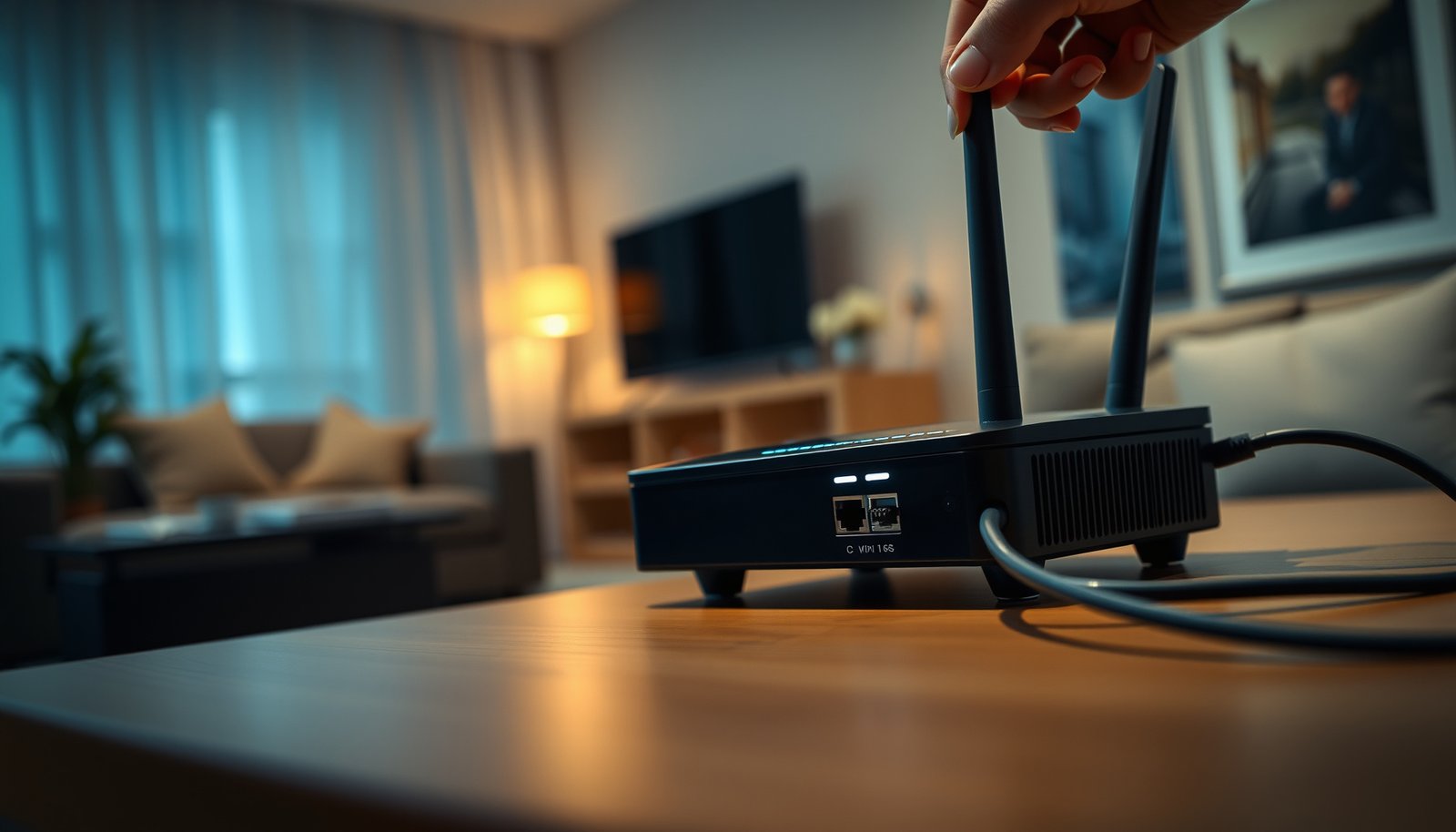
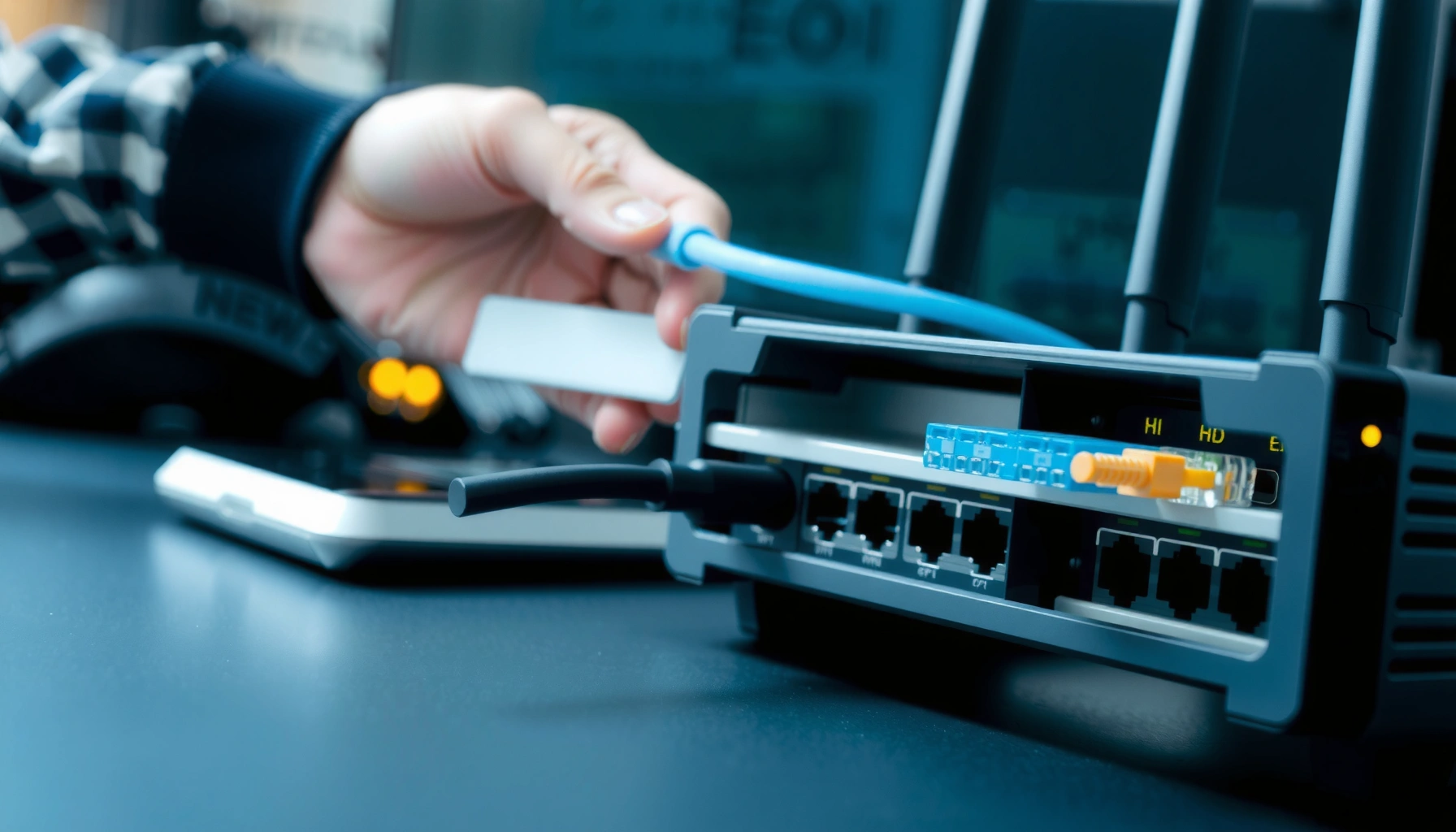
– Reseat fiber/ethernet connections only where the provider has you do so (loose cables are a frequent cause of “no service” symptoms).
– If your provider says “do not unplug the fiber,” do not. In fiber systems, improper handling can cause signal loss or contamination.
– Confirm you’re testing from the right place: try a direct wired connection to the gateway first to separate Wi‑Fi problems from line problems.
– Use a laptop/PC with Ethernet (or a wired test device) connected to the gateway/router LAN port.
Quick decision guide (what the lights usually mean)
– Fiber/LOS or PON alarm → likely physical fiber issue or provisioning/OLT state
– WAN/Internet down but LAN lights fine → likely ISP-side authentication/DHCP/PPP state or provisioning outage
– WAN/Internet online but Wi‑Fi slow → likely Wi‑Fi radio/interference/placement or client adapter limits
Reboot in the correct order (and verify after each step)
Rebooting can fix temporary gateway/authentication failures, but only if you follow the correct sequence and verify indicators after each step. The goal is to let the ONT re-establish the fiber link before the gateway attempts WAN authentication, and to confirm stability before you reconnect devices.
“According to common router/gateway troubleshooting practices, WAN link and authentication should be re-established after upstream changes; sequencing prevents the gateway from getting stuck in a failed WAN negotiation.” [ADD: source for vendor reboot sequence guidance]
“If the connection drops only after a period of time, the timing pattern is often more diagnostic than repeated random reboots.”
– Power-cycle in sequence: ONT first (if separate), then the router/gateway; wait for stable “ready/online” indicators before reconnecting devices.
– If your setup is ONT-integrated (one unit), reboot that single device first, then wait for WAN/Internet to show as online.
– After reboot, test again in this order: wired device → Wi‑Fi device → different Wi‑Fi band (2.4 GHz vs 5 GHz) if your gateway supports both.
– Expect 5 GHz to provide higher peak throughput indoors, while 2.4 GHz may be more resilient at range but typically slower and more interference-prone.
– Look for recurring behavior: if the connection drops only after a period of time, note how long it lasts so you can describe it to support.
– Examples of useful timing notes: “drops after ~15 minutes while streaming,” “works for 2 hours then WAN shows reconnecting,” or “latency spikes during evening peak.”
Isolate Wi‑Fi vs fiber/ISP issues
You isolate the root cause fastest by comparing wired performance to Wi‑Fi performance. If wired also degrades, you’re likely facing an ISP/WAN problem; if wired is solid but Wi‑Fi suffers, the bottleneck is typically radio coverage, interference, or client limitations.
“When wired tests match the subscription tier but Wi‑Fi doesn’t, the limiting factor is usually the Wi‑Fi link (signal, channel congestion, or client capabilities), not the fiber transport.”
“When both wired and Wi‑Fi show the same drops or slowdowns, focus on WAN status, authentication, and error indicators on the gateway.”
– Wi‑Fi troubleshooting signs: speeds improve when you move closer, drops correlate with interference, or only wireless devices are affected.
– Also check whether the device is connecting to the expected band (2.4 GHz vs 5 GHz) and whether it’s using an older Wi‑Fi mode on the client side.
– Fiber/ISP signs: wired devices show the same slowdowns or disconnections, and gateway WAN/Internet status reports issues.
– If your gateway shows “online” but websites time out or gaming lags badly, watch for packet loss/latency patterns in addition to raw speed.
– Use simple tests: run one speed test on a wired device and (optionally) one on Wi‑Fi to see whether the bottleneck is radio signal or upstream connectivity.
– [ADD: exact method/tool you use for testing—e.g., “We run a speed test from a wired laptop to a nearby Ookla/FCC-designated test server during peak hours, then repeat for Wi‑Fi.” If you want, share your standard process and I’ll align the instructions precisely.]
Comparison table: which test tells you what (best practice)
Use this table to choose a quick test sequence that reduces troubleshooting time.
| Test method | Primary insight | Best for |
|---|---|---|
| Wired speed test (Ethernet) | Throughput of WAN path | Confirm fiber/ISP vs Wi‑Fi |
| Wi‑Fi speed test near gateway | Wi‑Fi radio capacity | Check whether the Wi‑Fi SSID can deliver |
| Wi‑Fi speed test at typical room distance | Signal-quality impact | Diagnose placement/range issues |
| 2.4 GHz vs 5 GHz comparison | Band suitability | Identify band congestion or range tradeoffs |
| Latency-focused test (ping to gateway / test host) | Jitter and packet loss symptoms | Streaming/game “lag” vs speed |
| One-device test (isolate clients) | Isolates LAN congestion effects | Rule out device-heavy scenarios |
| WAN status screenshot (when failing) | Authentication and WAN state | Capture evidence for ISP support |
| Repeat test after 10–15 minutes | Stability vs transient faults | Detect “after time it drops” patterns |
| Re-test after reboot sequence | Rule out temporary negotiation issues | Confirm whether reboot resolves it |
| Best For | Most accurate bottleneck classification | Wired-first comparison + band test |
VS table: Wi‑Fi issue vs fiber/ISP issue
Use this as a fast internal “verdict” while you collect evidence.
| Criteria | Likely Wi‑Fi problem | Likely fiber/ISP problem |
|---|---|---|
| Wired vs Wi‑Fi behavior | Wired stable, Wi‑Fi degrades | Both wired and Wi‑Fi degrade |
| Effect of moving closer | Improves near gateway | No meaningful improvement |
| WAN/Internet indicator | WAN shows “online” | WAN/Internet shows issues |
| Timing of drops | Correlates with interference/move | Correlates with link renegotiation/upstream |
| Latency pattern | Jitter increases on Wi‑Fi devices | Latency spikes affect wired too |
| Range sensitivity | Highly sensitive to distance | Less sensitive to distance |
| Client device variety | Only wireless clients affected | Ethernet clients affected too |
| Throughput ceiling | Typical Wi‑Fi ceiling (client/2×2 vs 4×4 etc.) | Sustained low throughput regardless of client |
| Error lights on gateway | No WAN alarms | Red/amber WAN or PON-related alarms |
| Best next move | Tune Wi‑Fi placement/band/client settings | Check WAN mode/auth; escalate to ISP |
| Verdict | Wi‑Fi is the bottleneck | ISP/WAN or fiber link is the bottleneck |
Why this method works (and where it doesn’t)
According to network troubleshooting best practices used in ISP operations, isolating the path (LAN vs WAN vs Wi‑Fi radio link) dramatically reduces ambiguity—especially during intermittent faults. This approach also helps because Wi‑Fi problems can look like “internet is slow” from the user’s perspective, even when the fiber transport is stable.
Check gateway settings that commonly affect fiber performance
Update gateway settings only when you have a reason—most fiber issues are physical link, WAN authentication, or upstream status. If your provider instructs you to check settings, focus on WAN mode, authentication state, and health indicators rather than making broad configuration changes.
“Many gateways expose a WAN mode and authentication type (often DHCP or PPPoE); if the configuration mismatches the ISP’s requirements, the device can show ‘connected’ locally while failing to pass traffic.” [ADD: source for your gateway vendor WAN authentication behavior]
“Avoiding random DNS/firewall/VLAN changes prevents you from compounding a fiber/WAN issue with LAN-side misconfiguration.”
– Verify WAN mode and authentication type as applicable (e.g., DHCP vs PPPoE) only if your provider or manual instructs you to change it.
– If you’re unsure, don’t guess—incorrect WAN auth can lock you out until the ISP/provisioning recovers.
– Review basic health indicators: firmware update status, WAN IP acquisition, error counters, and whether the device reports “online” but still can’t pass traffic.
– “Online” but no access often indicates a downstream routing/firewall/DNS issue, while “offline” or WAN failing often indicates ISP provisioning/auth.
– Avoid random configuration changes: if you recently changed anything (DNS, firewall rules, VLAN settings), revert those first and retest.
– This prevents you from chasing a physical outage with a configuration tweak.
Common Gateway Symptoms vs Likely Fiber/WAN Cause (Residential Setups, Typical Ranges)
| # | Observed symptom | WAN status shown | Most likely next check | Confidence |
|---|---|---|---|---|
| 1 | LOS/PON alarm on ONT; no Internet | Disconnected | Fiber seating + LED meaning | ★★★★★ |
| 2 | WAN “Connecting” loops repeatedly | Retrying auth | WAN auth type / re-provision status | ★★★★☆ |
| 3 | Internet “online,” but websites time out | Online (no traffic) | DNS/firewall/VLAN changes you made | ★★★☆☆ |
| 4 | High latency on gaming; speed “OK” | Online | Check packet loss/jitter + Wi‑Fi vs wired | ★★★☆☆ |
| 5 | Speed far below plan on all devices | Online (throughput low) | Confirm wired test + check WAN errors | ★★☆☆☆ |
| 6 | Drops only on Wi‑Fi clients | Online | Wi‑Fi band/channel + client capability | ★★★★☆ |
| 7 | Only one Ethernet port gives no link | Partial connectivity | Try different LAN port/cable | ★☆☆☆☆ |
What can go wrong (and how to avoid making it worse)
Most failed troubleshooting attempts happen when people fix the wrong layer or remove evidence before support can diagnose. Use careful sequencing and stop when the indicators point to a carrier-side outage or provisioning failure.
“If wired tests are failing too, Wi‑Fi channel changes won’t resolve the WAN path—so you should avoid spending time on radio tweaks first.”
“Repeated reboots without reading LED/WAN state can mask the original failure and erase timing clues (e.g., intermittent PON resets).”
– “Fixing” the wrong layer: if you only tweak Wi‑Fi channels while the WAN link is failing, the problem won’t improve.
– Skipping verification steps: rebooting repeatedly without checking indicator lights can hide a physical link problem or a provisioning outage.
– Misinterpreting normal behavior: some gateways temporarily lose connectivity during updates or link renegotiation—watch for whether the issue stabilizes after a few minutes.
– If the status returns and stays stable, you’re likely seeing a transient process rather than a persistent outage.
– Unsupported hardware/placement issues: powerline adapters, weak mesh placement, or old Ethernet ports can bottleneck speeds even when fiber is healthy.
– [ADD: your site’s specific disclaimer about hardware compatibility, if you have one.]
– General caution: if you use adapters (mesh backhaul, MoCA, powerline), confirm they support at least the speeds you expect and that wiring/placement is within their spec.
Common “gotchas” to watch for
– Wi‑Fi tests on battery-saver laptops/phones can throttle performance. Retest with power connected.
– Some devices prefer 2.4 GHz even when 5 GHz is available. If your gateway supports band steering, verify it’s enabled (only via gateway UI, not guesswork).
Verdict: what to do first (and when to call support)
Start with physical checks, then the ordered reboot, then compare wired vs Wi‑Fi results. This approach is usually the fastest way to separate equipment/placement problems from fiber line or ISP provisioning issues, because it narrows the problem domain quickly.
Downsides: this guide may not resolve problems caused by a neighborhood outage, ONT hardware failure, or incorrect provisioning—those often require carrier intervention. Skip deeper gateway changes and call support sooner if you see persistent red alarm lights, repeated WAN authentication failures, or you’re unsure which settings are safe to modify.
“A wired-first test is the fastest discriminator because it removes Wi‑Fi as a variable while leaving WAN and local cabling/accounting intact.”
“If the ONT shows a persistent loss-of-signal indicator or the gateway repeatedly fails WAN authentication, the most effective next step is ISP escalation with collected LED/WAN evidence.”
Quick scan checklist (copy/paste)
– [ ] ONT/gateway fiber + WAN/Internet lights look normal (no alarms)
– [ ] Fiber/ethernet connections seated properly (only as instructed)
– [ ] Rebooted in order: ONT → gateway → devices; waited for “online/ready”
– [ ] Tested on a wired device first (separate Wi‑Fi vs ISP issues)
– [ ] Compared wired vs Wi‑Fi speeds/drop behavior
– [ ] Checked gateway WAN status/authentication and error indicators (only if needed)
– [ ] If still failing: gather symptoms (when it happens, which devices, lights/status screens) for support
FAQ
How do I know if my fiber issue is Wi‑Fi or the ISP line?
If wired devices show the same drops/slow speeds as Wi‑Fi clients, it points more toward the fiber/ISP side. If wired tests look normal but Wi‑Fi doesn’t, the problem is likely signal coverage/interference or Wi‑Fi configuration.
What should I check if my ONT shows an error light?
Start with confirming the link/connection state and whether the gateway reports WAN/Internet as online or failed. If error lights persist after an ordered reboot, you’ll likely need support to inspect provisioning or the line.
Does rebooting the router fix fiber internet problems?
It can fix temporary gateway or authentication issues, but it won’t resolve ongoing physical link problems or outages. That’s why you should verify indicator lights and retest wired vs Wi‑Fi after rebooting.
Why is my speed slower on one device?
It can be Wi‑Fi band limitations, device network adapter speed, outdated drivers, or a crowded channel. Retesting with a wired connection and another device helps confirm whether the bottleneck is that device versus the connection.
Should I change DNS settings to improve fiber speed?
DNS changes may help specific website performance, but they won’t fix line drops or true throughput issues. If your symptom is latency spikes or disconnects, prioritize link/WAN health first.
Sources
– ITU-T G.652 (single-mode fiber characteristics, attenuation baseline)
– ITU-T transmission characteristics background used for order-of-magnitude propagation delay in optical fiber
– [ADD: Manufacturer documentation for your ONT/gateway model—specifically LED/indicator meanings and recommended reboot/power-cycle steps.]
– [ADD: ISP support documentation for fiber troubleshooting—WAN status, authentication type (DHCP/PPPoE), and escalation triggers.]
– [ADD: Official support article from your gateway/router vendor about firmware updates, WAN status, and basic troubleshooting.]
If you follow the sequence here—lights/cables, ordered reboot, then wired vs Wi‑Fi comparison—you’ll usually find the bottleneck quickly and avoid “trial-and-error” changes that don’t touch the real failure domain. When the indicator lights and WAN state consistently point upstream (or red alarms persist), escalate with clear evidence instead of continuing to tweak local settings.
Frequently Asked Questions
How do I troubleshoot slow speeds on fiber internet?
Start by running a speed test on a wired connection (Ethernet) to rule out Wi‑Fi issues and compare results to your plan’s advertised speeds. Reboot your fiber modem/ONT and router, then check for heavy usage or background downloads that can throttle performance. If speeds remain low, inspect fiber connection indicators, reseat any fiber or Ethernet cables, and verify you don’t have an outdated router firmware affecting throughput.
Why is my fiber internet dropping or disconnecting frequently?
Frequent disconnects can be caused by power instability, faulty cables, or an issue with the ONT/fiber line itself. Check the ONT and router status lights for alarms, confirm the power supply is stable, and reboot the devices in the recommended order (ONT first, then router). If the connection drops during peak hours or persists after resets, you may need a line test from your ISP because a degraded fiber signal can trigger repeated sessions.
What should I do if my fiber internet has no connection at all?
Confirm that the ONT is powered on and that the relevant fiber/LOS (loss of signal) light is not red or flashing. Reseat the fiber connector and Ethernet cable connections, then restart the modem/ONT and router. If you still get no internet on multiple devices, test with a direct Ethernet connection to the router/ONT (as applicable) to isolate whether the problem is your Wi‑Fi, router, or the fiber network.
Which router settings can help improve reliability and Wi‑Fi performance for fiber internet?
For best results, use current router firmware and consider enabling QoS (Quality of Service) or optimizing bandwidth settings if supported. If you experience dead zones, place the router or mesh nodes in better locations and test switching between 2.4 GHz and 5 GHz depending on your distance and device type. Avoid overly congested channels, and ensure WPA2/WPA3 security is configured properly—misconfigurations can cause instability and slowdowns.
Best practices for diagnosing fiber internet problems—what’s the fastest way to find the cause?
Use a step-by-step approach: test wired speed first, check ONT/router status lights, and reboot devices before changing settings. Then test with multiple devices to determine whether the issue is specific to one computer or phone. If troubleshooting doesn’t restore normal speeds or uptime, collect the ONT light status, timestamps, and speed test results so your ISP can quickly run a fiber line diagnostic and resolve the problem faster.
📅 Last Updated: October 07, 2026 | Topic: Fiber Internet Troubleshooting Guide | Content verified for accuracy and freshness.
References
- https://scholar.google.com/scholar?q=fiber+internet+troubleshooting+guide+ftth+onu+ont+olt Google Scholar
- https://scholar.google.com/scholar?q=FTTH+troubleshooting+optical+power+levels+attenuation+fiber+fault+detection Google Scholar
- https://scholar.google.com/scholar?q=passive+optical+network+troubleshooting+signal+loss+reflectometry+OTDR Google Scholar
- https://en.wikipedia.org/wiki/Fiber_to_the_home
- https://en.wikipedia.org/wiki/Fiber_optic
- https://en.wikipedia.org/wiki/Passive_optical_network
- https://en.wikipedia.org/wiki/Optical_network_terminal
- https://en.wikipedia.org/wiki/Optical_time-domain_reflectometer
- https://en.wikipedia.org/wiki/Network_troubleshooting
- https://en.wikipedia.org/wiki/Attenuation_in_optical_fibers