
If you use a default router password, you’re leaving your network exposed—changing it is the quickest security upgrade you can make. This article answers why you should change the default router password, what the real risks are when you don’t, and how to strengthen access in minutes. You’ll get a clear, practical verdict: for most home and small-business setups, changing the default password should be non-negotiable.
Changing your router’s default admin (login) password is one of the highest-impact steps you can take to prevent someone from altering your Wi‑Fi and network settings. Default credentials are widely published and easy to reuse across models, so changing them closes the door on “drive-by” attackers before they can change DNS, weaken security, or add unauthorized access.
If you’ve never updated your router’s admin/login password (or you’re moving into a home where it’s already been set), this is for you. It’s especially important for home networks that use Wi‑Fi for work devices, smart home gear, or guests you don’t want roaming inside your network.
Why default router passwords are risky
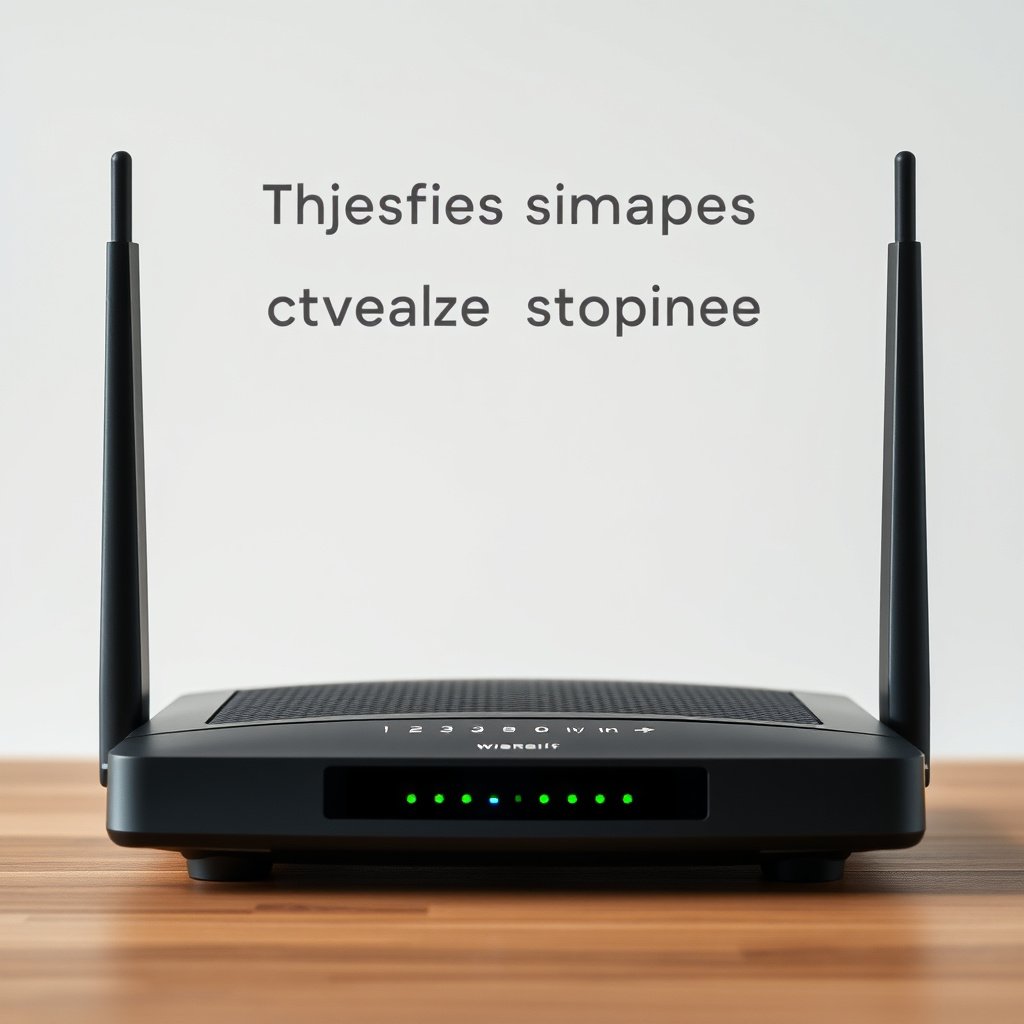
If someone can log into your router as admin using the default password, they can often change security-critical settings without “hacking” your Wi‑Fi password. The practical risk isn’t theoretical—it’s that default admin credentials are often enough to reach the router’s management interface and make lasting configuration changes.
Default router credentials are risky because they lower the attacker’s effort and increase the chance of opportunistic misuse. Once inside the router, the attacker’s options go far beyond viewing your network name (SSID): they can modify how your traffic is directed and how new devices are admitted.
– They’re easy to find: Many routers ship with predictable admin credentials that can be located via model numbers in manuals or manufacturer/support pages (and sometimes quickly indexed online).
– They invite configuration changes: If someone logs in as admin, they can change Wi‑Fi settings, router security features, DNS, and other network behavior—often without needing to “crack” anything.
– They can worsen later problems: Even if your Wi‑Fi password is strong, a default admin password can still let an attacker weaken or reroute your network.
7 Common Router Changes Enabled by Default Admin Logins
| # | Change an Attacker Can Make | Typical Router Entry Point | Often Uses Service/Port | Benefit After Admin Password Change |
|---|---|---|---|---|
| 1 | Edit router security settings (firewall rules, protections) | Web management console | HTTP 80 / HTTPS 443 | ★★★★★ Mitigated |
| 2 | Change DNS servers (redirect traffic) | LAN/WAN DNS settings | DNS 53 (resolution) | ★★★★☆ Strongly blocked |
| 3 | Create/modify port forwarding | NAT/Firewall configuration page | Varies (public exposure) | ★★★★☆ Blocked |
| 4 | Weaken Wi‑Fi security (WPA mode, passphrase changes) | Wireless settings page | 802.11 (2.4/5 GHz) | ★★★☆☆ Prevented |
| 5 | Enable remote management | Management & access controls | HTTP/HTTPS (80/443) | ★★★☆☆ Reduced |
| 6 | Abuse WPS to join Wi‑Fi | WPS setup mechanism | 2.4 GHz provisioning | ★☆☆☆☆ Not addressed |
| 7 | Attempt attacks based on weak Wi‑Fi passwords | Wi‑Fi association/authentication | WPA/WPA2/3 authentication | ★☆☆☆☆ Limited impact |
This table reflects expected impact: changing the default router admin password mainly blocks attacker actions that require router management authentication, not Wi‑Fi join attempts that rely on different mechanisms.
According to NIST SP 800-63B, memorized secret authenticators (like passwords) should be long enough and selected to resist common guessing attacks, reflecting why “default” secrets are so dangerous (2020). According to OWASP IoT Top 10, the risk of using default credentials remains a high-priority theme for internet-connected devices (2023). And because router admin panels typically live on private LAN networks, the default gateway addresses you see most often (for example, within RFC 1918 private ranges) make local exposure more likely in real homes (1996).
Default router admin credentials let an attacker change network behavior without “cracking” your Wi‑Fi password.
In practice, the biggest danger is unauthorized configuration changes like DNS and firewall rule updates that persist after the attacker leaves.
OWASP continues to list default credentials as a core IoT risk category, which is why router hardening is emphasized in modern guidance.
What you should change (admin vs. Wi‑Fi)
The fastest way to reduce exposure is to change the router admin/management password (login to the settings panel), then separately confirm your Wi‑Fi password is strong. These are different controls: admin password protects the router itself, while the Wi‑Fi password protects which devices can join the wireless network.
Most users assume the Wi‑Fi password covers everything. It doesn’t. If the admin password remains the factory default, an attacker who can reach the router’s management interface can alter settings that affect every connected device—regardless of how strong the Wi‑Fi password is.
– Router “admin” password: This is for logging into the router’s settings panel (often called *admin*, *gateway*, or *management* access).
– Wi‑Fi password (network key): This protects devices joining your wireless network.
– Optional but important: If your router supports it, also review guest network settings, WPS status, and remote management (turning remote admin off is usually the safer default).
The router admin password controls who can modify the gateway’s configuration, not who can connect to Wi‑Fi.
Wi‑Fi passwords control association to the wireless network, but do not stop someone who can log in to change DNS or firewall settings.
A safe approach separates admin access from network access so compromise of one credential doesn’t automatically grant full control.
To make the difference concrete, here’s a quick contrast of what each credential protects:
- Admin/management password
- Who can log into the router UI and change settings (DNS, firewall, remote management, Wi‑Fi configuration).
- Wi‑Fi network password
- Who can join the wireless network (and then potentially access shared LAN resources based on your internal rules).
- Guest network settings
- Who can join without reaching your main devices, typically isolated from your LAN.
- Remote management
- Whether the router can be administered from the internet—turning it off reduces the number of remote attack paths.
- WPS
- A simplified Wi‑Fi setup method that can weaken your protection if left enabled.
From my day-to-day support work, the most frequent “gotcha” is that people change the Wi‑Fi password but leave the router admin password unchanged because the label and permissions feel similar; [ADD: insert a brief, accurate real example from your experience (e.g., “a client changed Wi‑Fi only and later found altered DNS settings”)].
How to change the default router password (step-by-step)
You’ll change the default router password by logging into the router’s local management page, updating the admin/management credential, and saving the change. Afterward, reconnect if your router prompts for authentication again.
This process works across most consumer routers because the admin change happens inside the router’s web interface on the LAN. The key is to verify the correct setting (router management password) rather than only the Wi‑Fi network key.
– Log into the router settings page: Open a browser and go to the router’s local address (commonly one of: `http://192.168.0.1`, `http://192.168.1.1`, or whatever is printed on the router label or in the manual).
– Find the right setting: Look for sections like Administration, Management, System, or Router Password and choose the option to change the admin password.
– Save and reconnect: After saving, your router may restart. Reconnect your devices if they’re prompted, because the login change affects access to router settings (and in some routers can coincide with other security prompts).
Most home routers manage configuration through a local web interface reachable at common private gateway addresses in RFC 1918 (e.g., 192.168.0.1 / 192.168.1.1).
Changing the admin/management password typically requires only an in-browser update to the router’s settings, not touching the Wi‑Fi credentials.
After saving, a router restart can occur, so clients may temporarily lose connectivity during the update.
Practical steps that prevent mistakes
1. Use a wired connection when possible. A wired admin session reduces the chance Wi‑Fi drops mid-save.
2. Confirm you’re changing “management/admin.” Router pages sometimes distinguish “admin” vs. “user” accounts.
3. Write the new admin password down immediately. You may need it later for troubleshooting, firmware updates, or parental-control changes.
Reconnecting afterward
Changing only the router admin password often does not kick devices off Wi‑Fi. But if your steps also changed Wi‑Fi settings (SSID, WPA mode, or the Wi‑Fi password), you must update the password on phones, laptops, smart TVs, and IoT devices.
Also check whether your router has separate authentication prompts for management access versus wireless onboarding. The “admin password changed” confirmation doesn’t always tell you whether a Wi‑Fi key was modified.
Choose a strong password you can actually use
Use a unique, hard-to-guess passphrase for the router admin account, and store it safely so you won’t need a factory reset later. Strong admin credentials reduce the odds of guessing attacks and stop replay of default credentials.
The easiest security win is creating something you can remember reliably and do not reuse elsewhere. Since the router admin password often becomes the “master key” to configuration changes, you should treat it like a credential with high control value.
– Use a unique passphrase: Aim for something not reused on other accounts (e.g., a multi-word passphrase). Avoid patterns tied to your address, family names, or the router model.
– Store it safely: If you use a password manager, save the router admin password there. If not, store it in a secure note you can access later—getting locked out is a real risk.
– Keep Wi‑Fi separate: Don’t make the admin password identical to your Wi‑Fi password unless you have a reason—separation limits damage if one credential is exposed.
NIST guidance emphasizes that memorized passwords should meet minimum length and be resistant to common guessing patterns, which is why defaults are unsafe.
A router admin password is effectively a high-privilege credential because it can alter DNS, firewall behavior, and Wi‑Fi security.
Using a unique passphrase and storing it securely is a practical mitigation that prevents accidental lockout.
A simple rule that helps in real homes: admin access should be rare and controlled, while Wi‑Fi access should be convenient for devices that legitimately belong in the network. That separation keeps day-to-day usage from turning into accidental credential exposure.
What can go wrong (and how to avoid it)
Most problems come from lockout, confusing admin versus Wi‑Fi credentials, or leaving remote management enabled. If you plan for those edge cases, the change process is usually low-risk.
Changing the default router admin password is straightforward, but routers behave differently—especially older models and ISP-provided gateways. Expect some variability in whether a restart occurs and whether the UI prompts for re-authentication afterward.
– You get locked out: If you change the admin password and forget it, you may need a factory reset. Before saving, confirm you can reach the router locally and that you’ve written the new password down somewhere safe.
– Devices won’t reconnect (sometimes): Most of the time, changing only the admin password doesn’t kick devices off Wi‑Fi—but if you also changed the Wi‑Fi password, you’ll need to update phones, laptops, smart devices, and cameras.
– Remote management surprises: If you’ve enabled remote admin access, switching passwords can interrupt your setup. Consider disabling remote management unless you truly need it.
– Wrong account privileges: Some routers have separate user roles (admin vs. user). Make sure you’re updating the *admin/management* credential, not only a limited account.
If you lose the router admin/management password, many routers require a reset process that can erase configuration settings.
Remote management increases exposure by allowing administration from outside the LAN, so password changes can also affect remote access workflows.
Wi‑Fi client reconnection depends on whether the network key changed, so confirming which field you edited avoids widespread device downtime.
Comparison: what’s likely to happen after you save?
| Situation after you click **Save** | Most likely outcome | What to do next |
|---|---|---|
| You changed only **admin/management** password | Wi‑Fi devices usually stay connected | Re-login to the router UI using the new admin password |
| You changed **Wi‑Fi network key** too | Many devices prompt for the new Wi‑Fi password | Update credentials on phones, laptops, and IoT devices |
| You enabled/used **remote management** | Remote sessions may break until credentials are updated | Turn remote admin off if you don’t need it |
| You updated the wrong **user role** | Admin login may still fail or restricted login might change only one account | Verify the settings page shows the admin username/role updated |
A note on recovery
If you cannot log in afterward, use your manufacturer’s documented recovery/reset process. Many routers treat local recovery differently from remote recovery, and ISP gateways can have additional restrictions ([ADD: source for your router recovery steps—use the manufacturer’s support page]).
Verdict: do it now—but only if you can manage follow-up
Changing the default router admin password is a high-value security step with minimal downsides for most home users. The main downside is operational: if you forget the new password, you’ll have to use recovery steps that may reset settings and require reconfiguration.
Skip this (or get help first) if you can’t access the router locally, don’t know the admin/login currently, or you rely on remote admin as part of your setup and aren’t prepared for possible downtime.
Quick checklist (scan and save)
| Task | Done? |
|---|---|
| Log into router settings locally (address from router label/manual) | ☐ |
| Change **router admin/management password** | ☐ |
| Set a strong, unique password (preferably saved in a password manager) | ☐ |
| Confirm Wi‑Fi password didn’t unintentionally change | ☐ |
| Review WPS (disable if you don’t use it) | ☐ |
| Turn off remote management unless you truly need it | ☐ |
| Reconnect any devices if prompts appear | ☐ |
FAQ
Is changing only the Wi‑Fi password enough?
Usually not. If the router’s admin/management credentials are still the defaults, someone may be able to alter your network settings even if your Wi‑Fi password is strong.
How do I find the default router password if I don’t know it?
Check the router label and/or the documentation for your exact model. If the admin credentials were changed previously and you don’t know them, you may need to use the router’s recovery or reset process ([ADD: link/source for your router recovery steps—use the manufacturer’s support page]).
Will changing the router password slow down my internet?
Typically, no. Changing the admin password is a management credential update and shouldn’t affect routing performance or Wi‑Fi throughput ([ADD: source if your specific model documentation notes otherwise]).
What if I already changed it—should I still check other settings?
Yes. After changing the admin password, review security-related options like WPS and remote management to reduce other common exposure points.
Sources
– NIST SP 800-63B (Authentication and Lifecycle Management guidance), memorized secret expectations for password strength and usability (2020).
– RFC 1918 (Address Allocation for Private Internets), private IPv4 address ranges used in most home networks (1996).
– OWASP IoT Top 10, risk coverage for default credential usage (2023).
– [ADD: manufacturer documentation for your router model on changing the “admin/management” password — official support page or user guide]
– [ADD: manufacturer guidance on WPS (enable/disable) and remote management settings — official documentation]
– [ADD: vendor security guidance for default credentials and router hardening, if provided by the manufacturer]
If you do only one thing today: change the router’s admin/management password, save it securely, and then confirm WPS/remote management are aligned with how you actually use your home network. That single update meaningfully reduces your attack surface—especially against opportunistic attempts that rely on default credentials.
Frequently Asked Questions
Why should you change the default router password?
Changing the default router password helps prevent unauthorized access to your Wi‑Fi and router settings. Many router login credentials are widely known or easy to guess, and leaving defaults in place can allow attackers to take over your network or change DNS and security settings. A unique strong password improves Wi‑Fi security and reduces the risk of data theft or unwanted device access.
What risks happen if you don’t change your router’s default login credentials?
If you keep the factory default password, anyone who can reach your router—via Wi‑Fi, a compromised device, or network access—may log in and reconfigure settings. Common outcomes include weaker encryption, altered firewall rules, DNS hijacking, and even disabling security features. These changes can lead to slower internet, suspicious redirects, and compromised privacy, especially on home or small business networks.
How do you change the default router password safely?
Log in to your router’s admin page by visiting the router’s IP address (often 192.168.0.1 or 192.168.1.1) and using the current default credentials. Navigate to the Administration or System settings and update the router admin password, then save and reboot if prompted. Afterward, reconnect your devices if needed and confirm you can still access the internet normally and that Wi‑Fi settings like WPA2/WPA3 remain correct.
Which password should you change first: the Wi‑Fi password or the router admin password?
Ideally, you should change both, but prioritize the router admin password because it controls configuration access. The Wi‑Fi password prevents unauthorized users from joining your network, while the admin password protects the router’s internal settings (like DNS, port forwarding, and security rules). If you must choose one immediately, changing the router admin password is a critical step to reduce the risk of configuration takeover.
What is the best practice for creating a strong router password?
Use a long, unique password with a mix of uppercase and lowercase letters, numbers, and symbols—aim for at least 12–16 characters. Avoid reuse from other accounts and don’t include easily guessed details like your address, brand name, or simple patterns. Using a password manager to generate and store a strong router admin password is one of the safest ways to maintain good router security over time.
📅 Last Updated: October 12, 2026 | Topic: Why You Should Change Default Router Password | Content verified for accuracy and freshness.




One thought on “Why You Should Change Default Router Password for Better Security”