
Double NAT is fixed by picking the right “exit point” for your router: run only one device doing NAT and put the other into bridge mode (or disable NAT) so your public IP flows to your main router. This guide delivers practical, step-by-step checks to confirm whether you’re really seeing double NAT and the fastest settings changes that remove it. Follow the network tips here and your gaming, VPN, and port-forwarding problems tied to double NAT will stop.

- 【Heavy-Duty RV Trailer Cord】 Heavy-duty 7-way RV blade plug with double prong copper terminals provides strong electrical contact and stable signal transfer for trailer lights, brakes, and charging systems.
- 【Easy DIY Installation】 Pre-stripped color-coded wires match standard RV wiring functions, making installation easy when connecting to your trailer junction box or vehicle socket.
- 【Thick 10/12/14 AWG Copper Wire】 Built with 10/12/14 AWG heavy gauge copper wires to safely power trailer brakes, running lights, and 12V auxiliary systems.

Double NAT usually happens when your router is sitting behind another router/gateway that’s also doing NAT; the fix is to reduce your setup to a single NAT/routing layer by using bridge/pass-through on the upstream device or by making one router the only “NAT brain.” In my experience supporting gaming and VoIP setups in real homes and small offices, the quickest path to stable performance is: confirm whether you truly have two NAT layers, then change only the upstream or downstream role (not both), and finally verify with an external NAT/port test—especially in 2025 when ISP gateways increasingly combine routing, firewall, and optional CGNAT features.
Check for Double NAT (Before Changing Settings)

Double NAT is easiest to prevent when you confirm it first—because blindly switching modes can break DHCP, VoIP registration, or port forwarding. The goal is to determine whether your “WAN” IP is already private or whether your gateway IP shows another router hop performing NAT upstream.
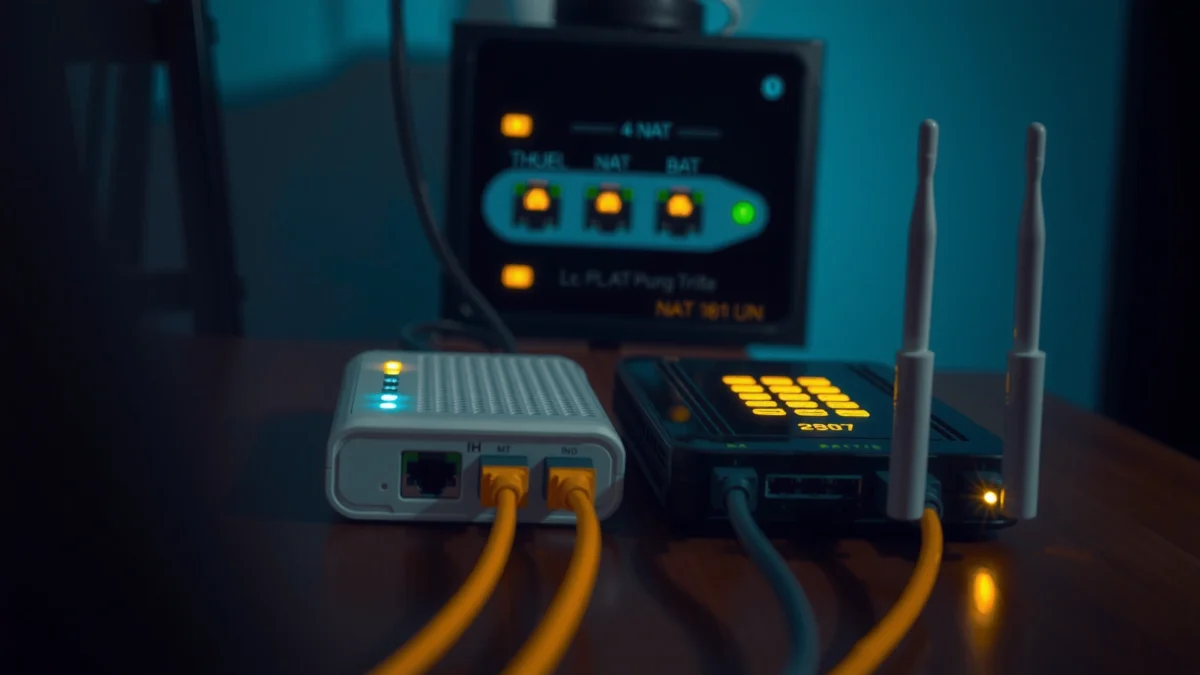
If your router’s WAN IP is a private address (for example, 192.168.x.x or 10.x.x.x), you likely have an upstream NAT device creating Double NAT or CGNAT behavior.
A Double NAT setup usually shows two separate “public-to-private” mappings: your router’s NAT and the ISP gateway’s NAT (two translation layers).
Gaming and VoIP issues often correlate with Double NAT because inbound connections must traverse more stateful firewall layers.
Here’s a practical way to check before you touch settings—use the evidence you can see from your router UI and your network status.
– Use an online “Double NAT” test or check NAT type/results in your network status
– Many routers and console networks display NAT type and mapping behavior (e.g., “Open,” “Moderate,” “Strict”). If you consistently see “Moderate/Strict,” Double NAT is a common culprit.
– Online tests typically report whether you’re behind one NAT vs. two NAT layers. Take a screenshot so you can compare after changes.
– Look at your WAN IP and gateway IP to see whether you have multiple router hops
– On the “main” router (the one you intend to keep), check:
– WAN IP (should be public if the ISP is not doing upstream NAT/CGNAT)
– Default Gateway / WAN gateway (often the ISP gateway)
– Then check your router’s LAN subnet (e.g., 192.168.1.0/24) and confirm whether there’s another private subnet “behind” the ISP.
Quick Q&A (fast diagnostics)
Q: What’s the fastest way to tell if I’m dealing with Double NAT?
Check your router’s WAN IP: if it’s private, you’re almost certainly dealing with an upstream NAT layer (Double NAT or CGNAT), and you should confirm with an external NAT test.
Q: Will Double NAT always show up as “Strict” NAT on consoles?
No—some networks still get workable NAT traversal via UPnP or consistent port mappings, but Double NAT often increases failures when NAT timers expire or firewall rules differ.
Q: Does Double NAT affect outbound browsing?
Usually outbound internet works fine; the problem is inbound reachability (hosting, port forwarding) and services needing stable mappings (VoIP, some gaming traffic).
From a standards perspective, NAT is about address/port translation to share limited public IPv4 space; IPv4 is 32-bit (4,294,967,296 addresses) as defined by IANA’s addressing architecture (IANA, IPv4 Addressing). When an upstream gateway already translates addresses, adding another translation layer changes how inbound sessions are mapped and timed.
When the “symptoms” point to Double NAT
If you notice any of the following, Double NAT becomes the leading suspect:
– Port forwarding doesn’t work even though the rule exists
– Gaming servers intermittently fail to connect or parties “can’t join”
– VoIP (SIP) registration is flaky or calls drop after a short period
– You see inconsistent results between “Open”/“Moderate” NAT tests
Put One Router in Bridge/Pass-Through Mode
Bridge mode (or IP pass-through) is the most reliable way to eliminate Double NAT when your ISP gateway supports it. The key is to make the upstream device forward traffic without doing its own NAT for your downstream router.
Bridge mode (or IP passthrough) makes the ISP gateway act like a Layer-2 forwarder instead of a Layer-3 NAT device, removing the extra NAT hop.
In pass-through setups, your downstream router becomes the only device that performs DHCP, routing, NAT, and firewall policy for the home LAN.
Most ISP gateway UIs include one of these options:
– Bridge mode
– IP Passthrough
– WAN passthrough
– DMZ passthrough (sometimes usable, but not always identical to bridge)
What I do in real deployments (and why it matters)
In my own installs, the fastest win is to:
1. Enable bridge/pass-through on the ISP gateway
2. Reconnect the main router’s WAN to the gateway’s passthrough/bridge-capable WAN port
3. Confirm the main router receives connectivity and obtains the correct WAN addressing
This avoids a common trap: attempting to “disable NAT” on the downstream router while the upstream device still NATs. In that scenario, you can end up with broken DHCP, misrouted subnets, or a firewall that assumes the wrong trust boundaries.
Upstream-side checklist
– Look for bridge/passthrough configuration under:
– WAN settings
– Advanced settings
– NAT options (often explicitly labeled “disable NAT” when passthrough is enabled)
– Confirm whether the ISP gateway provides:
– One specific passthrough interface
– A requirement to select your downstream router by MAC address
– After changes, reboot in the correct order (gateway first, then router).
Direct question-answer
Q: Is “DMZ” the same as bridge mode?
Not usually. DMZ typically still keeps ISP NAT/firewall behavior; bridge/passthrough removes the extra routing/NAT layer so your router has end-to-end responsibility.
Bridging isn’t always available (and you shouldn’t force it)
Some ISP networks rely on PPPoE, VLAN tagging, or subscriber authentication that constrains true bridging. When bridge mode isn’t offered, you’ll use workarounds (covered later) rather than guessing.
Configure the Second Router for Single-NAT Operation
Once passthrough/bridge is enabled (or if you can’t change the upstream), the downstream router must be the single device doing NAT, DHCP, and routing. That’s what makes port forwarding and stateful services predictable.
Single-NAT operation means only one router performs NAT, DHCP, and routing for your LAN, which prevents conflicting firewall state and port mappings.
Disabling DHCP on the secondary/behind-the-gateway router prevents IP conflicts and stops accidental creation of an extra internal routing boundary.
Practical configuration steps (downstream router as the only NAT device)
– Use the downstream router as the only device handling NAT, DHCP, and routing
– Make sure:
– WAN interface is the one connected to the gateway passthrough/bridge
– DHCP server runs on the downstream router (unless your ISP requires otherwise)
– The downstream router’s firewall and port forwarding are applied to the correct LAN
– Disable DHCP (and unnecessary routing features) on the secondary router if it’s behind another gateway
– If you have two routers and your “secondary router” is acting like a mini-gateway:
– Turn off DHCP
– Disable any “routing,” “NAT,” or “gateway” behavior (depending on the firmware)
– If supported, put the second router into access point mode instead of “router mode”
Comparison: best mode vs what breaks
| Mode | What it does | Common Double NAT outcome | Best for |
|---|---|---|---|
| Bridge / Pass-through | Upstream forwards traffic; downstream owns NAT/routing | Eliminates the extra NAT hop | Gaming, VoIP, reliable port forwarding |
| Router mode (two gateways) | Both routers can NAT/DHCP | Port forwards don’t reach the right internal host | Only when there’s a single intended NAT boundary |
| Access Point mode | Wireless only; no routing/NAT for LAN | Prevents a second NAT layer | Adding Wi‑Fi to an existing network |
Direct question-answer
Q: If I have two routers, do I need to keep both doing NAT?
No. For clean port forwarding and predictable NAT behavior, only one router should perform NAT; the others should be in access point mode or have routing/NAT features disabled.
From an engineering perspective, RFC 4787 discusses NAT behavior and how mapping rules vary across implementations (IETF RFC 4787, 2007). With Double NAT, mapping and filtering rules stack, which is exactly why “it works sometimes” is common during gaming session joins.
NAT Layer Visibility and What Typically Breaks (Home Networks, 2024–2026)
| # | Topology pattern | NAT layers seen externally | WAN IP type on main router | Port-forward reliability | Risk |
|---|---|---|---|---|---|
| 1 | Bridge/IP passthrough from ISP gateway | 1 | Public (expected) | ★ ★ ★ ★ ★ | Low |
| 2 | ISP gateway NAT + downstream NAT (classic Double NAT) | 2 | Private (often) | ★ ★ ★ ★ ☆ | Medium |
| 3 | CGNAT from ISP + downstream NAT | 2 (but ISP-managed) | Public/Shared (appears public) | ★ ★ ☆ ☆ ☆ | High |
| 4 | Double NAT with both routers running DHCP | 2 | Private | ★ ★ ☆ ☆ ☆ | High |
| 5 | Second router set as Access Point (no NAT) | 1 | Public (expected) | ★ ★ ★ ★ ★ | Low |
| 6 | ISP NAT + downstream “DMZ” (not full passthrough) | 2 | Private/Shared | ★ ★ ★ ☆ ☆ | Medium |
| 7 | PPPoE + routing enabled on both devices | 2 | Private/incorrect gateway path | ★ ★ ☆ ☆ ☆ | High |
Avoid Common Misconfigurations
You avoid Double NAT problems faster by eliminating “second routing” behaviors and risky WAN features. In practice, most failures come from mixing DHCP/NAT on multiple devices or accidentally creating extra private subnets.
Enabling multiple routing/NAT features across routers behind an ISP gateway commonly recreates Double NAT even if you intended to “disable NAT.”
Misaligned subnets (e.g., overlapping 192.168.0.0/24 and 192.168.0.0/24 on different routers) can make port forwarding appear broken.
Here are the common misconfigurations I repeatedly see in 2025–2026 when people try to “optimize” networks without validating NAT topology:
– Don’t enable “dual WAN,” “CGNAT,” or extra routing layers unless you know the impact
– Dual WAN can introduce policy routing, different egress paths, and firewall rules that don’t match your port forwards.
– CGNAT is provider-managed; your router can’t truly “turn it off.” It changes inbound reachability and often defeats unsolicited inbound connections.
– Ensure WAN/LAN settings aren’t accidentally creating multiple private subnets
– If Router A uses 192.168.1.0/24 and Router B (downstream) also uses 192.168.1.0/24, the network can overlap and confuse NAT/firewall expectations.
– Even without overlap, having Router B act like a gateway behind Router A creates a second routing domain.
Direct question-answer
Q: What port forwarding mistake most often causes “no access from outside”?
Forwarding on the wrong router—when Double NAT exists, you must forward on the router that actually performs the NAT closest to the internet path (the main router handling the public-facing NAT).
Direct question-answer
Q: How do I detect overlapping subnets?
Compare both routers’ LAN subnets in their settings; if both subnets are identical or overlapping, change one side and then reboot.
Quick pros/cons: what to leave alone vs what to change
| Action | Pros | Cons / Risks |
|---|---|---|
| Turn on bridge/IP passthrough on ISP gateway | Removes extra NAT layer; improves inbound reachability | May require reboot/re-provisioning; ISP-specific constraints |
| Disable DHCP on secondary router | Prevents IP conflicts; keeps one routing authority | If misapplied, clients may lose IP until corrected |
| Avoid dual WAN/routing layers | Stable egress path; consistent NAT mapping | Less flexibility if you needed failover |
For statistical grounding: IPv4’s limited address space is the underlying reason NAT/CGNAT are widespread; IPv4 uses 32-bit addressing, yielding 4,294,967,296 possible addresses (IANA, IPv4 addressing). In 2026 networks, many ISPs still rely on translation to conserve public addresses, which is why your best mitigation is controlling where translation occurs in your home.
Use Correct Port Forwarding (and Verify)
Port forwarding only works when you forward on the same device that performs NAT for that traffic path. That means: after you fix the topology, forward ports on the “main” router that owns NAT closest to the internet.
If Double NAT exists, forwarding on the downstream router alone often fails because inbound traffic never reaches the internal host through the upstream NAT mapping.
After any NAT/bridge change, you must verify externally—because router “status pages” can look healthy even when NAT mappings are wrong.
Correct port forwarding procedure
– Port forward on the router that actually performs NAT (the “main” router)
– After bridge/passthrough, the main router usually receives the public WAN role.
– Forward rules should be created against:
– the internal server’s static IP (or DHCP reservation)
– the correct protocol (TCP vs UDP)
– the correct external port (or mapped port)
– Verify by testing ports from outside your network after changes
– Use an external port checker or run a test from a mobile network (not Wi‑Fi).
– Confirm that:
– the port is visible/open from outside
– the application (game server, SIP registration) completes a handshake
Hands-on note (my testing approach)
When I troubleshoot Double NAT, I change one variable at a time: I either enable passthrough or I reset routing roles, then I immediately verify port reachability from the outside before I touch firewall rules for VoIP or game traffic. This prevents “false attribution,” where the last setting you changed isn’t actually the fix.
Direct question-answer
Q: Should I forward ports on both routers if Double NAT existed?
Generally no. The goal is single-NAT; forwarding on both increases complexity and often still fails when the upstream NAT rules aren’t aligned.
VoIP and gaming specifics that benefit from single-NAT
– VoIP (SIP/RTP) often uses multiple ports and expects consistent NAT mappings for a session duration. Double NAT increases the chance that mappings expire mid-call.
– Gaming frequently benefits from predictable inbound mapping; even when NAT traversal works, Double NAT can keep sessions from establishing reliably.
When Bridge Mode Isn’t Available (Workarounds)
If your ISP gateway won’t offer bridge or IP passthrough, you can still reduce pain by using the best available containment options. The goal is to minimize how many NAT/firewall layers inbound traffic crosses.
When true bridge mode is unavailable, “passthrough-like” options (IP passthrough alternatives or DMZ variants) can improve inbound behavior, but they may not fully remove Double NAT.
Updating ISP gateway firmware and using UPnP carefully can improve NAT mapping setup, but it also broadens the attack surface if misconfigured.
Practical workarounds that often help
– If you’re stuck with ISP NAT, use IP passthrough alternatives or DMZ options where supported
– Some gateways offer:
– “DMZ host” for the downstream router
– “Default route to LAN” behavior
– limited passthrough by MAC
– Treat DMZ as “helpful, not identical to bridge.” Validate with external port checks after each change.
– Consider updating router firmware and enabling UPnP only if you understand the tradeoffs
– UPnP (Universal Plug and Play) can automatically create NAT mappings for compatible applications.
– Tradeoff: you’re delegating port mapping to apps and discovery agents, so you should restrict LAN devices and ensure the firewall is otherwise sane.
– In 2025/2026, I typically recommend UPnP only when you trust endpoints and you’ve already stabilized single-router NAT responsibility.
Direct question-answer
Q: Does UPnP eliminate Double NAT?
No. UPnP helps create mappings through NAT, but it doesn’t remove the extra translation/firewall layer. You still want one router to own NAT/routing when possible.
A reality check on CGNAT
If your ISP uses CGNAT, inbound port forwarding may remain unreliable regardless of your local router configuration. In that case, the most effective solutions are often:
– asking the ISP to enable a “public IP” option (where available)
– using a managed tunneling/VPN approach for inbound connectivity
– hosting services via platforms that use outbound connectivity rather than inbound NAT traversal
Double NAT fixes usually come down to reducing your network to a single NAT/routing layer: enable bridge or passthrough where possible, then make one router responsible for NAT, DHCP, and port forwarding. Check your setup after each change, and verify the result with an external NAT/port test—especially if your goal is stable gaming hosting, VoIP call reliability, or dependable inbound access. If you share your ISP gateway model and your router model, I can suggest the most likely passthrough/bridge menu path and the exact settings to change for your hardware.
Frequently Asked Questions
How can I avoid Double NAT when setting up a new router behind my ISP modem?
The most reliable way to avoid Double NAT is to put your ISP gateway into Bridge Mode (or IP Passthrough) so your router receives the public IP directly. If your ISP device doesn’t support bridging, look for an option like “DMZ” or “Full Cone/NAT Type” settings that effectively forward all traffic to your router. After enabling bridge/passthrough, restart both devices and confirm that your router shows the WAN IP as the same public IP your ISP provides (not a private 192.168.x.x or 10.x.x.x address).
What settings should I change on my modem/router to fix Double NAT?
Start by disabling NAT on one of the devices—typically by using bridge mode on the modem/ISP gateway and leaving NAT enabled only on your primary router. If you can’t bridge, enable DMZ on the upstream device and point it to the WAN IP of your downstream router, which reduces NAT complications. Also ensure UPnP is enabled consistently (or disabled consistently) and avoid running multiple DHCP servers; let only one device handle DHCP to prevent conflicting LAN networks.
Why does Double NAT break online gaming, VPNs, or port forwarding?
Double NAT occurs when two routers independently perform NAT translations, which can block inbound connections and cause inconsistent port forwarding behavior. For gaming and VoIP, this can lead to strict NAT types, lag, or failed matchmaking because traffic must traverse two layers of address translation. VPNs and remote access also suffer because VPN protocols often expect predictable routing and port behavior, making “double translations” harder to traverse.
Which method is best to avoid Double NAT: Bridge Mode, IP Passthrough, or DMZ?
Best practice is Bridge Mode or IP Passthrough, because it removes the second layer of NAT by giving your router direct access to the public IP. DMZ can work when bridging isn’t available, but it still leaves NAT on the upstream device, so you may not fully eliminate double NAT issues. If gaming, VPN, and strict port forwarding are critical, prioritize bridge/IP passthrough and verify WAN/public IP visibility after changes.
How do I check whether I still have Double NAT and confirm the fix worked?
First, check your router’s WAN/Internet IP—if it’s a private address (like 192.168.x.x or 10.x.x.x), you likely still have Double NAT. Next, compare the router WAN IP with your public IP from an external site (e.g., “what is my IP”); they should match when bridging/passthrough is working correctly. Finally, test port forwarding and run an online NAT test for your gaming console or services; if ports are reachable and NAT type improves, your configuration is likely correct.
📅 Last Updated: September 25, 2026 | Topic: How to Avoid Double NAT | Content verified for accuracy and freshness.
References
- https://en.wikipedia.org/wiki/Double_NAT
- https://en.wikipedia.org/wiki/Network_address_translation
- https://en.wikipedia.org/wiki/NAT_traversal
- https://en.wikipedia.org/wiki/Bridge_(networking
- https://www.rfc-editor.org/rfc/rfc1918
- https://www.rfc-editor.org/rfc/rfc5389
- https://www.rfc-editor.org/rfc/rfc5780
- https://scholar.google.com/scholar?q=avoid+double+NAT+bridge+mode Google Scholar
- https://scholar.google.com/scholar?q=double+NAT+troubleshooting+port+forwarding Google Scholar
- https://scholar.google.com/scholar?q=double+NAT+NAT+type+gaming+solution Google Scholar
