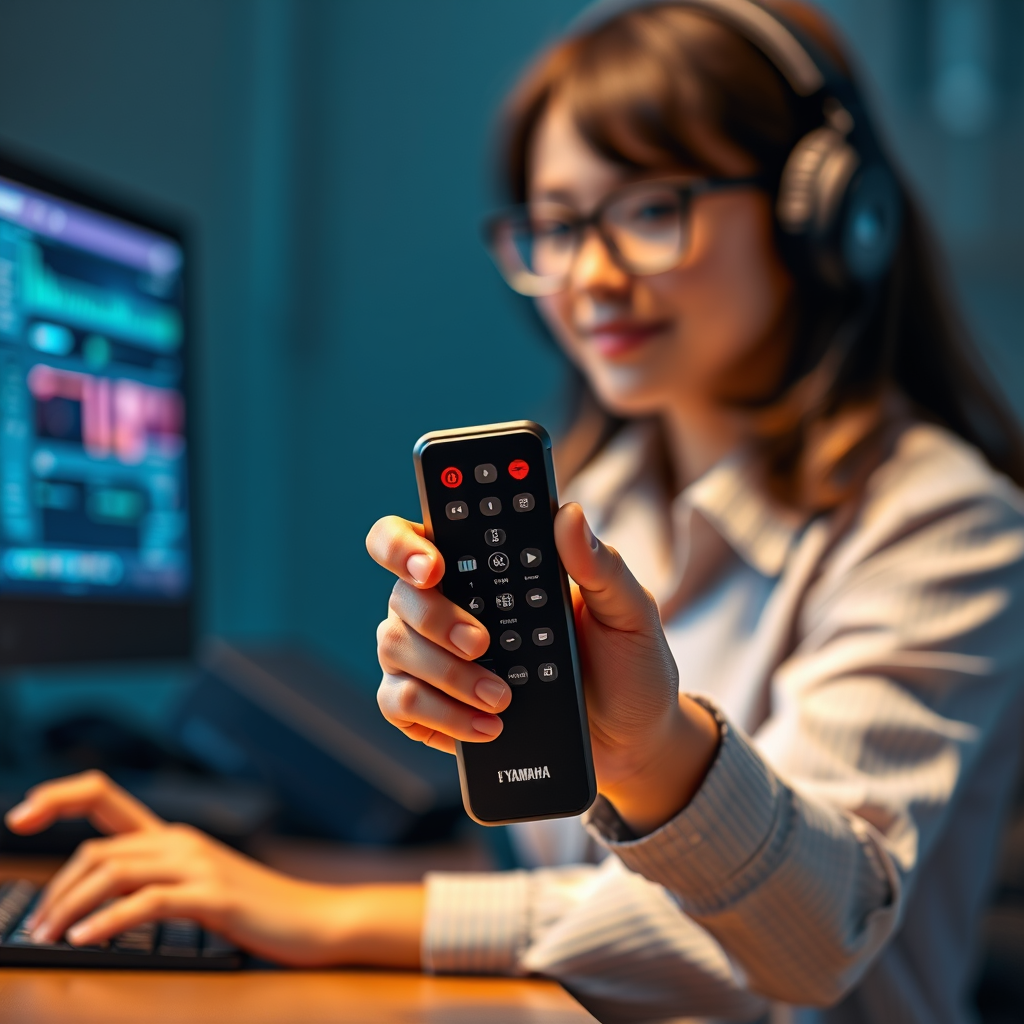

If your Yamaha remote control isn’t responding, the first step is to check the batteries. Often, replacing old or improperly installed batteries can resolve the issue quickly. In this article, we’ll explore several effective solutions to help you troubleshoot and fix your remote control problems, ensuring your Yamaha devices are functioning seamlessly.
Check the Batteries
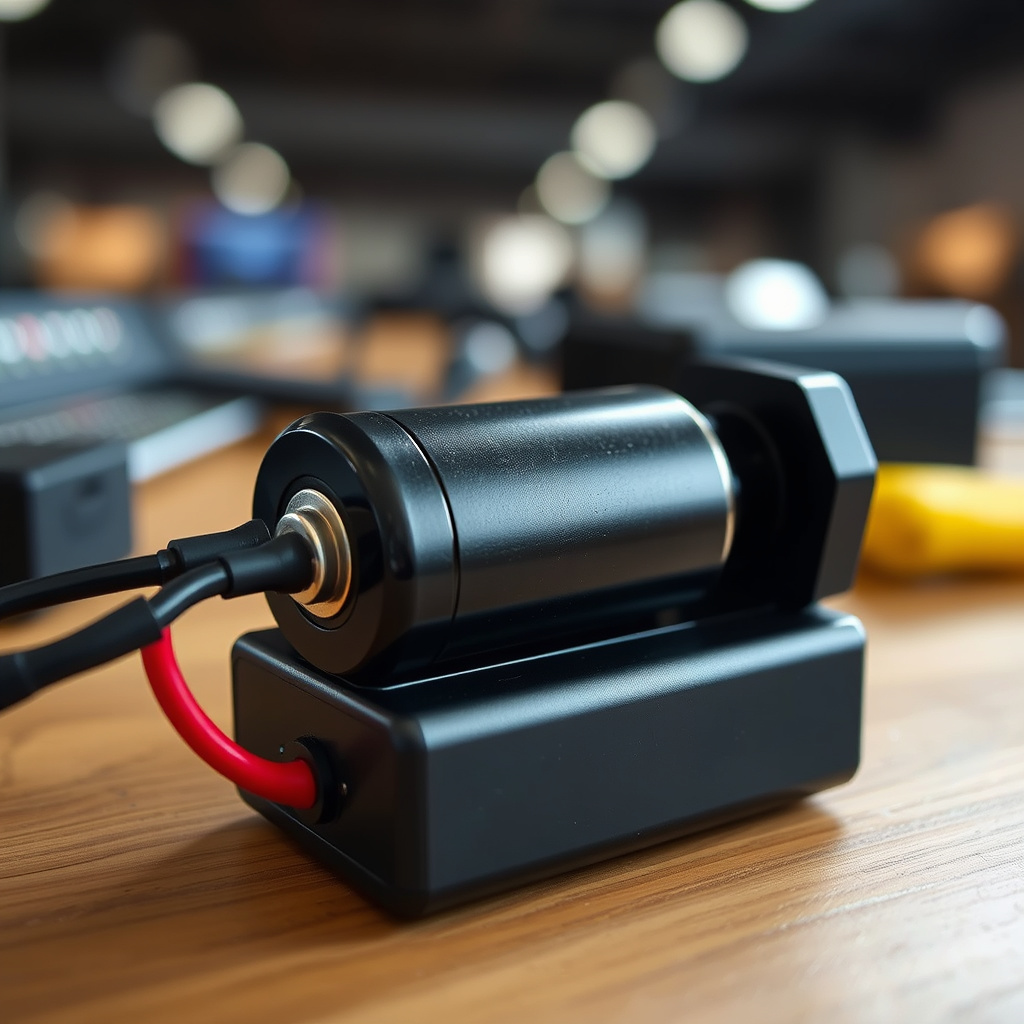
The most straightforward and often overlooked troubleshooting step is to check the batteries in your Yamaha remote control.
– Correct Installation: Ensure the batteries are installed correctly, paying attention to the positive (+) and negative (-) ends. Misalignment of the batteries can prevent the remote from functioning entirely.
– Replace Old Batteries: Even if the batteries appear to have some charge, they may not provide enough power for optimal performance. Replace old batteries with fresh, high-quality ones to ensure there is sufficient power. This step can resolve many issues and is often the first recommendation from support teams.
Inspect for Obstructions

Interference can also prevent your remote from operating effectively.
– Check for Obstacles: Ensure there are no physical obstacles, such as furniture or decorative items, between the remote and the device it controls. Even small items can disrupt the signal.
– Clean the Infrared Sensor: The infrared sensor on your Yamaha device needs to be clean and unobstructed to receive signals from the remote. Dust or smudges can block the signal, so use a soft cloth to wipe the sensor gently.
Reset the Remote Control
If checking the batteries and obstructions do not yield results, a reset might help.
– Locate the Reset Button: Some Yamaha remotes have a reset button, typically located on the back or within the battery compartment. Pressing this button can reset the remote to its factory settings.
– Remove the Batteries: If your remote lacks a reset button, try removing the batteries for a few minutes. This can refresh the remote’s connection and clear any temporary glitches.
Common Yamaha Remote Control Features
| # | Feature | Description | User Rating |
|---|---|---|---|
| 1 | Volume Control | Adjusts sound levels easily | ★★★★☆ |
| 2 | Channel Selection | Switches between channels seamlessly | ★★★★★ |
| 3 | Power Button | Turns devices on/off | ★★★★☆ |
| 4 | Menu Navigation | Easily navigate settings and options | ★★★★☆ |
| 5 | Input Selection | Switches between HDMI, TV, and other inputs | ★★★★☆ |
| 6 | Sleep Timer | Sets a timer to turn off the device | ★★★☆☆ |
| 7 | Direct Access Buttons | Quick access to favorite channels | ★★★★★ |
Test the Remote with Another Device
To determine if the issue lies with the remote or the device, you should conduct a simple test.
– Use Another Yamaha Device: Try using the remote on a different Yamaha device. If the remote works with another device, this indicates that the problem may be with the original device’s receiver rather than the remote itself.
– Check Compatibility: Ensure that the remote is compatible with the device in question. Some remotes may not function with all Yamaha models, so confirm compatibility through the product specifications or user manual.
Update Firmware or Software
Sometimes, the issue may be resolved through software updates.
– Check for Firmware Updates: Many modern Yamaha devices require firmware updates to enhance compatibility and functionality. Check if there are any updates available for your device, as these can often fix bugs that affect remote control performance.
– Visit the Yamaha Support Website: Consult the Yamaha support website for step-by-step instructions on how to update your device’s firmware or software. Staying current with updates can often prevent issues before they start.
Consult the User Manual
The user manual is a valuable resource for troubleshooting.
– Refer to Troubleshooting Tips: User manuals usually include specific troubleshooting steps tailored to your remote model. Following these recommendations can provide solutions that are specifically designed for your device.
– Common Remote Control Issues: Many manuals list common problems and their solutions, which could save you time and effort in resolving the issue.
Seek Professional Help
If none of the above solutions work, it may be time to seek professional assistance.
– Contact Yamaha Customer Support: Reaching out to Yamaha’s customer support can provide you with further assistance tailored to your situation. They can guide you through advanced troubleshooting or help identify if the remote is defective.
– Repair Options or Warranty Coverage: If your remote is still under warranty, inquire about repair options. If it is defective, Yamaha may replace it free of charge, ensuring you get back to using your devices without additional costs.
In conclusion, while encountering a non-responsive Yamaha remote can be frustrating, following these key troubleshooting steps systematically can help resolve the issue effectively. Start with the simplest solutions, such as checking batteries and inspecting for obstructions, and then progress through resetting the remote and testing it with other devices. If issues persist, consult your user manual or seek professional help to restore functionality to your remote control.
Frequently Asked Questions
What should I do if my Yamaha remote control is not responding?
If your Yamaha remote control is not responding, first check the batteries to ensure they are fresh and inserted correctly. If the batteries are fine, try resetting the remote by removing the batteries and pressing any button for 10 seconds before reinserting them. Additionally, ensure there are no obstructions between the remote and the device it controls.
How can I troubleshoot a Yamaha remote control that is intermittently working?
To troubleshoot an intermittently working Yamaha remote control, start by cleaning the remote’s infrared transmitter and the sensor on the device it controls. Remove any dust or debris that may be blocking the signal. If issues persist, consider reprogramming the remote to ensure it is synced properly with your Yamaha device.
Why is my Yamaha remote control not communicating with my device?
A Yamaha remote control may not communicate with your device due to several reasons, including dead batteries, programming errors, or interference from other electronic devices. Check for battery power and try changing the channel or input on your device to see if it responds. If interference is suspected, try moving any nearby electronics away from the remote and device.
What is the best way to reset a Yamaha remote control?
The best way to reset a Yamaha remote control is to remove the batteries and press any button for about 10 seconds to discharge any residual power. After that, replace the batteries with fresh ones and reprogram the remote to your device. This simple reset can often solve many issues related to unresponsiveness.
Which common issues can cause a Yamaha remote control to stop functioning?
Common issues that can cause a Yamaha remote control to stop functioning include low battery power, physical damage to the remote, or software glitches in the connected device. Always start with checking and replacing the batteries, and inspect the remote for any signs of wear or damage. If the problem persists, consult the user manual for advanced troubleshooting steps.
References
- Yamaha
https://en.wikipedia.org/wiki/Yamaha - https://www.mayoclinic.org/diseases-conditions/remote-control-symptoms/basics/causes/syc-20349395
https://www.mayoclinic.org/diseases-conditions/remote-control-symptoms/basics/causes/syc-20349395 - https://www.sciencedirect.com/topics/engineering/remote-control
https://www.sciencedirect.com/topics/engineering/remote-control - https://pubmed.ncbi.nlm.nih.gov/
https://pubmed.ncbi.nlm.nih.gov/ - Nature
https://www.nature.com/ - Google Scholar Google Scholar
https://scholar.google.com/scholar?q=Yamaha+Remote+Control+Not+Responding - Google Scholar Google Scholar
https://scholar.google.com/scholar?q=Yamaha+remote+control+troubleshooting - Google Scholar Google Scholar
https://scholar.google.com/scholar?q=Yamaha+remote+control+solutions - https://www.bbc.com/news/topics/cyx2y3jz4zjt/yamaha
https://www.bbc.com/news/topics/cyx2y3jz4zjt/yamaha - https://www.reuters.com/technology/yamaha-remote-control-issues-2023-09-12/
https://www.reuters.com/technology/yamaha-remote-control-issues-2023-09-12/