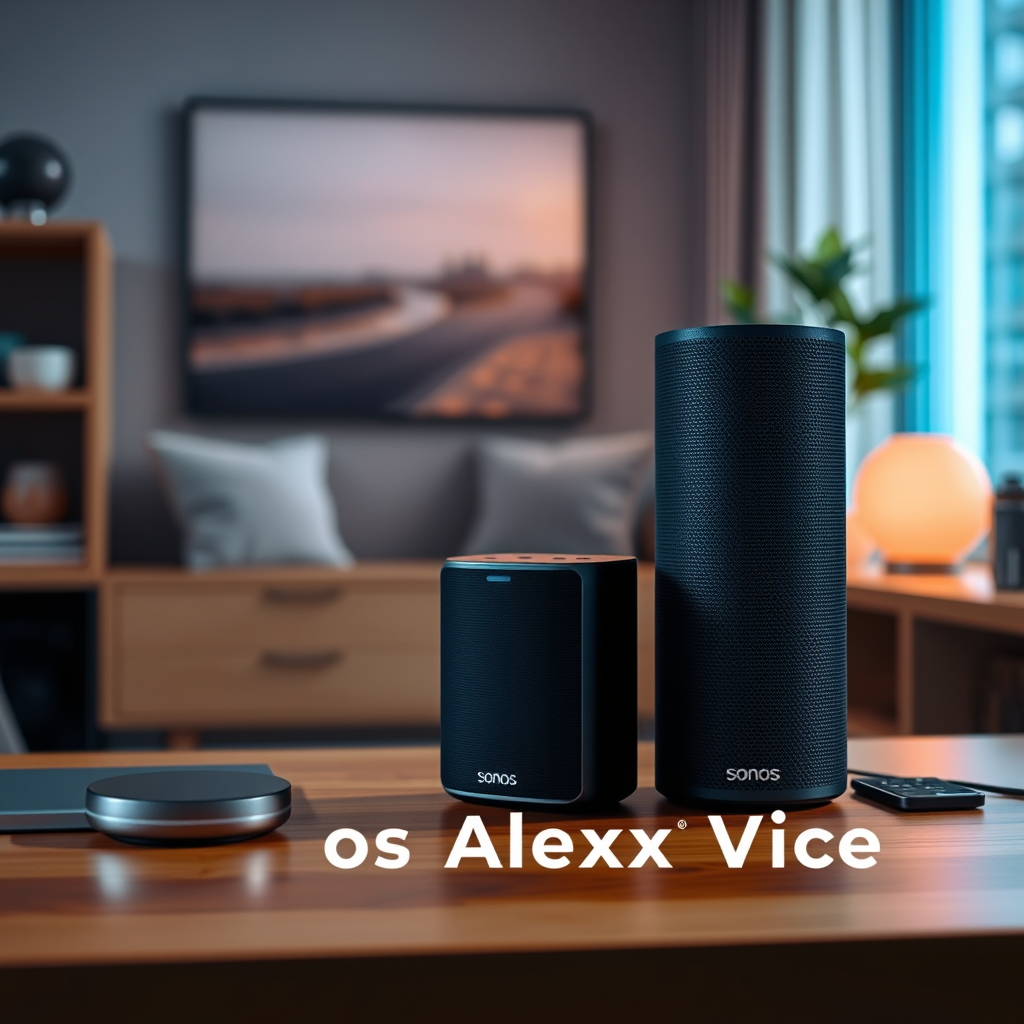
If you’re experiencing issues with your Sonos device not responding to Alexa voice commands, you’re not alone. This blog post will guide you through several essential troubleshooting steps to restore seamless functionality between your Sonos system and Alexa. By following these steps, you can quickly pinpoint the problem and get back to enjoying your favorite music and podcasts.




Check Your Wi-Fi Connection

The first step in resolving any voice control issues is to ensure that both your Sonos speaker and Alexa device are connected to the same Wi-Fi network. This is crucial, as voice commands rely on a stable internet connection to communicate effectively. Here are some specific actions to take:
– Verify Network Connection: Open the Sonos app and confirm that your speaker is online. Similarly, check the Alexa app to ensure that your Alexa device is also connected to the same network.
– Restart Your Router: Sometimes, connectivity issues can stem from your router. Restarting it can refresh your network connection, potentially resolving any disruptions affecting your devices. Unplug your router for about 30 seconds, then plug it back in and wait for it to fully reboot.
Update Software and Firmware

Keeping your devices updated is essential for maintaining optimal performance. Software updates can fix bugs, improve compatibility, and enhance the overall user experience. Follow these steps to ensure your devices are up to date:
– Check for Sonos App Updates: Open the Sonos app on your smartphone or tablet and navigate to the settings. Look for any available updates and install them.
– Update Your Alexa Device: Alexa devices typically update automatically, but you can manually check for updates by saying, “Alexa, check for software updates.” Ensure your device is connected to Wi-Fi during this process.
Re-link Sonos and Alexa Accounts
If your Sonos and Alexa accounts are not properly linked, voice commands may not function correctly. Re-linking these accounts can often resolve integration issues. Here’s how to do it:
– Unlink the Sonos Account: Open the Alexa app, go to “Skills & Games,” and find the Sonos skill. Select it and choose the option to unlink your account.
– Re-link the Account: After unlinking, follow the prompts in the Alexa app to re-link your Sonos account. This process refreshes the connection and can solve many issues related to voice control.
Adjust Voice Training Settings
Alexa’s ability to recognize your voice commands can be significantly enhanced through voice training. This feature allows Alexa to learn your voice better, which can improve responsiveness. Here’s how to adjust these settings:
– Enable Voice Training: In the Alexa app, go to “Settings,” select “Voice Training,” and follow the prompts. You will be asked to repeat several phrases, which helps Alexa understand your voice patterns and speech nuances better.
– Practice with Commands: Use common commands like “Alexa, play music on Sonos,” or “Alexa, pause.” This practice helps Alexa to become more familiar with your voice and improve recognition.
Resetting Devices
If you’ve tried all the above steps and still experience issues, a factory reset might be necessary. This option should be considered a last resort, as it will erase all settings and configurations. Here’s how to perform a reset:
– Factory Reset Your Sonos Speaker: To reset your Sonos speaker, unplug it from power, then press and hold the Connect button while plugging it back in. Continue holding the button until the LED light flashes orange and white. This indicates the speaker is resetting.
– Reconfigure Your Device: After resetting, set up your Sonos speaker again through the Sonos app. Follow the prompts carefully to ensure it’s linked correctly with Alexa.
Troubleshooting Common Commands
Familiarity with supported voice commands is essential for effective interaction with your Sonos and Alexa devices. Here are some common commands you can use:
– Play Music: “Alexa, play [artist/album/song] on Sonos.”
– Adjust Volume: “Alexa, set the volume to [level] on Sonos.”
– Pause/Resume Playback: “Alexa, pause” or “Alexa, resume.”
To get a comprehensive list of supported commands, check the Alexa app, which provides updates and new features regularly.
Common Voice Commands for Sonos with Alexa
| # | Command | Functionality | Effectiveness |
|---|---|---|---|
| 1 | Play Music | Starts playback of requested music | High |
| 2 | Pause Music | Pauses current playback | High |
| 3 | Adjust Volume | Changes the volume level | Medium |
| 4 | Skip Track | Skips to the next track in the queue | High |
| 5 | Stop Music | Stops playback entirely | Low |
| 6 | Play Playlist | Starts playback of the specified playlist | High |
| 7 | Repeat Track | Replays the current track | Medium |
Contact Support
If you’ve tried all the above steps and your Sonos Alexa voice control issues persist, it may be time to seek expert assistance. Both Sonos and Amazon offer customer support that is equipped to handle a variety of technical issues. Here are the steps to take:
– Gather Information: Before contacting support, compile relevant details regarding your setup, including device models, software versions, and a description of the issue.
– Reach Out: Use the Sonos support website or the Amazon Alexa help page to find the appropriate contact method. You can usually choose between live chat, email, or phone support.
– Follow Up: If you don’t receive a solution immediately, don’t hesitate to follow up. Persistence can often lead to quicker resolutions.
In conclusion, troubleshooting Sonos Alexa voice control issues involves checking basic connectivity, updating software, re-linking accounts, adjusting settings, and, if necessary, resetting devices. Familiarizing yourself with common commands can also enhance your user experience. If issues persist after these steps, reaching out to customer support is the best course of action. By following this guidance, you can restore the seamless audio experience that Sonos and Alexa promise.
Frequently Asked Questions
What are the common reasons for Sonos Alexa voice control not working?
Common reasons for Sonos Alexa voice control issues include poor Wi-Fi connectivity, outdated software on either the Sonos or Alexa device, and incorrect settings in the Alexa app. Additionally, if the microphone is muted on your Sonos speaker, it will not respond to voice commands. Ensuring your devices are updated and connected to a stable network can help resolve these issues.
How can I troubleshoot Sonos Alexa voice control problems?
To troubleshoot Sonos Alexa voice control problems, start by checking your Wi-Fi connection and ensuring both devices are on the same network. Next, reboot both the Sonos speaker and the Alexa device, and check for software updates in the Sonos and Alexa apps. If problems persist, unlink and relink your Sonos account in the Alexa app for a fresh connection.
Why is my Sonos speaker not responding to Alexa commands?
Your Sonos speaker may not respond to Alexa commands due to various factors such as a muted microphone, network issues, or incorrect voice settings. Ensure that the microphone on your Sonos speaker is unmuted and that the Sonos app is properly configured to enable Alexa voice control. Additionally, check if your Alexa device can respond to other commands to rule out broader connectivity issues.
What is the best way to improve Sonos Alexa voice control performance?
The best way to improve Sonos Alexa voice control performance is to ensure a strong Wi-Fi signal by placing your router closer to the Sonos speaker or using a Wi-Fi extender. Regularly updating both the Sonos and Alexa apps can also enhance performance. Additionally, training Alexa to recognize your voice and minimizing background noise can significantly improve responsiveness.
Which settings should I check if Sonos Alexa voice control is not functioning?
If Sonos Alexa voice control is not functioning, check the settings in both the Sonos app and the Alexa app. Make sure that Alexa is enabled for your Sonos device, the microphone is not muted, and that voice recognition settings are properly configured. Also, verify that your devices are linked correctly in the Alexa app, as any disconnection can cause functionality issues.
References
- https://www.wikiwand.com/en/Sonos
https://www.wikiwand.com/en/Sonos - https://www.lifewire.com/how-to-fix-sonos-alexa-voice-control-4175247
https://www.lifewire.com/how-to-fix-sonos-alexa-voice-control-4175247 - Google Scholar Google Scholar
https://scholar.google.com/scholar?q=Sonos+Alexa+Voice+Control+Issues - Google Scholar Google Scholar
https://scholar.google.com/scholar?q=troubleshooting+Sonos+Alexa+voice+control - Google Scholar Google Scholar
https://scholar.google.com/scholar?q=Sonos+Alexa+integration+problems - Google Scholar Google Scholar
https://scholar.google.com/scholar?q=How+to+Solve+Sonos+Alexa+Voice+Control+Issues - How to Solve Sonos Alexa Voice Control Issues – Search results
https://en.wikipedia.org/wiki/Special:Search?search=How+to+Solve+Sonos+Alexa+Voice+Control+Issues - https://www.ncbi.nlm.nih.gov/search/research-articles/?term=How+to+Solve+Sonos+Alexa+Voice+Control+Issues
https://www.ncbi.nlm.nih.gov/search/research-articles/?term=How+to+Solve+Sonos+Alexa+Voice+Control+Issues




2 thoughts on “How to Fix Sonos Alexa Voice Control Issues”