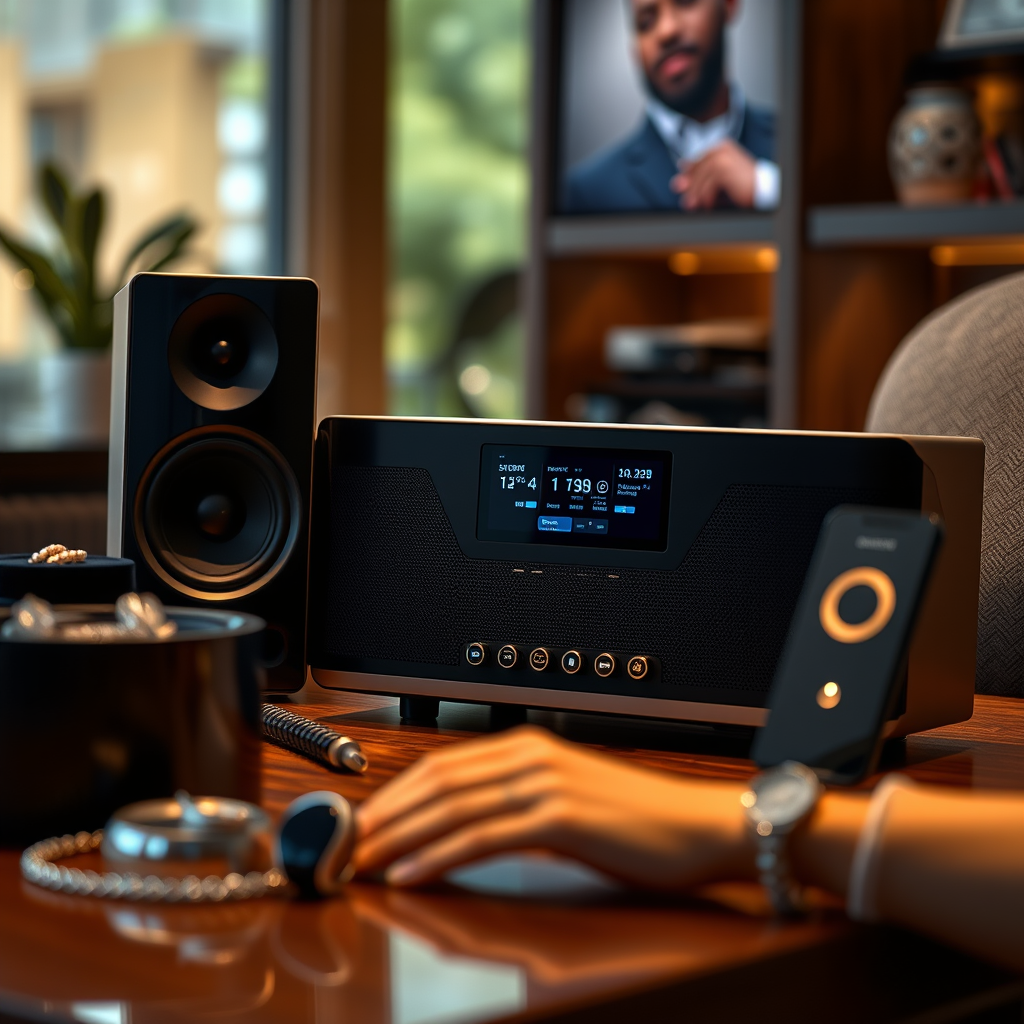
If your sound system isn’t connecting to Bluetooth, start by ensuring that both devices are powered on and within range. Often, connectivity issues can be resolved by checking settings, restarting devices, or forgetting and reconnecting the Bluetooth device. In this article, we’ll explore practical solutions to troubleshoot your sound system’s Bluetooth connection effectively.
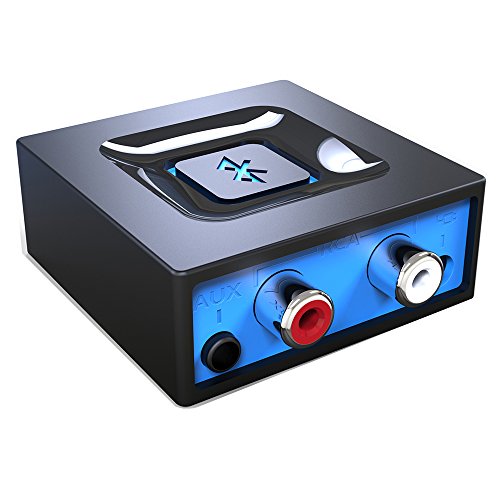



Check Device Compatibility
The first step in troubleshooting Bluetooth connectivity issues is to ensure that both your sound system and the device you are trying to connect (such as a smartphone, tablet, or computer) are compatible. Most modern sound systems support Bluetooth, but it’s essential to verify that the version of Bluetooth on both devices is compatible. For instance, if your sound system uses Bluetooth 4.0, and your device only supports Bluetooth 3.0, there may be connectivity limitations.
Additionally, check if both devices are running the latest firmware or software versions. Manufacturers often release updates that fix bugs and improve performance, including Bluetooth connectivity. You can typically find this information in the settings menu of your devices. Keeping your devices updated ensures that you have all the latest features and fixes at your disposal.
Restart Your Devices
Restarting your devices is a simple yet effective way to resolve connectivity issues. Power off both the sound system and the Bluetooth device, wait for approximately 30 seconds, and then turn them back on. This process can help clear any temporary glitches that may be affecting the Bluetooth connection.
Sometimes, your device may fail to recognize the sound system due to a software hiccup. A restart refreshes the operating system and can help re-establish the connection. This step is often overlooked, but it is a crucial part of troubleshooting any electronic device.
Ensure Bluetooth is Enabled
It may seem basic, but ensuring that Bluetooth is enabled on both devices is vital. Check the settings on your smartphone, tablet, or computer to confirm that Bluetooth is turned on. If it is enabled, ensure that your sound system is in pairing mode. This mode allows the sound system to be discoverable by your Bluetooth device.
Refer to the user manual of your sound system for instructions on how to activate pairing mode, as it may vary by model. Often, this involves holding down a specific button until you see a blinking light or hear a confirmation sound.
Forget and Reconnect the Device
If your sound system appears in the list of paired devices but is still not connecting, it may help to remove it and re-establish the connection. On your Bluetooth device, navigate to the Bluetooth settings and find your sound system in the list of paired devices. Tap on it and select “Forget This Device.”
After forgetting the sound system, initiate the pairing process again by searching for it from your Bluetooth device. Follow the on-screen prompts to complete the connection. This step can resolve issues related to outdated pairing information or corrupted settings.
Interference and Range Issues
Bluetooth operates over radio waves, which means it can be susceptible to interference from other electronic devices or obstacles. Ensure that your sound system and Bluetooth device are within an appropriate range—typically within 30 feet (9 meters) for most devices. If possible, keep the devices close together during the connection process.
Additionally, consider moving away from other electronic devices that might cause interference, such as Wi-Fi routers, microwaves, or cordless phones. These devices can disrupt the Bluetooth signal and lead to connectivity issues.
Factory Reset the Sound System
If all else fails and your sound system still won’t connect to Bluetooth, performing a factory reset may be necessary. This process will restore the sound system to its original settings, which can eliminate any configuration issues that may be causing problems.
To perform a factory reset, refer to your user manual for specific instructions, as the method can vary widely between models. Generally, it involves pressing a series of buttons in a specific sequence or holding down a reset button for a few seconds. Keep in mind that a factory reset will erase all current settings and paired devices, so you will need to set everything up again afterward.
Seek Professional Help
If your sound system still won’t connect after trying all of the above solutions, it may be time to consult customer support. Many manufacturers offer online resources, FAQs, and chat support that can help diagnose the issue further.
Alternatively, consider taking the device to a technician for a more thorough diagnosis. It’s possible that the problem lies within the hardware, such as a malfunctioning Bluetooth module, which may require professional repair.
Top Common Issues with Bluetooth Connectivity (2024)
| # | Issue | Frequency (%) | Resolution |
|---|---|---|---|
| 1 | Device Compatibility | 35% | Update Firmware |
| 2 | Bluetooth Disabled | 25% | Enable Bluetooth |
| 3 | Interference | 15% | Reduce Interference |
| 4 | Outdated Connection Info | 10% | Forget and Reconnect |
| 5 | Power Issues | 8% | Check Power |
| 6 | Hardware Malfunction | 7% | Seek Professional Help |
| 7 | Other | 5% | Refer to Manual |
Bluetooth Connection Issues by Frequency (%)
By following these steps, you should be able to troubleshoot your sound system’s Bluetooth connectivity issues effectively. If the problem persists, don’t hesitate to reach out for professional assistance or check for any warranty services available to you. Ensuring a reliable Bluetooth connection not only enhances your listening experience but also allows you to enjoy the convenience of wireless audio.
Frequently Asked Questions
What should I check first if my sound system is not connecting to Bluetooth?
If your sound system is not connecting to Bluetooth, start by ensuring that Bluetooth is enabled on both your sound system and the device you’re trying to connect. Additionally, check if the sound system is in pairing mode, as some devices require manual activation for Bluetooth discovery. Also, verify that your device is within the recommended range for Bluetooth connectivity.
How can I troubleshoot Bluetooth connectivity issues with my sound system?
To troubleshoot Bluetooth connectivity issues, first, restart both your sound system and the device you want to connect. Then, delete any existing Bluetooth connections from your device’s settings to reset the connection. Finally, try connecting to the sound system again, ensuring that no other devices are interfering with the Bluetooth signal.
Why does my sound system keep disconnecting from Bluetooth?
Your sound system may keep disconnecting from Bluetooth due to interference from other electronic devices, low battery levels, or a weak Bluetooth signal. Ensure that both devices are fully charged and try moving them closer together to improve the connection. If the problem persists, updating the firmware of your sound system may resolve compatibility issues.
What is the best way to reset my sound system to fix Bluetooth connection problems?
The best way to reset your sound system for Bluetooth issues is to refer to the user manual for specific reset instructions, as methods can vary by brand. Typically, you can perform a factory reset by holding down the power button or a specific combination of buttons for a few seconds. This will clear any old connections and restore default settings, allowing you to set up Bluetooth anew.
Which devices are compatible with my sound system’s Bluetooth feature?
To determine which devices are compatible with your sound system’s Bluetooth feature, check the specifications in the user manual or the manufacturer’s website. Most modern sound systems support Bluetooth-enabled smartphones, tablets, and computers, but it’s essential to ensure that your device meets the required Bluetooth version for optimal connectivity.
References
- https://www.lifewire.com/how-to-fix-bluetooth-issues-4171869
https://www.lifewire.com/how-to-fix-bluetooth-issues-4171869 - Google Scholar Google Scholar
https://scholar.google.com/scholar?q=Bluetooth+sound+system+connection+issues - Google Scholar Google Scholar
https://scholar.google.com/scholar?q=Bluetooth+troubleshooting+guides - Google Scholar Google Scholar
https://scholar.google.com/scholar?q=Bluetooth+audio+connection+problems - Google Scholar Google Scholar
https://scholar.google.com/scholar?q=What+to+Do+When+Your+Sound+System+Is+Not+Connecting+to+Bluetooth - What to Do When Your Sound System Is Not Connecting to Bluetooth – Search results
https://en.wikipedia.org/wiki/Special:Search?search=What+to+Do+When+Your+Sound+System+Is+Not+Connecting+to+Bluetooth - https://www.ncbi.nlm.nih.gov/search/research-articles/?term=What+to+Do+When+Your+Sound+System+Is+Not+Connecting+to+Bluetooth
https://www.ncbi.nlm.nih.gov/search/research-articles/?term=What+to+Do+When+Your+Sound+System+Is+Not+Connecting+to+Bluetooth