
To fix poor Wi-Fi signal affecting your wireless audio, start by identifying common sources of interference and optimizing your network settings. This guide will provide you with actionable steps to enhance your Wi-Fi performance, ensuring a seamless audio experience. With the increasing reliance on wireless audio systems for streaming music and podcasts, a strong and stable Wi-Fi connection is essential. Let’s explore the steps you can take to troubleshoot and enhance your wireless audio experience.
Identify Sources of Interference

The first step in solving poor Wi-Fi signals is to identify sources of interference that could be disrupting your connection. Physical obstructions, such as walls and furniture, can significantly impact signal strength. Thick walls, metal objects, and even large furniture pieces can block Wi-Fi signals, reducing the quality of your audio streaming.
Additionally, electronic devices can also interfere with your Wi-Fi network. Common culprits include microwaves, cordless phones, and Bluetooth devices, which often operate on similar frequencies as Wi-Fi. To minimize interference, try relocating your router away from these devices and ensure it’s placed in a position that allows for an unobstructed signal path.
Optimize Router Placement
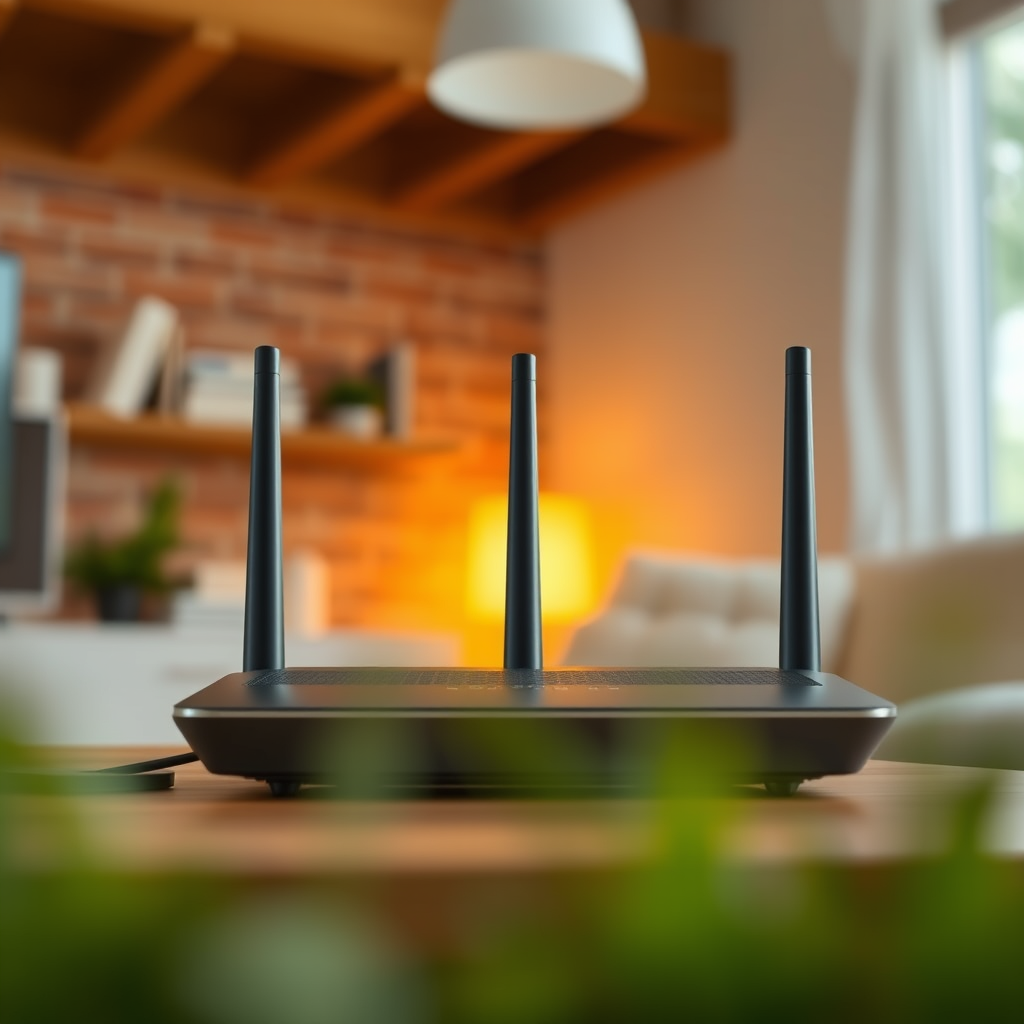
Router placement is crucial for maximizing Wi-Fi coverage and performance. Ideally, position your router in a central location within your home. This allows the signal to reach all corners of your space more effectively. If your router is tucked away in a corner or behind furniture, you may experience weak signals in certain areas.
Elevating your router can also make a difference. Place it on a shelf or a high surface to enhance its range. Avoid placing the router in closed cabinets or near metal objects, as these can create additional barriers to the signal. By optimizing your router’s position, you can significantly improve your wireless audio experience.
Update Your Equipment
Keeping your equipment updated is essential for maintaining optimal performance. First and foremost, check if your router’s firmware is up to date. Manufacturers frequently release updates that can enhance security and improve performance. Accessing the settings via your router’s IP address will typically allow you to check for updates.
If your router is several years old, it may be time to consider an upgrade. Investing in a dual-band or tri-band router can provide better handling of multiple devices, which is particularly beneficial in households where streaming audio concurrently occurs across various devices. These advanced routers can distribute bandwidth more efficiently, ensuring a reliable connection for all your wireless audio needs.
Adjust Wi-Fi Settings
Another effective strategy for improving your Wi-Fi signal is to adjust your network settings. One way to do this is by switching to a less congested Wi-Fi channel. In densely populated areas, several routers may operate on the same channel, leading to interference. Use a Wi-Fi analyzer app to determine which channels are the least crowded and adjust your router settings accordingly.
If your wireless audio devices support it, consider using the 5 GHz band instead of the 2.4 GHz band. The 5 GHz band typically offers faster speeds and is less prone to interference, making it an excellent option for high-quality audio streaming. However, keep in mind that the 5 GHz band has a shorter range, so ensure your devices are within a reasonable distance from the router.
Top Wireless Audio Devices by Frequency Support (2024)
| # | Device | 2.4 GHz Support | 5 GHz Support | Price |
|---|---|---|---|---|
| 1 | Sonos One | Yes | Yes | $199 |
| 2 | Amazon Echo | Yes | Yes | $99 |
| 3 | Google Nest Audio | Yes | No | $99 |
| 4 | Bose SoundLink | Yes | Yes | $149 |
| 5 | JBL Charge 5 | Yes | Yes | $179 |
| 6 | Ultimate Ears Boom 3 | Yes | Yes | $149 |
| 7 | Sony SRS-XB33 | Yes | Yes | $149 |
Extend Your Wi-Fi Range
If you find that your Wi-Fi signal still struggles to reach certain areas of your home, consider extending your coverage. Wi-Fi extenders and mesh network systems can significantly improve your network’s reach. Wi-Fi extenders are devices that capture your existing Wi-Fi signal and amplify it to cover dead zones.
On the other hand, a mesh network consists of multiple nodes strategically placed throughout your home, working together to provide seamless coverage. This may be particularly beneficial in larger homes or those with multiple floors. Evaluate your space for dead zones, and strategically position extenders or mesh nodes in these areas to ensure strong connectivity for your wireless audio devices.
Test Your Internet Speed
Your internet speed affects the quality of your wireless audio streaming. Use online speed test tools to determine if your current internet package meets your streaming needs. Ideally, for high-quality audio streaming, you should aim for internet speeds of at least 5 Mbps for each device. If your speed tests consistently yield low results, it may be time to consider upgrading your internet plan.
Many internet service providers offer various plans with different speed tiers. Research and select a plan that accommodates your needs, especially if multiple devices are being used simultaneously for streaming.
Average Internet Speeds by Provider (Q3 2024)
Troubleshoot Device Connections
After optimizing your network settings and equipment, it’s essential to ensure that your wireless audio devices are properly connected. A simple restart of your wireless audio devices and router can refresh the connections and resolve minor issues. This often clears up any temporary glitches that may be affecting performance.
If problems persist, consider removing and reconnecting your audio device to the network. This can help reset the connection and allow the device to re-establish a stronger link with the router. Always ensure that your wireless audio devices are within an optimal range from the router to maintain a strong connection.
In conclusion, troubleshooting and fixing poor Wi-Fi signals for your wireless audio devices involves a multi-faceted approach. By identifying sources of interference, optimizing router placement, updating equipment, adjusting Wi-Fi settings, extending range, testing internet speeds, and troubleshooting connections, you can significantly enhance your audio streaming experience. Take these actionable steps to ensure that your wireless audio system performs at its best, providing you with high-quality sound without interruptions.
Frequently Asked Questions
What are the common causes of poor Wi-Fi signal affecting wireless audio devices?
Common causes of poor Wi-Fi signal affecting wireless audio devices include physical obstructions like walls and furniture, interference from other electronic devices, and distance from the router. Additionally, outdated router firmware or using a router that doesn’t support the latest Wi-Fi standards can contribute to connectivity issues.
How can I improve the Wi-Fi signal strength for my wireless audio system?
To improve Wi-Fi signal strength for your wireless audio system, consider relocating your router to a central location, reducing physical barriers, and using Wi-Fi extenders or mesh networks. Additionally, ensuring your router is on the latest firmware and switching to a less congested Wi-Fi channel can significantly enhance your connection.
Why is my wireless audio cutting out or experiencing dropouts?
Wireless audio cutting out or experiencing dropouts is often due to weak Wi-Fi signals or interference from other devices like microwaves and cordless phones. It can also occur if your network is overloaded with too many connected devices, leading to bandwidth limitations that affect audio streaming quality.
What is the best way to test my Wi-Fi signal strength for streaming audio?
The best way to test your Wi-Fi signal strength for streaming audio is to use a Wi-Fi analyzer app, which can provide detailed insights into signal strength and interference levels. You can also perform a speed test while streaming audio to see if you’re getting adequate bandwidth for a stable connection.
Which router features should I look for to ensure optimal performance for wireless audio streaming?
When selecting a router for optimal wireless audio streaming, look for features like dual-band support, Quality of Service (QoS) settings, and MU-MIMO technology. These features help prioritize audio streaming traffic, reduce interference, and provide a more stable connection for your wireless audio devices.
References
- Wireless network
https://en.wikipedia.org/wiki/Wireless_networks - https://www.cdc.gov/niosh/topics/wifi/default.html
https://www.cdc.gov/niosh/topics/wifi/default.html - https://pubmed.ncbi.nlm.nih.gov/28143049/
https://pubmed.ncbi.nlm.nih.gov/28143049/ - https://www.nature.com/articles/s41598-020-67117-1
https://www.nature.com/articles/s41598-020-67117-1 - Google Scholar Google Scholar
https://scholar.google.com/scholar?q=troubleshoot+Wi-Fi+signal+wireless+audio - Google Scholar Google Scholar
https://scholar.google.com/scholar?q=fix+poor+Wi-Fi+signal+issues - https://www.sciencedirect.com/topics/computer-science/wireless-network-optimization
https://www.sciencedirect.com/topics/computer-science/wireless-network-optimization - https://www.bbc.com/news/technology-42001662
https://www.bbc.com/news/technology-42001662 - https://www.theguardian.com/technology/2020/jul/14/how-to-fix-your-wi-fi-problems
https://www.theguardian.com/technology/2020/jul/14/how-to-fix-your-wi-fi-problems - https://www.reuters.com/technology/how-fix-your-wi-fi-problems-2020-07-14/
https://www.reuters.com/technology/how-fix-your-wi-fi-problems-2020-07-14/