

If you’re experiencing poor HDMI ARC (Audio Return Channel) signal in your home theater system, the solution often lies in checking your connections and settings. First, ensure your HDMI cables are high-speed and compatible with ARC. Additionally, verify that your devices are properly configured to use ARC. In this article, we will explore common issues and effective troubleshooting steps to enhance your HDMI ARC experience.
Understanding HDMI ARC

HDMI ARC, or Audio Return Channel, is a feature that allows audio to travel both ways between your TV and audio device, such as a soundbar or an AV receiver. This technology simplifies the connection by reducing the need for multiple cables and enhances the overall audio experience by allowing your TV to send audio signals back to your audio system without complicated setups.
Understanding which devices support ARC is crucial for proper functionality. Most modern TVs and audio systems come equipped with this feature, but it’s essential to check the specifications of your devices to ensure they are compatible. Look for the HDMI ports labeled “ARC” or “eARC” (Enhanced Audio Return Channel), as these are specifically designed to handle audio signals.
Common Causes of Poor HDMI ARC Signal
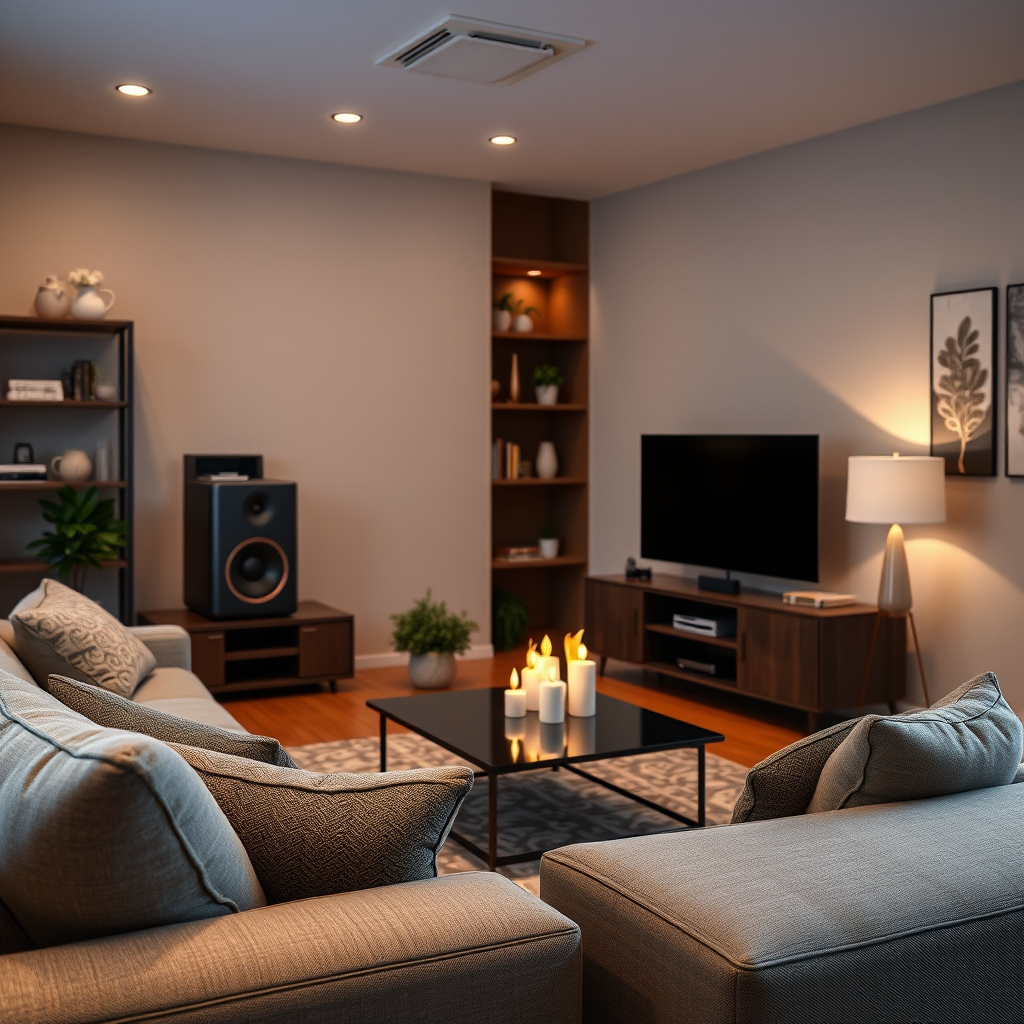
Several factors may contribute to poor HDMI ARC signal quality:
– Incompatible or Damaged HDMI Cables: Not all HDMI cables are created equal. Using standard HDMI cables instead of high-speed ones can result in signal degradation. Damaged cables can also lead to intermittent audio dropouts or no sound at all.
– Incorrect Settings: Settings on your TV or audio receiver may disrupt audio transmission. If the ARC function isn’t enabled on either device, you won’t be able to enjoy the benefits of this feature.
– Interference from Other Devices: Other electronic devices or cables located near your HDMI connections can sometimes cause interference, impacting the quality of the signal being sent.
– Firmware Issues: Outdated firmware on your devices can lead to compatibility issues, resulting in poor audio performance.
Checking Device Compatibility
To troubleshoot HDMI ARC issues effectively, start by ensuring that both your TV and audio system are ARC-enabled. Most modern TVs, soundbars, and AV receivers support ARC, but it’s always good to confirm.
Check your device manuals for specific ARC settings and compatibility. Look for mentions of ARC in the specifications and ensure that you are using the correct HDMI ports. If your devices support eARC, which offers enhanced audio formats and higher bandwidth, ensure you are using it for optimal performance.
Verifying Connections
Inspecting and reseating all HDMI cables is a vital step in troubleshooting your HDMI ARC connection. A loose or faulty connection can lead to poor signal quality.
Make sure to use HDMI ports labeled as ARC on both the TV and audio receiver. It is common for multiple HDMI ports to exist, but only select ones will support the ARC features. Checking for any visible damage on the HDMI cables is crucial; if you notice any fraying or cuts, it’s time to replace them with high-speed HDMI cables designed for ARC.
📋 HDMI Cable Compatibility Comparison Table
HDMI Cable Compatibility for ARC (2024)
| # | Cable Type | Max Bandwidth | Supported Features | Best For |
|---|---|---|---|---|
| 1 | Standard HDMI | 10.2 Gbps | 1080p, 3D | Basic use |
| 2 | High-Speed HDMI | 18 Gbps | 4K, HDR | Home theater systems |
| 3 | Premium High-Speed HDMI | 48 Gbps | 8K, Dynamic HDR | Future-proof setups |
| 4 | Ultra High-Speed HDMI | 48 Gbps | 8K, Variable Refresh Rate | High-end gaming |
| 5 | Active HDMI Cables | Up to 100 Gbps | Long-distance connections | Professional setups |
| 6 | HDMI Extenders | Varies | Extended reach | Flexible setups |
| 7 | HDMI Splitters | Varies | Multiple outputs | Versatile use |
Configuring Audio Settings
Once you have verified that your devices and connections are compatible, the next step involves configuring the audio settings on your TV and audio receiver.
On your TV, navigate to the audio settings and enable ARC. You may also need to select the appropriate audio output format, such as PCM or Bitstream, depending on your audio system’s capabilities.
Simultaneously, check your audio receiver’s settings to ensure that it is configured to receive ARC signals. Some receivers may have a dedicated HDMI ARC input that must be selected manually. Refer to your device manuals for specific guidance on these configurations.
Testing and Troubleshooting Techniques
Testing the HDMI ARC connection with different devices can help isolate the issue. If you have another HDMI ARC-compatible device, connect it to see if the problem persists. This can help determine whether the issue lies with the original device or the cable itself.
Performing a firmware update on all your devices is another essential troubleshooting technique. Manufacturers regularly release updates that can resolve bugs or compatibility issues that may affect ARC performance. Check the manufacturer’s website for the latest firmware and follow their instructions for updating.
📈 HDMI ARC Signal Quality Comparison Chart
HDMI ARC Signal Quality by Cable Type
Seeking Professional Help
If issues persist despite following the troubleshooting steps outlined above, it may be time to consider consulting the manufacturer’s support or a professional technician. These experts can provide in-depth assistance and help identify underlying issues that may not be immediately apparent.
Documenting your troubleshooting steps can be helpful when reaching out to support. Include information about the devices you are using, the connections made, and any settings you have adjusted. This information can assist technicians in diagnosing the problem more effectively.
In conclusion, troubleshooting poor HDMI ARC signals in your home theater system requires a systematic approach. Start by examining your cables and confirming device compatibility. Adjust your audio settings, test different devices, and perform firmware updates as needed. If all else fails, do not hesitate to seek professional support to ensure your home theater system delivers the high-quality audio experience it is designed for. Don’t let poor audio quality ruin your viewing experience—take action now to enhance your home entertainment setup!
Frequently Asked Questions
What are common causes of poor HDMI ARC signal in home theater systems?
Common causes of poor HDMI ARC signal include incompatible HDMI cables, incorrect settings on the TV or audio device, and outdated firmware. Ensure you are using high-speed HDMI cables, and check that both devices have ARC enabled in their settings. Additionally, consider updating the firmware to the latest version to resolve any bugs or compatibility issues.
How can I improve the HDMI ARC signal quality in my home theater setup?
To improve HDMI ARC signal quality, start by using a high-quality, high-speed HDMI cable that supports ARC. Ensure that both your TV and audio receiver have the latest firmware updates, and double-check that ARC is enabled in the settings. Additionally, try disconnecting and reconnecting the HDMI cable to reset the connection and eliminate potential interference.
Why is my audio not syncing properly when using HDMI ARC?
Audio sync issues with HDMI ARC can occur due to delays in processing signals between devices. To fix this, check the audio settings on both your TV and audio receiver for any lip-sync correction options. If necessary, adjusting the delay settings can help synchronize the audio with the video.
What should I do if my HDMI ARC connection keeps dropping?
If your HDMI ARC connection keeps dropping, start by ensuring that all connections are secure and that you’re using a compatible HDMI cable. Check if there are any settings related to CEC (Consumer Electronics Control) that might be interfering with the connection, and consider trying a different HDMI port on your TV or receiver. Resetting both devices can also help resolve persistent connection issues.
Which devices are compatible with HDMI ARC for home theater systems?
Most modern TVs, soundbars, and AV receivers support HDMI ARC, but compatibility can vary by model. Check the specifications of your devices to confirm they have HDMI ARC ports, typically labeled as “ARC.” It’s also advisable to review the user manuals for specific guidance on setting up HDMI ARC connections effectively.
References
- HDMI
https://en.wikipedia.org/wiki/HDMI#Audio_Return_Channel - https://www.sciencedirect.com/topics/engineering/high-definition-multimedia-interface
https://www.sciencedirect.com/topics/engineering/high-definition-multimedia-interface - https://www.bbc.com/news/technology-57234609
https://www.bbc.com/news/technology-57234609 - https://www.nytimes.com/2020/12/24/technology/personaltech/hdtv-hdmi-arc.html
https://www.nytimes.com/2020/12/24/technology/personaltech/hdtv-hdmi-arc.html - https://www.reuters.com/article/us-tech-hdmi-idUSKBN2A32K0
https://www.reuters.com/article/us-tech-hdmi-idUSKBN2A32K0 - https://www.theguardian.com/technology/2021/jul/14/hdmi-arc-what-is-it-and-why-do-you-need-it
https://www.theguardian.com/technology/2021/jul/14/hdmi-arc-what-is-it-and-why-do-you-need-it - Google Scholar Google Scholar
https://scholar.google.com/scholar?q=HDMI+ARC+signal+troubleshooting - Google Scholar Google Scholar
https://scholar.google.com/scholar?q=home+theater+HDMI+issues - Google Scholar Google Scholar
https://scholar.google.com/scholar?q=troubleshooting+HDMI+ARC+signal+problems - Google Scholar Google Scholar
https://scholar.google.com/scholar?q=Troubleshooting+Poor+HDMI+ARC+Signal+in+Home+Theater+Systems