
To reset a Marshall wireless speaker, simply press and hold the Bluetooth and power buttons simultaneously for about 10 seconds until you see the LED light flash. This quick action restores factory settings, helping resolve connectivity issues or other glitches. In this guide, you’ll learn more about the reset process, troubleshooting tips, and additional features of your Marshall speaker.



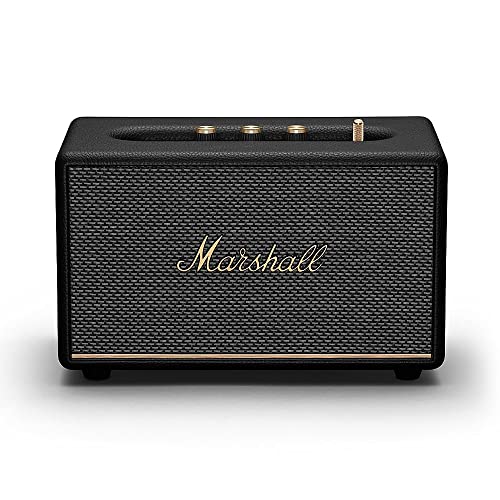
Understanding the Need to Reset
Resetting your Marshall wireless speaker can be essential when you encounter certain issues. Common triggers for a reset include persistent connectivity problems, sound distortions, or the speaker not responding to commands. These issues can arise from software glitches, firmware updates that didn’t install correctly, or conflicts with previously connected devices.
Restoring factory settings is important as it clears all saved configurations, allowing your device to start fresh. This ensures that any corrupted data is removed, which can lead to an optimal performance of your speaker. By resetting, you can resolve minor annoyances and enhance your listening experience.

Preparing for the Reset

Before proceeding with the reset, make sure your speaker is adequately charged and powered on. A low battery can interfere with the reset process and lead to incomplete operations, which could exacerbate existing issues.
If you have specific settings or connected devices you want to preserve, consider backing them up, if applicable. Some Marshall speakers allow for configuration through accompanying apps, and you can save your preferred settings there. This preparation step can save you time and help you restore your personal audio preferences afterward.
Step-by-Step Reset Process
Resetting your Marshall speaker is straightforward. Follow these detailed instructions for a successful reset:
1. Locate the Buttons: Identify the power and Bluetooth buttons on your speaker. These are usually well-marked on the control panel.
2. Press and Hold: Simultaneously press and hold both the Bluetooth and power buttons for approximately 10 seconds.
3. Watch for the LED Light: Keep an eye on the LED indicator. During the reset process, the light will flash. Once you see it flashing rapidly, release the buttons. This indicates that the reset is successful.
4. Wait for Confirmation: After a few moments, the speaker should turn off and back on, confirming that factory settings have been restored.
This process is designed to be quick and efficient, allowing you to return to enjoying your music in no time.
Top Features of Marshall Wireless Speakers
| # | Feature | Description | Rating |
|---|---|---|---|
| 1 | Bluetooth Connectivity | Easy pairing with devices | ★★★★ |
| 2 | Sound Quality | Rich bass and clear treble | ★★★★★ |
| 3 | Battery Life | Up to 20 hours of playtime | ★★★★ |
| 4 | Design | Classic Marshall aesthetic | ★★★★★ |
| 5 | Voice Assistant Integration | Compatible with major assistants | ★★★★ |
| 6 | Equalizer Settings | Customizable sound profiles | ★★★★ |
| 7 | Multi-Device Pairing | Switch between devices easily | ★★★★ |
Post-Reset Setup
After successfully resetting your speaker, it’s time to set it up again. Start by reconnecting your speaker to your devices via Bluetooth. Ensure that the Bluetooth feature is activated on the device you want to connect to. Open the Bluetooth settings and search for available devices; your Marshall speaker should appear in the list. Select it to pair.
Once connected, you may want to adjust the settings to match your preferences. Explore the equalizer options if your speaker supports it, customizing the sound to suit your listening habits, whether you prefer bass-heavy tracks or clearer vocals. Additionally, consider connecting your voice assistant for seamless integration into your smart home setup.
Troubleshooting Common Issues
Even after a reset, you might encounter some common issues. Here are a few potential problems and solutions:
1. Connectivity Problems: If the speaker fails to connect after the reset, make sure your device’s Bluetooth is turned on and that it’s within range. Restart both the speaker and your device to refresh the connection.
2. Sound Quality Issues: If you’re experiencing distorted sound, check the audio source quality. Streaming from high-quality services can significantly enhance sound clarity.
3. Battery Drain: If your speaker is not holding a charge as it should, ensure that the battery contacts are clean, and consider updating the firmware if applicable.
4. Inconsistent Performance: Regularly check for software updates via the manufacturer’s app or website, as these can resolve bugs and enhance functionality.
To maintain performance, avoid exposing your speaker to extreme temperatures or moisture, as these can cause internal damage.
Additional Features of Marshall Wireless Speakers
Marshall wireless speakers encompass a range of unique features that enhance your audio experience. Key attributes include:
– Voice Assistant Integration: Most models support integration with voice assistants like Google Assistant and Amazon Alexa, allowing you to control playback and access information hands-free.
– Customizable Equalizer Settings: The ability to tailor the sound profile means you can adjust the bass, mids, and treble according to your listening preferences, optimizing the audio for different genres.
– Multi-Device Pairing: This feature allows you to connect multiple devices simultaneously, making it easy to switch between your phone, tablet, or laptop without needing to disconnect and reconnect each time.
By leveraging these features, you can maximize the functionality and enjoyment of your Marshall speaker beyond its basic capabilities.
Tips for Long-term Care
To ensure your Marshall wireless speaker remains in optimal condition, consider the following best practices:
– Regular Cleaning: Dust and debris can accumulate on speakers, so regularly clean the exterior with a soft, dry cloth. Avoid using harsh cleaners that can damage the finish.
– Software Updates: Periodically check for firmware updates through the manufacturer’s app or website. Keeping your software up to date can enhance performance and introduce new features.
– Battery Maintenance: To prolong battery life, avoid letting your speaker discharge completely. If you won’t be using it for an extended period, store it with a partial charge.
– Safe Storage: When not in use, store your speaker in a cool, dry place away from direct sunlight. This helps prevent any potential damage from heat or humidity.
By following these guidelines, you can maintain the longevity and performance of your Marshall wireless speaker, ensuring many years of quality sound enjoyment.
Summarizing the reset process is essential for maintaining the performance of your Marshall wireless speaker. By following the steps outlined above, you can easily restore your device to its optimal state. For further assistance or to explore more about your speaker’s features, feel free to dive into the additional sections or reach out to customer support.
Frequently Asked Questions
How do I reset my Marshall wireless speaker to factory settings?
To reset your Marshall wireless speaker to factory settings, first, ensure the speaker is powered on. Press and hold the Bluetooth and Source buttons simultaneously for about 10 seconds until the LED indicator flashes amber. This process will erase all paired devices and settings, returning the speaker to its original state.
What should I do if my Marshall wireless speaker won’t connect after a reset?
If your Marshall wireless speaker won’t connect after a reset, ensure that Bluetooth is enabled on your device and that you are within range. You may also want to forget the speaker from your device’s Bluetooth settings and then attempt to reconnect. If problems persist, try resetting the speaker again or check for firmware updates that might resolve connectivity issues.
Why do I need to reset my Marshall wireless speaker?
Resetting your Marshall wireless speaker can resolve various issues such as connectivity problems, audio quality issues, or if the speaker is unresponsive. It can also help when you want to disconnect it from other devices or clear old settings before selling or giving it away.
Which buttons do I need to press to reset my Marshall wireless speaker?
To reset your Marshall wireless speaker, press and hold the Bluetooth button and the Source button together. Keep holding them for about 10 seconds until the LED light changes to amber, indicating that the reset has been successfully executed.
What are the best practices to follow before resetting my Marshall wireless speaker?
Before resetting your Marshall wireless speaker, ensure that it is fully charged or plugged in to avoid any interruptions. Also, back up any important settings or customizations, as resetting will erase all paired devices. It may be beneficial to consult the user manual for specific model instructions to ensure you’re following the correct reset procedure.
References
- https://www.marshallheadphones.com/support
https://www.marshallheadphones.com/support - https://www.lifewire.com/how-to-reset-a-marshall-bluetooth-speaker-4779328
https://www.lifewire.com/how-to-reset-a-marshall-bluetooth-speaker-4779328 - Google Scholar Google Scholar
https://scholar.google.com/scholar?q=reset+Marshall+wireless+speaker - Google Scholar Google Scholar
https://scholar.google.com/scholar?q=Marshall+speaker+troubleshooting - Google Scholar Google Scholar
https://scholar.google.com/scholar?q=how+to+reset+Bluetooth+speaker - https://www.musictech.net/guides/buyers-guide/best-bluetooth-speakers/
https://www.musictech.net/guides/buyers-guide/best-bluetooth-speakers/ - Google Scholar Google Scholar
https://scholar.google.com/scholar?q=How+to+Reset+a+Marshall+Wireless+Speaker - How to Reset a Marshall Wireless Speaker – Search results
https://en.wikipedia.org/wiki/Special:Search?search=How+to+Reset+a+Marshall+Wireless+Speaker - https://www.ncbi.nlm.nih.gov/search/research-articles/?term=How+to+Reset+a+Marshall+Wireless+Speaker
https://www.ncbi.nlm.nih.gov/search/research-articles/?term=How+to+Reset+a+Marshall+Wireless+Speaker
