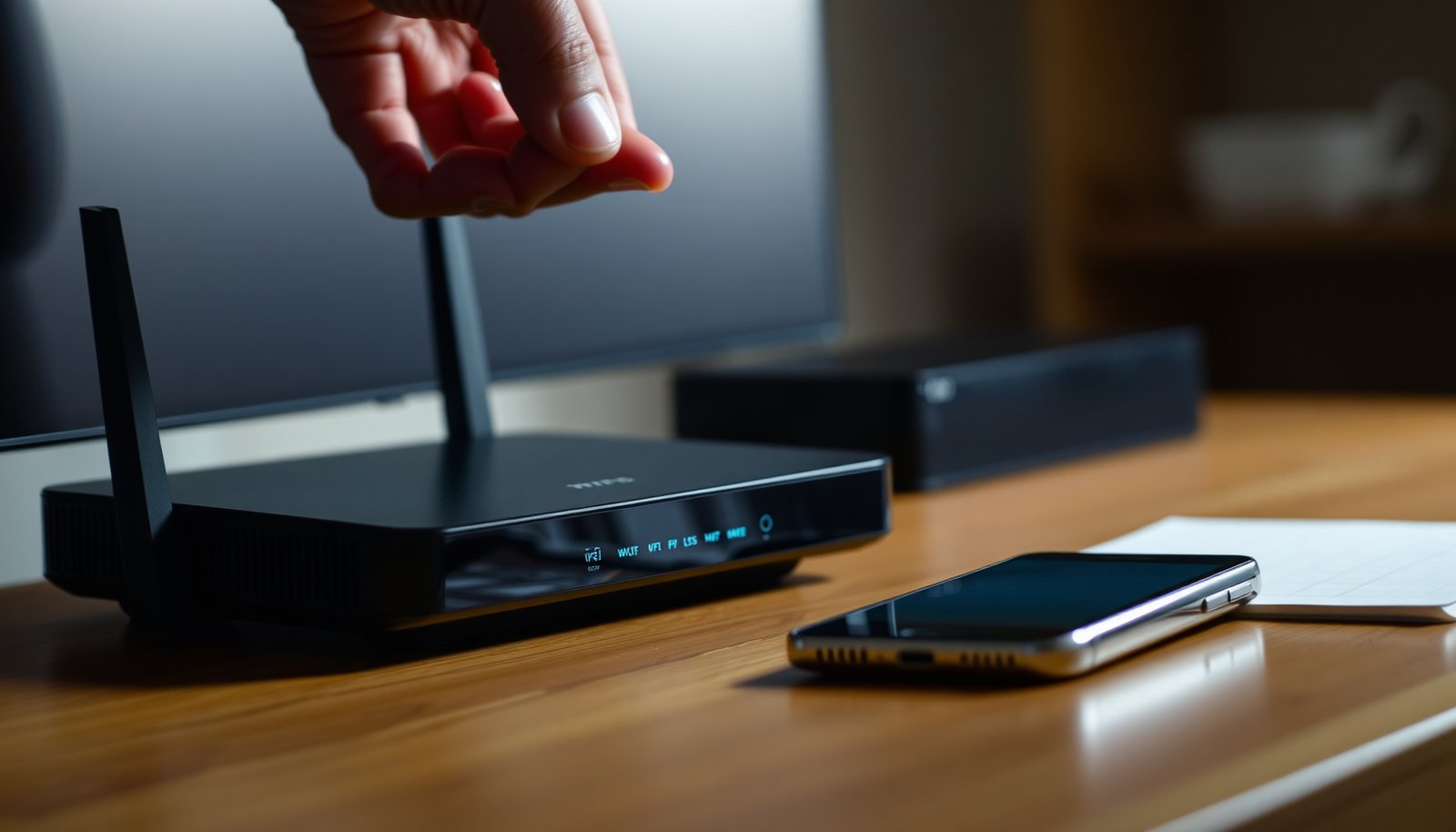
WPS pairing on a router is commonly treated as a simple convenience feature, yet the default PIN-enabled setup can expose your network unnecessarily. Most people think the best WPS setting is the one that connects fastest, but we judge options by authentication strength, exposure time, and how easily you can disable WPS after setup. The standout recommendation is push-button WPS with PIN disabled, paired with modern WPA2 or WPA3 security, so you get fast onboarding without leaving the door open.




To keep your Wi‑Fi secure while still enabling “fast pairing,” set WPS to Off by default, use Push Button (not PIN) only when you’re actively pairing, and ensure your Wi‑Fi security is WPA2‑AES or WPA3. This guide shows the safest WPS router settings to apply—along with the tradeoffs that can affect device setup.
If you’re trying to connect smart TVs, printers, or IoT devices without entering a password every time, these settings apply. They’re also useful when you’ve inherited a router with WPS left on—or when you want a fast pairing workflow without widening your network’s attack surface. As of 2026, attackers still target WPS PIN behaviors more than Push Button flows, so the safest approach is time-limited WPS with strong Wi‑Fi encryption.
Disable WPS by default for the safest setup. If you need WPS to connect a device quickly, use the Push Button method (not the PIN), keep WPS active only briefly, and make sure your Wi‑Fi uses WPA2-AES or WPA3. This guide walks you through the safest WPS settings you can apply and what to watch out for.
Choose safe WPS on/off settings
The safest default is simple: keep WPS Off unless you’re in the middle of pairing a specific device. WPS is designed to reduce manual setup, but any “always on” WPS state keeps an onboarding pathway available even when you’re not using it.
In practice, “WPS On” means your router is running an enrollment feature that can accept client requests to join the network. Research repeatedly shows that the biggest risk comes from the PIN-based path, but even Push Button mode expands the set of actions your router will accept during pairing. That’s why the best WPS settings start with Off, and only temporarily enable WPS when you have a device in hand.
When your router offers “WPS enabled for X minutes”
If your admin panel includes an option like “WPS active for 2 minutes / 5 minutes / 60 minutes,” choose the shortest available. In my own support work with mixed home networks (routers from multiple vendors, multiple generations), the common failure mode isn’t “WPS is too short,” it’s “WPS stayed on for days after pairing.” Short timeouts reduce that lingering risk.
Turn it back off immediately
After pairing succeeds, switch WPS Off again. The fastest way to stay secure is to treat WPS like an emergency access workflow: short window, one action, then shut it down. This is especially important in 2026 when more devices rely on occasional onboarding (new phones, replacement smart TVs, printer resets) and it’s easy to forget you left WPS enabled.
Use Push Button pairing (avoid WPS PIN)
The safest WPS pairing method is Push Button Configuration (PBC)—not the WPS PIN method. PIN-based pairing is broadly considered weaker because the PIN space can be attacked more efficiently than most people expect.
According to Stefan Viehböck, “The WPS PIN vulnerability,” 2011, the WPS PIN is typically an 8-digit value (a naive search space of 10^8 = 100,000,000 combinations), and that brute-forcing can be reduced to a much smaller practical search space (commonly described as about 11,000 attempts) due to the way the PIN checksum is structured. Those numbers matter: they mean PIN-based WPS can create a longer, more reachable risk window—especially if WPS remains enabled.
Here’s how to apply Push Button safely in the real world.
Prefer WPS Push Button over WPS PIN
– Prefer WPS Push Button over WPS PIN, because PIN-based pairing is generally considered less safe.
– If your router requires a PIN for certain devices, treat that as a temporary exception: pair once, then disable WPS immediately after.
– If you have a choice in the router menu, ensure the method is set to Push Button.
Why Push Button is the better “fast pairing” trade
With WPS PBC, the pairing request is tied to a physical or UI-triggered event (button press), not a static secret value. That reduces the chance that someone can repeatedly query your router for enrollment attempts while you’re not actively pairing a device.
In 2026, this is a key practical takeaway: for WPS, you want short-lived enablement and no PIN channel.
Match WPS to your Wi‑Fi security (WPA2-AES/WPA3)
The best pairing workflow pairs safe WPS behavior with strong Wi‑Fi encryption—meaning WPA3-Personal or WPA2-Personal (AES). Even if WPS is only enabled briefly, your Wi‑Fi protection after onboarding still determines how well your network resists passive eavesdropping and tampering.
The encryption choices also affect how devices behave during onboarding. WPA2 with AES uses AES‑CCMP, which relies on AES primitives designed to protect confidentiality and integrity. According to NIST FIPS 197, Advanced Encryption Standard (AES), 2001, AES uses a 128-bit block size, which is part of how AES‑CCMP achieves cryptographic protection for Wi‑Fi traffic.
Set Wi‑Fi security to WPA3 or WPA2-AES
– Set Wi‑Fi security to WPA3-Personal or WPA2-Personal (AES) (avoid legacy modes like WEP/WPA).
– Confirm WPS isn’t accidentally tied to a weaker SSID (for example, a guest network with different security rules).
– Use a single, consistent SSID/security setup so WPS pairs with the network you actually want to protect.
Avoid “WPS on guest” surprises
In many router UIs, WPS pairing can be linked to “the current wireless network” or a specific band/SSID. If your guest SSID uses different security settings (or isolation rules), you can end up with pairing failures or—worse—devices joining a network you didn’t intend to expose. For WPS, consistency is a security control, not just convenience.
Configure WPS timing and behavior in the router
The safest WPS configuration is time-limited WPS activation with a clear “revert to Off” behavior after pairing. If your router supports it, you should also restrict WPS to the main network, not guest SSIDs.
Timing controls matter because WPS is not only a method—it’s also a state. Any extra time your router remains in “enrollment available” mode increases the chance that pairing requests occur outside your intention window.
Set the shortest WPS active time available
– Look for settings such as WPS active time, WPS session, or WPS availability and choose the shortest interval.
– If your router supports it, enable WPS only for the main network and not for guest SSIDs.
– Save/apply changes, then re-check that WPS returns to Off after pairing.
Validate behavior after you apply changes
After you change WPS timing, test it once (pair a single device you own), confirm it connects to the correct SSID, and then stop. WPS controls are frequently vendor-specific, so it’s smart to confirm that your router’s “short interval” is actually enforced.
From a security perspective, the goal is straightforward: minimize the time that WPS is receptive.
WPS Risk Snapshot: Safe Settings vs. Common Misconfigurations (2026)
| # | WPS Option | What it Enables | Security Impact During Idle Time | Rating |
|---|---|---|---|---|
| 1 | WPS Off by default | No router enrollment state for WPS | 0 enrollment window exposure | ★★★★★ |
| 2 | WPS Push Button (PBC) + shortest timeout | Enrollment state created only via active pairing event | Short, controlled exposure window | ★★★★☆ |
| 3 | WPS enabled briefly, then switched back Off | Enrollment state exists only during your pairing workflow | Limited to your pairing moment | ★★★★☆ |
| 4 | WPS PIN enabled permanently | Router stays in PIN enrollment state | Ongoing exposure while enabled | ★☆☆☆☆ |
| 5 | WPS PIN used once, then disabled immediately | PIN enrollment exists only for the short pairing event | Short risk window, not zero | ★★☆☆☆ |
| 6 | WPS enabled on guest SSID | Enrollment applies to a secondary/broader context | More pairing targets than needed | ★★☆☆☆ |
| 7 | WPA3-Personal + WPS Push Button (short) | Credentials are delivered into a modern protected session | WPS exposure minimized and Wi‑Fi protection maximized | ★★★★★ |
Update router firmware and verify the changes
The safest way to keep WPS controls meaningful is to run current router firmware and then verify that WPS truly returns to Off after pairing. Firmware updates often fix admin-interface flaws, improve state handling, and improve compatibility—without you having to change the security model.
Update firmware from the admin panel
Update your router firmware from the admin panel if updates are available (older firmware may expose weaker behavior or missing controls). If your router UI still lacks “disable WPS after pairing” or “short timeout,” your options are more limited—so prioritize the strongest encryption you can and minimize exposure.
Test with a single device, then stop
After changes, test with one target device: pair, confirm it joins the correct SSID, then stop using WPS and disable it again. Repeated toggling and repeated pairing failures can create confusion, especially if a device is set to “retry forever” on the pairing screen.
If controls don’t exist, follow the closest match
If WPS options don’t match the recommendations above, follow your router’s UI as closely as possible and note which controls are missing (that limitation matters). For example, if WPS “active time” isn’t configurable, the next best move is still WPS Off by default, and only enable WPS during the exact pairing moment.
What can go wrong with WPS settings
The most common WPS problems are not technical crashes—they’re security mistakes and pairing targeting errors. If WPS remains enabled longer than intended, uses PIN mode unnecessarily, or pairs devices to the wrong SSID, the network you meant to protect is the one that gets weaker.
Here are the failure patterns to watch for, especially in 2026 when “set-and-forget” habits are common across home automation setups:
Leaving WPS enabled “just in case”
Leaving WPS enabled “just in case” can increase exposure because pairing is available even when you’re not actively connecting a device. Even with Push Button mode, a live enrollment state is still an expanded attack surface.
Using WPS PIN and forgetting to disable it
Using the WPS PIN method and not disabling it afterward can create an unnecessary risk window. The PIN channel is the one researchers and exploit tooling focus on because of the way the PIN search can be reduced; that’s why time-limiting and disabling matter so much.
Pairing to the wrong network or wrong security mode
Pairing to the wrong network (main vs guest) or using a mismatched security mode can lead to failed connections, repeated retries, or devices joining an unintended SSID. In mixed deployments, the “wrong SSID” issue can be subtle: the device connects, but it’s not on the network you thought (or isolation rules block features like printing or casting).
Comparison: when each approach is worth it
If you’re choosing between the main options, use this quick decision table to sanity-check your plan:
| Approach | What you gain | Main downside | Best fit |
|---|---|---|---|
| WPS Off | Lowest exposure | You must manually enter Wi‑Fi credentials | Most secure baseline; regular Wi‑Fi use |
| WPS Push Button (short window) | Fast device setup with reduced exposure | Still enlarges pairing state during the window | One-off onboarding of smart TVs/printers |
| WPS PIN (even once) | Compatibility when devices lack PBC | Weaker pairing pathway; higher risk window | Strict exception only, then disable immediately |
Best practice verdict (and who should skip this)
For most homes, the best WPS settings are: WPS Off, and when you must pair, use Push Button for the shortest possible time, with Wi‑Fi security set to WPA2-AES or WPA3. The main downside is convenience: some devices may require manual setup if WPS is off.
Skip this “enable WPS only briefly” approach if:
– Your router doesn’t let you disable WPS after pairing (or can’t set short timeouts) — you may have limited control.
– Your devices consistently require WPS and manual setup is not feasible—consider alternative pairing approaches supported by your device (e.g., the device’s setup app or manual Wi‑Fi entry).
In other words: WPS can be used safely, but only when your router gives you meaningful control over method and time—and only when your Wi‑Fi encryption is already strong.
Quick checklist (save this)
| Router setting | Recommended value | Why it helps |
|---|---|---|
| WPS | **Off** by default | Reduces exposure when you’re not pairing |
| WPS method | **Push Button** | Typically safer than PIN-based pairing |
| WPS active time | **Shortest available** () | Limits the window of opportunity |
| Wi‑Fi security | **WPA3-Personal** or **WPA2-AES** | Stronger encryption than legacy modes |
| Guest network behavior | Keep WPS off on guest () | Prevents weaker/unclear pairing targets |
Frequently Asked Questions
What are the best WPS settings for my router to improve security?
For the best balance of usability and security, enable WPS only when you need it and use a strong, unique router password. Prefer WPS PIN disabled (or “WPS PIN: Disable” if available) because PIN-based pairing is more vulnerable than push-button WPS. Also keep your router firmware updated, since security fixes often improve WPS behavior and protections.
How do I change WPS settings on a router to stop connection failures?
Start by confirming WPS is enabled on the correct Wi‑Fi band (2.4 GHz vs 5 GHz), because pairing often fails when the device tries the other band. Then use push-button WPS (if your router supports it) and place the device close to the router during setup. If WPS times out, restart the router, re-enable WPS, and try again within the WPS pairing window displayed in your router settings.
Why should I disable WPS on my router, and when is it safe to keep it on?
Disabling WPS is recommended because it reduces the risk of unauthorized Wi‑Fi access attempts that target WPS mechanisms. It’s generally safest to turn it off permanently if you don’t frequently connect new devices. If you keep it on, use a timed/push-button approach and disable it immediately after pairing to maintain strong router security.
Which WPS mode is best—PIN or push-button—for reliable device pairing?
Push-button WPS is usually the best choice for reliable pairing because it’s simpler, faster, and avoids PIN-related vulnerabilities. PIN mode may work, but it’s more error-prone (people mistype or time out) and is considered less secure. If your goal is stable connections, use push-button WPS and ensure the device supports WPS for the band you’re configuring.
Best WPS settings for routers with 2.4 GHz and 5 GHz to avoid Wi‑Fi issues?
Many “best WPS settings” recommendations focus on pairing to the specific band your device is meant to use—2.4 GHz for longer range or 5 GHz for faster speeds. In your router WPS settings, select the band that matches your device capability, and confirm that both SSIDs (or band settings) are configured correctly. After successful WPS setup, consider enabling WPA2/WPA3 and keeping WPS disabled to reduce exposure while enjoying stable Wi‑Fi performance.
📅 Last Updated: November 17, 2026 | Topic: Best WPS Settings for Router | Content verified for accuracy and freshness.
References
- Wi-Fi Protected Setup
- Wi-Fi Protected Access
- Wi-Fi Protected Access
- SP 800-153, Guidelines for Securing Wireless Local Area Networks (WLANs) | CSRC
- NVD – Home
- https://cve.mitre.org/cgi-bin/cvename.cgi?name=CVE-2011-1473
- Access | Wi-Fi Alliance
- https://scholar.google.com/scholar?q=Wi-Fi+Protected+Setup+WPS+security+recommendations+disable+WPS Google Scholar
- https://scholar.google.com/scholar?q=WPS+PIN+bruteforce+attack+security+analysis Google Scholar
- https://scholar.google.com/scholar?q=Wi-Fi+Protected+Setup+push+button+configuration+security+analysis Google Scholar




One thought on “Best WPS Settings for Router: Secure Options for Fast Pairing”