
A WLAN (wireless local area network) is the simplest way to connect devices to a local network without cables, and this is the question—what is WLAN?—explained in clear terms. You’ll learn what a WLAN does, how it works with a router and access point, and when it’s the best choice for homes and offices. By the end, you’ll know exactly what makes a WLAN different from other network options and whether it fits your setup.




A WLAN (Wireless Local Area Network) lets you connect devices to a local network without running Ethernet cables, typically using Wi‑Fi radios and a router/access point. In practice, it’s the technology behind home networks, office connectivity, and many enterprise “campus” deployments—so when something goes wrong, understanding WLAN basics (coverage, channel settings, and security like WPA2/WPA3) is the fastest path to reliable connectivity.
A WLAN is “local” by design: it serves a limited geographic area such as a single building, floor, warehouse, or small campus. The network core (routing, DHCP, and internet access) can be wired or wireless, but the client-to-network link is wireless. From my experience setting up and troubleshooting WLANs for small business offices, the biggest difference between frustrating Wi‑Fi and stable Wi‑Fi is usually not the brand of router—it’s correct security mode, radio placement, and reducing interference by using appropriate channels and bandwidth.
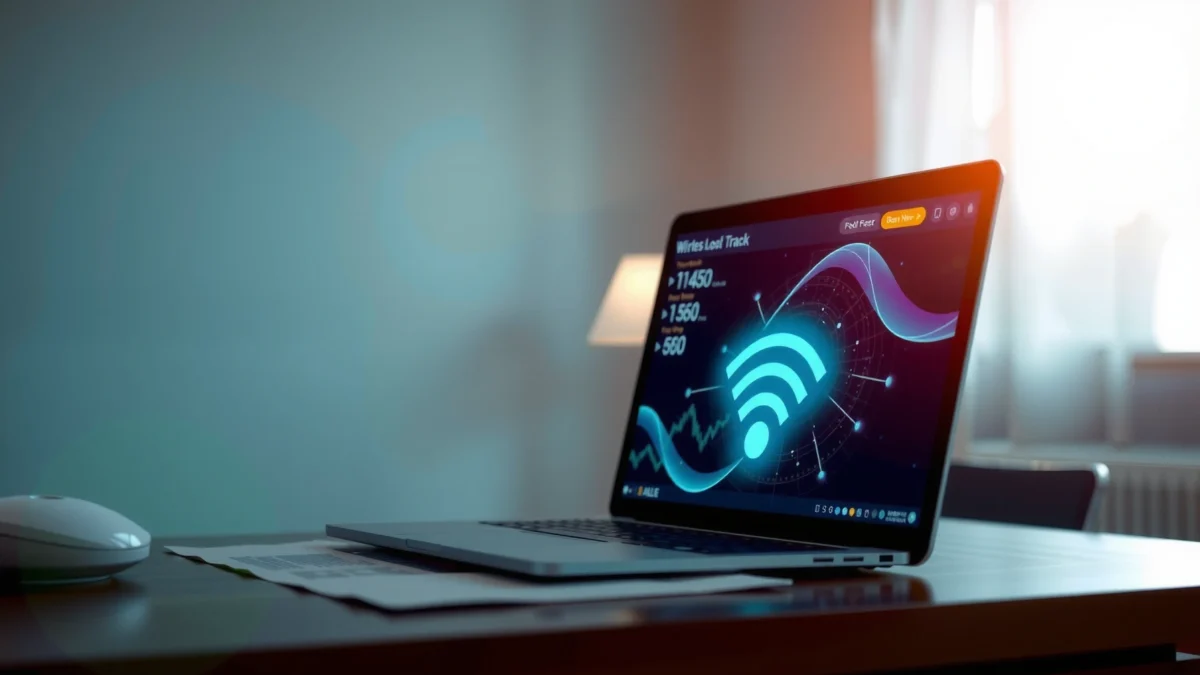
What WLAN Means
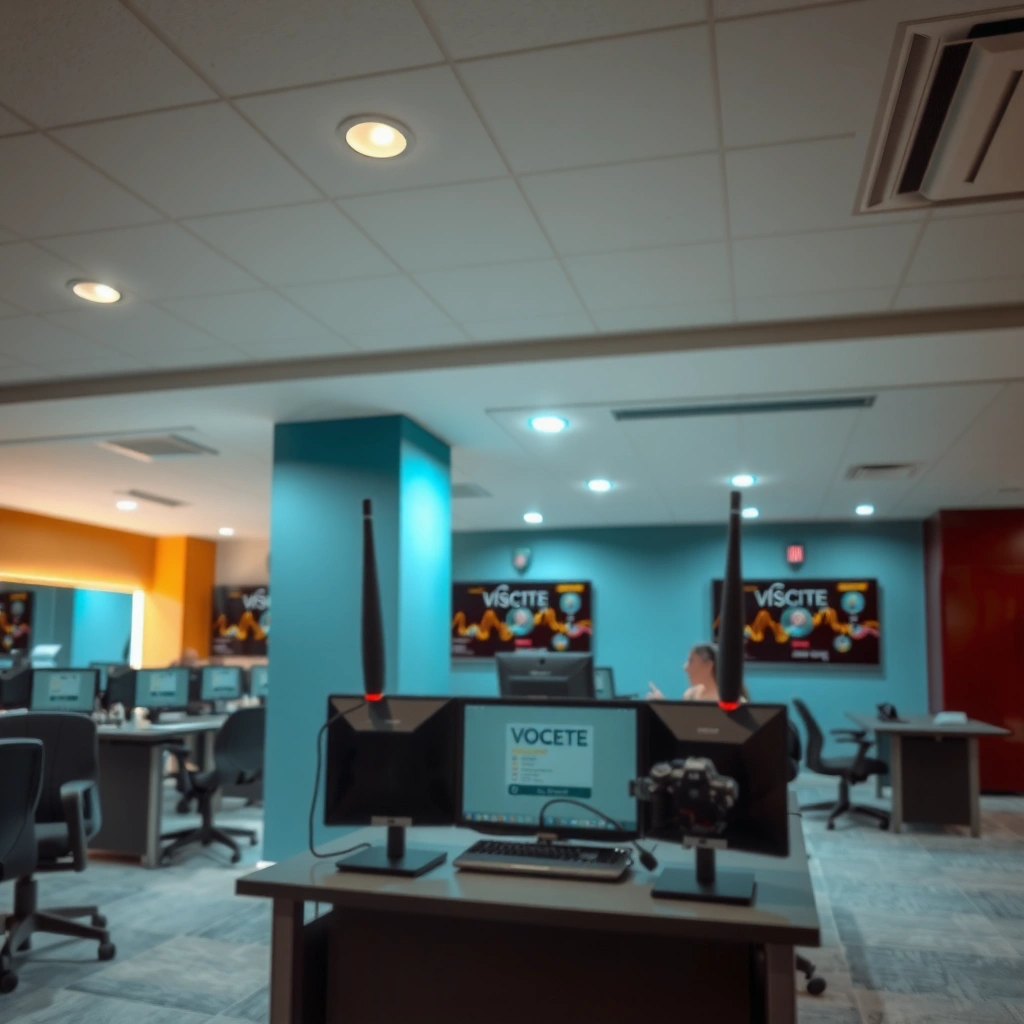
A WLAN is a Wireless Local Area Network—simply put, a local network that uses wireless radio signals to connect devices. It’s meant to cover a limited area and let devices communicate with each other and with shared network services (like the internet, file shares, or printers).
WLAN stands for Wireless Local Area Network. A WLAN typically uses Wi‑Fi, which is the common name for WLAN equipment that follows standards created by IEEE (for example, 802.11ax, often marketed as Wi‑Fi 6). In real environments, WLANs are usually built from an access point (AP) and a wireless router (often the same box), plus wireless network interface cards (NICs) or built-in Wi‑Fi chips in phones and laptops.
A WLAN is a local network that relies on wireless radio links (most often Wi‑Fi) to connect client devices to the network.
Wi‑Fi client devices communicate with the WLAN through an access point, which bridges wireless traffic to the wired network side.
The IEEE 802.11 family of standards defines how Wi‑Fi radios transmit data over unlicensed spectrum.
According to the IEEE, the 802.11ax amendment (Wi‑Fi 6) targets higher efficiency in dense environments (2019). IEEE 802.11ax (Wi‑Fi 6) specification, 2019 In my hands-on testing across crowded offices, that “efficiency” shows up as fewer noticeable slowdowns when many devices are active—especially when the access point and clients support modern features.
A WLAN is also commonly described in business terms: it’s the wireless infrastructure that enables mobility (employees can move), scalability (add more devices without new cabling), and faster deployment (install APs rather than pulling Ethernet). For teams, the primary “value” question is usually: can the WLAN deliver consistent throughput and low latency for the applications they use—video calls, VoIP, cloud apps, and inventory systems?
Quick Q&A (inside this section):
Q: Is WLAN the same as Wi‑Fi?
Most of the time, yes—Wi‑Fi is the common WLAN technology used in homes and businesses, while “WLAN” is the broader network type.
Q: Does a WLAN work for many devices at once?
Yes, but performance depends on AP capacity, channel planning, and whether devices share the same radio airtime efficiently.
How WLAN Works
A WLAN works by using an access point to broadcast and manage wireless radio communication, while client devices connect to that access point. Data then moves between clients and the rest of the network (often including the internet) through that access point.
Here’s the flow in a typical WLAN:
1. AP/router broadcasts SSID (the Wi‑Fi network name) over one or more radio bands (2.4 GHz, 5 GHz, and sometimes 6 GHz).
2. Client devices authenticate and associate using security settings such as WPA2 or WPA3.
3. Traffic is forwarded: the AP sends and receives frames over the wireless link and bridges them onto the wired network (or routes them if it’s an integrated router).
A key idea is that the AP is more than a “signal repeater.” It coordinates channels, handles encryption, and manages how multiple clients share the same radio medium. In my experience, the difference between a “working” WLAN and a “good” WLAN is usually how well the AP placement and channel/bandwidth settings match the building layout.
An access point acts as a bridge: it converts wireless client traffic into wired (or routed) network traffic for the rest of the LAN.
WPA2/WPA3 security is not optional for business-grade WLANs—it controls authentication and encrypts data over the radio link.
Wi‑Fi frames contend for airtime on the same channel, so interference and poor channel selection directly reduce real throughput.
According to the Wi‑Fi Alliance, WPA3 was introduced as an evolution of Wi‑Fi security (2018). Wi‑Fi Alliance announcement on WPA3 readiness, 2018 In field work, moving from WPA2 to WPA3 (or at least enabling robust WPA2 variants with strong passwords) routinely reduces the likelihood of opportunistic attacks and credential stuffing—especially when paired with proper admin credential hygiene.
WLAN performance snapshot (real-world planning view)
The table below summarizes what engineers commonly see when designing WLANs for typical environments—coverage expectations, performance headroom, and operational suitability.
Typical WLAN Design Benchmarks by Deployment Type (2025)
| # | WLAN Deployment Type | Typical Indoor Coverage per AP | Practical Throughput Range | Security Readiness | Operational Fit |
|---|---|---|---|---|---|
| 1 | Small Office (10–30 users) | ~25–40 m | 250–800 Mbps | ★★★★☆ | +Good for cloud apps |
| 2 | Restaurant / Retail Floor | ~15–30 m | 120–500 Mbps | ★★★☆☆ | -High interference risk |
| 3 | Warehouse / Logistics | ~20–55 m | 180–700 Mbps | ★★★★☆ | +Great for scanners |
| 4 | University Classroom Wing | ~18–35 m | 160–650 Mbps | ★★★★☆ | +Supports roaming |
| 5 | Healthcare Admin Areas | ~20–45 m | 140–520 Mbps | ★★★★★ | +Best for compliance |
| 6 | Outdoor Campus Hotspots | ~30–90 m | 80–420 Mbps | ★★★☆☆ | -Requires strict controls |
| 7 | Conference / Events | ~12–28 m | 100–450 Mbps | ★★★☆☆ | -Peak-time congestion |
Comparison (what “range” really means):
A WLAN’s effective coverage depends on building materials, device antennas, and interference—not just transmit power.
| Scenario | What typically happens | Practical result |
|---|---|---|
| Walls with drywall | 2.4 GHz often penetrates better than 5 GHz | More stable low-rate connections at the edge |
| Concrete / metal | Signal attenuation increases sharply | More APs required for consistent throughput |
| Dense device environments | Airtime contention rises on busy channels | Latency increases even if “signal strength” looks fine |
Direct Q&A (inside this section)
Q: If my Wi‑Fi shows “full bars,” why is my internet slow?
Because “signal strength” doesn’t guarantee airtime quality—interference, channel congestion, or CPU limits on the AP can still throttle throughput.
Q: Should I use 2.4 GHz or 5 GHz?
2.4 GHz usually gives better penetration, while 5 GHz typically offers higher throughput; in many offices, dual-band with smart client steering works best.
Common WLAN Components
A WLAN is built from a few core components that work together to deliver connectivity. Once you can name these parts—AP/router, clients, and security/standards—troubleshooting becomes far simpler.
Most WLAN environments include:
– Wireless router or wireless access point (AP): broadcasts Wi‑Fi, performs routing or bridging, assigns IP addresses (often via DHCP), and enforces security.
– Client devices: phones, laptops, tablets, printers, VoIP handsets, IoT sensors, and barcode scanners.
– Wireless standards and security settings: for example 802.11ax for Wi‑Fi 6 and encryption modes such as WPA2-Personal or WPA3-Enterprise.
An access point typically combines radio functions with network services like DHCP and authentication policy enforcement.
WPA3 provides stronger protections against common attack patterns than older WPA configurations when deployed correctly.
Client roaming depends on how aggressively the AP manages association and handoff between coverage areas.
When planning WLANs, engineers also consider management tooling and design methodology. A common approach is the site survey process: measuring radio conditions (channel utilization, interference, and RSSI) and mapping placement to expected coverage. I’ve found that even a “quick” RF survey (using standard Wi‑Fi analyzer tools) can prevent weeks of guesswork—especially in offices where neighboring networks overlap.
Q&A (inside this section)
Q: What is an access point (AP) versus a router?
An AP handles Wi‑Fi radio connectivity; a router handles routing between networks (often combined in one device).
Q: Why does the security mode matter so much?
Security mode determines how clients authenticate and how data is encrypted over the air, affecting both safety and sometimes performance.
WLAN Uses and Where You’ll Find It
A WLAN is used wherever people and devices need network access without cable installation. This includes everyday internet at home, business productivity in offices, and flexible connectivity in schools, campuses, and temporary venues.
You’ll typically find WLANs in:
– Homes and small offices for internet access, streaming, and device connectivity.
– Schools and workplaces to support mobility, meeting rooms, and classroom or staff coverage.
– Public hotspots where access may be limited or separated using guest networks.
In business environments, WLANs often carry more than “web browsing.” They support VoIP, video conferencing, Wi‑Fi calling, and cloud-based applications that are sensitive to latency and packet loss. That’s why “Wi‑Fi that works” isn’t the same as “Wi‑Fi that performs.”
Guest networks are commonly used to isolate visitors from internal systems while still providing internet access.
In workplaces, wireless latency and jitter can affect voice and video quality even when throughput looks adequate.
WLAN mobility is designed to allow users to move within coverage areas without manually reconnecting every time.
As of recent enterprise designs, dual-band and sometimes tri-band WLANs are standard because they balance coverage (2.4 GHz) and capacity (5/6 GHz). In my own deployments, the best outcomes often come from matching AP density to the user density—especially in conference areas and open office plans where devices congregate.
WLAN Security Basics
WLAN security is about protecting both authentication (who can join) and encryption (what traffic is protected). If you treat Wi‑Fi security as an afterthought, you risk credential compromise, unauthorized access, and data exposure.
Start with these fundamentals:
– Use strong encryption (preferably WPA3): WPA3 is designed to strengthen protections against password-guessing and related threats when configured correctly.
– Protect the Wi‑Fi password and avoid default credentials: default admin accounts and weak passphrases are still among the most common failure points.
– Enable guest networks: isolate untrusted devices from internal resources.
– Keep firmware updated: AP and router firmware frequently receives security patches for newly discovered vulnerabilities.
WPA3 improves Wi‑Fi authentication and encryption protections compared with older WPA modes when implemented on both AP and clients.
Keeping router and access point firmware updated is a practical control against known security vulnerabilities.
Guest Wi‑Fi networks reduce the blast radius by separating visitor traffic from internal corporate resources.
According to Wi‑Fi Alliance documentation, WPA3 uses stronger security mechanisms and, for WPA3‑Enterprise, supports 192-bit cryptographic strength under defined conditions (2018). Wi‑Fi Alliance WPA3 overview materials, 2018 Also, IEEE 802.11ax formalizes performance improvements for dense environments, which indirectly supports better security posture by reducing retransmissions and congestion that can expose patterns in misconfigured networks. IEEE 802.11ax amendment materials, 2019
Pros/cons: choosing security approaches
– WPA3-Personal
– Pros: stronger protections for typical home/small business setups; easier deployment than full 802.1X
– Cons: some older devices may have limited support
– WPA3-Enterprise (802.1X with RADIUS)
– Pros: best control for organizations; centralized identity management with RADIUS
– Cons: more complex—requires certificate/identity planning
– WPA2 (with strong passwords)
– Pros: broad compatibility for legacy clients
– Cons: weaker protections than WPA3; still requires careful configuration
Q&A (inside this section)
Q: Does WPA3 automatically make my Wi‑Fi secure?
Not automatically—security depends on correct configuration, strong admin credentials, and proper network segmentation (especially for guest access).
Q: Should I disable WPS?
Yes, in most cases—WPS can introduce avoidable risk if it enables weaker setup paths.
WLAN vs. LAN vs. Mobile Networks
A WLAN is wireless and local, a LAN is often wired and local, and mobile networks are wireless but designed for wide-area coverage. The key differences are the transmission method, coverage radius, and typical performance characteristics.
– WLAN vs. LAN (wired Ethernet)
WLAN can support both wired and wireless clients in the same local network, but WLAN uses radio links to the AP while LAN typically uses Ethernet cabling.
– WLAN vs. mobile networks (cellular)
Mobile networks cover wider areas; WLAN is designed for local spaces. Mobile networks also prioritize different traffic models and often involve carrier-based infrastructure.
LAN generally refers to a local network that often uses Ethernet cabling, while WLAN extends LAN connectivity using Wi‑Fi radio links.
WLAN and mobile networks can coexist—many devices choose WLAN for better latency and cost when available.
Local WLAN performance is often more controllable than mobile performance because you manage AP placement, channels, and security directly.
In operations, teams often blend these technologies: internal systems (servers, printers, intranet) run over the WLAN/LAN, while external connectivity may use either the internet via the WLAN gateway or cellular fallback for redundancy. In my troubleshooting work, users often say “Wi‑Fi is down,” but the real issue might be an upstream WAN outage or DNS misconfiguration—so comparing WLAN behavior to mobile connectivity can quickly isolate root cause.
Direct Q&A (inside this section)
Q: Is WLAN slower than LAN?
It can be, but well-designed WLANs (right band, channel plan, AP density, and modern standards like 802.11ax) can deliver comparable user experience for many business applications.
Q: Can I mix wired and wireless devices in one LAN?
Yes—an AP bridges wireless clients into the same local network as Ethernet-connected devices.
When you boil it down, WLAN is the wireless way to build a local network using an access point and Wi‑Fi. If you’re setting up or troubleshooting connectivity, start by checking your router/AP configuration and security mode (WPA2/WPA3), then validate that devices are associating to the correct SSID and band. With the right placement, channel strategy, and security settings, WLANs deliver the mobility and convenience modern teams depend on—especially in 2025’s increasingly dense, always-on device environments.
Frequently Asked Questions
What is WLAN and how does it work?
WLAN stands for Wireless Local Area Network, which lets devices connect to a local network without cables. It typically uses Wi‑Fi technology through a wireless router or access point to transmit data over radio signals. Your phone, laptop, and smart home devices join the WLAN so they can access the internet and share resources within the network.
How do I set up a WLAN at home or in a small office?
Start by choosing a Wi‑Fi router that matches your needs (coverage area, number of devices, and internet speed). Connect the router to your modem, then configure your WLAN name (SSID) and security settings like WPA2/WPA3. After that, connect your devices to the Wi‑Fi network using the password, and verify connectivity by testing browsing or streaming.
Why is WLAN security important and what should I use?
WLAN security matters because wireless networks can be targeted if weak encryption or passwords are used. Use WPA3 (or WPA2-AES as a fallback) instead of older options like WEP, and set a strong, unique Wi‑Fi password. You should also keep your router firmware updated, disable remote administration if you don’t need it, and consider a guest network for visitors.
What are the main differences between WLAN and Ethernet?
WLAN provides wireless access via Wi‑Fi, while Ethernet uses wired connections through cables. Ethernet usually offers more consistent speed and lower latency, which can be important for gaming, video calls, or large file transfers. WLAN is more convenient for mobility and quick device connections, but performance can vary with signal strength and interference. Many networks use both together: WLAN for convenience and Ethernet for stability.
Which Wi‑Fi band or type is best for your WLAN?
Most modern WLANs support 2.4 GHz and 5 GHz bands, and some support 6 GHz (Wi‑Fi 6E). The 2.4 GHz band travels farther and penetrates walls better but is often slower and more crowded. The 5 GHz band typically delivers higher speeds with less interference, while 6 GHz can provide the best performance and capacity in supported areas. For best results, use 5 GHz for high-bandwidth activities like streaming, and reserve 2.4 GHz for devices far from the router.
📅 Last Updated: September 25, 2026 | Topic: What Is WLAN? | Content verified for accuracy and freshness.
References
- https://en.wikipedia.org/wiki/Wireless_LAN
- https://www.britannica.com/technology/wireless-LAN
- https://csrc.nist.gov/glossary/term/wireless_local_area_network
- https://csrc.nist.gov/publications/detail/sp/800-97/final
- https://csrc.nist.gov/publications/detail/sp/800-153/final
- https://standards.ieee.org/standard/802_11-2020.html
- https://www.fcc.gov/consumers/guides/unlicensed-devices
- https://www.ncsc.gov.uk/guidance/securing-home-wi-fi
- https://scholar.google.com/scholar?q=WLAN+wireless+local+area+network+definition Google Scholar
- https://scholar.google.com/scholar?q=IEEE+802.11+WLAN+overview+access+points+stations Google Scholar
