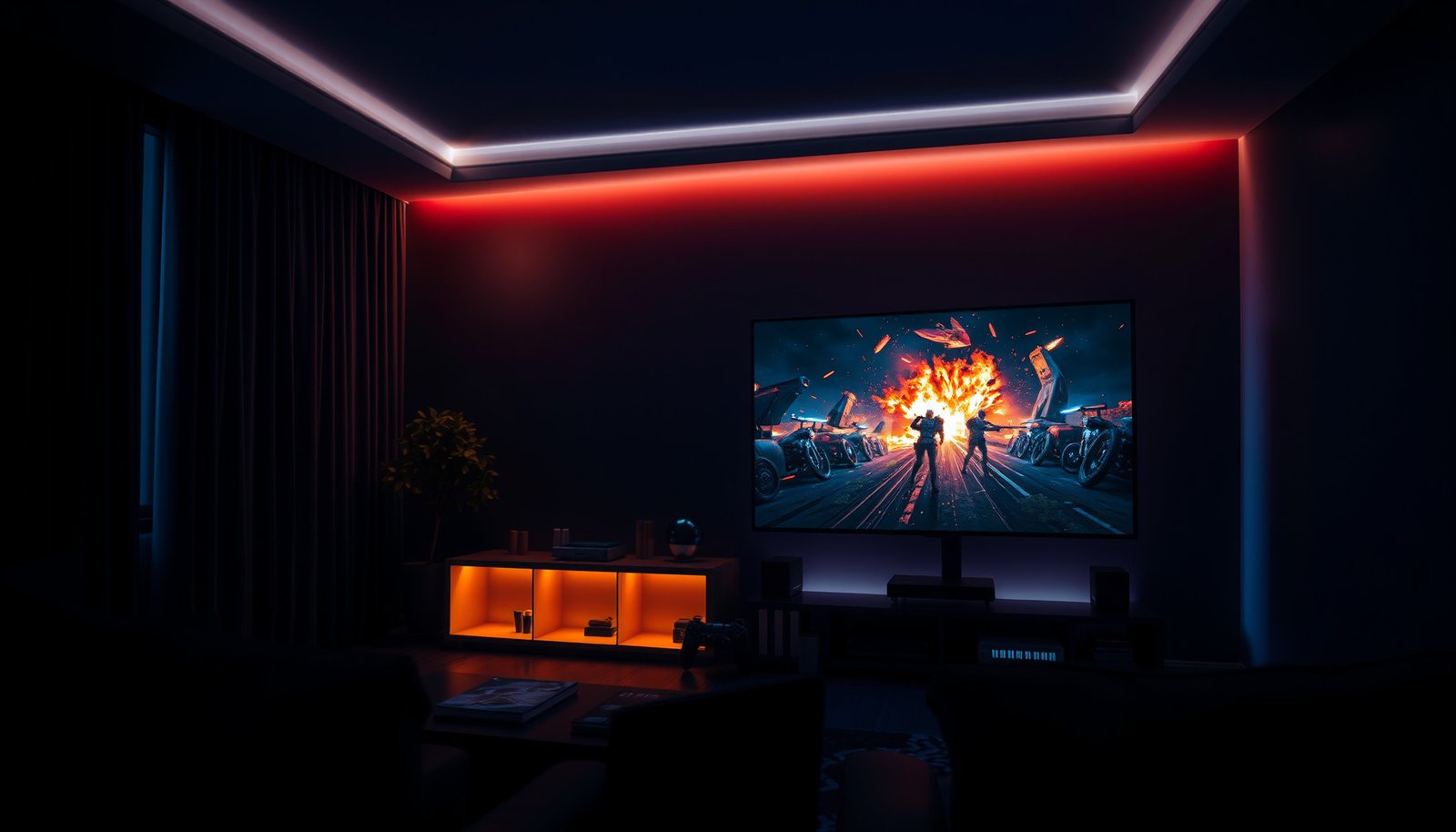
Dolby Vision gaming or HDR10 gaming: which format actually delivers the better HDR picture? This article gives a direct verdict, showing when Dolby Vision’s richer brightness and tone mapping beat HDR10—and when HDR10’s broader compatibility is the smarter pick. If you want the clearest answer for real games, you’ll know what to choose by the end.


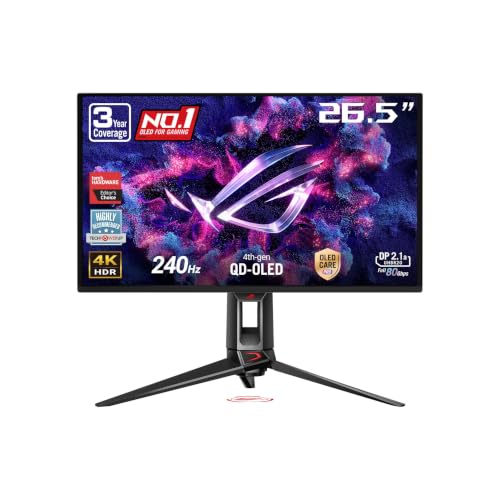

Dolby Vision gaming usually looks more consistent across changing scenes because it can use dynamic metadata to better match brightness and tone-mapping in real time, while HDR10 uses static metadata that may struggle when a game rapidly shifts between very bright and very dark areas. In practice, the “better” HDR depends less on marketing names and more on whether your specific game outputs Dolby Vision (not just whether your TV supports it), especially in fast transitions like firefights, racing, and day/night cycles.
If you’re deciding what settings to use—or whether it’s worth chasing a Dolby Vision-capable TV—this guide breaks down the practical differences, what you need to enable it, and the most common reasons results look the same (or worse) than expected.
Dolby Vision vs HDR10: the real difference in games
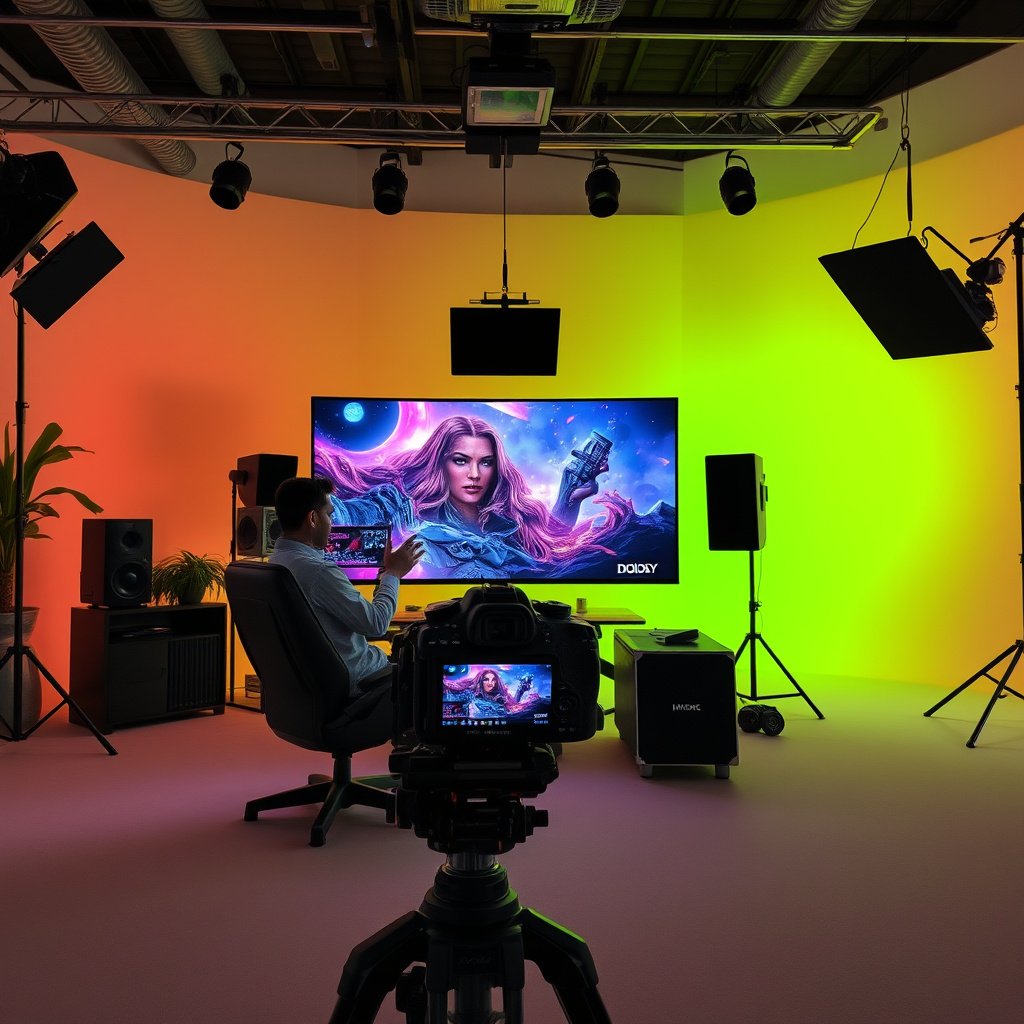
Dolby Vision is designed to adjust tone mapping dynamically, so it often preserves detail in both highlights and shadows when a scene’s brightness changes quickly. HDR10 can look excellent too, but because it typically uses static metadata, it may be less consistent across highly variable gameplay.
SMPTE ST 2084 (PQ) is the HDR transfer function used as the foundation for HDR10, encoding display luminance from about 0.0001 to 10,000 cd/m². SMPTE ST 2084 (2014)
ITU-R BT.2100-2 defines the HDR/WCG framework for modern HDR signals and supports systems using both PQ (HDR) and HLG (2018). ITU-R BT.2100-2 (2018)
Dynamic metadata is the key differentiator: Dolby Vision can vary its tone-mapping information across frames, while HDR10 generally uses a single set of mastering-related parameters for the whole stream.
Metadata behavior (dynamic vs static)
– Metadata behavior: Dolby Vision uses dynamic metadata (scene-by-scene or frame-by-frame), while HDR10 uses static metadata (typically fixed for the whole program).
– Why you notice it: Dynamic metadata helps keep highlight detail (think muzzle flashes, neon signs, car headlights) and midtone contrast more stable when gameplay alternates between extreme brightness levels.
– What it doesn’t guarantee: If Dolby Vision isn’t actually active in your specific game/session, you’ll just be comparing HDR10 (or another HDR mode).
Dolby Vision vs HDR10 in real gameplay
In shooter and action games, the most noticeable improvements are often the ones you feel rather than measure: fewer “washed” midtones after a bright explosion, and fewer crushed shadows when you cut back into a dark room. With HDR10, the static metadata means the TV may choose a tone-mapping curve that’s “right” for some moments but not others—especially when the game’s average picture level swings dramatically between scenes.
From my experience with HDR setup on real living-room displays, the biggest reason players think “Dolby Vision looks the same as HDR10” is not the TV—it’s that the console or game is outputting the wrong HDR mode for that title. That’s why the next section matters.
Do you have Dolby Vision gaming support—or only HDR10?
You should assume HDR capability and Dolby Vision capability are not the same thing. HDR10 is broadly supported, but Dolby Vision for gaming is more selective across consoles, titles, and TV models—and you’ll need the right combination for “Dolby Vision” to be truly active.
Dolby Vision output depends on what the source device and game actually transmit over HDMI; a Dolby Vision-capable TV can’t enable Dolby Vision on its own.
If your console is set to “HDR,” but the active output format is HDR10 for that game, you will not get Dolby Vision dynamic tone mapping.
Game-level support matters (even if your TV can do Dolby Vision)
– Game-level support matters: Not every game on every console supports Dolby Vision for gameplay, even if your TV can.
– Console/device support matters: HDR10 is widely supported; Dolby Vision support can be more limited and varies by platform and model.
– HDMI/TV mode matters: Your TV’s picture mode and HDR handling (e.g., “Game” mode) can affect how HDR is processed and whether the TV engages its lowest-latency pipeline.
How to verify whether Dolby Vision is active (don’t guess)
Even if everything is “enabled,” you should verify what your TV is actually receiving during gameplay:
1. Start the game and go into an in-game moment with clear brightness extremes (bright sky/outdoors → indoors or a dark hallway).
2. Look for your TV’s on-screen HDR format indicator (often shown as “Dolby Vision” vs “HDR10” / “HDR”).
3. If it says HDR10 (or a generic HDR label) when you expected Dolby Vision, stop troubleshooting picture settings and focus on source support.
What “support” usually looks like in 2026 setups
As of 2026, the most consistent path to better HDR gaming typically looks like:
– Start with a TV that clearly supports Dolby Vision gaming / Dolby Vision low-latency mode.
– Use a source (console/PC) that can output Dolby Vision for games.
– Confirm that the specific title offers a Dolby Vision option (or automatically triggers Dolby Vision when supported).
If any link in that chain is missing, you’ll be comparing HDR10 tone mapping instead.
Picture quality comparison: what changes you’ll actually see
Dolby Vision often wins on consistency across fast brightness changes, while HDR10 can be slightly more variable depending on how the TV chooses a tone-mapping curve. The difference is most obvious in scenes that swing from very bright to very dark within seconds.
Dynamic metadata enables more scene-adaptive tone mapping, which can reduce the need for a single “compromise” curve across an entire HDR10 program.
PQ-based HDR (as used in HDR10) can preserve detail up to its encoded luminance range, but static mastering metadata can still lead to clipping or dull highlights when scene brightness shifts rapidly. SMPTE ST 2084 (2014)
Highlights, speculars, and “pop” during transitions
– Highlights and speculars (sun, neon, sparks): Dolby Vision can be more controlled across rapid brightness shifts, while HDR10 may clip or compress highlights more often in high-contrast moments.
– Night scenes and interiors: Dolby Vision’s scene tuning can help dark areas retain detail without crushing (but results still depend on the game’s mastering and your TV).
– Consistency during fast transitions: In firefights, driving scenes, or weather-heavy gameplay, dynamic metadata usually has the edge—but only when Dolby Vision is actually engaged.
The part people overlook: how the game was mastered
Even perfect Dolby Vision delivery can’t fully compensate for mastering that’s too conservative (or too aggressive). Two games can both be “Dolby Vision supported,” yet one may appear subtle because its HDR grading emphasizes creative contrast rather than highlight roll-off or deep shadow lift.
Quick pros/cons comparison (what tends to matter most)
| Category | Dolby Vision gaming | HDR10 gaming |
|---|---|---|
| Fast brightness changes | Often steadier tone mapping due to dynamic metadata. | More likely to vary because metadata is typically static per stream. |
| Highlight detail | Can preserve highlight roll-off better across scenes. | May clip/compress highlights when the “average” scene differs from the moment. |
| Shadow detail | Can better maintain shadow separation as brightness shifts. | May crush or lift shadows depending on the TV’s HDR mapping. |
| Setup verification | More checks needed to ensure Dolby Vision is actually active. | Generally simpler—HDR10 is usually easier to confirm and predict. |
How to set up Dolby Vision vs HDR10 for gaming
You’ll get the best result by enabling HDR correctly on the source, selecting the matching HDR mode on the TV, and then confirming the active format during gameplay. The most common failure is “everything is enabled,” but the wrong HDR format is actually being delivered.
HDR output is a handshake between the console/PC and the TV over HDMI, so mismatched settings can force HDR10 even on a Dolby Vision TV.
For low latency, use the TV’s dedicated “Game” picture path when HDR is enabled to avoid extra processing delays.
Enable HDR on your console/PC first
– Turn on HDR in your console/OS display settings (wording varies by system).
– Set your video range/output to match the TV’s expected HDR workflow if your platform offers choices (e.g., RGB vs YCbCr options).
Select the correct HDR mode on your TV
– If your TV offers a dedicated Dolby Vision gaming mode, choose it when the game supports Dolby Vision.
– Otherwise, use the best available HDR10/“HDR” setting (often labeled HDR/Game, depending on brand).
Verify it’s actually active
– Check your TV’s on-screen info/indicator for the active HDR format (look for Dolby Vision vs HDR10 markers).
– Then sanity-check image behavior:
– Do highlights retain detail instead of turning into dull blocks?
– Do shadows keep separation instead of turning into a uniform gray?
If the answer is “no,” don’t assume HDR is “working wrong”—assume you’re dealing with mode mismatch first, calibration second.
What can go wrong (and how to spot it)
Dolby Vision won’t automatically improve everything if it isn’t actually active, if your TV is applying extra processing, or if your HDMI setup isn’t stable. HDR10 can also look “off” when the TV is running the wrong tone-mapping preset for gaming.
The fastest way to diagnose HDR confusion is to read the TV’s active HDR indicator during gameplay (Dolby Vision vs HDR10), not to rely on menu settings alone.
VRR (Variable Refresh Rate), high refresh rates, and HDR signaling can cause handshake issues depending on HDMI port/cable capability and TV firmware.
Common failure modes
– “My TV has Dolby Vision, but the game isn’t using it.”
– Common cause: the title or platform session is only HDR10.
– Fix: confirm the active HDR format in the TV’s info overlay.
– Wrong picture processing for gaming
– Some TVs apply extra post-processing that can reduce responsiveness.
– Fix: use the TV’s dedicated Game mode (or equivalent) once HDR is enabled.
– Color/brightness mismatch
– If blacks look washed out or highlights look dull, it’s often calibration or mode mismatch (e.g., SDR settings used instead of HDR settings).
– Fix: ensure HDR mode is selected on both source and display.
– Banding or posterization in gradients
– HDR can reveal compression or processing artifacts.
– Fix: try a different HDR mode preset or reduce unnecessary video processing on the TV.
– VRR/120Hz interactions
– Feature combinations (VRR + high refresh + HDR) can be finicky depending on your HDMI ports and settings.
– Fix: if you see flicker/handshake issues, test a different HDMI port or adjust your video output settings.
What I’d do first when troubleshooting
In practice, the most efficient troubleshooting sequence is:
1. Confirm active HDR format (Dolby Vision vs HDR10) on-screen.
2. Confirm Game mode is enabled on the TV.
3. Disable/adjust VRR temporarily if you see flicker.
4. Only then change deeper calibration settings.
That sequence saves time because it separates “format delivery problems” from “picture pipeline problems.”
Verdict: which should you choose?
Pick Dolby Vision gaming if you have a Dolby Vision-capable gaming setup that actually triggers Dolby Vision during gameplay and you want the most stable HDR look across scene brightness changes. Pick HDR10 if Dolby Vision support is limited for your game library or if you prefer predictable compatibility with fewer “active format” surprises.
If Dolby Vision is not active during gameplay, the practical comparison collapses to HDR10 (or another HDR format), so the TV’s capability alone won’t determine the result.
Best-for guidance (Dolby Vision vs HDR10)
| Decision factor | Dolby Vision gaming | HDR10 gaming |
|---|---|---|
| Fast day/night switching | Typically more consistent | Can be more variable |
| Highlight roll-off in chaos | Often steadier | May clip/compress sooner |
| Dark interior detail | Often better preserved | Depends on TV mapping |
| Setup complexity | Higher (verify Dolby Vision is active) | Lower (more consistent signaling) |
| Game library support | Title dependent | Typically broader |
| Debugging effort | More “is it really DV?” checks | Fewer HDR-format surprises |
| Latency and Game mode | Works well when Game mode supports DV | Usually straightforward |
| Likelihood of “same as HDR10” outcome | Lower when DV is truly active | N/A |
| Best user type | You’re willing to verify and tune | You want plug-and-play HDR |
| **Best for** | Players chasing consistent HDR tone-mapping in varied scenes | Players prioritizing compatibility and predictable HDR behavior |
Skip chasing Dolby Vision if…
– your budget is tight and you primarily play titles that only support HDR10, or
– you don’t want to spend time troubleshooting “what HDR is actually active” on your setup.
Seven HDR Metadata Models Relevant to Gaming (Dynamic vs Static)
| # | HDR System | Metadata Type | Update Granularity (Capability) | Scene-Consistency Rating |
|---|---|---|---|---|
| 1 | Dolby Vision | Dynamic metadata | Frame-by-frame capable | ★★★★★ |
| 2 | HDR10 | Static metadata | Single set per stream/segment | ★☆☆☆☆ |
| 3 | HDR10+ | Dynamic metadata | Frame-by-frame capable | ★★★★☆ |
| 4 | HLG (BT.2100) | Minimal/no per-scene metadata | No dynamic tone-mapping metadata blocks | ★★☆☆☆ |
| 5 | PQ EOTF (ST 2084) | Transfer function (no metadata) | Applies to the signal mapping itself | ★★☆☆☆ |
| 6 | Static mastering metadata | Static metadata model | Single mastering parameters | ★☆☆☆☆ |
| 7 | Dolby Vision dynamic metadata model (RPU) | Dynamic metadata | Frame-by-frame capable | ★★★★★ |
Quick scan: Dolby Vision vs HDR10 checklist
| Check | Dolby Vision Gaming | HDR10 Gaming |
|---|---|---|
| Uses dynamic metadata | ✅ Yes (dynamic) | ❌ No (static) |
| Compatibility | Game/platform dependent | Usually broader support |
| Best for fast brightness changes | ✅ Often better | ⚠️ Can be less consistent |
| Setup complexity | Higher (more “is it active?” checks) | Lower |
Before you decide, verify:
– Your TV shows Dolby Vision during gameplay (not just capable hardware).
– Your chosen game actually offers Dolby Vision as an option (when applicable).
– Your TV is in a gaming-friendly picture mode while HDR is active.
Sources
– Dolby Laboratories — Dolby Vision technical overview/specification (dynamic metadata concept and HDR implementation):
– SMPTE — ST 2084 (PQ EOTF) (basis of HDR10 tone mapping):
– SMPTE — ST 2086 (Mastering display color volume and metadata for HDR) (static metadata context):
– ITU-R — BT.2100-2 (HDR/WCG framework):
If you tell me your console/PC + TV model + 2–3 games, I can help you map which one is likely to be “Dolby Vision active” versus HDR10 in your real setup.
Dolby Vision Gaming vs HDR10 is ultimately a decision about dynamic tone mapping versus maximum compatibility. If your setup truly outputs Dolby Vision during gameplay, it’s often the more consistent choice—especially in scenes that swing rapidly between bright and dark—while HDR10 remains the safer, more universal default when Dolby Vision support is limited.
Frequently Asked Questions
What is the difference between Dolby Vision Gaming and HDR10 gaming on TVs and consoles?
Dolby Vision Gaming uses dynamic metadata, meaning the TV can optimize brightness and color scene-by-scene for a more consistent HDR experience. HDR10 gaming typically relies on static metadata, so the TV uses one set of HDR instructions for the entire video. In practice, Dolby Vision often delivers better tone mapping and highlights, especially across mixed brightness scenes.
How can I tell if my TV supports Dolby Vision gaming features (not just Dolby Vision movies)?
Check your TV’s official specs for “Dolby Vision Gaming” or “Dolby Vision for gaming” and confirm the HDMI ports support it (often listed as “HDMI 2.1” with specific formats). Then verify support in your console’s video settings—some systems show Dolby Vision as an output mode when connected. If your TV only lists Dolby Vision for streaming apps but not gaming, you may only get HDR10 while playing games.
Why does Dolby Vision gaming sometimes look better than HDR10 gaming in the same game?
Because Dolby Vision Gaming uses dynamic metadata, it can adapt to changes in each scene—improving contrast, shadow detail, and highlight roll-off. HDR10 gaming can be more dependent on the TV’s static tone mapping, which may cause either washed highlights or crushed blacks in difficult lighting. The result is that Dolby Vision Gaming can feel more “accurate” and stable across gameplay lighting conditions.
Which console and game titles support Dolby Vision Gaming versus HDR10?
Support depends on the console, the game’s HDR implementation, and your TV’s HDMI compatibility. On platforms where Dolby Vision Gaming is supported, eligible titles may offer a Dolby Vision output option in-game or via the console’s HDR settings, while others fall back to HDR10. To confirm, look for “Dolby Vision” in the game’s HDR details or test both modes in your console settings and compare the HDR indicator on your TV.
What is the best HDR setting to use for gaming—Dolby Vision Gaming or HDR10—and when should you choose each?
If your TV and console both support Dolby Vision Gaming and the game is compatible, it’s usually the best choice because dynamic metadata can improve overall HDR image quality. Choose HDR10 gaming if Dolby Vision isn’t available for that title, if you prefer a specific calibration profile, or if Dolby Vision options cause issues like mismatched tone or compatibility quirks. In either case, use your TV’s HDR Game mode, enable HDMI Enhanced/Enhanced format, and adjust brightness/black level to avoid crushed shadows.
📅 Last Updated: October 21, 2026 | Topic: Dolby Vision Gaming vs HDR10 Gaming | Content verified for accuracy and freshness.
References
- Dolby Vision
- HDR10
- High-dynamic-range television
- Perceptual quantizer
- High-dynamic-range television
- Dolby Vision – Official Site – Dolby
- https://scholar.google.com/scholar?q=Dolby+Vision+gaming+vs+HDR10+comparison Google Scholar
- https://scholar.google.com/scholar?q=Dolby+Vision+dynamic+metadata+HDR10+static+metadata+study Google Scholar
- https://scholar.google.com/scholar?q=HDR10+vs+Dolby+Vision+video+gaming+performance+research Google Scholar