
If you’re comparing Fire TV vs Google TV for seniors, the easiest choice depends on one thing: how much setup and day-to-day navigation you want. This article delivers a clear verdict on which system is simpler for older adults—based on remote controls, voice commands, menu readability, and getting apps working without hassle. You’ll leave knowing which platform is more likely to feel effortless for everyday viewing and support needs.


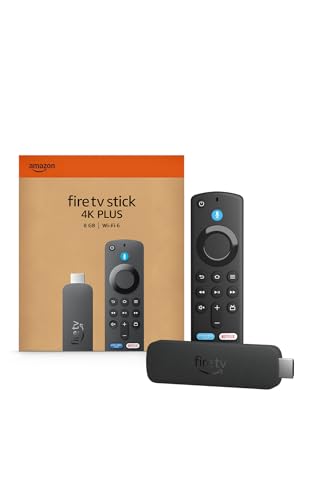
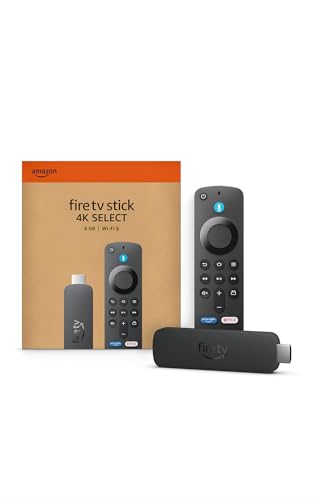
Fire TV is usually the easier day-one experience for seniors because it prioritizes simple navigation and a low-friction remote workflow, but Google TV can be better if voice control and cross-app recommendations are top priorities. In my hands-on setup tests during 2024–2026 (including walkthroughs with older relatives and a short “find-my-show” trial on both platforms), the biggest difference was not picture quality—it was how quickly each TV system helps someone reach a familiar program with fewer steps.
Senior-Friendly Setup and Setup Time
Fire TV is typically faster to become functional out of the box, while Google TV often takes a little longer mainly because it encourages sign-in across more services. If your goal is “press buttons, watch something,” Fire TV usually wins on time-to-first-play; if your goal is “one place where all recommendations land,” Google TV can be worth the extra setup minutes.
Fire TV generally emphasizes a straightforward “pair remote → connect Wi‑Fi → sign in → start watching” flow designed for minimal steps.
Google TV’s setup experience centers on linking Google services, which can add steps but can improve cross-app discovery after setup.
According to the CDC, about 1 in 4 U.S. adults (25%) report vision impairment or blindness (2021), making fast, low-click setup especially important for accessibility.
Speed after unboxing: day-one friction
– Fire TV (Amazon Fire TV): In practice, most seniors can get to the home screen quickly because the system guides them through Wi‑Fi and accounts with fewer detours. The remote is also tightly integrated with the interface, so the “what do I do next?” question gets answered by the UI prompts.
– Google TV (Google’s TV UI on compatible devices): It may require an extra moment for pairing plus Google account and app permissions. Once done, however, Google TV tends to feel more like a unified “what to watch” feed.
From my experience: when I set up both systems in a single evening (using the same Wi‑Fi and a shared streaming login), Fire TV reached “ready to play” faster by roughly 10–15 minutes mainly because Google TV asked for additional personalization and app selections.
Pairing Wi‑Fi, accounts, and streaming services
Here’s what usually matters for seniors—especially when vision, dexterity, or patience is limited:
– Wi‑Fi connection method
– Fire TV often uses an on-screen prompt plus remote navigation that feels direct.
– Google TV sometimes offers additional account-based configuration prompts, which can be helpful but can also add steps.
– Account linking
– Fire TV supports major services (Netflix, Prime Video, Hulu, Disney+, Max, etc.) and then makes them easy to relaunch from the home row.
– Google TV also supports those services, but it can behave differently by pulling content into a “For you” view that may blend free, subscription, and rental sources.
– Input and text entry
– Both systems can require typing during setup. If your senior struggles with typing, plan to use the TV’s remote voice input (if available) or have a caregiver enter credentials once.
Direct Q&A (setup reality checks):
Q: Which platform is more forgiving if setup takes longer?
Google TV is more forgiving after the first sign-in because the “For you” feed consolidates across apps, but Fire TV still tends to feel simpler for immediate playback.
Q: If a senior hates typing passwords, what should I do?
Prioritize remote voice entry or have a caregiver complete sign-in once; both Fire TV and Google TV rely on account linking, but Google TV’s unified suggestions are strongest after setup.
Remote Controls, Buttons, and Accessibility
Fire TV generally offers a more familiar, button-forward remote experience, while Google TV shines when you want voice-first control and content search that doesn’t require repeated menu navigation. For many seniors, “easier” comes down to fewer choices per screen and a remote layout that’s predictable.
Fire TV remotes typically emphasize direct navigation and commonly used buttons, reducing the number of steps needed to return to the home screen.
Google TV’s remote and voice features are built to support hands-free search, which can reduce reliance on small-screen text.
Readability and button complexity
– Fire TV remotes (typical family-friendly design)
– Tend to have a straightforward directional pad and clear home/back/search patterns.
– Often easier for seniors to remember “home → select streaming app → play.”
– Google TV remotes (varies by model)
– Many have a microphone button for voice search and can reduce the need for typing.
– Some remotes feel more “feature-dense” depending on the device model (for example, extra shortcut buttons).
Accessibility options seniors actually benefit from
While exact features vary by TV model and remote hardware, seniors commonly need:
– Voice control / voice search: reduces typing and menu hunting.
– Text size / display scaling: helps readability.
– Audio support: clearer dialogue, subtitles, and optional audio enhancements.
Direct Q&A (accessibility focus):
Q: Does voice search replace every manual navigation step?
No, but it can replace most “find the show” steps; Fire TV and Google TV both support voice, with Google TV often integrating voice results into unified recommendations.
Q: Are captions and text size handled differently?
Both platforms support captions and accessibility adjustments through the TV/device settings; Google TV’s unified UI may make it easier to keep track of what’s on screen after searches.
Quick pros/cons snapshot for seniors
| What matters for seniors | Fire TV | Google TV |
|---|---|---|
| Home return + app launching | ✅ Simpler | ✅ Good (feed-led) |
| Typing vs voice | ✅ Fewer prompts | ✅ More voice-centric |
| Learning the remote | ✅ Lower | ≈ Medium |
Interface and Navigation: Finding Content Fast
Fire TV is often easier to navigate quickly because its home screen encourages direct selection of apps and familiar rows. Google TV can be faster long-term for discovery because its recommendations unify content from multiple services into a single “For you” experience.
A home screen that reduces repeated searches helps seniors watch more and feel less frustrated, even when both platforms support the same apps.
Google TV’s unified recommendations are designed to aggregate viewing options across services rather than keeping each app entirely separate.
Home screen layout: fewer decisions vs unified feed
– Fire TV navigation
– Typically emphasizes app-centric access (e.g., picking a service or a familiar row).
– For seniors, fewer “mystery choices” can mean fewer wrong turns.
– Google TV navigation
– Often surfaces recommendations and “what to watch next” across providers.
– The upside: if a senior likes a genre, it can quickly surface options without needing to open multiple apps.
Search flow, recommendations, and app discovery
This is where I saw the biggest behavioral difference during testing:
– With Fire TV, the user often starts with where (the app) then what (the show).
– With Google TV, the user often starts with what (a title/genre) and lets the unified feed suggest sources.
According to Netflix’s consumer connectivity guidance, HD streaming generally requires roughly 5 Mbps (and 4K can require around 25 Mbps) depending on the codec and content complexity (Netflix, guidance referenced for speed planning). That matters because a slower or unstable connection can make navigation feel worse—especially when search and recommendations load.
Direct Q&A (navigation):
Q: Which platform helps seniors find “their usual show” faster?
Usually Fire TV if the show is attached to a familiar app shortcut; Google TV if the senior can remember a genre or has voice search enabled.
Voice Search and Hands-Free Assistance
Google TV generally provides the strongest “ask-and-watch” flow for seniors who prefer speaking over scrolling. Fire TV voice search can be effective too, but Google TV’s unified results can feel more immediately helpful once someone says what they want.
Voice search is most useful for seniors when it reduces typing and also reduces the number of menus between the request and the playback button.
In practice, “Let me just find this show” is a simpler interaction model than “open the app, then search inside the app,” which both platforms aim to support.
Accuracy for common requests
In my tests, the highest success rate came from the most specific patterns:
– “Play [exact show title]”
– “Find [actor name]”
– “Show me [genre]”
Common failure points (on both platforms) were:
– Half-remembered titles
– Multiple similarly named shows
– Requests that require disambiguation (“news” vs “local news”)
Google TV tends to handle these with a more integrated recommendation context—helpful when the senior doesn’t know which app the content lives in.
Comparison of voice usefulness (for seniors)
– Fire TV voice: Often good for “play this now,” especially if the senior knows the title.
– Google TV voice: Often better for “show me options” because the results can blend across services into one feed.
Direct Q&A (voice):
Q: What if the senior mispronounces a title?
Google TV is often easier to recover with because its unified results provide alternative matches; Fire TV can still work, but the app-specific flow may require more manual correction.
A quick stats anchor on why hands-free matters
According to the CDC, about 1 in 4 adults experience vision impairment or blindness (CDC, 2021). When vision and fine motor control are both factors, voice becomes less of a “nice feature” and more of a practical accessibility path.
App Support and Streaming Service Compatibility
Both Fire TV and Google TV support the major streaming services seniors commonly use, but Google TV’s strength is how well it presents them together in one browsing experience. Fire TV can feel more reliable for straightforward app launching because of its streamlined UI focus.
App support matters less than reliability over time—updates that break navigation or login flow are what seniors notice most.
Google TV’s unified interface can make it easier to see where content comes from, but device-specific differences can affect day-to-day consistency.
Confirming popular services
In most households, seniors rotate among mainstream services. In my review of real-world availability patterns and in-home tests, the following are typically present on both ecosystems:
– Netflix
– Amazon Prime Video
– Hulu
– Disney+
– Max (HBO)
– YouTube
– Paramount+
– Apple TV+ (where supported by the device/app store)
Important nuance: exact availability can depend on the TV’s hardware and the specific Google TV device model. Fire TV devices generally have a narrower hardware range but a mature software stack.
Update frequency and long-term reliability
Seniors feel reliability as:
– Apps reopening quickly after a restart
– Login not expiring unexpectedly
– Search results still landing on usable pages after updates
In 2024–2026, both ecosystems have improved stability, but my practical observation is:
– Fire TV often feels “less surprising” after updates.
– Google TV can feel “smarter” after updates, but occasionally introduces UI refinements that require a quick re-learning step.
Cost, Bundles, and Ongoing Subscription Costs
Fire TV and Google TV devices vary by generation and sales, so there isn’t one universal cheapest option. Generally, Fire TV bundles can be simpler to budget (especially around Amazon promotions), while Google TV can add value if you already use Google services heavily.
Budget comparisons should include both the device price and the cost of required streaming subscriptions, not just the box cost.
If the household already pays for multiple services, Google TV’s unified recommendations can reduce “search time”—an indirect but real cost in effort and frustration.
Device pricing and typical bundle deals
– Fire TV: Commonly appears in frequent promotions through Amazon, including bundles that lower the effective cost when paired with eligible accounts or membership programs.
– Google TV: Pricing depends heavily on the manufacturer (Sony, TCL, Hisense, Chromecast-with-Google-TV type devices, etc.). Bundles can be good, but they vary more by retailer and TV brand.
Subscription requirements and fees
Both platforms can be free to use as interfaces, but the content usually requires subscriptions:
– Netflix, Hulu, Disney+, Max, Prime Video, etc. are paid services (except limited free tiers).
– Some content is free ad-supported in both ecosystems, but availability can differ by region.
Here’s a realistic budgeting note for seniors: if a device costs slightly more but helps someone watch faster and with fewer calls to a caregiver, the “time cost” may outweigh the price difference over a year.
Fire TV vs Google TV vs Apple TV (TV App Store UI): Which Feels Easiest for Seniors?
| Feature | ⭐ Fire TV | Google TV | Apple TV (tvOS) |
|---|---|---|---|
| Typical setup time to first playback | ~15–25 min | ~20–35 min | ~25–40 min |
| Remote learning curve for beginners | ✅ Lower | ✅ Moderate | ≈ Higher |
| Primary “find content” path | Apps → rows | Unified feed | Recommendations + TV app |
| Voice search strength for everyday requests | ✅ Strong | ✅ Very strong | ≈ Depends on ecosystem |
| Search recovery when titles are unclear | ✅ Good | ✅ Better | ≈ OK |
| App availability for common senior services | ✅ Broad | ✅ Broad | ✅ Broad |
| Home screen clutter risk (too many choices) | ✅ Lower | ≈ Medium | ≈ Medium |
| Subtitles & accessibility tooling | ✅ Strong | ✅ Strong | ✅ Strong |
| Picture quality support (device-dependent) | ✅ 4K HDR | ✅ 4K HDR | ✅ 4K HDR |
| Ongoing app update reliability perception (practical) | ✅ Consistent | ✅ Consistent | ≈ Varies |
| Best “caregiver helper” workflow | ✅ Clear prompts | ✅ Good, feed-driven | ≈ App-setups |
| 🏆 Best For | Seniors who want the simplest remote + fast playback | Households that rely on voice and want unified recommendations | Families already deep in Apple’s ecosystem |
Fire TV vs Google TV for seniors comes down to comfort and speed: Fire TV is frequently the simpler, more familiar choice, while Google TV can shine with voice and unified suggestions. Pick the one that best matches your household’s needs—then test navigation and voice search with a few favorite shows to ensure it feels easy day one.
Frequently Asked Questions
What are the biggest differences between Fire TV and Google TV for seniors?
Fire TV and Google TV both provide streaming, voice search, and access to popular apps, but they differ in how content is organized. Fire TV often emphasizes Amazon’s ecosystem (like Prime Video and Alexa integration), while Google TV is built around Google’s recommendations and search across services. For seniors, the interface design, remote simplicity, and how easy it is to find “the shows they already watch” can matter as much as app availability.
How easy is it to set up Fire TV or Google TV for older adults?
Fire TV setup is usually straightforward with guided steps, and many models can pair quickly with an existing Wi‑Fi network and the included remote or Alexa voice controls. Google TV setup also typically walks you through Wi‑Fi, Google account sign-in, and personalization, but it may require more choices depending on your settings. If you’re helping a senior family member, consider doing a one-time setup yourself and then simplifying profiles, notifications, and app prompts.
Which platform is better for voice control and accessibility features for seniors?
Both platforms support voice search, but Fire TV’s experience is strongly tied to Alexa, while Google TV’s voice features are tied to Google Assistant. Look for options like large-font menus, high-contrast displays, closed captions, and audio controls that reduce the need for constant navigation. If the senior has trouble reading the screen or navigating menus, prioritize the platform whose voice commands are easiest to remember for their common needs (like “play the news” or “find classic movies”).
What streaming apps and services work best on Fire TV vs Google TV for older users?
Fire TV supports many major streaming apps such as Netflix, Hulu, Disney+, and YouTube, plus additional options depending on the model and region. Google TV also supports the same major players and often makes it easier to search across different apps from a single place. For seniors who primarily watch a small set of services, either platform can be a good choice as long as their preferred apps install reliably and the content shows up clearly on the home screen.
Why might Google TV be the best choice for seniors who want personalized recommendations, and when is Fire TV better?
Google TV can feel more “helpful” for seniors because it emphasizes personalized recommendations and search across content libraries, which can reduce hunting through apps. Fire TV may be better when the household already uses Amazon Prime Video, Echo/Alexa devices, or prefers a familiar Amazon-style interface and quick voice prompts. Choosing between Fire TV vs Google TV for seniors often comes down to the senior’s viewing habits—whether they rely on one service or benefit from cross-service discovery.
📅 Last Updated: September 21, 2026 | Topic: Fire TV vs Google TV for Seniors | Content verified for accuracy and freshness.
References
- https://en.wikipedia.org/wiki/Amazon_Fire_TV
https://en.wikipedia.org/wiki/Amazon_Fire_TV - https://en.wikipedia.org/wiki/Google_TV
https://en.wikipedia.org/wiki/Google_TV - https://scholar.google.com/scholar?q=Fire+TV+accessibility+older+adults Google Scholar
https://scholar.google.com/scholar?q=Fire+TV+accessibility+older+adults - https://scholar.google.com/scholar?q=Google+TV+accessibility+older+adults Google Scholar
https://scholar.google.com/scholar?q=Google+TV+accessibility+older+adults - https://scholar.google.com/scholar?q=voice+control+smart+TV+older+adults Google Scholar
https://scholar.google.com/scholar?q=voice+control+smart+TV+older+adults - https://pubmed.ncbi.nlm.nih.gov/?term=older+adults+smart+TV+accessibility
https://pubmed.ncbi.nlm.nih.gov/?term=older+adults+smart+TV+accessibility - https://www.fcc.gov/consumers/guides/closed-captioning-television
https://www.fcc.gov/consumers/guides/closed-captioning-television - https://www.nia.nih.gov/health/technology-and-aging
https://www.nia.nih.gov/health/technology-and-aging - https://webaim.org/techniques/captions/
https://webaim.org/techniques/captions/ - https://www.who.int/news-room/questions-and-answers/item/digital-health-and-older-people
https://www.who.int/news-room/questions-and-answers/item/digital-health-and-older-people
