
Using Alexa and Google Assistant to control your sound system is a straightforward process that enhances your listening experience. By linking your smart speakers to your audio devices, you can easily play music, adjust the volume, and switch inputs using simple voice commands. This not only makes your audio experience more convenient but also allows for seamless integration into your smart home ecosystem. In this article, we’ll guide you through the steps to set up and optimize these smart assistants for your sound system.



Understanding Compatibility

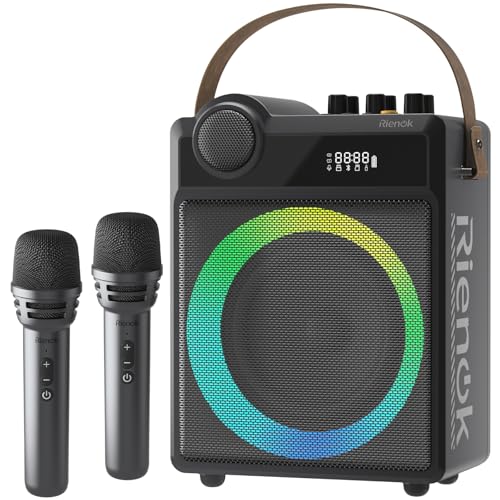
Before diving into the setup process, it’s essential to determine whether your sound system is compatible with Alexa and Google Assistant. Many modern audio devices such as smart speakers, soundbars, and AV receivers are designed to work seamlessly with these voice assistants. To check compatibility, look for the “Works with Alexa” or “Works with Google Assistant” labels on your device packaging or in the user manual.
For instance, popular brands like Sonos, Bose, and Yamaha offer sound systems that easily integrate with both Alexa and Google Assistant. If you have a traditional sound system, you may still be able to connect it using smart plugs or adapters designed for voice control. This compatibility check is the first step toward creating an enjoyable audio experience with voice commands.
Setting Up Alexa for Your Sound System
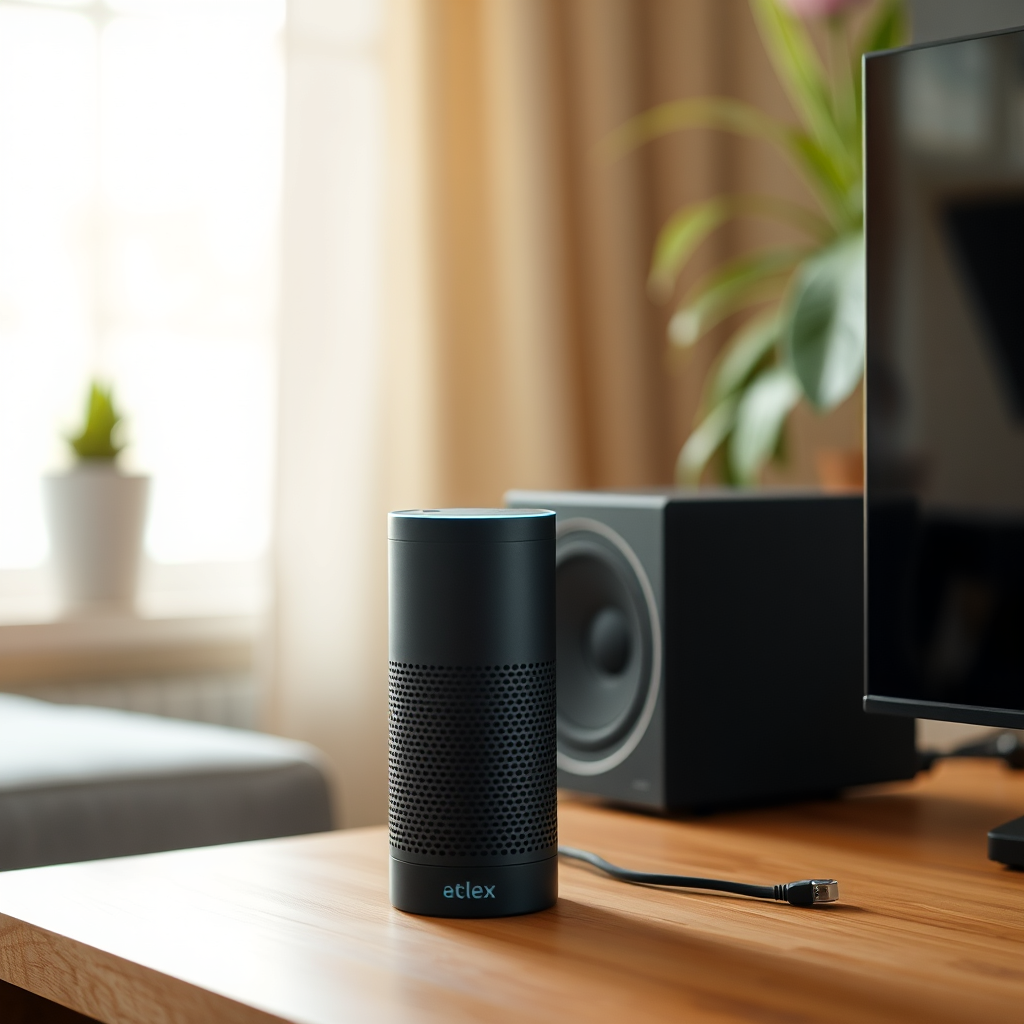
Setting up Alexa to control your sound system is a breeze. Start by downloading the Alexa app on your smartphone or tablet, available on both iOS and Android. Once you have the app, follow these steps:
1. Connect Your Sound System: Open the Alexa app and tap on the “Devices” icon at the bottom right corner. Here, you can add your sound system by selecting the “+” icon and choosing “Add Device.” Follow the prompts to select your device type and brand.
2. Discover Devices: After adding, use the “Discover Devices” feature to let Alexa search for and link your audio devices. This process usually takes just a few moments. Once complete, your sound system should appear in the list of connected devices.
3. Test Control: To ensure everything is working, try a simple command like, “Alexa, play music on [your sound system’s name].” If everything is set up correctly, Alexa will start playing your favorite tunes.
Setting Up Google Assistant for Your Sound System
Similarly, setting up Google Assistant is just as straightforward. Start by downloading the Google Home app, which is your hub for managing all things Google smart devices. Here’s how to get started:
1. Open the Google Home App: Once you have the app, tap on the “+” icon to add a new device. Follow the prompts to select your sound system from the list of available devices.
2. Link Compatible Services: Make sure to link any music streaming services you use, such as Spotify or YouTube Music, within the Google Home app. This allows Google Assistant to access and play your favorite tracks effortlessly.
3. Verify Recognition: After adding your sound system, ask Google Assistant, “Hey Google, play some music on [your sound system’s name].” If it responds positively, your setup is complete, and you’re ready to enjoy your audio experience.
Voice Commands for Alexa
Once Alexa is set up, you’ll want to familiarize yourself with some common voice commands to make the most of your sound system. Here are several useful commands to get you started:
– Playback Control: “Alexa, play [song/artist/album] on [your sound system’s name].”
– Volume Adjustment: “Alexa, set the volume to [1-10] on [your sound system’s name].”
– Input Switching: “Alexa, switch to [input source] on [your sound system’s name].”
Beyond individual commands, you can also create custom routines. For example, you can set a routine named “Movie Night” that dims the lights, sets the volume to an ideal level, and switches your sound system to the TV input—all with a single command!
Voice Commands for Google Assistant
Google Assistant also offers a range of voice commands that can make controlling your sound system a breeze. Here are some key commands to consider:
– Playback Control: “Hey Google, play [song/artist/album] on [your sound system’s name].”
– Volume Control: “Hey Google, turn the volume up/down on [your sound system’s name].”
– Input Selection: “Hey Google, switch to [input source] on [your sound system’s name].”
Additionally, you can set up routines in the Google Home app that allow you to control multiple devices with a single command. For example, a routine called “Start My Day” could turn on your sound system to play news while starting your coffee maker.
Troubleshooting Common Issues
Even with the best technology, you may encounter connectivity issues from time to time. Some common problems include:
– Device Not Found: If Alexa or Google Assistant fails to recognize your sound system, ensure that your devices are connected to the same Wi-Fi network and that your sound system is powered on.
– Voice Commands Not Recognized: If your commands are not being understood, try rephrasing them or ensuring that there is minimal background noise. Additionally, check if your assistant’s microphone is muted.
– Software Updates: Regularly check for updates on both the Alexa and Google Home apps, as well as your sound system firmware. Keeping everything updated can resolve many connectivity issues.
Enhancing Your Audio Experience
To truly elevate your audio experience, consider integrating popular music streaming services with your sound system. Services like Spotify, Apple Music, and Amazon Music can provide endless entertainment at your command. Simply link your accounts in the respective apps to start enjoying your favorite playlists and albums.
Furthermore, consider adding other smart home integrations. For example, you can sync your smart lights to dim when you start a movie or adjust the thermostat to a comfortable level while streaming music. This creates a cohesive and enjoyable environment tailored to your preferences.
By following these steps, you can effectively use Alexa and Google Assistant to control your sound system, making your listening experience more enjoyable and convenient. Don’t hesitate to experiment with different commands and settings to find what works best for you! Embrace the convenience of voice control and enhance your audio journey today.
Frequently Asked Questions
How can I set up Alexa or Google Assistant to control my sound system?
To set up Alexa or Google Assistant for controlling your sound system, first ensure that your sound system is compatible with smart home technology. For Alexa, open the Alexa app, navigate to “Devices,” and select “Add Device.” Follow the prompts to connect your sound system. For Google Assistant, use the Google Home app to add your sound system by tapping on “Add,” then “Set up device,” and choose “Works with Google.” Follow the on-screen instructions to link your accounts.
What types of sound systems can be controlled using Alexa and Google Assistant?
Alexa and Google Assistant can control a variety of sound systems, including smart speakers, soundbars, and multi-room audio systems from brands like Sonos, Bose, and Yamaha. Many modern sound systems feature built-in support for voice assistants, allowing users to play music, adjust volume, and switch inputs using voice commands. Always check for compatibility in the product specifications to ensure seamless integration.
Why is my Alexa or Google Assistant not responding to sound system commands?
If your Alexa or Google Assistant isn’t responding to sound system commands, it could be due to a few common issues. First, ensure that your sound system is powered on and connected to the same Wi-Fi network as your voice assistant. Check if the device is correctly linked in the app, and try re-linking or resetting the connection if necessary. Additionally, ensure that your voice commands are clear and specific, as any ambiguity might lead to a lack of response.
What are the best voice commands to use with Alexa and Google Assistant for my sound system?
The best voice commands for controlling your sound system with Alexa and Google Assistant include phrases like “Alexa, play [song/artist/playlist] on [sound system name]” or “Hey Google, set the volume to 50 percent on [sound system name].” You can also use commands to switch inputs, pause, or skip tracks. Familiarize yourself with the specific commands supported by your sound system for a more efficient experience.
Which voice assistant is better for controlling a sound system: Alexa or Google Assistant?
The choice between Alexa and Google Assistant for controlling a sound system largely depends on your preferences and existing ecosystem. Alexa is often praised for its extensive compatibility with a wide range of smart home devices and its ability to integrate with Amazon Music. In contrast, Google Assistant excels in providing contextual information and works seamlessly with Google services. Evaluate your specific needs and existing devices to determine which voice assistant will provide the best experience for your sound system.
References
- Amazon Alexa
- https://support.google.com/assistant/answer/9300804
- https://www.wired.com/story/how-to-control-your-smart-home-with-alexa/
- https://www.techradar.com/how-to/how-to-set-up-amazon-alexa
- https://www.cnet.com/home/smart-home/how-to-use-google-assistant-to-control-your-smart-home/
- https://www.consumerreports.org/smart-home/how-to-set-up-google-assistant/
- https://www.theverge.com/2019/4/1/18227921/google-assistant-alexa-smart-home-setup-guide
- https://www.nytimes.com/2020/01/03/technology/alexa-google-assistant.html




7 thoughts on “How to Use Alexa and Google Assistant to Control Your Sound System”