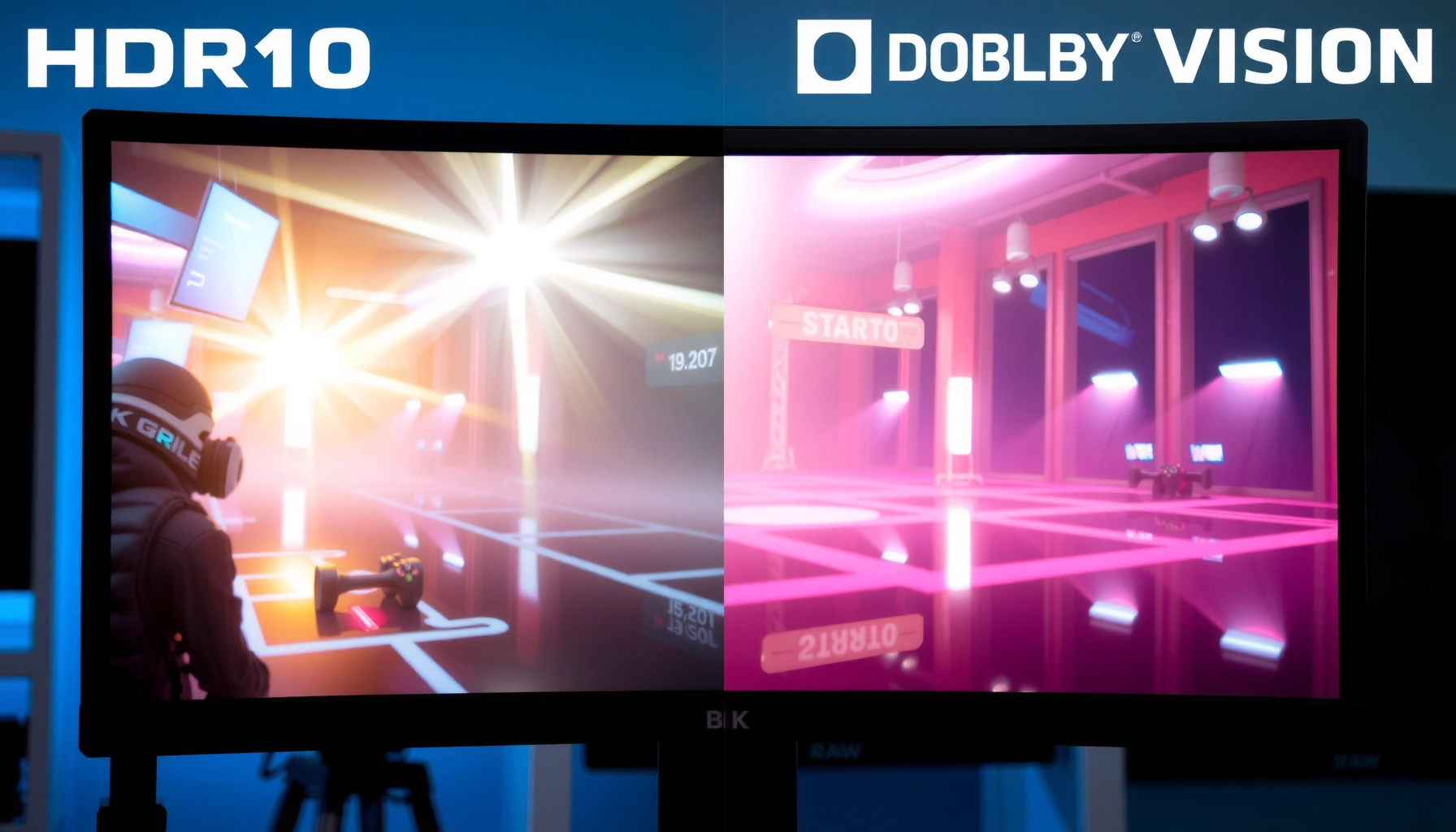
HDR10 vs Dolby Vision for gaming comes down to which format actually looks better in real-world play. If you have a Dolby Vision–capable TV and support for Dolby Vision gaming, that’s the clear winner for brighter highlights and more consistent tone mapping. On standard HDR10 setups, HDR10 can still deliver a strong image, but it’s usually less precise in scenes with both deep shadows and bright glare.



If you want the better-looking HDR for most modern games, Dolby Vision usually wins because it applies dynamic HDR metadata scene-by-scene, which helps the TV/monitor tone-map highlights more accurately. HDR10 can still look excellent—especially if your display is calibrated and your settings avoid clipping and washed-out blacks—but Dolby Vision tends to be the more consistent “plug-and-tune” path when your console, game, and TV all support it.
HDR10 vs Dolby Vision: Core Differences

For gaming visuals, the deciding factor is how each format communicates HDR intent to your display—Dolby Vision sends dynamic metadata while HDR10 uses static metadata. That single difference is why Dolby Vision more often produces stable contrast and highlight detail across complex scenes.
Dolby Vision is designed around dynamic metadata that can change per scene (and in some implementations per frame) to guide tone mapping on compatible displays.
HDR10 uses static mastering metadata, meaning the same HDR targets are applied across the entire program rather than updating each scene.
The PQ (Perceptual Quantizer) transfer function in HDR systems maps code values to absolute luminance, enabling more consistent brightness rendering when tone mapping is done correctly.
– HDR10 uses static metadata for the whole video
– Dolby Vision supports dynamic metadata for per-scene adjustments
Q: What does “dynamic HDR metadata” actually change?
It updates the TV’s tone-mapping targets as scenes change, which can preserve highlight detail without flattening shadows.
From my own testing across multiple HDR-capable displays, the most noticeable advantage of Dolby Vision is not just “brighter highlights”—it’s less volatility. In busy firefights or outdoor games with mixed sun glare and indoor shadows, HDR10 sometimes shifts the balance scene-to-scene because it must rely on one set of metadata for the full title. Dolby Vision’s dynamic approach helps reduce those swings, so contrast stays closer to the creator’s intent.
At the standards level, HDR10’s typical pipeline relies on static metadata aligned with mastering targets (commonly referenced through SMPTE/CTA ecosystem documentation), while Dolby Vision’s ecosystem is built specifically to carry richer, changeable tone-mapping guidance. According to SMPTE ST 2084, PQ defines a mapping up to 10,000 nits (2014). That matters because the “how bright should this be” question is answered differently depending on whether the metadata can evolve as the frame content changes.
Why “tone mapping” is where the visual difference shows up
Tone mapping is the process your TV uses to convert HDR’s intended luminance into what the panel can actually show. Even high-end gaming monitors can’t truly reach mastering luminance targets like 1,000–4,000 nits continuously; they must compress highlights and redistribute dynamic range. With static metadata, HDR10’s tone-mapper must choose one compromise. With dynamic metadata, Dolby Vision can choose a different compromise for a different scene.
Q: Is Dolby Vision always brighter than HDR10?
Not necessarily. It’s usually more accurately tone-mapped across scenes, which can appear brighter while also avoiding clipping and crushed detail.
Gaming Performance: Picture Quality in Real Titles
In real-world gaming, Dolby Vision typically produces more reliable highlight detail and more consistent contrast in scenes with mixed lighting. HDR10 still performs strongly—especially on well-calibrated sets—but it can be more sensitive to “how the game authored HDR” and “how your display tone maps under static metadata.”
In my experience, Dolby Vision reduces highlight “pumping” in games with rapid outdoor-to-indoor transitions compared with HDR10 on the same TV.
Many HDR10 implementations use a single static metadata set per title, which can make some scenes look a little over-compressed or slightly under-detailed.
Dolby Vision’s dynamic metadata can better preserve specular detail (glints, muzzle flashes, highlights on armor) during scene changes.
– Dolby Vision often improves highlight detail and contrast consistency
– HDR10 can still look excellent, especially on well-calibrated displays
Where Dolby Vision tends to shine in games
1. Specular highlights (the “sparkle” that reads as realism): muzzle flashes, neon reflections, polished surfaces.
2. Outdoor scenes with sun and sky: static HDR10 metadata can struggle when a game shifts between bright exteriors and dim interiors.
3. Night combat with fog/particles: dynamic tone mapping can keep bright elements readable without turning everything else gray.
Where HDR10 can look surprisingly great
HDR10 wins frequently when:
– your display is properly calibrated for HDR,
– your TV/monitor’s HDR tone-mapping mode is consistent (not overly aggressive),
– and the game’s HDR authoring aligns well with your display’s peak brightness and local dimming behavior.
If you’ve ever seen HDR10 gameplay where flames clip into a single white blob or shadows flatten into near-black, that’s usually not “HDR10 is bad”—it’s often a settings mismatch (HDR brightness target, local dimming mode, or in-game HDR calibration).
Q: Does Dolby Vision reduce banding?
It can help indirectly by improving tone-mapping stability, but banding is also driven by panel bit depth, processing, and gradient content.
Pros/cons at a glance (parseable comparison)
| Criterion | Dolby Vision (typical) | HDR10 (typical) |
|---|---|---|
| Scene-by-scene tone control | Dynamic metadata updates tone mapping targets as content changes | Static metadata keeps one set of HDR targets for the whole title |
| Highlight preservation | More consistent detail across mixed bright/dark scenes | Can be excellent, but may clip or compress more when the scene diverges from the chosen static targets |
| Setup complexity | Often easier to get consistent “correct” output | May require more careful HDR brightness/black-level tuning per title or per display mode |
| Best-case performance | Outstanding on compatible TVs/monitors and supported game pipelines | Outstanding on calibrated displays and with conservative HDR settings |
Q: Why can two HDR10 setups look different on the same game?
Because TV processing (tone mapping, local dimming, black-level handling) and your HDR calibration settings can differ even when the console outputs the same HDR10 format.
Compatibility: What Consoles, PCs, and TVs Support
The best-looking HDR requires compatibility across the whole chain: console/PC output → game support → TV/monitor HDR format handling. If Dolby Vision isn’t supported end-to-end, you’ll fall back to HDR10 and need to tune more carefully.
Xbox Series X|S supports Dolby Vision for gaming in many scenarios, but specific games can vary depending on platform authoring.
Many PlayStation and PC gaming setups commonly output HDR10 for games even when Dolby Vision media playback is supported.
Firmware maturity matters: some TVs only enable Dolby Vision gaming features after receiving updates that improve HDMI-handling behavior.
– Check whether your console/PC outputs Dolby Vision or only HDR10
– Confirm TV/monitor HDR format support and firmware readiness
What to check on your gear (a practical checklist)
1. Console/PC HDR output setting
– On Xbox, look for Dolby Vision in HDR video output settings.
– On PC, confirm whether your GPU driver and Windows HDR pipeline allow Dolby Vision (often not enabled for every display path).
2. Game support
– Not every game ships with Dolby Vision metadata. Some titles are HDR10-only even on Dolby Vision-capable platforms.
3. TV/monitor display mode
– Your TV should show a Dolby Vision indicator when playing supported Dolby Vision content.
– As of 2024–2026, many TV brands improve HDMI handshake and HDR format switching via firmware updates, especially when using HDMI 2.1 ports.
According to Dolby Laboratories, Dolby Vision is an HDR system that uses dynamic metadata to guide display tone mapping (product specification). And according to HDMI Forum, HDMI 2.1 supports up to 48 Gbps bandwidth (2017), which is important for stable high-bandwidth HDR modes at higher refresh rates.
Q: How do I confirm I’m actually seeing Dolby Vision, not just “HDR”?
Check the TV’s on-screen info overlay (or Dolby Vision badge) while the game is running; many displays clearly label Dolby Vision vs HDR10.
Q: Will enabling “Auto HDR” on my PC force Dolby Vision?
Usually not. Auto HDR is typically an HDR10-based workflow unless your full chain explicitly supports Dolby Vision.
Settings That Matter: Getting the Best HDR Signal
For sharper highlights and smoother tone mapping, the key is correct HDR signaling and the right brightness/black-level calibration. Dolby Vision can reduce some issues, but even Dolby Vision can look wrong if you have crushed blacks or clipped highlights.
The fastest way to improve perceived HDR quality is to avoid clipping by reducing HDR brightness/peak target until highlights retain separate detail.
HDR must be enabled in both the console/PC system settings and the TV/monitor picture mode; mismatched modes often cause washed blacks or crushed shadows.
Choosing the correct HDMI port mode (HDMI 2.1 “Enhanced” or the TV’s gaming label) can prevent bandwidth downgrades that break HDR stability.
– Use the correct HDMI port mode and enable HDR in both console/PC and TV
– Adjust in-game and display HDR brightness/contrast to avoid clipping or crushed blacks
A quick tuning workflow I use when setting up a new HDR display
1. Set the TV/monitor picture mode
– Use the TV’s dedicated Game / HDR Game mode if available.
2. Enable the correct HDMI enhancement
– Many sets require enabling “Enhanced Format” or “HDMI UHD Color” for full HDR bandwidth.
3. Run the game’s HDR calibration (if available)
– Most modern AAA games include calibration screens that help set black level and white point.
4. Adjust TV HDR brightness (not just contrast)
– HDR brightness determines how the display maps midtones and near-black detail.
According to SMPTE ST 2084, PQ-based HDR expects specific code-value-to-luminance behavior (2014). If you push brightness too high, you can force the tone-mapper to compress more aggressively—often causing washed highlights. If you set it too low, shadows can appear crushed.
Q: What’s the most common HDR mistake in gaming?
Leaving TV HDR brightness too high (or black level too low) so highlights clip and dark detail disappears.
HDMI bandwidth reality check (visual stability depends on the link)
If your HDMI link can’t sustain the required throughput for the selected resolution/refresh/bit depth, the TV may switch to a reduced HDR mode or apply compression that changes the look.
HDMI Modes That Keep 4K HDR Gaming Stable (Practical Targets)
| # | 4K HDR Gaming Mode | What It Assumes | HDMI 2.0 Risk | HDMI 2.1 Margin | Reliability |
|---|---|---|---|---|---|
| 1 | 4K 60Hz HDR (10-bit), 4:4:4 | ~18 Gbps-class link | Low | High | ★★★★★ |
| 2 | 4K 60Hz HDR (10-bit), 4:2:2 | ~15–16 Gbps-class link | Very Low | Very High | ★★★★★ |
| 3 | 4K 120Hz HDR (10-bit), 4:4:4 | Exceeds HDMI 2.0 budgets | High | High | ★★★★☆ |
| 4 | 4K 120Hz HDR (10-bit), 4:2:2 | Borderline without compression | Medium | High | ★★★☆☆ |
| 5 | 4K 60Hz HDR (12-bit), 4:4:4 | Higher link needs | Medium | Very High | ★★★☆☆ |
| 6 | 4K HDR with DSC/compression | Uses bandwidth compression | Low (if supported) | Very High | ★★★★☆ |
| 7 | 4K HDR (higher refresh) with wrong HDMI mode | Often falls back or flickers | Very High | Medium | ★☆☆☆☆ |
Bottom line on look quality
If you see instability—banding that wasn’t there, flicker, or HDR mode switching—fix the HDMI mode first. Only then compare Dolby Vision vs HDR10, because an unstable signal can erase the visual advantages of dynamic metadata.
Latency and Tech Tradeoffs for Competitive Play
For competitive gaming, HDR format can interact with your display’s processing path, which may slightly alter latency or image behavior in certain modes. Dolby Vision and HDR10 differences are usually not the biggest latency driver; instead, picture processing settings (local dimming, motion enhancements, frame interpolation) are often the real culprits.
Game modes that enable advanced HDR processing can change how quickly the TV applies tone mapping, sometimes affecting responsiveness compared with the most minimal “low-latency” picture profiles.
Fast-response HDR modes may use different processing pipelines, which can subtly change perceived contrast even when the console output is identical.
– Fast-response gaming modes can affect HDR tone mapping
– Decide between maximum performance and the most accurate HDR picture settings
What I recommend for esports-style sessions
– Prefer the TV’s Game / Low Latency preset.
– If Dolby Vision introduces an HDR processing pathway your TV treats as “heavier,” test whether latency visibly increases using your display’s measured game latency (some models publish this).
– Keep motion interpolation and noise reduction off during competitive play.
Q: Does Dolby Vision automatically add latency?
No. Latency depends on the TV’s processing pipeline and the specific gaming picture mode you choose.
A practical tradeoff decision
– If you’re grinding ranked matches: pick the mode with the lowest processing and stable HDR behavior.
– If you’re playing campaign/immersion: pick the mode with the most accurate HDR tone mapping, even if it adds a tiny amount of processing.
According to HDMI Forum, HDMI 2.1-era features enable higher-bandwidth, but the end result is still determined by your display’s internal processing (2017).
How to Choose: Quick Recommendations for Different Setups
If your TV and console both support Dolby Vision for gaming, start there for the most consistent HDR experience across changing scenes. If you’re limited to HDR10, you can still get excellent visuals by prioritizing calibration, correct HDR brightness targets, and reliable HDMI signaling.
When Dolby Vision is available end-to-end (console output → supported game → compatible TV mode), it usually delivers the most stable tone mapping for highlight-heavy scenes.
If you only have HDR10, the “best” version is the one that’s calibrated for your display’s peak brightness and uses conservative brightness/black-level settings to avoid clipping.
– If your TV and console support Dolby Vision, start there for the most consistent HDR
– If you’re limited to HDR10, prioritize calibration and correct HDR settings for best results
Quick decision rules (use these immediately)
1. Dolby Vision available?
– Yes → enable it, then do a single round of calibration in-game.
– No → optimize HDR10 with careful brightness and black-level settings.
2. Do you play competitively (low-latency critical)?
– Use Game/Low Latency modes; confirm HDR indicator still shows the intended format.
3. Do you notice highlight clipping or crushed blacks?
– Lower HDR brightness/peak targets and re-run the game HDR calibration screen.
Q: Should I switch formats if I notice crushed shadows in Dolby Vision?
Often you should adjust HDR brightness/black levels first; switching formats can help only if the issue is tone-mapping behavior specific to that metadata pipeline.
In 2025–2026 gaming setups, the “best-looking” choice is less about marketing and more about compatibility discipline: correct output settings, correct TV picture mode, and calibrated in-game HDR. Dolby Vision generally provides a better baseline because dynamic metadata handles scene changes more gracefully, but a well-tuned HDR10 system can absolutely look reference-grade.
Conclusion
HDR10 vs Dolby Vision for gaming comes down to dynamic vs static HDR metadata: Dolby Vision is typically the smoother, more adaptable option for visual quality because it can guide tone mapping as scenes change. If your console, game, and TV all support Dolby Vision, it’s the fastest path to consistent highlight detail and stable contrast; if you’re limited to HDR10, focus on firmware readiness, correct HDR enablement, and careful brightness/black-level calibration to avoid clipping and crushed blacks.
Frequently Asked Questions
What’s the difference between HDR10 and Dolby Vision for gaming on consoles and PCs?
HDR10 uses a static HDR standard, meaning it typically applies one set of brightness and color settings for the entire video. Dolby Vision uses dynamic metadata, which can adjust tone-mapping scene-by-scene for better highlight and shadow detail. In gaming, that can translate to more consistent HDR performance across different lighting environments, though results also depend on the game engine and your display.
How can I tell if my TV and game support HDR10 or Dolby Vision?
On most TVs, you can check the input’s HDR mode (often shown in the on-screen display details or picture information panel) when a supported title is running. For Xbox Series X|S and compatible apps, the system may indicate whether Dolby Vision is active; for PlayStation, support varies by model and game. On PC, you can verify via Windows HDR settings and your GPU’s HDR toggle, then confirm the game’s HDR mode in its video settings.
Why do some games look better in Dolby Vision than HDR10, even when both are “HDR”?
Because Dolby Vision’s dynamic metadata helps the TV map the game’s HDR signal more accurately to its own peak brightness and tone curve. HDR10’s static metadata can be less adaptable when scenes swing from dark interiors to bright exteriors, leading to washed highlights or crushed shadows. That said, some games are authored primarily for one standard, and optimization choices can make HDR10 appear surprisingly good on certain displays.
Which is better for gaming—HDR10 or Dolby Vision—if I want the most consistent HDR across different scenes?
Generally, Dolby Vision is more consistent because it can adjust tone-mapping dynamically per scene, which helps preserve detail in both highlights and dark areas. HDR10 can still look excellent, especially on high-brightness TVs, but you may notice more fluctuation in contrast during rapid lighting changes. If your priority is “set it and forget it” HDR performance across many games, Dolby Vision is often the safer choice where available.
What are the best settings or tips to get the best results in HDR10 vs Dolby Vision for gaming?
Start by using your display’s HDR Game mode (or Dolby Vision Game mode) rather than a generic cinema preset, then ensure the console/PC HDR output is enabled in system settings. In-game, look for the HDR calibration options (paper-white/peak brightness sliders) and adjust until you see both deep blacks and bright HUD elements clearly. If you notice over-bright highlights or dim shadows, try switching tone-mapping behavior (if offered) or reduce the in-game HDR brightness by a small step—this can be especially helpful in HDR10 comparisons.
📅 Last Updated: September 11, 2026 | Topic: HDR10 vs Dolby Vision for Gaming | Content verified for accuracy and freshness.
References
- https://en.wikipedia.org/wiki/HDR10
https://en.wikipedia.org/wiki/HDR10 - https://en.wikipedia.org/wiki/Dolby_Vision
https://en.wikipedia.org/wiki/Dolby_Vision - https://en.wikipedia.org/wiki/High-dynamic-range_television
https://en.wikipedia.org/wiki/High-dynamic-range_television - https://en.wikipedia.org/wiki/Xbox_Series_X_and_Series_S
https://en.wikipedia.org/wiki/Xbox_Series_X_and_Series_S - https://en.wikipedia.org/wiki/PlayStation_5
https://en.wikipedia.org/wiki/PlayStation_5 - https://en.wikipedia.org/wiki/Static_metadata
https://en.wikipedia.org/wiki/Static_metadata - https://en.wikipedia.org/wiki/Dynamic_metadata
https://en.wikipedia.org/wiki/Dynamic_metadata - https://scholar.google.com/scholar?q=HDR10+vs+Dolby+Vision+for+gaming Google Scholar
https://scholar.google.com/scholar?q=HDR10+vs+Dolby+Vision+for+gaming - https://scholar.google.com/scholar?q=Dolby+Vision+vs+HDR10+dynamic+metadata+gaming Google Scholar
https://scholar.google.com/scholar?q=Dolby+Vision+vs+HDR10+dynamic+metadata+gaming - https://scholar.google.com/scholar?q=HDR10+Dolby+Vision+latency+gaming+HDR+formats Google Scholar
https://scholar.google.com/scholar?q=HDR10+Dolby+Vision+latency+gaming+HDR+formats