
To achieve the best viewing experience in your home theater with HDR and Dolby Vision, you need to focus on several crucial factors including display settings, lighting, and content sources. By understanding these elements, you can maximize the potential of your equipment for stunning picture quality. This guide provides detailed insights on how to enhance your home theater setup, ensuring that you enjoy the vivid colors and impressive contrasts offered by HDR and Dolby Vision.


![Portable Smart Projector [Bundled with Google TV Stick 14.0 & 4K Support & Dolby] with WiFi and Bluetooth HDR10,Ceiling Mini Movie Short Throw Projector Outdoor Auto Focus for Home Theater Bedroom](https://m.media-amazon.com/images/I/51NiI6zAPpL._SL500_.jpg)
Understanding HDR and Dolby Vision
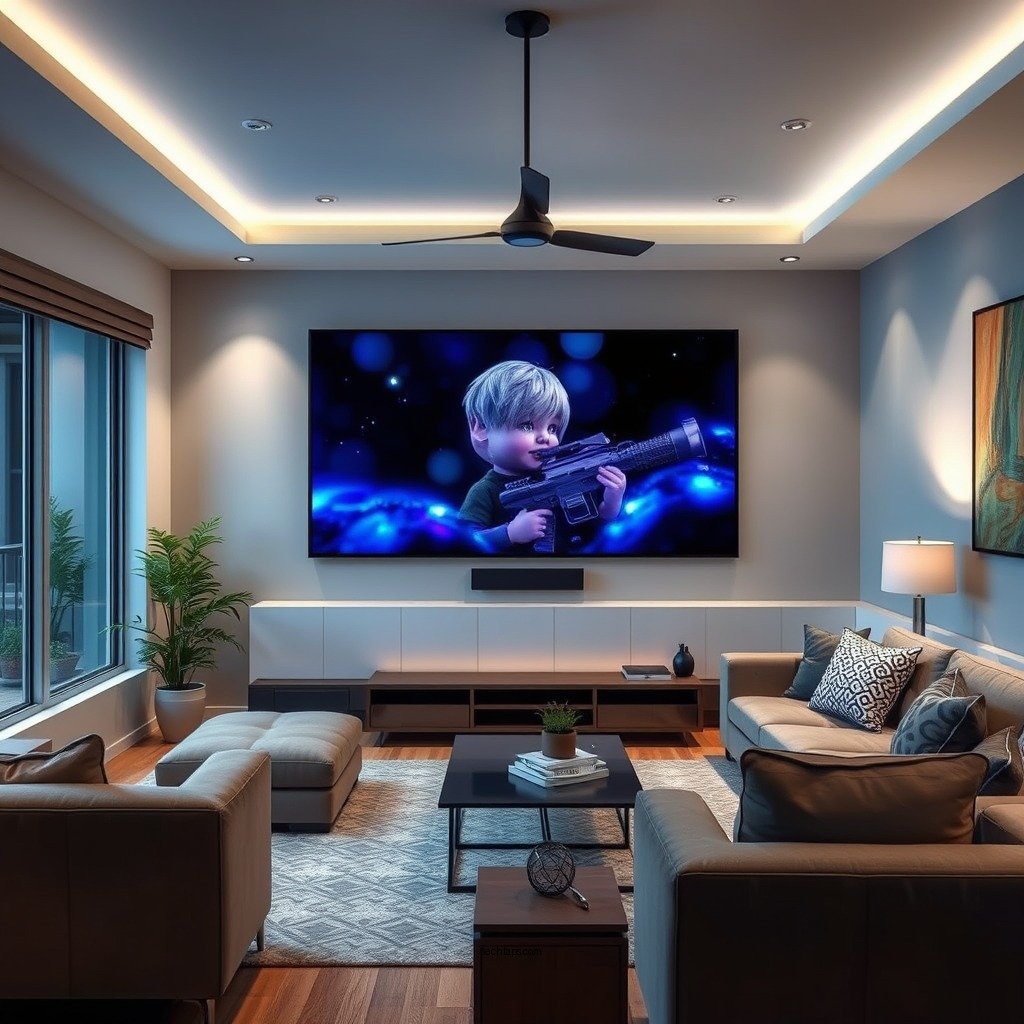
High Dynamic Range (HDR) is a technology that enhances the color and contrast of video content, allowing for brighter highlights and deeper shadows. The benefits of HDR include a more realistic and immersive viewing experience, as it brings out the nuances in colors that standard dynamic range (SDR) simply cannot replicate. HDR can significantly improve the quality of movies and games, making them visually stunning.
Dolby Vision is a specific type of HDR that offers dynamic metadata, allowing for scene-by-scene adjustments to brightness and color. This means that Dolby Vision content can adapt to the capabilities of your display, ensuring that you see the most accurate colors and contrasts possible. While standard HDR formats can improve picture quality, Dolby Vision provides a more refined experience by optimizing each scene individually, making it a preferred choice for many filmmakers and consumers.
Choosing the Right Display
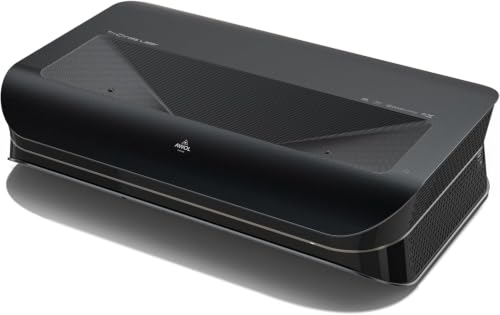
Selecting an HDR-compatible TV or projector is fundamental to optimizing your home theater experience. Look for displays that are certified for HDR, as not all screens that claim to support HDR offer the same quality. The most critical specifications to consider include:
1. Peak Brightness: A good HDR display should have a peak brightness of at least 1,000 nits to showcase the full potential of HDR content. Higher brightness levels enhance the contrast between bright and dark scenes.
2. Color Accuracy: Look for displays that cover a wide color gamut, such as DCI-P3 or Rec. 2020. This ensures that your screen can reproduce a broad spectrum of colors, resulting in a more vibrant image.
3. Local Dimming: Displays with local dimming capabilities can enhance contrast by dimming specific zones of the screen, improving black levels during dark scenes.
4. Refresh Rate: A higher refresh rate, such as 120 Hz, can provide smoother motion, especially important for action-packed films and video games.
Setting Up Your Display
Once you have chosen the right display, the next step is to configure it for HDR and Dolby Vision. Here’s a step-by-step guide for adjusting the picture settings:
1. Access Picture Settings: Navigate to the settings menu on your TV or projector.
2. Select HDR Mode: Ensure that the HDR mode is activated for the HDMI input you are using.
3. Adjust Brightness and Contrast: Start with a contrast level around 85% and brightness around 50%. Fine-tune these settings based on your viewing environment.
4. Set Color Temperature: Choose a color temperature setting that matches the content you are watching. “Warm” settings often provide a more cinematic feel.
5. Calibration Tools: Consider using calibration tools like the Spektrum Colorimeter or CalMAN software to achieve precise adjustments.
6. HDR Calibration: Use built-in calibration patterns or a calibration disc to optimize HDR settings specifically.
7. Save the Settings: Ensure to save the settings so they are applied every time you switch to HDR content.
Top 7 HDR TVs for Home Theaters (2024)
| # | Model | Peak Brightness (nits) | Color Gamut | HDR Format |
|---|---|---|---|---|
| 1 | LG OLED C1 | 1,300 | DCI-P3 | Dolby Vision, HDR10 |
| 2 | Samsung QN90A | 1,600 | Quantum Dot | HDR10+, Dolby Vision |
| 3 | Sony A90J | 1,300 | DCI-P3 | Dolby Vision, HDR10 |
| 4 | TCL 6-Series | 1,000 | DCI-P3 | Dolby Vision, HDR10 |
| 5 | Vizio P-Series Quantum | 1,200 | DCI-P3 | HDR10+, Dolby Vision |
| 6 | Philips Ambilight 803 | 1,100 | DCI-P3 | HDR10, Dolby Vision |
| 7 | Hisense U8G | 1,500 | DCI-P3 | HDR10+, Dolby Vision |
Optimizing Room Environment
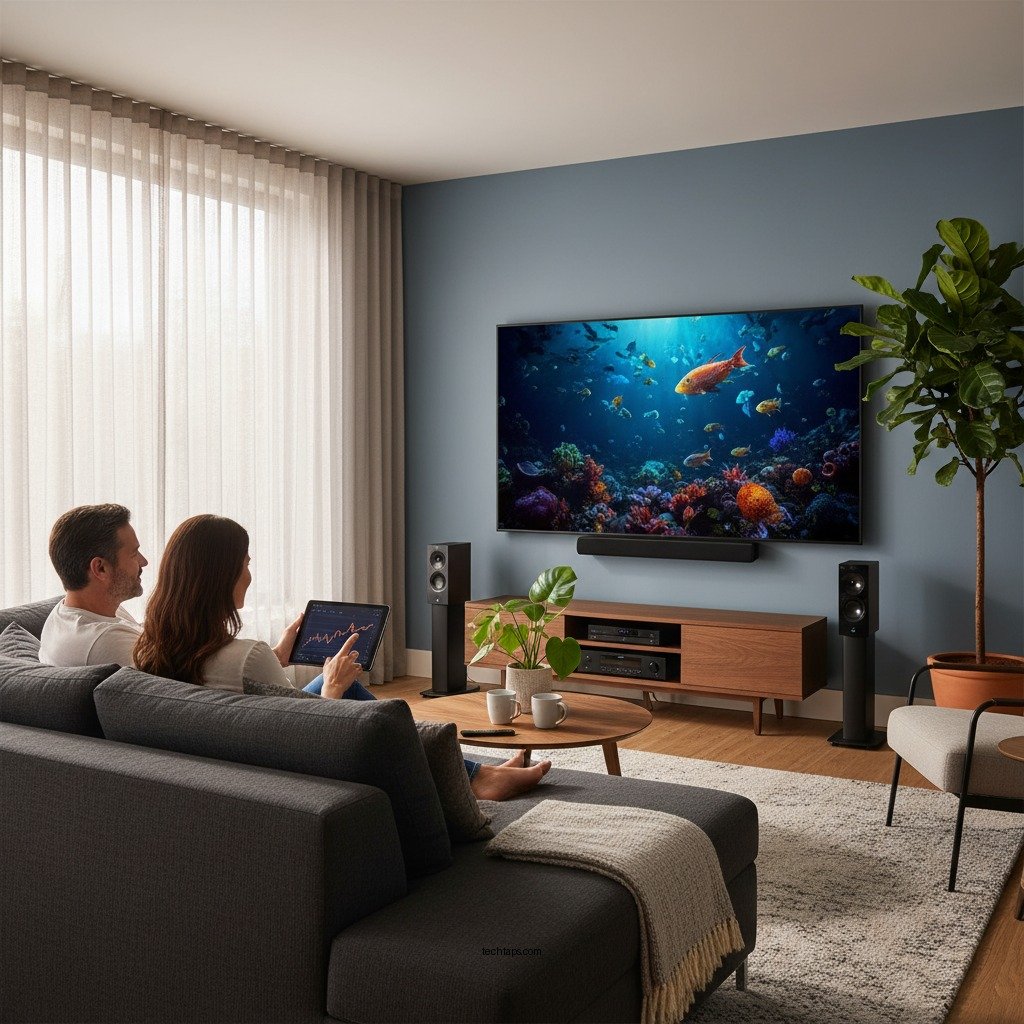
The environment in which you watch HDR content can significantly affect your experience. Ambient light can wash out the vibrant colors and contrasts that HDR technology is designed to display. Here are some strategies to optimize your room:
1. Control Ambient Light: Use blackout curtains, shades, or blinds to minimize external light interference. If possible, arrange your seating away from windows or other light sources.
2. Ideal Room Colors: Darker wall colors can absorb light and help reduce reflections. Consider using deep shades of gray or navy blue to enhance the overall viewing experience.
3. Screen Positioning: Ensure that your screen is positioned at eye level to avoid glare. A tilted or off-angle view can detract from the quality of HDR content.
4. Minimize Reflections: Use screens with anti-glare coatings or select a matte finish to reduce reflections from lights or windows.
5. Optimal Seating Arrangement: Place your seating at a distance that allows for comfortable viewing without straining your eyes. A distance of 1.5 to 2.5 times the diagonal size of your screen is generally ideal.
Selecting Quality Content
To fully appreciate HDR and Dolby Vision, you need access to high-quality content. Many streaming services now offer HDR and Dolby Vision titles, but it’s essential to check the specifications to ensure optimal playback. Here are some popular options:
1. Streaming Services: Platforms like Netflix, Disney+, Amazon Prime Video, and Apple TV+ feature a robust selection of HDR and Dolby Vision content. Subscribing to plans that support these formats is crucial.
2. Ultra HD Blu-rays: Physical media such as Ultra HD Blu-rays often provide the best quality for HDR and Dolby Vision, with higher bitrates than streaming services can offer.
3. Checking Content Specifications: Always verify that the content is labeled as HDR or Dolby Vision. Not all titles are created equal, and some may only offer standard HDR without the enhancements of Dolby Vision.
4. Games and Consoles: If you are a gamer, consoles like the PlayStation 5 and Xbox Series X support HDR and Dolby Vision, offering a great selection of compatible games.
Using the Right Equipment
For HDR and Dolby Vision to function correctly, using compatible equipment is essential. Here are some key considerations:
1. HDMI Cables: Ensure you are using high-speed HDMI cables rated for 18 Gbps or higher. These cables are designed to handle the increased bandwidth required for HDR content.
2. Receivers and Sound Systems: Select AV receivers that support HDR and Dolby Vision pass-through. This ensures that your audio and video signals maintain high quality throughout your system.
3. Additional Hardware Options: Consider investing in sound systems or soundbars that support Dolby Atmos, which can enhance the overall experience by providing immersive audio to accompany the stunning visuals.
Troubleshooting Common Issues
Even with the right setup, you may encounter issues when setting up HDR and Dolby Vision. Here are some common problems and solutions:
1. HDR Not Activating: If HDR is not activating, ensure that the HDMI cable is securely connected and that the correct HDMI input is selected. Check the display settings to confirm HDR mode is enabled.
2. Low Brightness Levels: If HDR content appears dim, your display may not be calibrated correctly. Revisit the picture settings and adjust the brightness and contrast levels.
3. Color Banding: This may occur if your display isn’t capable of processing HDR correctly. Ensure your display supports 10-bit color depth and check for firmware updates that may improve performance.
4. Incompatible Content: Sometimes, certain HDR content may not play back correctly. Ensure that you’re using a compatible player or streaming device that supports the HDR format of the content.
By following these guidelines, you can significantly enhance your home theater experience with HDR and Dolby Vision. Start by assessing your current setup and making necessary adjustments to enjoy vibrant colors and impressive contrast in your favorite films and shows. Explore high-quality content sources and invest in compatible equipment for the best results. Embrace the world of HDR and Dolby Vision, and transform your viewing experience into something exceptional.
Frequently Asked Questions
What equipment do I need to optimize my home theater for HDR and Dolby Vision?
To fully optimize your home theater for HDR and Dolby Vision, you’ll need a compatible 4K Ultra HD TV or projector that supports these formats, an HDMI 2.0 or higher cable, and a media player or streaming device that can output HDR content. Additionally, a sound system that supports Dolby Atmos can enhance the audio experience, making your home theater setup truly immersive.
How can I adjust my TV settings for the best HDR and Dolby Vision experience?
To adjust your TV settings for optimal HDR and Dolby Vision, first, ensure that HDR is enabled in your TV’s settings menu. Then, calibrate the brightness, contrast, and color settings according to the content you are watching, and consider using a calibration tool for precise adjustments. It’s also beneficial to switch to the ‘Movie’ or ‘Cinema’ picture mode, as these settings often provide a more accurate representation of HDR content.
Why is my HDR content not displaying correctly in my home theater?
If HDR content is not displaying correctly, it could be due to several factors, such as using an incompatible HDMI cable or having the wrong settings on your TV or device. Ensure your HDMI cable is at least a High Speed HDMI 2.0 cable, and check that HDR is enabled on both your TV and the playback device. Additionally, verify that the content you are watching is indeed in HDR format.
What is the best lighting setup for watching HDR and Dolby Vision content?
The best lighting setup for watching HDR and Dolby Vision content involves controlling ambient light to reduce glare and reflections on your screen. Opt for blackout curtains or shades to darken the room, and use bias lighting behind your TV to enhance contrast without affecting the viewing experience. This setup helps to maintain the vivid colors and details that HDR content is designed to showcase.
Which brands offer the best TVs for HDR and Dolby Vision performance?
Some of the best brands for HDR and Dolby Vision performance include LG, Sony, and Samsung, known for their high-quality OLED and QLED panels. LG’s OLED TVs are particularly praised for their deep blacks and wide color gamut, while Sony’s processing technology enhances HDR content significantly. Samsung’s QLEDs also offer excellent brightness and color accuracy, making them great options for an immersive home theater experience.
References
- https://www.wikiwand.com/en/High_dynamic_range
https://www.wikiwand.com/en/High_dynamic_range - Google Scholar Google Scholar
https://scholar.google.com/scholar?q=How+to+Optimize+Your+Home+Theater+for+HDR+and+Dolby+Vision - Google Scholar Google Scholar
https://scholar.google.com/scholar?q=HDR+and+Dolby+Vision+home+theater+setup - How to Optimize Your Home Theater for HDR and Dolby Vision – Search results
https://en.wikipedia.org/wiki/Special:Search?search=How+to+Optimize+Your+Home+Theater+for+HDR+and+Dolby+Vision - https://www.ncbi.nlm.nih.gov/search/research-articles/?term=How+to+Optimize+Your+Home+Theater+for+HDR+and+Dolby+Vision
https://www.ncbi.nlm.nih.gov/search/research-articles/?term=How+to+Optimize+Your+Home+Theater+for+HDR+and+Dolby+Vision

14 Comments