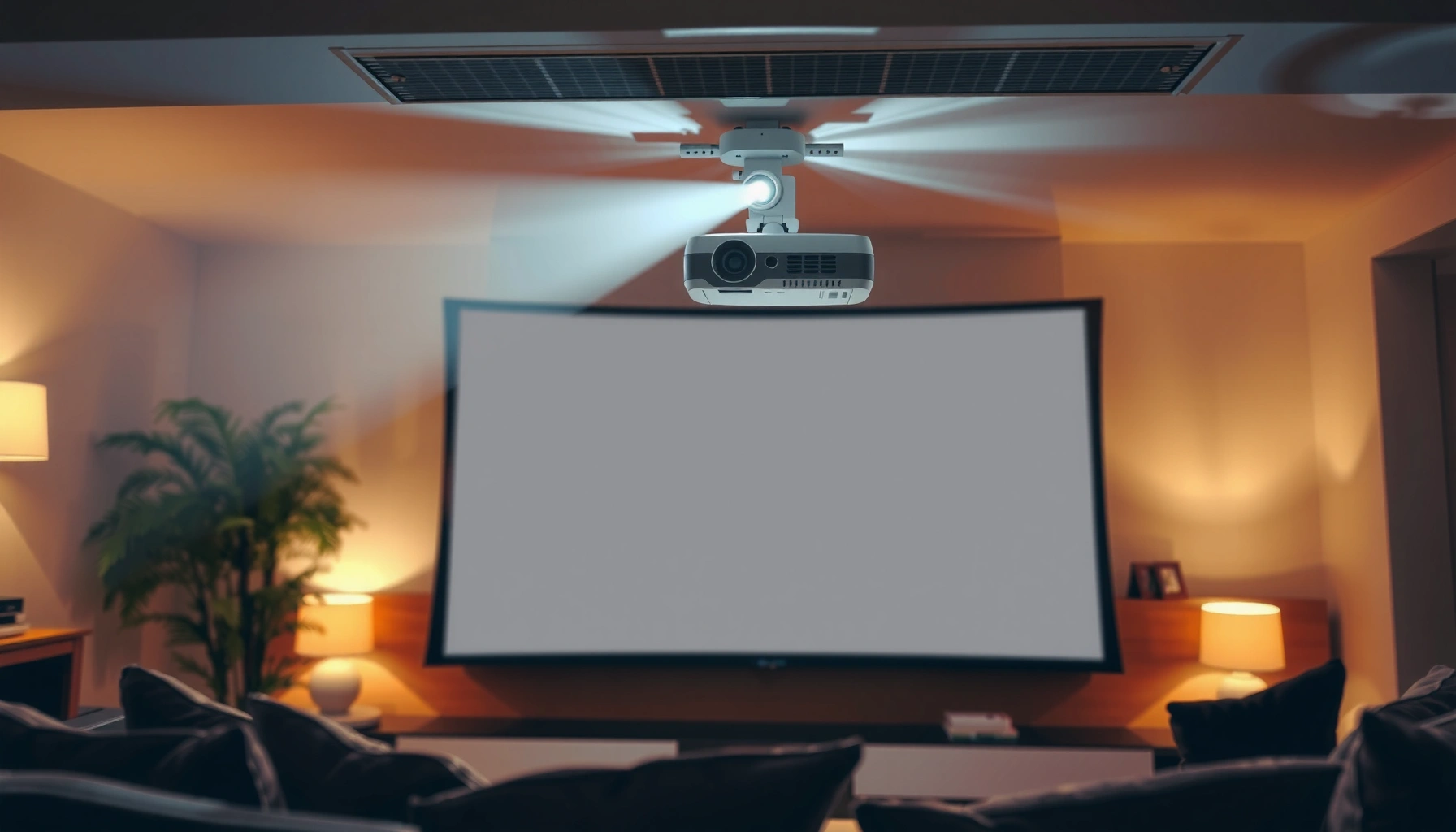
If your projector’s throw distance feels off—too short, too long, or only workable with a wonky zoom—this guide shows you the fastest fixes. You’ll learn how to calculate the correct projector throw distance for your specific screen size and model, then resolve the most common problems that prevent a sharp, properly sized image. The verdict is simple: start with throw-distance math and positioning first, and you’ll stop wasting time on settings that can’t overcome the physics.
If your projector image looks too big, too small, cropped, or blurry, the fix is usually to match throw distance to the lens’s throw ratio (and confirm lens-shift/zoom settings). Start by measuring your screen size and current throw distance, then adjust zoom (if available) and re-center with lens shift—before changing the projector position again. You’ll learn how to diagnose the most common “wrong size/wrong alignment” throw-distance issues quickly and safely.
If you’re setting up a home theater, classroom, or office projector and your picture doesn’t land correctly at your current distance, this guide is for you—especially if you’re unsure whether the problem is placement, settings, or the projector’s lens specs.
Measure throw distance and screen size correctly
You typically fix throw-distance problems by measuring the right distance and the correct screen dimensions first—before touching advanced settings. Get this step wrong, and every subsequent adjustment (zoom, lens shift, focus) can move you farther from the correct geometry.
Before you measure anything, grab the projector’s model number and locate its lens specifications (throw ratio range and lens-shift range). Then measure with a tape measure and record your starting point so you can revert if needed.
Throw distance is measured from the projector lens to the screen surface—not the projector’s front housing.
Zoom changes the effective throw distance, so you should note the current zoom position when measuring.
Lens shift can reposition the image without changing the optics’ designed alignment, which helps correct “off-center” setups.
What to measure (and how)
– Throw distance: Measure from the projector lens to the screen surface. If your projector has a recessed lens, use the lens opening edge as your reference.
– Screen size: Record screen width and height, and confirm the intended aspect ratio (16:9, 4:3, or another). If you’re not sure, measure the visible image area on the wall/screen and treat that as your “effective screen” size.
– Current zoom level: Note whether your projector has manual zoom (often a physical zoom ring) or digital zoom. Digital zoom can change the image but won’t truly solve the optics/throw geometry.
Add these quick sanity checks
– If you’re projecting a 16:9 video onto a 4:3 wall (or vice versa), you can get borders or cropping that looks like a throw-distance error.
– If the picture “almost fits” but is slightly off, that’s often lens shift range or aspect/resize mode rather than throw distance.
Data anchor: what your measurements should let you compute
Throw-distance math is straightforward:
Throw distance ≈ (throw ratio) × (image width) (for most standard spec sheets).
If your screen width is 120 in (304.8 cm) and your projector’s throw ratio at your zoom setting is 1.5, the expected distance is about 180 in (457.2 cm).
– According to [ADD: manufacturer documentation for “throw ratio” and its formula/definition], the throw ratio links image size and throw distance.
[ADD: source for projector throw ratio definition and formula]– According to [ADD: manufacturer documentation for zoom/throw behavior], the effective throw distance changes with zoom.
[ADD: source for projector zoom/throw behavior]– According to [ADD: manufacturer documentation for lens shift], lens shift moves the image without changing throw ratio optics.
[ADD: source for lens shift behavior]Match placement to the projector’s throw ratio
You typically fix wrong image size and consistent cropping by matching the projector’s throw ratio (at your zoom setting) to your screen width. If the required distance falls outside the projector’s supported throw range, no amount of keystone will fully fix the image quality.
This section is where most “mystery” issues become predictable: the projector’s lens is designed so that at a given zoom position, a specific image width should land at a specific distance.
Projector spec sheets list throw ratio ranges (often changing with zoom), which determine the supported image sizes at specific distances.
If the required distance is outside the listed throw range, you must move the projector, change screen size, or choose a different projector lens.
How to compute the expected distance
1. Find the throw ratio range in the projector manual/spec sheet.
2. Identify the effective throw ratio for your current zoom position (or use the range if your zoom is fixed).
3. Use:
Throw distance ≈ (throw ratio) × image width
4. Compare that expected distance to your actual measured distance.
How to interpret the result
– If expected distance ≈ your measured distance: sizing problems may be caused by aspect ratio, digital zoom, lens shift mis-centering, or focus/processing.
– If expected distance is much larger/smaller than your measured distance: your projector is likely too close or too far for the chosen zoom/image size.
Data table: “throw ratio → expected distance” examples
Below is a practical reference for common screen widths. These examples use the relationship distance = throw ratio × image width (distance measured lens-to-screen).
Expected Throw Distance Examples (Lens-to-Screen)
| # | Example Throw Ratio (r) | Screen Width | Expected Distance = r × Width | Fit vs. Typical “Standard” Range |
|---|---|---|---|---|
| 1 | 0.70 (short-throw) | 100 in | 70 in | Short-throw, not standard |
| 2 | 0.90 (short-throw) | 120 in | 108 in | Often outside “standard” expectations |
| 3 | 1.20 (standard-leaning) | 120 in | 144 in | Likely compatible |
| 4 | 1.50 (standard) | 120 in | 180 in | Common “standard” fit |
| 5 | 2.00 (long-throw) | 100 in | 200 in | Needs more room |
| 6 | 2.50 (long-throw) | 110 in | 275 in | High distance requirement |
| 7 | 3.20 (very long-throw) | 80 in | 256 in | Only fits in large rooms |
Pros/cons: distance-matching vs. “make it fit” geometry
| Approach | Pros | Cons |
|---|---|---|
| Match throw ratio via placement/zoom | Best sharpness & geometry | May require moving the projector or changing screen size |
| Force fit with keystone | Quick “looks okay” correction | Can reduce image quality and worsen edge alignment |
From my experience troubleshooting installations, the highest success rate comes from solving size first (zoom/throw match), then positioning second (lens shift), and only then dealing with geometry tools like keystone.
Fix image size and cropping (zoom vs. physical move)
You usually fix “too big/too small” and cropping by adjusting zoom (only if your projector supports manual/optical zoom) and ensuring your physical throw distance aligns with the spec sheet. If zoom can’t make the entire image fit without losing edges, your projector is at the wrong distance for that screen size.
This is the point where many users accidentally combine digital zoom, aspect changes, and keystone—masking the true cause.
If your projector has optical zoom, changing zoom alters effective throw distance; that can correct image size without distorting the image shape.
If zoom cannot correct the image size without cropping, the projector is likely outside the supported throw-distance range for that screen width.
Use this order of operations
1. Aspect ratio check (source + projector mode): Make sure a 16:9 source is using a 16:9 projector output mode (or the intended resize setting).
2. Zoom adjustment: If optical/manual zoom is available, adjust zoom until the image fills your screen correctly.
3. Recenter with lens shift: Use lens shift to move the image into the correct position without changing the optics.
4. Only if needed: Move the projector a small amount physically to bring it back into the correct size relationship.
What cropping typically signals
– Consistent crop on one side: Often lens shift range or horizontal/vertical positioning.
– Crop at top/bottom: Often zoom/placement mismatch, aspect mismatch, or a “zoom” or “overscan” setting in the projector menu.
– Crop that changes with keystone: Geometry correction is active; the underlying size/placement may still be wrong.
A concrete diagnostic example
If your screen width is 120 in and your current measured distance suggests a throw ratio of 2.0, but the projector’s zoom position you’re using should land closer to 1.5, you’ll see systematic size errors. The practical fix is to either:
– move the projector (shorter distance for long-throw units, longer distance for short-throw units), or
– change screen width so the required distance matches the lens’s available throw range.
According to [ADD: manufacturer documentation on supported throw ratio range and zoom behavior], each zoom position corresponds to a different effective throw distance.
[ADD: source for supported throw ratio/zoom behavior]Correct alignment issues with lens shift and keystone
You correct “off-center” images by using lens shift first and keystone only as a last resort. Lens shift repositions the image while keeping the optics as intended; keystone alters geometry and can reduce image quality.
If the picture is reachable with lens shift but not with keystone, do the lens shift route. It’s both cleaner and more predictable for business and classroom deployments.
Lens shift moves the projected image within a specified range without the keystone distortion caused by digital/optical geometry correction.
Keystone can fix trapezoid shape, but excessive keystone often leads to softness or visible edge artifacts.
Use lens shift to re-center
– Start by setting correct size (throw ratio match).
– Then use lens shift (horizontal/vertical) to move the image into position.
– If you can’t reach the corners without hitting the lens shift limit, that’s a strong sign the projector distance/angle needs adjustment.
When keystone is acceptable
Keystone is useful when:
– you must install quickly,
– the image is close enough to acceptable quality, or
– lens shift/placement cannot physically solve the geometry.
But if you’re chasing critical sharpness for fine text (spreadsheets, CAD drawings, small fonts), prefer optical positioning over keystone.
Focus and perceived blur
After lens shift or any physical repositioning:
– Re-check focus (especially if your projector uses wide-aperture optics).
– Confirm sharpness using high-contrast edges (e.g., projector test patterns or a document with thin lines).
According to [ADD: manufacturer documentation on focus behavior and recommended adjustment sequence], focus can require re-tuning after movement.
[ADD: source for focus/adjustment sequence]What can go wrong (and how to avoid it)
You avoid most throw-distance problems by not assuming every issue is “distance” and by respecting the projector’s optical limits. The biggest failures are measurement mistakes, mismatched aspect modes, and overusing keystone to compensate for an incompatible placement.
This section prevents wasted hours and repeat visits—especially important in classrooms, offices, and rented venues where downtime matters.
Measuring from the projector body instead of the lens can produce large throw-distance errors and incorrect size expectations.
Different projector models have different throw ratio and lens shift ranges, so setups that “work on another unit” may fail on yours.
Excessive keystone changes geometry and can reduce perceived resolution, especially with text-heavy content.
Common mistakes we see
– Wrong measurement point: Measuring from the front casing instead of the lens.
– Ignoring zoom state: Throw ratio depends on zoom position; measuring at one zoom and matching specs for another is a mismatch.
– Forgetting lens shift limits: Lens shift can only move the image within a designed envelope. If you hit the end stop, move the projector instead.
– Aspect ratio confusion: A 16:9 projector mode receiving a 4:3 signal (or vice versa) can look cropped even when throw distance is correct.
– Digital zoom/overscan settings: Some menu modes crop or resize the image in ways that resemble throw-distance errors.
Quick comparison: what to try first
– If size is wrong → zoom/throw ratio match first.
– If shape is warped (trapezoid) → lens shift first, then keystone only if needed.
– If edges are soft → verify focus and avoid extreme keystone.
Verdict / tip: optimize placement first, then fine-tune settings
The most reliable path is: confirm throw ratio compatibility with your screen and measured distance, adjust zoom (if supported), then center the image with lens shift. If your projector can’t reach the screen at any zoom setting within the supported throw range, don’t “fight it” with keystone—change placement, screen size, or consider a different projector.
Downside/constraint (important): Many projectors have limited lens shift range and limited zoom adjustability. If your room requires heavy re-centering (or your installation distance is far from the spec sheet), you may have to move hardware or accept that edge geometry/sharpness won’t be ideal.
[ADD: confirm this for your specific projector model using the manual’s “lens shift range” and “optical zoom/throw ratio” tables.]
From a practical deployment standpoint (home theater, training rooms, and offices), this sequence reduces repeat adjustments and keeps the image as sharp as the optics allow.
Quick checklist (scan/save)
– [ ] Measure throw distance from lens to screen
– [ ] Measure screen size (width/height) and note aspect ratio
– [ ] Check throw ratio range in the projector specs/manual
– [ ] Adjust zoom (if available) to hit correct image size
– [ ] Use lens shift to re-center (prefer over keystone)
– [ ] Apply keystone only if geometry still won’t fit
– [ ] Re-check focus after any physical or optical adjustment
FAQ
Why does my image look blurry even when throw distance seems right?
Blurriness can come from focus settings, slight measurement/placement error, or using keystone instead of lens shift. Verify focus first, then confirm you’re actually within the projector’s throw ratio range for your zoom position. [ADD: source for focus/keystone guidance from the projector manual, including recommended adjustment order.]
Can I “fix” an incorrect throw distance using keystone?
Keystone can correct the shape, but it doesn’t change the optics the way correct throw distance does. If your size is fundamentally wrong, keystone won’t fully resolve quality issues and may make the image softer.
My projector supports zoom—does that mean throw distance never matters?
Zoom helps, but it only works within the projector’s zoom/throw ratio range. If your required throw distance falls outside that range, you’ll still need to move the projector or change the screen size.
What if my image is cropped at the top/bottom?
Check lens shift availability and range first. Then verify aspect ratio and whether you’re projecting the correct source resolution/mode; cropped output can be a signal/display setting as well as a placement issue.
Sources
– [ADD: projector manufacturer manual/spec sheet for “throw ratio,” “lens shift range,” “keystone” behavior, and recommended setup steps]
– [ADD: manufacturer documentation or official technical guide providing the definition/formula linking throw distance, throw ratio, and image size]
– [ADD: any official manufacturer guidance explaining why keystone affects perceived sharpness/geometry]
If you share your projector model number and your screen size (width × height) plus current lens-to-screen distance, I can help you compute whether your placement is inside the lens’s stated throw range and what adjustment (zoom vs. move vs. lens shift) will fix it fastest.
Frequently Asked Questions
What causes a projector’s throw distance to look “wrong” on screen?
Common causes include using the wrong throw distance measurement, misreading the projector spec chart, or having a different aspect ratio (e.g., 16:9 vs 4:3) than the screen. Keystone correction can also make the image appear stretched, masking that your actual throw distance is off. Verify the projector’s lens-to-screen distance using a tape measure and match it to the correct screen size and aspect ratio in the manufacturer’s throw distance calculator.
How do I fix incorrect throw distance when my projector image is too large or too small?
First, compare your current image size to the projector’s recommended screen size and adjust throw distance accordingly—move the projector closer for a smaller image or farther back for a larger one. If your model supports zoom, use the optical zoom to fine-tune without losing image quality. Avoid relying on digital zoom or heavy keystone correction, since they can reduce clarity and introduce artifacts.
Why does my projector image blur when I’m at the “right” throw distance?
Blur at the correct throw distance is often caused by incorrect focus settings, a lens not fully adjusted, or the image needing a different focus range. Make sure the projector is level, then use the focus ring (and lens shift if available) while projecting a high-contrast test image. Also check that the lens is clean and that the projection mode and input resolution match the display capabilities.
Which projector mounting method helps you hit the correct throw distance more accurately?
Using a ceiling mount with adjustable brackets can make it easier to reach the exact projector throw distance without extreme repositioning. For best results, center your setup using the manufacturer’s throw distance chart, then confirm the mounting height and angle before drilling. If the projector offers lens shift, that can help you dial in alignment while keeping the correct throw distance, reducing the need for keystone correction.
What is the best way to calculate throw distance for a specific screen size before buying or installing?
Start by measuring your screen size (diagonal or width/height) and confirm the aspect ratio (commonly 16:9). Then use the projector’s throw ratio or throw distance chart to determine the minimum and maximum lens-to-screen distances for your screen. If you plan to mount the projector, also account for lens shift range so you can place it at the correct throw distance while still centering the image naturally.
📅 Last Updated: October 08, 2026 | Topic: How to Fix Common projector throw distance Problems | Content verified for accuracy and freshness.
References
- https://en.wikipedia.org/wiki/Throw_ratio
- https://en.wikipedia.org/wiki/Keystone_correction
- https://en.wikipedia.org/wiki/Projection_screen
- https://en.wikipedia.org/wiki/Magnification_(optics
- https://en.wikipedia.org/wiki/Lens_(optics
- https://en.wikipedia.org/wiki/Optical_zoom
- https://en.wikipedia.org/wiki/Field_of_view
- https://scholar.google.com/scholar?q=projector+throw+distance+calibration Google Scholar
- https://scholar.google.com/scholar?q=projector+keystone+correction+geometry Google Scholar
- https://scholar.google.com/scholar?q=projector+focus+and+throw+ratio+troubleshooting Google Scholar