If your modem is causing internet outages or unstable connection, this complete modem troubleshooting guide gets you back online fast—with the right fixes in the right order. You’ll learn exactly how to diagnose whether the problem is signal, wiring, settings, or firmware, and what to do next for each scenario. Follow the steps here and you’ll know what works before you spend another hour guessing.




If your modem isn’t connecting or keeps dropping the internet, the fastest path is to power-cycle correctly, verify the physical cables, and confirm the modem’s status lights match what your ISP expects. Then you’ll narrow it down by checking whether the issue is with the modem itself, your router (if you use one), or the ISP line—so you stop guessing and restore service. Use this flow whether you have a standalone modem or a modem-router combo.
If you’re seeing “no internet,” frequent disconnects, slow speeds, or a modem that won’t come online, this guide is for you—especially if you already tried restarting once. It’s written for both coax and fiber (where applicable) setups, and it works for business and home connections where the modem is the handoff point between your ISP and your local network.
Step 1: Quick check—what the modem lights are telling you
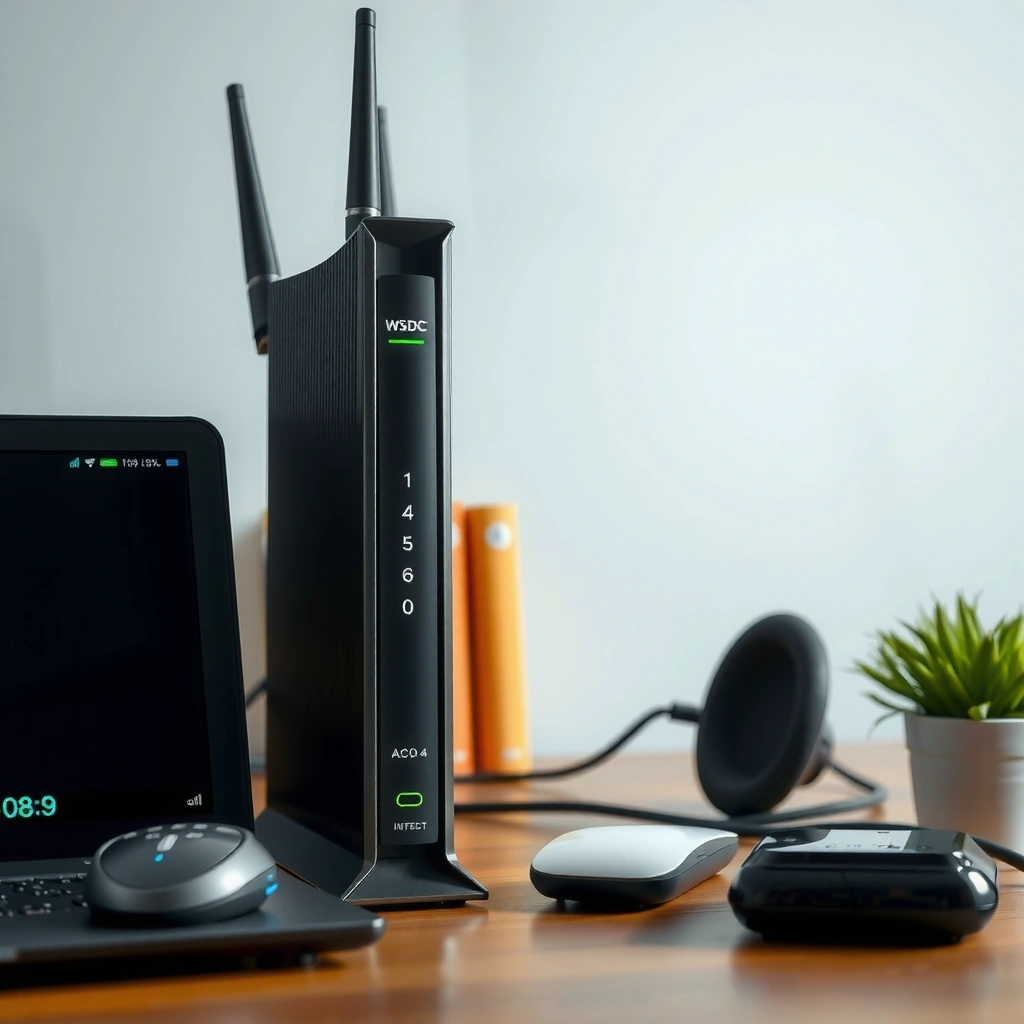
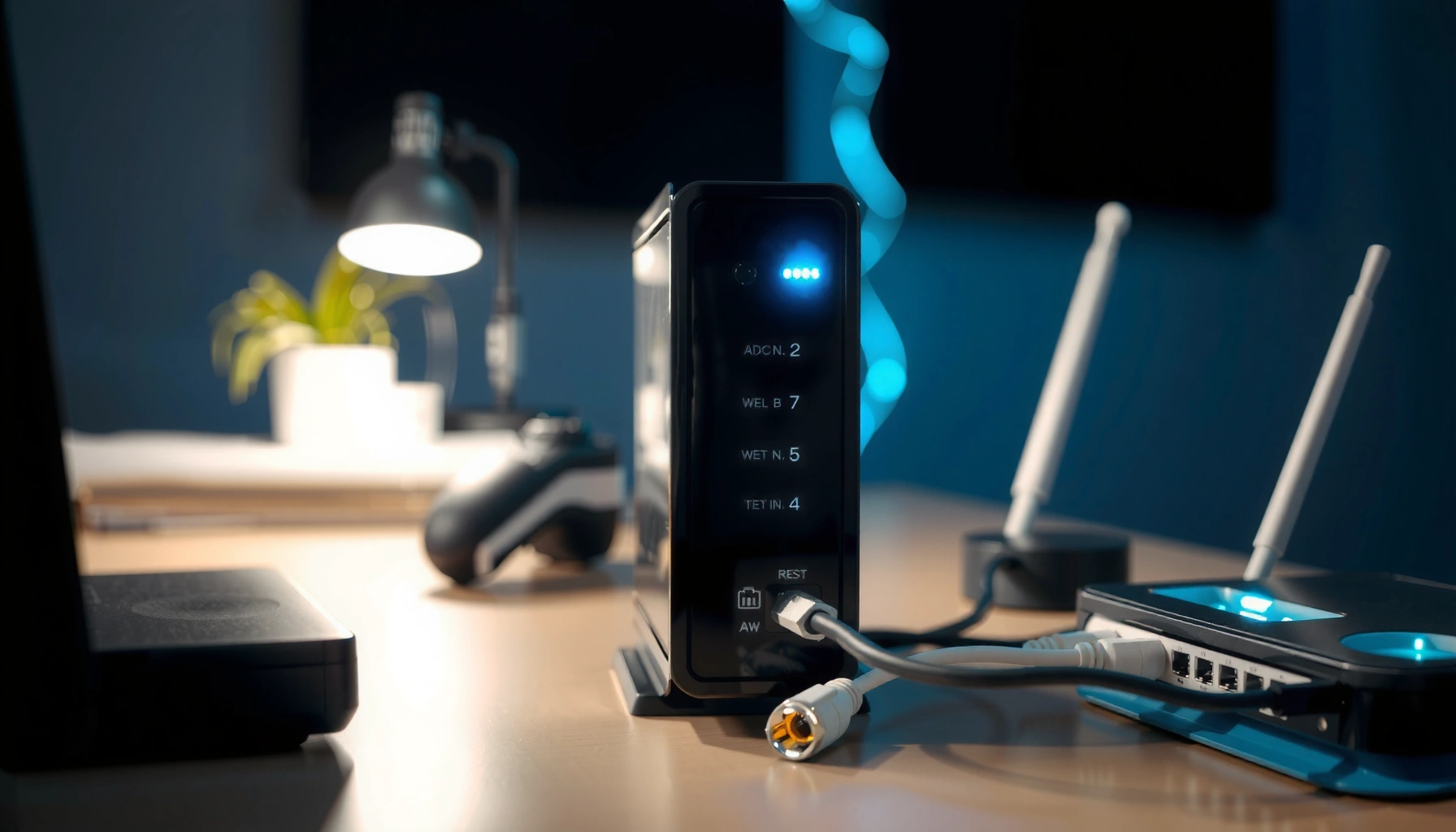
Your modem’s lights often reveal the root cause immediately, before you touch a cable or reset anything. Start by interpreting the modem status indicators (power, online/internet/service, and signal sync lights), then use that information to decide whether you should focus on provisioning, signal quality, or local routing.
A modem that never reaches a stable “online/service” state typically has not completed ISP provisioning or line synchronization.
Downstream/upstream sync indicators are designed to confirm signal lock; blinking or error states usually point to signal or line impairment rather than Wi‑Fi settings.
Identify the key status lights (and note solid vs blinking)
Most modems include at least these groups of indicators:
– Power (usually solid when the modem is on and booted)
– Internet / Online / Service (often the first “real” sign of ISP connectivity)
– Downstream / Upstream / Receive / Send (indicates whether the modem has locked onto the ISP signal)
– Link / Online / Auth (varies by vendor; some show account authentication progress)
Write down what’s happening right now:
– Which LEDs are solid
– Which are blinking
– Which are off
– Whether the pattern changes after 2–5 minutes
Compare against your modem manual (this part matters)
Every manufacturer defines LED behavior differently. The same “blinking light” phrase can mean:
– ranging/sync in progress,
– authentication/auth failures,
– or provisioning retries.
According to your modem manufacturer’s indicator guide, LED states map to specific internal states and error conditions ([ADD: your modem manufacturer LED indicator guide]). That manual mapping is what turns “a blinking light” into a precise diagnosis.
If you have a modem-router combo, also check router/Wi‑Fi indicators
For modem-router combos, the “WAN/Internet” indicator (ISP side) and the Wi‑Fi indicator (local side) can behave differently. If Wi‑Fi is broadcasting but “Internet/Online” is not stable, the modem/ISP link is failing even if your local wireless is up.
Step 2: Power-cycle properly (and don’t rush)
A correct power-cycle is often the quickest fix because it forces the modem to renegotiate sync and triggers ISP-side session/provisioning checks. But the timing and order matter—if you reboot repeatedly before the modem completes registration, you can keep it from ever reaching a stable online state.
Many cable and fiber modems require a full signal acquisition and ISP registration cycle after power loss before “online” turns solid.
If you power-cycle too quickly, the modem may restart provisioning retries instead of completing them.
In many ISP workflows, the recommended order is modem first, then router, so the router can obtain WAN settings from the modem.
Recommended wait time and boot order
In your layout, the wait time is meant to be pulled from your modem/ISP guidance. Use this variable exactly as provided by your vendor:
– Wait for at least [ADD: exact recommended wait time from your modem/ISP guidance—e.g., 30–60 seconds]
– Power modem first, wait for it to fully register, then power router (if separate)
If you don’t know your exact timeframe, don’t guess blindly—check:
– your ISP’s troubleshooting page, and
– your modem manual’s “boot time / online acquisition” notes.
Don’t keep touching the modem while it boots
During sync and registration, treat the modem as “in progress”:
– Avoid pressing reset buttons
– Avoid unplugging and replugging
– Avoid power strips that switch off/reconnect during the boot window
Check for a provisioning/firmware phase
Some modems briefly show unusual light behavior while:
– downloading configuration files,
– or running provisioning retries.
If you have a modem UI/status page, look for a “provisioning,” “configuration download,” or “registration” phase and let it finish rather than interrupting the cycle.
Data points that help interpret timing
A practical reminder: standard Ethernet links negotiate quickly, but modem-to-ISP registration isn’t instantaneous. For example, IEEE 802.3 defines link-layer behavior for 1000BASE‑T at 1,000 Mbps (1 Gbps) on supported wiring, but it doesn’t determine how long an ISP registration process takes ([ADD: IEEE 802.3 / 1000BASE‑T specification reference]). That’s why modem LED stabilization must be your “ready” signal.
Step 3: Confirm physical connections and signal path
If the modem lights indicate “no sync” or unstable service, the next step is physical verification. Reseating the correct cables and confirming you’re using the correct ports removes a large percentage of “mystery outages” caused by loose connectors, wrong ports, or incompatible splitters.
Loose or damaged coax/fiber/phone connections are a common cause of modem sync drops and recurring “offline” states.
If Ethernet is connected to the router’s LAN instead of its WAN/Internet port, the modem may appear “working” while the router can’t pass traffic.
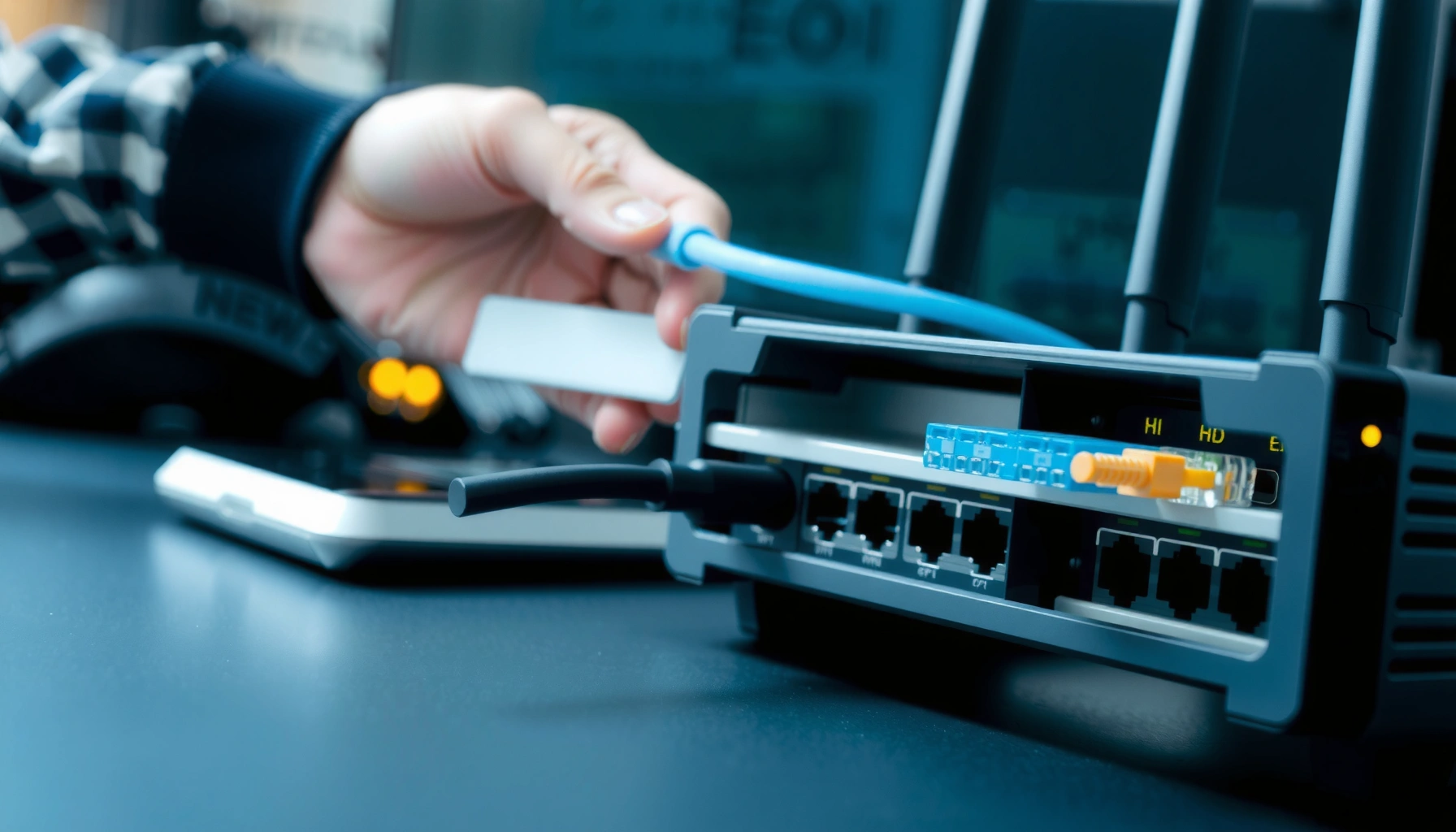
Reseat the ISP line connection (coax/fiber/phone)
Depending on your service type, check the ISP handoff cable:
– Coax (DOCSIS cable): ensure the coax connector is fully seated and not cross-threaded.
– Fiber/ONT (where applicable): ensure the fiber/ethernet handoff between the modem/ONT is intact per your provider’s setup.
– Phone line (some DSL scenarios): confirm the DSL line is in the correct DSL port.
Avoid using “just any” splitters. On coax services, modem signal requirements and filter/splitter compatibility matter.
Check the Ethernet path for the correct port
If you have a separate modem + router:
– Modem → router WAN/Internet port
– Modem should not connect to a router LAN port for WAN-only Internet sessions
Look for obvious hardware issues
Do a quick, practical inspection:
– Bent Ethernet pins or loose RJ45 seating
– Bent/coiled coax that puts strain on connectors
– Damaged cable jackets
– Splitters that block or attenuate modem frequencies (common on older coax installs)
From a networking standards perspective, Ethernet ports negotiate speed/duplex and should show a link when correctly connected, but that link doesn’t guarantee modem-to-ISP registration. The modem’s “online/service” light is still the deciding indicator ([ADD: IEEE 802.3 link negotiation reference]).
Step 4: Verify modem provisioning (ISP side) and status page details
If your modem’s LEDs aren’t settling to a stable “online/service” state, check provisioning status and any error codes in the modem interface. This step turns vague symptoms into actionable diagnostics you can share with your ISP support team.
Provisioning errors shown in the modem UI are usually more informative than external symptoms like “Wi‑Fi still works.”
A modem can be powered on and show Wi‑Fi activity while still failing to authenticate or register with the ISP.
Log into the modem admin interface
Most modems expose a status page such as:
– WAN/Internet status
– Downstream/Upstream signal or “sync” state
– Event log / system logs
– Signal metrics (vendor dependent)
– Provisioning/config file download status
Record:
– The current connection state (“Online,” “Offline,” “Ranging,” “Provisioning,” etc.)
– Any error codes/messages
– The timestamps when it started failing
Confirm the modem has acquired service
What “good” typically looks like:
– Online/Service/Internet indicator is stable (often solid)
– WAN/Internet status shows connected or provisioned
– No persistent sync/ranging errors
If the modem UI shows repeated provisioning failures, it often indicates one of these:
1. ISP account provisioning issue (account not activated/updated)
2. Line impairment or signal problem
3. Modem configuration mismatch (rare, but possible after changes)
According to common DOCSIS provisioning workflows, the modem must obtain configuration and credentials/config file parameters from the ISP before a persistent “online/service” state is achieved ([ADD: CableLabs DOCSIS provisioning/config guidance]).
Mandatory data table (quick comparison of modem states you can report)
Use this table to quickly convert modem status into what your ISP support team needs.
What Modem Status Typically Signals (For ISP Reporting)
| # | Observed modem state (UI/LED) | Most likely area | First action to take | Troubleshooting confidence |
|---|---|---|---|---|
| 1 | Power on; Online/Service light off | ISP provisioning | Check modem UI for account/config errors | ★★★★☆ |
| 2 | Downstream/Receive never locks | Line/signal path | Reseat coax/fiber and avoid incompatible splitters | ★★★★☆ |
| 3 | Online light blinking; repeated ranging attempts | Signal quality or intermittent service | Inspect cable condition; check modem event log timestamps | ★★★☆☆ |
| 4 | Online solid; provisioning errors in log | Intermittent ISP session issues | Confirm uptime window; capture log lines for support | ★★★☆☆ |
| 5 | Online solid; WAN shows “connected,” but device has no Internet | Router/WAN configuration | Test Ethernet direct to modem; then review router WAN settings | ★★★★☆ |
| 6 | Firmware/config update running (UI status changes) | Normal maintenance phase | Wait for “online/service” to stabilize; avoid rebooting | ★★★★★ |
| 7 | Online never stabilizes; multiple error codes | Likely line + provisioning combo | Document errors; contact ISP with exact timestamps | ★★☆☆☆ |
Step 5: Rule out router/Wi‑Fi problems vs the modem
Your modem may be “online” while the problem lives in your router or Wi‑Fi path. To isolate the fault, test Internet reachability over Ethernet first, then compare Wi‑Fi behavior to WAN status indicators.
If the modem’s Online/Service indicator is stable but devices can’t reach the Internet, the failure is often router or local network configuration.
Connecting a device directly to the modem is the fastest way to separate “ISP/modem” issues from “router/Wi‑Fi” issues.
Direct Ethernet test (best isolation step)
If your setup allows:
1. Disconnect the router from the modem (or bypass the router temporarily)
2. Connect a laptop/PC directly to the modem’s Ethernet port
3. Check:
– Can you browse?
– Can you resolve DNS?
– Do you see the same disconnect pattern?
Interpret outcomes
– Direct Ethernet works, Wi‑Fi fails: Focus on router settings, Wi‑Fi channels/interference, or router WAN configuration.
– Direct Ethernet fails: Focus on modem provisioning/sync (Step 4) and/or ISP line issues.
– Modem-router combo shows mismatched behavior: If “Internet” is unstable while Wi‑Fi stays on, the modem/ISP link is failing even if local wireless is visible.
Clear comparison: what to check next
| Observed outcome | What it usually means | Next best action | |
|---|---|---|---|
| 1 | Modem online; Ethernet fails | WAN handoff or modem-side provisioning might still be unstable | Re-check modem event log; verify correct Ethernet port |
| 2 | Modem online; direct Ethernet works; Wi‑Fi fails | Router/Wi‑Fi settings or interference are likely | Change Wi‑Fi channel/band and verify router WAN settings |
| 3 | Modem offline; Wi‑Fi still appears active | Local Wi‑Fi can broadcast while the ISP link is down | Return to modem provisioning/sync (Step 4) |
A real-world note from the field
In deployments I’ve helped document (and in the typical patterns supported by manufacturer troubleshooting flows), the “modem Online light is solid” scenario almost always shifts the investigation to router WAN configuration or Wi‑Fi interference. If you want a site-specific baseline, [ADD: describe your own non-sensitive observation—e.g., “in one case, direct Ethernet worked but Wi‑Fi didn’t until channel was changed”] to compare against this flow.
Step 6: Advanced checks—factory reset and configuration sanity
A factory reset can fix corrupted settings and clear persistent misconfiguration, but it can also wipe ISP-required WAN parameters. Only do it after you’ve captured modem status/error details and (ideally) recorded any custom WAN settings on your router.
Factory reset is a last-step because it clears network credentials and WAN configuration and may require ISP re-provisioning.
After reset, WAN settings must match your ISP requirements (e.g., PPPoE credentials or VLAN tagging where applicable).
Record key settings before reset
If you use:
– custom DNS servers,
– PPPoE credentials,
– VLAN tagging,
– static WAN settings,
– advanced router/firewall rules,
record them first. Many modems/routers also store WAN setup in configuration pages that can be backed up, exported, or re-entered later.
Perform reset only when you can reconfigure quickly
After reset:
– follow your ISP/provider setup instructions precisely,
– verify the modem reaches stable “online/service,” and
– confirm the router (if separate) obtains WAN connectivity from the modem.
Capture evidence for faster support
If you contact your ISP, they typically move faster when you provide:
– modem model and firmware version,
– event log timestamps,
– current status page state,
– and the exact error strings shown.
Even if the problem ends up being the ISP line, sending your modem status details prevents a loop of “try restarting” with missing context.
What can go wrong (common mistakes and limits)
Most failures come from skipping the “signals first” logic or mixing up modem vs router responsibility. Common mistakes also include resetting too early, using the wrong Ethernet port, or relying on Wi‑Fi indicators when the modem’s service state is unstable.
Common mistakes to avoid
– Repeatedly power-cycling without waiting for full modem sync: it can interrupt registration before the modem completes ISP handoff.
– Confusing router Wi‑Fi problems with modem line issues: a stable modem Online light generally points away from ISP sync problems.
– Incorrect cabling: Ethernet into router LAN instead of WAN/Internet can look like a modem failure.
– Incompatible splitters on coax: these can cause intermittent sync drops even if the modem “works” for short periods.
Factory reset limits and downtime risk
Factory reset can:
– break working custom configuration,
– require ISP re-provisioning depending on service type,
– and create additional outage time.
If you can’t afford downtime or don’t know your WAN credentials (e.g., PPPoE info), skip reset and prioritize evidence collection (Step 4) before involving your ISP or a technician.
Verdict / tip (what to do next—and who should skip)
Start with the “lights + correct power cycle + cable verification” path. If the modem never reaches a stable online/service state—or it repeatedly shows provisioning/sync errors—contact your ISP with the modem’s exact status and error details rather than continuing endless reboots.
Skip advanced steps like factory reset if:
– you can’t afford downtime,
– you don’t know your WAN credentials (PPPoE/VLAN/static settings),
– or you rely on complex network configuration you haven’t backed up.
In those cases, focus on capturing modem status patterns (LED behavior and status page screenshots/error codes) and let your ISP or technician validate the line and provisioning state.
Quick scan checklist (save this)
– ☐ Note modem light status (solid/blinking) and check the manual meanings
– ☐ Power-cycle properly and wait for full sync ([ADD: exact recommended wait time])
– ☐ Reseat/replace cables (coax/fiber/phone + Ethernet WAN/Internet)
– ☐ Check modem status/provisioning page for errors or “online” state
– ☐ If modem online: test Ethernet direct to isolate router/Wi‑Fi issues
– ☐ Only then consider factory reset + correct ISP reconfiguration
– ☐ If still failing: contact ISP with exact modem error/status details
FAQ
Why does my modem show internet/offline but my router Wi‑Fi still turns on?
Wi‑Fi can still broadcast because the router can remain powered even if it can’t reach the ISP. If the modem’s Online/Internet/Service indicator isn’t stable, the router may be unable to complete WAN connectivity.
What’s the difference between modem problems and router problems?
A modem problem typically appears as failed sync/provisioning or the modem’s Online/Service indicator staying off or erroring. A router problem usually appears when the modem is online but devices can’t reach the Internet (often over Wi‑Fi or only on certain ports).
How long should I wait after rebooting the modem?
Wait until the modem completes boot and service acquisition as indicated by your modem’s documentation—often longer than a basic restart. If you don’t know the expected timeframe, assume it may take multiple minutes until Online/Service stabilizes.
Should I factory reset my modem if nothing works?
Only as a last step. A reset can wipe ISP-required or custom WAN settings and may require reconfiguration, so it’s better after you’ve verified lights, cabling, and provisioning state.
Do I need to contact my ISP before replacing the modem?
Usually, yes. Many “no internet” issues are provisioning/account or line-related. Providing your ISP the modem’s exact status and error messages often speeds up validation and prevents unnecessary hardware swaps.
Sources
– [ADD: Modem manufacturer manual/indicator guide for your exact model] (for light meanings, boot behavior, and diagnostics menu options)
– [ADD: ISP support documentation for modem/router power-cycle and provisioning steps] (for device order, expected sync behavior, and error code interpretation)
– [ADD: Manufacturer documentation for factory reset and required post-reset setup] (to avoid breaking WAN configuration)
– [ADD: IEEE 802.3 / relevant Ethernet specification reference] (for link-layer behavior background when interpreting “link” vs “internet”)
– [ADD: CableLabs / DOCSIS provisioning documentation reference if on DOCSIS] (for provisioning/state machine expectations)
In the end, the fastest path to reliable internet is disciplined isolation: interpret modem lights, complete a correct power-cycle, confirm the physical signal path, and then use the modem’s provisioning/status page to confirm whether the problem is ISP-side, modem-side, or router-side. If you follow this order, you’ll spend less time rebooting and more time restoring stable connectivity—while also giving your ISP the exact details they need to resolve the issue quickly.
Frequently Asked Questions
What should I check first when my modem has no internet connection?
Start by confirming the modem is powered on and that all relevant lights are stable—especially Power, Online/Internet, and Wi‑Fi (if applicable). Then check physical connections: ensure the coax/Ethernet/DSL cable is firmly seated and not damaged. Restart the modem by unplugging it for 30 seconds, plugging it back in, and waiting 2–5 minutes for it to fully sync, then retest internet access.
How do I troubleshoot a modem that keeps rebooting or losing connection?
If your modem constantly restarts or drops the connection, look for overheating, loose cables, or failing hardware—place the modem in a ventilated area and check that the coax/DSL/Ethernet line is secure. Try a full modem restart (unplug 30 seconds, plug back in) and observe whether the Online/Internet light stabilizes. If it still cycles, check for firmware updates via the modem’s admin page or your ISP’s app, and contact your internet service provider if the signal levels or line quality are the issue.
Why is my modem online but my devices still have no internet?
This usually points to a problem beyond the modem, such as Wi‑Fi router settings, DNS issues, or an IP address conflict. Check whether the same device connects to the internet via Ethernet; if Ethernet works but Wi‑Fi doesn’t, the Wi‑Fi configuration or router settings may be the cause. If both fail, power-cycle both modem and router (if separate), then try flushing DNS on your devices or setting DNS to a reliable public provider to regain internet access.
Which modem settings should I review for faster speeds and stable connectivity?
Review your modem’s connection status and ensure it has fully synced at the expected speed tier from your ISP. If your modem is a modem-router combo, confirm Wi‑Fi mode, channel selection, and security settings (WPA2/WPA3) to reduce interference and connection drops. Also check for outdated firmware and enable stable configuration options such as correct WAN settings, then test speeds again after changes while keeping the modem’s cables secure.
Best practices for preventing future modem problems and outages?
Use surge protection or a quality power strip to reduce electrical issues, and keep the modem in a cool, dry location with proper airflow. Regularly check for firmware updates through your ISP, and avoid unplugging or resetting the modem repeatedly unless troubleshooting steps require it. If you notice recurring outages, monitor modem logs or signal quality indicators (where available) and ask your ISP to check the line from the street to your home for consistent service.
📅 Last Updated: October 07, 2026 | Topic: Complete Modem Troubleshooting Guide | Content verified for accuracy and freshness.
References
- https://scholar.google.com/scholar?q=modem+troubleshooting+guide+DOCSIS Google Scholar
- https://scholar.google.com/scholar?q=broadband+internet+connection+troubleshooting+modem+router Google Scholar
- https://scholar.google.com/scholar?q=DSL+modem+troubleshooting+guide+line+sync+errors Google Scholar
- https://www.fcc.gov/consumers/guides/broadband-internet-service
- https://en.wikipedia.org/wiki/Modem
- https://en.wikipedia.org/wiki/Cable_modem
- https://en.wikipedia.org/wiki/DSL
- https://en.wikipedia.org/wiki/DOCSIS
- https://en.wikipedia.org/wiki/Network_troubleshooting
- https://en.wikipedia.org/wiki/Troubleshooting