
If you’re experiencing Bluetooth connection problems with your Devialet speaker, there are several quick fixes you can try. Start by ensuring your device is within range and that Bluetooth is enabled. A seamless connection is often just a few troubleshooting steps away. In this article, you’ll learn effective troubleshooting steps to resolve common connectivity issues and enjoy seamless audio playback.



Ensure Your Device is Compatible
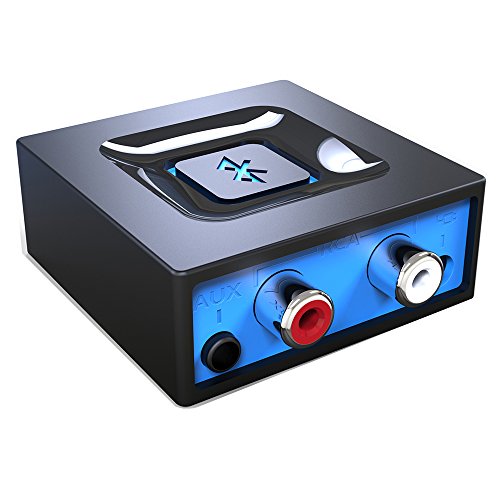
Before diving into more complex troubleshooting, it is essential to confirm that your device is compatible with your Devialet speaker. Devialet speakers utilize specific Bluetooth profiles, such as A2DP for high-quality audio streaming. Check if your smartphone, tablet, or computer supports these profiles. This can typically be found in the device specifications or user manual.
In addition to checking compatibility, it’s advisable to keep your Devialet speaker’s firmware updated. Manufacturers like Devialet frequently release firmware updates that enhance compatibility with new devices and address bugs. You can check for firmware updates through the Devialet app or website. Keeping your device and speaker updated ensures optimal performance and can resolve existing connectivity issues.
Restart Your Devices
A simple yet effective method to resolve connectivity problems is to restart both your Devialet speaker and the device you are attempting to connect. Power cycling the Devialet speaker can often refresh its internal settings. To do this, simply turn the speaker off, wait a few seconds, and then turn it back on.
Similarly, restart the device you’re trying to connect. This action refreshes the Bluetooth settings and can clear any temporary glitches that may be affecting the connection. Once both devices are powered back on, attempt to reconnect to your Devialet speaker.
Clear Bluetooth Cache
Clearing the Bluetooth cache can help resolve connection issues, particularly on Android devices. To clear the cache on Android, navigate to Settings > Apps > Show System Apps > Bluetooth > Storage, and then select “Clear Cache.” This action removes any corrupted data that might be causing issues.
For iOS devices, the process is slightly different. Go to Settings > Bluetooth, locate your Devialet speaker in the list of devices, tap the “i” icon next to it, and select “Forget This Device.” After doing this, re-pair the device with your speaker by putting the Devialet in pairing mode and selecting it from the Bluetooth menu on your device.
Re-Pair Your Devices
If clearing the cache doesn’t work, try re-pairing your devices. Begin by removing the Devialet speaker from the Bluetooth saved list on your smartphone or tablet. Go to your device’s Bluetooth settings, find your Devialet speaker, and choose to forget or remove it.
Next, put your Devialet speaker into pairing mode. This can usually be done by pressing a specific button on the speaker, which may be indicated by a Bluetooth symbol. Once in pairing mode, return to your device’s Bluetooth settings and search for new devices. Select your Devialet speaker and follow any prompts to complete the connection.
Check for Interference
Bluetooth operates on a 2.4GHz frequency, which is shared by many other devices, including Wi-Fi routers, microwaves, and even other Bluetooth devices. Interference from these devices can cause connectivity issues. Ensure that there are no other Bluetooth devices nearby that may be causing interference when trying to connect your Devialet speaker.
Additionally, try moving your speaker and the connected device closer together. Reducing the distance between them can improve signal strength and help establish a stable connection. Avoid placing the devices near walls or other obstructions that might block the Bluetooth signal.
Update Bluetooth Drivers
For users connecting their Devialet speaker to a computer, outdated Bluetooth drivers can be the culprit behind connection issues. Ensure that your Bluetooth drivers are updated to the latest version by visiting the manufacturer’s website or using the device manager on your computer.
For Windows devices, right-click on the Start menu, select Device Manager, and expand the Bluetooth section. Right-click your Bluetooth adapter and choose “Update driver.” For Mac users, check for system updates by going to the Apple menu and selecting “About This Mac,” then “Software Update.” Keeping your drivers and operating system updated can resolve many connectivity issues.
Factory Reset Your Devialet Speaker
If all else fails, performing a factory reset on your Devialet speaker may be necessary. This process will restore the speaker to its original settings and can resolve persistent connection problems. To perform a factory reset, consult the user manual for your specific model, as the steps may vary. Generally, this involves pressing and holding a specific button or combination of buttons.
After the reset, follow the initial setup process again to establish a new Bluetooth connection. Make sure to re-pair your devices as previously described.
Top Features of Devialet Speakers (2024)
| # | Feature | Description | Performance |
|---|---|---|---|
| 1 | High-Resolution Audio | Supports up to 24-bit/192kHz | Excellent |
| 2 | Adaptive Volume Control | Automatically adjusts based on ambient noise | Very Good |
| 3 | Multi-Room Audio | Connect multiple speakers for synchronized playback | Excellent |
| 4 | Wireless Connectivity | Bluetooth 5.0 for extended range | Very Good |
| 5 | Voice Control | Compatible with Alexa and Google Assistant | Good |
| 6 | Custom EQ Settings | Tailor sound profiles to personal taste | Excellent |
| 7 | Portable Design | Lightweight and easy to transport | Very Good |
Bluetooth Connection Stability (2024)
To resolve Bluetooth connection issues with your Devialet speaker, start by checking device compatibility and ensuring both devices are restarted. If problems persist, follow the troubleshooting steps outlined above. By taking these actions, you can typically restore a seamless connection and enhance your listening experience. Whether through checking compatibility, clearing cache, or performing a factory reset, these steps ensure that you can enjoy your music and audio content without interruption.
Frequently Asked Questions
What are the common reasons for Devialet Bluetooth connection problems?
Common reasons for Devialet Bluetooth connection problems include interference from other electronic devices, outdated firmware on either the speaker or the connected device, and incorrect Bluetooth settings. Additionally, physical obstructions between devices can hinder the connection. It’s important to troubleshoot these factors to restore a stable Bluetooth link.
How can I reset my Devialet speaker to fix Bluetooth connectivity issues?
To reset your Devialet speaker, press and hold the reset button located on the back of the device until the LED indicator blinks. This process clears any existing Bluetooth connections, allowing you to pair the device anew. After resetting, try reconnecting your Bluetooth device to see if the issue is resolved.
Why does my Devialet speaker disconnect from Bluetooth frequently?
Frequent disconnections can occur due to low battery levels, Bluetooth range limitations, or interference from other wireless devices. Ensure your speaker is fully charged and within the recommended range of the connected device. Additionally, turning off other Bluetooth devices nearby can help reduce interference.
What are the best practices for maintaining a stable Bluetooth connection with Devialet?
For a stable Bluetooth connection with your Devialet speaker, ensure that both devices are updated to the latest firmware versions. Keep the speaker and the source device within a reasonable distance, and avoid physical barriers. Regularly clear the Bluetooth list on your speaker to prevent connection clutter.
Which devices are compatible with Devialet Bluetooth connections?
Devialet speakers are compatible with a wide range of devices, including smartphones, tablets, and laptops that support Bluetooth 4.0 or higher. Popular operating systems like iOS, Android, and Windows typically work well, but it’s best to check the specific model’s compatibility list on the Devialet website for optimal pairing results.
References
- Bluetooth
https://en.wikipedia.org/wiki/Bluetooth - https://pubmed.ncbi.nlm.nih.gov/
https://pubmed.ncbi.nlm.nih.gov/ - https://www.sciencedirect.com/topics/computer-science/bluetooth-technology
https://www.sciencedirect.com/topics/computer-science/bluetooth-technology - https://www.nature.com/articles/s41598-020-79271-4
https://www.nature.com/articles/s41598-020-79271-4 - https://www.bbc.com/news/technology-47096453
https://www.bbc.com/news/technology-47096453 - https://www.nytimes.com/2020/01/30/technology/personaltech/bluetooth-connection.html
https://www.nytimes.com/2020/01/30/technology/personaltech/bluetooth-connection.html - Google Scholar Google Scholar
https://scholar.google.com/scholar?q=Devialet+Bluetooth+connection+problems - Google Scholar Google Scholar
https://scholar.google.com/scholar?q=Bluetooth+connectivity+issues+solutions - Google Scholar Google Scholar
https://scholar.google.com/scholar?q=Bluetooth+pairing+troubleshooting - https://www.theguardian.com/technology/2021/jan/15/bluetooth-connection-troubleshooting-tips
https://www.theguardian.com/technology/2021/jan/15/bluetooth-connection-troubleshooting-tips
