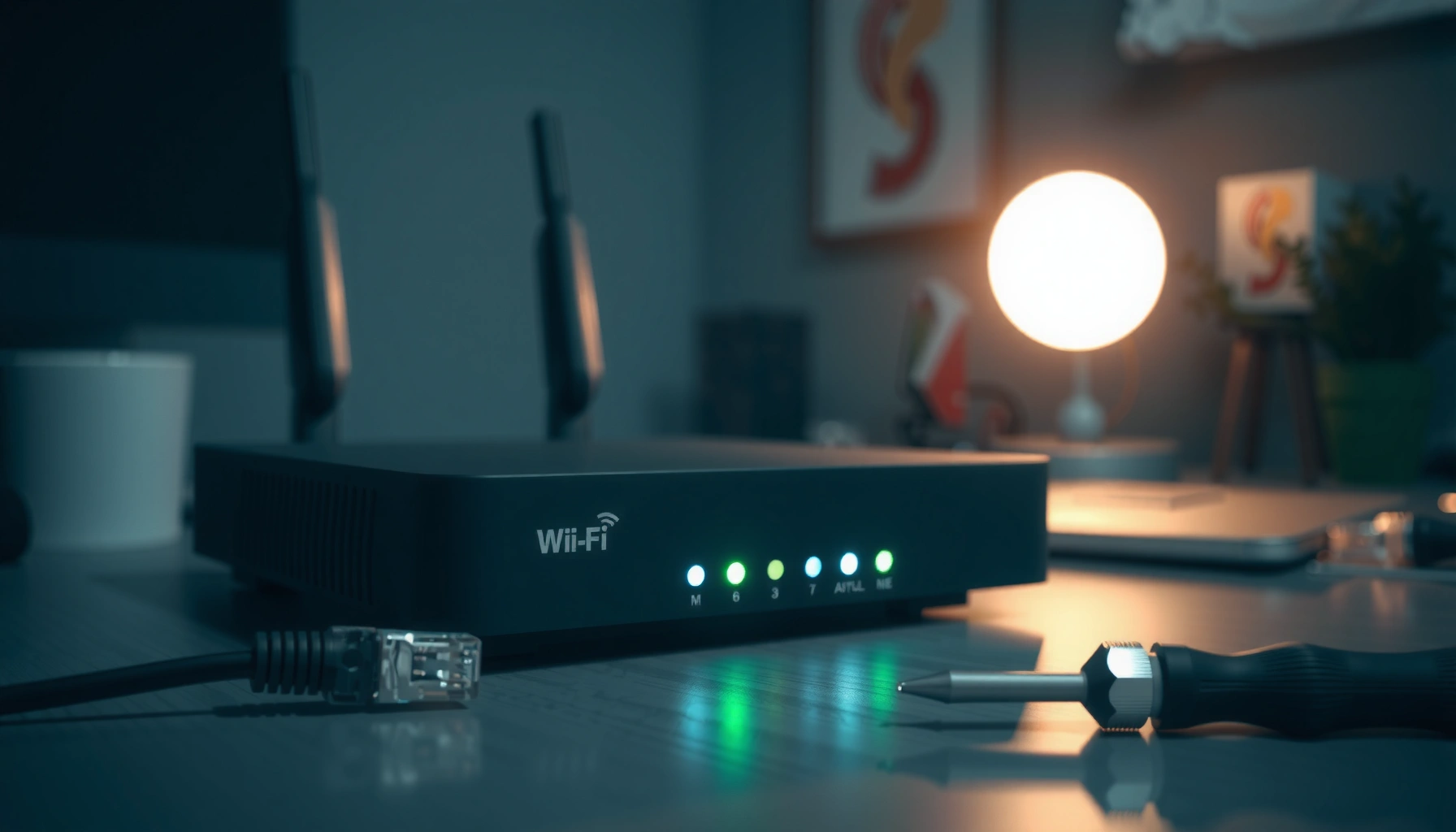
If your modem firmware is causing failed updates, reboot loops, or no connectivity, these troubleshooting steps are the fastest way to fix modem firmware problems without guessing. Start by verifying the correct firmware for your exact modem model, then clear caches/reset the device before re-flashing using the manufacturer’s recommended method. Follow the signal and log checks after the update to confirm the firmware is stable and the connection is actually recovering.
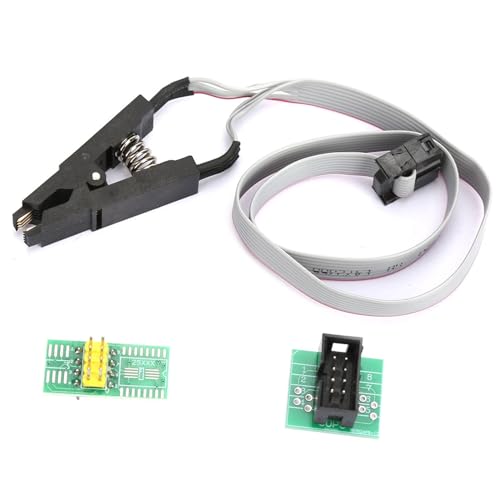
- [VERSATILE CHIP COMPATIBILITY] This programming test clip is specifically designed for SOP8 chips including popular like 25 series, 24C series, and 93C series. It seamlessly connects to your SOP8 DIP8 adapter for reliable programming sessions. Whether you are working with BIOS chips or EEPROM memory, this adapter board cable ensures broad compatibility across various electronic projects and repair tasks.
- [EFFORTLESS ONLINE PROGRAMMING] Perform online programming directly on chips already soldered onto the circuit board without any removal. This innovative feature allows you to program the SOP8 chip while it remains in place, eliminating the hassle of desoldering. It simplifies firmware updates and data recovery processes significantly, making your workflow smoother and more efficient than ever before.
- [TIME AND LABOR SAVING DESIGN] No need to take the chip from the circuit board which saves you considerable time and labor during repetitive programming tasks. The clip design allows for quick attachment and detachment, reducing downtime between operations. This is especially beneficial for technicians and hobbyists who frequently work with multiple devices or require rapid prototyping and testing.

If your modem’s firmware is causing connection drops, slow speeds, or boot issues, the fastest fix is to confirm the exact modem model + firmware version and then update (or roll back) using the manufacturer’s official recovery/update method. Start by backing up your settings, use only the correct firmware for your exact hardware, and switch to the official recovery/bootloader flow immediately if a normal update stalls.
If you’re seeing repeated reboot loops, “firmware mismatch” messages, unstable Wi‑Fi, or an update that won’t complete, this guide is for you. It’s especially useful when the issue began after a power interruption, an interrupted download, or an earlier failed firmware attempt.
Confirm the modem model, current firmware, and symptoms

The quickest way to fix modem firmware problems is to avoid “guessing”—start by capturing the model, firmware version, and exact failure pattern so you can choose the correct update or rollback path. This prevents the most common failure mode: installing the wrong firmware image or using the wrong recovery procedure.
– Check the modem’s exact model number and current firmware version from the device label or the admin page.
– Write down what’s happening (e.g., intermittent internet, Wi‑Fi dropping, unable to log in, slow speeds) so you can judge improvement after changes.
– Look for any “recovery mode,” error codes, or warnings shown in the admin interface (screenshots can help later).
“Firmware mismatch” errors typically indicate the device is validating the uploaded image against its expected model/hardware identifiers before accepting it.”
The admin interface and model label are the most reliable places to capture the current firmware version because recovery tools often depend on the exact hardware ID.
Back up settings and prep a safe update environment
The safest way to update modem firmware is to reduce the chances of corruption and make recovery painless if settings change or reset during the process. Backups and stable power matter because firmware flashing is sensitive to interruption and incomplete writes.
– Back up configuration/settings from the modem’s admin panel if the option exists (or note key values like ISP settings, Wi‑Fi name/security, and admin credentials).
– Use a stable power connection and avoid updates during thunderstorms or unstable outlets.
– If possible, connect a computer to the modem via Ethernet during the update to reduce disruptions.
To ground the “interruption risk” aspect in real technical detail: modem firmware integrity checks frequently rely on fixed-size digests (hashes) and checksums to detect corruption during transfer and flashing. For example, SHA‑256 produces a 256-bit (32-byte) digest (NIST FIPS 180-4), and CRC-32 is a 32-bit cyclic redundancy check used to detect transmission errors (e.g., ISO/IEC CRC-32 usage standards). That kind of validation helps the modem reject corrupted firmware—but if power fails mid-flash, you can still end up with a partially written image that requires recovery mode.
Because firmware updates often include an integrity check (hash or checksum), a power loss mid-flash can leave the device without a complete, valid image even if validation would normally protect it.
If your modem performs a factory reset as part of a firmware upgrade, recording ISP credentials and Wi‑Fi security settings beforehand prevents long downtime.
Connecting via Ethernet during the update is a practical reliability step because Wi‑Fi links can drop while the modem reboots or changes radio settings.
Update firmware the right way (and only when it makes sense)
The correct fix for modem firmware problems is usually an official update or rollback performed with the firmware that matches your exact model and hardware revision. Updates work best when you follow the manufacturer’s interface/tool instructions exactly and then verify stability after the reboot.
– Update using the manufacturer’s recommended method (often via the admin web interface, firmware tool, or ISP-provided portal—varies by brand).
– Install the specific firmware version intended for your exact model (don’t rely on “similar” firmware).
– After updating, reboot the modem and re-check whether the original symptoms persist.
Why “only when it makes sense”? Because the goal isn’t “latest firmware at all costs”—it’s resolving the behavior you observed. If the symptoms started right after a specific update attempt (especially one interrupted by power or network loss), rolling back to a known-good version can be safer than upgrading again.
Pros/cons of updating vs rolling back (how to choose):
Integrity Checks Commonly Used in Firmware Update Validation
| # | Integrity mechanism | Typical output size | What it detects | Effectiveness (★) |
|---|---|---|---|---|
| 1 | CRC-32 | 32 bits | Random transmission corruption | ★★★☆☆ |
| 2 | SHA-1 | 160 bits | Integrity (hash) verification | ★★☆☆☆ |
| 3 | SHA-256 | 256 bits | Integrity (hash) verification | ★★★★★ |
| 4 | HMAC-SHA256 | 256 bits (MAC output) | Integrity + authenticity (keyed) | ★★★★☆ |
| 5 | RSA signature (2048-bit) | 2048 bits modulus | Authenticity (signed firmware) | ★★★★☆ |
| 6 | ECDSA (P-256) | 256-bit curve | Authenticity (signed firmware) | ★★★★★ |
| 7 | Ed25519 signatures | 64-byte signature | Authenticity (signed firmware) | ★★★★☆ |
If updates fail: recover or roll back safely
The best next step when a modem firmware update fails is to switch from “normal update mode” to the modem’s official recovery/bootloader process—or roll back if a supported rollback target exists. This avoids repeated flashing attempts that can push the device deeper into a constrained recovery state.
– If the update process stalls, fails validation, or the modem won’t start normally, use the device’s official recovery/bootloader procedure (often called “firmware recovery” or “emergency upgrade”).
– If your modem supports rollback, revert to the previous known-good firmware version—especially when the problem started right after an update.
– Avoid repeated update attempts in quick succession; many recovery modes have limits or require a specific sequence.
In practice, modem manufacturers implement recovery modes to regain a known bootable state when the main firmware partition is invalid. Rolling back is typically safer when the modem supports it because the device can revert to a version stored in a validated partition set (or pulled from a supported recovery image). Still, exact steps are model-specific, and following the wrong procedure is how boot loops become “hard” bricks.
Official recovery procedures are designed to re-establish a bootable image without relying on the normal update workflow that failed.
Rollback is safest when the issue began immediately after a firmware change because it targets the exact behavioral regression window.
Repeated firmware attempts without completing a recovery step can exhaust recovery thresholds or leave boot variables in an unexpected state.
What can go wrong (common mistakes and edge cases)
The fastest way to avoid making things worse is to recognize why firmware updates fail and then correct the root cause (image mismatch, power loss, or management constraints). These issues are common enough that manufacturers warn about them in their update and recovery documentation.
– Updating with the wrong firmware for the model can cause boot loops or a bricked state. Always match the model and hardware revision.
– Skipping a settings backup can force you to re-enter ISP credentials or custom configurations.
– Power loss during the flash process is a common trigger for corruption; if your area has unstable power, prioritize a surge protector/UPS if available.
– Some modems are “managed” by ISPs, and firmware updates may be delivered remotely—manual updates might be limited or overwritten. If updates behave strangely, check whether your ISP controls firmware on your device.
– Admin access issues (forgotten password, locked interface) can block updates; the device’s official reset/recovery process may be required ([ADD: exact recovery steps for your modem model]).
Also, pay attention to the difference between “Wi‑Fi instability” and “WAN/internet instability.” If the WAN link repeatedly drops (or the modem keeps re-registering with the ISP), the root cause may be firmware-related—but it can also be ISP provisioning, signal levels, or cable/line issues. In those cases, firmware work alone may not stop the disconnects.
Firmware images are validated against device identifiers; installing firmware intended for another model can fail validation or prevent the modem from selecting a bootable partition.
Managed modem environments can overwrite locally applied changes, so repeated “fixes” may reintroduce the same behavior after the ISP’s next scheduled provisioning push.
Verdict / tip: proceed carefully, and know when to stop
For most people, fixing modem firmware problems is best done by backing up settings, updating through the manufacturer’s official interface, and only using recovery/rollback when the update fails. The downside is that incorrect firmware, interrupted power, or the wrong method can leave the modem unresponsive—so if you’re not comfortable following model-specific recovery steps, stop and contact your ISP or manufacturer support.
Skip the DIY approach if:
– You suspect the modem is ISP-managed and manual firmware changes are unsupported ([ADD: confirm with your ISP/manufacturer]).
– The modem is showing severe hardware symptoms beyond firmware (e.g., repeated physical overheating, damaged port, water ingress).
– You can’t access the admin interface and recovery instructions for your exact model aren’t clear.
If you do proceed, treat this like a controlled maintenance task: one clear change at a time, stable power, and verification after each reboot. That approach reduces downtime and prevents the “update retry spiral.”
Quick checklist (save this)
– Identify exact modem model + firmware version
– Note symptoms and any error messages
– Back up settings (or write down key configuration)
– Connect via Ethernet and use stable power
– Update using manufacturer/ISP-recommended method
– If it fails: use official recovery/rollback (don’t keep retrying blindly)
– After success: reboot and verify Wi‑Fi + internet stability
FAQ
How do I know whether I should update or roll back firmware?
If the problem started immediately after a recent firmware update, rollback is often the safer first move—provided the device supports it. If you haven’t updated in a long time and the firmware is clearly outdated, updating may resolve known bugs.
My modem won’t complete the firmware update—what should I try next?
Use the manufacturer’s official firmware recovery/emergency upgrade procedure for your exact model rather than repeating the normal update. If you can’t access the admin interface, recovery mode is usually required ([ADD: recovery procedure for your modem model]).
Will updating firmware reset my modem settings?
Often it can, especially if the device performs a factory reset as part of the process. That’s why backing up settings (or recording them) before the update is important.
What if my ISP pushes firmware updates automatically?
Some ISPs deliver firmware remotely and may restrict manual updates. If the same issues keep returning after your changes, confirm with your ISP whether the modem is managed and what firmware is scheduled ([ADD: confirm with your ISP]).
Can I use firmware from another modem brand/model?
No—firmware is model-specific and mismatched firmware can prevent the modem from booting. Only use firmware explicitly listed for your exact modem model and hardware revision ([ADD: exact source listing for your model]).
Sources
– [ADD: manufacturer support page or user manual for your modem model’s “firmware update” and “firmware recovery/emergency upgrade” procedures]
– [ADD: manufacturer documentation stating whether firmware updates may reset configuration and how backups are handled]
– [ADD: ISP/manufacturer guidance on whether your specific modem is firmware-managed by the provider]
– NIST FIPS 180-4 (SHA-256 specification) (NIST)
– NIST / ISO documentation for CRC/CRC-32 family behavior (e.g., ISO/IEC CRC references)
In the end, successful modem firmware troubleshooting comes down to verification and procedure: confirm your exact model/version, back up settings, apply only official firmware through the supported interface, and move to recovery/rollback when the normal update path fails. If any step conflicts with your modem’s documented recovery workflow, pause and escalate to the manufacturer or ISP—firmware problems are fixable, but only when you respect the device-specific boot and validation mechanisms.
Frequently Asked Questions
How do I identify modem firmware problems without bricking my device?
Start by checking for common symptoms like repeated reboots, no internet connection, “firmware upgrade failed” messages, or the modem UI/LEDs behaving abnormally. Compare the firmware version to what your ISP or manufacturer lists for your exact model, and note any recent changes (power outages, interrupted updates, or factory resets). If the modem still responds to pings or its admin page loads, back up settings before troubleshooting further.
What should I do if my modem firmware update fails or gets stuck?
Power-cycle the modem and router, then try the firmware update again using the official upgrade method from your manufacturer or ISP. Avoid interrupting the process—keep the device connected to a stable power source and wait until the update completes even if progress indicators pause. If it still fails, use the modem’s recovery mode (often accessible via a specific button combination) or reinstall the firmware from a trusted source matching your model.
Why does my modem keep losing Wi‑Fi or restarting after a firmware upgrade?
Post-upgrade issues often come from incompatible firmware with your hardware revision, corrupted update files, or settings that don’t match the new firmware. Try factory resetting the modem after the update (only if your configuration can be re-entered safely), then reapply ISP settings and verify connection parameters. If the problem persists, roll back to a previous firmware version if your ISP supports it, or contact support to ensure you’re on the correct modem firmware build.
What is the best way to update modem firmware safely?
Use the manufacturer’s or ISP’s official firmware tool or admin portal, and confirm the firmware file is specifically for your modem model and hardware version. Back up your modem settings (or write down key values like Wi‑Fi name, passwords, and ISP credentials) before updating. Perform the update when you have steady power and internet, and wait for the modem to fully reboot before making configuration changes.
Which recovery options should I use if I suspect a corrupted modem firmware file?
First, avoid repeated power cycling, because it can worsen firmware corruption. Use the manufacturer’s documented recovery method—such as TFTP recovery, recovery mode via the reset button, or a “firmware recovery” procedure using a supported tool and exact firmware version. Once recovered, reinstall the correct modem firmware, then reconfigure your network settings and test connectivity to confirm the firmware fix resolved the issue.
📅 Last Updated: October 07, 2026 | Topic: How to Fix Modem Firmware Problems | Content verified for accuracy and freshness.
References
- https://en.wikipedia.org/wiki/Firmware
- https://en.wikipedia.org/wiki/Bricking
- https://en.wikipedia.org/wiki/Factory_reset
- https://openwrt.org/docs/guide-user/installation/sysupgrade
- https://openwrt.org/docs/guide-user/troubleshooting/failsafe_and_recovery
- https://dd-wrt.com/wiki/index.php/Firmware_Upgrade
- https://dd-wrt.com/wiki/index.php/Failsafe_Mode
- https://scholar.google.com/scholar?q=modem+firmware+update+troubleshooting Google Scholar
- https://scholar.google.com/scholar?q=embedded+device+firmware+update+failure+recovery Google Scholar
- https://scholar.google.com/scholar?q=router+firmware+bricking+recovery+procedure Google Scholar