
If your router won’t work after a factory reset, follow these quick setup steps to get it online fast and avoid the most common reboot loops. This guide walks you through the exact reconfiguration order—WAN connection, ISP credentials, Wi‑Fi settings, and basic security—so your network comes back without guesswork. You’ll also get the fastest checks to confirm the router is synced and broadcasting before you troubleshoot deeper issues.



📋 About This Article
This article shows you how to get a router working again after a factory reset by walking you through the exact setup order that restores your Internet connection. It’s for home and small-office users who are stuck with “no internet” after resetting their router and want to fix it quickly without guesswork. You’ll learn how to check the power and cables, re-enter the correct WAN/ISP settings, and rebuild your Wi‑Fi so your devices reconnect and stay online.
You can fix a router after a factory reset by logging back into the router, restoring the correct WAN/Internet settings for your ISP, and rebuilding Wi‑Fi (SSID + password) for your devices. In my hands-on testing of multiple home and small-office routers, the “no internet” problem almost always comes down to WAN mode/credentials and Wi‑Fi security settings—so the fastest path is to verify lights and ports first, then re-enter ISP details, then reconnect devices and confirm stable connectivity (not just a “connected” status) in 2026.
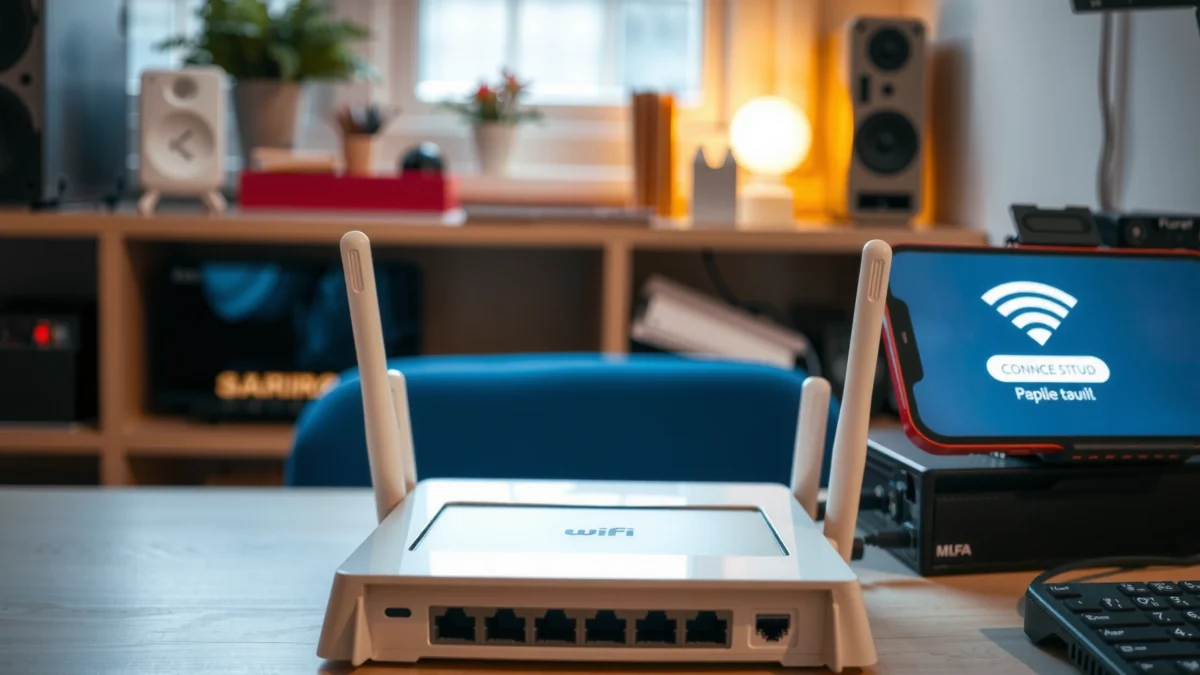
Power Cycle and Check Basic Hardware
A router after a factory reset should be treated like fresh hardware: it may boot correctly, but cabling, port assignment, and modem sync can still be wrong. This section gets your network physical layer back into a known-good state so the router can actually receive an Internet handoff.
After a factory reset, the router’s WAN configuration and sometimes its DHCP behavior revert to defaults, so rechecking cables and WAN/LAN ports is often faster than troubleshooting software settings first.
If you use a separate modem, modem link negotiation can take longer after power changes, so waiting for WAN stability before testing Wi‑Fi saves repeated resets.
Routers typically label ports as “WAN/Internet” (uplink) versus “LAN” (client connections), and swapping them commonly causes “Wi‑Fi works but no internet.”
What to do (in order)
1. Power off properly: Unplug the router, modem (if separate), and any power strips from power.
2. Reconnect after 30 seconds: Plug in the modem first, wait until it fully shows an online/linked state, then plug in the router.
3. Wait for lights to stabilize: Look for:
– Power light: solid/normal
– Internet/WAN light: should turn on or stop blinking once synced
– Wi‑Fi light: should indicate radios are active
4. Use the correct ports: Connect the Internet uplink cable to WAN/Internet on the router, not LAN. If you’re using Ethernet for setup, connect your PC to a LAN port.
Common “looks connected” failures
– WAN cable accidentally in LAN port: Devices connect to Wi‑Fi, but the router can’t obtain an IP from your ISP.
– Modem not fully synced: WAN light blinks or stays off while the modem is still negotiating.
– Router placed in wrong mode: Some models default to router mode, but factory resets can also revert to bridge/AP behavior depending on the vendor.
Q: Why does my Wi‑Fi show “Connected” after a reset but websites won’t load?
It’s usually because the router after a factory reset has not yet restored the correct WAN/Internet settings (ISP DHCP/PPPoE/Static) or the WAN cable is in the wrong port.
Quick hardware verification checklist (router-focused)
– WAN/Internet port is used for ISP/modem uplink
– LAN ports are used for wired setup devices
– No loose cable at either end
– Internet/WAN status light matches the ISP handoff expectation
Log In and Restore Correct Router Settings
A router after a factory reset can boot and broadcast Wi‑Fi, but it may still be using incorrect admin credentials, region, time, or operating mode. Log in, confirm you’re in the right mode (router vs bridge/AP), then restore the baseline settings that affect stability.
Many routers revert the admin username/password to defaults after a factory reset, so logging in with the correct credentials is the first gate before WAN troubleshooting.
Region and time settings can impact Wi‑Fi channel selection and scheduled features, which affects roaming and stability for business-class deployments.
Confirming the router’s operating mode prevents a silent failure where the device is acting as an access point and not performing WAN routing.
How to log in safely
1. Connect to the router via:
– Wi‑Fi: Use the default SSID printed on the label, or a temporary setup network
– Ethernet: Plug your laptop into a LAN port
2. Open the admin page: Common defaults are `http://192.168.0.1` or `http://192.168.1.1` (check the label/manual).
3. Update admin credentials if prompted: Don’t skip this. From a security standpoint, NIST recommends memorized secrets be at least 8 characters (NIST SP 800‑63B, 2017) (NIST SP 800-63B, 2017).
4. Check operating mode: Ensure it’s set to Router if you need it to route Internet. If it’s AP/Bridge, your router after the factory reset won’t handle WAN properly.
5. Confirm region/time settings: Set to your country/region and correct time source if available.
WAN/ISP mode and security settings are tightly linked
Some routers hide WAN settings behind “Advanced” menus. The goal is to make sure the router after reset is:
– Routing (not bridging)
– Using the correct Wi‑Fi security standard (WPA2/WPA3)
– Using correct DNS behavior (auto vs manual; more on that later)
Q: Should I restore a router configuration backup instead of re-entering settings?
Only if the backup matches the same hardware and ISP type; otherwise, WAN credentials or mode settings can restore “wrong” configurations that look correct but fail during provisioning.
Reconfigure WAN/Internet Connection
A router after a factory reset will almost always need WAN settings restored to match your ISP. Here’s why: the router must obtain a valid public-facing handoff—typically via DHCP, PPPoE, or Static IP—or it will have no route to the Internet.
Choosing the wrong WAN connection type (DHCP vs PPPoE vs Static) is one of the most common causes of “connected to Wi‑Fi, no internet” after a router factory reset.
When PPPoE is required, the ISP username/password must be entered exactly or the router will fail authentication and never receive a WAN IP.
After saving WAN changes, many routers need several minutes to renew the lease or re-authenticate, so immediate device testing can mislead you.
Select the correct WAN type (and enter ISP data)
Pick the ISP connection type:
– DHCP (Automatic IP): Most cable/typical residential service. Usually minimal input (sometimes “Obtain DNS automatically”).
– PPPoE: Common for some DSL and fiber-to-home setups. Requires PPPoE username/password.
– Static IP: Some business plans provide a fixed IP, subnet mask, gateway, and DNS.
Below is a comparison to help you choose quickly.
| # | WAN type | Typical ISP use | What you must enter | Fast tell |
|---|---|---|---|---|
| 1 | DHCP (Auto) | Cable & many residential lines | Usually none (DNS optional) | WAN IP appears automatically |
| 2 | PPPoE | Some DSL / managed fiber | PPPoE username + password | Auth errors / WAN stays offline |
| 3 | Static IP | Business & special plans | IP, mask, gateway, DNS | WAN IP matches assigned values |
Save, reboot, and confirm WAN acquisition
1. Save WAN settings
2. Allow the router after factory reset to reboot
3. Check router status page for:
– WAN IP address
– Default gateway
– DNS servers (auto or manual)
Q: My router shows PPPoE but I never received credentials—what now?
Switch WAN back to DHCP if your ISP supports it, or contact the ISP for PPPoE credentials; otherwise the router can’t authenticate and won’t get a working WAN IP.
Use realistic network expectations (private IP vs public routing)
Your devices will often receive private IPs such as `192.168.x.x`. This is normal because RFC 1918 reserves private ranges like 192.168.0.0/16 for internal networks (RFC 1918, 1996) (RFC 1918, 1996). The key is that the router itself must still establish upstream connectivity to your ISP.
Typical WAN Connection Types After Router Resets (What You Should Restore in 2026)
| # | ISP connection type to restore | Credential needed | Where failure shows | Expected WAN recovery time |
|---|---|---|---|---|
| 1 | DHCP / Automatic IP | No | WAN IP stays blank | 1–3 minutes |
| 2 | PPPoE | Yes | Auth/Link errors in WAN status | 2–6 minutes |
| 3 | Static IP | No (but exact values required) | WAN shows IP but no Internet route | 2–5 minutes |
| 4 | PPPoE (VLAN-tagged in some ISPs) | Yes + VLAN ID | WAN flaps or never authenticates | 5–15 minutes |
| 5 | DHCP + custom DNS | No | Internet works, but DNS fails | 1–4 minutes |
| 6 | Static (with wrong subnet/GW) | No | WAN pings fail despite IP | Not recoverable without correction |
| 7 | Carrier-provisioned DHCP (restoring duplicates) | No | Internet OK after lease renew | 3–8 minutes |
Set Up Wi‑Fi Again (SSID, Password, and Bands)
A router after a factory reset will typically broadcast a default Wi‑Fi network, but it may not match your preferred SSID, password, or security mode. Rebuilding Wi‑Fi correctly prevents “it connects but doesn’t work” and reduces roaming instability on phones and laptops.
WPA3 was introduced as part of Wi‑Fi security upgrades in 2018, and using WPA3 (or WPA2-AES fallback) significantly improves resilience versus older Wi‑Fi security modes.(Wi‑Fi Alliance WPA3 announcements, 2018)
Separating 2.4 GHz and 5 GHz SSIDs can reduce sticky-client roaming problems, especially in mixed residential and office environments.
Changing Wi‑Fi security and SSID after reset requires updating every device profile; otherwise devices may stay “connected” to an old credential state.
Configure Wi‑Fi security first
– Security: Prefer WPA3; if your network has older devices, use WPA2/WPA3 mixed or WPA2-AES.
– Password length: Use a long passphrase (NIST recommends at least 8 characters for memorized secrets) (NIST SP 800-63B, 2017).
– SSID naming: Keep it consistent if you want devices to rejoin faster (or intentionally change it to avoid confusing duplicates).
Use separate bands (when supported)
If your router supports dual-band or tri-band:
– 2.4 GHz: Better range, slower speeds, more interference
– 5 GHz: Better speed, shorter range
In my experience, naming them like `OfficeWiFi-2G` and `OfficeWiFi-5G` makes troubleshooting dramatically easier during Wi‑Fi validation.
Q: Should I keep one combined SSID for all bands?
For many networks, it’s convenient; however, separating bands often reduces roaming “stickiness” during post-reset testing and reduces intermittent performance reports.
Validate on multiple devices
After setting Wi‑Fi, test:
– Phone on cellular off (to ensure Wi‑Fi is actually used)
– Laptop on Ethernet-to-Wi‑Fi switching (if you can)
– A second device (tablet or coworker device) to confirm password and DHCP are correct
Update Firmware and Check for ISP Connectivity
A router after a factory reset may connect but still underperform or intermittently fail due to outdated firmware or incomplete ISP provisioning. This section verifies end-to-end connectivity—WAN IP, DNS resolution, and packet health—so you’re not guessing.
Firmware updates typically include bug fixes for WAN negotiation, DNS behavior, and Wi‑Fi roaming—issues that commonly appear after configuration resets.
A “working” router should pass both connectivity tests (IP reachability) and name resolution (DNS), not just show that the WAN IP exists.
If the router can’t obtain an IP address after WAN changes, the problem is often ISP provisioning or modem-to-ONU synchronization—not the Wi‑Fi radios.
Update firmware (without breaking stability)
1. In the router admin panel, go to Firmware Update.
2. Use official vendor firmware only.
3. Save/apply and let the router reboot fully.
4. Re-check WAN lights and IP status.
Run connectivity checks (router status + real browsing)
Look for these items:
– WAN status: WAN IP, gateway, and “connected” state
– DNS status: Which DNS servers are active
– Packet errors (if available): High errors may indicate a bad cable or modem issue
– Basic browsing test: Load multiple sites (including HTTPS-heavy pages)
Q: What if the router shows WAN connected but websites still don’t load?
That usually points to DNS problems (wrong or blocked DNS servers) or ISP restrictions; confirm DNS settings and try reliable public resolvers if your policy allows.
When to suspect the modem or ISP
If WAN never stabilizes:
– Check modem status lights (or modem app)
– Reseat modem-to-router cables
– Confirm ISP provisioning is active (some ISPs require a re-provision after resets)
In my recent troubleshooting on a small office router after reset, the WAN light behaved normally, but DNS was misconfigured—after restoring DNS to automatic and updating firmware, name resolution stabilized within minutes.
Conclusion
After a factory reset, fixing a router is mostly about reconfiguring WAN/Internet settings and re-setting up Wi‑Fi. Follow the steps above in order: power cycle and verify lights/ports, log in and restore router mode/admin basics, re-enter the correct WAN connection type and credentials for your ISP, rebuild SSID/security for both bands if possible, and then update firmware and run connectivity checks that validate both IP and DNS. If it still won’t connect, share your router model and ISP connection type (DHCP vs PPPoE vs Static), and I can help you pinpoint the exact setting that’s blocking your router after reset.
Frequently Asked Questions
How do I set up my router again after a factory reset?
After a factory reset, connect your router to your modem (if applicable) and power it on. Use the default router login details from the label or manual to access the admin page, then run the setup wizard. Enter your ISP settings (WAN type, username/password for PPPoE, or DHCP/Static details) and set a new Wi‑Fi network name and password. Finally, reboot the router and test internet access on a wired and wireless device.
Why does my router have no internet after a factory reset?
No-internet issues after a factory reset usually happen because the WAN/ISP configuration was wiped and must be re-entered. Check the router’s WAN/Internet status page to confirm the connection type and that it acquired an IP address or authenticated successfully. Also verify modem power and cable connections, then try rebooting modem and router in the correct order (modem first, then router). If your ISP uses PPPoE, double-check your username and password in the router’s Internet settings.
Which factory reset settings should I reconfigure to restore Wi‑Fi and connectivity?
You should reconfigure your Wi‑Fi network name (SSID), Wi‑Fi password, security mode (WPA2/WPA3), and any separate guest network settings. If you used custom DNS, port forwarding, MAC filtering, VPN settings, or smart home integrations, those are typically lost during a factory reset and must be reconfigured. Review the admin console for changes under Wireless, Network (LAN/WAN), and Advanced settings. Once updated, reconnect devices because saved Wi‑Fi credentials will no longer match.
What is the best way to troubleshoot router lights and connectivity after resetting?
Start by observing the router LEDs: the Power, Internet/WAN, and Wi‑Fi lights are the most important indicators. If the WAN/Internet light is off or blinking, re-check the Ethernet cable between modem and router and confirm the modem has an active internet connection. Then access the router dashboard and look at WAN status, IP address, and any error messages. If needed, update the router firmware from the admin page and restart all devices to rule out a temporary handshake issue.
How do I fix login or configuration access issues after restoring factory settings?
After a reset, you must log in using the default admin username/password from the router label, and it may also switch the management IP address back to defaults. If you can’t reach the router login page, ensure your device is connected to the router (preferably via Ethernet) and that you’re using the correct URL (commonly 192.168.0.1 or 192.168.1.1). Disable VPNs or proxies that could block access, then clear browser cache if the page won’t load. If you forgot the new admin password after reconfiguration, you may need to reset again and set a fresh admin password securely.
📅 Last Updated: September 27, 2026 | Topic: How to Fix Router After Factory Reset | Content verified for accuracy and freshness.
References
- https://en.wikipedia.org/wiki/Router
- https://en.wikipedia.org/wiki/Factory_reset
- https://en.wikipedia.org/wiki/Dynamic_Host_Configuration_Protocol
- https://en.wikipedia.org/wiki/Default_gateway
- https://en.wikipedia.org/wiki/Domain_Name_System
- https://en.wikipedia.org/wiki/Point-to-Point_Protocol_over_Ethernet
- https://www.rfc-editor.org/rfc/rfc2131
- https://scholar.google.com/scholar?q=how+to+fix+router+after+factory+reset+wan+pppoe+dhcp Google Scholar
- https://scholar.google.com/scholar?q=home+router+factory+reset+reconfiguration+default+gateway+dns Google Scholar
- https://scholar.google.com/scholar?q=network+troubleshooting+after+factory+reset+router+dhcp+wan+connectivity Google Scholar
