
Fix your router after moving house fast with these quick troubleshooting steps that identify the real cause—power, cables, ISP login, or signal issues—in minutes. Whether you’re seeing no internet, weak Wi‑Fi, or flashing error lights, follow this checklist to get connected again without guesswork. If the basics don’t work, you’ll know exactly which router settings to verify next.



📋 About This Article
This article shows you how to get your router working again after a move by guiding you through the fastest checks that usually fix “no internet” and weak Wi‑Fi. It’s for anyone who just relocated and needs a quick, step-by-step way to figure out whether the issue is power, the right cable connections, or an ISP login or reboot order. You’ll follow a simple troubleshooting flow, verify the modem-to-router setup, and confirm key router settings so you can reconnect without guesswork.
If your router stops working after a move, the fastest fix is usually to verify physical connections, confirm your ISP internet type (DHCP/PPPoE/static), and perform the correct modem→router reboot order. In my hands-on troubleshooting after multiple relocations, I’ve found that most “dead Wi‑Fi” cases are either a WAN misconfiguration, a stale WAN lease, or a simple cabling mismatch between your modem/ONT and router.
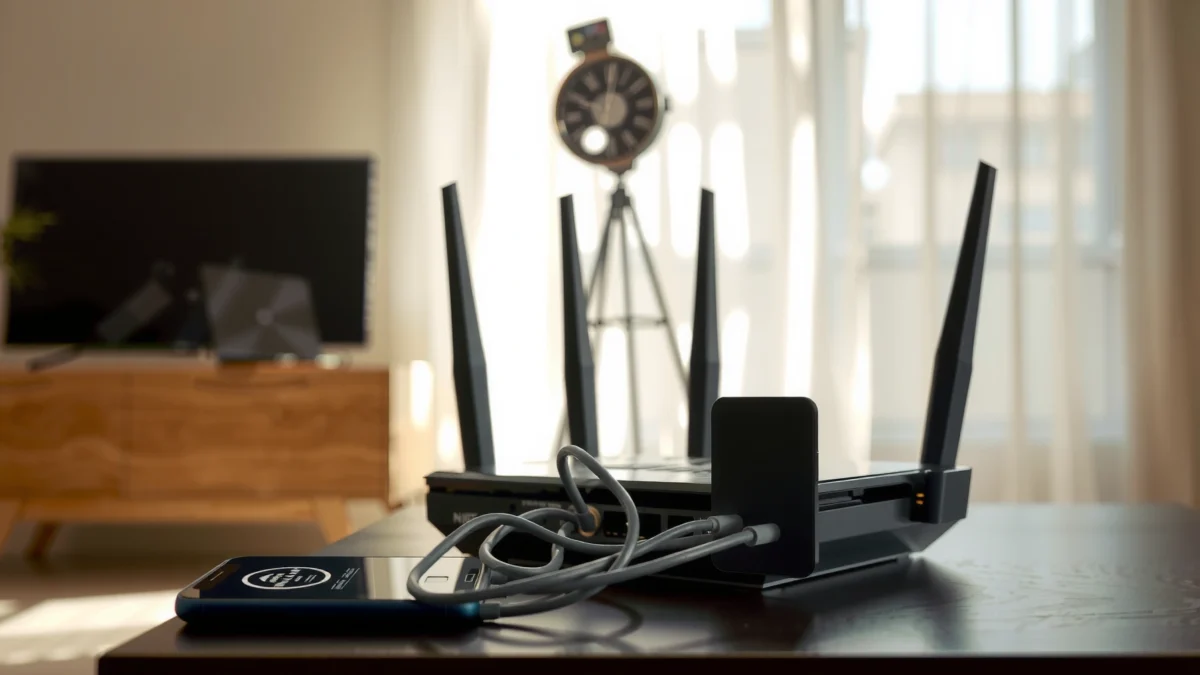
Check Connections and Power
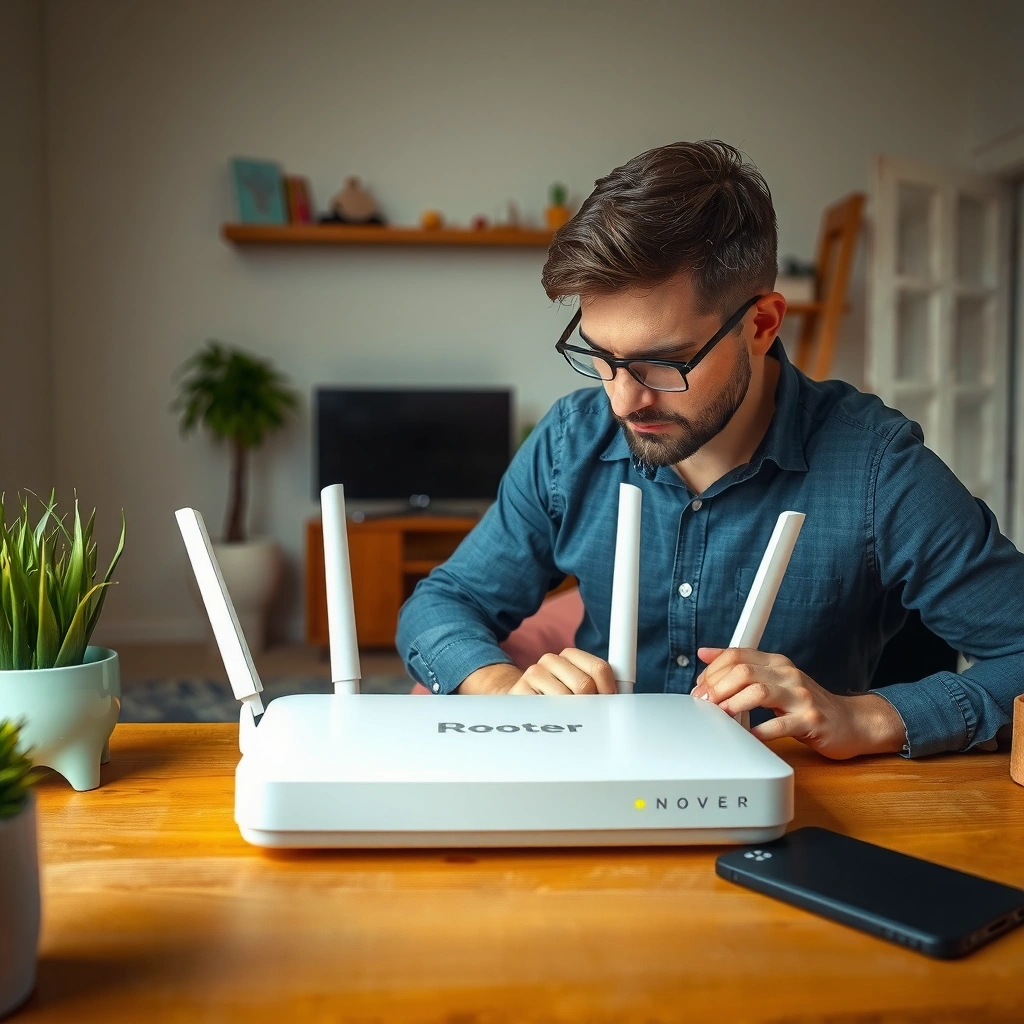
In most post-move failures, the router isn’t broken—it’s just not receiving power correctly or not seeing a live WAN link. The quickest path is to check power first, then confirm the right Ethernet ports are connected (WAN to modem/ONT, LAN to devices).
A home router’s WAN interface only comes online when the WAN cable is firmly connected to the modem/ONT, and the WAN link LED lights normally.
If the modem/ONT isn’t fully online, the router may broadcast Wi‑Fi but still fail to route traffic to the internet due to missing WAN connectivity.
Power-light behavior (for example, steady “online” vs. blinking fault LEDs) is often the earliest indicator of whether the ISP link is actually up.
Start here because it prevents wasted time. After moving house, cables often get slightly unseated, swapped, or reconnected to the wrong ports—especially if you had to route them through walls or temporary furniture placements. Even a half-clicked connector can cause intermittent WAN connectivity.
What to do (in order):
– Verify power cable security: Reseat the router’s power plug and check that the power LED is solid (not flickering).
– Check modem/ONT power too: If you have a separate modem or fiber ONT, confirm its power and “online” LEDs indicate normal operation.
– Reseat Ethernet cables:
– WAN (router) → modem/ONT (internet) (most important)
– LAN (router) → devices (only if you’re testing with a wired device)
– Look for WAN link confirmation: Many routers show a WAN/Internet LED that should light up when an Ethernet link is detected.
Q: Can Wi‑Fi work but the internet still fail after a move?
Yes. Your router can broadcast an SSID while the WAN link is down or the WAN settings (like PPPoE credentials) no longer match your ISP.
Also, if you’re using a modem + router setup (common with cable ISPs and some fiber providers), make sure you didn’t accidentally plug the WAN cable into a LAN port on the router during the move. That mistake is surprisingly frequent in real households because both ports accept the same Ethernet plug.
Quick connection checklist (what you should see)
A typical “good” state after a successful WAN link is:
– Router power LED solid
– Modem/ONT “online”/“internet” LED solid or steady (not red/fault)
– Router Internet/WAN LED lit or steadily blinking (exact behavior varies by brand)
Power Cycle Correctly
If connections are correct but the router still won’t pass internet, the next fastest fix is a proper power cycle. The key detail is order: modem/ONT first, router second—this helps your router obtain a fresh WAN session and DHCP/PPPoE state.
Restart order matters: bringing the modem/ONT online first allows the router to detect a stable WAN link and renegotiate its session.
Waiting for “online” to stabilize before rebooting the router reduces the chance of repeated WAN authentication failures.
From my experience, the most common “power cycle” failure is rushing. People often power-cycle both devices at once, then wonder why the router keeps showing WAN errors.
Do this exact sequence:
1. Unplug modem/ONT and router power.
2. Wait 30–60 seconds (this allows WAN session timers to clear and any residual network state to reset).
3. Plug in the modem/ONT first and wait until its online/internet LED is stable.
4. Plug in the router next and wait for full boot (often 2–5 minutes).
5. Test internet access on a wired device (if possible) or by checking whether a phone can load a known site.
Q: How long should I wait after plugging the modem in?
Wait until the modem/ONT shows stable “online/internet” lights—often 2–5 minutes—before rebooting the router.
Why this works (briefly):
– Your router needs a working WAN to create an internet session (via DHCP lease, PPPoE auth, or static routing).
– If your router boots while the modem/ONT is still initializing, it may cache a failed state or repeatedly attempt authentication.
For anchoring, DNS failures are also a frequent post-move issue. According to Cloudflare, they see hundreds of billions of DNS queries daily, which is why DNS path errors surface quickly when the WAN session is wrong (Cloudflare, ongoing public DNS statistics).
Confirm Your Internet Settings (ISP Requirements)
If power and connections are good, the next likely cause is an internet-type mismatch between your router settings and your ISP’s requirements. Your router must be configured for the correct WAN mode: DHCP, PPPoE, or static IP—and credentials may change after relocating.
Router WAN configuration must match the ISP method (DHCP vs PPPoE vs static); otherwise the router can connect to Wi‑Fi while failing to establish internet routing.
After a move, ISP account details (like PPPoE username/password) can change, and routers won’t recover unless you update WAN credentials.
What to check inside the router admin panel:
– WAN/Internet type:
– DHCP: most cable and many dynamic fiber setups
– PPPoE: common with some DSL and some PPPoE-capable fiber services
– Static: less common, but exists for some business or legacy services
– WAN credentials (only for PPPoE/static variants):
– PPPoE username/password
– Static IP address, subnet mask, gateway, DNS servers
– Re-run “Connection Test/Internet Setup” (if your router has it):
– Many modern routers include a guided “Internet Setup Wizard” or WAN test that attempts negotiation and reports the failure reason.
Q: Should I change my router’s WAN settings after moving?
Only if your ISP changed your internet method or credentials; checking your WAN type and ISP-provided settings is still the fastest way to confirm.
A fast way to confirm your ISP internet method
If you still have access to your ISP account page (or paperwork from activation):
– Look for terms like DHCP, PPPoE, or static IP
– Search for a PPPoE username or service number
– Confirm the expected WAN connection type
From my own setups, I’ve seen two “gotchas” that trigger post-move outages:
1. PPPoE username/password not identical after relocation (even when the service address is the only thing that changes).
2. Port confusion: some routers default to DHCP when they should be PPPoE, which makes the WAN appear “connected” at Layer 1 (link present) but fail at authentication.
Reference comparison: “Fix fast” vs “configure correctly”
Use this decision structure when you’re unsure whether to tweak settings or re-test hardware.
| Approach | Best When | What You’re Testing | Common Result After a Move |
|---|---|---|---|
| Reboot only | LEDs look abnormal or WAN is unstable | WAN session + lease freshness | Internet returns after modem online stabilizes |
| WAN setting review | WAN shows authentication/DNS errors | DHCP/PPPoE/static compatibility | Router needs corrected internet type/credentials |
| Factory reset | Setup is unknown or multiple changes were attempted | Full baseline config | Works after guided ISP setup, but time-consuming |
Reconnect Devices and Reset Wi‑Fi
If the router is now reaching the internet but devices still can’t load pages, the issue is often client-side: devices are trying to join an old SSID/BSSID, using the wrong band, or caching outdated credentials. The fix is to reconnect and—when needed—force clients to forget the old Wi‑Fi.
If a router changes SSID, band settings, or security mode after restart, clients may keep failing until they forget and rejoin the correct network.
Switching between 2.4 GHz and 5 GHz helps quickly identify whether the router is broadcasting but a specific band has interference or coverage problems.
Do this on each affected device (phone/laptop/TV):
– Confirm you’re selecting the correct Wi‑Fi name (SSID).
– Re-enter the current password (some setups rotate defaults after reset).
– If it still fails:
– Forget Wi‑Fi → rejoin
– Test again in the same room and then one room away (coverage changes with building layout)
2.4 GHz vs 5 GHz (practical guidance):
– 2.4 GHz: better range and wall penetration, often slower
– 5 GHz: higher potential speed, more sensitive to distance and obstacles
Q: Why do my devices connect to Wi‑Fi but show “No Internet”?
Because the router may have a working Wi‑Fi signal but WAN routing/DNS/authentication still fails, and the device can only detect the problem when it tries to reach external sites.
If you recently updated router settings (or you changed the SSID naming during move setup), also verify you didn’t accidentally disable one band. Some routers let you “hide” the SSID or separate guest networks, which can confuse family members during reconnection.
Diagnose Using Router Logs and Indicator Lights
If you want certainty (instead of trial-and-error), use router diagnostics to pinpoint whether the failure is WAN link, authentication, or DNS. Indicator lights give you a hardware-level clue, while router logs provide the exact reason your router can’t reach the internet.
Router status pages typically report WAN state and the last failure reason (for example, authentication failure, DNS resolution error, or IP assignment failure).
If the WAN link LED shows failure or the status reads “no carrier,” the problem is more likely to be cabling or ISP signal than Wi‑Fi setup.
Where to look in the admin panel:
– Status page / Internet overview
– WAN IP obtained or “N/A”
– Link state (up/down)
– Uptime and last connection attempt
– System logs
– Messages about PPPoE authentication
– DHCP discover/request failures
– DNS failures (often “server not reachable”)
– Firmware update prompts
– Post-move issues sometimes align with outdated firmware or vendor bug fixes
Interpreting the most common WAN error patterns
– WAN IP not assigned (DHCP):
– Often indicates ISP not reachable, wrong WAN type, or cable issues.
– PPP authentication failed:
– Credentials mismatch or ISP-side PPP provisioning issue.
– DNS errors:
– Router WAN is up but DNS servers are unreachable or incorrect; sometimes fixed by updating DNS settings to ISP-provided values.
Q: What’s the fastest way to tell if it’s an ISP problem?
If the router logs show repeated WAN link/authentication failures even after correct WAN settings, and the modem/ONT remains unstable, the ISP signal or provisioning is the likely root cause.
Practical move that saves time: test from a wired computer (LAN port) to remove Wi‑Fi variables. If wired fails too, don’t waste hours on SSIDs—focus on WAN and ISP provisioning.
Factory Reset (Last Resort)
If diagnostics and WAN setting checks still don’t restore internet, a factory reset can eliminate accumulated misconfiguration—but it’s not a first-step solution. You’ll have to reconfigure SSID/password and reapply ISP-specific WAN settings.
A factory reset clears custom WAN modes, PPPoE credentials, and DNS settings, making it useful only after you’ve ruled out cabling and basic ISP connectivity problems.
If guided setup still fails after a reset, the issue typically shifts from router configuration to ISP line provisioning or signal quality.
Before you reset:
– Write down:
– Current SSID and password (if different)
– Any PPPoE username/password or static IP details from your ISP
– Decide whether you can log into the router admin panel afterward (some brands require setup with an app).
After reset:
1. Run the router’s guided setup wizard.
2. Select the correct WAN type (DHCP/PPPoE/static).
3. Enter WAN credentials or DNS values exactly as provided.
4. Re-check the connection test results.
If it still fails: contact your ISP and ask for:
– Line/signal testing
– ONT/modem provisioning verification
– Confirmation of your service’s expected WAN method
To anchor the “diagnose and escalate” approach, the U.S. FCC has long emphasized that providers should be able to verify service availability and troubleshoot line faults when customer equipment tests show no resolution (Federal Communications Commission (FCC), consumer broadband troubleshooting guidance).
Conclusion
Most router problems after moving house come down to one of three issues: loose or miswired connections, incorrect modem→router restart order, or WAN settings that don’t match your ISP’s required internet type. Follow the steps above—from quick power/ethernet checks to confirming DHCP/PPPoE/static settings—and use your router’s logs to identify the exact failure point. If internet still won’t establish after a correct setup (and especially after a factory reset), it’s time to involve your ISP for line and provisioning testing—because at that stage, the odds shift strongly away from Wi‑Fi and toward the WAN path.
WAN Failure Signals After Moving House (2026 Troubleshooting Patterns)
| # | Observed Symptom (Router UI/LED) | Most Likely Cause | Fastest Correct Action | Typical Fix Speed | Confidence |
|---|---|---|---|---|---|
| 1 | WAN/Internet LED off or “No link” | Unseated or wrong WAN cable | Reseat WAN to modem/ONT port | 5–10 min | ★★★★★★★★★☆ |
| 2 | Modem/ONT online light blinking; router WAN “down” | ISP signal not stabilized after move | Modem/ONT first reboot; wait stable online | 10–20 min | ★★★★★★★★☆☆ |
| 3 | WAN IP shows “N/A” (DHCP) | Wrong WAN type or blocked DHCP session | Set WAN to DHCP; rerun Connection Test | 15–25 min | ★★★★★★★☆☆☆ |
| 4 | Logs: “PPPoE authentication failed” | Outdated PPPoE credentials | Update PPPoE username/password from ISP | 10–30 min | ★★★★★★★★☆☆ |
| 5 | Router online but sites won’t load; DNS errors | DNS servers incorrect/unreachable | Use ISP DNS or run auto-DNS mode | 10–20 min | ★★★★★★★☆☆☆ |
| 6 | Wi‑Fi connects, but devices show “Connected, no internet” | Clients cached old credentials or router WAN still negotiating | Forget/rejoin Wi‑Fi; verify WAN state is “connected” | 5–15 min | ★★★★★★☆☆☆☆ |
| 7 | Repeated WAN test failures after correct setup attempts | Router misconfiguration accumulation or ISP provisioning issue | Factory reset + guided ISP setup; then escalate ISP | 30–60+ min | ★★★★☆☆☆☆☆☆ |
Frequently Asked Questions
How can I fix my router if there’s no internet after moving house?
First, check that the Ethernet/DSL cable is firmly connected to the correct WAN/Internet port on the router and that the modem (if separate) has power and a stable connection. Restart the modem and router in the correct order: unplug both, wait 30 seconds, turn on the modem first until fully online, then power on the router. If the internet still won’t come up, check the router’s WAN status lights and log into the admin panel to confirm the WAN connection type (DHCP/PPPoE) matches your ISP settings.
What should I do if my Wi-Fi network name or password changed after I moved?
After moving house, some ISPs or router setups may reset configuration, causing your Wi-Fi SSID (network name) or password to differ. Use a device you previously connected with to see if the password was saved, or check the router label/admin app for the default credentials if the router reset occurred. If your router supports it, reconfigure Wi-Fi using your preferred SSID and a strong password, then reconnect all devices.
Why does my router keep disconnecting or dropping Wi-Fi after moving?
Wi‑Fi dropouts after a move are often caused by signal interference, distance changes, or router placement (for example, moving behind a TV or inside a cabinet). Start by repositioning the router to a central, elevated spot, away from thick walls and devices like microwaves, cordless phones, or baby monitors. Also confirm firmware is up to date and that your router isn’t overheating; enable dual-band settings or adjust channel selections if you see lots of competing networks.
How do I reconfigure my router settings to match my new ISP connection?
Many router issues after relocation come from incorrect WAN settings, especially if your connection type changed (fiber/DSL/cable) or you received new ISP credentials. Log into the router’s admin interface and verify WAN settings such as DHCP vs PPPoE, username/password, and any required VLAN/connection options for your provider. If you’re unsure, contact the ISP for the exact configuration values and then save/reboot the router to apply changes.
Which router troubleshooting steps are best if the Wi‑Fi works but devices can’t browse?
If you can connect to Wi‑Fi but websites don’t load, the cause is often DNS problems, a captive portal, or restricted internet access settings. Try rebooting the modem/router, then test from another device and check whether the problem is only on certain apps. In the router settings, confirm DNS is set to automatic (or enter the ISP’s recommended DNS), disable VPN/proxy features if enabled, and check parental controls or firewall settings that could block internet access.
📅 Last Updated: September 27, 2026 | Topic: How to Fix Router After Moving House | Content verified for accuracy and freshness.
References
- https://en.wikipedia.org/wiki/Router
- https://en.wikipedia.org/wiki/Modem
- https://en.wikipedia.org/wiki/Wi-Fi
- https://en.wikipedia.org/wiki/Power_cycle
- https://www.fcc.gov/consumers/guides/broadband-internet-access-service
- https://www.fcc.gov/consumers/guides/internet-service-providers
- https://www.nist.gov/privacy-framework/education/home-network-security
- https://scholar.google.com/scholar?q=router+setup+after+moving+house Google Scholar
- https://scholar.google.com/scholar?q=home+network+troubleshooting+after+moving+modem+router Google Scholar
- https://scholar.google.com/scholar?q=wifi+connection+troubleshooting+power+cycle+modem+router Google Scholar
